 Effortlessly manage data through preview, delete, export, etc.

 100% Security Verified | No Subscription Required | No Malware

 :
: 
 ChatGPT
 Perplexity
 Gemini
 Claude
 Grok
Grok

I keep enabling “hidden” features everyone recommends, but a week later I either forget they exist or they start feeling like extra friction.
Reddit user, r/samsung
“Best” feature lists rarely match how you actually use your phone day to day, so it’s easy to enable things you don’t stick with—or miss the ones that would help most.
AI can help you turn vague goals (“be faster,” “less distracting,” “better battery”) into a clearer set of trade-offs, so you’re choosing features that fit your habits—not just what’s popular.
AI can’t confirm your real-world friction (muscle memory, interruptions, notification anxiety, one-hand comfort), and once you decide, the practical work—setting up a new phone, cleaning up an old one, or transferring data—still matters.
1. Choose behaviors, not “best features.”
Most One UI features overlap (speed, focus, privacy, automation), but they cost different things (setup time, attention, battery, complexity).
2. Give AI your context so it can compare trade-offs.
Your pain points, daily contexts, and tolerance for tinkering determine which 2–3 features you’ll still use after a week.
3. Validate with a 7-day test, then execute the practical setup.
Once you decide, follow through (transfer essentials, clean clutter, prep resale) so your new routine isn’t derailed by messy data or device issues.
In this article
- How to Compare Hidden Samsung Features Based on Real Priorities
- Think in trade-offs (what you gain vs what you give up)
- Pick 2–3 features you’ll still use after a week
- Common “feature overlap” traps
- Examples of real priorities (speed, focus, privacy, automation)
- What the AI Needs to Compare
- Using AI Prompts to Evaluate More Clearly
- When to Stop Researching and Make the Call
- After Choosing: Switch or Prepare Smoothly with Dr.Fone
Part 1. How to Compare hidden samsung features to improve daily use Based on Real Priorities
You’re not choosing a phone—you’re choosing behaviors: which hidden or underused Samsung/One UI features you’ll actually adopt. The problem is that many features overlap (automation, quick access, privacy, focus), but they “cost” different things: setup time, attention, battery, or complexity.
A common tension: do you want fewer taps (Edge panels, One-handed mode, One UI shortcuts), fewer distractions (Focus modes / Do Not Disturb), more control (Secure Folder, permission/notification tuning), or more automation (Modes and Routines)?
The uncertainty usually isn’t “which is best,” but “which two or three will still feel worth it after a week,” and which will quietly add friction.
Part 2. What the AI Needs to Compare
Share the essentials so the AI can compare fit instead of listing features.
- Your main daily pain points (e.g., too many notifications, slow one-handed use, forgetting tasks, messy home screen)
- Your typical contexts (work, commuting, workouts, evenings, driving)
- Your tolerance for setup and tinkering (low / medium / high)
- Your priorities (speed, focus, privacy, battery, simplicity, accessibility)
- Your current habits (gesture navigation, widgets, always-on display, lock screen use)
- Any constraints (battery sensitivity, privacy needs, work device policies, family sharing)
Part 3. Using AI Prompts to Evaluate hidden samsung features to improve daily use More Clearly
Use these prompts to force a trade-off-driven comparison (what you gain, what you give up, and what you’ll likely keep using).
3-1. Level 1: Basic Prompt
Compare these Samsung/One UI features for improving daily use: Modes and Routines, Edge panels, One-handed mode, and Secure Folder.
Ask me 5 questions about my habits, then recommend the top 2 to enable first and explain why.
3-2. Level 2: Advanced Prompt
I want to improve daily phone use with hidden Samsung features but I only want to maintain 2–3 of them long-term.
Compare Modes and Routines vs Edge panels vs One-handed mode vs Secure Folder vs Focus mode/Do Not Disturb by:
(1) best-fit user type, (2) setup effort, (3) daily payoff, (4) likely annoyances/regret points, and (5) what I’d be giving up if I don’t use it.
3-3. Level 3: Evidence Prompt
Here’s my context:
- Phone use: [work/personal], average daily screen time: [x], biggest frustrations: [list 2–4]
- Situations: [commute/meetings/gym/bedtime], notification volume: [low/med/high]
- I’m willing to spend: [10/30/60] minutes setting up features
Recommend exactly 3 Samsung/One UI features (from Modes and Routines, Edge panels, One-handed mode, Secure Folder, Focus mode/Do Not Disturb, Link to Windows) and rank them.
For each one, explain what I gain vs what I give up.
Also identify one assumption about my habits that—if wrong—would change your recommendation.
3-4. Prompt Refinement (Follow-up Prompts)
Which recommendation depends most on me being consistent, and what’s the simplest “minimum viable setup” so it still helps even if I’m lazy?
If I hate fiddling with settings, which feature gives me the highest payoff with the lowest ongoing maintenance—and what do I lose by choosing it?
What’s the most likely regret for each option after 7 days (annoyance, battery worry, extra prompts, complexity, distraction)?
Force a choice: if I can only keep one feature, which one reduces the most friction across my day, and what specific moments will I notice the difference?
What’s the “silent downside” of automation (Modes and Routines) for me—missed triggers, unexpected changes, or cognitive overhead—and how do I prevent it?
If privacy is my top priority, compare Secure Folder vs simply tightening permissions/notifications—what’s the trade-off in convenience?
3-5. AI Recommendation vs Real-World Fit
| Likely AI recommendation or conclusion | What real-life use may change or reveal |
|---|---|
| “Use Modes and Routines to automate repetitive changes.” | Triggers may misfire (location/Wi‑Fi timing), and unexpected mode switches can feel annoying unless you keep rules simple. |
| “Edge panels reduce taps and speed up multitasking.” | You might forget it exists or find the swipe handle conflicts with your gestures/case grip. |
| “One-handed mode improves reachability immediately.” | It can feel visually cramped or slower if you already use gestures well; comfort depends on hand size and device width. |
| “Secure Folder is best for privacy separation.” | Extra sign-ins and duplicated apps can add friction; you’ll only keep it if you truly need separation (work/personal, shared device, sensitive files). |
AI can clarify likely fit and trade-offs, but hands-on use, workflow friction, and daily habits ultimately decide whether a feature sticks.
Part 4. When to Stop Researching hidden samsung features to improve daily use and Make the Call
- You can name your top 2 daily annoyances and map each to one feature that directly reduces them.
- You’ve chosen no more than 3 features to try first (to avoid “settings sprawl”).
- You can state the cost you accept (setup time, slight complexity, extra authentication, or learning curve).
- You’ve defined a 7-day test: what success looks like (fewer missed tasks, fewer distraction checks, faster one-hand actions, cleaner separation).
At that point, you’re not missing information—you’re ready to validate with real use.
Part 5. After Choosing hidden samsung features to improve daily use: Switch or Prepare Smoothly with Dr.Fone
Once you’ve decided what you’ll actually use, the practical follow-through matters—especially if you’re moving to a new phone, consolidating accounts, or prepping an old device for handoff/resale without losing what you need. If your setup process also involves system instability (boot issues, black screens, or update-related glitches), Dr.Fone - System Repair (Android) can help you address Android system errors so you can keep moving.
 Fix Android instantly – no skills needed.
- Solve boot loop, black screen, won’t turn on, etc.
- High success rate for all system issues.
- User-friendly interface with easy-to-follow steps.
5-1. What to do after you decide (transfer, cleanup, handoff)
- Transfer what you’ll keep: Move your core data (photos, contacts, messages where supported, and key files) to the phone you’ll use day-to-day. Limitation: Some app-specific settings and certain secure/DRM-protected data may not transfer and may require in-app sign-in or reconfiguration.
- Clean up before you commit: Reduce clutter (duplicate photos, unnecessary files) so your “new routine” isn’t weighed down by old noise. Limitation: Cleanup tools can’t judge sentimental value—review before deleting, especially for photo libraries.
- Prepare an old phone for resale or handoff: Follow secure cleanup workflows so personal data isn’t left behind when you pass the device on. Limitation: Your device’s OS security features and factory reset steps still matter; always verify removal of accounts and activation locks.
5-2. Android System Repair (if setup issues derail your plan)
-
Step 1 Open System Repair in Dr.Fone
Launch Dr.Fone and go to the System Repair tool so you can start diagnosing Android system errors.

-
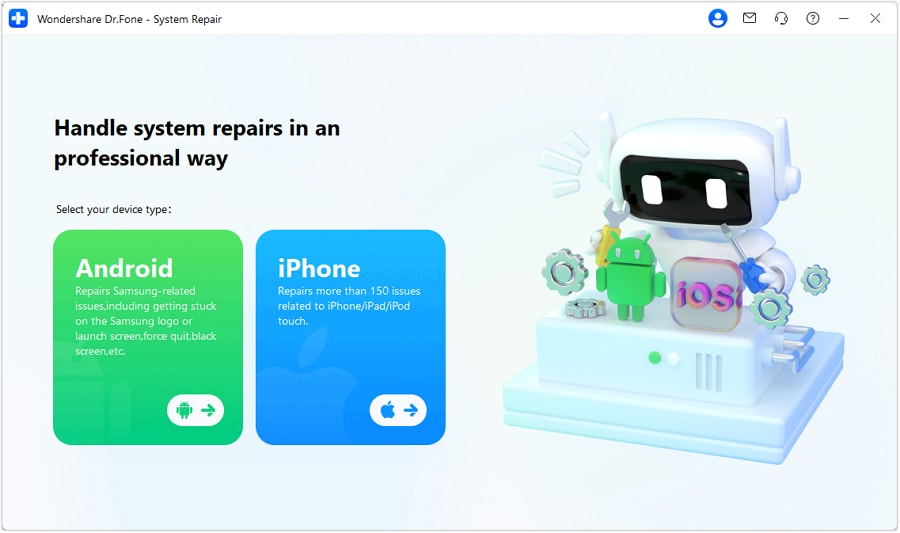
Step 2 Select Android as the device type
Choose Android to ensure the repair workflow matches your Samsung device.
-
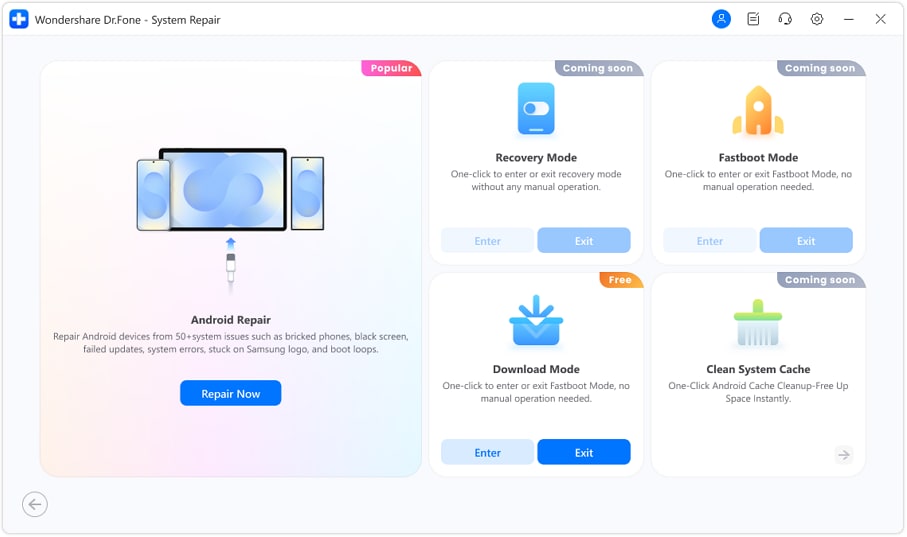
Step 3 Choose Android Repair
Select the Android repair option to proceed with system-level troubleshooting.
-
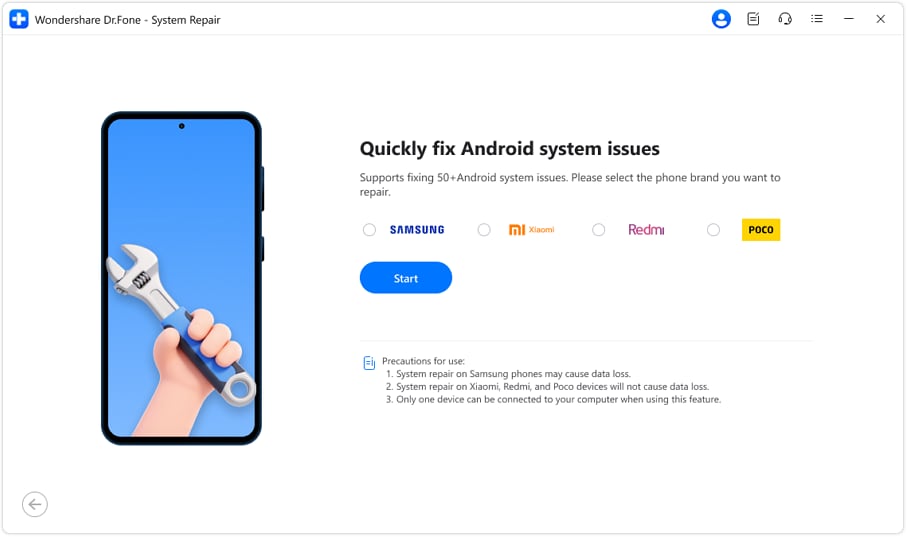
Step 4 Pick the specific brand and follow the on-screen steps
Select your device brand (for example, Samsung) and complete the guided process shown in the tool.




Conclusion
AI is strongest as decision support: it helps you compare trade-offs, clarify priorities, and choose a small set of features to try; real daily use is the proof, and if switching/cleanup/resale is part of your plan, Dr.Fone can help you execute the practical next steps smoothly.
FAQ
-
Can I trust AI to choose the best hidden Samsung features for me?
Trust it to structure trade-offs and highlight fit; don’t trust it to know what annoys you in practice (extra prompts, friction, forgetting a feature exists). -
What’s the single biggest trade-off across these features?
Convenience vs complexity: the more powerful the feature (especially automation), the more it can add setup/maintenance and “unexpected behavior” risk. -
How do I avoid a generic, spec-like checklist of features?
Force the comparison to start from your daily pain points and contexts (commute, meetings, bedtime) and limit yourself to 2–3 features for a week. -
Which features are most “set-and-forget”?
Typically One-handed mode and Focus mode/Do Not Disturb are simpler to maintain than deep automation, but the best answer depends on your routines and tolerance for tweaking. -
What should I prepare after I choose?
A short 7-day test plan, plus a backup/transfer plan if you’re switching devices or cleaning up for resale. -
If I’m switching phones, what should I do first: set features up or transfer data?
Transfer and organize your essentials first, then enable features—otherwise you may automate or customize around a setup that changes once your real data is in place.
 Add Wondershare Dr.Fone as a preferred source on Google





