 Effortlessly manage data through preview, delete, export, etc.

 100% Security Verified | No Subscription Required | No Malware

 :
: 
 ChatGPT
 Perplexity
 Gemini
 Claude
 Grok
Grok

I don’t need the “best phone overall.” I need a phone my parent can answer every time, read without squinting, and charge without getting locked out or overwhelmed—so I’m not troubleshooting it every week.
Forum user
Generic “best phone” lists usually miss the point for parents and seniors: the best phone is the one they can use confidently every day, with the least friction.
In this article
- Using AI prompts to evaluate more clearly
- Level 1: Basic prompt
- Level 2: Advanced prompt
- Level 3: Evidence prompt
- Prompt refinement
- How to compare based on real priorities
- What the AI needs to compare
- When to stop researching and make the call
- After choosing: switch or prepare smoothly with Dr.Fone
Part 1. Using AI prompts to evaluate best phones more clearly
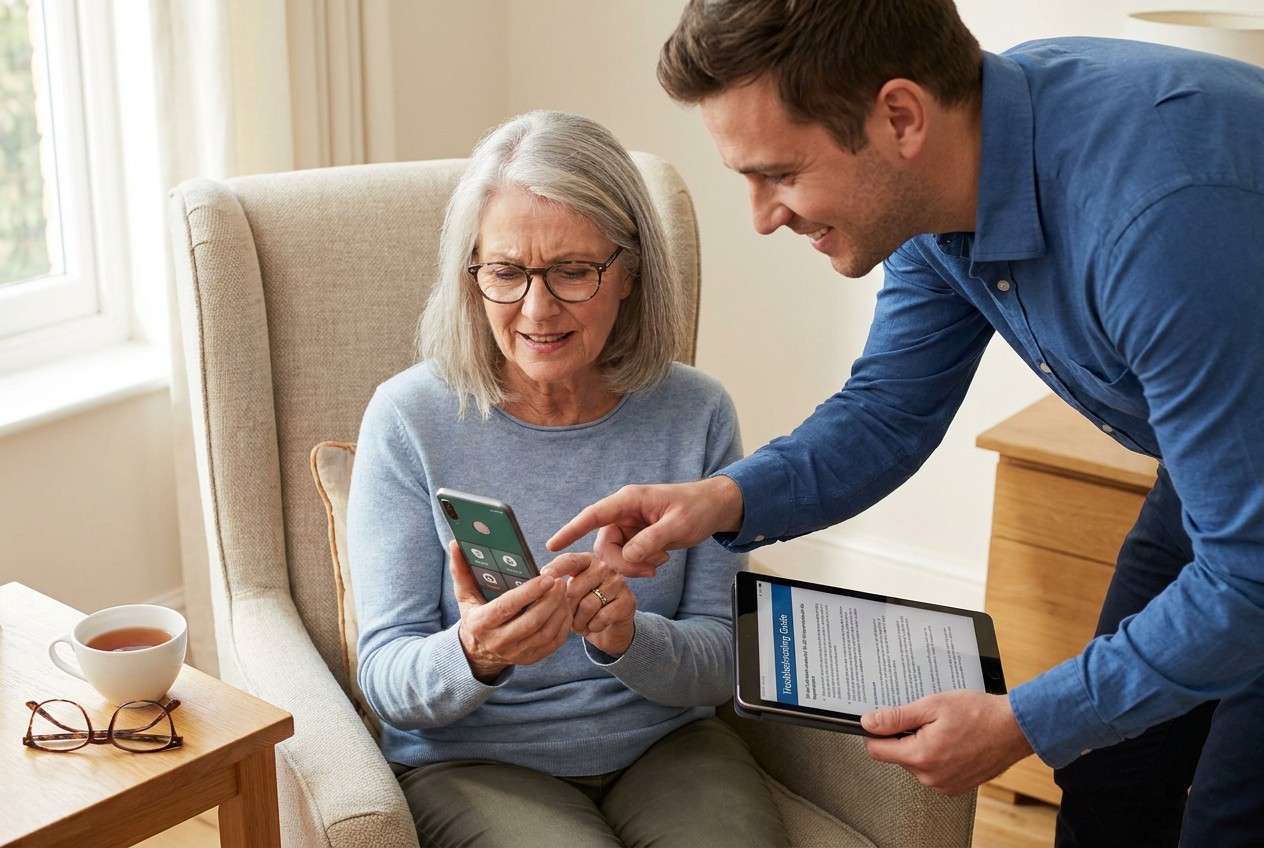
AI can help you turn vague goals like “easy” and “simple” into a clear trade-off map—so you can compare options based on what actually reduces confusion, missed calls, and support requests.
What AI can’t validate is real-life comfort (hand feel, glare, hearing in noisy places, and habit change). Use AI to narrow choices, then rely on hands-on testing and a clean setup to make the phone stay usable long-term.
1-1. Level 1: Basic prompt
I’m choosing a best phone for parents and seniors with simple setup between: [Option A], [Option B], and [Option C].
Compare them for ease of setup, day-to-day simplicity (calls/texts), and how much family support they’ll need.
Keep it practical and focus on trade-offs.
1-2. Level 2: Advanced prompt
Act as a decision assistant.
Compare [Option A] vs [Option B] vs [Option C] for a senior user with these priorities (ranked): [1–5 priorities].
For each option, explain: (1) who it fits best, (2) what will feel easiest, (3) what will cause confusion or support requests, and (4) which setting/constraint (vision/hearing/mobility/tech comfort) could make it a poor fit.
1-3. Level 3: Evidence prompt
Here’s the real context: [age range], current phone: [model], biggest issues: [missed calls / tiny text / spam / charging / passwords / app confusion].
They mainly use: [calls, texts, photos, WhatsApp, video calls].
Support is provided by [me in-person weekly / remote only / caregiver].
Recommend one option from [Option A/B/C] and justify it.
For each option, list what they gain and what they give up in real use.
Also name one key assumption you’re making that would flip your recommendation, and tell me what to choose if that assumption is false.
1-4. Prompt refinement (follow-up prompts)
Rank the options by “lowest likelihood of lockouts and panic moments” (forgotten passcode, missed calls, accidental settings changes). Explain why.
Compare the options assuming the user will not learn new habits (they will keep tapping the same way they do now). Which option tolerates that best?
Identify the top 3 regret points for each option after 30 days (example: spam calls, confusing notifications, charging routine, keyboard/typing).
If I prioritize remote support (helping from another city), which option reduces friction the most and what setup choices matter (accounts, backups, updates)?
Assume the user has vision challenges and dislikes reading. Which option offers the clearest path to “I can answer calls and read messages reliably” without constant adjustments?
Compare mainstream smartphone vs senior-focused phone specifically: what simplicity do I gain, and what everyday tasks become harder or impossible?
1-5. AI recommendation vs real-world fit
| Likely AI recommendation or conclusion | What real-life use may change or reveal |
|---|---|
| “Pick the simplest interface and biggest readability.” | Hand comfort, screen glare, and whether they can reliably hit on-screen buttons can outweigh “simple UI.” |
| “Choose the ecosystem the family already uses to reduce support.” | Family familiarity helps, but the user may still struggle with notifications, app switching, or password prompts. |
| “Avoid ‘power user’ phones; prioritize stability and updates.” | Update prompts and new UI changes can still confuse the user unless settings and expectations are managed. |
| “Bigger screen is better for seniors.” | Bigger can be heavier and harder to hold; pocketability and one-hand use may matter more than expected. |
AI can clarify likely fit and trade-offs, but hands-on use, workflow friction (unlocking, answering, charging), and daily habits ultimately determine satisfaction.
Part 2. How to compare best phones based on real priorities
Most people aren’t choosing between “Phone A vs Phone B.” They’re choosing between a support burden and an everyday routine that works: unlocking, answering calls, reading texts, charging, remembering passwords, and handling spam.
The tension is usually this: a “simple” phone can reduce complexity but may limit what family expects (video calls, photos, apps), while a mainstream smartphone can be familiar to the family helper but overwhelming for the user.
Senior-focused / “simple” phone: what you gain
- Less complexity can mean fewer wrong taps and fewer settings changes by accident.
- A narrower set of features can reduce confusion around apps, notifications, and prompts.
- Daily routines may become more consistent (answering, reading, charging) if the interface stays predictable.
Senior-focused / “simple” phone: what you give up
- May limit what family expects to do (video calls, photos, app-based communication).
- Less flexibility when needs change (new apps, account logins, modern messaging workflows).
- “Simpler” doesn’t automatically mean better physical comfort (glare, hand feel, button accuracy still matter).
A good comparison focuses on who will maintain the phone, how often help is available, and what the user must do alone—especially during stressful moments (missed calls, forgotten passcode, low battery, scam calls).
Part 3. What the AI needs to compare
Share the details below so the AI can compare fit, not just specs:
- The 2–4 options you’re considering (exact model names, or “iPhone vs Samsung vs senior-focused phone”)
- The user’s comfort level (touchscreen, typing, app switching, voice assistant use)
- Non-negotiables (calls/texts only, WhatsApp, FaceTime, emergency features, hearing support, big text)
- Vision/hearing/mobility constraints (tremor, small text, glare sensitivity, hearing aids)
- Who will support the phone (nearby helper vs remote-only) and how often
- Budget range and whether refurbished is acceptable
- Carrier situation (keep current carrier/number? weak coverage at home?)
- Current phone pain points (missed calls, accidental taps, spam, charging, password lockouts)
Part 4. When to stop researching and make the call
- You can state the user’s top 3 non-negotiables (e.g., “answer calls reliably,” “read texts,” “simple charging”) and which option serves them best.
- You’ve identified the main risk for your chosen option (e.g., lockouts, spam, notification overload) and have a plan to reduce it.
- You know who will provide support and you’ve chosen the option that minimizes support frequency, not just setup time.
- You’ve confirmed the phone will work where it matters most (carrier coverage at home, hearing/vision needs, and the required calling/messaging apps).
At this point, the comparison is “good enough”—the next difference-maker is how cleanly you switch and set the phone up for low-friction daily use.
Part 5. After choosing: switch or prepare smoothly with Dr.Fone
Once the decision is made, the biggest failures come from messy transfers, duplicate contacts, missing photos, and leftover data when repurposing or selling the old phone—especially when you’re supporting someone remotely.
 Move data between iOS to Android and vice versa.
- Transfer contacts, SMS, photos, videos, music, and more types.
- Available with all phones with Android and iOS versions.
- Simple, click-through process.
To reduce switching friction, you can use Wondershare Dr.Fone - Phone Transfer to move core data first, then simplify the new phone before the old one is retired.
-
Step 1 Open Phone Transfer
Launch the tool and enter the Phone Transfer feature so you can start a guided transfer flow.

-
Step 2 Set the transfer direction (source → target)
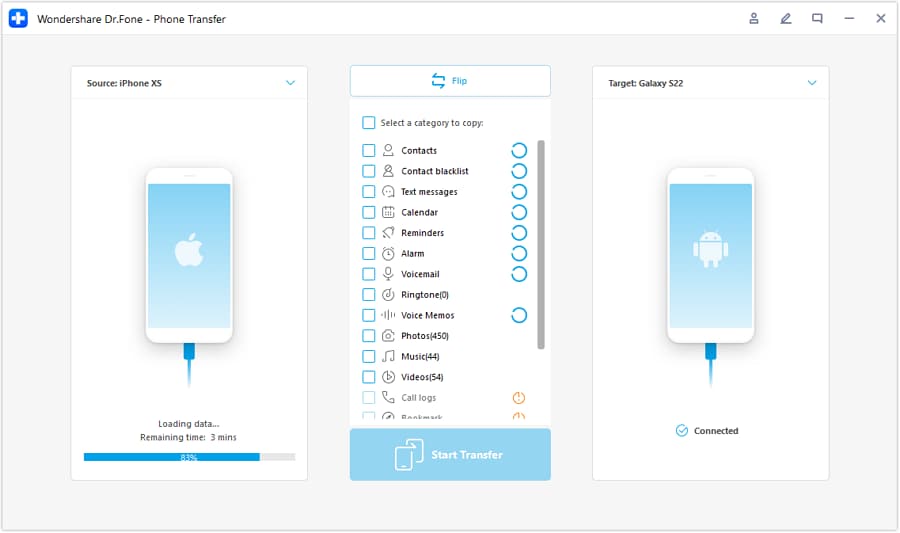
Confirm which phone is the old (source) and which phone is the new (target) to avoid moving data the wrong way.
-
Step 3 Choose essential data to transfer
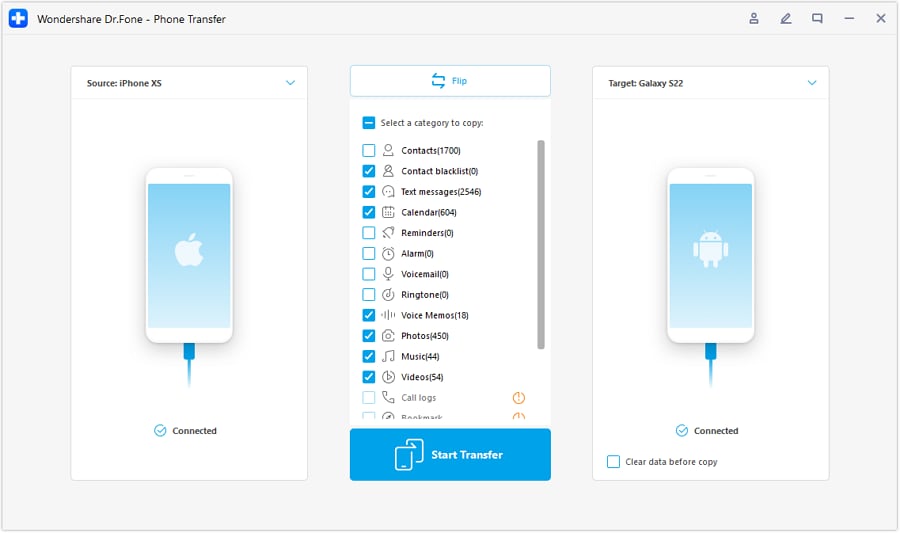
Prioritize the basics first (contacts and photos, plus messages where possible), then verify that top contacts and recent photos appear correctly on the new device.
-
Step 4 Prevent conflicts during transfer (when prompted)
Follow any on-screen prompts that reduce syncing conflicts (for example, prompts related to iCloud syncing during certain transfers), then complete the transfer.
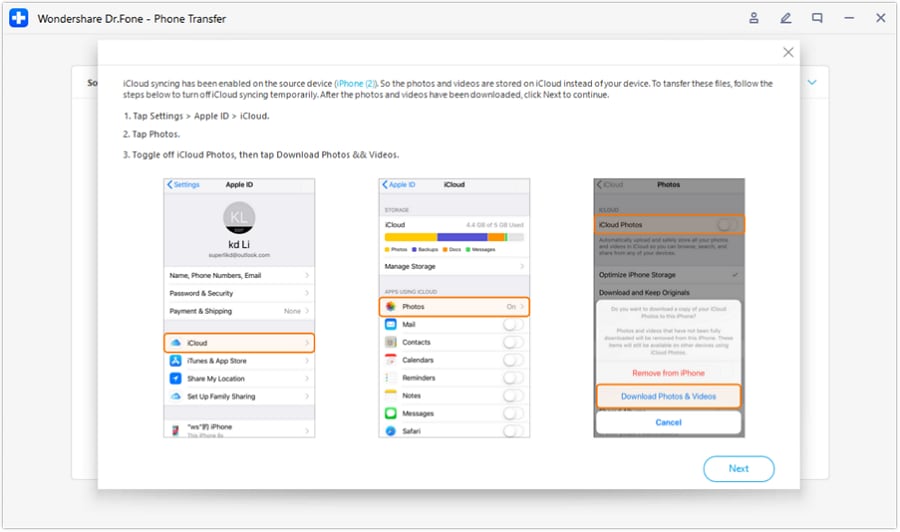

After the transfer, reduce clutter that creates confusion (remove duplicates and keep only necessary media/albums). Then, when you’re ready for handoff, trade-in, or resale, back up what matters and securely wipe personal data—making sure accounts are signed out properly and device protections are disabled with the correct credentials.




Conclusion
AI can help you choose the best phone for parents and seniors with simple setup by translating “easy” into real trade-offs and likely regret points, but real daily use is the final proof—and once you’ve decided, tools like Dr.Fone help you execute the switch cleanly so the phone stays simple in practice.
FAQ
-
Can I trust AI to tell me which phone is “best” for seniors?
Trust it to clarify trade-offs and highlight likely friction points—not to guarantee comfort, dexterity fit, or real-world ease without hands-on testing. -
What’s the single most important trade-off in “simple setup” phones?
Simplicity vs capability: fewer features and fewer settings can reduce confusion, but may limit family-expected tasks (video calling, photos, apps) and flexibility later. -
How do I avoid making a decision based only on specs?
Make your comparison about repeatable daily tasks: unlocking, answering calls, reading a message, charging, and recovering from mistakes (missed call, accidental setting change). -
What should I prepare before I switch phones for a parent?
A short list of must-have contacts, required apps, account logins (Apple/Google), and a plan for backups—plus clarity on who will provide support and how. -
If I’m switching ecosystems (Android ↔ iPhone), what’s most likely to go wrong?
Login/password friction, missing some app data, and messaging changes are common. Plan the transfer, then verify essentials (contacts/photos) before wiping the old phone. -
What if the phone is for resale or trade-in after the switch?
Prioritize a verified backup, then a proper wipe and account sign-out to avoid lock issues for the next owner and to protect personal data.
 Add Wondershare Dr.Fone as a preferred source on Google





