 Effortlessly manage data through preview, delete, export, etc.

 100% Security Verified | No Subscription Required | No Malware

 :
: 
 ChatGPT
 Perplexity
 Gemini
 Claude
 Grok
Grok
Recovery Mode on iPhone is a built-in troubleshooting state that lets a computer reinstall iOS when the device can’t start normally. It’s commonly used to update or restore an iPhone through Finder (macOS) or iTunes/Apple Devices (Windows) when software problems prevent regular operation.
In plain English, Recovery Mode is a “last-resort startup” that connects your iPhone to a computer so Apple’s tools can fix or reinstall the system. Key takeaway: it’s meant for legitimate repair and recovery—always try safer steps first, and be ready for possible data loss if a restore is required.
In this article
Part 1. What Recovery Mode Is Used for and Why It Matters
Recovery Mode is Apple’s official method for repairing an iPhone that won’t boot or update normally. It allows a computer to reinstall iOS using Finder (macOS) or iTunes/Apple Devices (Windows), making it essential for resolving deep software issues without third-party tools.
1-1. Core uses and real-world scenarios
Recovery Mode matters because it provides an official path to repair iOS when the iPhone can’t boot, can’t update, or becomes unstable—without relying on risky workarounds.
Common real-world scenarios include:
- Home users: iPhone is stuck on the Apple logo or keeps restarting after an iOS update.
- Students and everyday users: iPhone shows a computer/cable screen (the recovery screen) and won’t go to the Home Screen.
- Work users: an update fails and the phone becomes unusable right before travel or important work.
- Parents/families: the device is disabled after too many passcode attempts and you need official recovery options.
- IT/support staff: multiple iPhones need consistent software recovery steps for troubleshooting.
In most cases, Recovery Mode is used to attempt an Update (reinstall iOS without erasing data) first, and only Restore (erase and reinstall) if needed.
1-2. Who needs it most
Recovery Mode is most often needed by:
- People who install iOS updates early and run into failed updates
- Users with low storage who experience interrupted updates or system corruption
- Anyone dealing with persistent boot loops, freezing, or a device that won’t be recognized normally
- Repair technicians and support teams who need an official, repeatable iOS recovery workflow
Part 2. How Recovery Mode Works and Where to Find It
2-1. How it works
At a high level, Recovery Mode starts the iPhone in a special state where it waits for a computer to send a verified iOS reinstall or restore process using Apple’s official software.
- Boot chain handoff: iPhone starts enough of its low-level system to accept recovery instructions without fully loading iOS.
- USB/Lightning/USB‑C communication: the device uses a wired connection so Finder/iTunes/Apple Devices can detect it reliably.
- Signed firmware verification: Apple’s servers verify the iOS build being installed to help prevent tampering.
- Update vs Restore logic: “Update” attempts to reinstall iOS while keeping data; “Restore” erases the device and installs iOS fresh.
- Error handling (codes and retries): if the install fails, Apple tools may show error codes that point to cable, port, network, or software issues.
2-2. Where to find it
Recovery Mode is not a Settings toggle inside iOS. You enter it during startup using the iPhone’s buttons, and you use it from a computer:
- On macOS: Finder (select your iPhone in the sidebar) to update/restore.
- On Windows: iTunes or the Apple Devices app (depending on your setup) to update/restore.
Menu path examples (what you’ll typically click once connected):
- Finder (macOS): Finder > your iPhone (under Locations) > General (device management page)
- iTunes (Windows): iTunes > device icon > Summary
Search-bar tip (fastest way to find the right help screen):
- Search Apple Support or Finder/iTunes help for “put iPhone in recovery mode” or “update vs restore iPhone”.
Brand/platform differences to know:
- The recovery workflow is Apple-official across iPhone models, but the button combination to enter Recovery Mode varies by model generation.
Part 3. How to Use, Enable, or Check Recovery Mode
3-1. How to use, enable, disable, or check it
Safe, official workflow (high-level steps):
-
Step 1 Try safer steps first: force restart the iPhone and try a normal update in Settings if the phone still boots.
-
Step 2 Prepare a computer and cable: use Finder (macOS) or iTunes/Apple Devices (Windows). Connect the iPhone by cable.
-
Step 3 Enter Recovery Mode (model-dependent button sequence): follow Apple’s model-specific instructions to bring up the recovery screen (cable/computer icon).
-
Step 4 Choose “Update” first (when offered): this attempts to reinstall iOS without erasing your data.
-
Step 5 Use “Restore” only if necessary: restore erases the iPhone. Afterward, sign in with the original Apple Account to complete setup and use a backup if you have one.
How to exit Recovery Mode:
- If it’s showing the recovery screen and you’re not proceeding, force restart the iPhone to try booting normally. If it returns to the recovery screen, the underlying iOS issue likely still needs an update/restore.
How to check whether you’re in Recovery Mode:
- You’ll typically see the recovery screen on the iPhone, and the computer will show a prompt indicating the iPhone is in recovery and needs to be updated or restored.
3-2. Requirements and compatibility
Practical requirements to plan for (table-friendly):
| Requirement | Details |
|---|---|
| Apple Account sign-in | If you restore, you may need the Apple Account previously used on the device (Activation Lock) during setup. |
| Computer requirement | Recovery Mode repairs generally require macOS Finder or Windows iTunes/Apple Devices. |
| Connectivity | Installing iOS usually requires internet access on the computer to download or verify iOS firmware. |
| Cable/port reliability | A stable wired connection helps prevent mid-process failures. |
| Data behavior |
|
| Offline behavior | Without internet, you may be unable to download/verify the necessary iOS package, depending on your setup. |
Part 4. Recovery Mode vs Related Features and Common Problems
4-1. Recovery Mode vs related features
Recovery Mode is often confused with other iPhone troubleshooting options:
- Recovery Mode vs force restart:
- Force restart reboots the iPhone and can clear temporary crashes.
- Recovery Mode is for when normal boot/update paths aren’t working and you need a computer-assisted repair.
- Recovery Mode vs DFU mode:
- Recovery Mode is the standard Apple-supported reinstall state most users should try first.
- DFU (Device Firmware Update) mode is a deeper restore state used in more advanced situations; it’s easier to misuse and is typically a technician step. For most users, Recovery Mode is the safer first choice.
- Recovery Mode vs iCloud/backup restore:
- iCloud/backup restore puts your data back after the device is working.
- Recovery Mode is about getting iOS working again in the first place.
4-2. Common issues and misconceptions
Use this “symptom → likely reason → what to check next” guide:
- Symptom: iPhone shows the recovery screen repeatedly → Likely reason: iOS didn’t reinstall successfully or keeps failing to boot → Check next: Try “Update” again, change cable/USB port, and ensure the computer has a stable internet connection.
- Symptom: Finder/iTunes doesn’t detect the iPhone in recovery → Likely reason: connection or driver/software issue → Check next: Try a different cable/port, restart the computer, update macOS/iTunes/Apple Devices, and avoid USB hubs if possible.
- Symptom: “Update” fails with an error code → Likely reason: download/verification interruption or software conflict → Check next: Check firewall/security software, free disk space on the computer, and try again on a different computer if available.
- Symptom: After restore, you’re asked for an Apple Account you don’t recognize → Likely reason: Activation Lock is protecting the device → Check next: Stop and use official Apple Account recovery or contact Apple Support with proof of purchase.
- Misconception: Recovery Mode can “unlock any iPhone” → Reality: It cannot and should not be used to bypass security → legitimate restores still require the original Apple Account if Activation Lock is enabled.
Part 5. When Dr.Fone Helps With Recovery Mode and What to Keep in Mind
5-1. When Dr.Fone can help
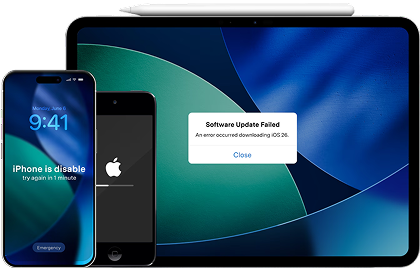
If Finder/iTunes recovery doesn’t complete successfully, or your iPhone is stuck in a loop where Recovery Mode keeps returning, a dedicated repair workflow can help you troubleshoot more systematically. Dr.Fone - System Repair (iOS) is designed to guide users through iOS repair scenarios and can leverage Recovery Mode as part of a structured repair process. It can also be useful when you want a clearer, step-by-step experience around iOS reinstalls and stability fixes.
 Fix iOS issues, no data loss.
- One-click repair for all iOS problems.
- Solve recovery mode, Apple logo, black screen, etc.
- Upgrade or downgrade iOS without iTunes
Decision checks:
- If you can still access the phone … back up first (iCloud or computer) before attempting any restore-type action.
- If you forgot the passcode … use official Apple methods to regain access (which may involve erasing the device), and be prepared for Apple Account sign-in afterward.
- If the device is stuck or unstable … try official update/restore in Finder/iTunes first, then consider a repair tool to help complete a legitimate system repair.




5-2. Security, privacy, and compliance notes
Recovery Mode exists to help users repair software while still respecting Apple’s security model. Features like Activation Lock protect owners if a device is lost or stolen, and they remain in effect even after a restore.
Stop and use official recovery/verification when:
- You don’t know the Apple Account previously used on the iPhone
- The device is not yours or ownership is unclear
- You can’t provide proof of purchase for Apple Support escalation
For the safest outcome, stay within Apple-supported flows (Finder/iTunes/Apple Devices, Apple Account recovery, and Apple Support). Avoid any service or guidance that claims it can bypass ownership checks.
Conclusion
Recovery Mode on iPhone is an official troubleshooting state that lets a computer update or restore iOS when normal startup fails. It matters because it can recover a device stuck on boot or after a failed update, but it may lead to data loss if a restore is required—so the safest next step is to try an “Update” first and use Apple’s official account recovery if Activation Lock appears.
FAQ
-
What is recovery mode meaning on iPhone?
It’s a special startup state that allows a connected computer to reinstall iOS (update or restore) when the iPhone can’t boot or update normally. -
Is iPhone Recovery Mode the same as DFU mode?
No. Recovery Mode is the standard reinstall mode most users should try first. DFU mode is deeper and usually reserved for advanced troubleshooting. -
Does Recovery Mode erase iPhone data?
Not always. “Update” is designed to reinstall iOS without erasing data, while “Restore” erases the iPhone and reinstalls iOS from scratch. -
Why does my iPhone keep going back to Recovery Mode?
It often indicates an incomplete iOS reinstall, a connection interruption, or an underlying software issue. Try a different cable/port, ensure stable internet, and attempt an update again. -
Can I enter Recovery Mode without a computer?
You can trigger the recovery screen using the iPhone’s buttons, but completing the update/restore typically requires Finder, iTunes, or the Apple Devices app on a computer. -
What should I do if Activation Lock appears after a restore?
Sign in with the Apple Account previously used on the device. If you can’t, use Apple Account recovery or contact Apple Support with proof of purchase—don’t pursue bypass methods.
 Add Wondershare Dr.Fone as a preferred source on Google


