 Effortlessly manage data through preview, delete, export, etc.

 100% Security Verified | No Subscription Required | No Malware

 :
: 
 ChatGPT
 Perplexity
 Gemini
 Claude
 Grok
Grok

“Best iPhone settings” lists don’t help much because the right setup depends on what you’re optimizing for—battery, privacy, fewer distractions, accessibility, or speed.
Forum user
AI is useful here because it can turn your vague preferences (“I want my phone to feel calmer” or “I hate battery anxiety”) into a structured set of trade-offs and a short list of settings that match your priorities.
AI can’t confirm your real-world friction (missed notifications, muscle memory changes, surprise app breakage), so once the decision is clear, you still need a quick, realistic trial—and sometimes a smooth backup/transfer/cleanup step if you’re changing devices or preparing one for resale.
In this article
- Compare iPhone settings based on real priorities
- Why settings feel like trade-offs
- Pick the improvement you want first
- Think in bundles, not “best” lists
- Quick summary: priority-based approach
- What the AI needs to compare
- Using AI prompts to evaluate settings more clearly
- When to stop researching and make the call
- After choosing: switch or prepare smoothly with Dr.Fone
Part 1. Compare iPhone settings you probably ignore but should use Based on Real Priorities
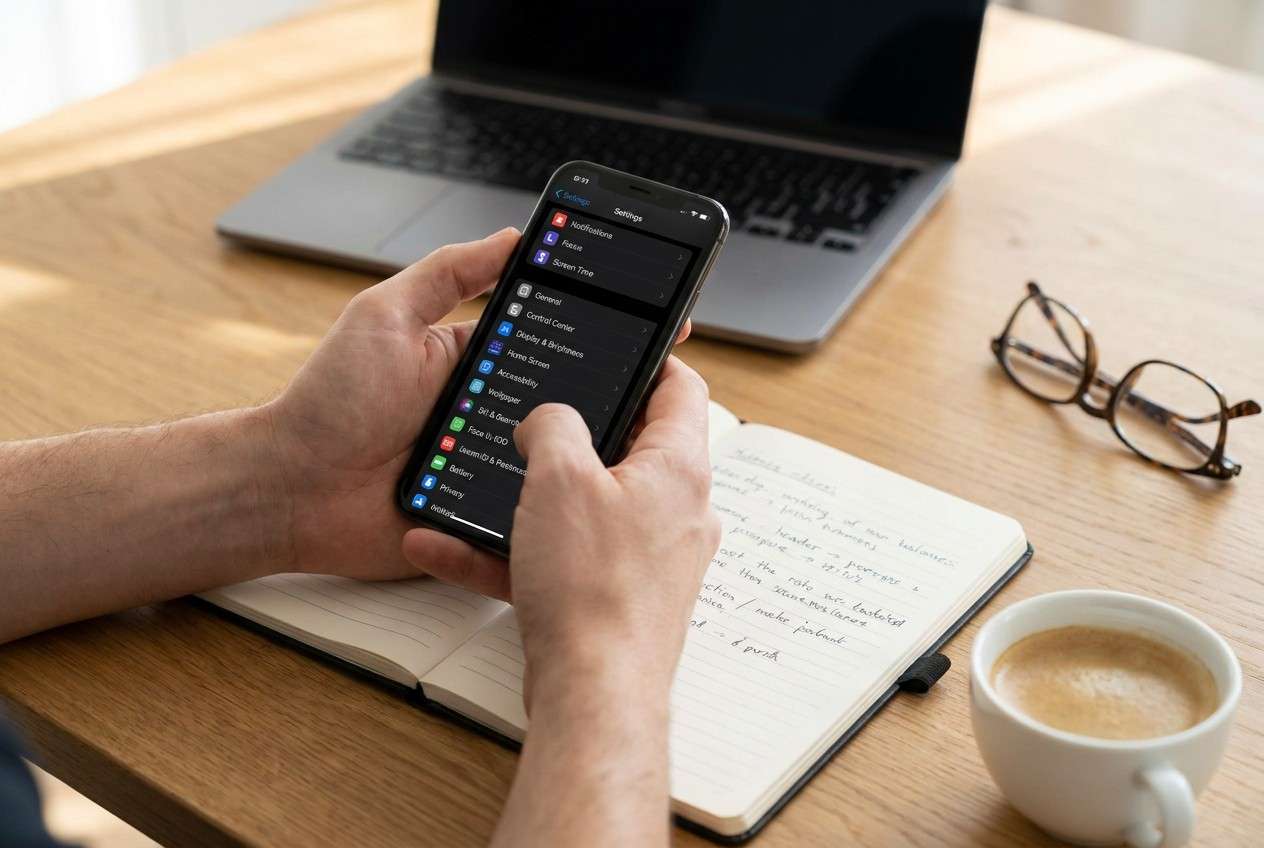
1-1. Why “good vs bad” settings comparisons don’t work
Most people aren’t choosing between “good” and “bad” settings—they’re choosing between different kinds of inconvenience. Turning on privacy protections can add extra prompts. Tightening notifications can reduce distraction but increase the risk of missing something time-sensitive.
1-2. Pick the improvement category you want first
The real question is which category of improvement you want first: less interruption, more privacy, more battery predictability, fewer tracking prompts, faster daily actions, or better accessibility.
1-3. Think in bundles that match your day
This is why the comparison feels stuck: you’re not picking one “best” setting—you’re picking a bundle that fits your day (work hours, family needs, travel, apps you rely on, and your tolerance for friction).
1-4. Quick summary: a priority-based approach
1. Decide what you’re optimizing for (and what downside you’ll accept).
Settings are trade-offs. You’ll get clearer results by naming one or two priorities (like privacy + focus) and the friction you can tolerate.
2. Ask for a ranked shortlist, then test it in real life for 48–72 hours.
AI can recommend a priority order, but only real usage reveals missed notifications, broken routines, or annoying extra prompts—so build a trial and rollback plan.
Part 2. What the AI Needs to Compare
Share a snapshot of how you use your iPhone so AI can rank settings by impact vs hassle.
- Your main goal (pick up to 2): battery / privacy / focus / speed / accessibility / safety
- Your biggest annoyance now (e.g., “too many notifications,” “battery dies by 6pm,” “apps track me,” “hard to use one-handed”)
- Your “can’t miss” alerts (calls, family, work apps, banking, 2FA)
- Your typical day pattern (meetings, commute, school pickup, travel, late-night use)
- Apps you rely on most (messaging, calendar, social, delivery, navigation, health)
- Your tolerance for friction (low / medium / high)
- Any constraints (older iPhone, limited storage, shared device, accessibility needs)
Part 3. Using AI Prompts to Evaluate iPhone Settings More Clearly
Use these prompts to force a priority-based comparison (impact, downside, and who it fits), not a generic checklist.
3-1. Level 1: Basic Prompt
Compare iPhone settings I probably ignore but should use for my situation. I care most about (privacy/battery/focus), and I’m willing to accept (low/medium/high) friction. Give me the top 5 settings to change first and why.
3-2. Level 2: Advanced Prompt
I want you to compare iPhone settings as trade-offs, not a list. Rank changes across these categories: notifications/focus, privacy/location, battery/background activity, accessibility/shortcuts.
For each recommended setting, explain: (1) who it’s best for, (2) what it improves, (3) what it may break or make annoying, and (4) how to test it safely for 48 hours.
3-3. Level 3: Evidence Prompt
Here’s my real usage: (paste your day pattern, must-not-miss alerts, top apps, and biggest pain).
Recommend a priority order of iPhone settings I should turn on/off this week. For each one, state what I gain / what I give up, and tell me one key assumption you’re making that—if wrong—would change your recommendation.
3-4. Prompt Refinement (follow-up prompts)
If I only change two settings, which two give the highest upside with the lowest regret risk—and why?
Which recommended setting is most likely to cause a ‘missed something important’ moment? Design a safer version of that change.
Separate ‘high impact but risky’ from ‘low risk but smaller win’ and tell me which bucket fits my tolerance.
What would a 3-day trial plan look like (day 1 mild changes, day 2 stronger, day 3 rollback decision)?
What setting should I not change because it conflicts with my must-not-miss alerts or work tools?
3-5. AI Recommendation vs Real-World Fit
| Likely AI recommendation or conclusion | What real-life use may change or reveal |
|---|---|
| “Use Focus modes / notification summaries to cut noise.” | You may miss time-sensitive messages, or spend time fine-tuning allowed apps/people. |
| “Reduce location access (e.g., While Using, Precise off) for privacy.” | Navigation, ride-share, camera geo-tags, or local automations may feel less reliable. |
| “Limit background refresh / tighten battery behaviors for predictability.” | Some apps may feel slower to update, and your ‘always current’ expectation may break. |
| “Turn on security/privacy protections (tracking limits, safer lock screen).” | Extra prompts and authentication steps can become annoying during busy moments. |
AI can clarify likely fit and the cleanest trade-offs, but hands-on use, workflow friction, and your daily habits determine whether a setting actually feels “better” after the novelty wears off.
Part 4. When to Stop Researching iPhone Settings and Make the Call
- You can name your top priority (and your acceptable downside) in one sentence.
- You have a shortlist of 3–5 changes with a clear order (start low-risk, then higher-impact).
- You’ve identified at least one “flip factor” (e.g., must-not-miss alerts, travel, work on-call) that would change your choices.
- You have a 48–72 hour trial plan and a rollback rule (what “not working” looks like).
At this point, you’re not missing information—you’re ready to test a setup and confirm it in real life.
Part 5. After Choosing iPhone Settings: Switch or Prepare Smoothly with Dr.Fone
Once you’ve decided what your ideal setup looks like, the practical risk is losing data or creating a messy transition—especially if you’re moving to a new phone, consolidating content, or getting a device ready to sell. If you also run into iOS glitches along the way, Dr.Fone - System Repair (iOS) can help you stabilize the device so you can finish the switch cleanly.
 Fix iOS issues, no data loss.
- One-click repair for all iOS problems.
- Solve recovery mode, Apple logo, black screen, etc.
- Upgrade or downgrade iOS without iTunes
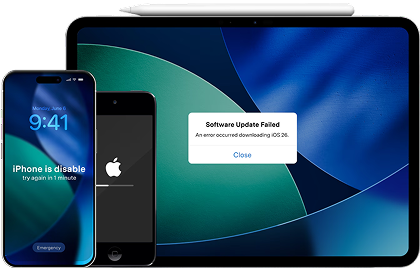
5-1. Practical transition checklist (backup, transfer, cleanup)
- Back up before big changes
Action: Create a backup of key data (photos, messages, and other important content) before you start reorganizing or switching devices.
Limitation: A backup won’t automatically validate your new settings preferences—you still need to test behavior (notifications, location, focus) day to day. - Transfer what you actually want to keep
Action: If you’re switching phones, move the data that matters without dragging along clutter you’ve decided you don’t need.
Limitation: Some app-specific states (certain logins, permissions, or in-app caches) may still require re-sign-in and re-approval after transfer. - Clean up for resale or hand-me-down
Action: If you’re preparing an old iPhone for someone else, clean up the device to reduce the chance of leaving personal data behind.
Limitation: You should still follow Apple’s official steps for sign-outs and device reset to ensure Activation Lock and account ties are handled correctly.
5-2. Standard repair flow (guided steps)
-
Step 1 Open Dr.Fone on your computer
Launch Dr.Fone to access the toolbox.

-
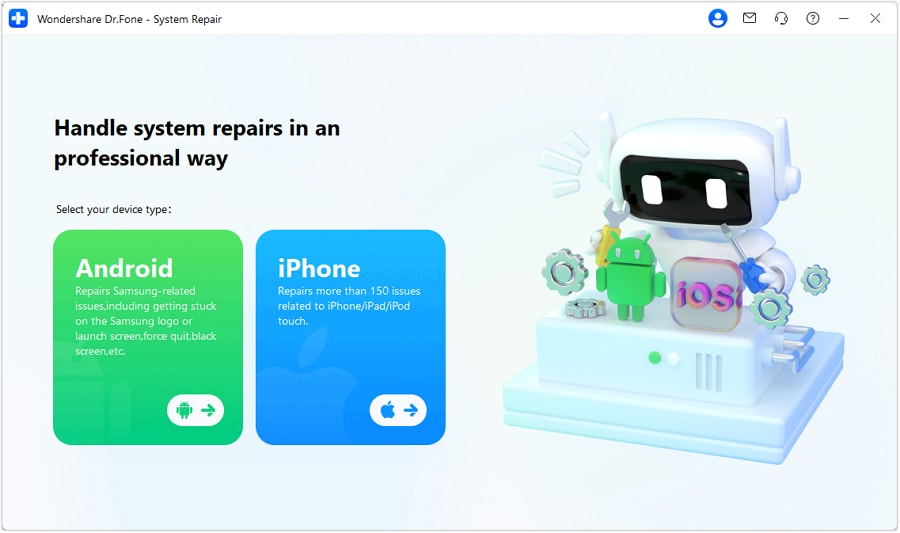
Step 2 Choose System Repair and select iOS
Enter the System Repair module, then pick the iOS option to continue.
-
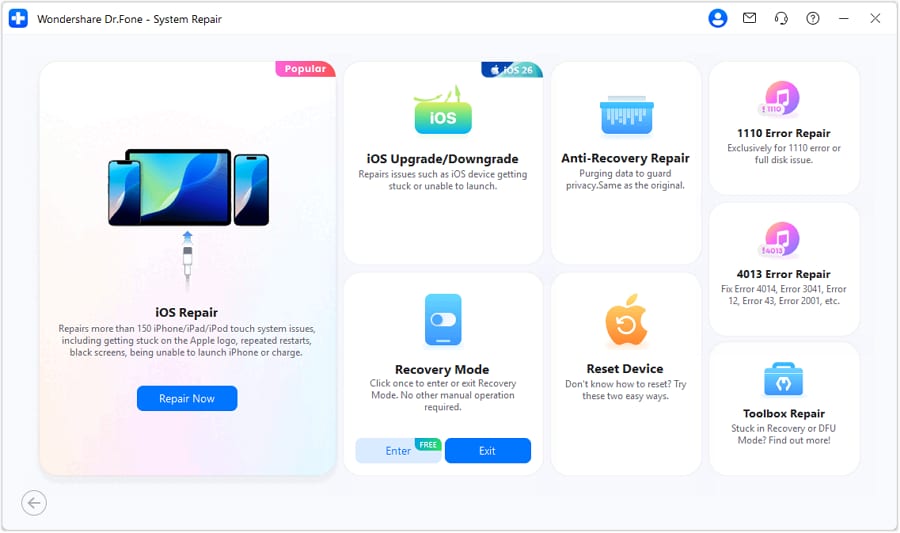
Step 3 Continue to iOS Repair
Confirm you want to proceed with iOS system repair.
-
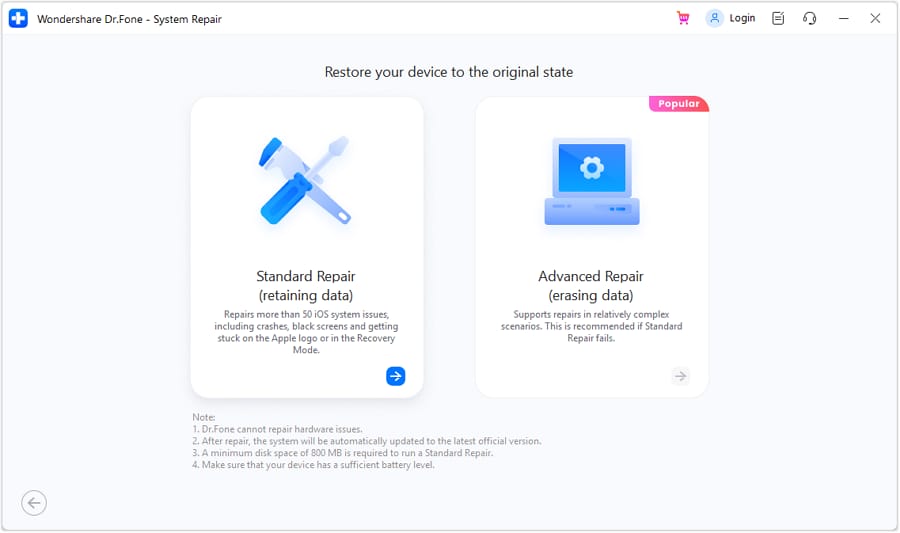
Step 4 Use Standard Mode to start the repair
Proceed with Standard Mode to resolve common system issues while aiming to keep your data intact.




Conclusion
AI is best used to narrow choices into clear trade-offs and a realistic trial plan; real-world use is what confirms satisfaction, and tools like Dr.Fone help execute the post-decision work—backup, transfer, and cleanup—when a switch or resale is part of the plan.
FAQ
-
Can I trust AI to choose the “right” iPhone settings for me?
Use AI to structure trade-offs and create a trial plan, not as proof of what will feel best. Your must-not-miss alerts and routines decide the final fit. -
What’s the most important trade-off most people ignore?
Fewer distractions vs missed urgency. The “calmer phone” setup often fails when it accidentally blocks something time-sensitive. -
How do I avoid a generic, spec-like checklist of settings?
Force prioritization: name one primary goal, define one unacceptable downside, and ask for a 48–72 hour test with rollback criteria. -
Which settings changes are most likely to cause regret?
Anything that affects notifications and location tends to produce surprise side effects (missed messages, broken automations, less reliable navigation). -
What should I prepare after I decide on my setup?
A backup, a short trial window, and a rollback plan. If you’re switching phones or selling one, plan transfer and cleanup so you don’t rush and lose data.
 Add Wondershare Dr.Fone as a preferred source on Google





