 Effortlessly manage data through preview, delete, export, etc.

 100% Security Verified | No Subscription Required | No Malware

 :
: 
 ChatGPT
 Perplexity
 Gemini
 Claude
 Grok
Grok

I keep going back and forth—tablet feels better for calls and docs, but my phone is what I actually grab when something happens fast. I just want a decision that matches my real day, not a spec sheet.
Forum user
Generic “best device” answers fall apart fast when your real day includes video calls, shared docs, quick replies, and moving between rooms, desks, and commutes. AI can help turn fuzzy preferences into clear trade-offs, but it still can’t validate hands-on realities—so once the decision is clear, the switching and cleanup work still matters.
In this article
- Part 1. Compare tablet vs phone based on real priorities
- Why meetings change the “best device” answer
- Tablet vs phone: what feels “obviously better” (and why)
- The one question most decisions come down to
- A practical trade-off view (not spec sheets)
- Part 2. What the AI needs to compare
- Part 3. AI prompts to evaluate more clearly
- Part 4. When to stop researching and decide
- Part 5. After choosing: switch or prepare smoothly with Dr.Fone
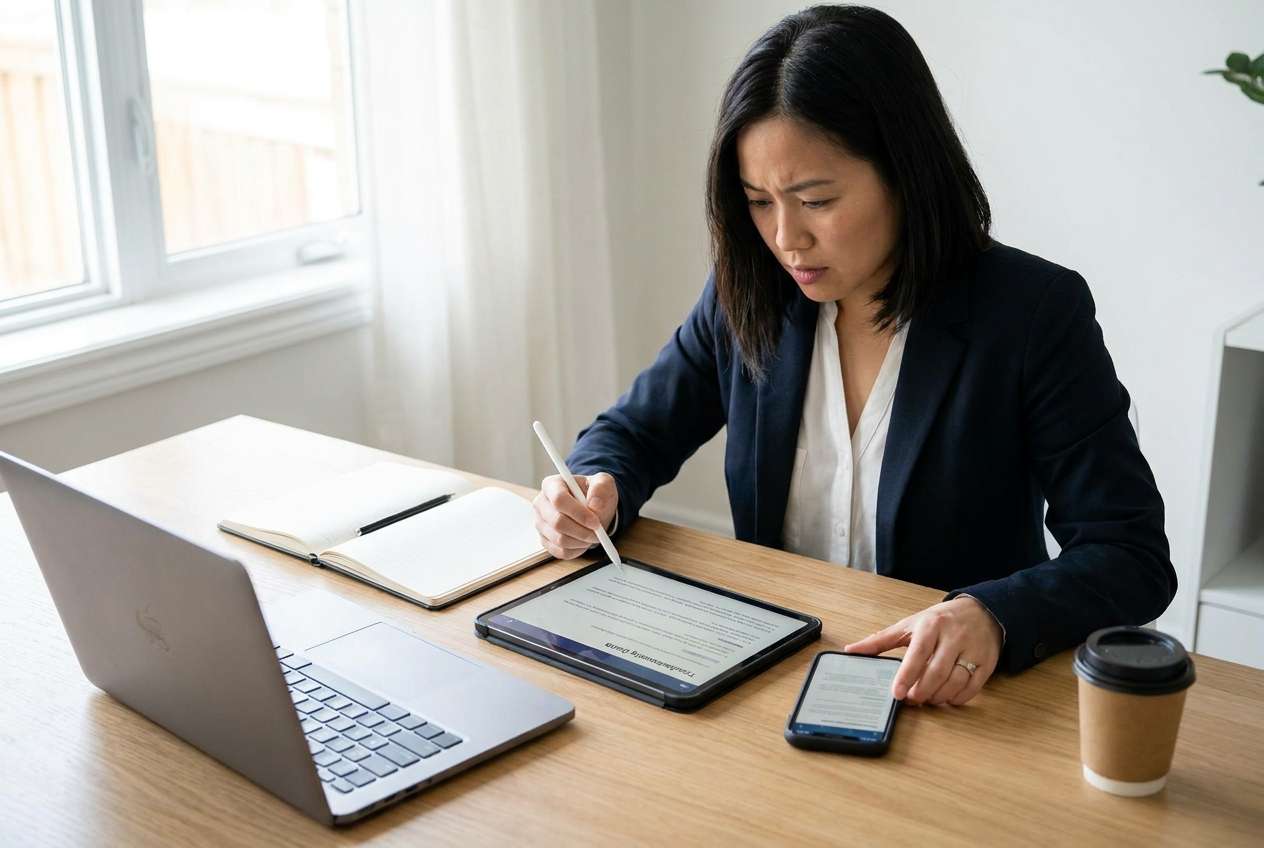
Part 1. How to compare tablet or phone for work and meetings based on real priorities
If your workday is mostly meetings, the device isn’t just a screen—it’s your camera angle, microphone consistency, note system, and “can I respond fast without breaking focus?” tool.
The hard part is that tablets and phones each feel “obviously better” depending on which moment you imagine: tablets win for viewing and multitasking; phones win for instant capture, quick comms, and always-ready reliability.
The tension usually comes down to one question: are you optimizing for meeting presence + working alongside the call (tablet-leaning) or fast communication + always-on availability (phone-leaning)?
Tablet tends to fit better when…
- You work alongside meetings (docs open, multitasking, reviewing materials).
- You care about viewing comfort and a less cramped meeting workflow.
- You do more note-taking and follow-up planning during/after calls.
Phone tends to fit better when…
- You need instant responsiveness (chat/email, quick replies, urgent pings).
- You move a lot and rely on always-with-you continuity.
- You value capture speed and “ready at any moment” reliability.
Part 2. What the AI needs to compare
Answer these so the AI can compare the options in a way that matches your real day:
- Your meeting mix: video-heavy vs audio-only, internal vs client-facing, frequency per day
- Your “during-call” behavior: mostly listening vs active presenting vs live note-taking
- Your typical location: desk setup vs moving around vs commuting
- Your top apps: calendar/email/chat, docs, whiteboards, project tools, meeting platforms
- Input preferences: typing length, need for stylus notes, comfort with voice dictation
- Camera needs: how important framing, eye line, and stability are for you
- Notification tolerance: do you need always-on alerts, or do they harm focus?
- File flow: how you handle decks, PDFs, links, screenshots, and signatures
- Battery/charging habits: can you reliably top up between meetings?
- What “regret” would look like: missed messages, awkward calls, poor notes, slow follow-ups
Part 3. Using AI prompts to evaluate tablet or phone for work and meetings more clearly
Use the prompts below to force a priority-based comparison instead of a spec-driven one.
3-1. Level 1: Basic prompt
I’m deciding between using a tablet or a phone as my main device for work and meetings. Ask me the minimum questions you need, then recommend one based on my priorities. Keep the comparison practical (calls, notes, typing, sharing, portability).
3-2. Level 2: Advanced prompt
Help me choose tablet vs phone for work and meetings using a trade-off framework.
1) Ask clarifying questions about my meeting style, mobility, typing/note habits, and app workflow.
2) Compare tablet vs phone across those priorities, and explicitly state who each option fits better.
3) Give a clear recommendation and a “best compromise” setup if I can’t fully commit to one.
3-3. Level 3: Evidence prompt
Here’s my real context: **[describe: meetings/day, video vs audio %, where you work, typing volume, note-taking style, key apps, whether you present/share screen, and what frustrates you now]**.
Based on that, recommend **tablet or phone** as my primary work-and-meetings device, and explain **what I gain and what I give up** with each choice in daily use.
Identify **one key assumption** (e.g., “most calls happen at a desk” or “you’ll type long messages”) that—if false—would flip your recommendation.
3-4. Prompt refinement (follow-ups)
If you had to pick **one deciding priority** for me (presence on calls, speed of replies, deep-work focus, or note quality), which should it be—and why?
What’s the **most likely regret** 30 days after choosing a tablet, and the most likely regret after choosing a phone?
Which tasks in my workflow will become **two steps instead of one** on each option (before/during/after meetings)?
If I’m wrong about how often I’ll **type long-form** vs **send quick replies**, how does your recommendation change?
What would a **“no-new-hardware” workaround** look like to reduce the downside of your recommended option?
Give me a **decision rule**: “Choose tablet if X and Y are true; choose phone if A and B are true.”
3-5. AI recommendation vs real-world fit
| Likely AI recommendation or conclusion | What real-life use may change or reveal |
|---|---|
| “Choose a tablet if you multitask during calls and review docs often.” | You may still default to your phone for quick replies, authentication codes, and on-the-go continuity. |
| “Choose a phone if you’re mobile and need instant responsiveness.” | Longer meetings can feel cramped; sustained note-taking and presenting may feel slower or more distracting. |
| “Tablet is better for note-taking and follow-up planning.” | Your actual note habit might depend more on friction (opening the app, stylus/keyboard readiness) than screen size. |
| “Phone reduces missed messages and keeps you always reachable.” | Always-on alerts can fragment focus and increase meeting fatigue if you can’t comfortably manage notification boundaries. |
AI can clarify likely fit and trade-offs, but hands-on use, workflow friction, and daily habits still decide long-term satisfaction.
Part 4. When to stop researching tablet or phone for work and meetings and make the call
- You can name your top 2 priorities (e.g., “on-call multitasking” and “fast follow-ups”) without hesitating.
- You understand the main sacrifice you’re accepting (what you give up) and you’re okay with it.
- You’ve identified the flip factor that would change the decision (e.g., desk-based vs mobile, typing volume, presenting frequency).
- You have a realistic plan for the first week of use (how you’ll handle notes, calendar, files, and meeting links).
Once you can state the trade-off in one sentence, you’re no longer researching—you’re choosing.
Part 5. After choosing tablet or phone for work and meetings: switch or prepare smoothly with Dr.Fone
After you decide, the biggest risk isn’t the choice—it’s the messy transition: duplicated data, missing files, bloated storage, and account clutter that makes meetings and follow-ups feel chaotic. If you’re switching devices, Dr.Fone - Phone Transfer can help you move essentials and reduce transition friction.
 Move data between iOS to Android and vice versa.
- Transfer contacts, SMS, photos, videos, music, and more types.
- Available with all phones with Android and iOS versions.
- Simple, click-through process.
5-1. Transfer essentials to your chosen device (4-step guide)
-
Step 1 Launch the phone transfer tool

Open Dr.Fone on your computer and enter the Phone Transfer workflow.
-
Step 2 Set the device path
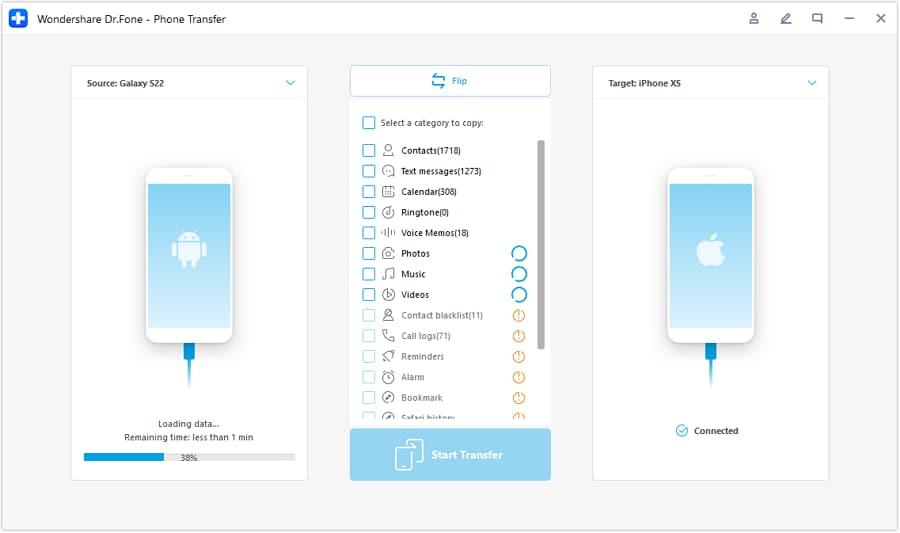
Connect both devices and confirm which one is the source and which one is the destination.
-
Step 3 Choose what to transfer
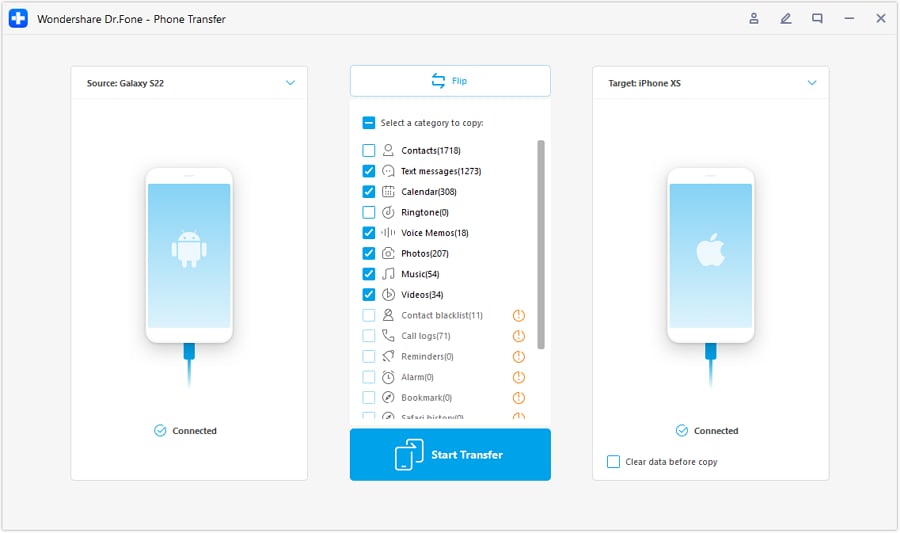
Select the data types you want to move so you’re work-ready without dragging unnecessary clutter along.
-
Step 4 Start transfer and monitor progress

Start the transfer and wait for the process to complete before disconnecting devices.
5-2. Step 1: Transfer what matters (and only what matters)
Use Dr.Fone to move essential contacts, photos, and key files to your chosen device so you’re ready for work immediately.

5-3. Step 2: Clean up to reduce friction in meetings
Use Dr.Fone to remove obvious storage hogs and duplicates so your device stays responsive for calls, screen-sharing, and file access.
5-4. Step 3: Prepare the old device for backup or resale
Use Dr.Fone to help you clear personal data before handing off or repurposing your old device.




Conclusion
AI is best used as decision support: it helps you name priorities, confront trade-offs, and spot what could cause regret; real use is the final proof. After you’ve chosen tablet or phone, Dr.Fone can help with the practical switching, cleanup, and old-device preparation so the transition doesn’t undermine your workflow.
FAQ
-
Can I trust AI to choose tablet vs phone correctly for my work?
You can trust it to structure trade-offs and expose priorities; you shouldn’t treat it as proof of comfort, camera quality in your room, or friction in your exact apps. -
What’s the most important trade-off for work and meetings?
Usually: multitasking + viewing comfort (tablet) vs instant communication + always-with-you reliability (phone). -
How do I avoid a generic spec-based decision?
Describe your day in moments: before the meeting, during the meeting, after the meeting. Then compare which device reduces steps and interruptions across those moments. -
What assumption flips the recommendation most often?
Whether you’ll do most meetings at a desk with stable setup (tablet tends to shine) or on the move (phone tends to win). -
What should I prepare after I choose?
A short checklist: sign-in/access for work accounts, your meeting app settings, your note system, and how you’ll handle files/shared links across devices. -
If I’m switching devices, what’s the biggest risk?
Incomplete transfer or messy duplication—contacts, photos, and files scattered across devices—creating friction right when you need speed for meetings and follow-ups.
 Add Wondershare Dr.Fone as a preferred source on Google





