 Effortlessly manage data through preview, delete, export, etc.

 100% Security Verified | No Subscription Required | No Malware

 :
: 
 ChatGPT
 Perplexity
 Gemini
 Claude
 Grok
Grok

I keep searching for the “best” tablet for notes, but what I really need is something that fits how I study—handwriting, PDFs, planning, and staying focused—without surprise friction later.
Forum user
“Best” answers fall apart because note-taking and study planning aren’t one task—they’re a mix of handwriting, reading, organizing, syncing, and staying focused. The right choice depends less on specs and more on how you actually study.
AI can help by turning “I want something good for notes” into a priority stack (focus vs flexibility, handwriting vs typing, ecosystem vs neutrality) and then mapping each option to the trade-offs you’re most likely to feel day-to-day.
AI still can’t verify pen feel, palm rejection quirks, screen comfort for long sessions, or how distracting a device becomes in your real routine—so after you narrow the decision, the real-world fit (and the switching work) is what makes it stick.
In this article
- How to compare tablets based on real priorities
- Tablet styles to compare
- The questions that cause uncertainty
- Choose your priority trade-off
- Evaluate weekly friction
- What the AI needs to compare
- AI prompts to evaluate more clearly
- When to stop researching and make the call
- After choosing: switch or prepare smoothly with Dr.Fone
Part 1. How to Compare Best Tablet for Note Taking and Study Planning Based on Real Priorities
Most people end up choosing between a few “styles” of tablets rather than one single model: an iPad-style tablet (Apple ecosystem), an Android tablet (Samsung/Galaxy-style), a Windows 2‑in‑1 (Surface-style), or an e‑ink note device (reMarkable/Boox-style). Each can work—just not equally well for the same study habits.
The uncertainty usually isn’t “which is powerful enough,” but questions like: Will I actually stay organized? Will I get distracted? Will my notes sync the way I expect? Can I annotate PDFs smoothly? Will I regret being locked into an ecosystem?
A practical way to compare is to pick the trade-off you care about most (focus, handwriting experience, file freedom, or do-everything flexibility), then evaluate which option makes that priority easier and which one creates friction you’ll feel every week.
Part 2. What the AI Needs to Compare
Share the details below so the AI can compare options based on real use, not generic rankings:
- Your shortlist (e.g., iPad + Pencil vs Galaxy Tab + S Pen vs Surface-style 2‑in‑1 vs e‑ink note device)
- Primary workload (handwritten lecture notes, PDF annotation, flashcards, planner/calendar, typed essays, recording, etc.)
- Your “focus vs flexibility” preference (minimal distractions vs all-in-one device)
- Must-have apps or platforms (OneNote, Notability/Goodnotes, Google Drive, Microsoft 365, Canvas, Notion, etc.)
- File workflow (do you need easy exports, cross-platform access, folder structure, or just quick search?)
- Where you study (library, commute, bed) and session length (30 min vs 4 hours)
- Accessories you’ll actually use (keyboard, stylus, stand) and your tolerance for charging them
- Budget comfort and upgrade cycle (keep for 2–5 years? resell soon?)
Part 3. Using AI Prompts to Evaluate Best Tablet for Note Taking and Study Planning More Clearly
Use these prompts to force a priorities-first comparison and expose the trade-offs you’re most likely to regret later.
3-1. Level 1: Basic Prompt
I’m choosing between **[Option A]** and **[Option B]** for note taking and study planning.
Compare them for my use: **[handwriting/PDF/planning/typing]** and tell me which one fits better and why.
Keep it practical and focused on daily study habits, not specs.
3-2. Level 2: Advanced Prompt
Help me choose between **[Option A]**, **[Option B]**, and **[Option C]** for note taking + study planning.
1) Ask me up to 7 questions to clarify my priorities.
2) Rank the options against my priorities (focus, handwriting, organization, cross-device sync, PDF workflow, typing needs).
3) Explain the trade-offs and who each option suits best (including “best if you’re easily distracted” vs “best if you need one device to do everything”).
3-3. Level 3: Evidence Prompt
Here’s my real situation: **[your classes + how you take notes + tools you use + where you study + what annoys you now]**.
I’m deciding between **[Option A]**, **[Option B]**, and **[Option C]**.
Recommend one and justify it using:
- My top 3 priorities (state them explicitly)
- “What I gain / what I give up” for each option
- One assumption that could flip your recommendation (e.g., if I end up typing more than handwriting, if my school requires a specific app, if I can’t resist distractions, if I need Windows-only software)
3-4. Prompt Refinement
Follow-up prompts (use as needed):
If my #1 goal is **staying organized across semesters**, which option reduces “maintenance work” (renaming, filing, exporting) the most—and what’s the hidden cost?
Assume I’m **easily distracted**. Which option will most likely lead to procrastination, and what setup rules would I need to make it workable?
Compare my shortlist specifically for **PDF annotation + quick review before exams**.
Where will friction show up (import/export, search, markup visibility, file juggling)?
What’s the most likely **regret** with each option after 30 days of real classes, and what early warning signs should I watch for in week one?
If I switch ecosystems later (Apple ↔ Android ↔ Windows), which option makes my notes **most portable**, and what formats/workflows should I commit to now?
Given my budget and upgrade cycle, which option has the best chance of feeling “still right” in 2 years—and what study habit would make it age poorly?
3-5. AI Recommendation vs Real-World Fit
| Likely AI recommendation or conclusion | What real-life use may change or reveal |
|---|---|
| “Pick the one that matches your ecosystem (Apple/Google/Microsoft).” | Your campus tools or group work may force compatibility you didn’t anticipate (shared files, app standards, login friction). |
| “Choose e‑ink if you want focus and handwriting.” | You might miss fast multitasking, color diagrams, or frictionless PDF workflows depending on your course load. |
| “Choose a full-feature tablet/2‑in‑1 if you need one device for everything.” | The device may become a distraction machine unless you can enforce focus modes and a disciplined workflow. |
| “Choose the most popular note app workflow.” | App preference is personal; handwriting feel, page management, and search behavior can be dealbreakers only you can validate. |
AI can clarify likely fit, but hands-on use, workflow friction, and daily habits still decide satisfaction.
Part 4. When to Stop Researching Best Tablet for Note Taking and Study Planning and Make the Call
- You can name your top 3 priorities (e.g., distraction control, PDF annotation speed, cross-device access) and explain why they matter for your actual classes.
- You’ve identified the one trade-off you’re willing to accept (e.g., less flexibility for more focus, or more distraction risk for more capability).
- You know your non-negotiables (required apps, file compatibility, typing vs handwriting needs) and have confirmed each option can meet them.
- You can predict your most likely regret scenario—and you’ve chosen the option where that regret is least damaging to your semester.
At this point, you’re not missing “one more review”—you’re ready to pick based on the trade-offs you’ve already made explicit.
Part 5. After Choosing Best Tablet for Note Taking and Study Planning: Switch or Prepare Smoothly with Dr.Fone
Once the decision is made, the biggest risk becomes messy migration: scattered notes, duplicate files, missing photos/attachments, and an old device that’s not backed up or properly erased before resale. If you’re moving data between phones alongside your new study setup, Dr.Fone - Phone Transfer can help streamline the transfer so you don’t rely on “hope-based” syncing.
 Move data between iOS to Android and vice versa.
- Transfer contacts, SMS, photos, videos, music, and more types.
- Available with all phones with Android and iOS versions.
- Simple, click-through process.
5-1. Create a clean backup before you move anything
Action: Use Dr.Fone to back up your key data (photos, files, messages/contacts if relevant) so you can migrate without “hope-based” syncing.
Limitation: A backup won’t automatically organize your notes—plan a folder/app structure on the new device first.
5-2. Transfer what you’ll actually use this semester
Action: Use Dr.Fone Phone Transfer to move essential data to your new device, then re-download study apps and sign in with the accounts you’ll keep long-term.
-
Step 1 Launch the phone transfer tool
Open Dr.Fone on your computer and enter the Phone Transfer workflow so you can prepare a guided transfer instead of manually moving files.

-
Step 2 Set the source and destination devices
Connect both devices and confirm the transfer direction (for example, Android → iOS or iOS → Android) before you start.
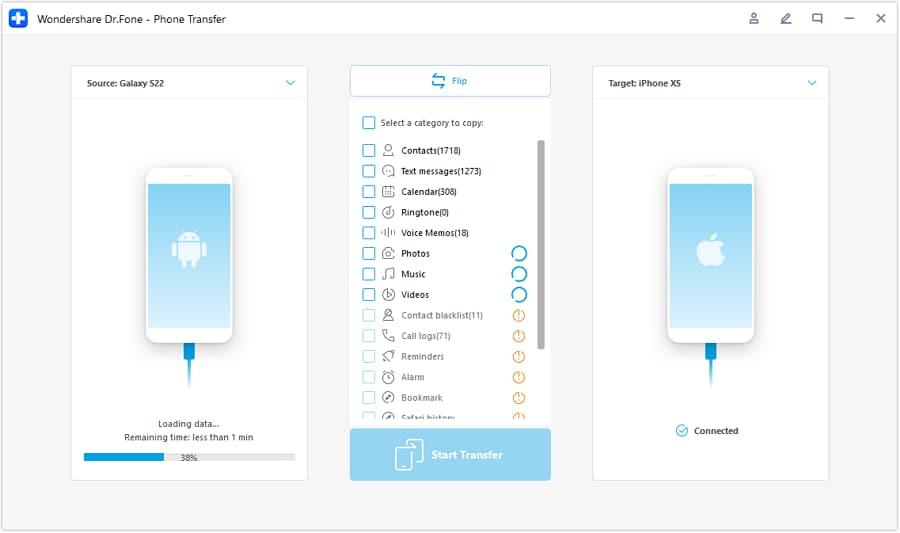
-
Step 3 Choose the data types you want to move
Select what you’ll actually use this semester and start the transfer to avoid clutter and duplicate items on your new device.
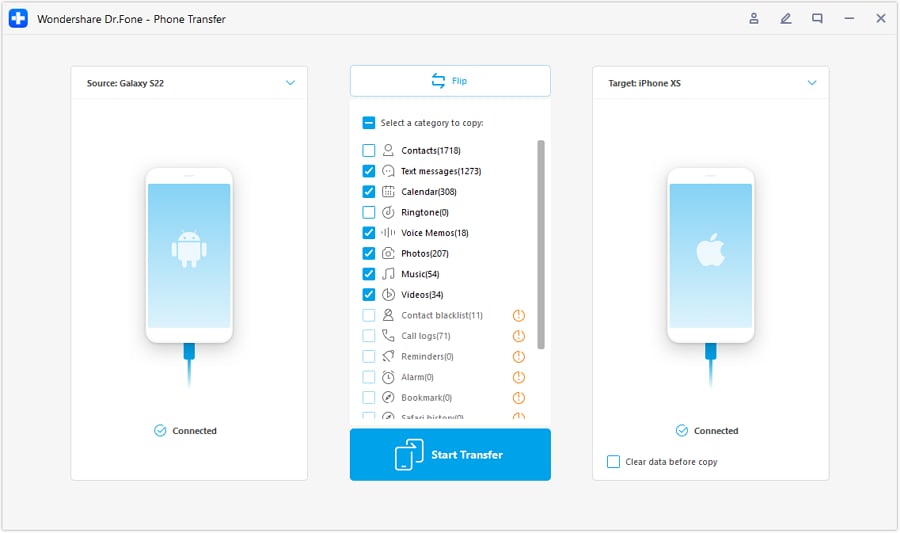
-
Step 4 Monitor progress and verify after completion
Wait for the transfer to finish, then spot-check key items so you don’t discover missing data mid-semester.

Limitation: Some note apps store notebooks in their own cloud; you may need to export/import inside the app for full fidelity.
5-3. Prep the old device for handoff or resale
Action: After confirming the new setup is complete, use Dr.Fone data erasing tools (where supported) to help remove personal data before you sell or give away the old device.
Limitation: Always follow your device maker’s reset steps too, and double-check accounts are signed out to avoid activation locks.




Conclusion
AI is best used here as decision support: it turns vague preferences into explicit trade-offs and highlights likely regret points, but real use determines the final fit—and once you choose, tools like Dr.Fone help you execute the switch cleanly (transfer, backup, and resale prep) so your study setup starts strong.
FAQ
-
Can I trust AI to tell me the “best tablet” for studying?
Trust it to clarify trade-offs and fit based on your inputs, not to validate handwriting feel, screen comfort, or app friction—those need real testing or a solid return policy. -
What’s the single most important trade-off in note-taking tablets?
Usually focus vs flexibility: distraction-resistant setups help consistency, while do-everything devices help breadth (typing, multitasking) but demand stronger self-control. -
How do I avoid choosing based on specs and still make a smart decision?
Describe your weekly workflow (lecture → annotate → review → exam prep) and choose the option that reduces friction in the steps you repeat most. -
What should I prepare before buying so switching is painless?
List your must-have apps, decide where your notes will “live” (app cloud vs folders), and define a simple naming structure for semesters/classes. -
If I might resell later, what matters most?
Keep your notes in portable formats when possible, back up before migrating, and plan for a proper wipe/sign-out process so you’re not stuck later.
 Add Wondershare Dr.Fone as a preferred source on Google





