 Effortlessly manage data through preview, delete, export, etc.

 100% Security Verified | No Subscription Required | No Malware

 :
: 
 ChatGPT
 Perplexity
 Gemini
 Claude
 Grok
Grok
what is magsafe? MagSafe is Apple’s magnetic alignment system for iPhone that helps compatible chargers and accessories snap into place accurately. On iPhone, it’s most commonly used to improve wireless charging alignment and to attach add-ons like wallets, stands, and battery packs more securely than standard Qi charging.
In plain English: MagSafe is a ring of magnets in the iPhone (and matching accessories) that helps things "click" into the right spot. One key takeaway: MagSafe is mainly about reliable attachment and alignment—charging is still wireless, but it’s easier to position correctly and use with accessories.
In this article
- Part 1. What MagSafe is used for: core uses & scenarios (Why it matters)
- Part 2. How MagSafe works: official working logic (How it works, non-technical + technical-lite)
- Part 3. Where to find MagSafe: settings paths and entry points (Where to find it)
- Part 4. How to use, enable, disable, or check MagSafe
- Part 5. Requirements and compatibility
- Part 6. MagSafe vs related concepts
- Part 7. Common issues and misconceptions
- Part 8. Security, privacy, and compliance notes
Part 1. What MagSafe is used for: core uses & scenarios (Why it matters)
Core uses and real-world scenarios
MagSafe matters because it makes wireless charging and accessory attachment more consistent—less fiddling to find the "sweet spot," and fewer accidental slips compared with non-magnetic wireless charging.
- You drop your phone on a nightstand charger and it aligns itself without you adjusting it.
- You use a MagSafe wallet that stays attached while commuting, then remove it easily when needed.
- You mount your iPhone on a MagSafe car mount for navigation without clamps or sticky pads.
- You attach a MagSafe battery pack for extra power while walking or traveling.
- You swap between MagSafe accessories (stand, grip, charger) during the day without changing cases or mounts.
Who needs it most
MagSafe is most useful for everyday users who want simpler charging and attachment, commuters who rely on car mounts, and travelers who want quick add-on power. It can also help second-hand buyers and sellers identify accessory compatibility (for example, confirming whether an iPhone model supports MagSafe). In work settings, enterprise or retail teams may standardize accessories (chargers, mounts) for predictable fit and usage.
Part 2. How MagSafe works: official working logic (How it works, non-technical + technical-lite)
Plain explanation
MagSafe works by using a built-in magnet array in the iPhone that lines up with a matching magnet ring in a charger or accessory. When they get close, magnetic force pulls them into alignment. For charging, the aligned position helps the wireless charging coils sit in the best spot to transfer power more efficiently and reliably.
Key components
- Magnet array in the iPhone: A circular arrangement that guides alignment with compatible accessories.
- Wireless charging coil: The internal coil that receives power from a wireless charger; alignment affects performance.
- Compatible MagSafe accessory magnets: The matching ring that snaps to the phone and holds position.
- Accessory identification (varies by accessory): Some accessories may communicate basic info to the iPhone (behavior depends on model and iOS version).
- Power adapter and cable (for chargers): The charging puck still needs an appropriate power source; output can affect charging speed.
Part 3. Where to find MagSafe: settings paths and entry points (Where to find it)
Settings or menu paths
MagSafe itself isn’t a single on/off switch in iPhone settings—it’s primarily hardware behavior. However, you can confirm related status in a few places, especially when a MagSafe battery accessory is attached:
- Settings > Battery (may show details when a compatible battery accessory is connected)
- Settings > Bluetooth (for accessories that pair or expose a Bluetooth connection)
- Settings > General > About (may list connected accessories in some cases; varies by iOS and accessory)
Brand/platform note: "MagSafe" on iPhone is different from "MagSafe" on Mac laptops (which refers to Apple’s magnetic charging connector on MacBook models).
Search keywords and entry tips
- Settings search keyword: "MagSafe" or "Battery"
If "MagSafe" doesn’t appear in Settings search, look for accessory-specific entries (for example, battery-related sections) or check for a charging animation when attaching a MagSafe charger.
Part 4. How to use, enable, disable, or check MagSafe
Safe how-to steps
-
Step 1 Place the MagSafe charger (or accessory)
Place the MagSafe charger (or accessory) against the back center area of the iPhone until it snaps into place.
-
Step 2 Verify charging and power
If charging, verify the iPhone shows the charging indicator (Lock Screen battery icon/animation) and that the charger is connected to power.
-
Step 3 Check progress in Battery
Check charging progress in Settings > Battery or the battery widget (behavior and details vary by iOS version).
-
Step 4 Remove accessories safely
If using a MagSafe accessory (wallet/stand/mount), gently twist or pull to remove—avoid yanking the accessory sideways with excessive force.
Official help resources
Apple’s official guidance varies by device and region; use the Apple Support app or Apple’s official support site if you need model-specific setup instructions for a particular MagSafe accessory.
Part 5. Requirements and compatibility
Quick compatibility table
| Item | Requirement / behavior |
|---|---|
| Supported iPhone models | MagSafe on iPhone is supported on iPhone 12 series and later (model support can vary by region and generation). |
| iOS requirement | No special iOS version is required for basic magnetic attachment and charging, but accessory features/status screens can vary by iOS version. |
| Account sign-in | Not required for MagSafe charging/attachment. |
| Required toggles | No dedicated MagSafe toggle; standard charging and battery settings apply. |
| Connectivity | Charging works without internet; some accessories may use Bluetooth/NFC-like identification behavior depending on the accessory. |
| Offline behavior | Magnetic attachment and wireless charging function offline; accessory tracking features (if present on certain accessories) may require network connectivity. |
| Notable limitations | Charging speed and stability can be affected by power adapter wattage, heat, case thickness/materials, and alignment; some accessories may not fit with bulky cases. |
Notes and caveats
MagSafe charging performance can change depending on temperature and the power source, and some third-party accessories may behave differently from Apple-branded ones. Also note that "MagSafe-compatible" can mean different things (magnetic attachment only vs. magnetic attachment plus enhanced charging), so it’s worth checking what a specific accessory supports.
Part 6. MagSafe vs related concepts
Key differences
| Concept | Purpose | Where it appears | Dependencies | Common confusion |
|---|---|---|---|---|
| MagSafe (iPhone) | Magnetic alignment/attachment + wireless charging alignment | iPhone 12 and later + MagSafe accessories | Compatible magnets; power source for charging | Confused with any wireless charger or any magnetic case |
| Qi wireless charging | Wireless charging standard (non-magnetic by default) | Many phones/chargers | Coil alignment; power source | People expect the same alignment/hold as MagSafe |
| Qi2 (where supported) | Newer wireless charging standard that can include magnetic alignment | Some newer chargers/accessories | Device and charger support | Mistaken as "MagSafe" branding even when it’s standards-based |
| Magnetic cases/mounts | Physical attachment only | Cases, mounts | Case magnet layout/strength | Mistaken for MagSafe charging capability |
When readers confuse them
- A charger can be Qi (wireless) without being MagSafe (magnetic alignment).
- A case can be "magnetic" but still not align properly for consistent charging.
- "MagSafe-compatible" may refer to attachment rather than full-speed charging capability.
Part 7. Common issues and misconceptions
Symptom → likely reason → what to check
- Doesn’t snap into place strongly → case is too thick/misaligned or accessory isn’t truly MagSafe-aligned → try without the case; confirm accessory is MagSafe-designed (not just "magnetic").
- Charges slowly → power adapter output, heat, or background activity limits charging → use a compatible, sufficient power adapter; let the phone cool; check Low Power Mode and temperature warnings.
- Charging starts then stops → unstable power source/cable or overheating → reseat cables, try a different adapter/outlet, remove the case, and check for debris.
- Accessory falls off in a car → vibration + mount strength mismatch → confirm the mount is designed for MagSafe hold strength and that the surface is stable.
- Worried magnets will damage the iPhone → misconception; the system is designed for magnets → still keep magnetic-stripe cards and some medical devices in mind and follow manufacturer guidance.
When Dr.Fone can help
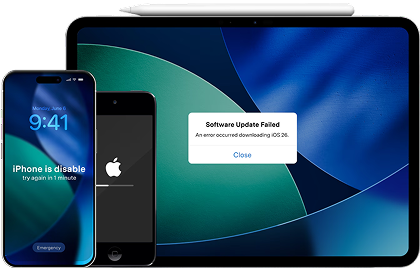
MagSafe is mostly hardware and accessories, but charging problems sometimes overlap with iOS glitches (for example, a device that freezes during charging, shows incorrect battery status, or behaves inconsistently after an update). In those cases, Wondershare Dr.Fone can be relevant for legitimate maintenance tasks like backing up data before troubleshooting or attempting iOS system repair workflows when the phone is unstable. Use Dr.Fone only on devices you own or are authorized to service.
 Effortlessly manage data through preview, delete, export, etc.
- Transfer all data between devices.
- Robust backup solutions for reliable data protection.
- Mirror screens to PC for meetings, teaching, and control.

- Fix iOS issues, no data loss.
- One-click repair for all iOS problems.
- Solve recovery mode, Apple logo, black screen, etc.
- Upgrade or downgrade iOS without iTunes
-
Step 1 Back up important data
Back up important data with Dr.Fone so you have a safe restore point before making changes.
-
Step 2 Run iOS system repair
Run Dr.Fone’s iOS system repair workflow to address crashes or abnormal charging-related behavior without attempting any security bypass.
-
Step 3 Re-test MagSafe charging
Re-test MagSafe charging with a known-good charger, cable, and adapter after the device stabilizes.
- If you can still access the phone, start with a backup and basic checks (adapter, cable, case, heat) before deeper repairs.
- If you forgot the passcode, use official Apple account recovery and device reset paths—don’t attempt unauthorized unlocking.
- If the device is stuck or unstable, consider system repair after backing up, or contact Apple Support for hardware evaluation.




Part 8. Security, privacy, and compliance notes
MagSafe is designed to improve safe, predictable accessory attachment and charging—not to control access to the phone. Still, accessories can influence privacy (for example, a wallet or mount changes how and where you carry your phone), and some accessories may share limited status information with iOS depending on design. Avoid trying to modify or defeat built-in safety behaviors such as temperature-based charging slowdowns. In workplaces, follow IT or facility policies about approved chargers/mounts, and if an accessory is lost (like a wallet), use official steps to secure accounts and cards rather than attempting any tracking or access methods you’re not authorized to use.
Conclusion
MagSafe is Apple’s magnetic alignment system for iPhone that makes wireless charging and accessory attachment easier and more consistent, especially on iPhone 12 and later. Most issues come down to power, heat, cases, or accessory compatibility; if your iPhone is unstable during charging, Dr.Fone can be a sensible next step for backup or system repair—alongside Apple’s official support when hardware is suspected.
FAQ
Q1. Does MagSafe work with any wireless charger?
MagSafe iPhones can charge on many Qi wireless chargers, but the magnetic snap/alignment is specific to MagSafe (or certain magnetic-alignment chargers). A standard Qi pad may work but won’t "click" into place.
Q2. Which iPhones support MagSafe?
MagSafe for iPhone is supported on iPhone 12 series and later. Exact behavior can vary by model, case, and accessory design.
Q3. Is MagSafe bad for iPhone battery health?
MagSafe uses wireless charging, which can generate more heat than wired charging in some situations. iPhone manages charging to protect the battery, but keeping the phone cool and using quality power adapters/accessories helps.
Q4. Can I use MagSafe with a case on?
Yes, many cases are designed to be MagSafe-compatible. Very thick cases, metal layers, or misaligned magnets can reduce holding strength or charging reliability, so testing without the case is a good troubleshooting step.
 Add Wondershare Dr.Fone as a preferred source on Google


