 Effortlessly manage data through preview, delete, export, etc.

 100% Security Verified | No Subscription Required | No Malware

 :
: 
 ChatGPT
 Perplexity
 Gemini
 Claude
 Grok
Grok

“Turn everything on” sounds safe, but Android privacy settings often trade convenience, app functionality, and battery life for less tracking and tighter access.
Forum user
AI can help you turn fuzzy goals like “more private” into a ranked set of settings based on what you actually do on your phone—navigation, social apps, work profiles, smart devices, payments, or photos.
But AI can’t feel your day-to-day friction (broken automations, delayed notifications, buggy Bluetooth pairing). Once you decide what to change, the real work is applying settings consistently—especially if you’re switching phones or preparing one for resale.
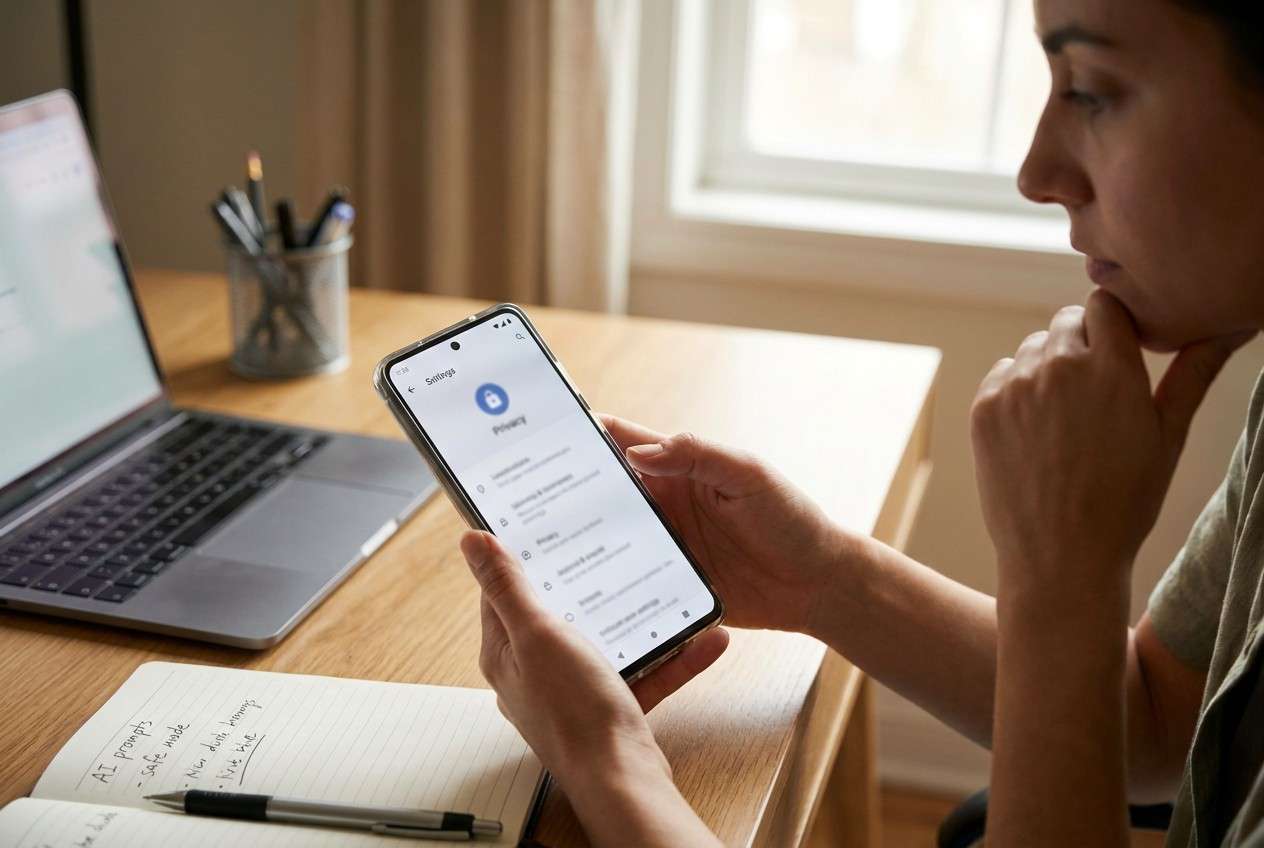
In this article
- How to compare Android privacy features based on real priorities
- Impact vs inconvenience
- High-impact, low-hassle vs high-hassle
- Risk reduced vs cost to you
- Example: location controls trade-offs
- What the AI needs to compare
- Using AI prompts to evaluate more clearly
- When to stop researching and make the call
- After choosing: switch or prepare smoothly
Part 1. How to Compare Android Privacy Features Worth Turning On Based on Real Priorities
Most people aren’t choosing between “privacy on” and “privacy off”—they’re choosing between which protections matter enough to accept the downsides. For example: tighter location controls can reduce tracking, but can also break ride-hailing pickup accuracy or smart home routines.
The uncertainty usually comes from not knowing which settings are “high impact, low hassle” versus “high impact, high hassle,” and from not wanting to accidentally cripple everyday tasks like Bluetooth accessories, photo sharing, or background delivery apps.
A practical way to decide is to compare features by what risk they reduce (tracking, over-permissioned apps, data exposure on lock screen) and what they cost you (extra taps, weaker app features, more troubleshooting).
Part 2. What the AI Needs to Compare
Share these details so the AI can rank privacy settings by real-life trade-offs, not generic advice:
- Your Android version (approx.) and phone type (Pixel/Samsung/other, if relevant)
- Your top 10 apps and what you use them for (maps, banking, social, work chat, fitness, dating, etc.)
- Your “privacy worry” ranking (tracking ads, stalking/abuse scenarios, data brokers, workplace monitoring, lost phone risk, etc.)
- Your tolerance for friction (low/medium/high) and what friction you won’t accept (missed notifications, broken Bluetooth, etc.)
- What you rely on daily: precise location, Bluetooth devices, camera/mic, background activity, NFC payments
- Whether this is your personal phone, a work-managed phone, or mixed (work profile / MDM)
Part 3. Using AI Prompts to Evaluate Android Privacy Features Worth Turning On More Clearly
Use these prompts to force a priority-based comparison and make the trade-offs explicit.
3-1. Level 1: Basic Prompt
Compare the most worthwhile Android privacy settings for me to turn on, focusing on impact vs inconvenience.
Ask me only the minimum questions you need, then give a short prioritized list with one downside per setting.
3-2. Level 2: Advanced Prompt
I want a decision framework, not a checklist.
Based on my apps and habits, rank Android privacy features/settings by **(1) privacy benefit**, **(2) likelihood of breaking something I use**, and **(3) time to maintain**.
For each item, tell me who it suits best (privacy-max vs convenience-first) and what I should choose if I can only change 3 settings.
3-3. Level 3: Evidence Prompt
Here’s my context:
- Android version/phone: [fill in]
- Top apps + use: [fill in]
- Biggest privacy concern: [fill in]
- Friction tolerance: [low/med/high]
Recommend which Android privacy features are worth turning on *first*, and which ones I should skip for now.
For each recommended setting, spell out **what I gain** and **what I give up** in day-to-day use.
Also identify **one assumption about my habits** that would change your recommendation, and tell me what you’d recommend instead if that assumption is wrong.
3-4. Prompt Refinement
If I turn on stricter permissions (like “only while using” / “ask every time”), which 3 app categories are most likely to become annoying, and what’s the least-bad compromise for each?
Which single change reduces the most real-world tracking with the least chance of breaking core functions (maps, camera, Bluetooth, payments)?
What are the top “regret points” people hit after tightening Android privacy, and how do I avoid them without giving up the main benefit?
Create two profiles—**Privacy-first** and **Convenience-first**—and show me exactly where they differ in settings choices and why.
If my main risk is a lost or borrowed phone, which privacy settings matter more than ad/tracker controls—and what trade-off do they introduce?
Tell me which settings are “set once and forget” vs “requires ongoing maintenance,” and reorder your recommendations accordingly.
3-5. AI Recommendation vs Real-World Fit
| likely AI recommendation or conclusion | what real-life use may change or reveal |
|---|---|
| Limit app permissions to “only while using” and remove unused permissions | Some apps may nag repeatedly or fail silently (delivery tracking, smart home geofencing, wearables syncing) |
| Prefer approximate location except for navigation/ride-share | Pickup accuracy, photo geotag workflows, and “nearby” features may feel worse than expected |
| Turn off or reduce ad personalization / reset or delete advertising ID (if available) | You may still see ads; the “benefit” is less cross-app linkage, which is hard to feel day-to-day |
| Tighten lock-screen privacy (hide sensitive notification content) | Convenience drops fast if you rely on codes/alerts at a glance; you may adjust per-app instead |
AI can clarify likely fit and trade-offs, but hands-on use, workflow friction, and daily habits still decide satisfaction—especially for location, Bluetooth, notifications, and background behavior.
Part 4. When to Stop Researching Android Privacy Features Worth Turning On and Make the Call
- You can name your top 1–2 privacy risks (tracking, over-permission, lock-screen exposure, lost phone) and map each to a specific setting change.
- You have a “non-negotiables” list of what must keep working (navigation, calls/texts, payments, key Bluetooth devices, critical notifications).
- You’ve chosen a first batch of 3–5 changes that are high-impact and reversible if they’re annoying.
- You know your review point (e.g., “I’ll live with these for 7 days, then roll back only what causes real friction.”)
At this point, you’re not missing “the perfect setting”—you’re ready to test a sensible configuration and adjust based on real use.
Part 5. After Choosing Android Privacy Features Worth Turning On: Switch or Prepare Smoothly
Once you’ve decided what privacy posture you want, the practical risk is inconsistency: migrating to a new phone, leaving old data behind, or forgetting to clean up before resale can undo the benefits of better settings.
Product Recommendation: Repair Android System Issues Before (or After) Privacy Changes
If privacy changes, system updates, or a device migration leaves your phone unstable (boot loop, black screen, won’t turn on), Dr.Fone - System Repair (Android) can help you address system-level errors so you can get back to a consistent, usable setup.
 Fix Android instantly – no skills needed.
- Solve boot loop, black screen, won’t turn on, etc.
- High success rate for all system issues.
- User-friendly interface with easy-to-follow steps.
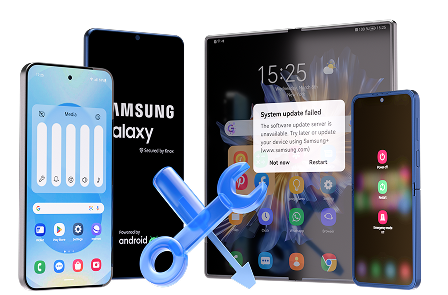
Keep in mind that no tool can replace your manual review of permission prompts and system toggles—Android settings still control ongoing access. After any repair or migration, re-check the privacy settings you chose and confirm your must-work functions (navigation, payments, Bluetooth devices, and critical notifications).
-
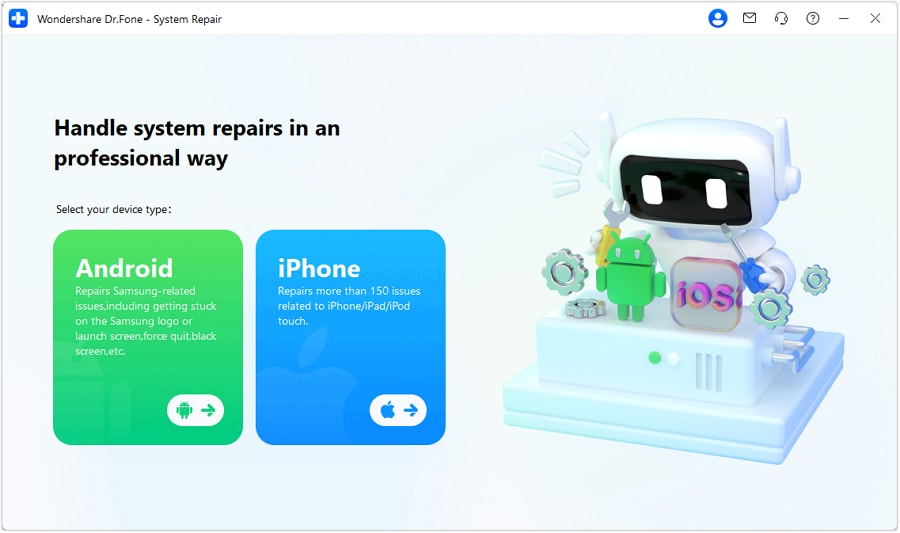
Step 1 Open System Repair in Dr.Fone
Launch Dr.Fone on your computer and enter the System Repair module.

-
Step 2 Choose Android as the device type
Select Android to match the phone you’re working on.
-
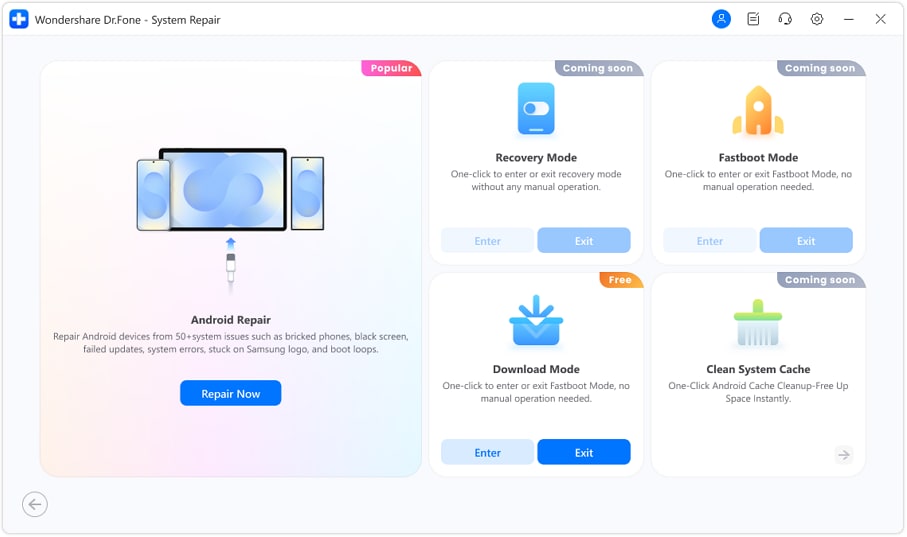
Step 3 Select Android Repair
Proceed with the Android repair option to continue the guided process.
-
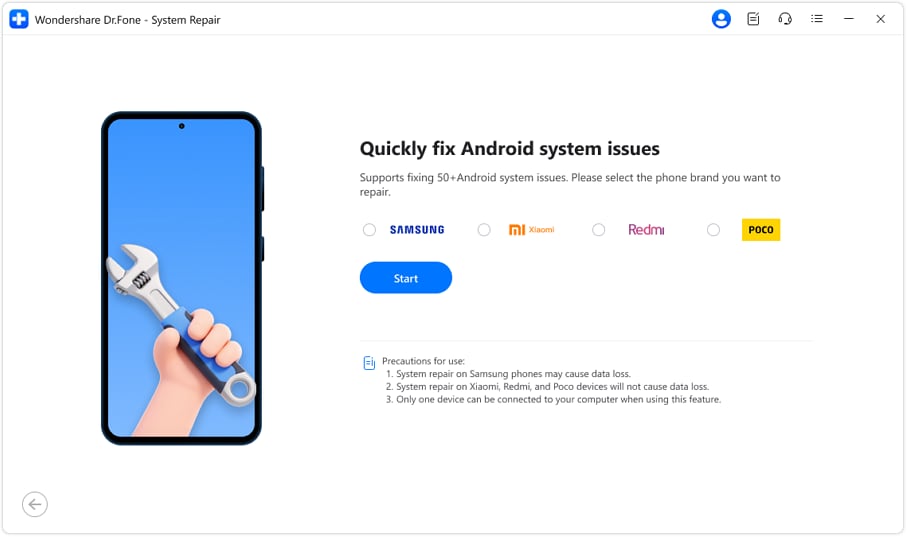
Step 4 Select your phone brand/model when prompted
Choose the specific brand so the workflow can match the correct device path.




Conclusion
AI is best used here as decision support: it helps you rank privacy features by the trade-offs you’ll actually feel; real-world use is the final proof; and if you’re switching devices or preparing one for resale, Dr.Fone can help execute the move and cleanup cleanly after you’ve made your choice.
FAQ
-
Can I trust AI to tell me which Android privacy settings are “worth it”?
Trust it for prioritizing trade-offs based on your habits, not for guaranteeing zero friction or confirming how a specific phone model behaves.
-
What’s the single most important trade-off in Android privacy settings?
Permission tightening and background limits can reduce data sharing, but they can also break “invisible convenience” like always-on location routines, wearable syncing, and timely notifications.
-
How do I avoid generic spec-style advice and make this personal?
Give the AI your top apps, your biggest privacy worry, and your friction tolerance—then ask it to rank settings by benefit vs annoyance with a rollback plan.
-
What should I prepare before I start changing settings?
List your must-work functions (navigation, 2FA texts, key notifications, Bluetooth devices) and pick a short test window so you can revert changes that cause real pain.
-
If I’m switching phones, what privacy risk do people forget?
They transfer everything by default, keep the old phone logged in, or don’t fully erase it before resale—leaving accounts, files, and messages exposed even if the new phone is “locked down.”
 Add Wondershare Dr.Fone as a preferred source on Google





