 Effortlessly manage data through preview, delete, export, etc.

 100% Security Verified | No Subscription Required | No Malware

 :
: 
 ChatGPT
 Perplexity
 Gemini
 Claude
 Grok
Grok
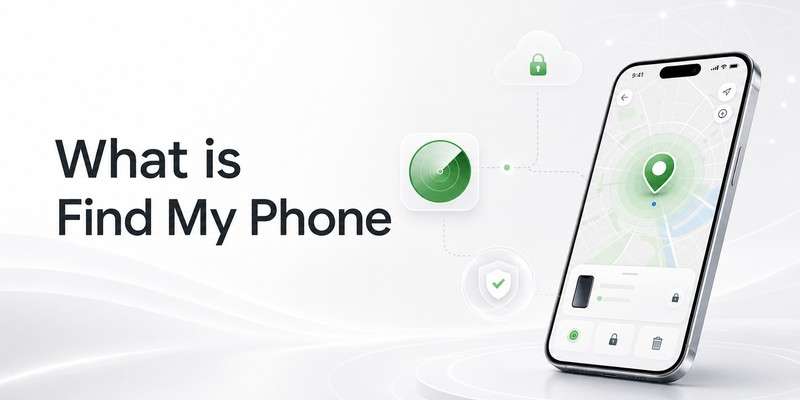
Find My iPhone is Apple’s built-in device-finding feature that helps users locate a missing iPhone, play a sound, mark it as lost, and remotely erase it if necessary. In simple terms, it is Apple’s official tool for finding your iPhone and protecting your personal data when the device is lost or stolen.
This guide explains what Find My iPhone is, what it is used for, how it works, where to find it, how to turn it on, and how it compares with Activation Lock and Android alternatives. We also explain when Dr.Fone tools may help in related recovery, backup, repair, and privacy scenarios.
In this article
- Part 1. What Is Find My iPhone? A Quick Definition
- Part 2. What Is Find My iPhone Used For?
- Part 3. How Does Find My iPhone Work?
- Part 4. Where Is Find My iPhone?
- Part 5. How to Use, Turn On, or Check Find My iPhone
- Part 6. Requirements & Compatibility
- Part 7. Find My iPhone vs Similar Features
- Part 8. Common Issues & Misconceptions
- Part 9. Security, Privacy & Compliance Notes
Part 1. What Is Find My iPhone? A Quick Definition
Find My iPhone is Apple’s built-in device-tracking and protection feature inside the Find My service. It helps users locate a missing iPhone on a map, play a sound to find it nearby, mark it as lost, and remotely erase it if recovery is unlikely.
In plain English, Find My iPhone is the official Apple feature that helps you find your phone and keep your personal information safer if the device is misplaced or stolen. One key takeaway is that it is not only a location feature, but also a security feature because it works together with Lost Mode and Activation Lock.
Part 2. What Is Find My iPhone Used For?
Find My iPhone matters because it does more than show your phone on a map. It is designed to help users find, protect, and manage a missing Apple device in real-life situations.
It is especially useful for users who travel often, share devices with family, worry about theft, or simply want a safety net in case their iPhone goes missing.
Typical use cases
- Finding a misplaced iPhone at home, school, or work
- Locating a lost phone while traveling or commuting
- Locking a missing device with Lost Mode
- Showing a callback message on the lock screen
- Protecting Apple Pay cards and passes
- Checking the last known location when the phone is offline or low on battery
Who needs it most
- Everyday iPhone users who want basic loss protection
- Families using Family Sharing to help locate devices
- Frequent travelers and commuters
- Parents managing multiple Apple devices in a household
- Second-hand buyers and sellers who need to understand ownership status and Activation Lock
Part 3. How Does Find My iPhone Work?
At a basic level, Find My iPhone works by linking your iPhone to your Apple Account and then using Apple’s location and network systems to help you find it from another Apple device or from the web.
3-1. Plain explanation
If your iPhone is online, Find My can show its current location. If it is offline, powered off, or low on battery, Apple may still show its last known location. If Find My network is enabled, nearby Apple devices may help detect the missing iPhone through a privacy-protected Bluetooth-based network.
3-2. Key components
- Apple Account connection: your iPhone must be signed in to your Apple Account
- Find My enabled: the feature must be turned on before the device is lost
- Location Services: helps Find My display the phone’s location accurately
- Find My network: allows nearby Apple devices to help report an approximate location
- Send Last Location: uploads the device location when the battery is low
- Lost Mode and Activation Lock: helps protect your device if it falls into the wrong hands
3-3. The privacy side
Apple describes Find My network as anonymous and encrypted. That means it is designed to help owners recover devices without exposing location details in a way that compromises other users’ privacy.

Part 4. Where Is Find My iPhone?
This is one of the most useful sections for search users because many people who ask “What is Find My iPhone?” are actually trying to locate the setting on their device.
Settings path
- On iPhone or iPad: Settings > [your name] > Find My > Find My iPhone
- In the Find My app: Open Find My and go to the Devices tab
- On the web: Go to iCloud.com/find
- On Mac: Apple menu > System Settings > [your name] > iCloud > See All > Find My Mac
If you cannot remember the menu path, you can also search for Find My directly in the Settings search box.
Part 5. How to Use, Turn On, or Check Find My iPhone
A “what is” article should also answer the next question users usually have: how do I actually use this feature?
5-1. How to turn it on
-
Step 1 Open Settings
Unlock your iPhone and open the Settings app from the Home Screen or App Library.
-
Step 2 Tap your name
Tap your Apple Account name at the top of Settings to enter your account and iCloud-related options.
-
Step 3 Open Find My
Tap Find My, then tap Find My iPhone.
-
Step 4 Turn on Find My iPhone
Enable the main Find My iPhone switch so the device can be found later if it is lost.
-
Step 5 Turn on Find My network
This option helps you locate the device even when it is offline in supported situations.
-
Step 6 Turn on Send Last Location
This lets your iPhone send its last known location when the battery gets critically low.
5-2. How to check whether it is enabled
Go to Settings > [your name] > Find My > Find My iPhone. If the main switch is on, the feature is active. If Find My network and Send Last Location are also enabled, your device is better prepared for offline or low-battery situations.
5-3. How to find a missing iPhone
If your iPhone is lost, open the Find My app on another Apple device or sign in at iCloud.com/find. Select the missing device and then choose an action such as Directions, Play Sound, Lost Mode, or Erase This Device.
Part 6. Requirements & Compatibility
Below is a simplified compatibility overview that helps users quickly understand what Find My iPhone needs in order to work properly.
| Requirement | Needed | Notes |
|---|---|---|
| Supported Apple device | iPhone, iPad, Mac, Apple Watch, and supported accessories | |
| Apple Account signed in | Your device must be linked to your Apple Account | |
| Find My enabled | Must be turned on before the device is lost | |
| Location Services | Needed for accurate location display | |
| Find My network | Strongly recommended for offline finding | |
| Internet or network access | Needed for live location and many remote actions | |
| Send Last Location | Optional but recommended | |
| Family Sharing | Optional, but useful for shared device recovery |
Part 7. Find My iPhone vs Similar Features
Understanding related tools helps users avoid confusion, especially when reading about Android alternatives or second-hand device security.
7-1. Find My iPhone vs Google Find Hub
Find My iPhone is part of the Apple ecosystem and is tied to an Apple Account. Google’s Android alternative is Find Hub, which lets users locate, lock, erase, or play a sound on a lost Android device. Both are device-protection tools, but they depend on different ecosystems, accounts, and settings.
7-2. Find My iPhone vs Samsung SmartThings Find
Samsung’s SmartThings Find is Samsung’s Galaxy-focused alternative. It can help users locate, ring, lock, and erase supported Galaxy phones, tablets, watches, and earbuds. However, it depends on a Samsung account and Samsung-specific lost-device settings, while Find My iPhone is built for Apple devices.
7-3. Find My iPhone vs Activation Lock
These two features are related, but they are not the same thing. Find My iPhone helps you locate and manage a missing device. Activation Lock is the anti-theft protection that automatically turns on when Find My is enabled, preventing someone else from reactivating the iPhone without the correct Apple Account credentials.
Part 8. Common Issues & Misconceptions
This section answers the most common search questions users have after learning what Find My iPhone is.
8-1. Symptom → cause → what to do
Why can’t Find My locate my iPhone?
The device may be turned off, out of battery, offline, or unable to share its location properly. In these cases, Find My may show only the last known location or no location at all.
Why does my iPhone show as offline?
Live location depends on the device being turned on and connected to Wi-Fi or cellular. If it is offline, some actions will wait until the phone reconnects.
Why does an erased iPhone still ask for the Apple Account?
Because erasing a device does not remove Activation Lock. Even after a remote erase, the iPhone may still require the original Apple Account credentials before it can be activated again.
Why is a used iPhone stuck on “iPhone Locked to Owner”?
That usually means the device is still linked to the previous owner’s Apple Account. Buyers should not accept ownership of a second-hand iPhone until the previous owner has removed it properly.
Part 8-2. How Dr.Fone Can Help in Find My iPhone-Related Situations
Find My iPhone is designed to help you locate and protect a missing device, but users often face other problems at the same time. For example, you may still have the iPhone in your hand but want to back it up before a reset, forget the screen passcode on your own device, run into a boot loop after an update, or need to wipe private data before selling the phone.
That is where Dr.Fone can fit in. Instead of replacing Apple’s official ownership and security system, Dr.Fone is better positioned as a supporting toolkit for backup, repair, access recovery on personally owned devices, and privacy cleanup.
 Effortlessly manage data through preview, delete, export, etc.
- Transfer all data between devices.
- Robust backup solutions for reliable data protection.
- Mirror screens to PC for meetings, teaching, and control.

If you can still access the phone
If your iPhone is still working, the smartest first step is usually to create a backup before you reset, repair, migrate, or change important account settings. Dr.Fone - iOS Backup & Restore is designed for local and selective backup workflows, which can be useful if you want more control over your files than a full-device restore process.
If you forgot the screen passcode on your own iPhone
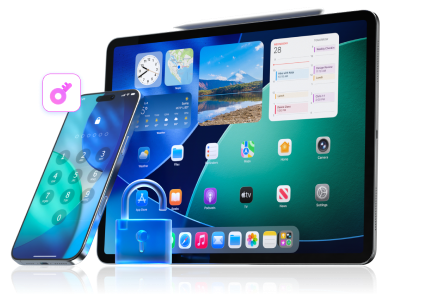
Sometimes the issue is not finding the device but getting back into it. If you forgot the lock-screen passcode on an iPhone you personally own, Dr.Fone - Screen Unlock can be introduced as an owner-side recovery option for common lock-screen access situations.
Helpful when you forget your own iPhone passcode
Dr.Fone - Screen Unlock (iOS) is designed for common owner-side lock-screen recovery scenarios, making it relevant when users are locked out of a personally owned iPhone or iPad.
- Unlock iPhone/iPad passcode in minutes.
- Remove Face ID, Touch ID, MDM lock, and screen lock.
- Bypass iCloud Activation Lock easily.
- Support all iOS versions and devices.
- Simple steps, no technical skills needed.
If the iPhone is stuck on the Apple logo, black screen, or boot loop
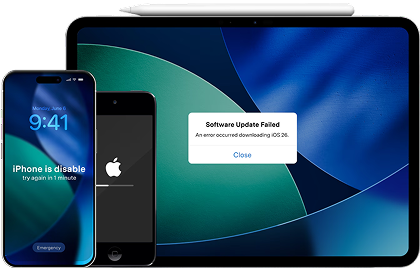
In some cases, users searching for Find My iPhone are actually dealing with a device that is no longer working normally. If the iPhone is stuck during startup, caught in a boot loop, or frozen on a black screen after an update, Dr.Fone - System Repair can be positioned as a troubleshooting tool for common iOS system issues.
Fix boot loop, black screen, or Apple logo stuck issues
Dr.Fone - System Repair (iOS) is designed for users who need to recover an iPhone or iPad from software-related startup and system problems without focusing only on location tracking.
- Fix iOS issues, no data loss.
- One-click repair for all iOS problems.
- Solve recovery mode, Apple logo, black screen, etc.
- Upgrade or downgrade iOS without iTunes
If you are preparing the device for resale or recycling
After you properly remove Find My and sign out of your Apple Account, privacy becomes the next concern. If you plan to sell, trade in, recycle, or give away your iPhone, Dr.Fone - Data Eraser can be introduced as an extra privacy step for securely removing personal data before the device changes hands.
1. Backup before device changes
Use Dr.Fone - iOS Backup & Restore when you still have access to the iPhone and want to protect your data before reset, repair, or migration.
2. Passcode-related access recovery
Use Dr.Fone - Screen Unlock when the iPhone is yours but you are locked out because of a forgotten screen passcode.
3. Startup and system issue repair
Use Dr.Fone - System Repair when the iPhone is stuck on the Apple logo, black screen, recovery mode, or boot loop.
4. Privacy cleanup before resale
Use Dr.Fone - Data Eraser after proper sign-out and Find My removal, when you want to securely erase personal data before resale or recycling.




Part 9. Security, Privacy & Compliance Notes
Find My iPhone exists to protect the rightful owner. That is why Apple combines it with Lost Mode and Activation Lock. In practice, this means the feature is not just about convenience, but also about reducing theft value and making it harder for someone else to reactivate a lost iPhone.
Users should not try to bypass ownership protections on devices that are not theirs. If a second-hand iPhone still asks for the previous owner’s Apple Account, the proper solution is account removal by the original owner or Apple’s official recovery process.
Conclusion
Find My iPhone is Apple’s built-in lost-device and anti-theft protection system for iPhone users. It helps you locate a missing phone, play a sound, lock it with Lost Mode, and protect it with Activation Lock if it falls into the wrong hands. For most users, the smartest approach is to turn it on before there is ever a problem, enable Find My network and Send Last Location, and keep an up-to-date backup so recovery is easier if something goes wrong.
FAQ
-
1. What is Find My iPhone used for?
Find My iPhone is used to locate a missing iPhone, play a sound, mark it as lost, and erase it remotely if needed. It also works together with Activation Lock to help protect the device from unauthorized reuse. -
2. Is Find My iPhone the same as Activation Lock?
No. Find My iPhone is the overall locating and protection feature, while Activation Lock is the anti-theft protection that automatically turns on when Find My is enabled. -
3. Can I find my iPhone if it is offline?
In many situations, yes. If Find My network is enabled, nearby Apple devices may help report an approximate location. Otherwise, you may still be able to see the last known location. -
4. What should I do if a used iPhone says “iPhone Locked to Owner”?
Do not proceed as if the device is ready to use. Ask the seller or previous owner to remove the iPhone from their Apple Account properly. If they cannot, you should not take ownership of the device.
 Add Wondershare Dr.Fone as a preferred source on Google


