 Effortlessly manage data through preview, delete, export, etc.

 100% Security Verified | No Subscription Required | No Malware

 :
: 
 ChatGPT
 Perplexity
 Gemini
 Claude
 Grok
Grok

I’m trying to keep my notes, files, photos, and messages consistent across my phone, tablet, and laptop—but I’m worried I’ll sync the wrong account or wipe the old device too early and lose something important.
Apple Support Community user
Keeping school files, notes, messages, and apps consistent across a phone, tablet, and laptop can fall apart fast if you miss one dependency or overwrite the wrong data.
AI is useful here because it can turn your messy “I need everything everywhere” goal into a clear sequence: what to audit, what to back up, what to migrate, and what to verify before you touch anything risky.
AI can’t access your devices, confirm what actually transferred, or perform backups and restores—so once the plan is locked, execution needs real device tools and real verification on your screens.
In this article
- How to plan your student workflow without missing critical steps
- Why student setups get fragmented
- Pick a “source of truth” before syncing
- Back up before you change anything
- Avoid the point of no return (wipe/reset)
- What the AI needs to know
- Using AI prompts to build a safer workflow
- AI plan vs. real device constraints
- When to stop planning and start execution
Part 1. How to Plan Student Workflow Across Phone, Tablet, and Laptop Without Missing Critical Steps
A typical student setup is fragmented: lecture notes on a tablet, messaging and photos on a phone, assignments on a laptop, and “temporary” downloads scattered everywhere. The risk is thinking you’re syncing, when you’re actually duplicating, overwriting, or leaving key items behind.
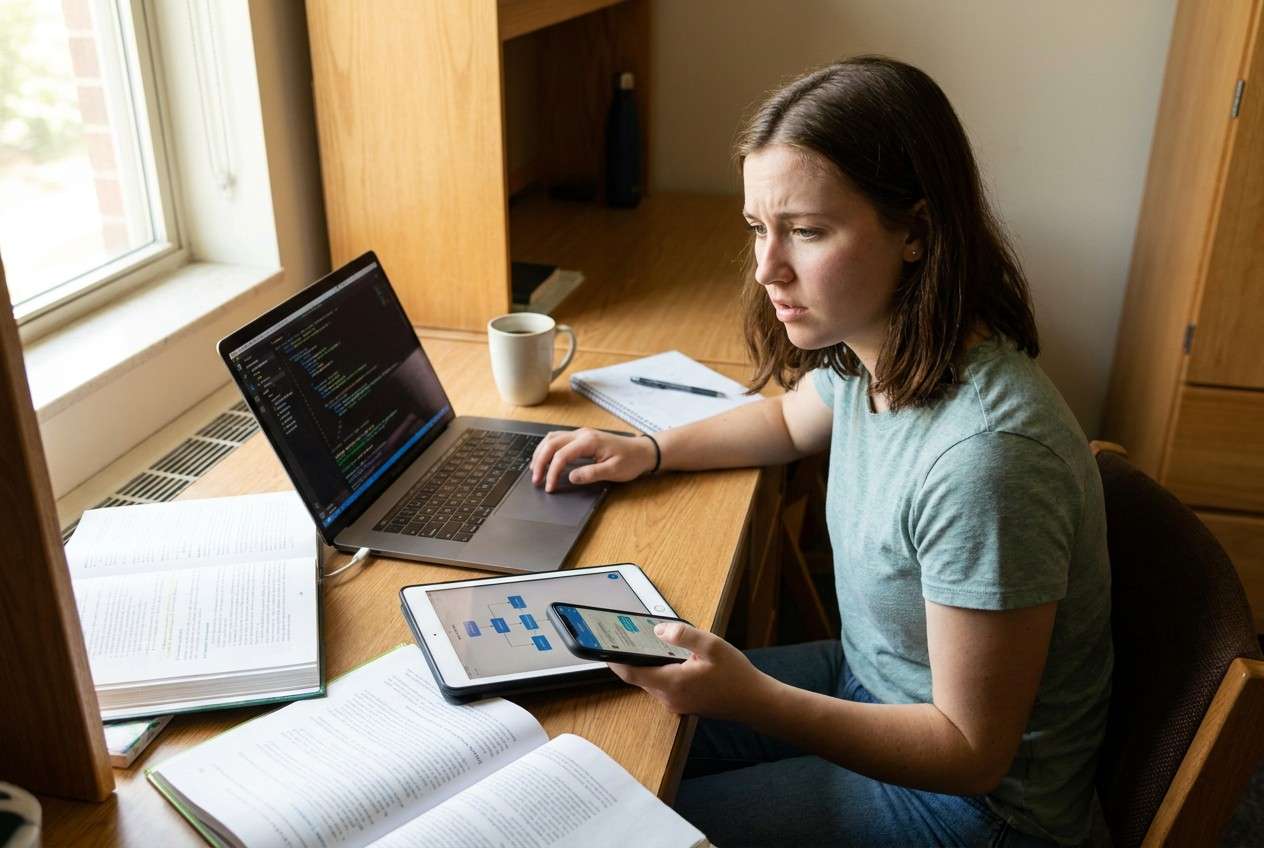
Even after you ask AI for advice, it can still feel unclear what to do first: audit storage, choose a “source of truth,” back up, sign out, transfer, re-sync, then clean up—especially when each device has different apps and accounts.
1-1. Why student setups get fragmented
Different devices often become “owners” of different data types (notes on tablet, chats on phone, assignments on laptop). Without a clear direction, syncing can silently create duplicates or overwrite the best copy.
1-2. Pick a “source of truth” before syncing
Before you move anything, decide which device/account/location is the master for each data type (notes, files, photos, messages). This prevents “everything syncs everywhere” from becoming “the wrong copy wins.”
1-3. Back up before you change anything
Backups (and a rollback option) come before sign-outs, deletions, migrations, or any cleanup. If something goes wrong mid-way, the backup is what lets you recover without panic.
1-4. Avoid the point of no return (wipe/reset)
One concrete point of no return is wiping or factory-resetting an old phone/tablet to “start fresh.” You should not reach that step until you’ve verified—on the new setup—that your notes, attachments, photos, and app data are truly present and usable.
Part 2. What the AI Needs to Know
Share your current setup and what “done” looks like so the AI can sequence steps and avoid destructive mistakes.
- Devices and OS versions (e.g., iPhone iOS 17, Android 14 tablet, Windows 11 laptop, MacBook)
- Primary student apps (notes app, PDF reader, cloud drive, LMS apps, messaging, calendar)
- Accounts used (Apple ID/Google, school Microsoft 365, Dropbox, third-party logins)
- What must be preserved exactly (chat history, note databases, photos, offline files, app logins)
- Where the “master” copies live today (device-only, iCloud/Google Drive/OneDrive, SD card, external drive)
- Storage constraints (nearly full phone/tablet, limited laptop disk)
- Connectivity constraints (campus Wi‑Fi limits, metered data)
- Deadline pressure (next class, upcoming exam, assignment due date)
- Privacy requirements (family-shared devices, school compliance, shared laptop)
- Your risk tolerance (prefer redundancy vs. prefer minimal copies)
Part 3. Using AI Prompts to Build a Safer Student Workflow Across Phone, Tablet, and Laptop Workflow
Use the prompts below to make the AI produce a checklistable plan with verification gates before you change anything.
3-1. Level 1: Basic Prompt
Create a step-by-step plan to unify my student workflow across my phone, tablet, and laptop without losing data.
Include what to check first, what to back up, and what to verify before I delete or reset anything.
Keep it device-agnostic and focused on sequencing and risk.
3-2. Level 2: Advanced Prompt
Design a structured workflow for my student setup across phone/tablet/laptop with three phases: Preparation, Execution, and Verification.
In each phase, list critical steps vs optional improvements, and include “stop points” where I must verify results before proceeding (especially before any wipe/reset, sign-out, or deletion).
3-3. Level 3: Evidence Prompt
I’m a student trying to standardize my workflow across devices while avoiding overwrites and missing files. Here’s my context:
- Devices: (Android phone), (iPad), (Windows laptop)
- Accounts: (school Microsoft 365), (Google account), (optional Apple ID)
- Must-keep items: (OneNote notebooks), (PDF highlights), (Photos from last semester), (messages for group projects)
- Current issue: (some files are only on the tablet; phone storage is almost full; laptop has scattered downloads)
Build a plan with checks before, during, and after execution. Include:
- A “source of truth” decision for each data type (notes, files, photos, messages)
- A verification checklist with example evidence (e.g., “open Notebook X and confirm last edit date = (June 10)”)
- A risk list of irreversible actions I must not do early (e.g., factory reset, deleting local folders, turning off sync)
- A rollback plan if I discover duplicates or missing items mid-way
3-4. Prompt Refinement
Convert your plan into a single-page checklist with hold points (Proceed / Do not proceed) after each verification.
For each data type (notes, files, photos, messages), define the system of record, the sync method, and the verification proof I should capture (screenshots, file counts, last-modified dates).
Identify the top 5 failure modes in my scenario (overwrite, partial sync, wrong account, storage full, corrupted backup) and add a prevention step for each.
Rewrite the execution phase so it works under my constraints: (low storage on phone), (limited Wi‑Fi), and (deadline in 24 hours).
Add a “minimum viable standardization” plan I can finish in 30 minutes, plus a “full cleanup” plan I should do later.
Part 4. AI Plan vs. Real Device Constraints
| Planning element | What AI can do | Real-world constraint | What you must verify yourself |
|---|---|---|---|
| Sequencing & dependencies | Draft a safe order of operations | Devices/accounts behave differently | Which device/account actually holds the latest data |
| Risk controls | Flag irreversible actions and hold points | One tap can delete or overwrite | That backups exist and are restorable |
| Verification checklist | Define proof (counts, dates, spot-checks) | Sync can be delayed or partial | Data opens correctly (not just “present”) |
| Contingency planning | Propose rollback paths | Some apps lack true rollback | That you can recover from the chosen backup method |
AI improves planning, but cannot execute transfers, read your storage, confirm success, or prevent mis-taps—those checks have to happen on your actual devices.
Part 5. When to Stop Planning Student Workflow Across Phone, Tablet, and Laptop and Start Execution
- You can name the “source of truth” for each data type (notes/files/photos/messages) without hesitation.
- You have a written verification checklist with at least one concrete proof per item (counts, last-edited date, spot-open test).
- You have enough storage, power, and time to complete the workflow without rushing mid-transfer.
- You have identified at least one irreversible action you will delay (factory reset, deleting a folder, removing an account) until verification passes.
If those are true, you’re at the decision point where planning stops being helpful and careful execution becomes the priority.
Student workflow across phone tablet and laptop: Execute the Workflow Safely with Dr.Fone
Execution now matters because this is where mistakes become real: partial transfers, overwritten data, or cleaning up the old device too early. To make on-screen verification easier while you work across devices, you can use Dr.Fone Basic - Screen Mirroring to view your phone/tablet on a larger screen while you follow your checklist and confirm the right accounts, items, and dates.
 Easily manage data through preview, delete, export, etc.
- Transfer all data between devices.
- Robust backup solutions for reliable data protection.
- Mirror screens to PC for meetings, teaching, and control.

AI can help you design the sequence and define what “proof” looks like, but it can’t see transfer errors, stalled progress, account mismatches, or whether your critical items actually open correctly. During execution, keep your verification gates strict, and delay irreversible cleanup until you’ve passed checks on all devices.
-
Step 1 Start screen mirroring on your computer
Open Dr.Fone on your laptop and choose the screen mirroring feature so you can monitor the phone/tablet UI while you run your verification checklist.

-
Step 2 Make sure both devices are ready to connect
Follow the on-screen instructions and keep the devices in a stable network environment before you proceed to pairing, so the verification process doesn’t get interrupted.

-
Step 3 Pair by scanning the QR code
Use your phone/tablet to scan the QR code shown on the computer to establish the mirroring connection.

-
Step 4 Verify key items on the mirrored screen before any cleanup
Open the exact notebooks/files/photos/messages you rely on, confirm expected counts/dates, and only after verification passes consider irreversible actions like deleting old local folders or factory reset.




Conclusion
Use AI to design a sequenced workflow with hold points and verification proofs; then use a real tool like Dr.Fone to carry out the transfers and backups, delaying any irreversible cleanup until your checks confirm everything you need is truly there.
FAQ
-
What’s the biggest risk in a multi-device student workflow change?
Overwriting or deleting the only good copy—often caused by syncing the wrong account or cleaning up the old device too early. -
What should I verify before I sign out of accounts or reset a device?
That your critical items open correctly on the target setup (not just visible), match expected last-edited dates, and are accessible when offline if you need that. -
How do I avoid duplicates across devices?
Decide the “source of truth” per data type first, then migrate in one direction, then verify, then clean up—don’t sync everything everywhere until you know which copy wins. -
When is the safest time to do irreversible cleanup (delete/reset)?
Only after verification passes on all devices and you’ve confirmed you can restore from your backup if something is missing. -
Can AI tell me whether my transfer succeeded?
No. AI can tell you what evidence to check, but only your devices and tools can show what actually moved and whether it opens correctly.
 Add Wondershare Dr.Fone as a preferred source on Google





