 Effortlessly manage data through preview, delete, export, etc.

 100% Security Verified | No Subscription Required | No Malware

 :
: 
 ChatGPT
 Perplexity
 Gemini
 Claude
 Grok
Grok

My kid’s tablet isn’t “broken,” it’s just painfully slow—and I can’t tell if I should fix it, reset it, or just replace it before we waste another weekend troubleshooting.
Forum user
Generic “best choice” advice doesn’t work well here because a kids tablet can be “slow” for very different reasons—and the right move depends on what you’re actually trying to protect: money, time, sanity, or your child’s routine.
AI can help you turn fuzzy preferences (like “I just want it to work”) into a clearer comparison with trade-offs—so you can see when repair makes sense, when replacement is the calmer option, and what you’ll likely regret either way.
AI still can’t validate the real-life feel: whether a “fixed” tablet stays stable for weeks, whether your kid’s apps behave better, or whether switching triggers daily friction. Once you decide, the practical work (backup, transfer, cleanup, reset) is what makes the choice stick.

In this article
- How to compare repair vs replace based on real priorities
- What “slow” means in daily use
- Downtime vs overspending vs repeat troubleshooting
- What counts as “repair” vs “replace”
- What you’re trying to protect (money/time/routine)
- What the AI needs to compare
- AI prompts to evaluate more clearly
- When to stop researching and make the call
- After choosing: switch or prepare smoothly with Dr.Fone
Part 1. How to Compare repair or replace a kids tablet with slow performance Based on Real Priorities
When a kids tablet gets slow, the question isn’t only “can it be fixed?” It’s “how much time will the fix take, how long will it last, and what happens to school apps, parental controls, and saved progress?”
Most families are balancing at least three tensions: avoiding downtime (meltdowns), avoiding overspending (replacing too soon), and avoiding a recurring “it’s slow again” cycle that keeps stealing evenings and weekends.
The tricky part: “repair” can mean anything from freeing storage and uninstalling bloat to replacing a battery, updating the OS, or factory resetting. “Replace” can mean a clean slate—or a migration headache if you don’t plan the transfer.
Part 2. What the AI Needs to Compare
Share the details below so the AI can compare repair vs replace based on your real constraints:
- Tablet brand/model (or approximate age), and whether it still receives updates
- What “slow” looks like (boot time, app freezes, lag in games, Wi‑Fi drops, overheating)
- Storage situation (how full it is) and what’s taking space (videos, games, downloads)
- Battery behavior (drains fast, random shutdowns, swelling, charging issues)
- Critical apps/accounts (school app, reading app, YouTube Kids, Roblox/Minecraft, etc.)
- Whether you can factory reset without losing anything important
- Your time budget (minutes vs hours) and tolerance for repeated troubleshooting
- Replacement budget and expected lifespan (6 months vs 2–3 years)
- Child’s routine sensitivity (how disruptive downtime or change will be)
- Any safety needs (parental controls, restricted profiles, content filters)
Part 3. Using AI Prompts to Evaluate repair or replace a kids tablet with slow performance More Clearly
Use the prompts below to force a trade-off-based answer instead of a spec-based one.
3-1. Level 1: Basic Prompt
I’m deciding whether to repair or replace my kid’s tablet because it’s slow.
Ask me the minimum questions needed, then compare the two options and tell me which is more sensible for my situation.
3-2. Level 2: Advanced Prompt
Help me decide between repairing and replacing a slow kids tablet using my priorities, not specs.
1) Identify the most likely causes (storage, battery, updates, app overload, hardware limits).
2) Compare “repair” vs “replace” on: time to fix, cost, risk of the problem returning, disruption to my child, and parental-control setup effort.
3) Tell me who repair fits better and who replacement fits better, based on my answers.
3-3. Level 3: Evidence Prompt
Here’s my situation: [tablet model/age], [what slow means], [storage % full], [battery symptoms], [key apps], [replacement budget], [how disruptive downtime is], [whether I can factory reset], [how long I need it to last].
Based on this, recommend repair or replace.
For each option, clearly state what I gain and what I give up, and name one assumption that—if wrong—would flip your recommendation.
3-4. Prompt Refinement
If I choose repair, what’s the minimum viable fix I should try first that has the highest chance of improving speed in under 30 minutes?
What would you try second?
What’s the single biggest regret risk with repairing in my case (time sink, recurring slowness, data loss, safety settings breaking)?
How do I reduce it?
If I replace, what’s the biggest hidden cost (re-buying apps, losing saves, redoing parental controls, learning curve)?
How do I plan around it?
Given my budget and timeline, what decision is most likely to feel “right” in 30 days, not just today?
What evidence would convince you to change your recommendation (e.g., battery health signs, update support status, storage headroom after cleanup)?
If the real goal is fewer conflicts and less screen-time negotiation, how does that change the repair vs replace decision?
3-5. AI Recommendation vs Real-World Fit
| likely AI recommendation or conclusion | what real-life use may change or reveal |
|---|---|
| “Repair first” because storage cleanup + uninstalling apps should help | The tablet may still lag due to aging hardware, poor app optimization, or thermal throttling |
| “Replace” because it’s old/no updates and likely to stay unstable | A new device may still feel slow if the same heavy apps are installed and storage fills quickly again |
| “Factory reset is the best repair” for performance | Reset can create friction: forgotten passwords, lost game progress, parental controls needing full reconfiguration |
| “Battery issues suggest replacement” (or battery repair) | Battery symptoms might be charger/cable related—or a repaired battery might not solve overall slowness |
AI can clarify likely fit and trade-offs, but hands-on use—app behavior, setup friction, and your child’s daily habits—ultimately determines whether repair or replacement feels worth it.
Part 4. When to Stop Researching repair or replace a kids tablet with slow performance and Make the Call
- You can state your top priority clearly (lowest cost, least downtime, least repeat troubleshooting, or safest/most stable).
- You’ve identified the most probable root cause category (storage/app overload vs battery/charging vs update support vs hardware limits).
- You know your “walk-away” threshold (e.g., “If repair takes more than 60 minutes total, I replace” or “If it relapses within 2 weeks, I replace”).
- You’ve planned the biggest disruption point (data/saves, parental controls, school apps) for whichever option you choose.
Once you can predict the likely regret on each path—and accept one—you’re ready to decide.
Part 5. After Choosing repair or replace a kids tablet with slow performance: Switch or Prepare Smoothly with Dr.Fone
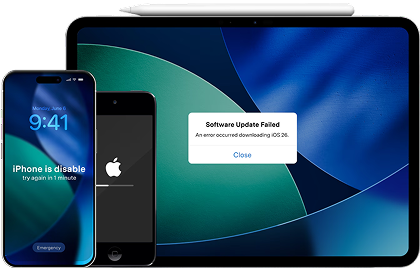
After the decision, the outcome depends on execution: keeping photos/videos (if needed), moving key data to a new device, or securely wiping the old tablet for resale/hand‑down without leaving personal info behind. If your child uses an iPad (or you’re handling iOS devices in the family), Dr.Fone - System Repair (iOS) can also help when system-level iOS issues are part of the slowdown picture.
 Fix iOS issues, no data loss.
- One-click repair for all iOS problems.
- Solve recovery mode, Apple logo, black screen, etc.
- Upgrade or downgrade iOS without iTunes
5-1. Transfer What Matters to the New Tablet
Action: Use Wondershare Dr.Fone to move important photos/videos and other supported data from the old device to the replacement device with less manual copying.
Limitation: Some app data (like certain game progress) may be tied to the app account/cloud, not transferable by a device tool.
5-2. Back Up Before a Reset or Repair Attempt
Action: Use Wondershare Dr.Fone to create a backup so you can try a factory reset or cleanup without gambling on losing important items.
Limitation: If you don’t know the account logins for key apps, a backup won’t solve sign-in recovery after reset.
5-3. (Optional for iPad) Run iOS System Repair if the Device Is Unstable
If the “slow” behavior is tied to iOS glitches (stuck screens, repeated crashes, or system instability), you can try an iOS system repair workflow before you give up on the device.
-
Step 1 Open Dr.Fone and enter System Repair
Launch Dr.Fone on your computer and open the Toolbox area, then choose System Repair.

-
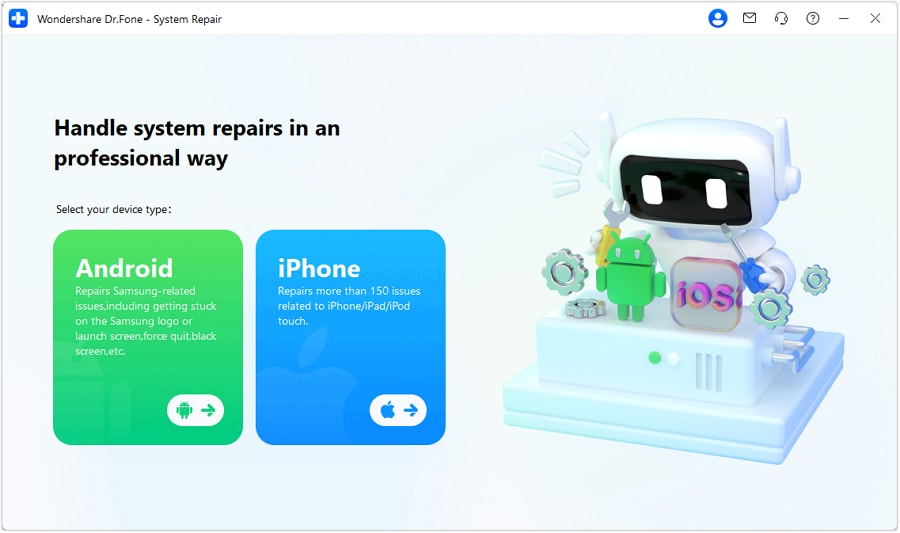
Step 2 Select iOS for system repair
Choose the iOS option so the tool loads the correct repair flow for iPhone/iPad.
-
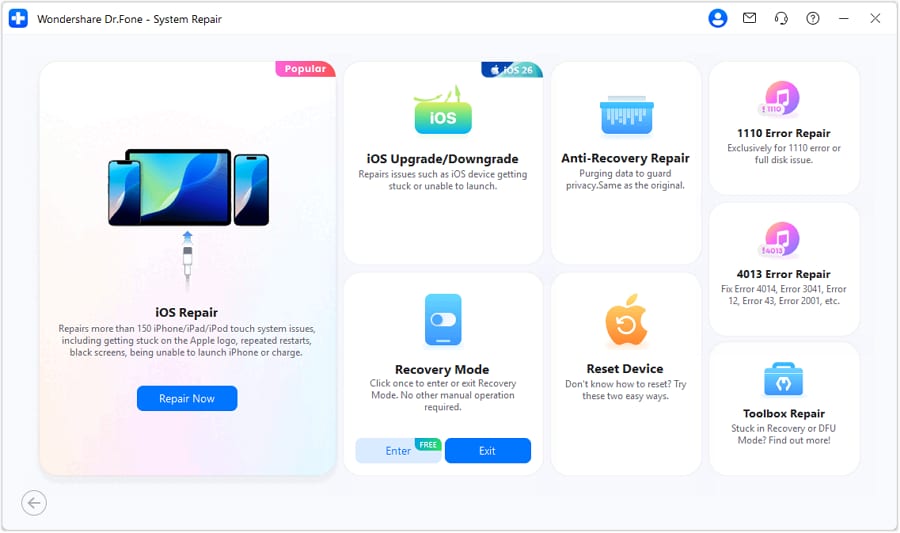
Step 3 Continue to iOS repair
Proceed to the iOS system repair screen and follow the on-screen instructions.
-
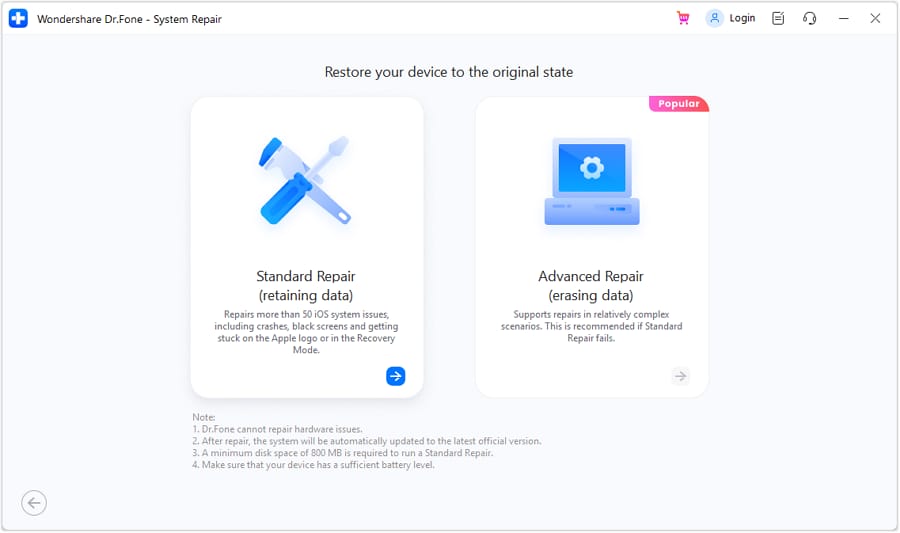
Step 4 Use Standard Mode first
Start with Standard Mode to address common iOS issues while aiming to keep data intact.
5-4. Wipe and Prepare the Old Tablet for Resale or Hand‑Down
Action: After you’ve confirmed you have what you need, use Wondershare Dr.Fone to help remove personal data before selling, donating, or giving it to another child.
Limitation: You still need to follow the tablet’s built-in factory reset steps and remove accounts where required for anti-theft/activation locks.




Conclusion
AI is best used here as decision support: it helps you compare repair vs replace through trade-offs you actually feel (time, stability, disruption), while real-world use is the final proof. Once you’ve chosen, tools like Wondershare Dr.Fone can help with the practical follow-through—backup, transfer, and cleanup—so your decision holds up day to day.
FAQ
-
Can I trust AI to tell me whether repair or replace is “correct”?
Use AI to structure the decision and expose trade-offs, not to guarantee outcomes. The final proof is whether performance and stability improve in your real daily use. -
What’s the most important trade-off in this decision?
Usually it’s time + repeat risk (repair) versus money + migration friction (replace). The “best” answer depends on which pain you want least. -
How do I avoid a generic spec-based decision?
Decide based on: update support, your downtime tolerance, whether a reset is feasible, how critical parental controls are, and how often the tablet is used for school vs play. -
What’s the fastest repair step that often helps slow kids tablets?
Freeing meaningful storage space and removing rarely used heavy apps can help quickly. If the device is old or unsupported, those gains may be limited or temporary. -
If I replace, what should I prepare so the switch is smooth?
Make a short list of must-have apps, confirm account logins, note parental-control settings, and back up any photos/videos you’d be upset to lose. -
Does repairing ever make things worse?
It can, if troubleshooting leads to accidental data loss or hours of repeated fixes. Set a clear time limit and back up before doing resets or major changes.
 Add Wondershare Dr.Fone as a preferred source on Google





