 Effortlessly manage data through preview, delete, export, etc.

 100% Security Verified | No Subscription Required | No Malware

 :
: 
 ChatGPT
 Perplexity
 Gemini
 Claude
 Grok
Grok

I tried picking a “best” kids tablet by reviews and specs, but the real headache is profiles, parental controls, app compatibility, and how much weekly management it takes.
Forum user
Picking a “best” tablet for kids and family sharing is rarely about raw performance—it’s about rules, profiles, app ecosystems, durability, and how much effort it takes to manage day-to-day. Generic “just buy the top-rated one” advice often misses the real friction points that show up after week one.
AI helps by turning fuzzy preferences (“easy parental controls,” “good for school,” “doesn’t break”) into a structured comparison of trade-offs—so you can choose based on what you’ll actually do and maintain.
AI still can’t feel the real-world annoyances for you (hand-off between caregivers, kid-proofing success, login chaos, screen time battles), and after you choose, the practical work—setup, transfer, cleanup, and resale prep—still matters.

In this article
- How to Compare Based on Real Priorities
- Why “tablet types” matter more than one perfect model
- Where the real trade-offs show up
- How to frame the decision for your household
- What “easy to maintain” really means
- What the AI Needs to Compare
- Using AI Prompts to Evaluate More Clearly
- AI Recommendation vs Real-World Fit
- When to Stop Researching and Make the Call
Part 1. How to Compare Best Tablet for Kids and Family Sharing Based on Real Priorities
Most families end up choosing between a few “types” of tablets rather than one perfect model: an iPad for long-term apps and smoother ecosystem sharing, an Android tablet for flexible profiles and price variety, or an Amazon Fire Kids tablet for a simplified kid-first setup. The hard part is that each option is “best” under different parenting styles and household tech setups.
The uncertainty usually isn’t “which is fastest,” but “which one will be easiest to manage across multiple kids,” “which one won’t turn into a constant negotiation,” and “which one fits school + travel + family sharing without daily micromanagement.”
The decision tension is real: tighter kid controls can mean more locked-down apps and content; more flexibility can mean more setup work and more ways for kids to wander into unwanted content or purchases.
Part 2. What the AI Needs to Compare
Give the AI enough context to compare trade-offs that actually affect your family.
- Kids’ ages, reading level, and whether they share one device or each have their own
- Your household devices (iPhone/iPad/Mac vs Android/Windows/Chromebook) and preferred app stores
- Must-have use cases (school apps, YouTube/streaming, drawing/stylus, Roblox/Minecraft, video calls)
- Your tolerance for admin work (one-time setup vs ongoing tuning and supervision)
- Family sharing needs (purchased apps, subscriptions, shared photos, shared calendar, shared notes)
- Risk factors (in-app purchases, web access, social apps, messaging)
- Durability expectations (case, drops, travel) and how you handle repairs/replacements
- Budget and replacement plan (keep 4–5 years vs “good enough for 18 months”)
Part 3. Using AI Prompts to Evaluate Best Tablet for Kids and Family Sharing More Clearly
Use the prompts below to force a priority-based comparison instead of a spec list.
3-1. Level 1: Basic Prompt
Compare the best tablet options for kids and family sharing for my situation. I’m choosing between iPad, a mainstream Android tablet, and an Amazon Fire Kids tablet. Focus on parental controls, profile management, family sharing, and how hard each is to maintain week to week.
3-2. Level 2: Advanced Prompt
I want a priority-based comparison, not specs. Create a decision matrix comparing (1) iPad, (2) Android tablet, (3) Amazon Fire Kids tablet for:
- kid safety + parental controls (daily practicality, not just existence)
- multi-child profile handling and switching friction
- family sharing of apps/subscriptions and cross-device compatibility in a mixed household
- school app reliability and long-term app availability
- “time cost” for parents (setup + ongoing management)
Then recommend which option fits best for: (a) minimal admin parents, (b) tech-comfortable parents, (c) mixed-age siblings sharing one device.
3-3. Level 3: Evidence Prompt
Here’s my real context:
- Kids: [ages], sharing: [one shared / separate]
- Household: [iPhones/iPads/Mac OR Android/Windows/Chromebook]
- Must-do: [school apps], [video calls], [streaming], [games], [drawing/stylus?]
- My constraints: I can spend [budget]. I can manage [low/medium/high] ongoing setup. I’m most worried about [purchases / web content / social apps / screen time battles].
Recommend the best tablet “type” (iPad vs Android vs Fire Kids) and explain:
1) what we gain and what we give up with each option in daily family use,
2) the top 3 regret points to watch for,
3) one key assumption that would change your recommendation (and what you’d recommend instead if that assumption is wrong).
3-4. Prompt Refinement
Which option minimizes weekly parental effort the most, and what “hidden work” still remains with that option?
If two kids share one tablet, compare the real friction of switching profiles, app access boundaries, and keeping progress/content separated.
Rank the options by “risk of accidental purchases or app installs” and tell me exactly which settings/policies I’d need to rely on to reduce that risk.
Tell me what I’m likely to regret after 30 days for each option (not specs)—and how to preempt that regret during setup.
What would you choose if the tablet must work well with our existing subscriptions and devices (photos, calendars, purchased apps), and why?
Part 4. AI Recommendation vs Real-World Fit
| Likely AI recommendation or conclusion | What real-life use may change or reveal |
|---|---|
| “Choose iPad if your family already uses Apple devices and wants smoother sharing.” | Your kids may still need frequent hands-on help with logins, app requests, and boundaries—ecosystem fit doesn’t eliminate supervision. |
| “Choose Amazon Fire Kids for the simplest kid-first setup and budgeting.” | You may hit app availability limits for specific school apps, services, or preferred video/chat tools. |
| “Choose Android for flexible pricing and broader hardware choice.” | Multi-user/profile behavior and parental-control workflows can vary by brand and may take more tuning than expected. |
| “A shared tablet is fine; just use profiles and screen time rules.” | In practice, sharing can create daily friction: arguments over turn-taking, messy storage, mixed recommendations, and constant switching overhead. |
AI can clarify likely fit and trade-offs, but hands-on use, workflow friction, and daily habits (how often you intervene, how kids share, how strict you want boundaries) ultimately decide satisfaction.
Part 5. When to Stop Researching Best Tablet for Kids and Family Sharing and Make the Call
- You can name your top 3 priorities (example: “low parent admin,” “school app compatibility,” “strong purchase control”) and one priority you’re intentionally not optimizing.
- You know which “tablet type” you’re choosing (iPad vs Android vs Fire Kids) and can explain the trade-off you’re accepting.
- You’ve identified at least one “flip factor” (a single assumption—like required school apps or device ecosystem—that would change your choice).
- You have a setup plan for week one (profiles, passwords/PIN strategy, purchase rules, content boundaries) and you know who maintains it.
At this point, more browsing usually adds noise—you’re ready to commit and move into setup and transition.
Recommended Tool: Switch or Prepare Smoothly After You Choose
Once the decision is made, the biggest wins come from executing cleanly: moving family photos/videos, reducing duplicate clutter, and preparing an old device for hand-me-down or resale. A practical tool like Dr.Fone - Phone Transfer can help you handle transfer and transition tasks in a more controlled way.
 Move data between iOS to Android and vice versa.
- Transfer contacts, SMS, photos, videos, music, and more types.
- Available with all phones with Android and iOS versions.
- Simple, click-through process.

5-1. Transfer what matters (photos, videos, key contacts)
Action: Move selected data from the old phone/tablet to the new device so kids and parents start with the essentials, not a chaotic full-device copy.
Limitation: Not every app’s internal data/progress can be transferred; some apps require logging in and re-syncing.
-
Step 1 Launch the transfer tool and connect your devices
Open the transfer feature and make sure both the old and new devices are ready to be detected.

-
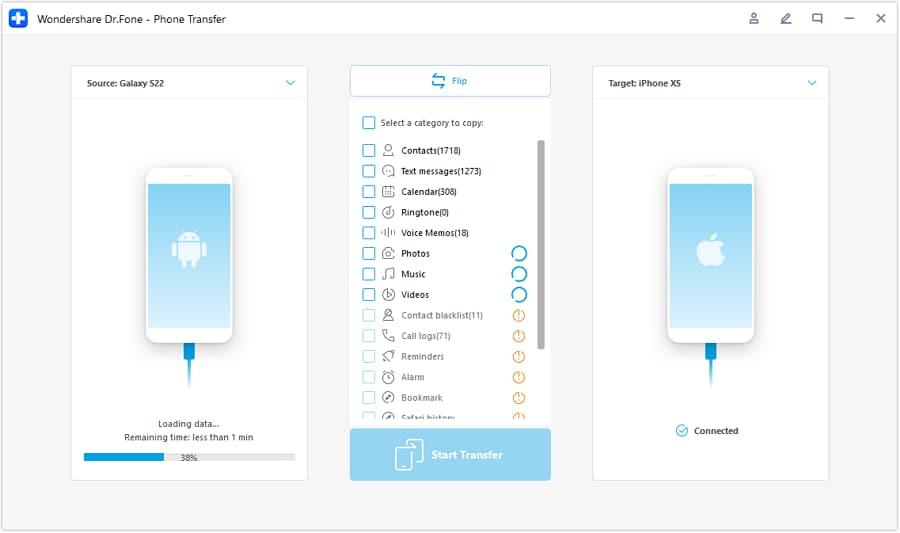
Step 2 Set the correct transfer direction (source → destination)
Confirm which device is sending data and which device is receiving data before you proceed.
-
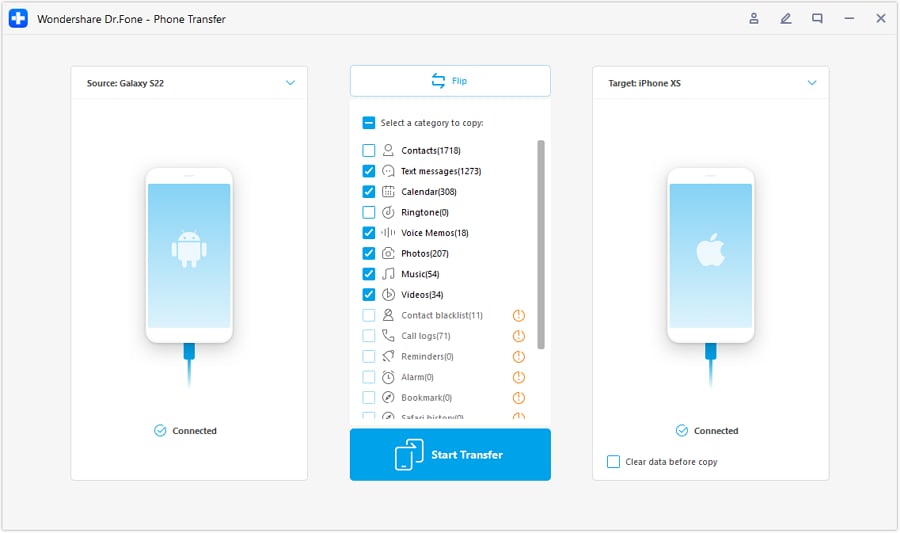
Step 3 Choose data types and start the transfer
Select what you actually need for day-one use (for example, key photos/videos and important contacts), then start the process.
-
Step 4 Monitor progress and finish cleanly
Wait for completion, then verify the essentials are present on the new device before doing cleanup on the old one.

5-2. Make space and reduce “family device clutter”
Action: Back up important items and remove obvious duplicates/unneeded media before you hand a device to a kid or set up a shared tablet.
Limitation: Cleanup can’t judge sentimental value—review before deleting to avoid losing irreplaceable photos.
5-3. Prepare the old device for hand-me-down or resale
Action: Securely erase personal data so an old tablet/phone is safer to pass to a child, relative, or buyer.
Limitation: Also sign out of accounts and disable activation/device locks using official steps; erasing alone doesn’t remove every account linkage.




Conclusion
AI is best used here as decision support: it helps you compare trade-offs, name your priorities, and spot flip factors—while real daily use is the final proof. Once you’ve chosen the right tablet type for your family, a practical tool like Dr.Fone can help you execute the switch, clean up data, and prepare old devices for safer hand-me-down or resale.
FAQ
-
Can I trust AI to tell me the “best” tablet for kids?
Trust it to structure trade-offs and highlight likely friction points. Don’t treat it as proof of real-world feel, brand-specific quirks, or how your kid will behave with the device. -
What’s the most important trade-off in kids + family sharing tablets?
It’s usually “parent effort vs flexibility.” More locked-down systems can be easier to keep safe; more flexible systems can demand more ongoing management. -
How do I avoid a generic spec-based decision?
Force the comparison to answer: “What will I do weekly to keep this safe and usable?” and “Where will we argue or get stuck?” Then choose the option with the least painful maintenance for your household. -
What should I prepare before buying, so setup is smoother?
Decide: one device per kid vs shared, your PIN/password strategy, purchase approval rules, which apps are non-negotiable (school), and whether you’ll allow web browsing. -
If I’m switching ecosystems (e.g., Android to iPad), what changes most?
Expect differences in purchased apps/subscriptions behavior, account logins, and family sharing mechanics. Plan for transferring media and re-setting parental controls rather than “everything moves automatically.” -
What if I want to resell the old device after upgrading?
Back up what you need, remove personal media, sign out of accounts, and perform a secure erase; tools like Dr.Fone can help with transfer and data erasure as part of the handoff.
 Add Wondershare Dr.Fone as a preferred source on Google





