 Effortlessly manage data through preview, delete, export, etc.

 100% Security Verified | No Subscription Required | No Malware

 :
: 
 ChatGPT
 Perplexity
 Gemini
 Claude
 Grok
Grok
What is iPad DFU Mode? It’s a low-level recovery state that lets a computer reinstall iPad firmware even when iPadOS can’t boot normally. DFU stands for Device Firmware Update, and it’s mainly used for serious troubleshooting, such as restoring a malfunctioning iPad when standard recovery options fail.
In plain English: DFU Mode is an emergency restore mode that helps your iPad talk to a computer even if the operating system is too broken to load. One key takeaway: DFU Mode is not a regular setting—it’s a special startup state used for repairs and restores, and it can erase data during a restore.
In this article
- Part 1. What iPad DFU Mode is used for: core uses & scenarios (Why it matters)
- Part 2. How iPad DFU Mode works: official working logic (How it works, non-technical + technical-lite)
- Part 3. Where to find iPad DFU Mode: settings paths and entry points (Where to find it)
- Part 4. How to use, enable, disable, or check iPad DFU Mode
- Part 5. Requirements and compatibility
- Part 6. iPad DFU Mode vs related concepts
- Part 7. Common issues and misconceptions
- Part 8. Security, privacy, and compliance notes
Part 1. What iPad DFU Mode is used for: core uses & scenarios (Why it matters)
Core uses and real-world scenarios
DFU Mode matters because it’s one of the last official troubleshooting steps when an iPad won’t start or can’t be restored through normal methods. It’s designed for repair workflows, not daily use.
- Your iPad is stuck on the Apple logo or a boot loop and a normal restart doesn’t help.
- A standard restore/update via Finder/iTunes fails repeatedly with errors.
- iPadOS is corrupted after an interrupted update and the device won’t boot.
- You need a full firmware reinstall after severe system instability (frequent crashes, freezes).
- Recovery Mode appears, but restoring from it still doesn’t complete successfully.
Who needs it most
DFU Mode is most relevant for everyday users troubleshooting a non-booting iPad, repair technicians handling stubborn restore failures, and enterprise/education IT teams dealing with devices that must be reimaged reliably. Second-hand buyers and sellers may encounter DFU Mode during device preparation, but should understand it won’t remove activation/ownership locks tied to an Apple Account.
Part 2. How iPad DFU Mode works: official working logic (How it works, non-technical + technical-lite)
Plain explanation
Normally, your iPad starts iPadOS and then connects to a computer. In DFU Mode, the iPad starts in a deeper "waiting for instructions" state so a computer can reinstall firmware even if iPadOS can’t load. The screen is typically black, and your computer (Finder on macOS, iTunes on Windows) detects an iPad in recovery/restore state.
Key components
- Boot chain behavior: DFU Mode runs before iPadOS loads, so it can help when the OS is damaged.
- Computer required: DFU restores are initiated from Finder (macOS) or iTunes/Apple Devices app (Windows), not from on-device settings.
- Firmware package and verification: the restore process uses Apple-signed firmware and device checks during installation.
- USB connection stability: a reliable cable/port is important because interruptions can cause restore failures.
- Activation/ownership checks: after restore, Setup Assistant may require the Apple Account previously linked via Activation Lock.
Part 3. Where to find iPad DFU Mode: settings paths and entry points (Where to find it)
Settings or menu paths
DFU Mode is not a toggle inside Settings. The closest related place in iPadOS is where you manage software updates and reset options:
- Settings > General > Software Update
- Settings > General > Transfer or Reset iPad > Reset
On a computer, you’ll typically see DFU-related restore prompts in Finder (macOS) or iTunes/Apple Devices (Windows) after the iPad is connected.
Search keywords and entry tips
In Settings search, try keywords like:
- "Reset"
- "Software Update"
- "Transfer or Reset"
If labels vary by iPadOS version, look for "Transfer or Reset iPad" (newer versions) or "Reset" under General (older versions). For DFU itself, the "entry point" is the startup button sequence plus a computer restore prompt—not a menu label.
Part 4. How to use, enable, disable, or check iPad DFU Mode
Safe how-to steps
Because DFU Mode can lead to a full restore (often erasing data), use it only when needed and after you’ve tried safer steps like force restart and standard Recovery Mode.
-
Step 1 Back up and confirm Apple Account access
Back up if possible (iCloud or a computer backup) and confirm you know the Apple Account credentials that may be required after restore.
-
Step 2 Connect to a computer and follow restore prompts
Connect the iPad to a Mac/PC using a reliable cable and open Finder (macOS) or iTunes/Apple Devices (Windows), then follow Apple’s standard restore/update prompts if the computer detects a recovery/restore state.
-
Step 3 Exit without restoring (when possible)
To exit DFU/restore states without restoring (when possible), disconnect the cable and perform a force restart appropriate for your iPad model (button layout varies by model).
Official help resources
Use Apple’s built-in guidance inside Finder/iTunes/Apple Devices restore prompts, and follow the on-screen instructions. (This article does not include external links.)
Part 5. Requirements and compatibility
Quick compatibility table
| Requirement/Item | What to know for iPad DFU Mode |
|---|---|
| Supported devices | Most iPad models support DFU Mode; exact button steps vary by model and generation. |
| Computer needed | Yes: Finder (macOS) or iTunes/Apple Devices (Windows) is typically required to restore. |
| Apple Account sign-in | Often required after restore due to Activation Lock (if Find My was enabled). |
| Required toggles | No DFU toggle; related settings include Find My and backup options (iCloud/Finder). |
| Connectivity | USB connection to a computer; stable cable/port recommended. Internet may be needed to download firmware and for activation. |
| Offline behavior | Limited: restores and activation commonly require network access; behavior varies by setup and OS version. |
| Notable limitations | DFU Mode does not remove Activation Lock or bypass ownership/security protections. It may erase data during restore. |
Notes and caveats
The DFU entry method differs across iPad designs (Home button vs. Face ID/top button models), and computer software naming varies by Windows version. Also, a successful restore still may not complete setup without the original Apple Account if the device is activation-locked.
Part 6. iPad DFU Mode vs related concepts
Key differences
| Concept | Purpose | Where it appears | Dependencies | Common confusion |
|---|---|---|---|---|
| DFU Mode | Deep restore/reinstall firmware when iPadOS can’t boot reliably | Screen often stays black; detected by computer restore tools | Requires computer + cable; firmware install flow | People assume "black screen" means dead battery or broken display |
| Recovery Mode | Standard restore/update state when iPadOS is unstable | Shows a cable/computer icon on iPad | Requires computer; usually easier than DFU | Often mistaken for DFU because both lead to restore prompts |
| Force Restart | Basic troubleshooting reboot | On-device button combo; no computer prompts | No computer required | Confused with DFU because both involve button presses |
| Reset (Settings) | Erase or reset settings while iPadOS is running | Settings app | Requires the iPad to boot | Not possible when iPad won’t start, leading users toward DFU |
When readers confuse them
- A black DFU screen is often mistaken for a powered-off iPad or a hardware failure.
- Recovery Mode and DFU Mode both involve a computer restore prompt, but Recovery Mode visibly shows an icon.
- "Reset" in Settings is not the same as restoring firmware; it requires iPadOS to be working.
- Force restart is a reboot, not a firmware reinstall.
Part 7. Common issues and misconceptions
Symptom → likely reason → what to check
- iPad screen stays black → could be DFU Mode (or low battery) → charge for 15–30 minutes, then check whether Finder/iTunes detects a restore state.
- Computer doesn’t detect the iPad → cable/port/driver issue or device not in the expected state → try a different USB port/cable, update computer software, and reconnect.
- Restore fails with repeated errors → unstable connection or software conflict → use a direct USB connection (no hubs), reboot the computer, and retry the restore.
- After restore, iPad asks for someone else’s Apple Account → Activation Lock is enabled → verify ownership, contact the original owner, or use official Apple Account recovery/support with proof of purchase.
- "DFU will unlock any iPad" → misconception → DFU does not bypass Activation Lock, MDM, or Apple Account protections.
When Dr.Fone can help
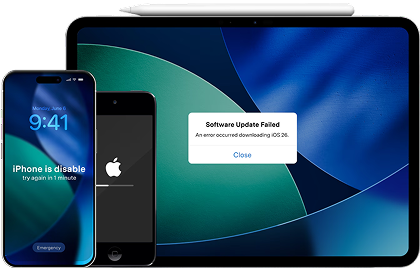
If your iPad is stuck in a boot loop, won’t update, or repeatedly fails to restore through standard steps, a repair-focused tool can sometimes help stabilize iPadOS without relying on a full restore. Dr.Fone - System Repair (iOS) is designed for legitimate system-repair scenarios like iPadOS crashes, update failures, or devices stuck on the Apple logo. It should be used as a troubleshooting step—not as a way to bypass security features like Activation Lock.
 Fix iOS issues, no data loss.
- One-click repair for all iOS problems.
- Solve recovery mode, Apple logo, black screen, etc.
- Upgrade or downgrade iOS without iTunes
-
Step 1 Install Dr.Fone and connect the iPad
Install Dr.Fone on a Mac or Windows PC, open System Repair, and connect the iPad by cable.
-
Step 2 Run the repair workflow
Choose the iPad/iPadOS repair workflow and follow the on-screen prompts to download and apply the appropriate firmware package.
-
Step 3 Restart and re-check system stability
After the repair completes, restart the iPad and re-check whether it boots normally and can update/restore using standard Apple tools if needed.
- If you can still access the phone (or iPad) normally, back up first and try standard updates before deep repair steps.
- If you forgot the passcode or the iPad is activation-locked, use official Apple Account recovery and ownership verification—don’t attempt bypass methods.
- If the device is stuck or unstable, System Repair may be a practical next step before pursuing hardware service.


Part 8. Security, privacy, and compliance notes
DFU Mode exists to help restore a device safely when software is corrupted, while still preserving Apple’s security model. It protects users by requiring Apple-signed firmware and by keeping Activation Lock in place after restore when Find My was enabled. Do not try to bypass Activation Lock, MDM enrollment, or account verification—those controls are designed to prevent unauthorized access. If ownership is unclear (second-hand device) or the iPad is managed by an organization, the correct next step is to contact the original owner or the organization’s IT/admin, or work with Apple Support using proof of purchase and legitimate account recovery.
Conclusion
iPad DFU Mode is a deep restore state that helps reinstall firmware when iPadOS can’t boot or standard recovery fails, making it a critical troubleshooting option for serious software issues. Use it carefully because it can lead to data loss and won’t remove Activation Lock or other protections. When the iPad is stuck or repeatedly failing restores, Dr.Fone System Repair can be a reasonable, legitimate next step to attempt system stabilization.
FAQ
-
Q1. Is DFU Mode the same as Recovery Mode on iPad?
No. Recovery Mode shows an on-screen cable/computer icon and is the standard restore/update state, while DFU Mode typically shows a black screen and runs at a deeper level before iPadOS loads. -
Q2. Will DFU Mode erase my iPad?
A DFU restore typically reinstalls firmware and can erase data, especially if you choose a full restore rather than an update. Back up first if the iPad is still accessible. -
Q3. Can DFU Mode remove Activation Lock or an Apple Account?
No. DFU Mode does not bypass Activation Lock or remove Apple Account protection. If the iPad requests the previous owner’s Apple Account after restore, you must use official owner verification or Apple Support with proof of purchase. -
Q4. When should I try DFU Mode instead of normal troubleshooting?
Consider DFU Mode when the iPad won’t boot, is stuck in a loop, or standard Recovery Mode restores consistently fail. If basic steps (charge, force restart, standard update/restore) work, DFU usually isn’t necessary.
 Add Wondershare Dr.Fone as a preferred source on Google


