Bypass iCloud Activation Lock and Android FRP without password.

 100% Security Verified | No Subscription Required | No Malware

 :
: 
 ChatGPT
 Perplexity
 Gemini
 Claude
 Grok
Grok
The process of unlocking an Android device is often far from straightforward, especially when dealing with stubborn screen locks, forgotten system passwords, or the dreaded Factory Reset Protection (FRP) lock that completely restricts device access. For many years, the Odin flash tool—a dedicated utility developed primarily for Samsung devices—has been a cornerstone software for technicians. They have heavily relied on the Odin tool to repair system glitches, restore corrupted operating systems, and even revive deeply bricked smartphones.
However, the modern landscape in 2026 demands a closer look. While the Odin flash tool is undeniably powerful, it is equally risky and complex. It was originally engineered for use by specialized technical experts rather than everyday consumers. In recent years, much simpler and highly intuitive alternatives have emerged that achieve the same robust unlocking and repairing effects with significantly less risk. These modern solutions make bypassing locks more secure, deeply controlled, and remarkably easier.

In this article
Part 1. What is the Odin Flash Tool?
The Odin flash tool is a highly specialized, Windows-based utility originally conceptualized and created by Samsung to facilitate the updating, repairing, and unbricking of Android devices. Initially restricted to authorized Samsung service centers and engineers, various builds of this odin flash software eventually made their way to the public domain. Operating entirely in Download Mode, the Odin tool has the capability to write binary files directly to the core system partitions of a device. This raw access makes it incredibly powerful but equally risky for untrained users.
It is predominantly used to flash official Odin firmware to completely reset phones, install heavily customized ROMs or advanced recovery firmware like TWRP, and repair soft-bricked devices stuck in infinite boot loops. Odin also serves as the primary method for flashing root packages to enable deep system customization. However, utilizing the flash tool samsungflash odin requires a firm grasp of technical concepts, as flashing the wrong partition can result in catastrophic data loss or even irreversible hardware damage.
1.1 Is the Odin Flash Tool Free?
Yes, the Odin flash tool is technically free, though it is not officially published or maintained for consumer use by Samsung. Instead, multiple leaked versions have been shared extensively across tech forums and the internet. Many users find themselves searching for specific stable builds, such as odin 3.13 1 for slightly older hardware, or the latest odin 3.14 4 download for newer devices. While these versions are fully functional, they come with critical caveats you must observe:
- You must download the software exclusively from trusted developer communities (like XDA) to avoid malicious malware disguised as the flash tool.
- It is imperative to meticulously match the specific Odin version to your device's exact model number and Android generation.
- You must fully accept that Samsung provides absolutely zero consumer support, warranty coverage, or troubleshooting assistance if a flash goes wrong.
1.2 How to Use Odin Flash Tool
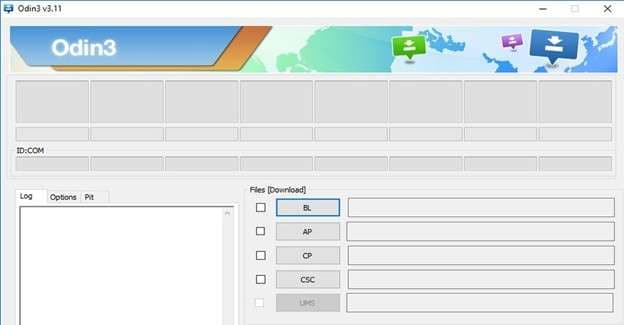
To successfully operate the Odin tool, you must establish a flawless line of communication between the device's bootloader and the PC software. Here is a brief overview of its operational mechanics:
- You must manually boot your Samsung device into Download Mode (typically by holding Volume Down + Power + Home/Bixby simultaneously).
- Connect the phone to your Windows PC using a high-quality, preferably original, USB cable. Odin will scan and automatically detect the device's COM port.
- Carefully load the specific `.tar` or `.md5` firmware files into their designated slots (BL, AP, CP, CSC). These may include official updates, custom ROMs, recovery images, or critical system repair files.
- Click the Start button. Odin will then forcefully transfer and write these files directly into the phone’s deep memory partitions.
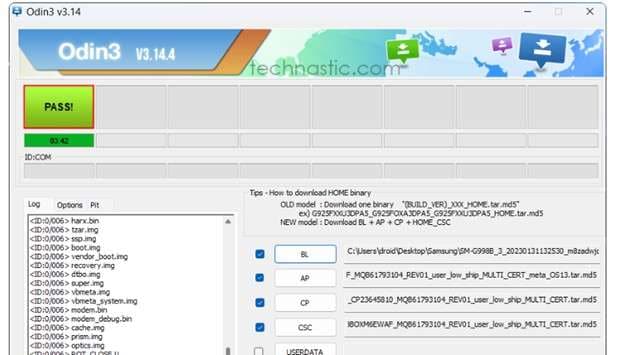
- Upon successful completion, the device will restart automatically, and the Odin interface will display a reassuring green PASS message.

1.3 How to Flash Firmware Using Odin
Flashing firmware using the Odin flash software allows you to install official or specialized custom software on your Samsung device. Ensure you follow these steps with absolute precision to avoid bricking your phone.
-
Step 1 Download Specific Firmware
Locate and download the precise official firmware build that strictly matches your Samsung model number and regional CSC code.
-
Step 2 Install the Odin Software
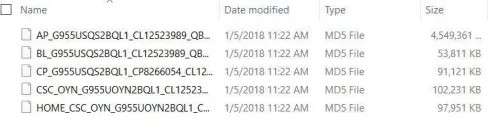
Complete your odin 3.14 4 download (or whichever version is appropriate for your model) and unzip the tool into an easily accessible folder on your Windows PC.
-
Step 3 Prepare the Device
Ensure your phone's battery is charged to a minimum of 50% to prevent unexpected shutdowns during the flashing process.
-
Step 4 Enter Download Mode
Power off the device. Press and hold the Volume Down, Home/Bixby, and Power buttons simultaneously. When the warning screen appears, press Volume Up to confirm entry into Download Mode.
-
Step 5 Connect Device to PC
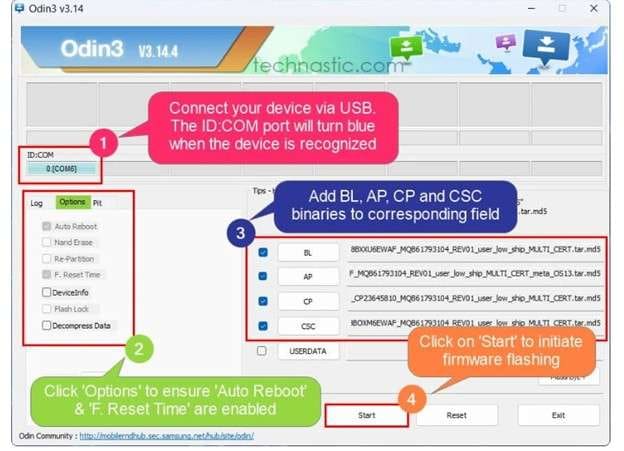
Plug the device into your PC. The Odin interface should recognize the connection, displaying a blue or yellow highlight in the ID:COM port box.
-
Step 6 Load Firmware Files
Carefully assign the downloaded firmware files to their respective slots (BL to BL, AP to AP, CP to CP, and CSC to CSC). Do not check any extra boxes under the Options tab.
-
Step 7 Initiate Flashing
Click the Start button. Wait patiently until the process completes and a green PASS block appears. Your newly flashed phone will then reboot.
Part 2. Can Odin Flash Tool Bypass FRP Lock?
The Odin Flash Tool has historically been utilized to bypass the Factory Reset Protection (FRP) lock. Technicians achieve this by flashing specialized combination firmware or a dedicated FRP reset file that overwrites the partition responsible for triggering the Google account verification page. While this method is highly robust, it is fraught with risks and is generally only viable for advanced users working with significantly older Samsung smartphones.
For modern devices released in 2026 and later, the security patches are incredibly strict. Attempting to flash older FRP bypass files on newer bootloaders often results in failure. Dedicated FRP unlocking programs have proven to be dramatically safer, much faster, and exceptionally easier to operate for non-technical users.
2.1 Limitations & Risks of Using Odin for FRP Bypass
- It is a completely free solution for technicians.
- Provides direct low-level partition access.
- Highly effective on obsolete or outdated Samsung models.
- Does not strictly require third-party paid subscriptions.
- Exclusive to Samsung; ignores other major Android brands.
- Often fails on modern devices featuring strict Knox security patches.
- Requires profound technical understanding to choose exact files.
- Flashing incorrect files guarantees an irrecoverable "hard brick".
- Total data loss is practically unavoidable.
- Unverified firmware sources carry extreme malware risks.
Due to these severe limitations, spending hours searching for exact files can be an enormous waste of time. Consequently, a vast majority of users and professionals now transition to dedicated FRP bypass tools that are universally compatible and inherently safer.
Part 3. A Safer and Easier Alternative to Odin: Meet Dr.Fone – Screen Unlock (Android)
In scenarios where relying on the Odin flash software is far too risky, complicated, or simply incompatible with your modern device, Dr.Fone - Screen Unlock (Android) stands out as an invaluable, highly effective alternative. It entirely removes the technical friction and intimidation out of the process, effortlessly bypassing FRP locks on a massive array of Android devices without requiring a single command line or risky file download.
 Unlock Android phone in seconds.
- Remove PIN, pattern, password, fingerprint.
- Bypass Google FRP lock easily.
- Works on all Android brands & models.
- No tech skills required – user-friendly.

3.1 Dr.Fone Screen Unlock Key Features:
- Easily uninstall and remove standard screen locks including PINs, passwords, swipe patterns, and biometric fingerprint protocols.
- Completely skip and permanently disable the Factory Reset Protection (FRP) barrier established by Google.
- Broad, robust compatibility supporting major global brands and models, such as Samsung, Xiaomi, Redmi, OPPO, Realme, OnePlus, Vivo, and Motorola.
- Constantly updated to support the absolute latest Android operating system versions seamlessly.
- Offers a rapid, highly secure, one-click unlocking framework—absolutely no flashing expertise or specialized bootloader knowledge is required.




3.2 How Does Dr.Fone Handle FRP?
Unlike the meticulous configuration demanded by the Odin tool, Dr.Fone Screen Unlock (Android) manages FRP by deploying guided, automated step-by-step scripts. This elegant software circumvents Google account verification across numerous Android architectures without touching sensitive firmware partitions.
-
Step 1 Select the Correct Device Protocol
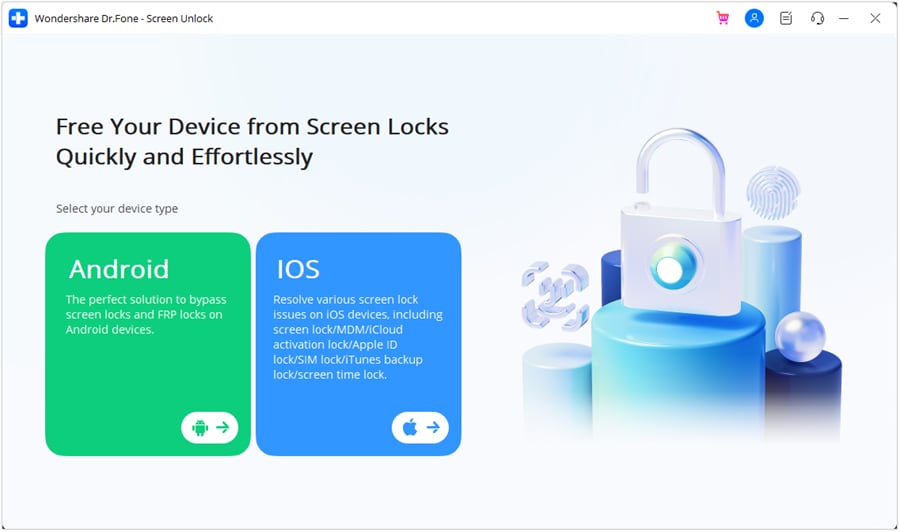
Open the Wondershare Dr.Fone interface on your personal computer. Navigate to the main menu and select Toolbox > Screen Unlock > Android.
-
Step 2 Pick Remove Google FRP Lock
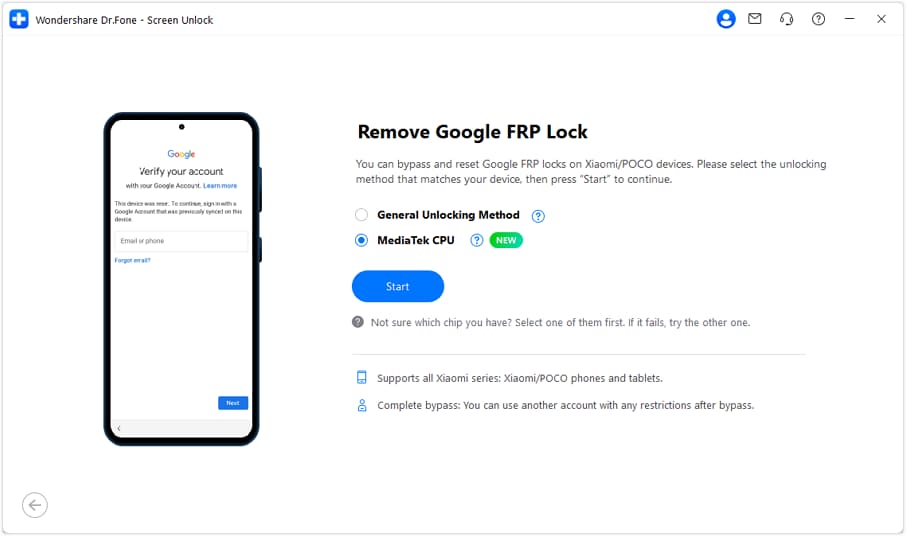
Once you enter the Android environment, clearly choose the Remove Google FRP lock feature from the available options displayed on the lower dashboard.

Proceed to accurately choose your smartphone's manufacturing brand from the provided list (e.g., Samsung, Xiaomi, OPPO). If you are attempting this on Xiaomi, Redmi, or Poco equipment, try the specialized MediaTek CPU method first. If unsuccessful, fall back to the robust General Unlocking Method.
-
Step 3 Download Essential Drivers and Connect
Let Dr.Fone automatically fetch and install all the necessary communication drivers. You don't have to hunt for them manually.
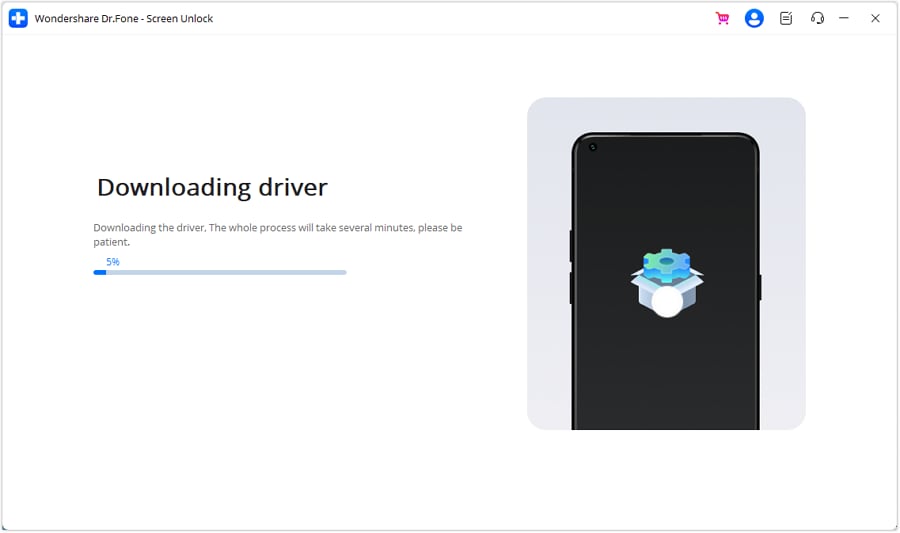
Power off your mobile phone completely. Connect it to your PC via a USB cable, and then firmly hold the Volume Up and Volume Down keys simultaneously for approximately 3 seconds to initiate the handshake.
-
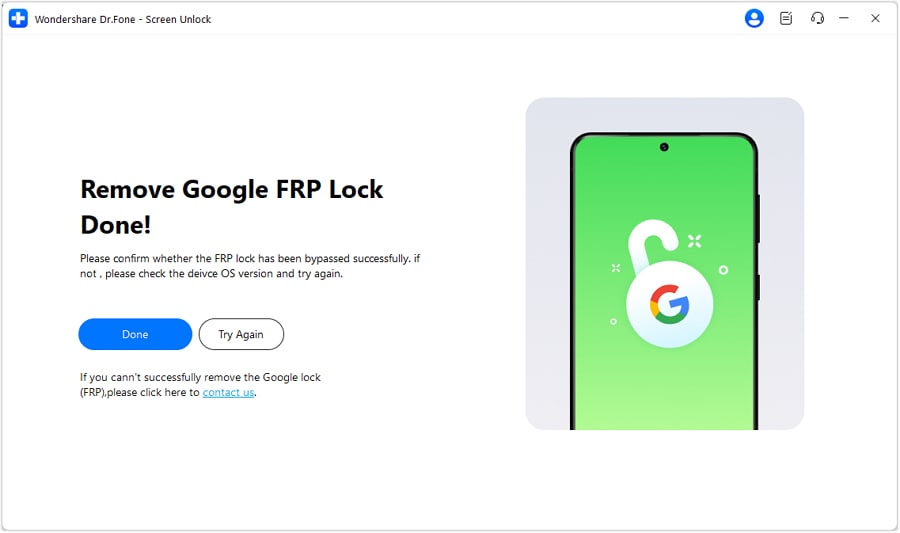
Step 4 Disable the FRP Lock
Dr.Fone takes over and will automatically orchestrate the precise unlocking process sequence. Simply wait for the success notification, click ‘‘Done’’, and comfortably restart your pristine, unlocked phone.
3.3 Which One Should You Choose – Odin or Dr.Fone?
To help you decide between raw technical control and automated convenience, here is an objective comparison mapping the flash tool samsungflash odin against modern solutions.
| Feature | Odin Flash Tool | Dr.Fone – Screen Unlock (Android) |
|---|---|---|
| Financial Cost | Completely Free | Offers a free trial, requiring purchase for full premium unlocking features. |
| Ease of Use | Highly complicated; demands deep technical knowledge and exact file matching. | Exceptionally user-friendly; features visual, click-through guided steps. |
| Supported Devices | Strictly limited to Samsung architecture. | Massive compatibility (Samsung, Xiaomi, OPPO, OnePlus, Vivo, and more). |
| FRP Bypass Efficacy | Functions primarily on legacy models and older Android operating versions. | Highly effective on the newest models, processors, and modern Android builds. |
| System Risk Level | Extreme risk: flashing the wrong firmware combination will hard-brick the phone. | Significantly safer. Erasing standard screen locks inevitably resets data, but system architecture remains intact and safe. |
| Additional Utilities | Deeply flash custom firmware, recover severe brick loops. | Unlock varied screen locks, bypass FRP smoothly, and access broader device management. |
Conclusion
The Odin Flash Tool remains a legendary, tried-and-true utility for manually flashing firmware and recovering deeply bricked Samsung devices. It has certainly earned its reputation in the tech community. However, attempting to use it for tasks like FRP bypass in 2026 is no longer the most logical or convenient choice. The interface is archaic, the process carries an incredibly high risk of permanent data loss, and its techniques frequently fail against modern Android security frameworks.
When you encounter severe lock issues today, leveraging software such as Dr.Fone - Screen Unlock (Android) presents a profoundly safer, smoother, and highly dependable alternative. It not only successfully bypasses FRP with minimal effort but also unlocks devices across nearly every major Android brand. Ultimately, choosing between the manual Odin tool or an automated modern solution depends on your risk tolerance, technical proficiency, and your desire for a guaranteed, stress-free result.
FAQ
-
1. How do I reliably exit Odin Mode on a Samsung device?
To safely leave Odin or Download Mode, firmly press and hold both the Power and Volume Down buttons simultaneously for several seconds until the phone's screen goes black and restarts. This initiates a forced reboot, bringing the device back into its normal operating mode. Always use this careful method to prevent corrupting active files. -
2. Can I run the Odin flash software natively on a Mac computer?
No, the Odin tool is fundamentally engineered specifically for Windows operating environments. It will not run natively on macOS without substantial third-party configuration. To bypass this, you can set up a Windows virtual machine using Parallels or Bootcamp, or simply choose universal, modern unlocking alternatives that offer dedicated Mac versions. -
3. Does Dr.Fone bypass FRP locks without risking any data loss?
Dr.Fone – Screen Unlock (Android) is carefully designed to bypass Google's FRP safeguards while actively aiming to preserve internal data. However, due to highly complex manufacturer encryptions on certain specific device models and updated Android iterations, some unavoidable data loss may occur during the deep unlocking sequence. -
4. Is the Odin flash tool safe for absolute beginners to use?
Generally, the Odin flash tool is not recommended for absolute beginners. Its extremely steep learning curve and raw access to core system binaries mean that a single mistake—such as entering incorrect settings or loading incompatible firmware partitions—can easily result in a completely dead, irrecoverable "hard-bricked" phone.
 Add Wondershare Dr.Fone as a preferred source on Google