Bypass iCloud Activation Lock and Android FRP without password.

 100% Security Verified | No Subscription Required | No Malware

 :
: 
 ChatGPT
 Perplexity
 Gemini
 Claude
 Grok
Grok
XiaoMiTool V2 provides an accessible gateway to unlocking the full potential of your Xiaomi device. As a significant upgrade from the original XiaoMiTool, this version delivers enhanced stability, a more intuitive user interface, and superior automation. It masterfully simplifies technical procedures such as flashing firmware, restoring your device, and managing system settings through a guided process, making advanced modifications achievable for every user. This comprehensive guide will walk you through everything you need to know about this powerful utility.
We'll cover its core functions, practical applications, and step-by-step instructions for downloading and using the tool safely. With discussions circulating about a potential XiaoMiTool V3, we'll also touch upon the expected advancements in automation and performance. And if you're facing a simpler issue like a locked screen, we'll introduce a highly effective alternative designed specifically for that purpose.

In this article
- Part 1. What is XiaoMiTool V2 and What Are Its Core Functions?
- Part 2. How to Securely Download XiaoMiTool V2 for Free
- Part 3. A Step-by-Step Guide to Using XiaoMiTool V2 on Windows
- Part 4. XiaoMiTool V2: User Reviews, Advantages, and Disadvantages
- Part 5. Dr.Fone – Screen Unlock: The Easiest Way to Access a Locked Xiaomi
Part 1. What is XiaoMiTool V2 and What Are Its Core Functions?
XiaoMiTool V2 is an unofficial but highly capable desktop utility developed to help users manage, modify, and customize their Xiaomi smartphones effortlessly. This all-in-one tool is designed to download and install official ROMs, unlock the device's bootloader, enable root access with Magisk, and resolve common software problems without requiring separate, complex command-line tools. One of its standout features is its ability to automatically detect your device, find the correct drivers, and guide you through each procedure with on-screen instructions.
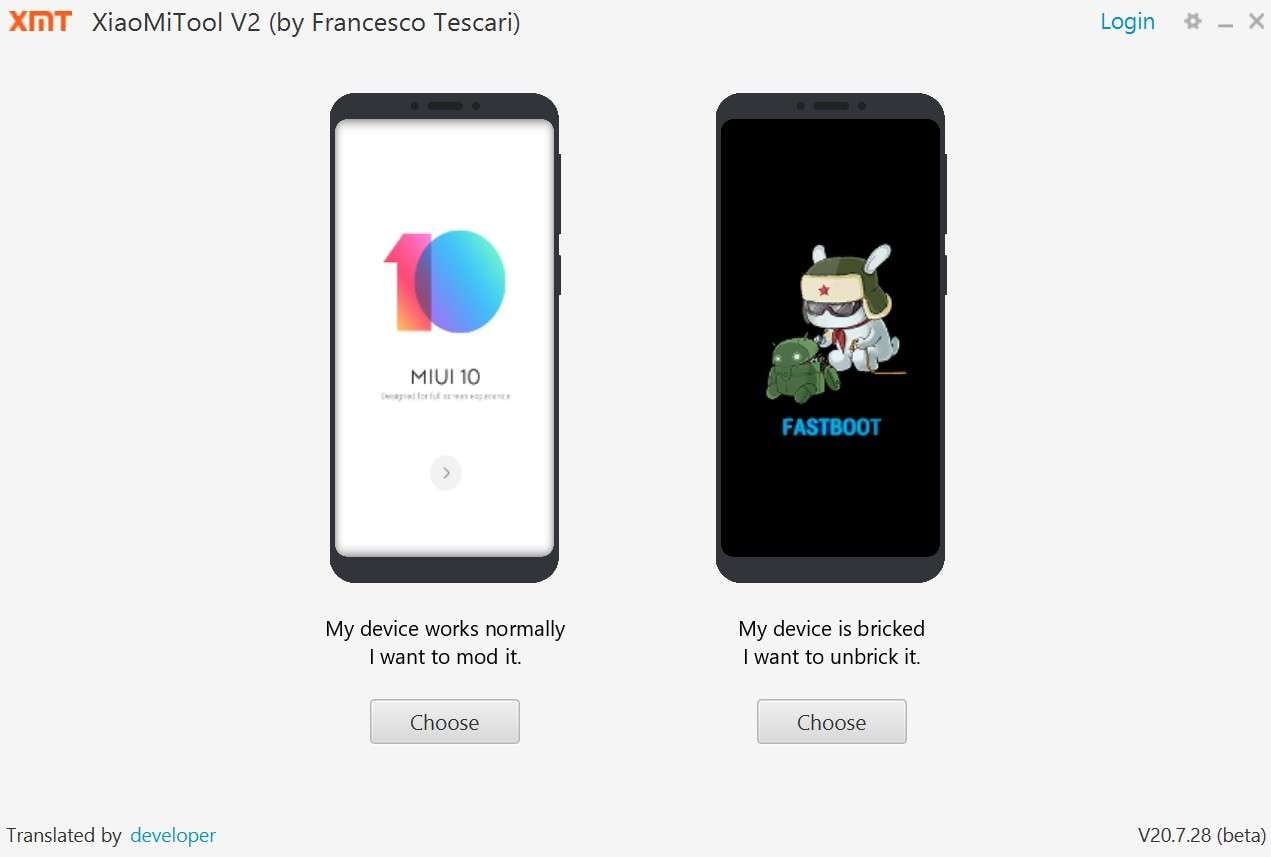
Essentially, XiaoMiTools like V2 are invaluable for updating, repairing, or changing the system software on your Xiaomi, Redmi, or Poco phone. It streamlines otherwise complicated tasks such as unbricking a device, flashing a global ROM over a Chinese one, or preparing your phone for custom modifications, making it accessible even for users with limited technical expertise.
Key Features of XiaoMiTool
- Automated ROM Management: Automatically detects the correct ROM for your device and downloads it from official sources, including MIUI, Xiaomi.eu, and other official builds.
- Versatile Installation Methods: Supports installing ROMs through various modes like Fastboot, Recovery, and TWRP, adapting to your device's state.
- Integrated Bootloader Unlock: Includes a built-in function to unlock the bootloader, mirroring the official Xiaomi unlock process but with more guidance.
- Simplified Root Access: Facilitates rooting your device using Magisk, granting you advanced customization capabilities without manual command entry.
- Automatic Driver Installation: Eliminates connection issues by automatically installing the necessary USB and ADB drivers for your PC.
- Comprehensive Device Detection: Instantly identifies crucial device information, such as the current ROM version, bootloader lock status, and active recovery.
- Safe Unbricking Utility: Provides a reliable method to recover soft-bricked Xiaomi devices that are stuck in a boot loop or fail to start.
- Cross-Platform Compatibility: Fully functional on Windows, macOS, and Linux operating systems.
Common Use Cases for XiaoMiTool
To better understand the practical power of XiaoMiTool V2, here are some real-world scenarios where it proves indispensable:
- Switching ROM Regions: A user wants to replace their phone's pre-installed China ROM with a Global ROM to access Google services and more language options. XiaoMiTool V2 automates this by identifying the device, downloading the correct Global ROM, and flashing it seamlessly.
- Resolving Software Glitches: After a system update, a phone becomes unstable, experiencing frequent crashes and freezes. XiaoMiTool can fix this by reinstalling the last stable version of the MIUI ROM, effectively restoring the device to a smooth, functional state.
- Recovering a Bricked Device: If a manual flashing attempt goes wrong and the phone no longer boots, XiaoMiTools can initiate a recovery process. It selects safe flashing protocols and installs the appropriate stock ROM to revive the device.
- Unlocking the Bootloader for Customization: An enthusiast wants to install a custom ROM or apply advanced system modifications. XiaoMiTool automates the official bootloader unlocking process, handling the communication with Xiaomi's servers and ensuring all steps are followed correctly.
- Gaining Root Access: A developer needs superuser permissions to modify system files or use root-only applications. XiaoMiTool simplifies this by installing Magisk automatically, bypassing the need for complex, manual procedures.
XiaoMiTool V3 vs. XiaoMiTool V2: A Comparison
While XiaoMiTool V3 is still anticipated, based on developer previews and community discussions, here is a comparison of what to expect versus the current XiaoMiTool V2:
| Feature | XiaoMiTool V2 | Expected in XiaoMiTool V3 |
|---|---|---|
| User Interface | Functional but somewhat dated | Modern, streamlined, and more intuitive |
| Performance | Generally stable, occasional bugs | Optimized for faster and more reliable performance |
| Device Support | Broad support for many models | Enhanced support for the latest Xiaomi devices |
| Firmware Management | Semi-automated download process | Fully automated fetching from official Xiaomi servers |
| Driver Installation | Largely automated but may need manual intervention | Completely automated and seamless driver setup |
| Bootloader Unlock | Reliable built-in unlocker | Improved unlock tool with greater automation |
| Error Handling | Basic error logs and manual troubleshooting | Advanced error detection and clearer activity logs |
Part 2. How to Securely Download XiaoMiTool V2 for Free
Obtaining XiaoMiTool V2 is straightforward and completely free. To ensure you get a safe and authentic version, it's crucial to download it from the official source. Follow this simple instruction:
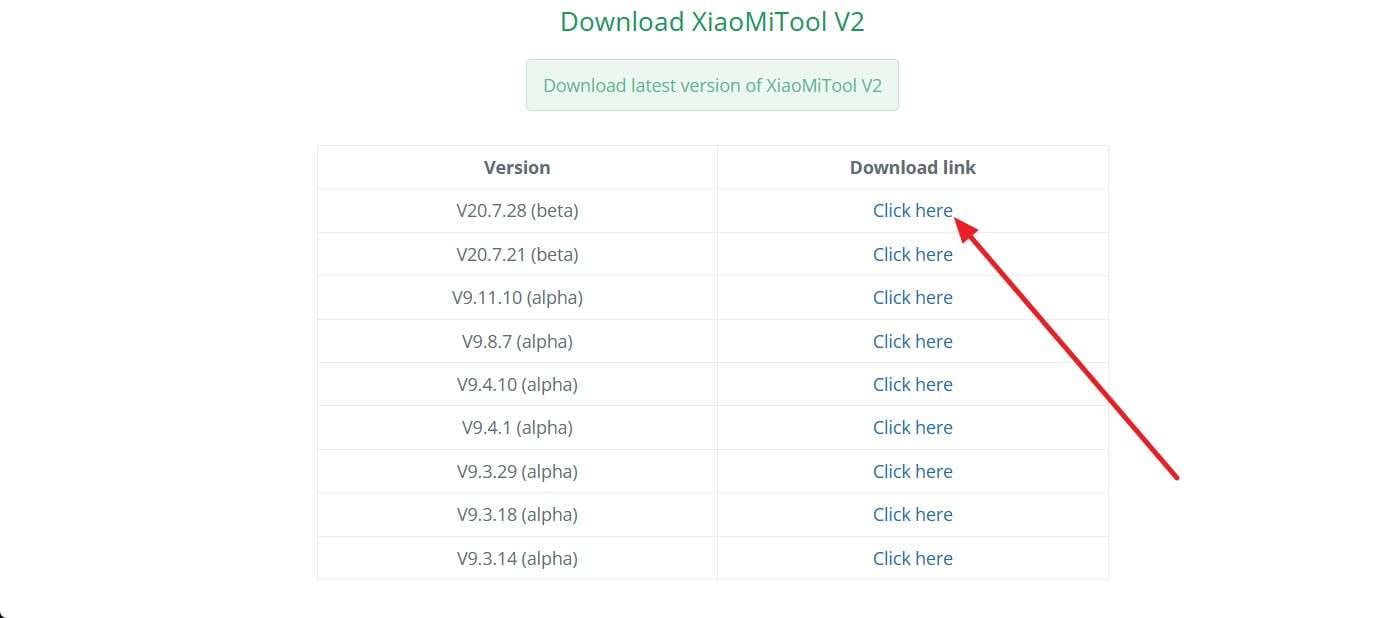
Navigate to the official XiaoMiTool website. There, you will find the latest, verified download links for Windows, macOS, and Linux. Select the version that corresponds to your computer's operating system and click the download link to get the installer. This ensures you avoid any modified or malware-infected versions that may be distributed on other sites.
Part 3. A Step-by-Step Guide to Using XiaoMiTool V2 on Windows
Once you have installed XiaoMiTool V2, using it involves a few preparatory steps on your phone followed by a guided process in the tool itself. Here’s how to do it:
-
Step 1 Enable USB Debugging on Your Xiaomi Device
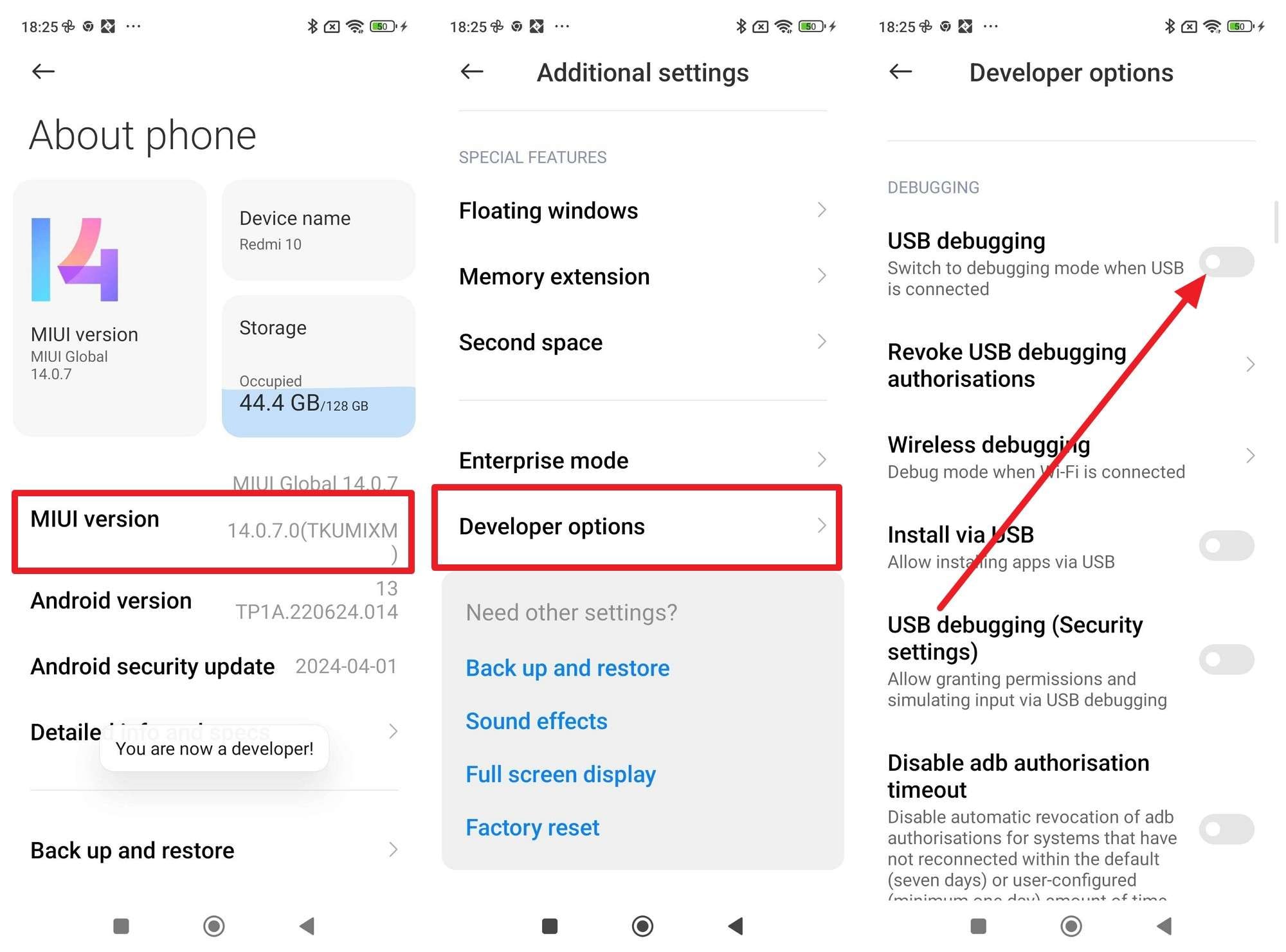
First, you need to enable Developer options on your phone. Go to "Settings" > "About Phone" and tap on the "MIUI Version" seven times until you see a message saying, "You are now a developer!" Next, return to the main "Settings" menu, navigate to "Additional Settings" > "Developer options," and toggle on "USB Debugging."
-
Step 2 Connect Your Phone and Launch XiaoMiTool V2
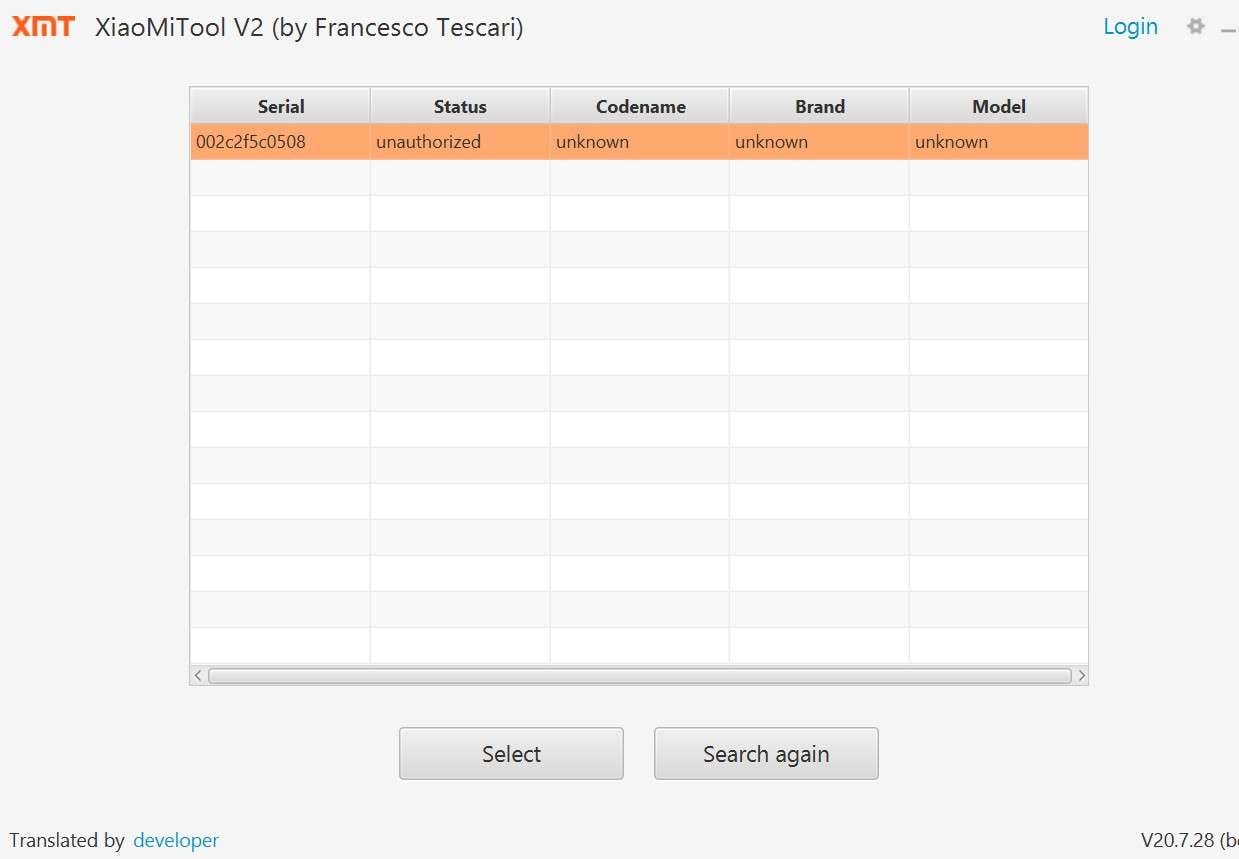
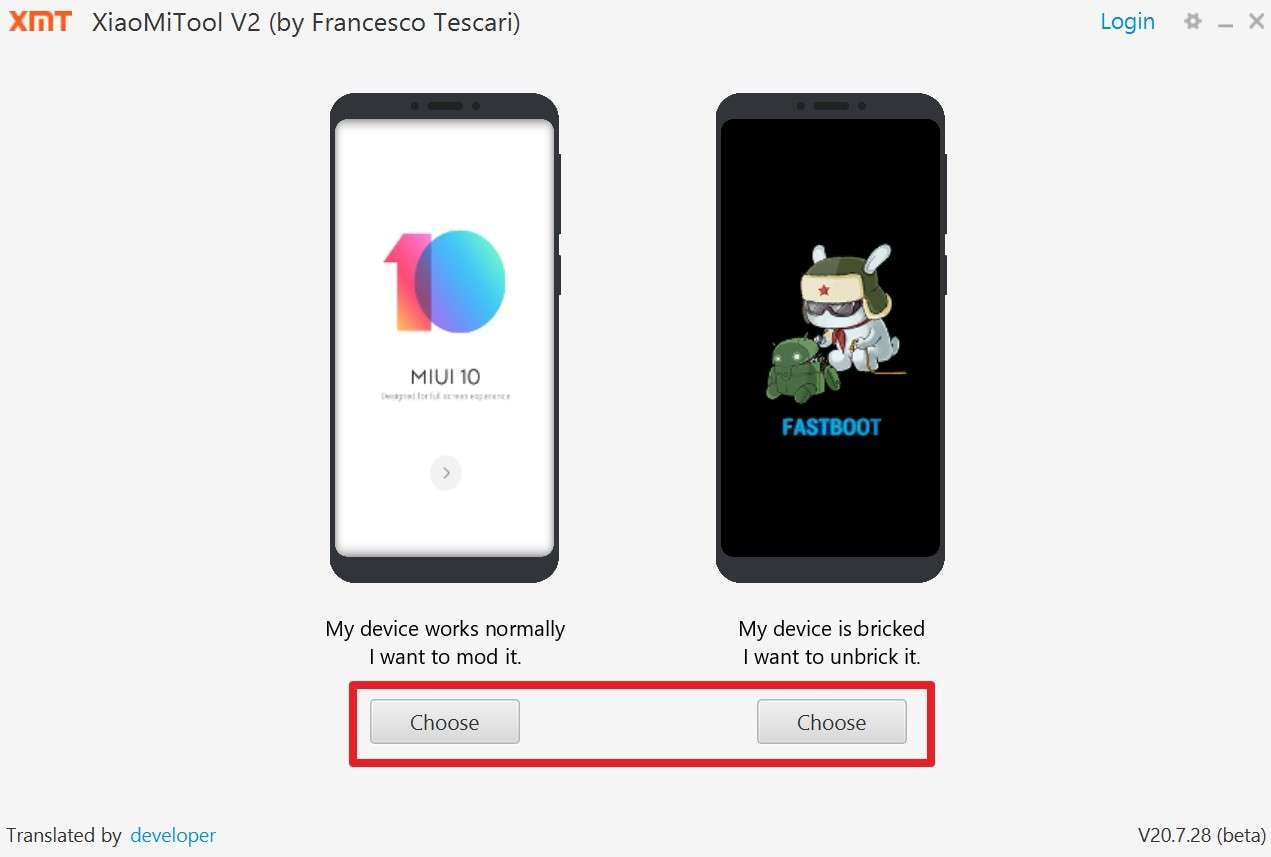
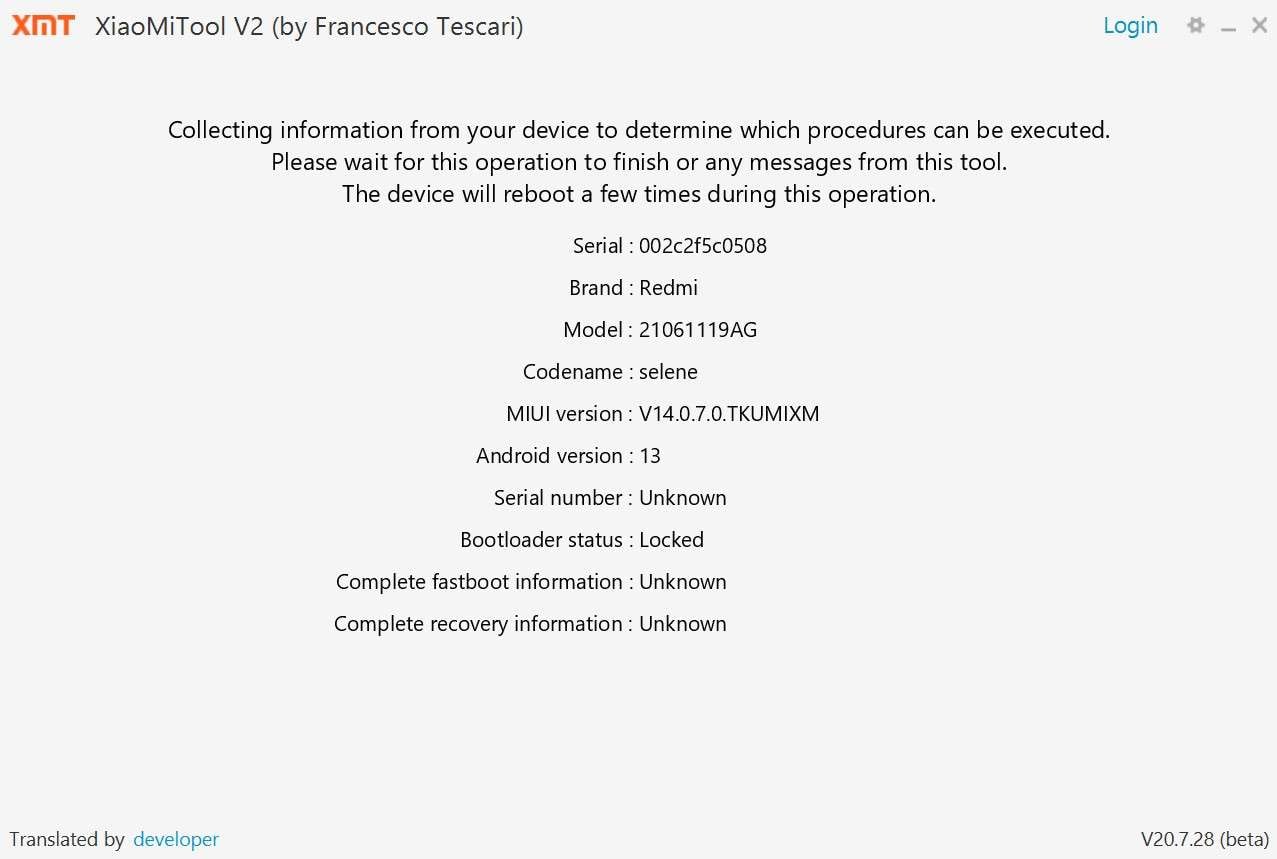
Connect your Xiaomi, Redmi, or Poco device to your PC using a reliable USB cable. Launch the XiaoMiTool V2 application. The tool will automatically detect your device and install any missing drivers. Once your device is recognized, it will present you with available options. Click "Choose" to proceed with the desired action.
-
Step 3 Select the Desired Operation
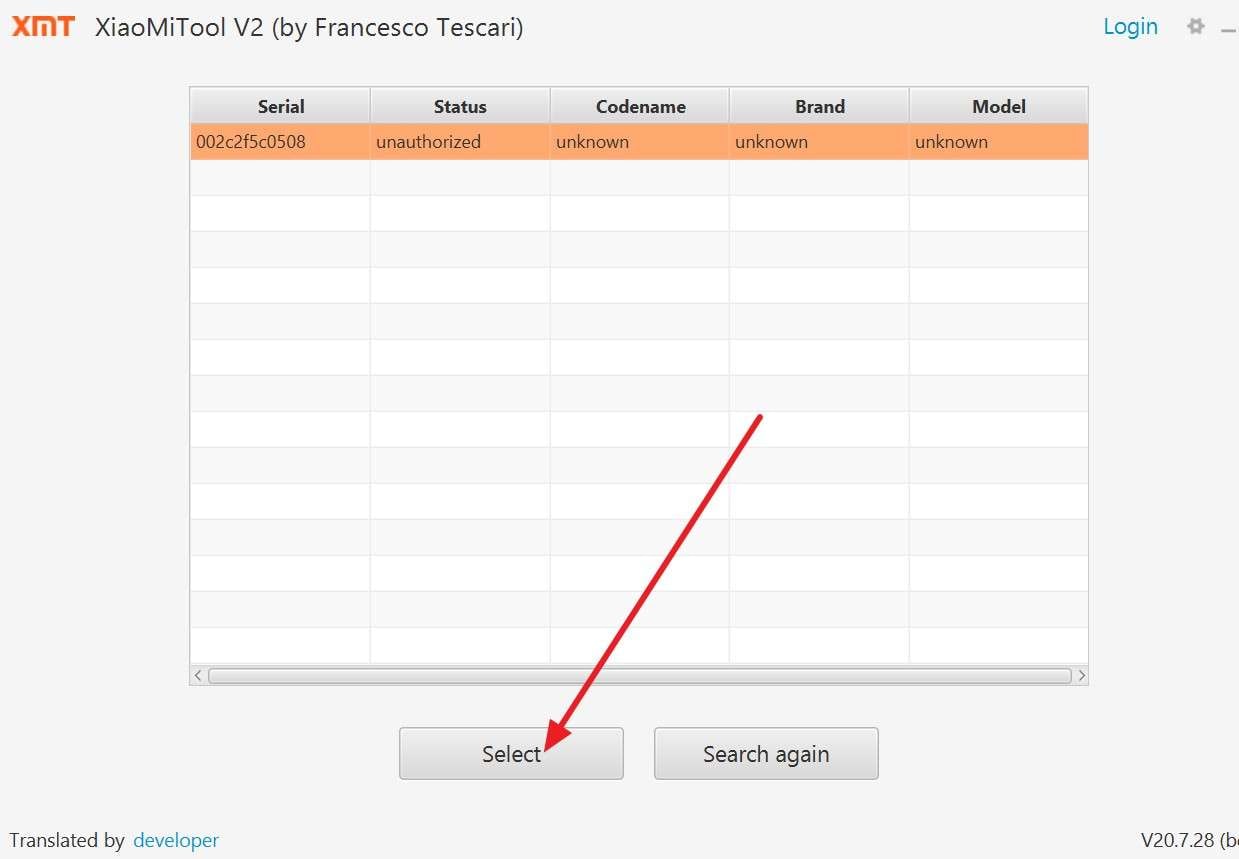
The tool will display your device's information and ask what you want to do. You can choose to flash a new ROM, unlock the bootloader, root your device, or unbrick it. It will then automatically find and download the necessary files. Click "Select" to confirm your choice and begin the process.
-
Step 4 Follow On-Screen Instructions to Complete
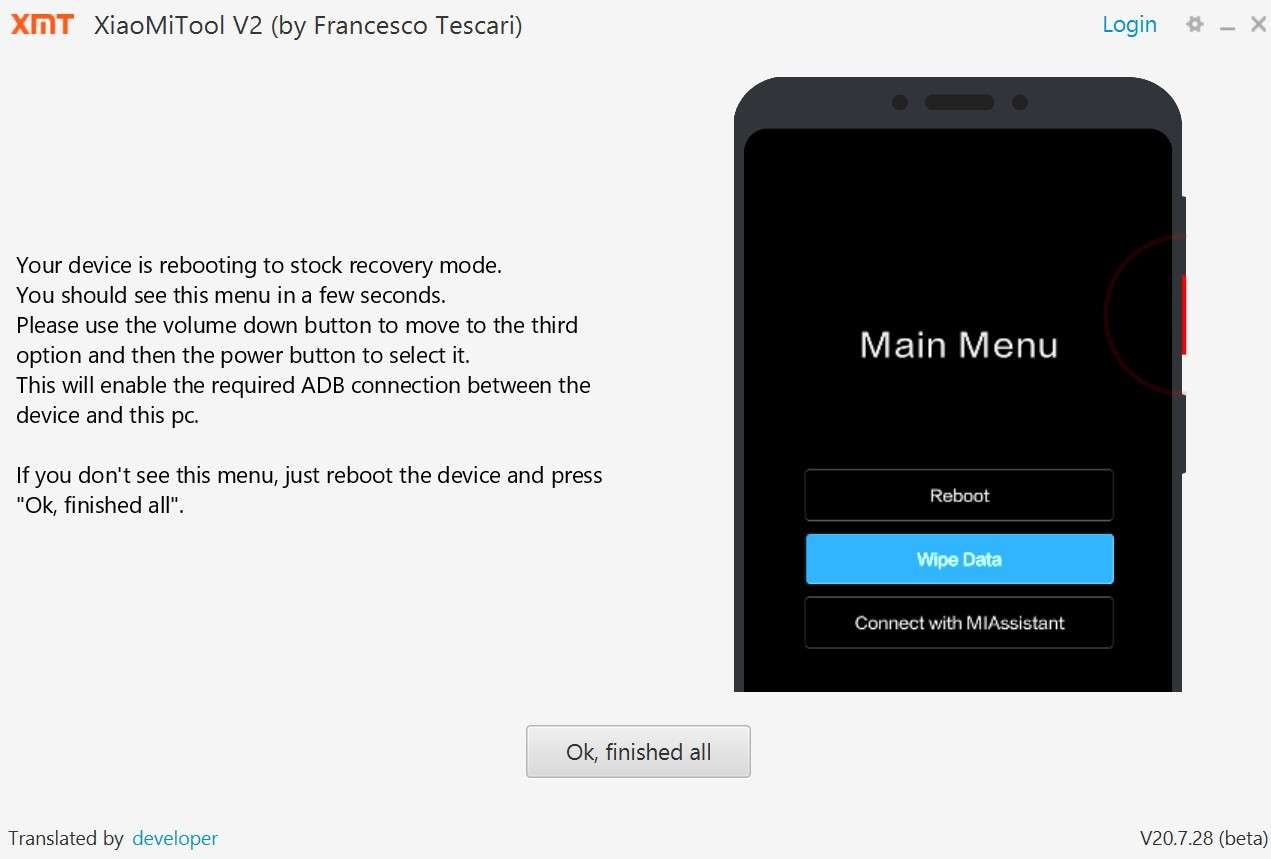
XiaoMiTool V2 will now take over and handle all the technical steps automatically, including rebooting your device into different modes as needed. Keep your device connected and follow any final instructions displayed by the tool until the process is successfully completed.
Part 4. XiaoMiTool V2: User Reviews, Advantages, and Disadvantages
To help you decide if XiaoMiTool V2 is the right choice for you, here is a balanced look at its strengths, weaknesses, and feedback from the user community.
- All-in-One Solution: Combines multiple functions like flashing, unlocking, and rooting into a single, easy-to-use application.
- High Automation: Manages most of the complex steps automatically, significantly reducing the risk of user error.
- Cross-Platform Support: Works natively on Windows, macOS, and Linux, making it accessible to a wide range of users.
- Effective Unbricking Tool: Has a high success rate in recovering soft-bricked Xiaomi devices.
- Completely Free: The tool is free to download and use, with development supported by optional donations.
- Unofficial Software: Lacks official support from Xiaomi, meaning updates and bug fixes can be unpredictable.
- Potential for Errors: Occasional ADB connection errors or device detection failures can occur.
- Risk of Data Loss: Operations like flashing and unlocking will erase all data on the device.
- Voids Warranty: Unlocking the bootloader or rooting will void your phone's warranty.
- Outdated Interface: The user interface feels dated compared to more modern device management tools.
User Reviews
- Positive: "XiaoMiTool worked perfectly for my Redmi Note 9 Pro. It installed updates and fixed boot issues fast without needing technical knowledge. The interface feels simple and smooth. I unlocked my Poco X3 bootloader in minutes and restored my phone without any errors."
- Negative: "XiaoMiTool failed to detect my device sometimes. It needs better stability and more support for the latest Xiaomi models. The tool seems to work best on Windows; as a Mac user, I faced some issues that limit its flexibility."
Part 5. Dr.Fone – Screen Unlock: The Easiest Way to Access a Locked Xiaomi
While XiaoMiTool V2 is excellent for deep system modifications, it can be overly complex if you're just trying to solve a common problem like being locked out of your phone. If you've forgotten your PIN, pattern, or password, or if Face ID and fingerprint sensors are failing, Dr.Fone - Screen Unlock (Android) offers a much simpler and more direct solution.
This professional tool is specifically designed to remove any type of screen lock from a wide range of Android devices, including Xiaomi, Huawei, OPPO, and Samsung. It also provides a reliable method to bypass Factory Reset Protection (FRP) lock without needing your Google account credentials. With its user-friendly interface and high success rate, Dr.Fone ensures you can regain access to your device quickly and without any technical hassle.
 Unlock any Android phone in seconds.
- Remove PIN, pattern, password, and fingerprint locks.
- Bypass Google FRP lock easily.
- Works on all major Android brands, including Xiaomi.
- No technical skills required – it’s user-friendly.

How to Unlock a Xiaomi Device with Dr.Fone - Screen Unlock
Here’s how you can use Dr.Fone to unlock your Xiaomi device’s screen in just a few simple steps:
-
Step 1 Launch Dr.Fone and Select the Tool
Download and install Wondershare Dr.Fone on your computer. Open the program and select "Screen Unlock" from the main toolbox. Connect your locked Xiaomi phone to the PC via a USB cable and choose "Unlock Android Screen." You will then be prompted to select your device brand—choose "Xiaomi" from the list.

-
Step 2 Enter Download Mode and Begin Unlocking
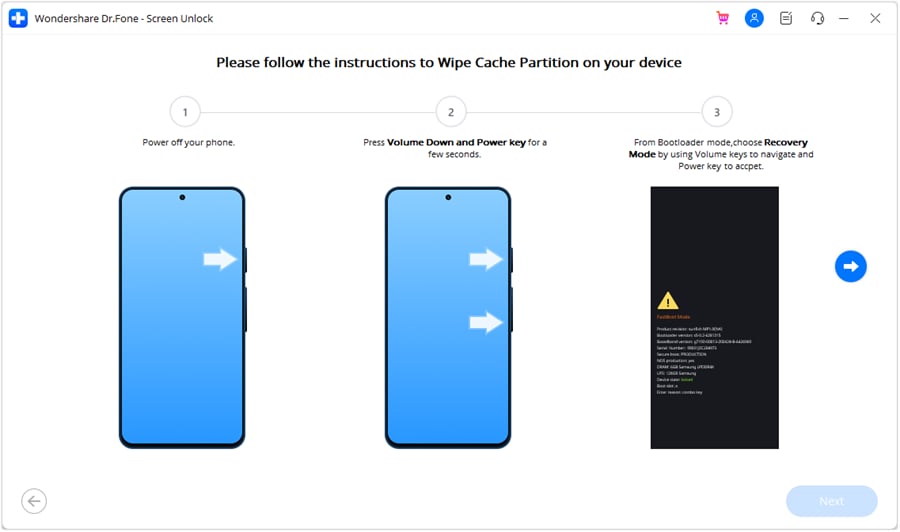
The software will now provide on-screen instructions to put your Xiaomi device into a specific mode (like Fastboot or Recovery Mode). Typically, this involves turning off your phone and then pressing and holding the "Power" and "Volume Down" buttons together. Once the device is in the correct mode, Dr.Fone will automatically begin the unlocking process. Wait for it to complete, and do not disconnect your phone. When finished, click "Done" and your phone will restart without a screen lock.
Conclusion
In summary, XiaoMiTool V2 is an invaluable and versatile utility for any Xiaomi, Redmi, or Poco owner looking to perform advanced tasks like flashing ROMs, unlocking the bootloader, or recovering from software issues. Its automated, guided approach makes these complex operations accessible to everyone, regardless of technical skill. While its interface may be dated and occasional errors can occur, it remains a powerful, free, and community-supported tool. The upcoming XiaoMiTool V3 promises to refine this experience even further.
However, for a specific and common issue like a forgotten screen lock, XiaoMiTool V2 can be overkill. In such cases, a specialized tool like Dr.Fone - Screen Unlock (Android) is the superior choice. It offers a straightforward, reliable, and safe method to regain access to your device without navigating complex system modifications. Whichever tool fits your needs, remember to always back up your important data before proceeding with any action that modifies your phone's software.




Frequently Asked Questions
-
1. Is XiaoMiTool V2 safe to use on all Xiaomi phones?
When used correctly, XiaoMiTool V2 is generally safe for most Xiaomi phones because it relies on official flashing protocols. However, as it's an unofficial tool, compatibility with brand-new models might be delayed. It is always wise to back up your data and check community forums for compatibility with your specific device model before starting. -
2. Can XiaoMiTool V2 recover a completely dead (hard-bricked) Xiaomi phone?
No, XiaoMiTool V2 is designed to fix "soft-bricked" phones, which are devices stuck in a boot loop or unable to load the operating system due to software corruption. It cannot repair "hard-bricked" devices that show no signs of power or are unresponsive, as these issues typically stem from hardware failure. -
3. Does XiaoMiTool V2 require an internet connection to function?
Yes, a stable internet connection is essential for most of its key functions. The tool needs to connect to the internet to download the correct ROM files from Xiaomi's servers, fetch the necessary drivers, and verify the bootloader unlock status with Xiaomi. Offline functionality is extremely limited. -
4. Will using XiaoMiTool V2 void my Xiaomi device's warranty?
Yes, performing actions like unlocking the bootloader or rooting your device with XiaoMiTool V2 will almost certainly void your phone's warranty. Xiaomi's policy does not cover issues caused by unofficial software modifications. While it is sometimes possible to revert to stock and re-lock the bootloader, this does not guarantee warranty restoration.
 Add Wondershare Dr.Fone as a preferred source on Google