Bypass iCloud Activation Lock and Android FRP without password.

 100% Security Verified | No Subscription Required | No Malware

 :
: 
 ChatGPT
 Perplexity
 Gemini
 Claude
 Grok
Grok
Getting locked out of the Moto G Series (Play, Pure, Stylus, 5G) is a headache, mainly after the reset. On the startup screen, you are asked to add the Google Account details, but your mind goes blank. This is the FRP lock that will now prevent unauthenticated access until you add the correct account details. Additionally, if you bought a used phone, you still can’t use this device until the lock is bypassed.
So, this guide explains a clear, step‑by‑step FRP bypass for the Moto G Play and other series methods. Here, you will learn how to do it without a PC or with one, using third‑party tools like Dr.Fone - Screen Unlock (Android).
In this article
Part 1. What is Moto G FRP Lock? When Moto G Devices Get FRP Locked
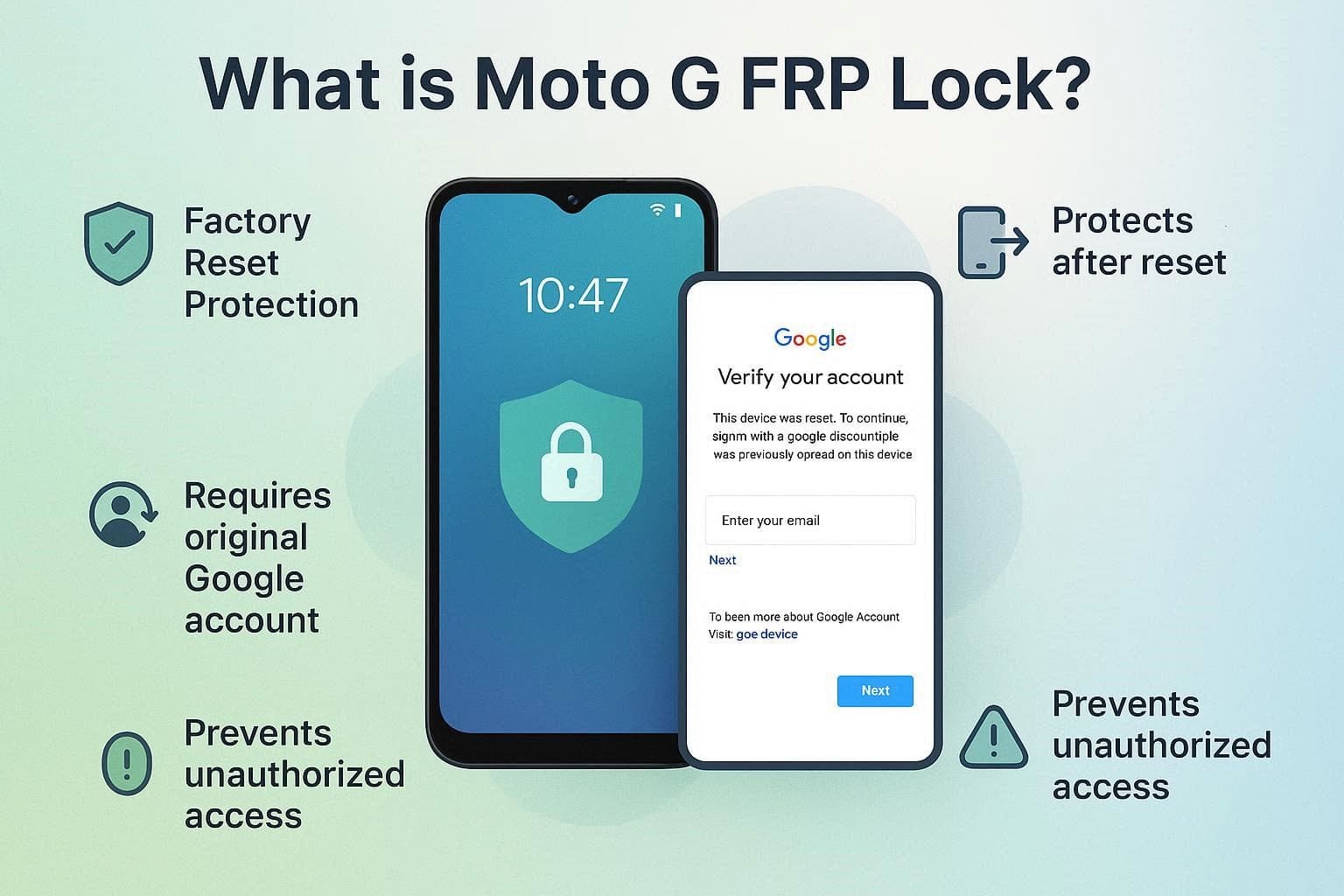
Before you continue with the Motorola G Pure FRP Bypass, note that FRP is a security feature. Known as Factory Reset Protection, it is designed to help protect your device after a reset when someone tries to reset it without first removing the Google Account. In most cases, you get locked out when the rest is performed via recovery mode, settings, or through a hard reset with a Google account linked.
Furthermore, it can happen when users forget their Google Account after a reset or when they buy a second-hand phone linked to a previous Google Account. In these situations, the phone gets stuck on the “Verify your account” screen until the correct Google login details are entered.
Part 2. Bypass FRP on Moto G Series: Preparation and Important Warnings
Regarding the FRP bypass for the Moto G, follow the mentioned warning and prerequisites for safety:
- Charge the phone to at least 50% and connect to a stable internet connection, once you know the exact Moto G model and Android version.
- Try to remember the previous Google Account details and use a trusted FRP tool as if you have a previous backup.

Part 3. Complete Moto G FRP Bypass Guide Without PC or with Tools
To continue with the Moto G Play FRP bypass, this section explains the PC and without PC methods:
Method 1. Dedicated FRP Unlock Tools (e.g., Dr.Fone - Screen Unlock)
While using the PC, you can use the Moto G Play FRP unlock tool, such as Dr.Fone - Screen Unlock (Android), which works for all Moto models. Overall, the tool supports AI-powered FRP lock removal for 19 Android brands, including phones and tablets. From the Samsung Galaxy S26 Series to Samsung Snapdragon, Dr.Fone supports all US models and chipsets.
For Moto devices, you can choose MediaTek GPU bypass options for the Moto G8 Power Lite through the Moto G Stylus (2023). All of this is done with clear prompts and alerts so that users are aware of the data-loss condition. Nonetheless, you get the complete guide to remove the FRP lock in 3 simple steps, making it an ideal choice for novices.
 Unlock Android phone in seconds.
- Remove PIN, pattern, password, fingerprint.
- Bypass Google FRP lock easily.
- Works on all Android brands & models.
- No tech skills required – user-friendly.

Simple Guide to Remove FRP Lock on Moto G Series
-
Step 1 Locate the Moto G FRP Bypass Tool
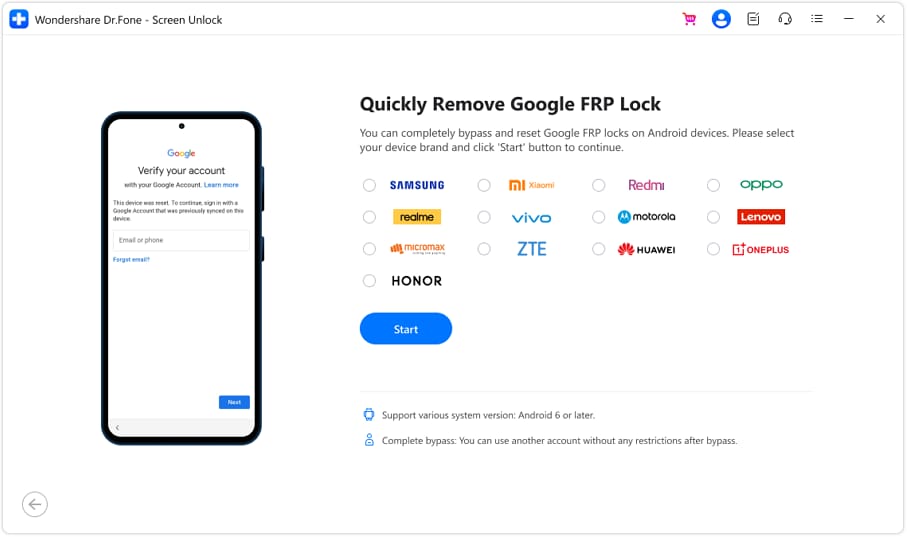
Pick the “Remove Google FRP Lock” option on the screen unlock tool for Android within Dr.Fone’s toolbox. After that, pick the Moto G device from the list and tap the “Start” button to continue.
-
Step 2 Choose the MediaTek GPU for FRP Removal
From the listed options, tap the “MediaTek GPU” and start downloading the drivers by pressing the “Start” button.
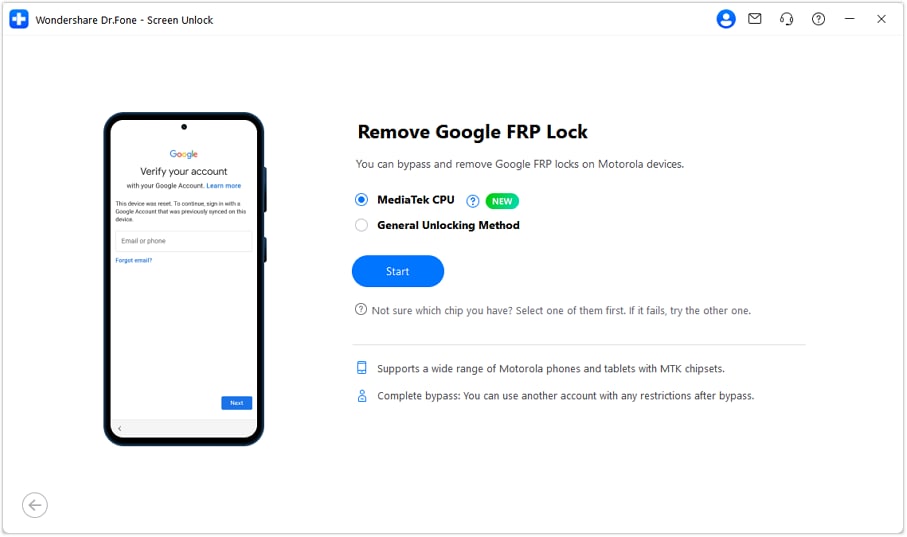
-
Step 3 Choose the Done After FRP Bypass
At this point, follow the on-screen instructions while the device is connected to ensure proper device recognition. Once the device is connected, the tool will start removing the FRP lock; press “Done” when it finishes.
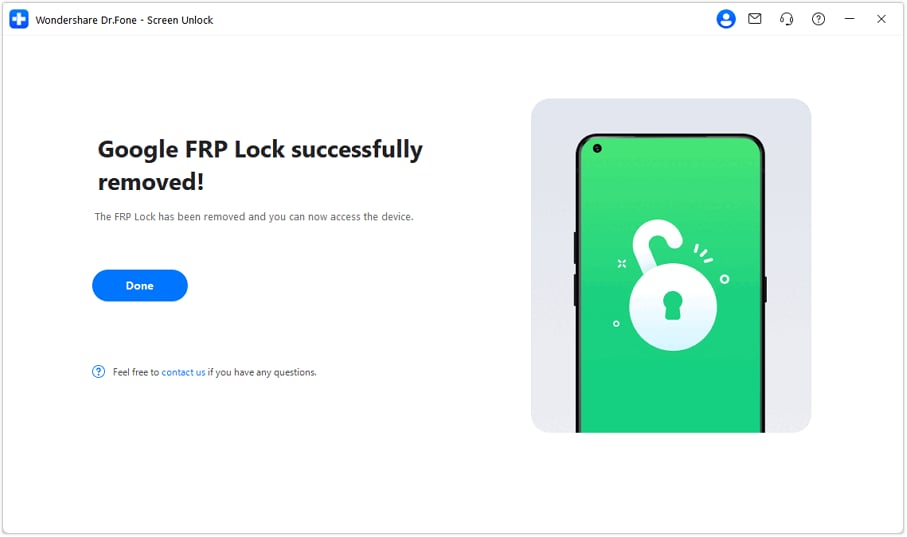
1. Dr.Fone - Screen Unlock (Android) is a dependable choice for Moto G 5G FRP bypass compared to online tricks.
Though those tricks require no PC, they offer limited customizability, camera lockouts, and poor long-term software support. Instead, Dr.Fone FRP removal is secure, requires verification, and is available for all old and modern Moto G models, including Android 17.
Method 2. Using Device Accessibility & Internet Trick
Accessibility options such as TalkBack are available to unlock the hidden menus on the Moto G Stylus FRP Bypass without a computer. Since it works better on older Android 11 and 12 Moto G versions, it's much harder to bypass FRP on Android 13, 14, and 15 because of security gaps. Additionally, this method can cause software problems or legal issues; use it at your own risk via these steps:
-
Step 1 On the start menu, pick the “Vision Settings” option and tap the “TalkBack” option to toggle on “Use TalkBack.”
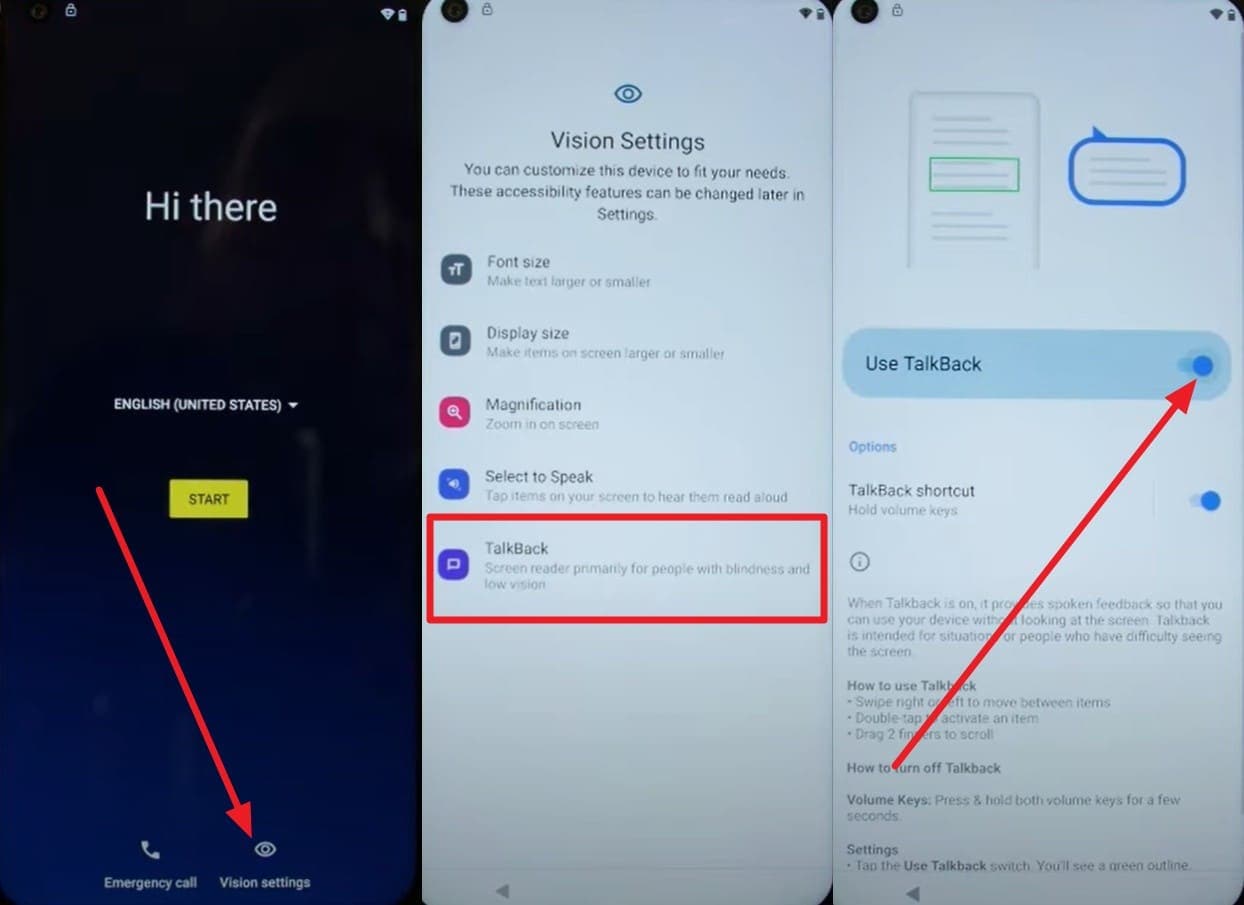
-
Step 2 Draw the “L” shape and choose the “TalkBack Settings” option from the popup menu. In the settings, click on the “Braille Keyboard > Set Up Braille Keyboard” options and enable the “TalkBack Braille Keyboard” option.
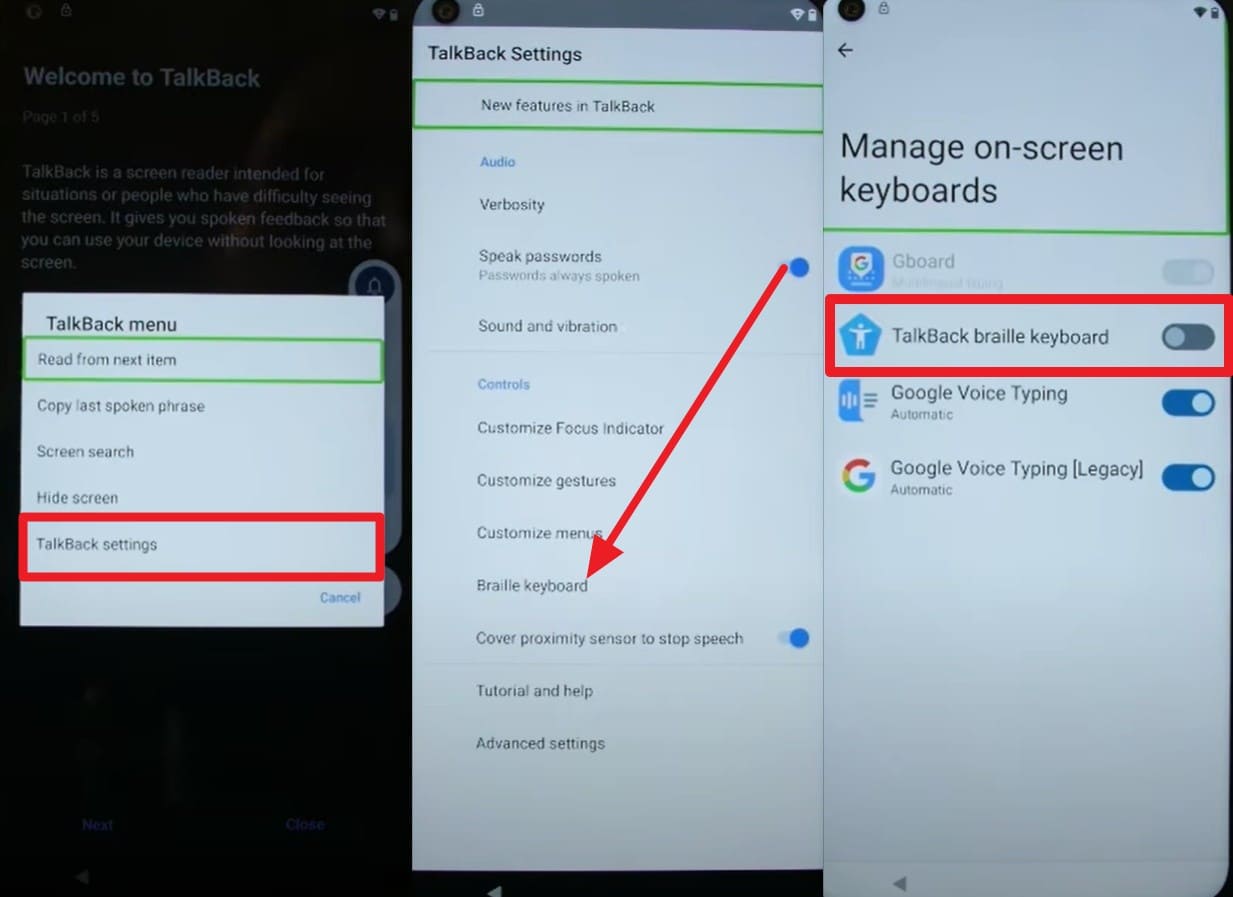
-
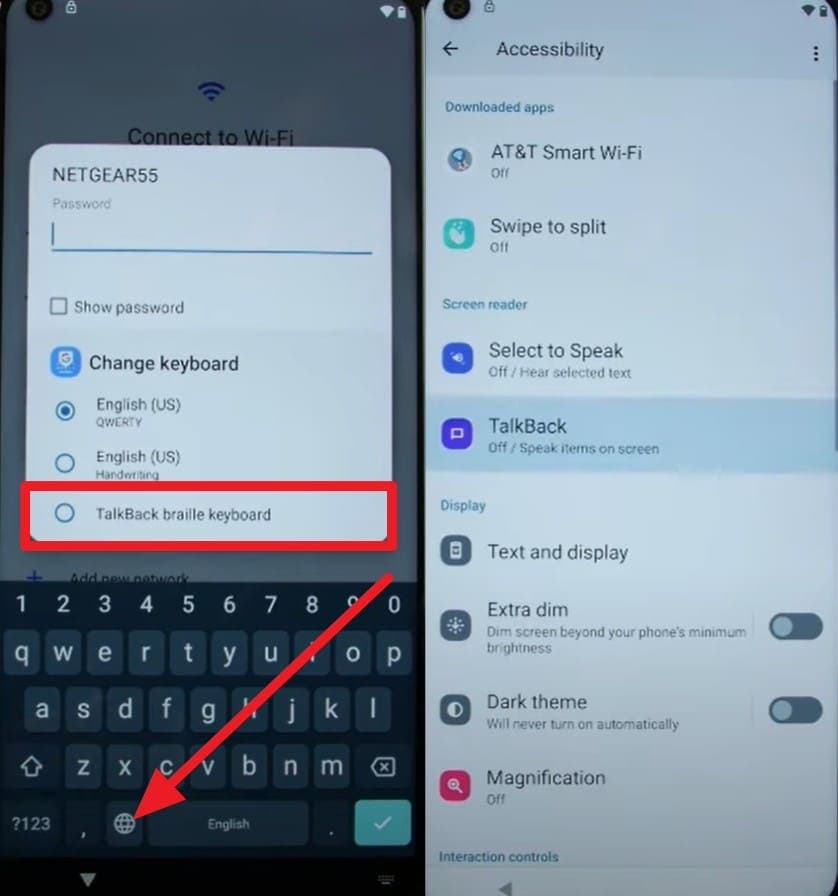
Step 3 Go back and disable the “TalkBack” settings, connect to Wi-Fi, and tap the “Globe” icon on the keyboard. When the popup menu appears, choose the “TalkBack Braille Keyboard” option and access the “Accessibility” interface by picking “Turn On in Accessibility Settings.”
-
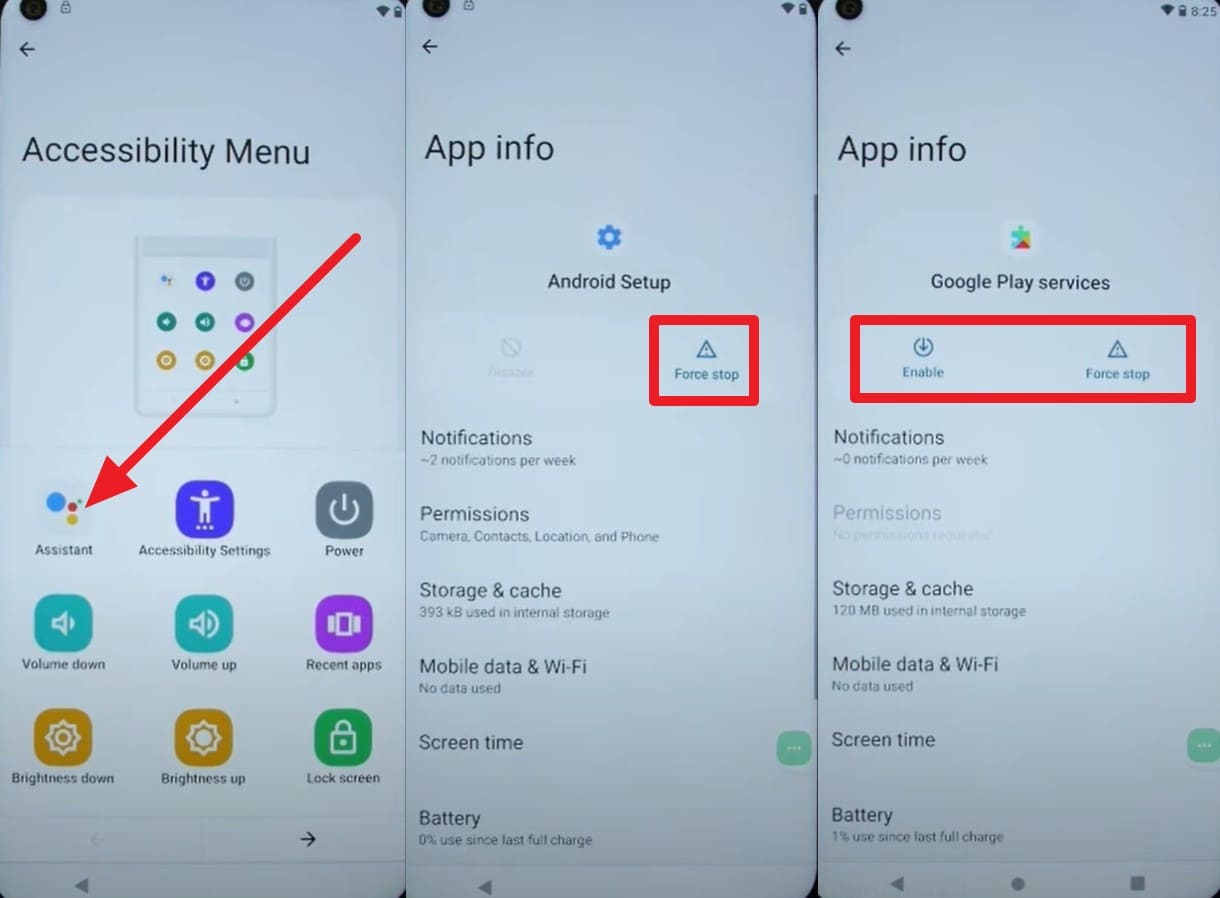
Step 4 There, pick the “Assistant” option and command “Settings” and tap on “Open Settings.” Choose the “Apps” option, and “Force Stop and Disable” Android Setup and Google Play Services.
-
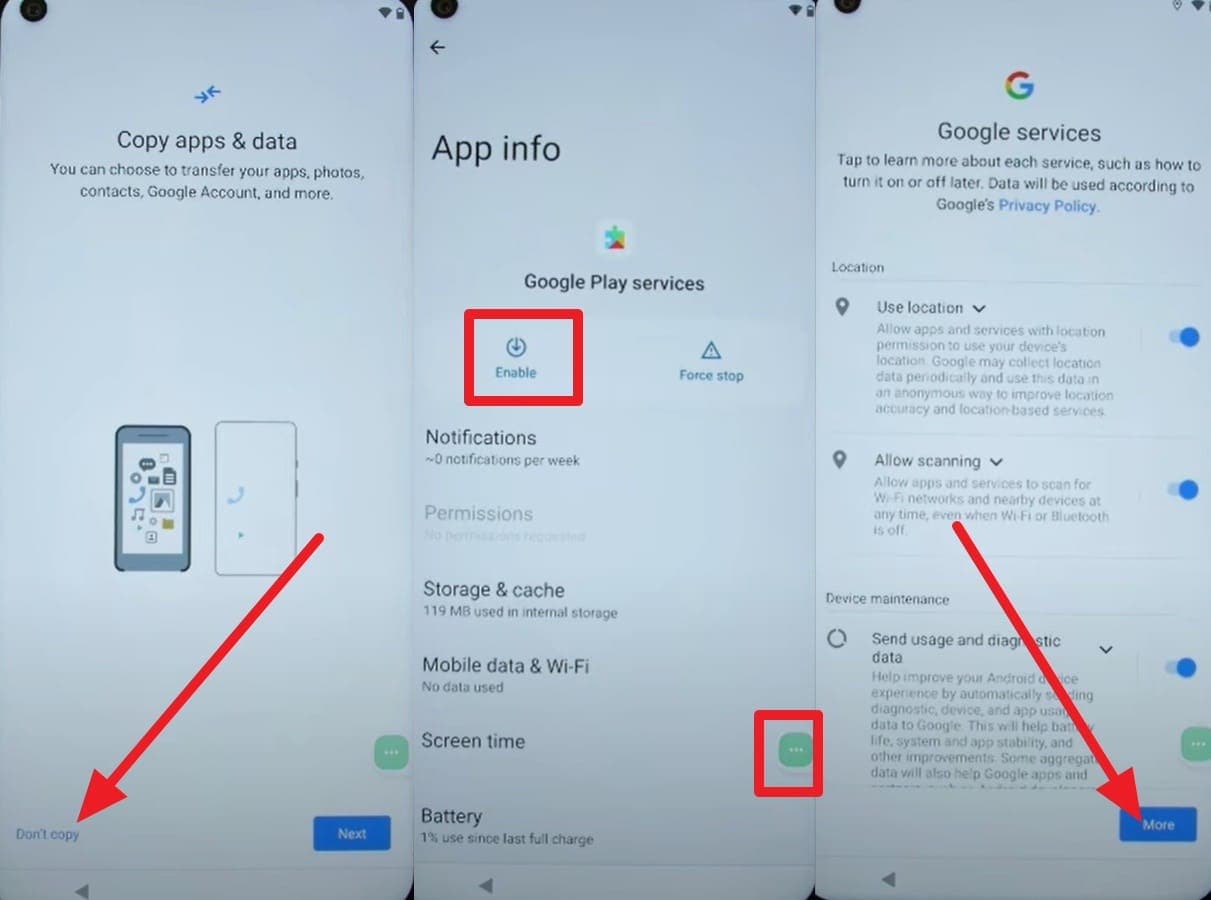
Step 5 At this point, go back to the setup interface and wait until the “Just A Moment” loop ends. Then, pick the “Don’t Copy” option and choose the Accessibility menu to enable Google Play Services via the Assistant. Head to setup and pick the “More and Accept” option, and skip to add the key to bypass FRP.
Method 3. Using SIM Card and Emergency Call Workarounds
This Moto G Play FRP bypass without PC method also depends entirely on your Android version and security patch level. Since it's workable on Android 11 and 12, the detailed steps for this trick are mentioned below:
-
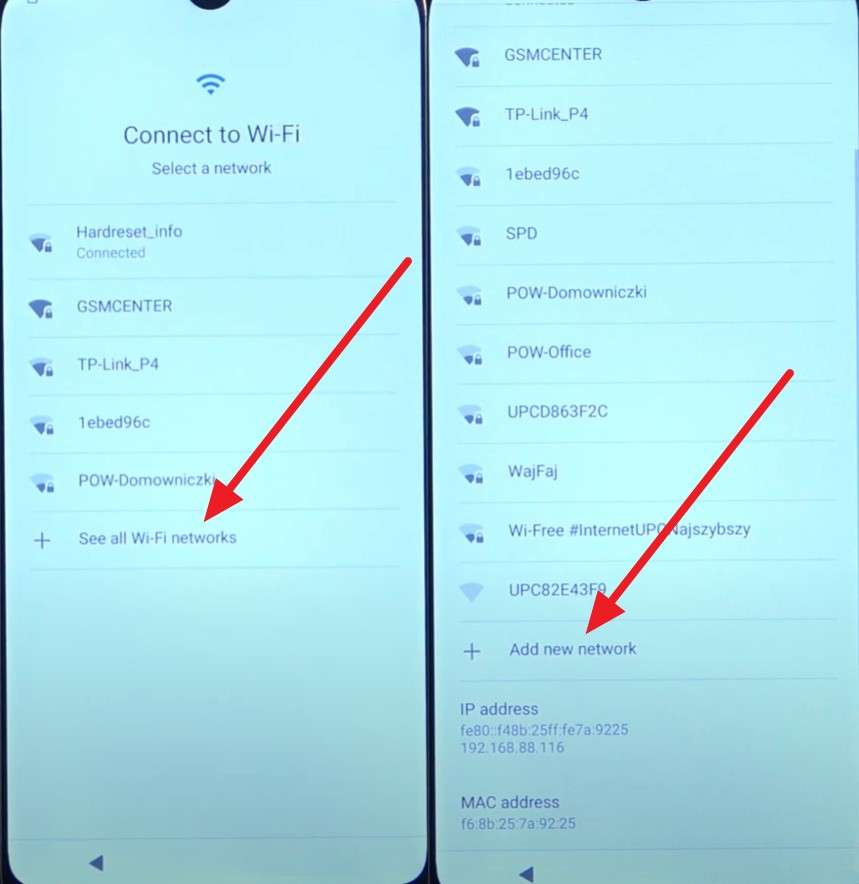
Step 1 On the setup screen, go to the “Connect to Wi-Fi” interface and tap the “See All Wi-Fi Networks” to choose “Add New Network.”
-
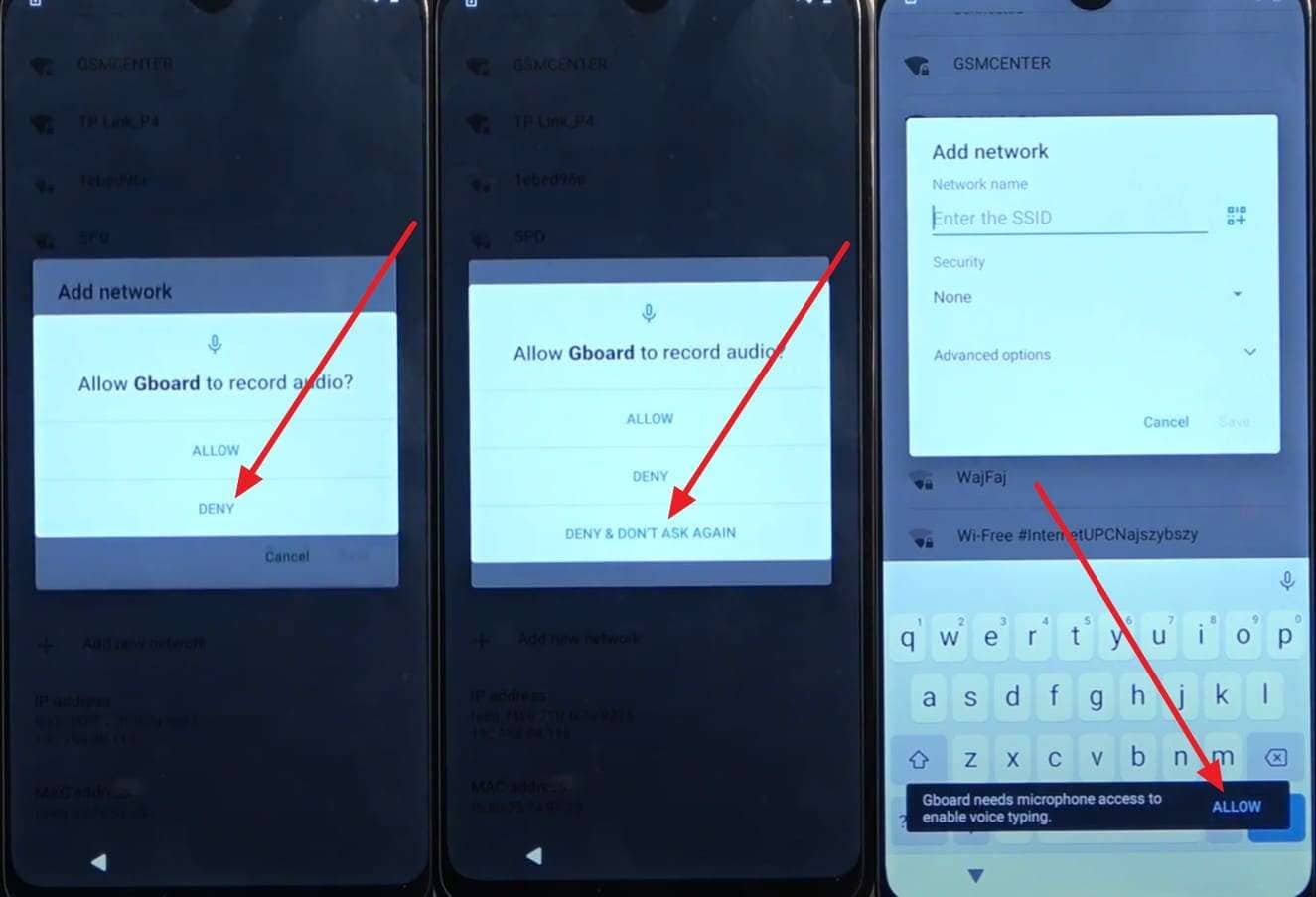
Step 2 Tap the “Microphone” icon on the textbox, pick “Deny” and do that multiple times, until you get the “Deny and Don’t Ask Again” option. Then, press the microphone icon again and choose the “Allow” option in the prompt when it appears.
-
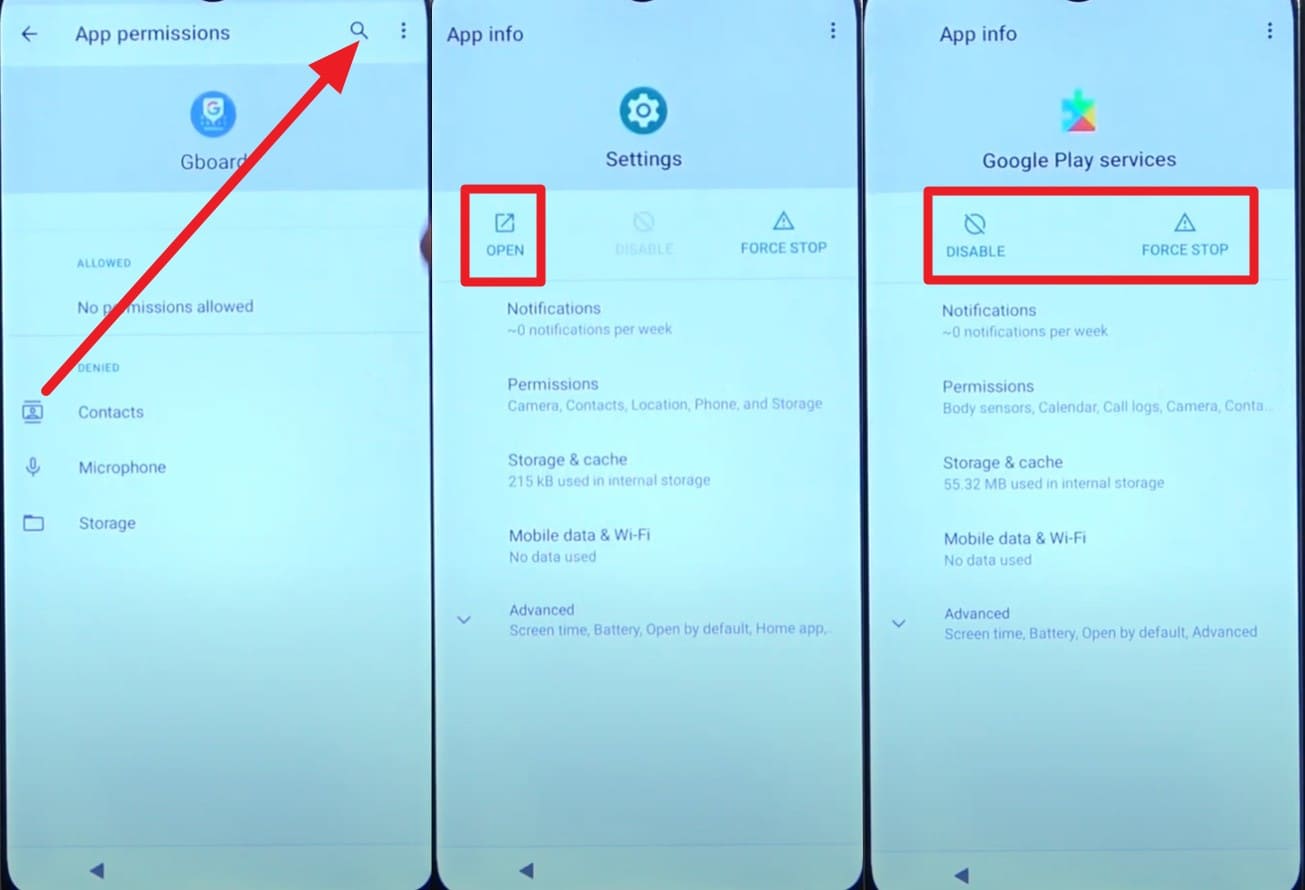
Step 3 On the App Info interface, go to the “Permissions” and search for the “Settings” to choose the “Open” option. Go to “App and Notifications > App Info,” and “Disable and Force Stop” Google Play Services.
-
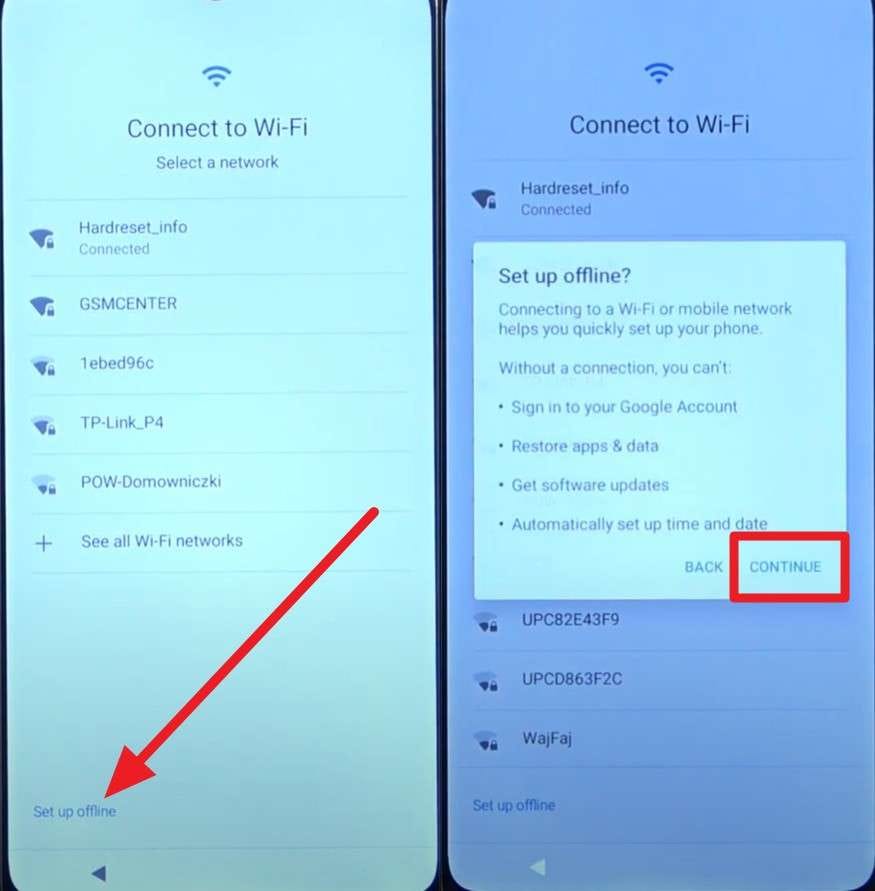
Step 4 At this point, restart the phone and check whether you get the “Set Up Offline” option on the Wi-Fi connection interface. Enable Google Play Services using the same method mentioned above. Then return to the Wi-Fi interface, select “Set Up Offline,” and tap “Continue.”
-
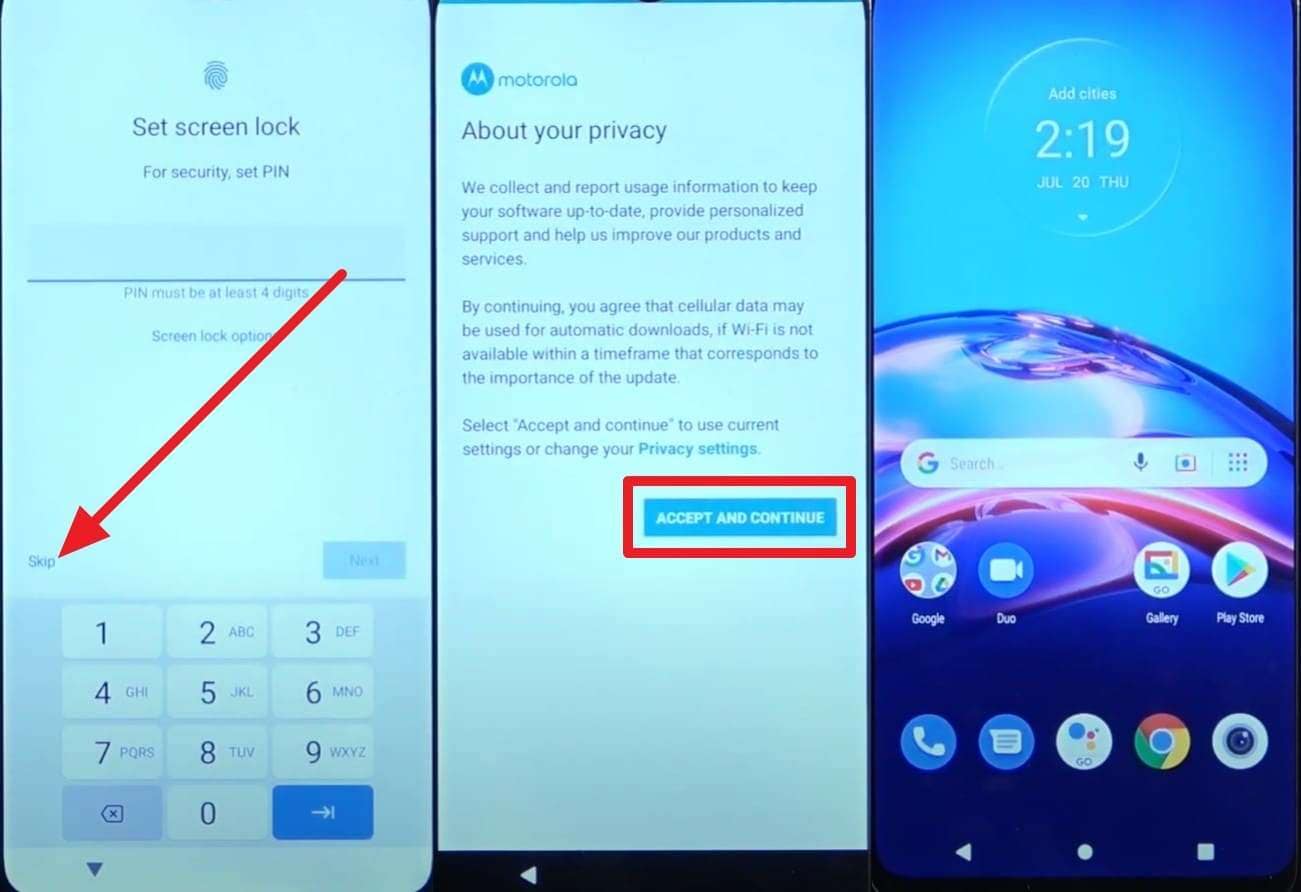
Step 5 Wait for the progress bar to end, and choose the “More” and “Accept” options to skip the PIN interface. Then pick the “Accept and Continue” option, and choose “Next” or “Deny” on all subsequent interfaces to bypass the FRP lock.
Part 4. How to Turn Off FRP on Moto G Before Reset or Selling
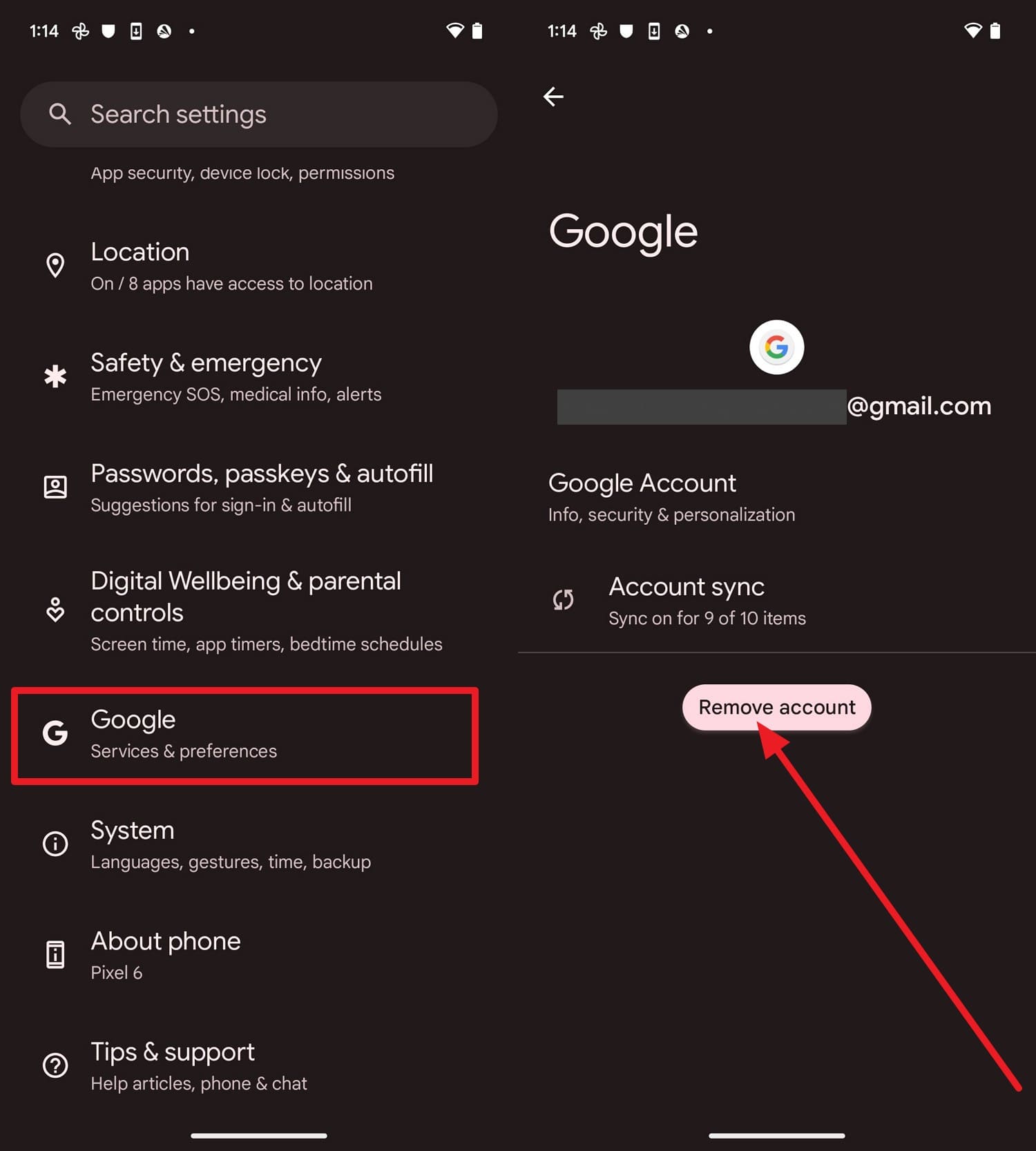
If you don’t want to tie the phone to a Google account and to skip the Moto G Power FRP bypass on the setup screen, it's best to disable it. This way, you prevent activation problems, safeguard your details, and prepare the phone for the new owner to use as usual. This can be achieved by following the detailed instructions provided below for the Moto G devices:
-
Instructions In the settings, go to “Accounts” and choose “Google,” then select the “Remove Account” button and confirm.
Conclusion
The need for an FRP bypass on the Moto G Play is evident when you don’t know the Google Account details. In this case, this guide has explained the reality of FRP bypass tricks and how to use the reliable options. The tricks work only on Android 11 and 12 and are not always effective.
So, both old and new Moto G users should try using FRP removal software like Dr.Fone - Screen Unlock (Android). All steps are safe, legal, and consensual, and the tool works with multiple Moto G versions, along with Android 5.0 to Android 17.




Frequently Asked Questions
-
1. Is it legal to bypass FRP on Moto G devices?
FRP bypass is generally legal only when you are unlocking your own device or a second-hand device you officially own. Hence, if you try to bypass the FRP on a lost, stolen, or unauthorized device, it can violate the laws and privacy protections. -
2. Which is the best Moto G Play FRP unlock tool?
For the old and modern Moto G devices, Dr.Fone - Screen Unlock (Android) is the suitable choice. The tool is even better than the MotoReaper, which no longer works on the modern Moto G devices. So, using the MediaTek GPU option, you can remove FRP in 3 simple steps. -
3. Does FRP bypass erase data on Moto G phones?
FRP bypass methods are performed after a factory reset, so previous data is already removed. Additionally, some previous repair or flashing methods can permanently erase settings, apps, and locally stored device information. -
4. Why does Moto G FRP bypass fail on newer Android versions?
New updates include stronger Google and Motorola security protections that block older loopholes and browser tricks. That is why many Android 11 and 12 limited FRP tricks no longer work properly on Android 15 and 16.
 Add Wondershare Dr.Fone as a preferred source on Google