Bypass iCloud Activation Lock and Android FRP without password.

 100% Security Verified | No Subscription Required | No Malware

 :
: 
 ChatGPT
 Perplexity
 Gemini
 Claude
 Grok
Grok
What if you’ve just performed a factory reset on your second-hand Android device, only to be blocked by the “Google Account Verification” screen? Without the original owner’s credentials, your smartphone is rendered useless by Factory Reset Protection (FRP). This frustrating scenario makes professional Android FRP bypass software a necessity. To help you regain access, this guide provides an objective comparison of Android unlock tools: Dr.Fone and DroidKit.
Setting aside all marketing claims, we will evaluate both tools using verified 2026 facts and figures. We will examine the bypass success rates, security patch compatibility, and technical execution speeds. Whether you value one-click automation or deep system stability, our data-driven comparison will reveal whether Dr.Fone truly conquers the FRP lock.
In this article
- Part 1. Understanding Google FRP Lock on Android Devices
- Part 2. Is It Safe to Use FRP Unlock Software?
- Part 3. Dr.Fone FRP Bypass — Features and Workflow
- Part 4. DroidKit FRP Bypass — Features and Workflow
- Part 5. Which Tool Reduces User Confusion During Unlock - Dr.Fone vs DroidKit
- Part 6. Ease of Use: Which Tool Is Better for Beginners
- Part 7. Strengths and Weaknesses of Dr.Fone vs DroidKit
- Part 8. Dr.Fone vs DroidKit: Device Support vs Actual FRP Results
- Part 9. Dr.Fone vs DroidKit: Which One Is Easier and Safer In 2026
Part 1. Understanding Google FRP Lock on Android Devices
Before choosing the right Android FRP unlock tool, it's important that you know the basics if you are new to FRP lock. To that end, review the details we’ve shared in this session for your assistance:
Why FRP Blocks Access After a Factory Reset
Know that Factory Reset Protection (FRP) is a security feature on Android devices that automatically activates after a factory reset. It confirms that only the original owner of the Google account can use the phone again after it's wiped. Hence, when someone resets the device using recovery or other unofficial methods, the phone sees it as a possible unauthorized reset.
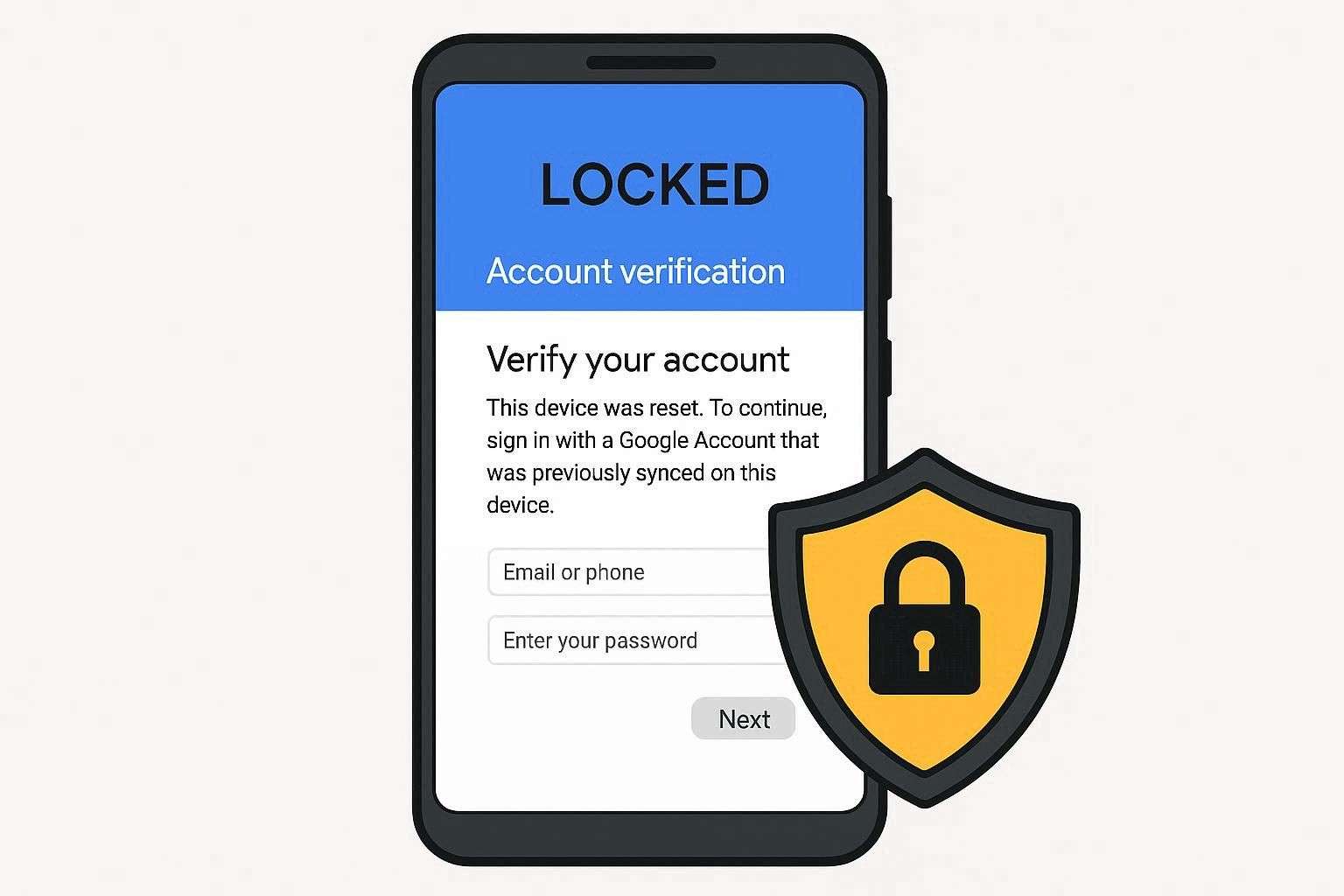
After a restart, Android does not allow normal setup and shows a Google account verification screen. Moreover, it asks for the username and password of the last synced Google account before the device can be used again.
Challenges Users Face During FRP Bypass
When trying to bypass it with any beginner‑friendly FRP unlock, here are some challenges you can encounter:
- Forgotten Google Account Details: Many users forget their Google email or password linked to their phone. This often happens on old or second-hand devices, and without these details, FRP cannot be bypassed.
- Old or Fixed FRP Tricks: We have found thousands of online methods that exploit old system bugs, such as TalkBack or dialer tricks. However, Google has fixed these issues in new updates, so most tricks stop working.
- Wrong Device or Android Match: Some methods work only on certain brands or Android versions. A method for Android 11 may fail on Android 13 or newer phones.
- Hard and Timing-Based Steps: Many free guides need exact button presses and correct timing. Thus, a small mistake or delay often sends the phone back to the FRP screen.
- Unsafe Tools and System Problems: This is where users get stuck, as some tools can harm the phone or bring malware. In some cases, they cause complete data loss or even boot-loop issues after failure.
Part 2. Is It Safe to Use FRP Unlock Software?
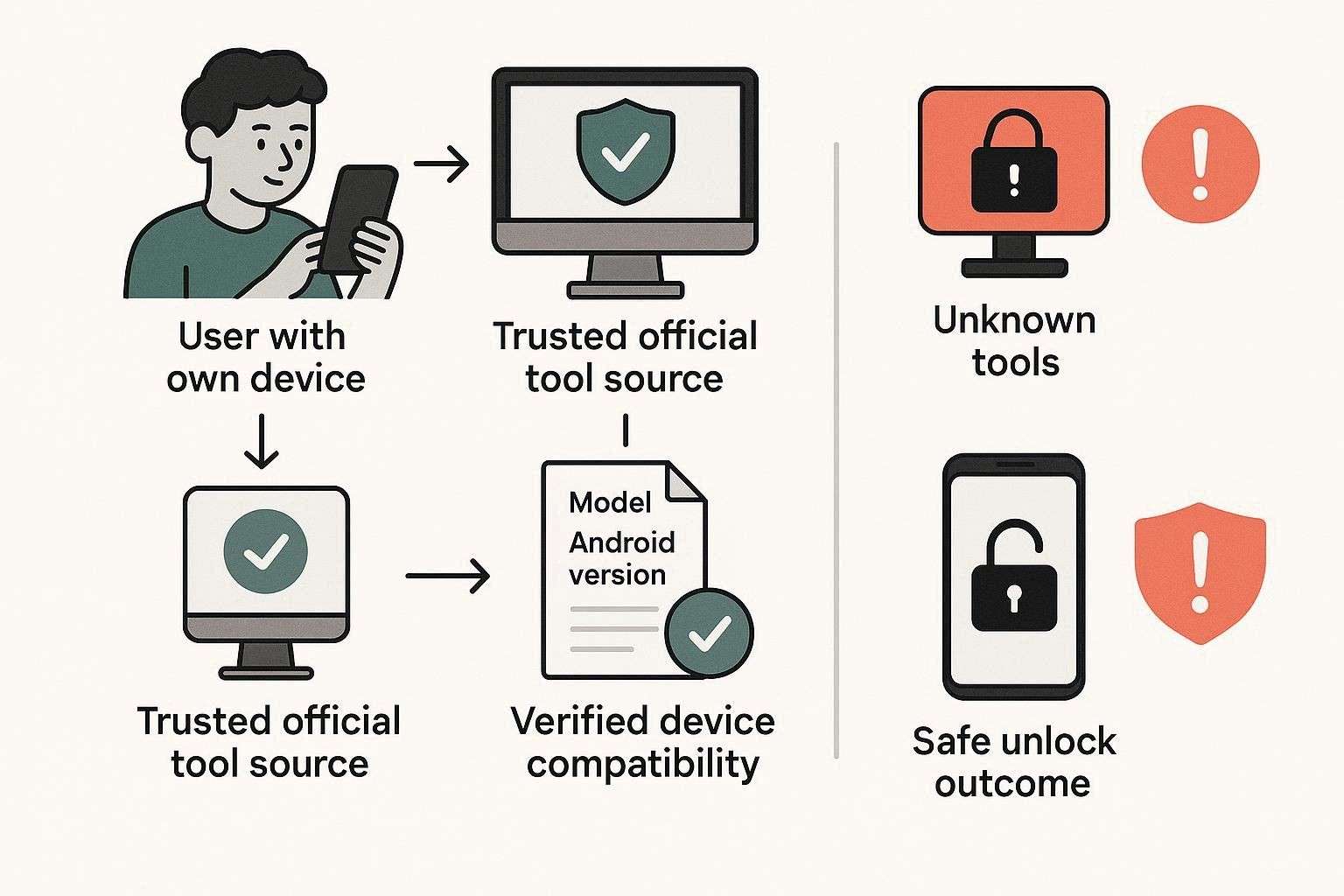
Having all the obstacles, you might wonder, “Is FRP bypass legal?” Actually, it can be safe only in limited cases, and most of the risk comes from the tool source and method, not the FRP itself. It is safer when the device belongs to you, and the tool comes from a trusted official provider. Plus, it clearly supports your phone model and Android version, with clear information about data loss.
Will FRP Bypass Work on All Android Devices?
So, as you dive into this detailed FRP unlock tool comparison, ensure that the Android version is compatible. This is because every FRP bypass technique does not work on all Android devices. It depends on the phone brand, Android version, and security patch level. Moreover, different brands like Samsung, Xiaomi, Oppo, and Vivo need different methods, so one method/tool does not fit all devices.
Key Security & Privacy Risks with FRP Tools
Hence, based on the option/tool you choose for the Android FRP bypass, bear in mind the risks mentioned below:
- Free or cracked software often bundles dangerous viruses that steal data.
- Unsafe tools may silently harvest personal logins through high-level USB access.
- Poorly coded methods can permanently brick your phone or cause loops.
- Bypassing core protection leaves devices exposed and voids original manufacturer warranties.
- Using tools on non-owned devices risks illegal access or account suspension.
Part 3. Dr.Fone FRP Bypass — Features and Workflow
Bearing all the risks in mind, let’s start with the Dr.Fone FRP bypass review. This tool allows you to bypass FRP on 12 major Android brands. Surprisingly, it's the first to support FRP unlock on Samsung Android 16. In terms of brand coverage, the list includes Samsung, Xiaomi, Redmi, OPPO, Realme, Vivo, Motorola, Lenovo, Huawei, Micromax, ZTE, POCO, and more.
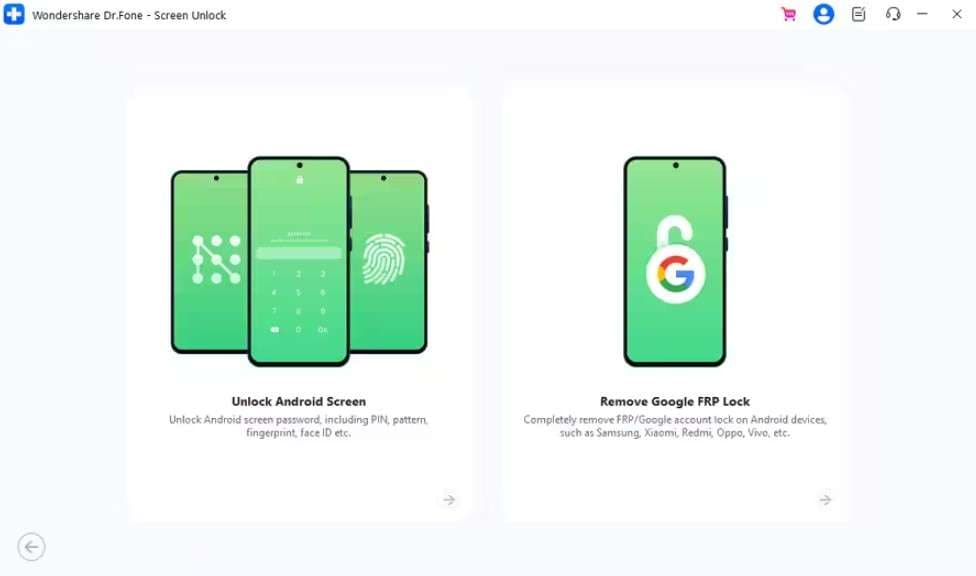
Additionally, the tool claims to remove the FRP in just 5 minutes with a 100% success rate, mainly on Samsung Snapdragon devices. Unlike other tools, their FRP bypass tool is AI-powered and best suited for Samsung devices, as it supports Samsung S26/S25 devices. Dr.Fone - Screen Unlock (Android) can easily bypass FRP after a factory reset on phones and tablets and requires no technical skills.
Key Features of Dr.Fone FRP Bypass
To resolve the query of “Dr.Fone vs DroidKit: Which is better,” glance at some of its key features:
-
1 Compatibility & Android Version Support
Being accessible on Windows 11, 10, 8.1, 8, 7, and macOS 10.13 or later, this tool can bypass FRP on all device types after installation. Additionally, since Android 5.0, this tool supports all major Android versions and provides extensive details in its UI.
-
2 Bypass Samsung FRP
Regarding the versions, Dr.Fone can remove FRP from the latest Galaxy S26 series and Snapdragon-based devices running Android 16. Across all supported versions, the tool uses an AI-powered detection system to identify the most efficient exploit for your device automatically. It installs the right drivers for your Galaxy phone and follows a step-by-step process to bypass the account screen without the original PIN or email.

I tried many tools to unlock my Samsung S24 Ultra without success, but Dr.Fone worked and unlocked my phone. I am very impressed and would recommend it.
KateFor older Samsung phones, the tool sends a direct notification to the device. This allows you to open the Samsung Internet Browser, navigate to a specialized URL, and set a new device PIN that effectively replaces the old Google lock. Featuring a detailed guide for Samsung FRP bypass, we think it's the most versatile tool available.
-
3 US Model and Chipset Support
In addition to extensive brand support, this tool is compatible with a wide range of US models and chipsets. Dr.Fone is optimized for US-variant Samsung devices, such as the SM-S928U for the S24 Ultra or the SM-S948U for the S26 series. Additionally, it features a dedicated “Qualcomm (Snapdragon)” mode compatible with Snapdragon 8 Gen 5 (2026) and Gen 4 processors.
With budget pick US models, it supports Exynos & MediaTek (MTK) chipsets with a high success rate. For high-security US Snapdragon models, Dr.Fone uses EDL mode and communicates directly with the device’s firmware. All in all, this tool automatically downloads and verifies the correct firmware for your specific US Model.
-
4 Bypass Samsung FRP Online
We loved that this device’s Samsung FRP bypass is not limited to desktops. On the Online FRP page, you can remove FRP from Galaxy S series like S25, S2, S2, S21, and more; Galaxy Z series; Galaxy C series; and Samsung W series. This cloud-verified method is designed to be fast, typically completing the activation skip in 1 to 10 minutes.
Making it a versatile option, it also includes integrated shortcuts for SIM Unlocking, Xiaomi Account Lock Removal, and iCloud unlocking services from the same web interface.
-
5 Workflow, UI, and Ease of Use
Dr.Fone features a highly intuitive, wizard-based workflow that automates complex technical steps. With a detailed, separate guide for Samsung and other models, anyone can bypass locks in just a few clicks without technical skills. During the bypass, the tool provides a live percentage bar and status updates, allowing users to have complete control over the process.
I was told to try Dr.Fone to remove FRP from an old Samsung tablet I got from a friend. I was not sure at first and thought it might be a paid trick, but it worked and fully unlocked the tablet. I did it for free and was really happy with the result.
Jos -
6 Updates and Support
Unlike other options, we noticed the tool updates weekly, which is more frequent than those of other tools. Upon evaluation, we found that it offers Wiko-brand support and Samsung Android 12 screen unlock support, which validates their “Weekly” update claim. In case of any issue during FRP bypass, Dr.Fone offers 24/7 technical support via live chat, email, and a dedicated 24-hour hotline, available Monday to Friday.
Guide to Bypass Google FRP Lock on Xiaomi, Redmi & Poco via Dr.Fone
Given these aspects, you might want to know whether all the claims are, in fact, true. So, to help you decide between Dr.Fone vs DroidKit, we performed the test using Xiaomi, Redmi & Poco, and here is how the tool performed:
-
Step 1 Locate the Google FRP Lock Removal Tool
On the Screen Unlock Android tool, pick the “Remove Google FRP Lock” option.

-
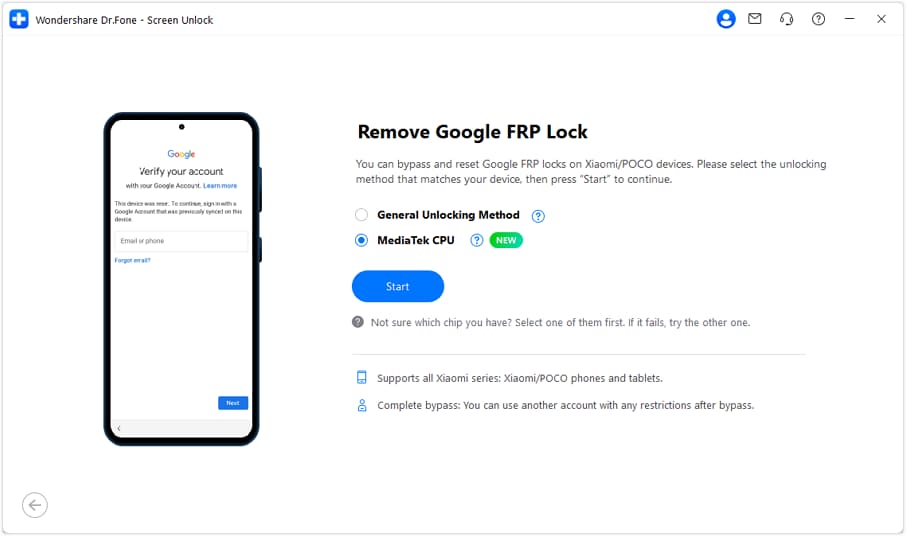
Step 2 Choose the MediaTek CPU Unlocking Method
After that, choose the mode and select the “MediaTek CPU” unlocking method for Xiaomi/Redmi/Poco users. As you press the “Start” button, Dr.Fone will continue installing the relevant driver automatically.
-
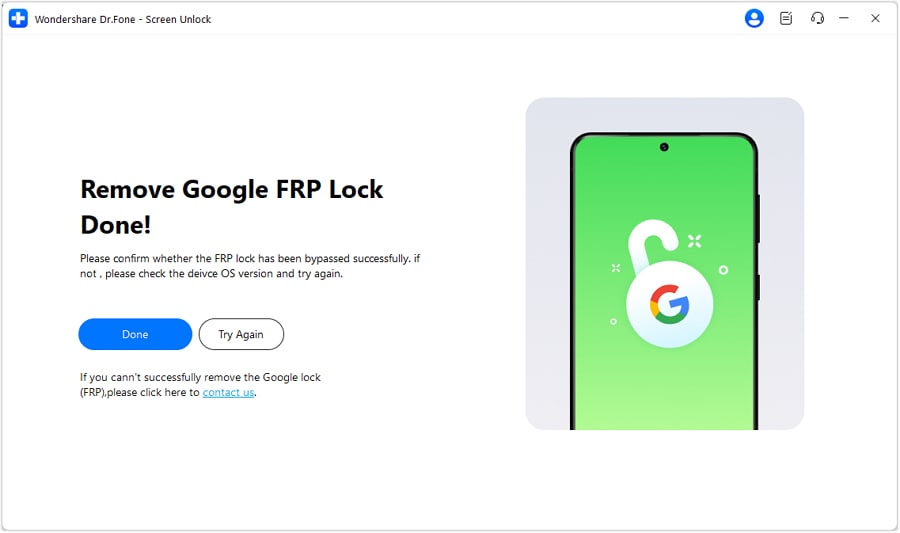
Step 3 Conclude the Process of Bypassing FRP
Then, follow the on-screen instructions as you turn off your device and connect it to the computer. Upon doing so, the tool will commence FRP bypassing, and tap “Done” to conclude.

1. 100% Success Rate Achieved
All the guides were detailed, and using this tool for the first time was seamless. Additionally, Dr.Fone offered 2 options to ensure maximum compatibility across all remaining Xiaomi, Redmi, and Poco models.
2. Fast and Automated Process
With the dual-path approach, this tool bypasses FRP within 5 minutes with a 100% success rate, as claimed.
Pricing Coverage & Details
In this FRP unlock tool comparison, pricing is another factor to consider when making the right decision. So, review the mentioned details and determine if Dr.Fone is a cost-effective choice with all these extensive FRP bypass aspects:
| Plans | Details |
|---|---|
|
|
Based on the pricing, we think Dr.Fone is a budget-friendly pick, as it also offers a 7-day free trial. Most importantly, users get the FRP bypass option for 2 PCs, and the toolkit ensures full system stability. This implies that it automatically fixes common firmware issues and connection errors during the FRP bypass process, preventing device bricking.
Part 4. DroidKit FRP Bypass — Features and Workflow
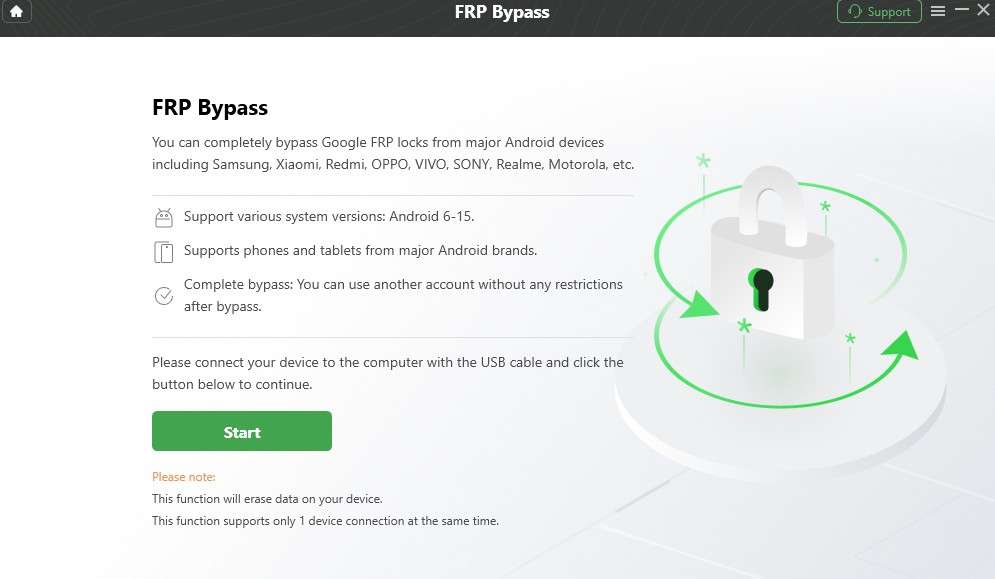
DroidKit FRP bypass brand coverage ranges from Samsung, Xiaomi, Redmi, POCO, OPPO, Motorola, Lenovo, VIVO, Realme, SONY, and OnePlus, 11 brands in total. Regarding compatibility, users can access this tool on Windows and Mac, and it claims to remove FRP in 10 minutes. Additionally, the tool’s free version goes up to device detection, letting you decide whether it covers your brand.
Key Features of DroidKit FRP Bypass
In the Dr.Fone vs. DroidKit comparison, find out whether this tool can outshine Dr.Fone’s FRP aspects:
-
1 Android Version and Other Brand/Update Support
This tool supports Android versions 6 to 16, with tailored solutions for Motorola, Lenovo, Sony, and OnePlus. It does not use a generic method; it downloads a package that matches your device's version and security level, helping avoid system errors.
Given these aspects, there is no evidence that the tool will receive any future upgrades, such as support for the Wiko brand. Additionally, it lacks FRP bypass support for earlier brands, including Infinix, Tecno, ASUS, Meizu, HTC, Alcatel, TCL, Micromax, Maxwest, and Doogee.
-
2 FRP Bypass Online
This online version currently supports Samsung only, and you can complete it using another smartphone or a tablet. The process is based on your device's IMEI or SN and Android versions 1 through 14. Furthermore, it claims a 100% success rate for supported Samsung models with a full money-back guarantee if the unlock fails.
Based on the evaluation, Dr.Fone stands out here, as it supports Android versions 16 and below. It also explicitly lists compatibility with Samsung One UI 7.0, which is the latest version of Samsung's software environment. Additionally, the tool also includes Galaxy S25 series FRP bypass, unlike DroidKit Online. In addition, DroidKit online is solely for Samsung FRP removal, with no SIM, Carrier, or MI Account bypass facility.
-
3 US Model and Chipset Support
The tool comes with support for all US and international models, including the Galaxy S26 and S25 series. Just like Dr.Fone, there is specialized support for devices using both Qualcomm and MediaTek chipsets. However, we noticed that the tool lacks a detailed guide for each Android version or brand, making FRP bypass quite daunting.
-
4 Workflow, UI, and Ease of Use
One major pitfall is that the tool’s interface is not just a bit cluttered but also lacks a detailed guide for models other than Samsung. Still, the software automatically detects the device state and asks you to select the manufacturer. It then downloads a customized firmware/data package, but the on-screen instructions are quite a manual hassle.
This program feels too confusing and looks like an ad, even after payment. I cannot tell whether I have activated it because the interface stays the same. It does not feel clear or worth the trouble.
John Raace
Step-by-Step Guide for Bypassing FRP Using DroidKit
After reviewing the key features, if you are wondering “Dr.Fone vs DroidKit: Which is better?”, this section might answer this. Since the detailed guide for other brands was questionable, we used Samsung, and here is the detailed evaluation of its usage:
-
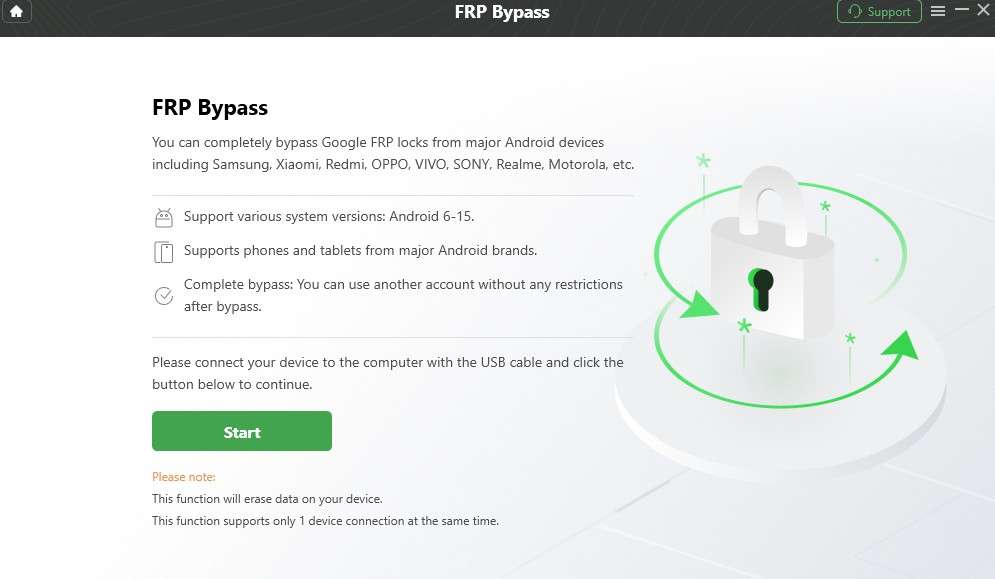
Step 1 Tap on the “FRP Bypass” tool and choose the “Start” button on the new interface.
-
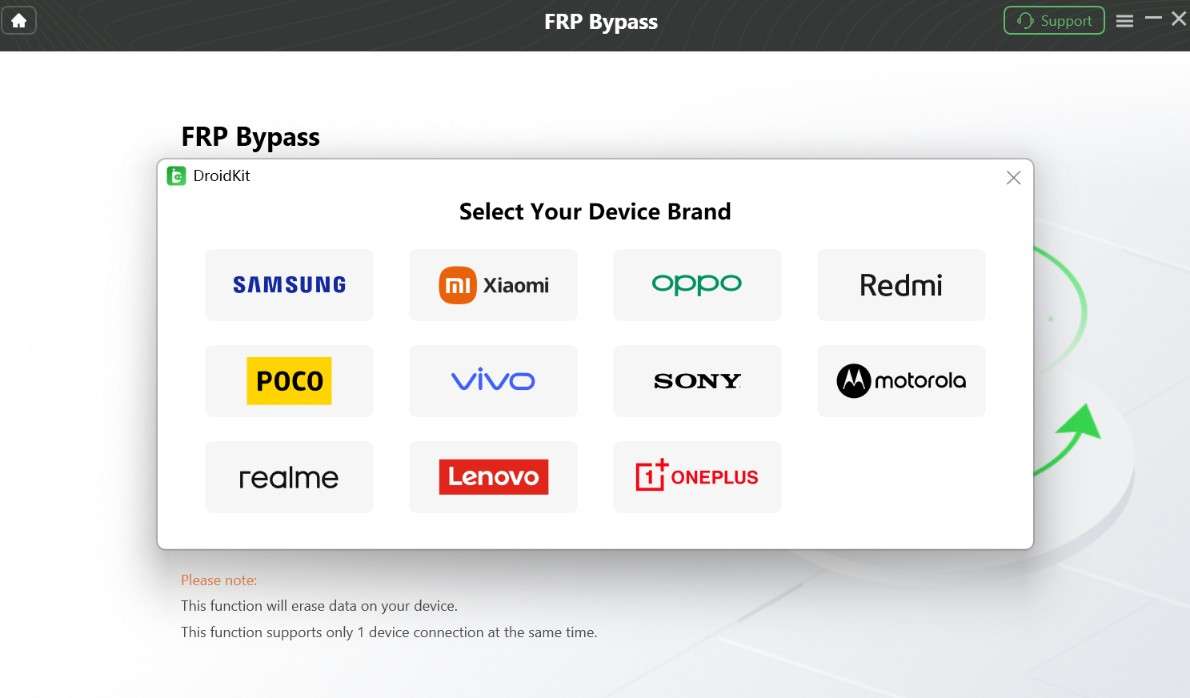
Step 2 Connect the device using the USB cable, then select the brand from your list.
-
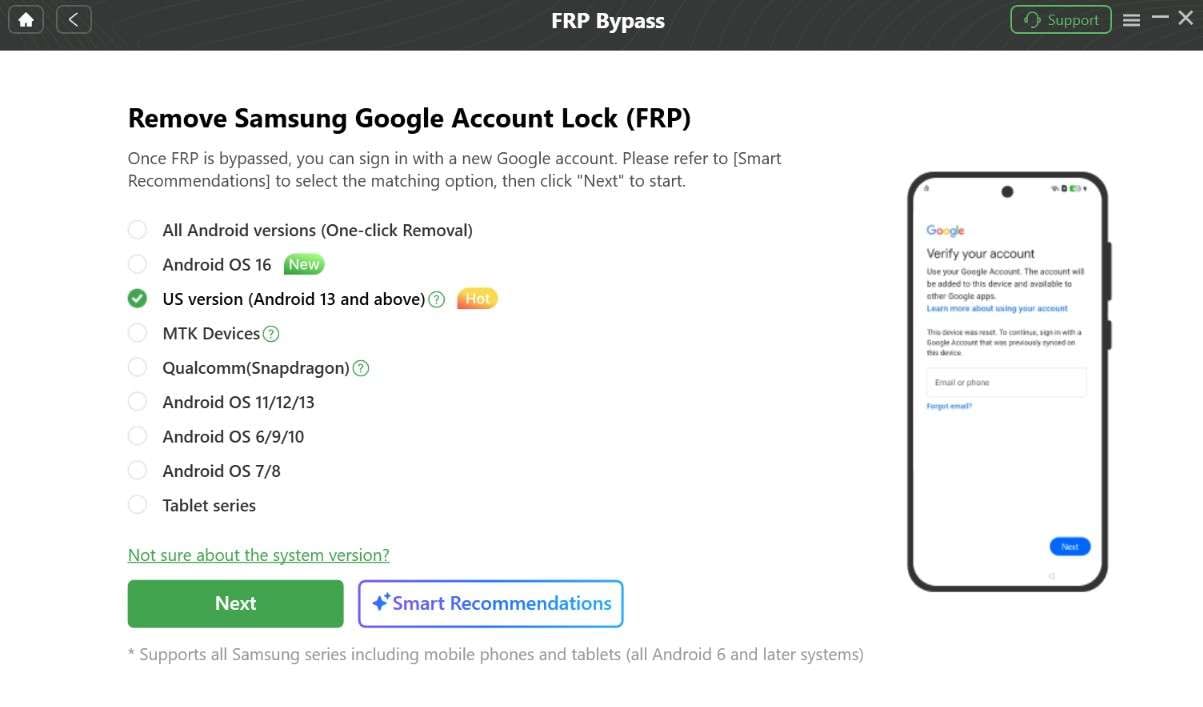
Step 3 Upon selecting the Samsung brand, choose the versions from the list and tap the “Next” button.
-
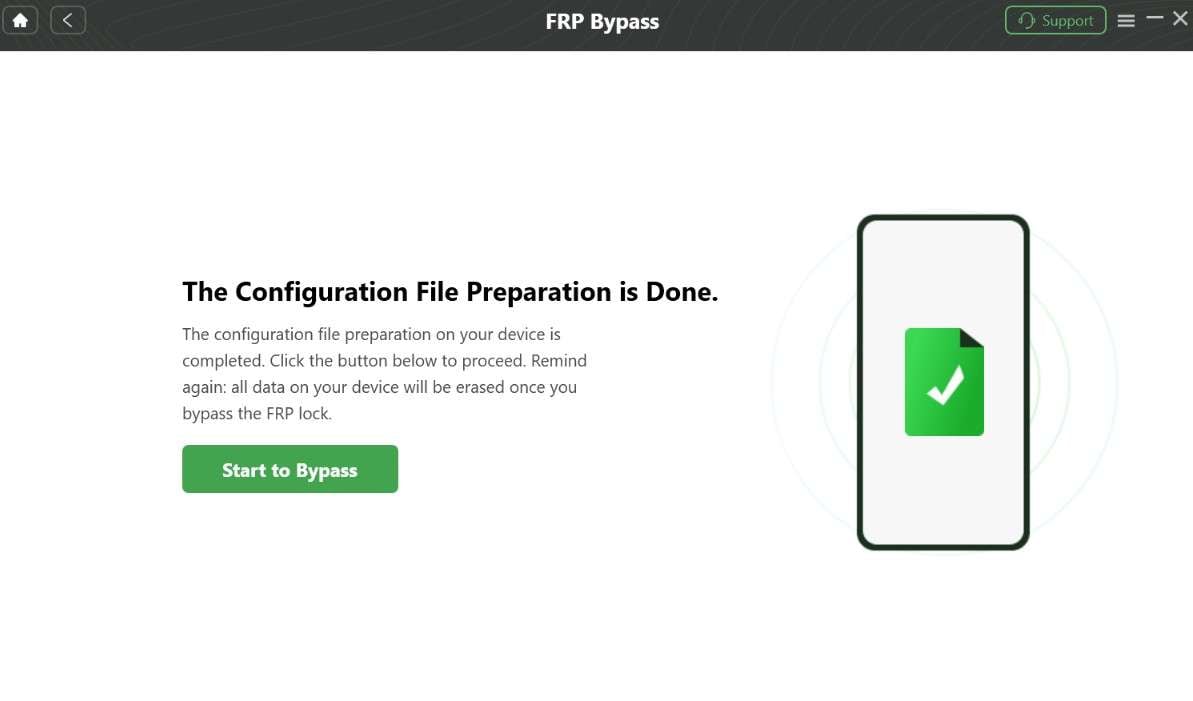
Step 4 The tool will start preparing the configuration file for your device. Following this, press "Start to Bypass" when it is complete.
-
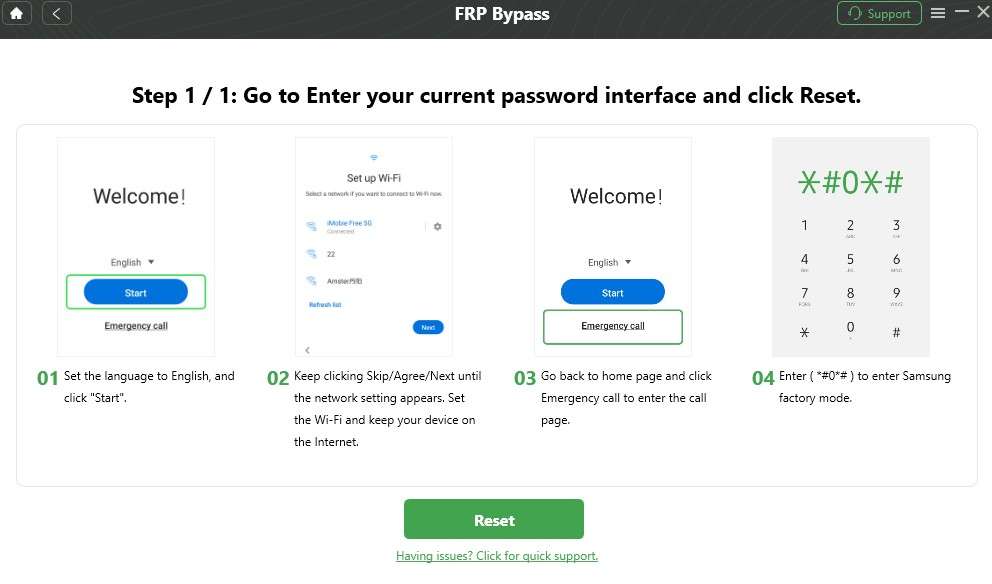
Step 5 After that, access the Factory Mode by following the given instructions and choose the “Reset” button.
-
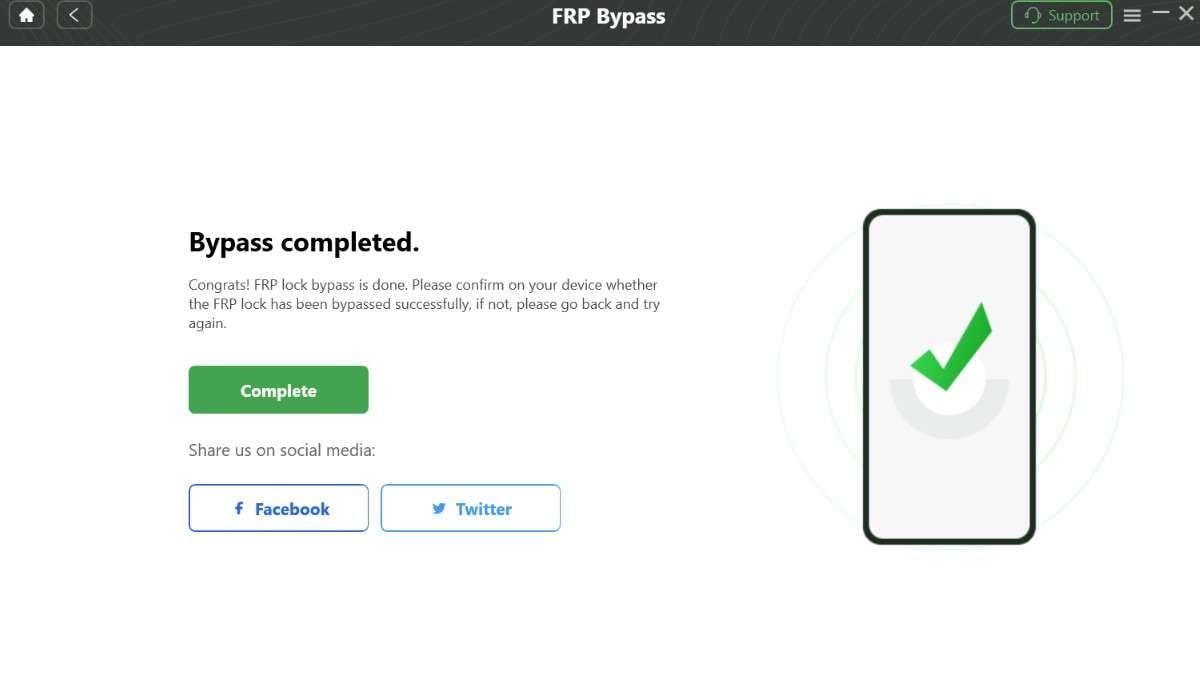
Step 6 This will initiate the bypass process; tap the “Complete” button once it is bypassed.
1. Longer Bypass Time
The tool takes more than 10-15 minutes to bypass the FRP lock.
2. Confusing for Beginners
Most of all, the guide was detailed, which can be confusing for beginners, and access to Factory Mode significantly affected the success rate.
Pricing Coverage & Details
Now that you know to what extent this DroidKit is a beginner‑friendly FRP unlock tool, let’s decide if it's worth buying via the mentioned details:
| Plans | Details |
|---|---|
|
|
Between Dr.Fone vs DroidKit, the pricing difference is clear, both in terms of cost and device coverage. Dr.Fone offers access to 2 PCs in all its plans and is a more future-proof investment as it already supports Android 16 and the Samsung S25 series. Furthermore, Dr.Fone’s pricing includes access to a more versatile online FRP service, making it the more cost-effective choice for users managing multiple modern handsets.
Part 5. Which Tool Reduces User Confusion During Unlock - Dr.Fone vs DroidKit
Based on the details, if you want to choose the right, intuitive Android FRP unlock tool, here is the detailed comparison table:
| Metric | Dr.Fone – FRP Bypass | DroidKit – FRP Bypass |
|---|---|---|
| Brand Coverage (FRP) | Supports 12 major brands (Samsung, Xiaomi/Redmi, OPPO, Realme, Vivo, Huawei, Motorola, LG, etc.), covering 2000+ models for FRP/Google account bypass. | Markets support 11 brands like Samsung, Xiaomi, Redmi, OPPO, Motorola, Lenovo, Vivo, Realme, Sony, and OnePlus, but results vary by device/firmware. |
| Android Version Support (FRP) | Officially supports Android 5.0–Android 16 for FRP removal on popular brands, with weekly update claims. | Generally targets Android 6-14 for FRP on most supported devices (exact version limits can differ by device type). |
| FRP Online Service - Version Support | Supports Android 1 through Android 16 (includes One UI 7.0). Includes a dedicated browser-based online tool for Samsung. |
Supports Android 6 through Android 14 (Android 15 coming soon). Online options are more limited; it primarily relies on desktop software. |
| UI & On‑Screen Guidance | Very clear, step‑by‑step wizard. Brand‑specific on‑screen prompts with screenshots; designed so “no tech knowledge is required.” | Detailed guide for Samsung only. Reviews note variable flow and success, and some users report the process stopping mid‑way. |
| Clarity of FRP Workflow | FRP guides clearly explain what FRP is, which brands/versions are supported, and show each step. | The official page promises “tailored solutions” per device, but reviews highlight that the outcome depends heavily on the device and patches, so users may not know upfront whether their exact combo is truly supported. |
| Beginner‑Friendliness (Non‑Technical Users) | Repeatedly marketed and reviewed as “no tech skills needed,” with few clicks, visual prompts, and video tutorials focused on FRP specifically (Samsung, Pixel, Android 16, etc.). | Advertised as easy and no root required, but independent reviews emphasize mixed success and that users must be ready for trial‑and‑error on some devices. |
| Support & Help During FRP Process | Provides 24/7 technical support, plus official guides, FAQs, and video tutorials specifically for FRP scenarios. | Has documentation and general support, but FRP‑specific troubleshooting is less prominently documented in independent reviews. |
| Overall Ease & Confusion Level for FRP Bypass | Designed so a user can pick a brand > follow the on‑screen guide > finish, with strong emphasis on visual guidance, brand coverage, and Android 16 support. | Offers a powerful FRP bypass module with broad headline coverage, but real‑world results and steps can feel less predictable for non‑experts. |
Part 6. Ease of Use: Which Tool Is Better for Beginners
Since the choice is clear in this FRP unlock tool comparison, know what users say about these tools:
- “It felt simple and easy to use with no tricks. I was a bit worried about allowing Wondershare access through Malwarebytes, but everything seemed safe. In the end, it gave me peace of mind with no hassle.” - Shap
- “FRP bypass doesn't work. I just tried it. It isn't free either.” - Ninja_wel
Part 7. Strengths and Weaknesses of Dr.Fone vs DroidKit
In this Dr.Fone vs DroidKit comparison, dive into the pros and cons given below for better clarity and quick decision-making:
Dr.Fone Pros & Cons
The following details highlight whether it's the ideal beginner‑friendly FRP unlock solution in 2026:
- Supports Android 16 and Samsung S26 with a high success rate.
- AI-powered automated detection to bypass the FRP lock.
- Optimized for Snapdragon 8 Gen 4/5, Exynos 2400/2500, and all MediaTek chips.
- Web shortcuts for SIM Unlocking, Xiaomi Account Removal, and iCloud Bypass.
- Browser-based tool supports Android 1.0 through Android 16 (including One UI 7.0).
- Features a visual wizard that guides users through every single step.
- Software receives weekly updates to bypass the newest Google security patches.
- Comes with a detailed guide for all brands and versions in its UI.
- Offers massive support of 13 brands, Wiko support expected.
- Single license covers 1-5 different mobile devices and 2 PCs.
- On high-security patches, users still need to enter EDL or Download Mode manually.
DroidKit Pros & Cons
Get to know whether this Android FRP unlock tool is any better than Dr.Fone:
- Web-based tool supports Android 6 to 14, specifically for Samsung.
- Optimized for Qualcomm, MediaTek, and Exynos chips across all major brands.
- Successfully bypasses Android 6 through the latest Android 16 security.
- Requires entering Recovery or Factory mode manually for many models.
- The browser-based tool is restricted only to Samsung device models.
- Frequent in-app notifications push users to buy the full premium toolkit.
- Most standard licenses only allow one single mobile device.
- No future updates, like Wiko brand support.
- FRP bypass is limited to 11 brands only.
- Unlocking can take 10-15 minutes, depending on the firmware.
Part 8. Dr.Fone vs DroidKit: Device Support vs Actual FRP Results
To wrap up the debate between Dr.Fone vs DroidKit, Dr.Fone is the best option, thanks to its 100% success rate and a 5-minute FRP bypass method. In addition, its AI-powered automated detection for Android 16 and the Samsung S26 series can fix boot loops or firmware crashes while bypassing FRP.
Most of all, it features a Step-by-Step Visual Wizard with brand-specific screenshots for over 12 major brands. One single license supports 1-5 mobile devices and 2 separate PC installations, unlike DroidKit, and the web interface also includes integrated SIM Unlocking, Xiaomi Account Removal, and iCloud Bypass.
Part 9. Dr.Fone vs DroidKit: Which One Is Easier and Safer In 2026
Dr.Fone - Screen Unlock (Android) excels DroidKit in terms of security, too. While DroidKit is a powerful alternative, its reliance on manual factory mode can be confusing for beginners. On the contrary, Dr.Fone uses an AI-powered automated workflow that completes the bypass in under 5 minutes without technical guesswork.
Despite being seamless, Dr.Fone is malware-free software with encrypted data processing protocols. It receives weekly updates to safely bypass the latest 2026 Google security measures and automated AI detection, preventing accidental device bricking.
Conclusion
Since the Android FRP bypass tool is needed now that tricks are unreliable, this guide has compared Dr.Fone and DroidKit. Based on the usage test and key aspect evaluation, we recommend using Dr.Fone, as it offers major brand support, AI-powered automation, and greater versatility in its online version. It also delivers a more consistent workflow across supported devices, reducing failure risk during the process.




FAQ
-
1. Will FRP bypass delete my data?
Factory Reset Protection only activates after your data is already wiped during a full system factory reset. Consequently, using Dr.Fone as your best option will safely bypass the lock without leaking your sensitive data. -
2. How do I avoid fake or malicious FRP tools?
You must always download software from official verified websites to avoid dangerous viruses or hidden identity theft. Furthermore, Dr.Fone provides secure, encrypted processing for all your private information. -
3. Can FRP bypass tools brick my device?
Unsafe or cracked software can permanently damage your phone by installing the wrong firmware or corrupting system files. However, Dr.Fone’s AI-powered detection prevents errors and ensures complete device safety. -
4. Is using Dr.Fone or DroidKit legal in my country?
Bypassing FRP is generally legal if you are the rightful owner trying to regain access to your device. Therefore, Dr.Fone is the best option for legal personal use because it adheres to the official manufacturer's security protocols.
 Add Wondershare Dr.Fone as a preferred source on Google