Bypass iCloud Activation Lock and Android FRP without password.

 100% Security Verified | No Subscription Required | No Malware

 :
: 
 ChatGPT
 Perplexity
 Gemini
 Claude
 Grok
Grok
I performed a factory reset on my TCL phone to clear some lag, but now I'm stuck on a screen asking for a Google account I no longer have access to. Is there a safe way to bypass this Google lock without bricking my device?
Stuck User on TCL Support Forums

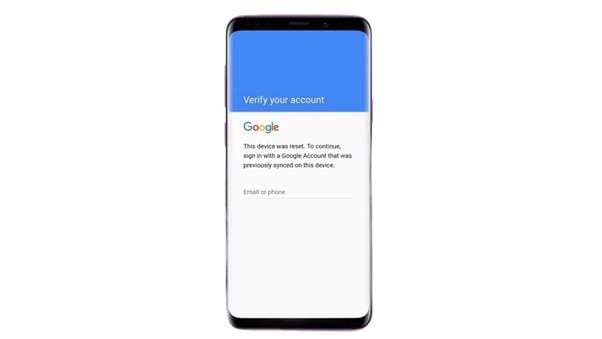
Finding yourself locked out of your own TCL device by a "Verify your account" screen is a common yet incredibly frustrating scenario. Whether you've forgotten your login credentials after a hard reset or recently purchased a pre-owned phone, this barrier—known as Factory Reset Protection (FRP)—is designed as a formidable security wall. In 2026, these security patches have become even more sophisticated, particularly on carrier-specific models like Tracfone.
The good news is that regaining access is entirely possible through legitimate means. This comprehensive guide moves beyond unreliable YouTube "hacks" to provide you with verified TCL FRP bypass strategies. We will explore everything from official Google recovery paths to professional FRP bypass TCL phone tools that work effectively on the latest Android versions.
In this article
Part 1. What FRP Means on TCL Phones
Understanding the logic behind the lock is the first step toward a successful bypass Google lock on TCL phone attempt. FRP isn't a bug; it's a deep-seated security protocol linked to your hardware.
1-1. The Mechanics of FRP on TCL
Factory Reset Protection (FRP) is a standard security feature across Android devices, including TCL's 2026 lineup. Once a Google account is registered, the phone creates a unique cryptographic link between the device's hardware ID and the account tokens. If the device is reset through the recovery menu rather than the system settings, it triggers an "unauthorized reset" flag, demanding the original credentials to proceed. This ensures that even if a phone is stolen and wiped, it remains unusable to unauthorized users.
1-2. Why Tracfone TCL Models are Harder to Unlock
Many users find that a TCL FRP bypass that works for one model fails on a Tracfone or carrier-branded version. This is due to three specific factors:
- Custom Carrier Firmware: Tracfone and similar providers often include additional security layers that block common system loopholes like the TalkBack menu or emergency dialer shortcuts.
- Security Patch Levels: Carrier-locked phones often receive specific security updates that close the exploits used by free bypass tools.
- Bootloader Restrictions: Carrier models frequently have locked bootloaders, preventing the use of custom recovery files to clear the FRP partition manually.
1-3. Safety and Legality of Bypassing Google Lock
It is crucial to note that performing an frp bypass tcl tracfone procedure is only legal and ethical if you are the legitimate owner of the device. Attempting to bypass the security on a found or stolen device is a violation of digital security laws. Always keep your proof of purchase (receipt or IMEI record) available, as this is the only way to get official support from manufacturers.
Part 2. How to Bypass FRP on TCL Phones Safely
While the internet is flooded with "no-PC" tricks, most are outdated by 2026. Below are the verified methods to achieve a TCL FRP bypass, ranked from the most official to the most effective technical solutions.
Method 1: Recover the Original Google Account
This is the gold standard for security. If you can restore access to the email address linked to the phone, the FRP lock dissolves immediately without any risk of data corruption or software instability.
Step 1 Visit Account Recovery
Access the Google Account Recovery portal on a computer or another smartphone.
Step 2 Verification
Use your linked recovery phone number or secondary email to verify your identity. Google may ask for previously used passwords or your date of birth.
Step 3 Sign In
Once you have reset the password, wait 24 hours (a security cooldown period Google often enforces) and sign in on your TCL phone to finish the setup.
- 100% legal and sanctioned by Google.
- No risk of voiding your TCL warranty.
- Ensures all synced data is preserved.
- Fails if you didn't set up recovery options.
- Requires access to the original phone number.
Method 2: Contact Carrier (Tracfone) for Verification
If you bought the phone through a carrier like Tracfone, they have the authority to bypass the lock on their network if you provide proof of ownership. This is particularly effective for frp bypass tcl tracfone issues on newer models.
- Official carrier support.
- Guaranteed not to damage the software.
- Requires original purchase documentation.
- Support may be slow or refused for second-hand units.
Method 3: Smart Lock & Trusted Environments
If you were using Smart Lock before the reset, the device might bypass the verification if it detects a previously "Trusted Environment," such as your home Wi-Fi or a paired Bluetooth accessory.
Method 4: ADB-based Methods for Skilled Users
Advanced users often use the Android Debug Bridge (ADB) to send commands that clear the FRP lock data. While effective on older Android 10/11 builds, this method is highly technical and can brick your TCL device if you enter the wrong terminal commands.
Method 5: The Ultimate Solution: Dr.Fone - Screen Unlock
If account recovery is impossible and carrier support isn't an option, you need a professional-grade TCL FRP bypass tool. Avoid risky APK downloads that often contain malware. Instead, use Dr.Fone - Screen Unlock (Android). It provides a secure, PC-assisted environment to remove Google lock verification on various Android devices, including popular TCL and Tracfone models.
 Unlock Android phone in seconds.
- Remove PIN, pattern, password, fingerprint.
- Bypass Google FRP lock easily.
- Works on all Android brands & models.
- No tech skills required – user-friendly.

Step 1 Launch Dr.Fone Toolbox
Open Dr.Fone on your computer and navigate to Toolbox > Screen Unlock. Select "Android" as your operating system.

Step 2 Choose FRP Removal
Select the Remove Google FRP Lock option. If TCL is not explicitly listed, choose the "Other Android" or "General Unlock" path to begin the removal logic.

Step 3 Prepare Connection
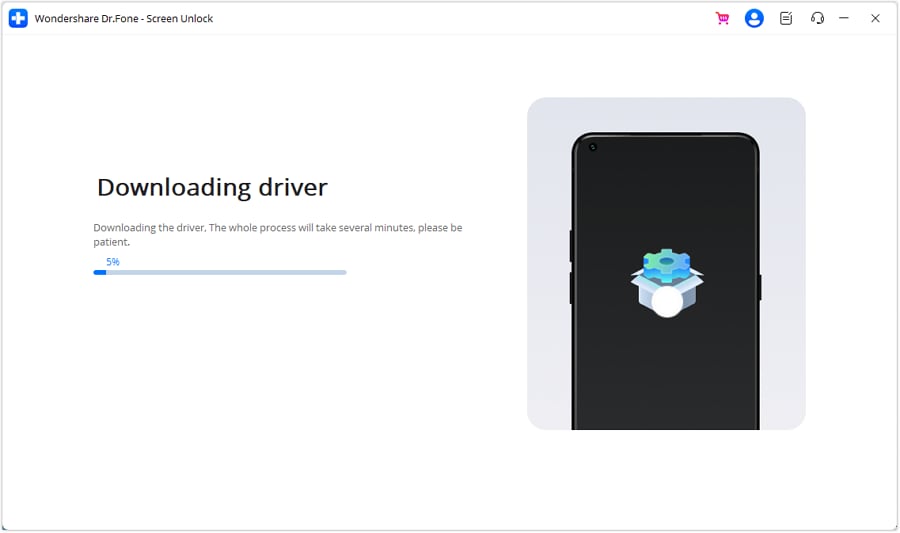
Select your device model and follow the prompts to download the necessary drivers automatically. Connect your TCL phone using a reliable USB cable.
Step 4 Enter Unlock Mode
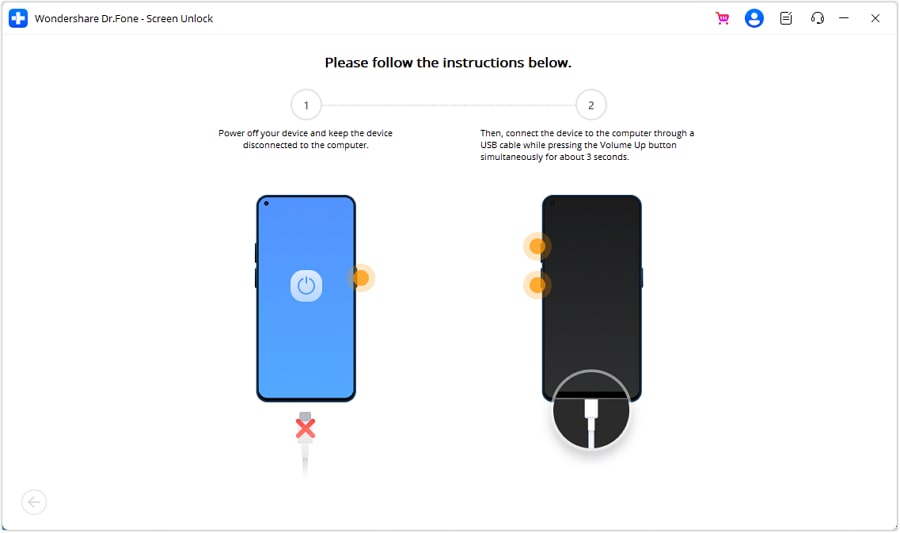
Follow the on-screen instructions to enter the required mode (e.g., Recovery or Download mode). This usually involves a combination of power and volume buttons while the USB is being plugged in.
Step 5 Complete the Removal
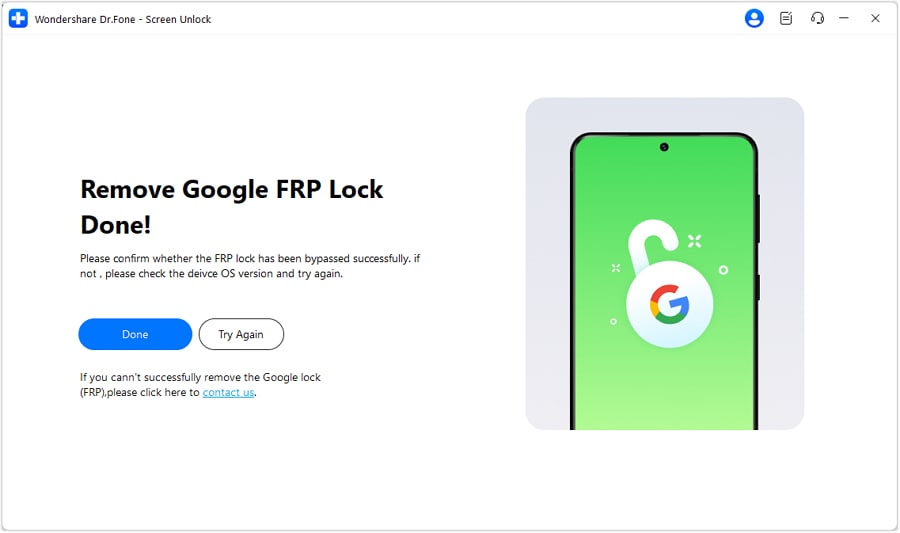
Once Dr.Fone detects the phone in the correct mode, click "Start." The tool will run the script to clear the Google lock. When finished, your phone will reboot and the verification screen will be gone.


Conclusion
Bypassing the Google lock on TCL phones doesn't have to be a technical nightmare. By sticking to official recovery paths or using verified security software like Dr.Fone - Screen Unlock, you can safely navigate around FRP restrictions. Remember that these methods are intended to help legitimate owners regain access to their devices and should always be used responsibly. With the right tools, your TCL phone can be unlocked and ready for use in just a few minutes.
FAQ
1. Is it legal to perform a TCL FRP bypass on a used phone?
Yes, it is legal if you have bought the device legitimately and the previous owner did not remove their account. However, you should always attempt to contact the seller first. In most regions, bypassing security on a device you legally own is permitted.2. Why won't my Tracfone TCL connect to Dr.Fone?
Connection issues are often caused by faulty cables or missing USB drivers. Ensure you are using the original USB cable and that you have followed the on-screen instructions to enter Download or Recovery mode precisely. Try a different USB port on your PC if the problem persists.3. Does a factory reset remove the Google lock forever?
No, a standard factory reset from the recovery menu is what triggers the FRP lock. To remove it forever, you must either sign in with the original account or use a professional tool like Dr.Fone to clear the FRP partition. Once cleared, you can add a new Google account that will act as the new lock owner.4. Can I bypass the Google lock on TCL without a PC in 2026?
While some legacy "no-PC" exploits exist, they are almost universally patched on 2026 firmware. Relying on unverified APKs is dangerous for your data privacy. A PC-based solution remains the only consistent and safe way to handle modern Android security patches.
 Add Wondershare Dr.Fone as a preferred source on Google