Bypass iCloud Activation Lock and Android FRP without password.

 100% Security Verified | No Subscription Required | No Malware

 :
: 
 ChatGPT
 Perplexity
 Gemini
 Claude
 Grok
Grok
Android 17 introduces stronger security and updated App Lock features to better protect your personal data and private applications. While these changes improve your privacy, they can create problems when switching to the new phone.
Many users may forget lock credentials, face FRP issues, or notice that secure apps and locked data do not transfer properly after setup. Understanding the Android 17 security system of the App Lock is important before changing devices. This guide explains the features, common migration issues, and safe ways to transfer and unlock a device with tools like Dr.Fone.
In this article
- Part 1. What’s New in Android 17 Security and App Lock?
- Part 2. Why Android 17 Security Can Complicate Phone Switching
- Part 3. How App Lock Works in Android 17? Apps Commonly Protected
- Part 4. Factory Reset Protection (FRP) in Android 17: How It Can Lock You Out
- Part 5. What to Do Before Switching to a New Android 17 Phone
- Part 6. Using Screen Unlock and Phone Transfer Tools Safely
- Part 7. 5 Best Practices for Safe Android 17 Device Migration
Part 1. What’s New in Android 17 Security and App Lock?
To begin with, the basics, let’s uncover the Android 17 privacy and security features in this section:
New Security Features in Android 17
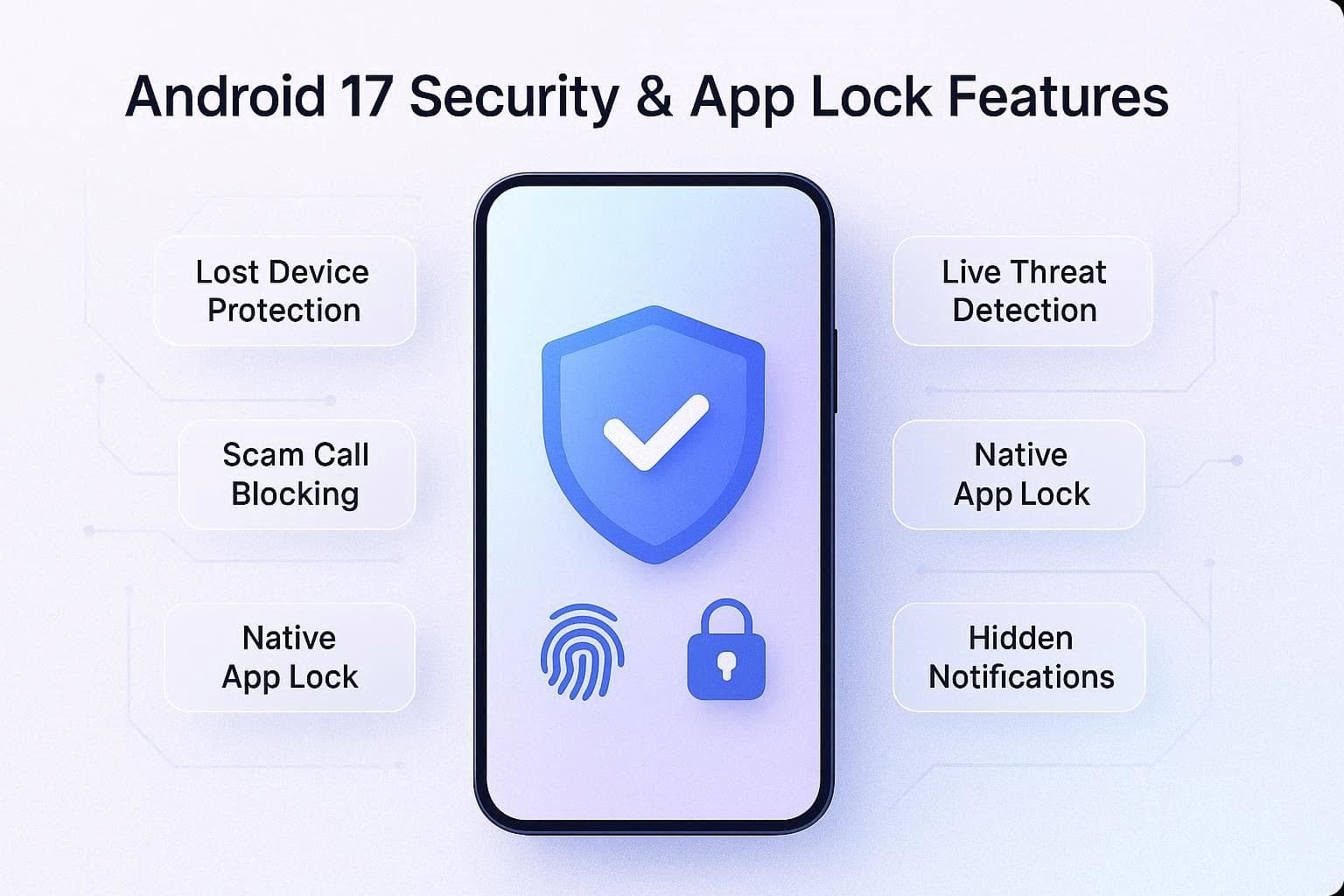
Here are some of the security updates you are going to have with Android 17:
- Lost Device Protection: Google Blog says that Android 17 makes stolen phones harder for thieves to disable and reset. It requires fingerprint or face unlock to turn off tracking or change connections.
- Scam Call Blocking: Android 17 can work directly with the banking apps to detect scam calls. Bleeping Computer reports that it can identify suspicious callers pretending to be your bank in real time.
- One-Time Location Sharing: A new system-rendered UI button lets you share your location for a single session. Thus, it blocks suspicious background tracking after the app session ends, says Android Developer.
- Smarter Threat Detection: Google Play Protect now checks device behavior for hacking attempts in real-time with Live Threat Detection. Hence, it blocks hidden overlays, fake apps, and unauthorized SMS forwarding activity.
- Future-Proof Encryption: Android 17 adds stronger security to prepare for future quantum computing threats. It combines traditional encryption with newer protection methods to make apps safer, as reported in Android Developer reports.
Changes to App Lock and Protected Apps
Other than Android 17 security, here are some App Lock features you can leverage:
- Native App Lock: Android 17 adds a built-in app lock system for individual applications, which can be locked with a PIN, pattern, password, or biometric. Beebom reports that this will limit the hassle of using third-party solutions or Private Space, and notifications will also be masked for locked apps.
- Smarter Notifications: As mentioned, notifications will be masked; instead, users will get "New message” or “New notification” alerts. Thus, this will add an extra layer of security to protect private chats and sensitive app content from being viewed by others.
- Stronger Device Security: Android 17 blocks device-to-device unlocking during connected device operations. This prevents protected apps from being bypassed through another unlocked device.
- AISeal Protection: Protected apps now use a hardware-isolated security environment called AISeal, according to the Google Blog. Hence, this keeps the biometric and app lock data hidden from other applications on the phone.
Part 2. Why Android 17 Security Can Complicate Phone Switching
Though Android 17 privacy is going to be next level, the following table highlights why it can be a headache when switching devices:
| Reason | What Does It Mean When Changing Phones |
|---|---|
| Stricter Lost Device Protection | Old phones may require fingerprint, face unlock, or PIN verification before being reset, resold, or reused. |
| Stronger App Lock Security | App locks and protected apps do not transfer automatically and must be reconfigured. |
| Limited Cross-Device Unlocking | Old, trusted devices or smartwatches may no longer instantly unlock your new Android 17 phone. |
| Stronger Privacy Controls | Apps may ask again for location, permissions, and tracking access after moving to a new phone. |
| Updated Encryption Defaults | Older backup or unofficial transfer tools may stop working because of stricter Android 17 security rules. |
Part 3. How App Lock Works in Android 17? Apps Commonly Protected
Android 17 introduces the “LOCK_APPS” permission, which allows the default launcher to lock individual apps. Additionally, the App Lock is built directly into the operating system rather than using a separate hidden profile, as in older Android versions. Hence, the permission simply adds the encrypted protection around selected apps as you long-press the app icon.
It then marks it as “Protected” and asks for a fingerprint, face unlock, or PIN when you try to open it. Hence, you can leverage this Android 17 security feature on financial and banking, social media, and gallery applications.
Part 4. Factory Reset Protection (FRP) in Android 17: How It Can Lock You Out
FRP is the security feature that protects lost or stolen Android 17 phones from unauthorized use. Hence, if someone factory resets the device using the recovery buttons without removing the linked Google Account, the device will be locked during setup. After rebooting, the system prompts for the exact Google account and password previously associated with the device.
At this point, note that Android 17 uses stronger hardware-based security checks. So, forgetting your credentials or not signing out before resetting can completely lock you out of your own phone.
Part 5. What to Do Before Switching to a New Android 17 Phone
So, if you want to bypass the Android factory reset protection when switching devices, perform the listed steps:
-
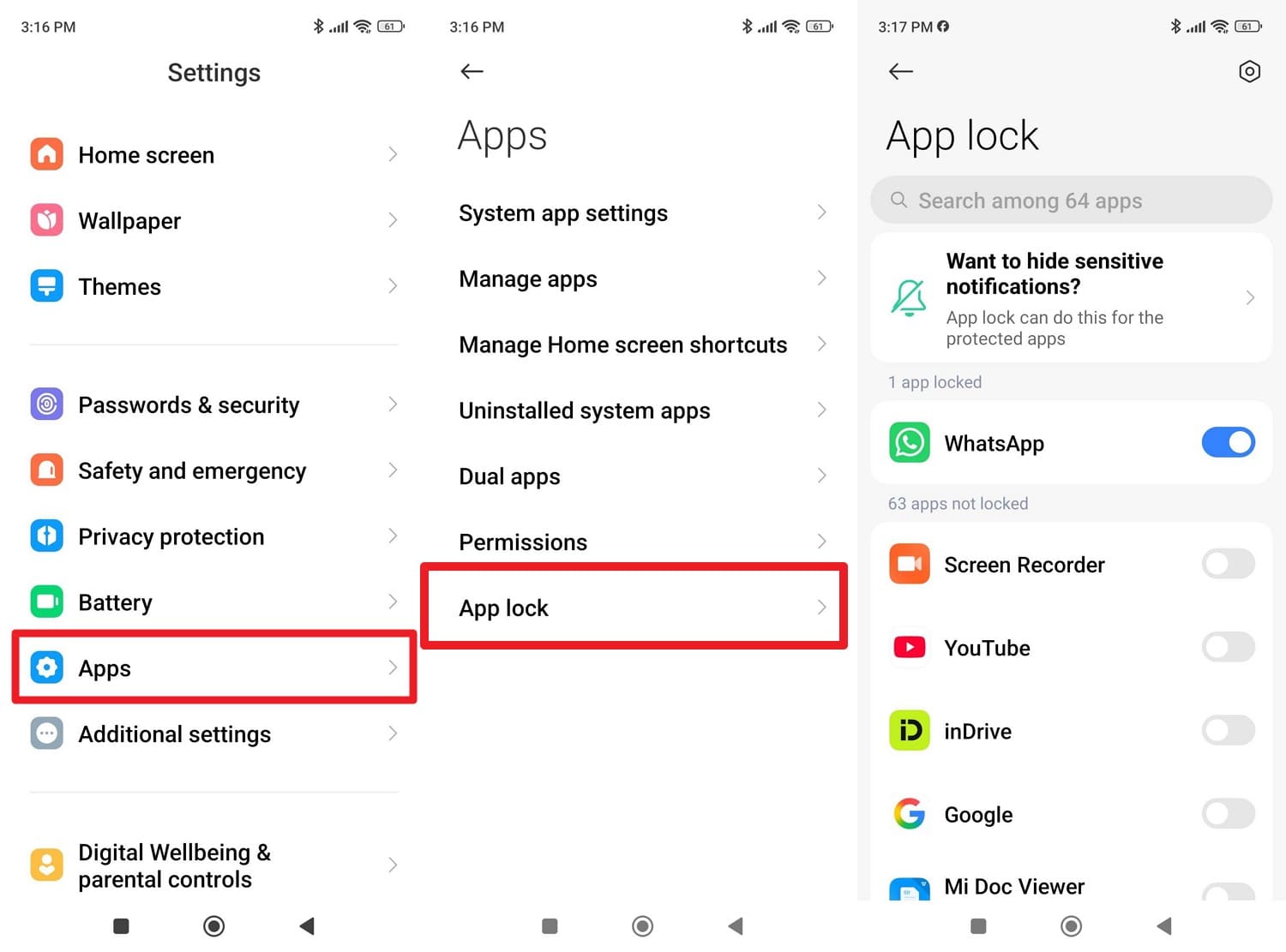
Step 1 Disable App Lock Temporarily
This action prevents the locked apps from failing to open after transfer, making backup and restore tools work more smoothly. In addition, it reduces lock-screen or biometric verification issues during setup.
Instructions: In the settings, go to “Apps” and “App Lock,” then toggle off the lock option as you add your fingerprint or PIN.
-
Step 2 Verify Google Account Credentials
This method ensures you can sign in smoothly during the setup without getting stuck on the passwords, 2-step verifications, or passkey checks. You can also avoid delays in restoring app and data backups if Google flags the login as suspicious.
-
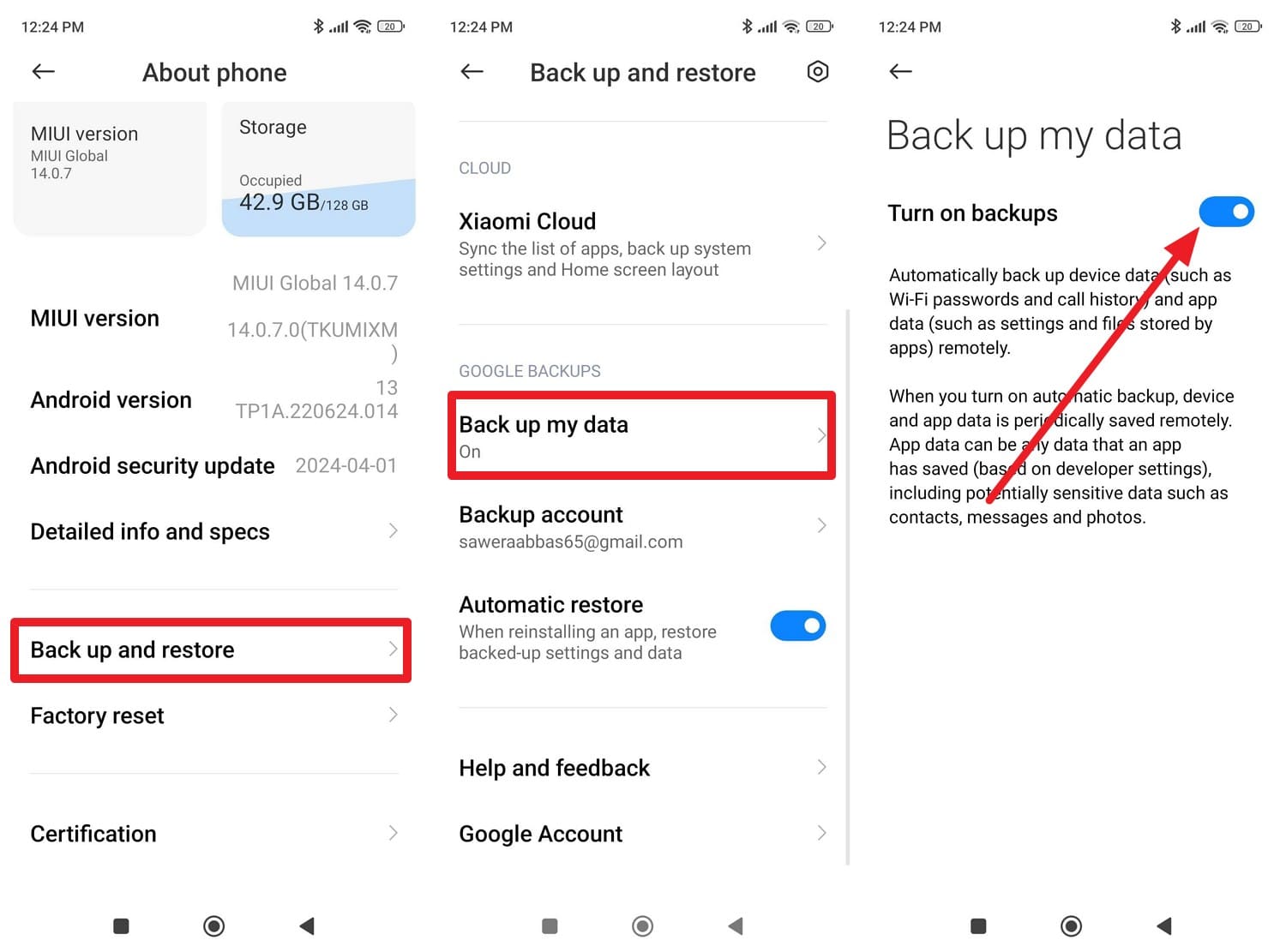
Step 3 Back Up All Important Data
Another option to avoid getting stuck on the Android 17 FRP security lock screen is to back up all important data. It protects you if anything goes wrong during transfer, so you don't lose photos, messages, or app data.
Instructions: As you go to “About Phone > Back Up and Restore > Google Backups,” enable the “Turn On Backups” option.
-
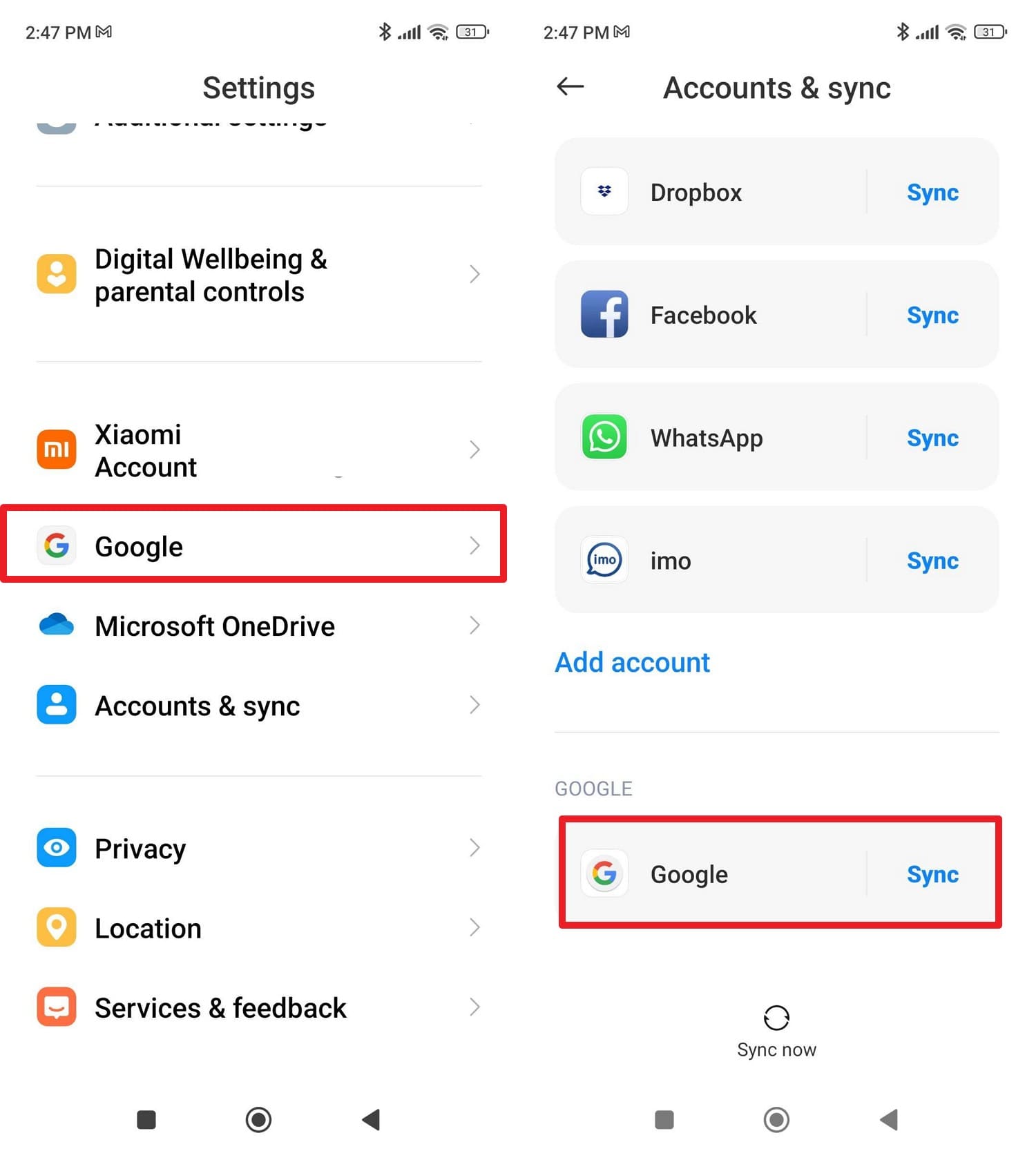
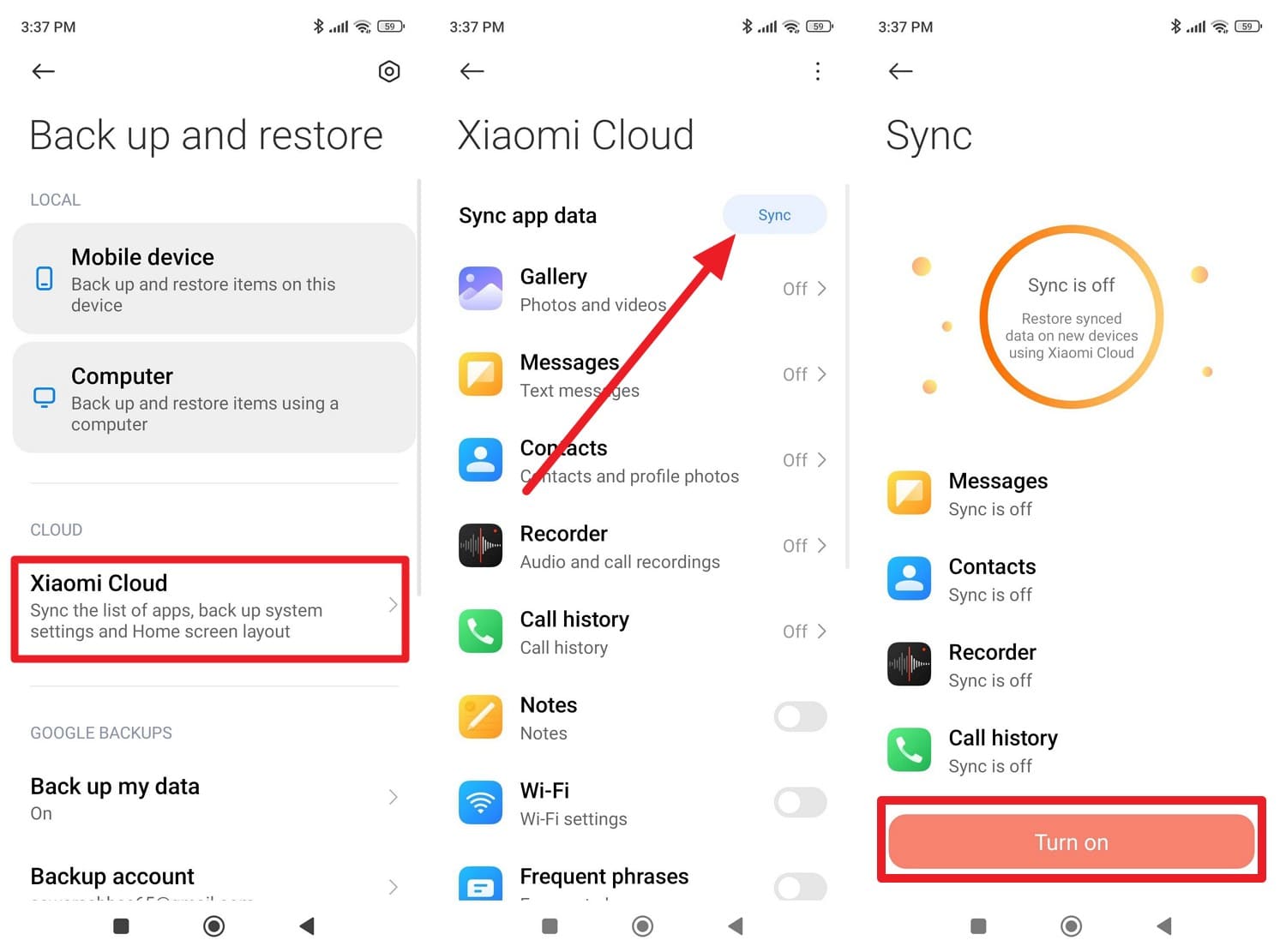
Step 4 Sync Your Important Apps
As another security option, sync all important applications, as this will serve as a safety net if the transfer fails due to a cable issue or low battery.
Option 1: In the “Account & Sync” settings, sync the listed security apps or tap the “Sync” option for Google.
Option 2: On the Xiaomi Cloud settings, tap the “Sync” option and choose the “Turn On” button.
Part 6. Using Screen Unlock and Phone Transfer Tools Safely
Due to Android 17 security, the Android screen unlock and phone transfer tool can save the day. For instance, when all the data is backed up, you can use the Dr.Fone - Phone Transfer tool to move 18+ data types in bulk. Users can choose the data they want to move, as it is compatible with Android 16 (Android 17 support coming soon) and the latest iOS 26.
How to Use Dr.Fone - Phone Transfer
-
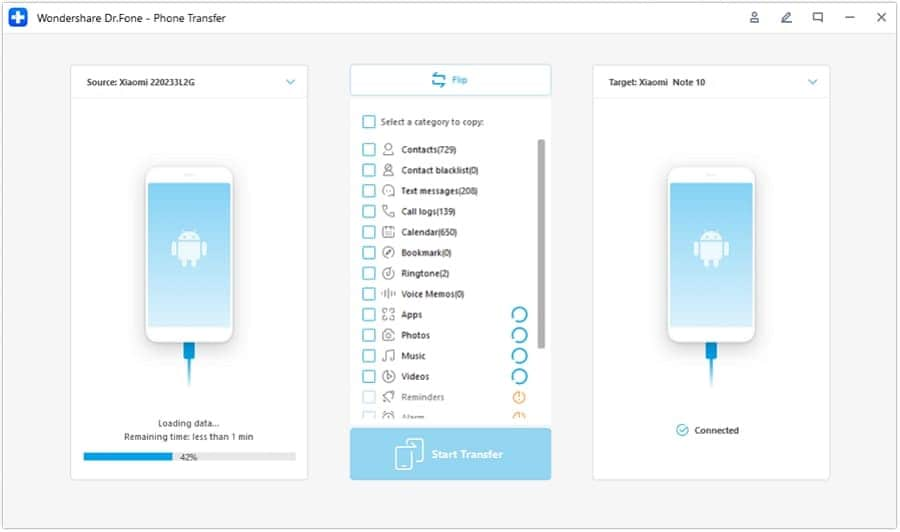
Step 1 Locate the Source and Target Android 17 Device
In the Phone Transfer tool, use the “Flip” icon to identify the devices as you connect them.
-
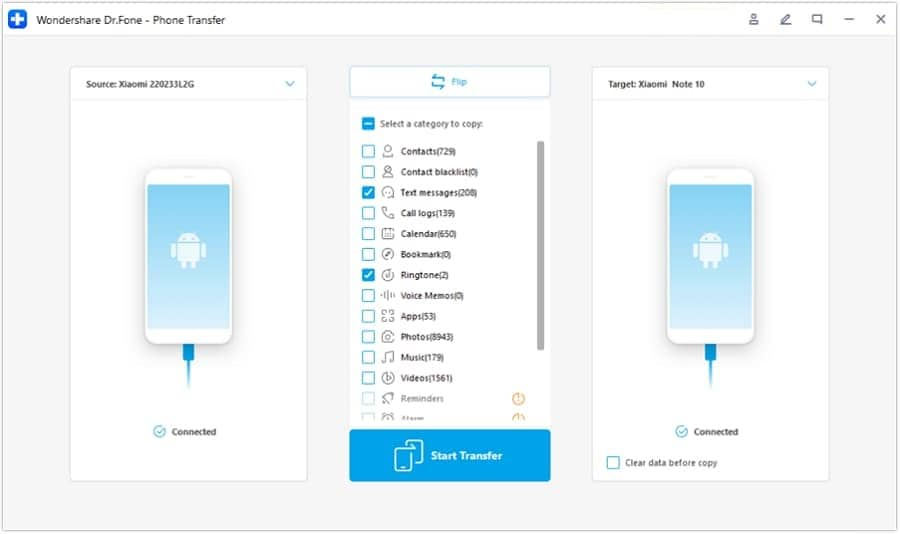
Step 2 Use the Start Transfer Button on the Tool
Choose the data from the 18+ list options, then press the “Start Transfer” button to move the data from the old Android to the Android 17 device.
In addition to phone transfers, Dr.Fone - Screen Unlock (Android) can also remove the FRP lock online and via a desktop tool.

Why Screen Unlock Tools Are Sometimes Needed
Having the Android factory reset protection, review the mentioned reasons to know why using Screen Unlock tools can help:
| Reason | What Problem Do They Solve For Users |
|---|---|
| Forgotten PIN, Pattern, or Password | FRP can block setup after reset, so unlock tools help regain access safely. |
| Second-Hand or Inherited Phones | The device stays stuck on “Verify your account” without previous Google credentials. |
| Wrong Reset During Migration | Reset without removing the account triggers FRP lock and blocks data transfer. |
| The Screen or Touch Is Not Working | Cannot enter Google login due to hardware failure, so FRP verification fails. |
| Secure Erase Before Trade-In | Tools help remove the lock and FRP, allowing the device to be safely reused or sold. |
Dr.Fone - Screen Unlock Option (If Locked Out)
Dr.Fone - Screen Unlock (Android) is designed to remove the FRP lock from 19 Android brands, including phones and tablets. Experts say it's the first to introduce FRP removal for Samsung devices running Android 16. Based on this, the tool is expected to support FRP bypass for Android 17 immediately after the official release, allowing users to regain digital access in 3 simple steps.
In addition, the tool supports all the major US versions and chipsets that most FRP tricks lack and no longer work. You can also access detailed FRP removal instructions, and the tool asks for consent and code to make this process consensual.
 Unlock Android phone in seconds.
- Remove PIN, pattern, password, fingerprint.
- Bypass Google FRP lock easily.
- Works on all Android brands & models.
- No tech skills required – user-friendly.

Dr.Fone Guide to Remove the FRP Lock on Android 17
-
Step 1 Locate the FRP Lock Tool for Android 17
In the Android Screen Unlock tool, select the “Remove Google FRP Lock” option and choose the Android brand from the 19 available options.

-
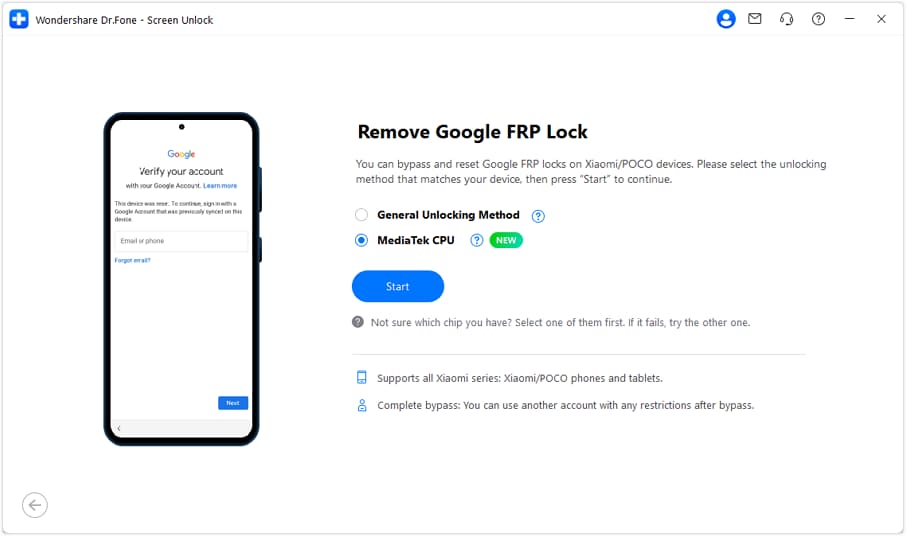
Step 2 Choose the MediaTek CPU Option to Remove FRP
As you pick the “Start” button, opt for the “MediaTek CPU” option and choose “Start” again.
-
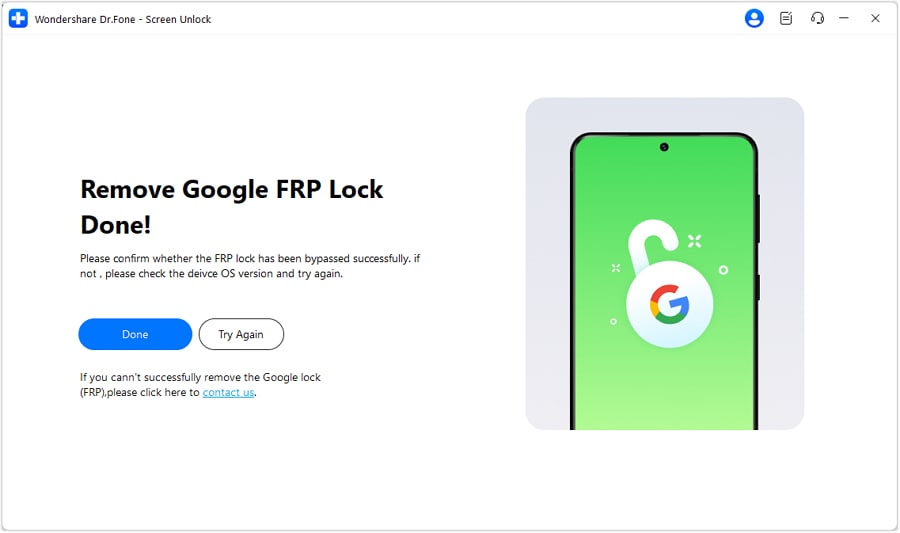
Step 3 Follow the Given Instructions and Confirm
As the tool installs the drivers, connect the powered-off device to the tool and follow the given instructions. After some time, the tool will remove the FRP lock, select “Done,” and continue using your Android 17.
Part 7. 5 Best Practices for Safe Android 17 Device Migration
Bearing the Android 17 privacy and security features in mind, if you have decided to upgrade to Android 17, this section has some tips.
| Best Practice | Why It Matters |
|---|---|
| Verify Google Account & 2‑step Login | Prevents lockouts during setup and ensures backups, Play Store, and purchases restore correctly. |
| Make a Full Backup Before Resetting | Protects photos, chats, and app data if cable/cloud transfer fails or needs to be repeated. |
| Temporarily Disable App Lock / Protected Apps | Avoids weird lock states and lets migration tools read app data cleanly before you re‑lock sensitive apps. |
| Sync And Test Security Apps (Password Manager, Authenticator, Banking) | Keeps logins and OTP codes available on the new phone so you can access critical accounts immediately. |
| Wipe And Sign Out Of The Old Device Only After Confirming The New Phone | Ensures everything works on Android 17 first, reducing the risk of data loss or account access issues if something goes wrong. |
Conclusion
Rumor has it that Android 17's security and privacy are getting much stronger with the new App Lock, FRP protection, and other security features. While these updates improve protection, they can also make switching phones and transferring data more complicated for some users. So, not only has this guide explained the expected feature, but it has also highlighted how to back up data and manage accounts carefully before upgrading.
Nonetheless, if users get stuck at the Android 17 FRP, they can use Dr.Fone - Screen Unlock (Android). Once you have access to the device, you can move data across platforms with Dr.Fone - Phone Transfer without needing any skills.




FAQ
-
1. Can Developer Mode bypass App Lock or FRP security in Android 17?
No, Developer Mode cannot bypass App Lock or FRP because these protections operate at the system level with hardware-backed encryption controls. -
2. Do wearable devices like smartwatches still unlock Android 17 phones?
Some trusted devices may still unlock phones, but Android 17 reduces this feature depending on security level and device authentication settings. -
3. Can Factory Reset Protection (FRP) trigger just after changing SIM cards?
No, FRP is not triggered by SIM changes; it activates only after a factory reset without removing the original Google account.
 Add Wondershare Dr.Fone as a preferred source on Google