Bypass iCloud Activation Lock and Android FRP without password.

 100% Security Verified | No Subscription Required | No Malware

 :
: 
 ChatGPT
 Perplexity
 Gemini
 Claude
 Grok
Grok
It’s a common and frustrating scenario: you're holding an iPad that you can't use. It’s demanding an Apple ID you’ve long forgotten, or perhaps one that belonged to a previous owner. This problem frequently arises when trying to reset a second-hand device or simply after forgetting crucial login details. When Apple's standard recovery procedures hit a wall, it’s easy to feel like the device is nothing more than a paperweight.
But there's no need to despair. This comprehensive 2026 guide is designed to show you exactly how to reset an iPad without an Apple ID using reliable, tested solutions. We will explore everything from built-in Apple features to powerful third-party tools, providing clear, step-by-step instructions for every situation. Let's unlock your device and put you back in control.
In this article
- Understanding iPad Locks Before You Reset
- 6 Proven Methods to Reset Your iPad Without an Apple ID
- Method 1: Erase and Reset an iPad Without Apple ID or Password
- Method 2: Use iTunes to Factory Reset Your iPad
- Method 3: Remotely Reset Your iPad via iCloud
- Method 4: Reset iPad Directly from Settings (No PC Needed)
- Method 5: Force a Factory Reset with Recovery Mode
- Method 6: Restore Your iPad Using a Trusted Computer
- Comparison: Which iPad Reset Method Is Best for You?
Part 1. Understanding iPad Locks Before You Reset
Yes, it is possible to reset an iPad without an Apple ID and password, but your success hinges on the specific security layers enabled on the device. While you can often bypass the screen lock or wipe the device's data, the iCloud Activation Lock is the primary barrier that prevents unauthorized access after a reset.
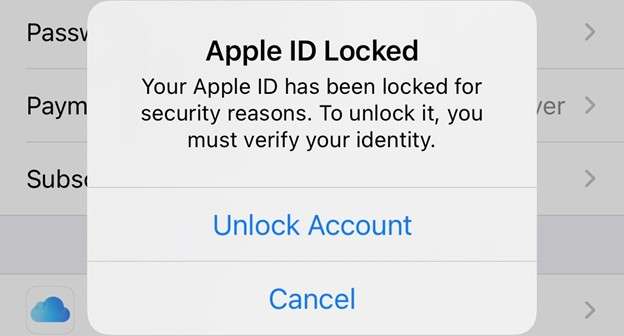
To choose the right method, you first need to understand the different types of locks on an iPad:
- Passcode Lock: This is the 4- or 6-digit code, Face ID, or Touch ID used to unlock your screen. It can typically be removed using recovery tools or a factory reset, but this will erase all data.
- Apple ID Lock (iCloud Activation Lock): This is the most significant security feature, linked to the 'Find My' service. Even after erasing the iPad, this lock will persist and require the original Apple ID and password to set up the device again.
- MDM (Mobile Device Management) Lock: Commonly found on iPads owned by schools or businesses, this lock restricts certain features and requires administrator credentials to remove.
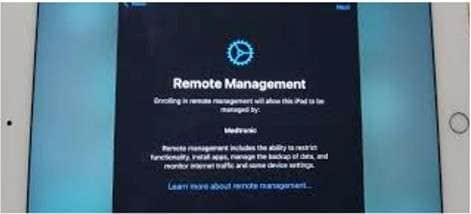
Attempting to erase the iPad without first disabling the Apple ID will trigger the Activation Lock on the setup screen, leaving you stuck.
When a Reset is Possible
- The 'Find My iPad' feature is turned off.
- The iPad was never associated with an iCloud account.
- You have physical access to a computer that the iPad has previously 'trusted'.
- You employ a professional unlock tool designed to bypass these restrictions.
When a Reset is Not Possible with Standard Methods
- The iCloud Activation Lock is enabled, and you do not know the credentials.
- The Apple ID password cannot be recovered through Apple's official channels.
- The iPad has been reported as lost or stolen, which flags it in Apple's database.
With these factors in mind, let’s dive into the detailed methods to overcome these locks, starting with the most effective solution.
Part 2: 6 Proven Methods to Reset Your iPad Without an Apple ID
Method 1: Erase and Reset an iPad Without Apple ID or Password
When standard methods fail, especially when confronted with an active 'Find My' feature, a dedicated tool is your best bet. Dr.Fone – Screen Unlock (iOS) is engineered to handle scenarios where other solutions are ineffective. It doesn't just reset your iPad; it completely removes the linked Apple ID and bypasses the iCloud Activation Lock, giving you a fresh start with a fully accessible device.
If your goal is to factory reset an iPad without an Apple ID password and regain total control, this method provides a secure, fast, and straightforward path forward, even when Apple’s own tools can't help.
 Unlock iPhone/iPad passcode in minutes.
- Remove Face ID, Touch ID, and screen lock.
- Bypass iCloud Activation Lock easily.
- Support all iOS versions and devices.
- Simple steps, no technical skills needed.

Here’s how to use Dr.Fone to completely reset your iPad:
-
Step 1 Download and Launch Dr.Fone
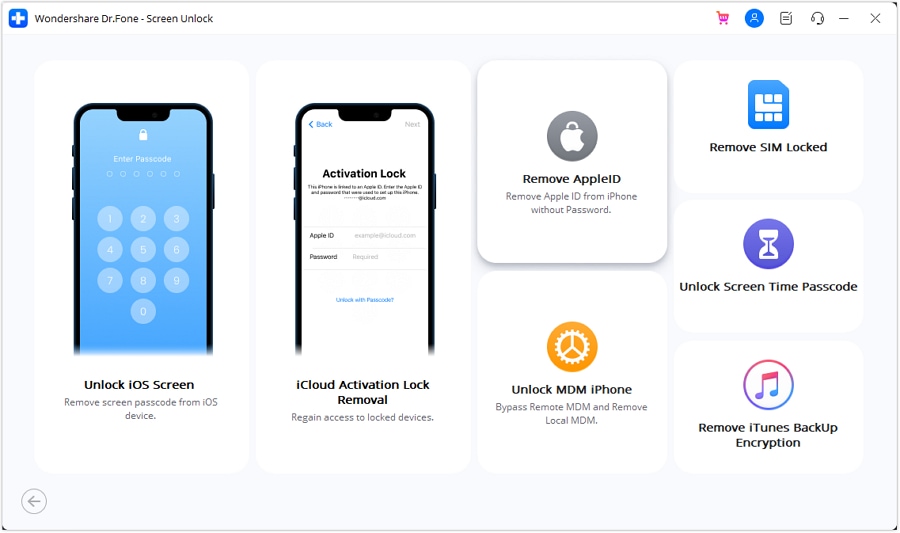
First, download and install Dr.Fone on your Windows or Mac computer from the official website. Open the program and select the Screen Unlock module from the main interface.

-
Step 2 Connect Your iPad and Select Option
Connect your locked iPad to your computer with a USB cable. In the Dr.Fone window, choose the Remove Apple ID option to proceed.
-
Step 3 Enter Recovery Mode
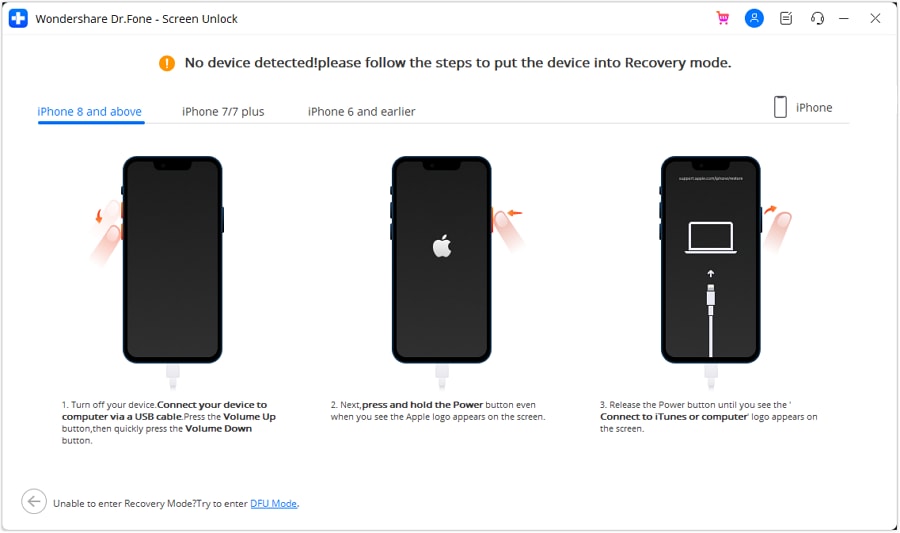
The software will detect your iPad model. You will now need to put your device into Recovery Mode. Simply follow the clear on-screen instructions provided by Dr.Fone for your specific iPad model.
-
Step 4 Confirm Device Info and Download Firmware
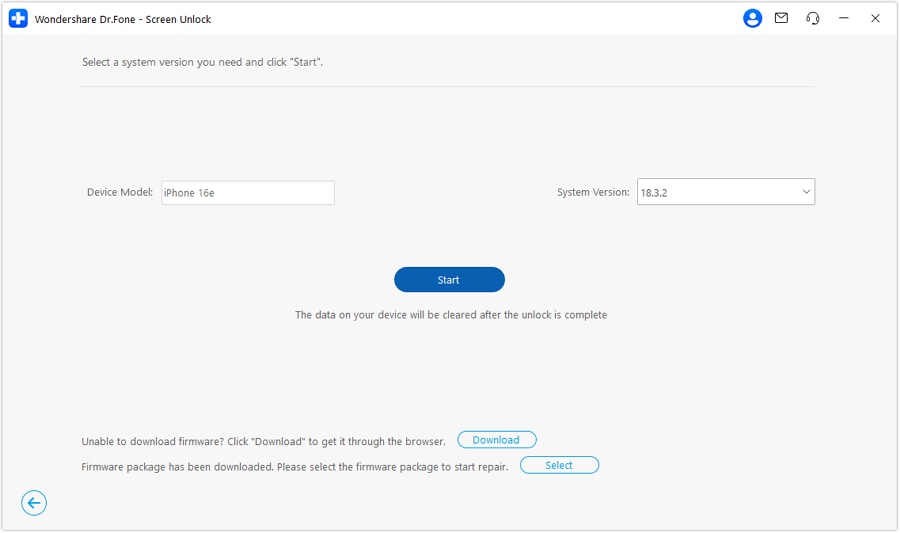
Once in Recovery Mode, Dr.Fone will display your iPad's information. Verify that the details are correct and click Download to get the appropriate firmware package for your device. This is essential for the reset process.
-
Step 5 Unlock and Reset Your iPad
After the firmware download is complete, click the Unlock Now button. Dr.Fone will begin removing the Apple ID and factory resetting your iPad. Keep the device connected until the process finishes, and your iPad will restart with no locks.




Method 2: Use iTunes to Factory Reset Your iPad
iTunes (or Finder on newer macOS) remains one of Apple's most reliable tools for managing iOS devices. If you have access to the iPad's screen passcode, you can use this method to factory reset your iPad without providing an Apple ID password during the process. Here’s the straightforward procedure.
-
Step 1 Connect Your iPad to a Computer
Use a USB cable to connect your iPad to your PC or Mac. This establishes the necessary connection for iTunes or Finder to communicate with your device.
-
Step 2 Launch iTunes/Finder and Select Your Device
Open iTunes on your computer (or Finder if you're on macOS Catalina or later). Your computer should automatically detect the connected iPad. Click on the device icon to access its summary page.
-
Step 3 Unlock the Screen and Click 'Restore iPad'
If your iPad screen is locked, you must enter the passcode to allow the computer to access it. Once unlocked, locate and click the Restore iPad button in the summary window. Confirm your choice, and iTunes will erase all content and install the latest iPadOS, returning it to factory settings.
Method 3: Remotely Reset Your iPad via iCloud
If you don't have your iPad with you but know the Apple ID credentials, you can remotely erase it using iCloud's 'Find My' feature. This is an excellent option for lost devices or if you need to wipe it from a distance. However, remember that this will trigger the Activation Lock upon setup.
-
Step 1 Log in to iCloud.com
Open any web browser and navigate to iCloud.com. Sign in using the Apple ID and password associated with the locked iPad. Once logged in, click on the 'Find My' icon.
-
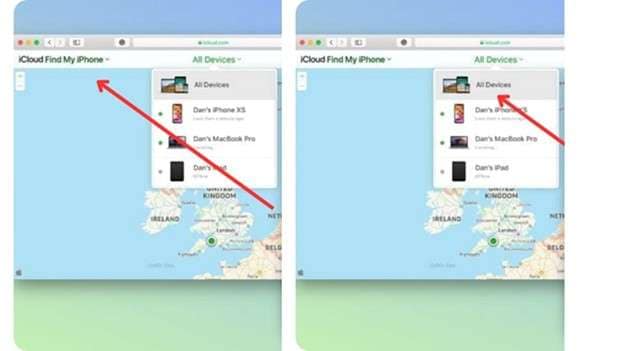
Step 2 Locate Your iPad
At the top of the 'Find My' screen, click on the 'All Devices' dropdown menu. Select your iPad from the list of devices linked to your account.
-
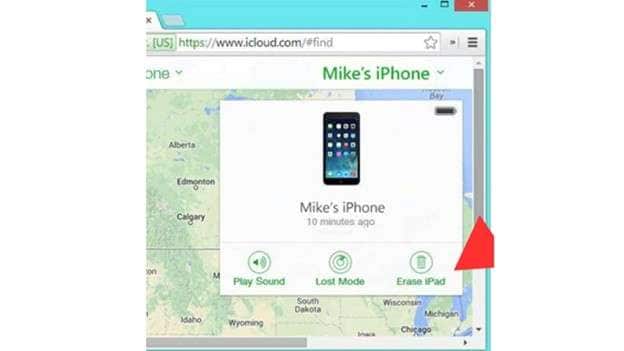
Step 3 Erase the iPad Remotely
In the device control panel that appears, click Erase iPad. You will be asked to confirm your decision. Once confirmed, the remote wipe process will begin as soon as the iPad connects to the internet.
Method 4: Reset iPad Directly from Settings (No PC Needed)
If you can access your iPad and know the screen passcode, you can perform a factory reset directly from the device settings without needing a computer. This method is ideal for quickly wiping your data but will not remove an existing iCloud Activation Lock.
-
Step 1 Open the Settings App
Unlock your iPad and tap the 'Settings' icon on your home screen.
-
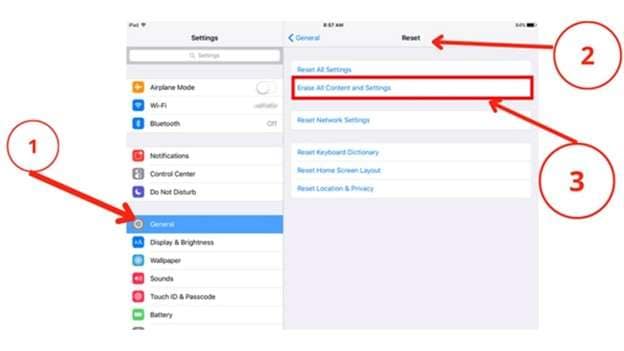
Step 2 Navigate to Reset Options
In Settings, scroll down and tap on 'General'. At the bottom of the General menu, select 'Transfer or Reset iPad', then tap 'Erase All Content and Settings'.
-
Step 3 Confirm and Enter Passcode
A confirmation prompt will appear. Tap 'Continue' and enter your screen passcode to authorize the reset. After this quick security check, the iPad will begin erasing all data and will restart in its original factory state.
Method 5: Force a Factory Reset with Recovery Mode
Recovery Mode is Apple’s built-in troubleshooting tool that allows you to restore your iPad even if it won't boot up properly or has never been synced with a computer. It forces a complete system wipe and reinstallation of iPadOS, making it a powerful option if you're locked out of the screen and want to factory reset your iPad without an Apple ID using iTunes or Finder.
-
Step 1 Power Off and Connect to a Computer
First, turn your iPad completely off. Then, while it's off, connect it to your computer using a reliable USB cable.
-
Step 2 Enter Recovery Mode
Press and hold the correct button combination for your iPad model (e.g., Top button and a Volume button for newer models) until the recovery mode screen appears, showing a computer and cable icon. Do not release the buttons when you see the Apple logo; wait for the recovery screen.
-
Step 3 Choose the Restore Option in iTunes/Finder
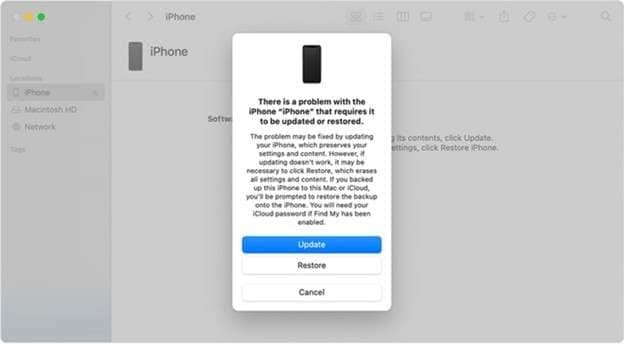
Once your iPad is in recovery mode, open iTunes or Finder on your computer. A dialog box will appear with two options: 'Update' or 'Restore'. Select Restore to initiate the full factory reset.
-
Step 4 Keep the Device Connected
Allow the restore process to complete without disconnecting the iPad. Any interruption could cause software issues. Once finished, the iPad will restart as a new device.
Method 6: Restore Your iPad Using a Trusted Computer
If you have previously synced your iPad with a computer and designated it as a 'trusted' device, you may be able to restore it from a backup without needing to enter the screen passcode or Apple ID password. This method is perfect for those who want to reset an iPad without an Apple ID password while potentially recovering their data.
-
Step 1 Connect to the Trusted Computer and Open iTunes
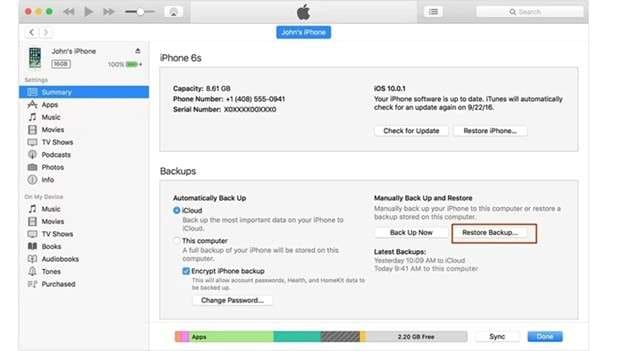
Plug your iPad into the trusted computer. Open iTunes or Finder, select your device, and go to the 'Summary' tab. Under the 'Backups' section, click on Restore Backup.
-
Step 2 Confirm and Wait for the Process to Complete
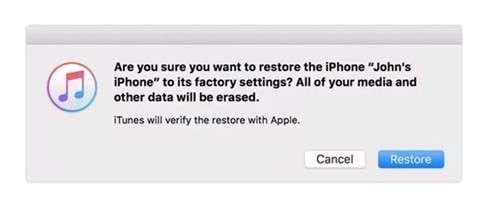
A confirmation window will appear. Click Restore to begin. iTunes will then restore your iPad from the most recent backup, which also resets its settings. Keep the device connected until the process is finished.
Part 3. Comparison: Which iPad Reset Method Is Best for You?
Not all reset methods are created equal. The best choice depends on whether you know the screen passcode, if 'Find My' is enabled, and what tools you have available. This comparison table will help you select the most effective solution for your specific circumstances.
| Method | Key Strengths | Limitations | Best For |
|---|---|---|---|
| Dr.Fone – Screen Unlock (iOS) | Bypasses Apple ID & iCloud Lock; Works even with 'Find My' enabled; Removes the old account completely. | Requires a computer and paid software; Involves downloading firmware. | Users locked out by Activation Lock or those who bought a used iPad and need a guaranteed full reset. |
| iTunes/Finder Reset | Official and free Apple method; Performs a full system restore and installs the latest iPadOS. | Requires screen passcode; Does not bypass Activation Lock; Useless if 'Find My' is on. | Users who know their screen passcode and want to perform a clean factory reset. |
| iCloud (Find My) | Allows for remote erasing from any browser; Perfect for lost or inaccessible devices. | Requires Apple ID credentials; Triggers Activation Lock after the reset. | Users who have lost their iPad or need to erase it remotely but still have access to their iCloud account. |
| On-Device Reset | Simple and requires no PC; The user maintains control throughout the process. | Requires the screen passcode; Cannot remove the Apple ID or bypass the Activation Lock. | iPad owners who can access their device and want a quick way to wipe their personal data clean. |
| Recovery Mode | Effective for unresponsive or unsynced devices; Forces a complete system restore. | Does not remove Activation Lock; Requires a computer and knowledge of button combinations. | Users who are locked out of the screen and whose iPad is not recognized by iTunes normally. |
| Trusted Computer Restore | May not require a passcode if previously trusted; Allows for data restoration from a backup. | Only works on pre-authorized computers; Will not remove the Apple ID or Activation Lock. | Users who have previously synced their iPad and want to restore it without losing their data. |
Conclusion
Overcoming a locked iPad is entirely achievable once you understand the specific type of lock you're facing. From native Apple solutions like iTunes and iCloud to direct on-device settings, each method provides a viable path forward under the right conditions. However, when you encounter the formidable iCloud Activation Lock, these standard options often fall short.
Whether you need to reset an iPad without an Apple ID for resale or factory reset it without the password to regain access, this guide has provided you with multiple secure pathways. For the most challenging situations, a professional tool like Dr.Fone - Screen Unlock offers a decisive advantage, ensuring that even the most locked-down iPad can be fully restored and made usable again.
FAQ
-
1. What is the difference between a factory reset and removing an Apple ID?
A factory reset erases all content and settings on your iPad, returning it to its original state. However, it does not remove the Apple ID linked to the device. If 'Find My' was enabled, the iCloud Activation Lock will remain active after the reset. Removing the Apple ID is a separate process that unlinks the device from the iCloud account, which is necessary to bypass the Activation Lock. -
2. Will resetting my iPad remove the iCloud Activation Lock?
No, a standard factory reset using methods like iTunes, Recovery Mode, or the Settings app will not remove the iCloud Activation Lock. This lock is a server-side security feature. To remove it, you must either enter the correct Apple ID and password or use a specialized third-party service like Dr.Fone - Screen Unlock that is designed to bypass this lock. -
3. I bought a used iPad and it's asking for the previous owner's Apple ID. What can I do?
If you can contact the previous owner, ask them to remove the device from their iCloud account remotely via iCloud.com. If you cannot contact them, your only option is to use a professional tool that can bypass the iCloud Activation Lock. Standard Apple methods will not work without the original owner's credentials. -
4. Is it safe to use third-party tools to reset my iPad?
Using reputable third-party software like Dr.Fone is generally safe. These tools are designed specifically for device recovery and unlocking. However, always download software from the official website to avoid malware or security risks. Be aware that using such tools will erase all data on the device, so it should be considered a last resort.
 Add Wondershare Dr.Fone as a preferred source on Google