Bypass iCloud Activation Lock and Android FRP without password.

 100% Security Verified | No Subscription Required | No Malware

 :
: 
 ChatGPT
 Perplexity
 Gemini
 Claude
 Grok
Grok
I want to customize my lock screen with a fingerprint animation, but I am not sure whether an Android MI Themes Fingerprint Lock changes the real fingerprint security on my phone.
Android Customization Enthusiast

Android MI Themes Fingerprint Lock is a phrase commonly used for Xiaomi-style lock-screen themes, fingerprint animations, and visual effects. It can describe either a native fingerprint effect shown on a phone that already has compatible fingerprint hardware or a fingerprint-style lock-screen theme that only imitates the look of an on-screen scanner. A visual fingerprint graphic does not add new fingerprint hardware to a phone.
On compatible Xiaomi, Redmi, and POCO devices, MIUI or HyperOS handles the real biometric authentication, while the theme or fingerprint-effect setting changes what the lock screen looks like. This guide explains how to apply these effects, where to get them safely, which devices are likely to support them, and what to check when the animation disappears or only the wallpaper changes.
In this article
Part 1. What Is Android MI Themes Fingerprint Lock?
Android MI Themes Fingerprint Lock is not one universal Android security feature. It is usually used to describe fingerprint-themed lock-screen customization associated with Xiaomi's MIUI or HyperOS ecosystem. On a phone with supported fingerprint hardware, the system performs the actual biometric check and the theme changes only the visual layer. On other devices, a fingerprint-style graphic may simply simulate the look of an in-display sensor.
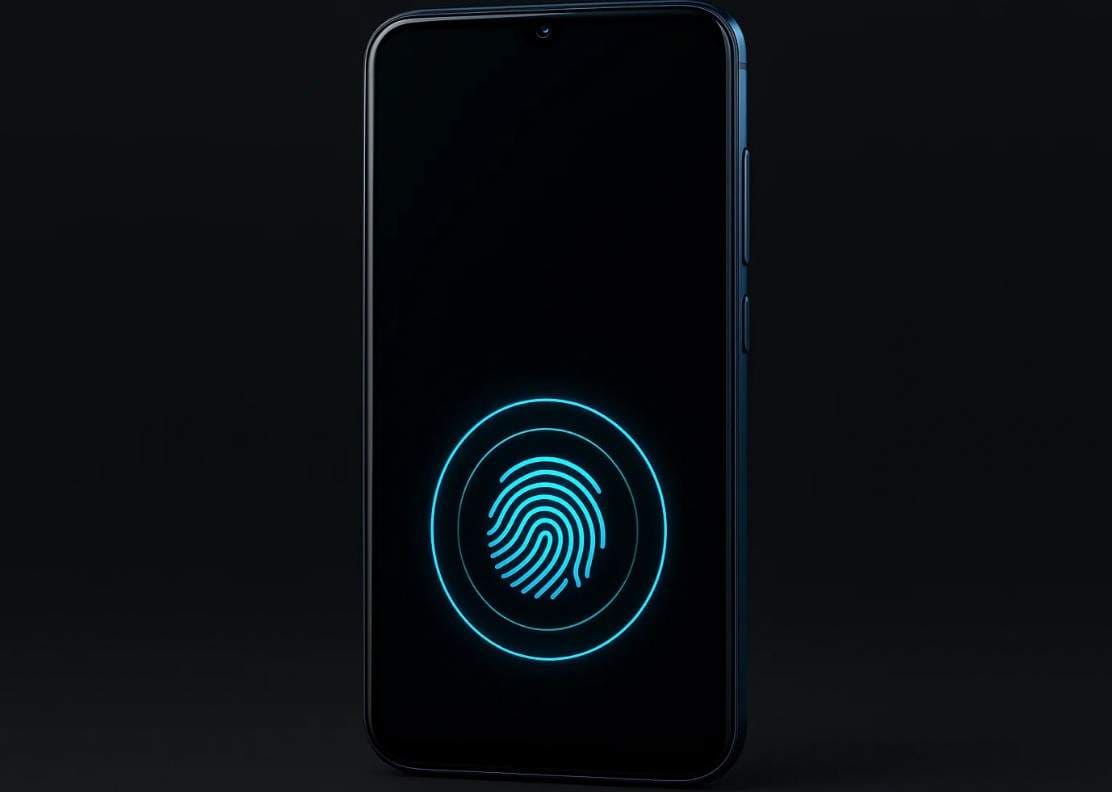
This distinction matters because a theme cannot turn a side-mounted or rear-mounted fingerprint sensor into a real in-display sensor. If a phone shows a fingerprint graphic without compatible in-display hardware, treat it as a visual effect unless the manufacturer documents otherwise.
| Device / Ecosystem | Native Xiaomi Theme Support | Best Approach |
|---|---|---|
| Xiaomi / Redmi / POCO | Yes, when the theme is compatible with the model and MIUI/HyperOS version. | Check Fingerprint effects / Fingerprint animation first, then the Themes app. |
| Vivo | No direct Xiaomi theme support. | Use Vivo's own personalization or fingerprint-animation settings when available. |
| Realme | No direct Xiaomi theme support. | Use Realme's native personalization options when available. |
| Samsung | No direct Xiaomi theme support. | Use Samsung's own lock-screen customization; treat third-party overlays as visual-only. |
| Google Pixel | No direct Xiaomi theme support. | Use Pixel's native lock-screen options; do not expect Xiaomi theme files to integrate with the system UI. |
Part 2. How to Apply or Change Fingerprint Animations
The correct setup depends on the phone brand, fingerprint-sensor type, and software version. Start with native system options before installing third-party overlays or downloading theme packages from unknown sources.
2-1. Xiaomi, Redmi, & POCO (MIUI / HyperOS)
For Xiaomi-family devices, use the built-in settings first. The exact menu can vary by model and MIUI/HyperOS version.
- Method 1. Open Settings > Wallpaper & personalization > Fingerprint effects, then choose an available animation on supported models.
- Method 2. On some builds, open Settings > Fingerprints, face data, and screen lock > Fingerprint unlock > Fingerprint animation.
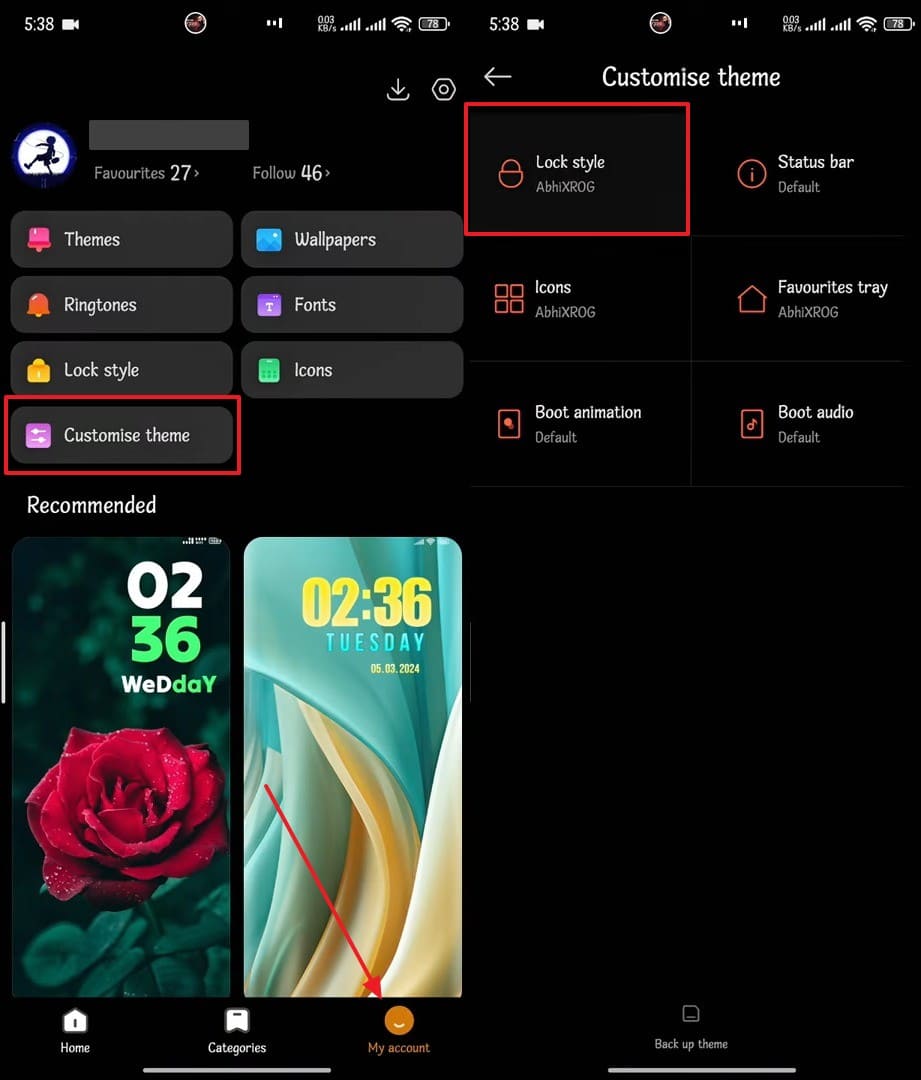
- Method 3. Open the Xiaomi Themes app, choose a compatible theme, and apply its lock-screen component. If the theme includes a custom fingerprint visual, the effect may appear only on supported devices and software versions.
2-2. Vivo and Realme
Native Xiaomi themes are designed for Xiaomi's theme ecosystem, so they should not be expected to install directly on Vivo or Realme phones. If your goal is a similar fingerprint animation, first check the phone's own personalization, lock-screen, or fingerprint-animation settings. Some models provide native effects; others may offer only wallpaper or lock-screen customization.
2-3. Samsung and Pixel
Samsung and Google Pixel devices use their own system UI and customization frameworks, so Xiaomi MIUI/HyperOS themes do not natively install as system themes on them. If you want a similar look, use native lock-screen customization first. Third-party overlay or live-wallpaper apps can imitate visual effects, but they should not be treated as replacements for the phone's real biometric authentication.
- Step 1. Check your phone's built-in lock-screen and fingerprint customization options before installing another app.
- Step 2. If you choose a third-party visual app, use a trusted app store, verify the developer, and review requested permissions.
- Step 3. Treat any on-screen fingerprint graphic as a visual effect unless your device actually has compatible fingerprint hardware.
Part 3. Troubleshooting Missing or Partial Theme Effects
If the theme installs but the fingerprint animation is missing, diagnose the visual layer before assuming that the fingerprint sensor itself has failed. The table below separates common theme problems from real biometric problems.
| What You See | Likely Cause / What to Try |
|---|---|
| Only the wallpaper changed | The theme may not include a compatible lock-screen component, or the system may restrict deeper UI changes. Open Themes > Customize Theme and check Lock Style; if needed, try a theme made for your MIUI/HyperOS version. |
| Fingerprint animation disappeared | The custom lock style may conflict with the native fingerprint-effect layer. Switch the Lock Style back to the system default, then re-enable Fingerprint effects / Fingerprint animation. |
| Fingerprint effects setting is missing | The model, sensor type, region, or software version may not expose the option. Check both personalization and fingerprint-security menus, update the system, and verify support for your exact model. |
| Theme causes a lock-screen problem | A third-party lock-screen style may be incompatible with the current system. Return to the default theme or use the manufacturer's recovery options instead of repeatedly installing unverified packages. |
| Visual effect works, but fingerprint authentication does not | This may be a real biometric or sensor problem. Clean the sensor area, re-register the fingerprint, restart the phone, and check system updates. |
Part 4. Are Android MI Themes Fingerprint Locks Safe?
A visual theme should not replace the phone's underlying biometric security. On a properly configured device, the enrolled fingerprint, PIN, pattern, password, or other supported authentication method remains responsible for access. The theme changes the presentation layer.
- Prefer native settings: Use system fingerprint effects and the official Themes app when possible, reducing the need for broad third-party permissions.
- Use trusted download sources: For Xiaomi, Redmi, and POCO, start with the pre-installed Themes app. Avoid random APK or theme-package sites when the source cannot be verified.
- Review app permissions: Be cautious with third-party apps that request Accessibility, display-over-other-apps, notification, or device-admin access without a clear reason.
- Keep a backup unlock method: Remember your PIN, pattern, or password even if you normally use fingerprint unlock. A visual fingerprint icon cannot add new biometric hardware to the phone.
Bonus Tip. What to Do If You Are Actually Locked Out
If the problem is only a missing animation, wallpaper-only theme, or incompatible lock style, you do not need a screen-unlock tool. Fix the theme or restore the default lock style first. If you are genuinely locked out because you forgot the PIN, pattern, or password, or fingerprint authentication is unavailable and you cannot access the device through another configured method, Dr.Fone – Screen Unlock is one option for supported devices.
Dr.Fone – Screen Unlock supports major Android brands and more than 2,000 phone and tablet models. Depending on the device and unlock method, removing a screen lock may erase device data, so check model compatibility and the on-screen notice before proceeding.
 Remove common Android screen locks such as PIN, pattern, password, and fingerprint lock.
- Support major Android brands and 2,000+ phone and tablet models.
- Follow a guided, device-specific unlock workflow.
- Review model compatibility and any data-loss notice before unlocking.
- No advanced technical skills required for the guided workflow.

Unlock Your Android Screen in 3 Steps with Dr.Fone
If you are genuinely locked out and have confirmed that this is a screen-lock problem rather than a missing theme animation, use the guided workflow below for a supported device:
Step 1 Open Screen Unlock
Open Dr.Fone on your computer, choose Screen Unlock, select the Android screen-unlock option, and connect the phone with a USB cable.

Step 2 Select the Device Information
Choose the correct device brand and follow the model-specific instructions shown by Dr.Fone. The required recovery or download steps can differ by device.

Step 3 Follow the On-Screen Unlock Process
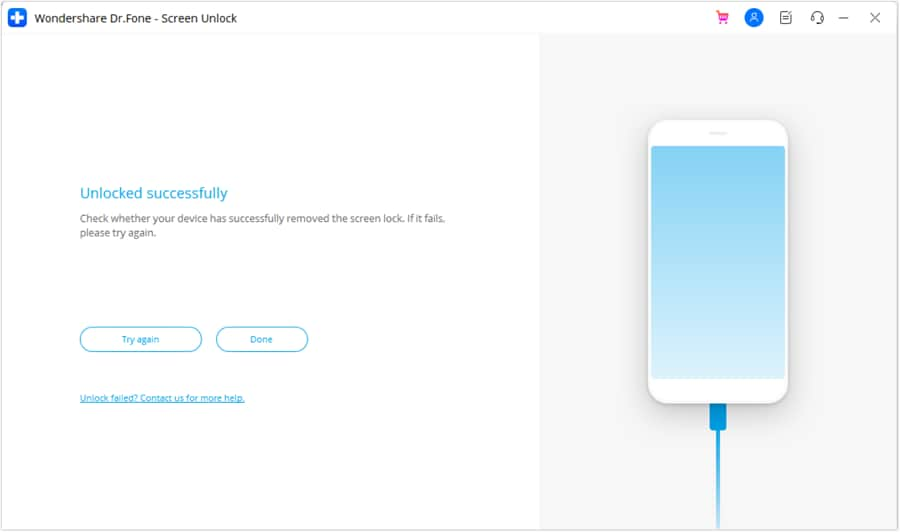
Complete the guided unlock process and review any data-loss warning before confirming. When the process finishes, follow the software instructions to restart and set up screen security again if needed.

Conclusion
Android MI Themes Fingerprint Lock is best understood as a customization topic, not one universal fingerprint-security feature. On supported Xiaomi, Redmi, and POCO devices, native fingerprint effects can change the unlock animation while the phone's biometric system still performs the real authentication. On Vivo, Realme, Samsung, Pixel, and other ecosystems, Xiaomi themes do not natively transfer across systems, although similar visual effects may exist through each brand's own settings. If you are actually locked out rather than dealing with a visual-theme issue, evaluate a supported method such as Dr.Fone – Screen Unlock.


FAQ
1. What is Android MI Themes Fingerprint Lock?
It usually refers to Xiaomi-style fingerprint animations or lock-screen themes. A native fingerprint effect changes the visual animation around supported fingerprint hardware, while a fingerprint-style theme can simply imitate the look. Neither type adds new fingerprint hardware to the phone.2. Where can I safely download Android MI Themes Fingerprint Lock themes?
For Xiaomi, Redmi, and POCO, start with the pre-installed Xiaomi Themes app and choose a theme compatible with your model and MIUI/HyperOS version. Avoid random APK or theme-package sites when the source cannot be verified.3. Do Xiaomi MI fingerprint themes work on Vivo or Samsung phones?
Not natively. Vivo and Samsung use different system UI and theme frameworks. You may be able to create a similar visual effect using the phone's own personalization features, but a Xiaomi theme file should not be expected to integrate directly with those systems.4. Why did only my wallpaper change or the fingerprint animation disappear?
The theme may not include a compatible lock-screen component, the Lock Style may not be selected, or the current software version may restrict the custom effect. Restore the system Lock Style, re-enable Fingerprint effects if available, and use a theme designed for your MIUI/HyperOS version.
 Add Wondershare Dr.Fone as a preferred source on Google