Bypass iCloud Activation Lock and Android FRP without password.

 100% Security Verified | No Subscription Required | No Malware

 :
: 
 ChatGPT
 Perplexity
 Gemini
 Claude
 Grok
Grok
You have an online exam coming up. And one question keeps nagging at you. Is LockDown Browser watching everything you do? You're not alone in feeling anxious.
Over 2,000 educational institutions worldwide use LockDown Browser to prevent cheating during online exams. It can detect different signs of exam dishonesty. This makes many students wonder, "Does LockDown Browser record you during the exam?"
This guide explains everything in detail. You'll learn whether the Lockdown browser can record your screen, camera, or audio, how it works, and the signs of recording to look for.
In this article
- Part 1. What Is LockDown Browser?
- Part 2. Does LockDown Browser Record Your Screen?
- Part 3. Does LockDown Browser Record Your Camera?
- Part 4. Can LockDown Browser Hear Your Voice?
- Part 5. How to Tell If LockDown Browser Is Recording You
- Part 6. What Behaviors Does LockDown Browser Flag?
- Part 7. How to Avoid False Flags on LockDown Browser
- Bonus Tip: Remove MDM Restrictions on iOS Devices with Dr.Fone - Screen Unlock (iOS)
Part 1. What Is LockDown Browser?
Respondus LockDown Browser is a secure web browser for online exams. Respondus developed this tool to restrict student activity during tests. The goal is to identify cheating attempts. During the test, it blocks access to all other applications, websites, and system functions.
You cannot minimize the window. You cannot leave the exam page. In addition, you cannot use keyboard shortcuts or copy and paste content. Print screen is also disabled, and access to any outside resources is completely blocked for the duration of your exam.
Part 2. Does LockDown Browser Record Your Screen?
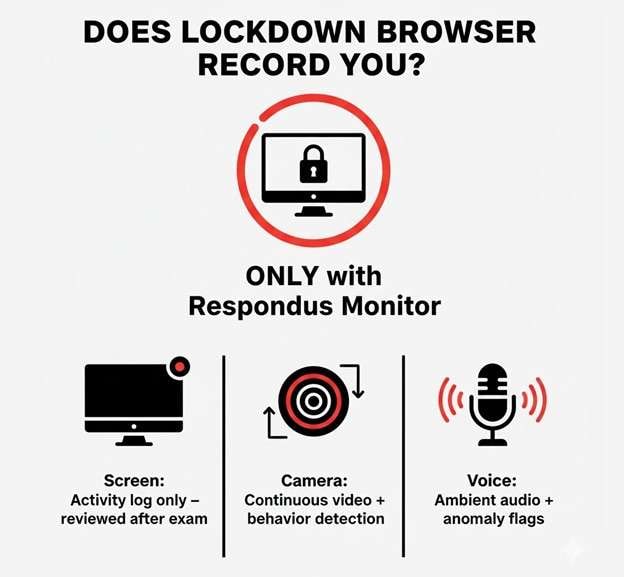
Yes. LockDown Browser can record your screen when it is paired with the Respondus Monitor feature. This means it cannot record you by default. The Monitor is not automatically enabled in the Lockdown browser.
For screen recording to work, the following conditions must be met.
- Your instructor must pair LockDown Browser with Respondus Monitor
- Your instructor must enable the “Webcam & Screen” recording option within their Learning Management System (LMS) dashboard.
- Students must be informed that their screens are to be recorded before the exam begins. Screen recording cannot be silently switched on without prior notification.
Similar to how proctoring tools work, you can also screen record on mobile. To learn more, check out our guide on how to record your iPhone screen with and without audio.
How Does LockDown Browser Screen Recording Work?
Screen recording in the Lockdown browser does not mean someone is watching your screen live as you type. Instead, it captures a log of your activity on the screen during the exam.
This data is not available to your instructor until after the exam. They can then review and consciously choose whether to flag your actions during the exam as cheating or not.
Also, the recording data is stored securely on Respondus servers. Only your instructor and authorized academic administrators can access it.
Part 3. Does LockDown Browser Record Your Camera?
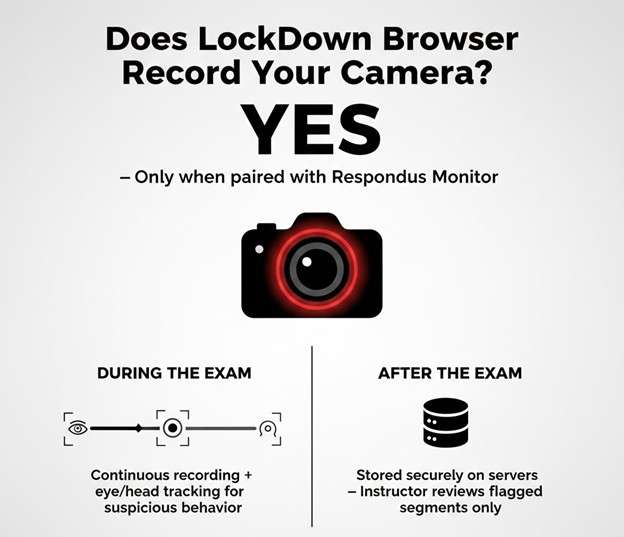
Yes. Just like screen recording, LockDown Browser can record your camera when paired with Respondus Monitor. Camera recording is not a built-in feature of LockDown Browser itself. It only activates when your instructor has enabled Respondus Monitor alongside LockDown Browser. They should also specifically turn on webcam proctoring for your exam.
When this is the case, Lockdown browser will record you during or before the exam.
During the Exam:
Here's what Monitor does with your camera throughout your test:
- It records your video feed continuously for the entire duration of the test.
- It uses eye and head tracking to identify suspicious behavior. This can be repeatedly looking away from the screen or another person appearing in the frame.
Before the Exam Starts:
The browser will ask you to perform the following actions if the instructor has enabled it.
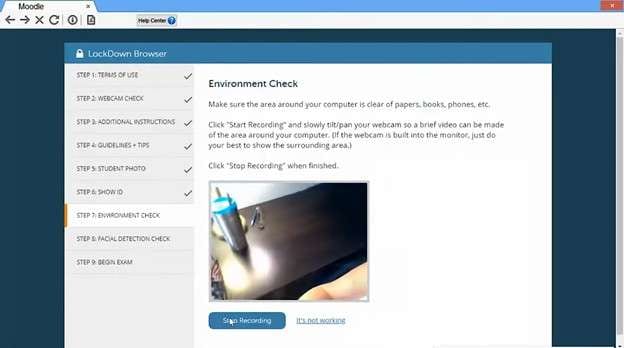
- Complete an environment survey to confirm that there are no disallowed materials nearby. You’ll need to pan your camera around your workspace.
- Hold your photo ID up to the camera to verify your identity.
Part 4. Can LockDown Browser Hear Your Voice?
Yes. Lockdown browser can record your voice when Respondus Monitor is active, and your instructor has enabled audio proctoring for the exam. Similar to screen and camera recording, LockDown Browser on its own cannot access your microphone or record any sound.
When audio monitoring is enabled through Monitor, here is what it does:
- Records ambient sound continuously through your device's microphone for the duration of the exam
- Detects audio that may suggest cheating. This can be a second voice in the room, someone whispering answers, or a student reading questions aloud.
- Flag unusual audio segments for your instructor to review. The process is the same as flags for video recording.
Part 5. How to Tell If LockDown Browser Is Recording You
There are always tell-tale signs before and during your exam that make it clear that LockDown Browser’s screen recorder is working. Here is how to spot them.
-
Step 1 Read Your Exam Instructions Carefully
Your instructor is required to inform you that they will record your screen or the camera. You usually receive this notice before the exam day. Therefore, check all course announcements, emails, and any instructions posted in your LMS. If your exam uses Respondus Monitor, it will be mentioned there. Your institution cannot record you without telling you first.
-
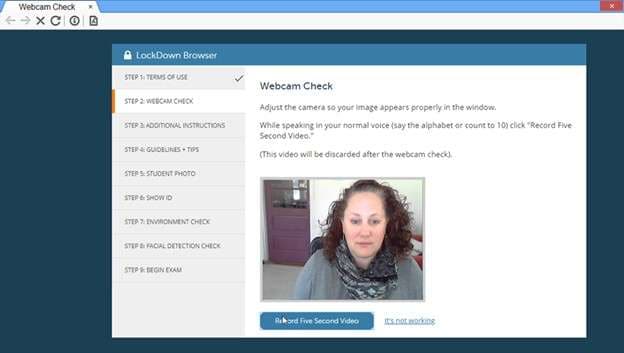
Step 2 Watch for a Webcam Precheck Prompt
When your camera is to be recorded, LockDown Browser will direct you to do a webcam check before the exam. The process includes checking your camera, microphone, and internet connection. You will need to record a short sample video to confirm that they are working properly. When this precheck happens, it is your cue that your camera and audio will be recorded during your exam.
-
Step 3 Look for an Environment Survey
Another sign to look for is the prompt for an environment survey. During this, you will need to slowly pan your camera around your room or hold up a photo ID before the exam begins. If you are asked for this, recording is definitely enabled. This is because the environment survey step only appears when Respondus Monitor is running.
-
Step 4 Check for the Recording Icon
Once inside the exam, glance at the top-right corner of your screen. If recording is active, you will see a small recording icon or “Recording” written there throughout the session. Seeing this icon will confirm that both your screen and webcam are being recorded.
-
Step 5 Ask Your Instructor Directly
If none of the above steps gives you a clear answer, simply reach out to your instructor before the exam. Usually, they are required to tell you about the monitoring tools they will be using. So, they will be happy to clarify this. A quick email the day before your exam is far better than sitting down to test and being caught off guard by something you didn’t expect.
Part 6. What Behaviors Does LockDown Browser Flag?
When Respondus Monitor is enabled, it looks for certain behaviors to check for exam dishonesty. These are then queued for your instructor to review after the exam.
- Repeatedly looking away from the screen
- Another face appears in the camera frame.
- Unusual audio, like background voices or someone speaking nearby.
- Sudden break in video feed or a covered camera.
- Navigating away from the exam screen.
Part 7. How to Avoid False Flags on LockDown Browser
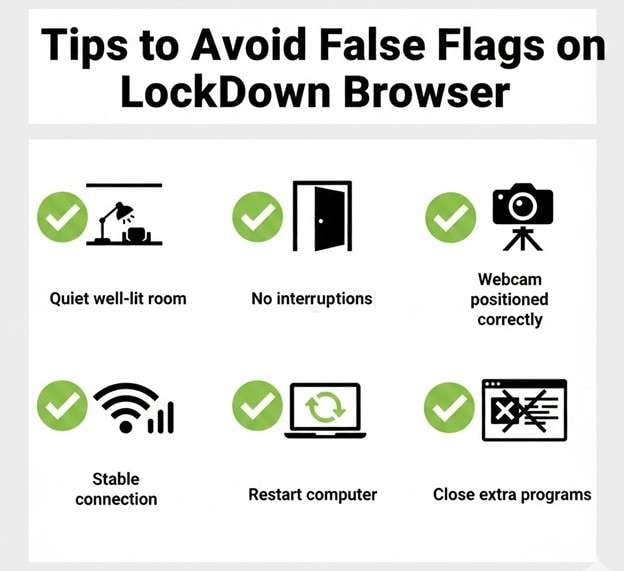
A few simple steps before you sit down to test can make the difference between a clean session and a recording full of flagged moments you have to explain afterward. Here are some tips to avoid false flags.
- Choose the Right Environment: Select a quiet room with good lighting. Your face should be clearly visible. Remove possible sources of noise. Avoid locations where people may enter
- Prevent Interruptions: Tell others that you are not available during the test period. Close the door. Keep pets outside. Silence phones and other devices.
- Set Up Your Webcam Properly: Place the webcam at eye level. Keep your head centered in the frame. Do not adjust the camera during the exam.
- Ensure a Stable Internet Connection: Connect your computer to a reliable wired network. A wired connection reduces the risk of sudden disconnections.
- Restart Your Computer: Before the exam starts, reboot your device. A restart clears temporary system errors. So, you can avoid software crashes during the test.
- Close Unnecessary Applications: shut down all other programs. This step prevents pop-ups and background notifications. It also avoids unexpected sounds.
Bonus Tip: Remove MDM Restrictions on iOS Devices with Dr.Fone - Screen Unlock (iOS)
Apart from browsers, mobile devices can also be restricted through MDM locks. These limit your access to specific apps, websites, and settings. Dr.Fone - Screen Unlock (iOS) helps you remove MDM from your iPhone or iPad. As a result, you can use your device with more freedom.
Dr.Fone can handle three MDM types. These include remote, local, and charge-only MDM. With personalized solutions for each, you can bypass restrictions with a high success rate. Plus, you don't need any password or admin access to do this.
Once bypassed, you can install any apps you like. You can also customize device settings without limitations. Dr.Fone is also super easy to operate. It handles the entire MDM bypass process on its own.
The toolkit is available for both Windows and Mac. And it supports MDM removal on all iOS devices. This includes the latest iOS 26 and iPhone 17 series. Apart from removing MDM locks, it helps you bypass screen passcode, activation lock, remove Apple ID, and more.
 Unlock iPhone/iPad passcode in minutes.
- Remove Face ID, Touch ID, MDM lock, and screen lock.
- Bypass iCloud Activation Lock easily.
- Support all iOS versions and devices.
- Simple steps, no technical skills needed.
Steps to Bypass Remote MDM with Dr.Fone
-
Step 1 Download Wondershare Dr.Fone on your computer and install it. Launch the program and click “Toolbox” from the left. Select “Screen Unlock.”

-
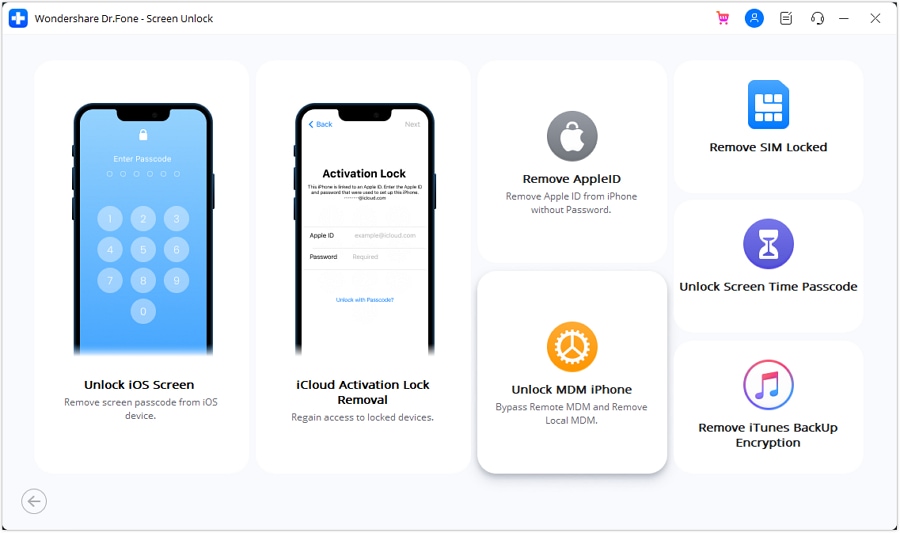
Step 2 Choose “iOS" as your operating system and select “Unlock MDM iPhone” from the following window.
-
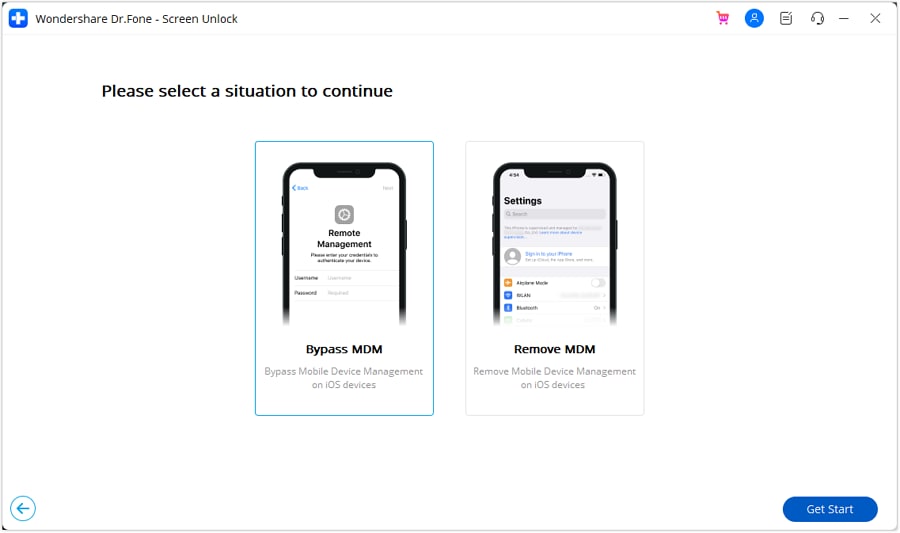
Step 3 Select “Bypass MDM” from the two options available and click “Get Start” from the bottom right.
-
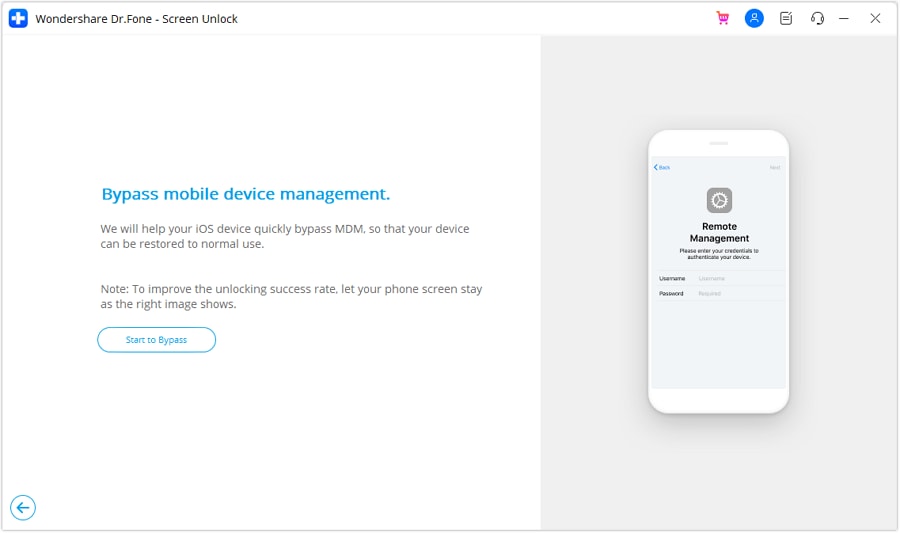
Step 4 Click the “Start to Bypass” button to initiate the process of bypassing MDM.
-
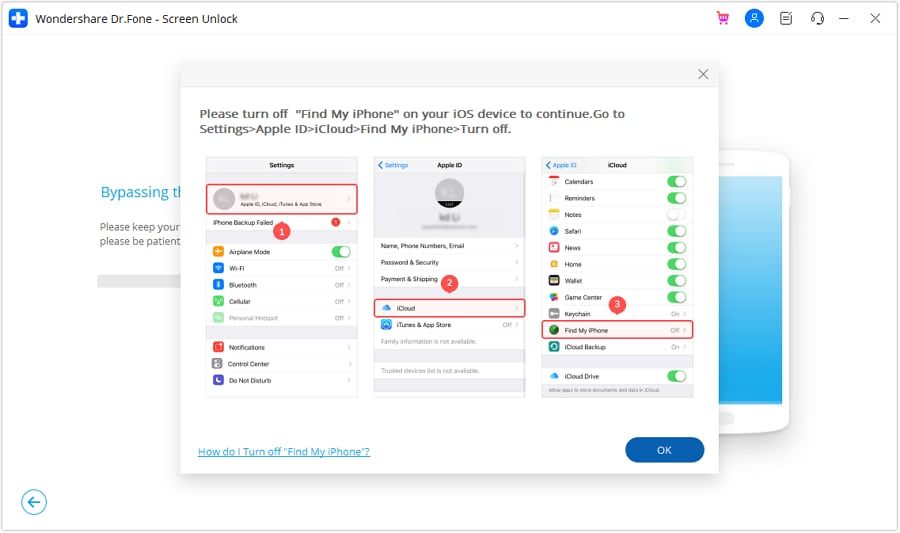
Step 5 Follow the directions to turn off Find My on your device. Go to “Settings” and tap your Apple ID name. Select “iCloud” and toggle off “Find My.” Then, click “OK” in the Dr.Fone interface.
-
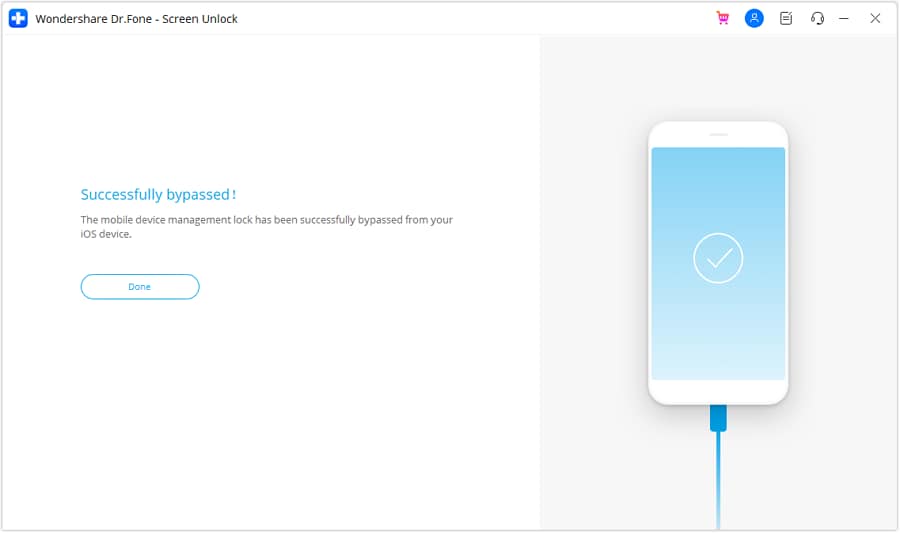
Step 6 The software will start the MDM bypass process. Wait for it to complete. You will see the message, “Successfully bypassed,” once done.




Conclusion
So, does LockDown Browser record you? The short answer is yes. It records your screen, camera, or voice when your instructor has paired it with Respondus Monitor and enabled those features for your exam. When in doubt, look for the webcam precheck before your exam loads and the recording icon once you are inside it.
If you are dealing with a different kind of device restriction entirely, such as an MDM profile locked onto your iPhone, Dr.Fone - Screen Unlock (iOS) helps you bypass it in easy steps. Download and try it to keep your device free of any restrictions.
FAQs About LockDown Browser Recording
-
1. Can professors see you through LockDown Browser?
Yes. Professors can view your webcam if Respondus Monitor is used with LockDown Browser and webcam proctoring is enabled. In most cases, they review recordings after the exam unless live proctoring is set up through Zoom or Teams. -
2. Can LockDown Browser detect a second monitor?
Yes. Respondus LockDown Browser is able to detect and block the use of more than one monitor. It will prevent you from starting an exam if a second monitor is connected, as it restricts access to only the primary display. -
3. Does LockDown Browser record audio automatically?
No. LockDown Browser cannot record your microphone on its own. It can only capture your audio if Respondus Monitor is enabled and the instructor has specifically turned on audio recording for your exam.
 Add Wondershare Dr.Fone as a preferred source on Google