Bypass iCloud Activation Lock and Android FRP without password.

 100% Security Verified | No Subscription Required | No Malware

 :
: 
 ChatGPT
 Perplexity
 Gemini
 Claude
 Grok
Grok
Forgetting your iPhone or iPad passcode can be incredibly frustrating, effectively turning your expensive device into a paperweight. When you're locked out due to multiple incorrect attempts, a broken screen, or a forgotten password, a tool like Joyoshare iPasscode Unlocker emerges as a potential solution. It's designed to bypass various types of screen locks on Apple devices, including iPhones, iPads, and the iPod touch.
But before you download it, critical questions arise. Is this tool safe to use? What are the actual costs involved, and is the free version useful? This comprehensive review will delve into every aspect of Joyoshare iPasscode Unlocker, exploring its features, pricing, and operational steps. We'll also examine the risks associated with cracked versions and introduce a powerful alternative to help you make an informed decision.
In this article
- Part 1. What Is Joyoshare iPasscode Unlocker and Is It Free?
- Part 2. Core Features of Joyoshare iPasscode Unlocker
- Part 3. Step-by-Step Guide: How to Use Joyoshare iPasscode Unlocker
- Part 4. A Balanced Review: Pros and Cons of Joyoshare iPasscode Unlocker
- Part 5. The Best Alternative: Dr.Fone - Screen Unlock (iOS)
Part 1. What Is Joyoshare iPasscode Unlocker and Is It Free?
Joyoshare iPasscode Unlocker is a desktop application designed to help users regain access to their locked iOS devices. It specializes in removing five distinct types of screen locks: the classic 4-digit and 6-digit passcodes, modern biometric locks like Face ID and Touch ID, and even Screen Time passcodes. It serves as an emergency tool for situations where you're completely locked out.
While Joyoshare iPasscode Unlocker is free to download and install, its core functionalities are locked behind a paid subscription. The free trial version allows you to perform preliminary steps like putting your device into Recovery or DFU mode and downloading the necessary firmware package. However, to complete the final unlock, remove a Screen Time passcode, or bypass a Mobile Device Management (MDM) profile, a paid license is required.
The current subscription plans for using the software on up to 5 iDevices with 1 PC/Mac are as follows:
| Plan Type | Price |
|---|---|
| Monthly License | $30.95 |
| Yearly License | $49.95 |
| Lifetime License | $69.95 |

Part 2. Core Features of Joyoshare iPasscode Unlocker
Joyoshare iPasscode Unlocker provides a robust set of features tailored to address various lock-related issues on iOS devices. Its capabilities extend beyond simple passcode removal, offering a comprehensive unlocking toolkit.
- Unlock iOS Screen in Any Scenario: The tool is effective in numerous situations, such as a forgotten passcode, a disabled iPhone after too many failed attempts, a non-responsive or broken screen, or when Face/Touch ID fails to work.
- Remove Screen Time Passcode: It allows you to disable the Screen Time feature without needing the passcode, a crucial function for parents who have forgotten the restrictions password. Importantly, this process is designed to not cause any data loss.
- Unlock Apple ID Without Password: If you're locked out of your Apple ID, the iPasscode Unlocker can remove it from your iPhone, iPad, or iPod touch, allowing you to sign in with a new account. Note that this feature may have limitations depending on the iOS version and Find My iPhone status.
- Bypass Mobile Device Management (MDM): For devices managed by a company or school, this tool can remove the MDM lock, freeing your device from corporate or institutional restrictions without requiring administrator credentials.
It's also worth noting the existence of Joyoshare Activation Unlocker, a separate tool from the same developer specifically designed to bypass the iCloud Activation Lock, which is a different security feature from the screen passcode.
Part 3. Step-by-Step Guide: How to Use Joyoshare iPasscode Unlocker
Using Joyoshare iPasscode Unlocker is a straightforward process. Before you begin, understand that this procedure will erase all data on your device, effectively restoring it to factory settings. You can download the software from its official website. After installation, follow these steps to unlock your device.
-
Step 1 Launch the Software and Connect Your iPhone
Open Joyoshare iPasscode Unlocker on your computer. Select the "Unlock iOS Screen" option from the main interface and click "Start." Connect your locked iPhone or iPad to the computer using a genuine USB cable. If you've purchased a license, you can enter your Joyoshare registration code at this stage.
-
Step 2 Put Your Device into DFU or Recovery Mode
The software will provide clear, on-screen instructions to guide you through putting your device into DFU mode. If you find it difficult to enter DFU mode, the program also offers an alternative link to switch to Recovery Mode instructions, which is often easier to achieve.
-
Step 3 Download and Verify the Correct Firmware
Once your device is in the correct mode, the application will detect it and display its model information. Carefully verify that the details are correct. If there are any inaccuracies, use the dropdown menu to select the right information. Click the "Download" button to get the corresponding firmware package for your device.
-
Step 4 Begin the Unlocking Process
After the firmware has been successfully downloaded and verified, click the "Unlock" button. The software will first unzip the firmware and then begin removing the screen lock. Ensure your device remains connected to the computer throughout this entire process to prevent any interruptions or errors.
Part 4. A Balanced Review: Pros and Cons of Joyoshare iPasscode Unlocker
To provide a fair Joyoshare iPasscode Unlocker review, it's essential to look at both its strengths and weaknesses. This will help you determine if it aligns with your specific needs and expectations for an iOS unlocking tool.
- Offers a 30-day money-back guarantee for peace of mind.
- The official software is guaranteed to be 100% secure and free from malware.
- Lifetime license holders receive free updates for all future versions.
- Provides access to responsive customer support for assistance.
- Exclusively supports iOS devices (iPhone/iPad/iPod touch), with no support for Android.
- The free trial has very limited functionality, preventing users from completing an unlock.
- The unlocking process inevitably leads to complete data loss.
Overall, iPasscode Unlocker is a competent tool for those who need a dedicated and secure solution for their iOS devices. However, its iOS-only focus and the necessity of a paid plan for full functionality might lead some users to seek alternatives.
Part 5. The Best Alternative: Dr.Fone - Screen Unlock (iOS)
If you're exploring alternatives to Joyoshare iPasscode Unlocker, Dr.Fone - Screen Unlock (iOS) by Wondershare stands out as a powerful and reliable choice. It provides a comprehensive suite of tools for both iOS and Android devices, offering a highly polished and intuitive user experience that is ideal for users of all technical skill levels.
Key advantages that make Dr.Fone – Screen Unlock a superior alternative include:
- Wide Compatibility: Dr.Fone supports a vast range of iPhone, iPad, and iPod touch models, ensuring compatibility with both the latest and older iOS versions.
- Data Integrity Focus: While screen unlocking typically requires data erasure, Dr.Fone's toolkit is built with a strong emphasis on data safety across its other modules, reflecting a commitment to protecting user data.
- All-in-One Solution: Dr.Fone is more than just a screen unlocker. It can remove Apple ID, bypass iCloud Activation Lock, and fix various system issues, all within a single, unified interface.
 Unlock iPhone/iPad passcode in minutes.
- Remove Face ID, Touch ID, and screen lock.
- Bypass iCloud Activation Lock easily.
- Support all iOS versions and devices.
- Simple steps, no technical skills needed.
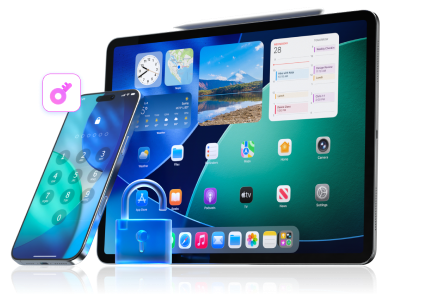
Here’s how to unlock your iPhone with Dr.Fone – Screen Unlock:
-
Step 1 Launch Dr.Fone and Select Screen Unlock
After installing Wondershare Dr.Fone, open the program and go to Toolbox > Screen Unlock. Choose "iOS" to proceed, and connect your iPhone or iPad to the computer.

-
Step 2 Initiate the iOS Unlocking Process
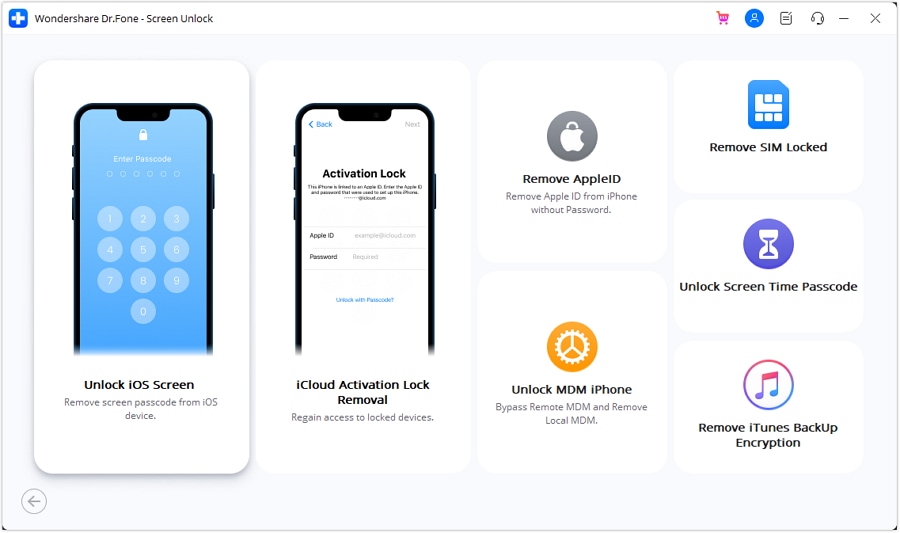
In the new window, click on "Unlock iOS Screen" and then press the "Start" button on the following screen to begin the procedure.
-
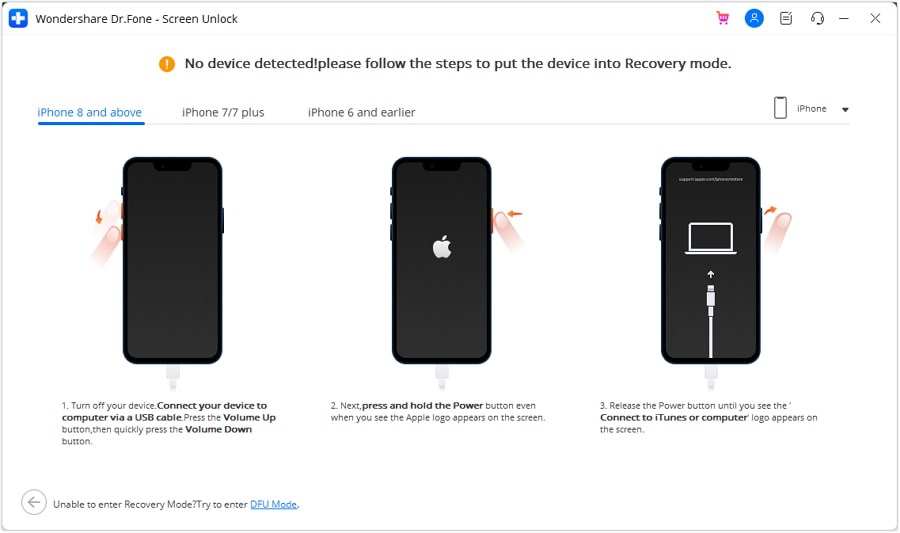
Step 3 Enter Recovery Mode
Dr.Fone will display clear, model-specific instructions on the screen. Follow them carefully to put your connected device into Recovery Mode.
-
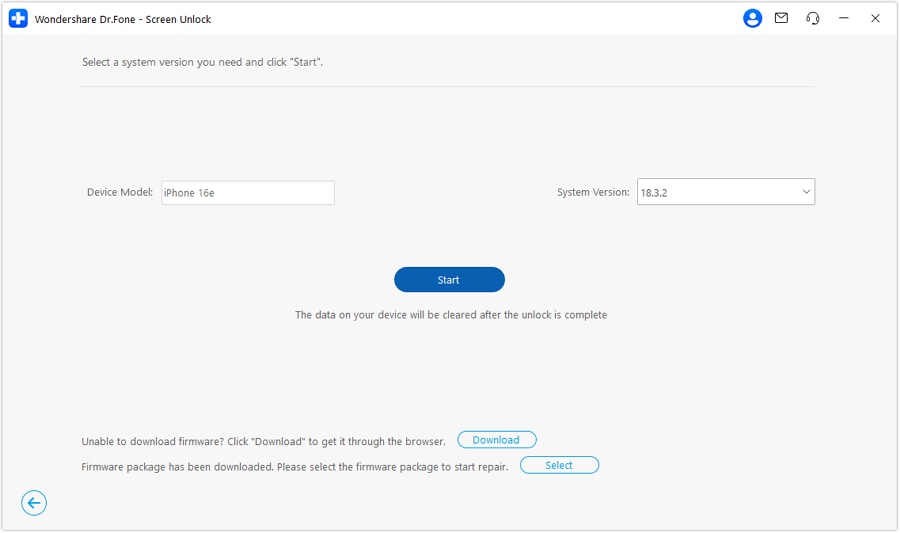
Step 4 Confirm Device and Download Firmware
The software will auto-detect your device model and iOS version. Confirm that the information is accurate, then click "Start" to download the appropriate firmware.
-
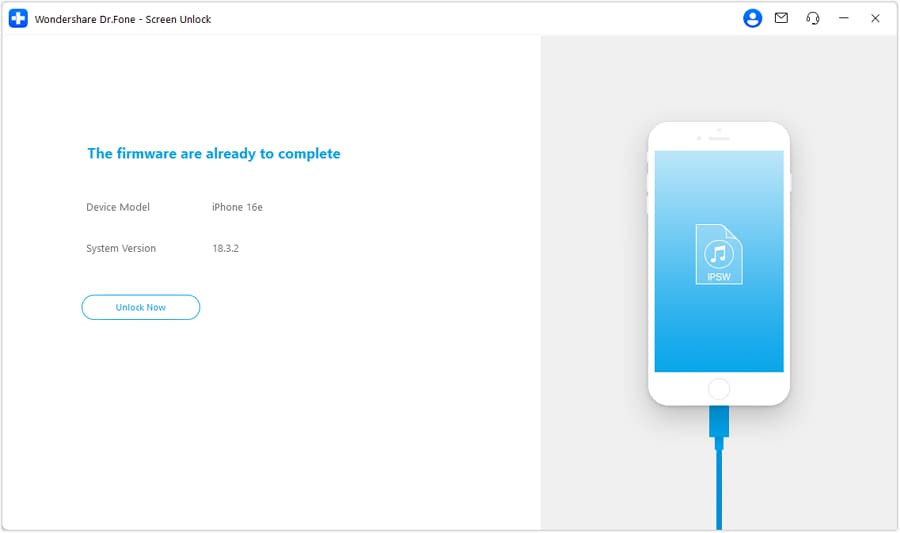
Step 5 Monitor Firmware Download
You can watch the progress of the firmware download. Once it is complete, the software will verify it. Then, click the "Unlock Now" button to move forward.
-
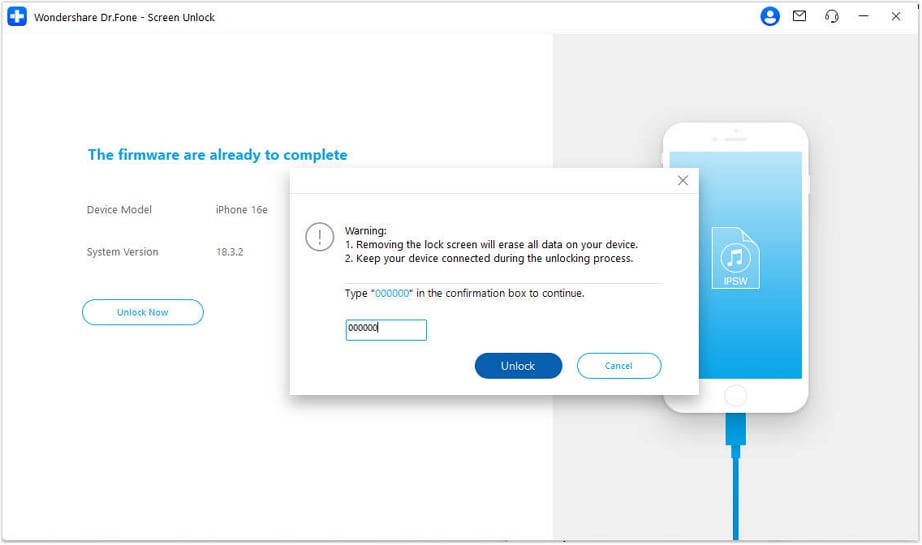
Step 6 Confirm and Complete the Unlock
A confirmation prompt will appear. Enter the code displayed on the screen to confirm you understand the process will erase data. The unlock will begin. Once finished, click "Done."
If you also need help with an Android device, Dr.Fone has a dedicated tool for that as well. You can learn more about how to unlock Android lock screen without passcode in this detailed guide.
Conclusion
For users facing the distress of a locked iOS device, Joyoshare iPasscode Unlocker presents itself as a capable and reliable tool. It effectively handles various lock screen scenarios and is backed by a secure platform and customer support. This article has provided a detailed walkthrough of its features, costs, and usage, confirming its legitimacy as a solution.
However, it is crucial to remember that the process will result in data loss and requires a paid subscription for full functionality. If you are looking for a more versatile, all-in-one toolkit with a highly polished interface, we recommend considering Wondershare Dr.Fone - Screen Unlock (iOS). It serves as an excellent alternative that delivers professional-grade results for a wide range of device management needs.




FAQ
-
1. Is Joyoshare iPasscode Unlocker legitimate and safe?
Yes, when downloaded from the official Joyoshare website, the software is legitimate and 100% secure. It is free from malware, viruses, and adware. However, using cracked versions from third-party sites is extremely unsafe and can expose your device and data to significant risks. -
2. Will using an iPasscode unlocker erase my data?
Yes, using Joyoshare iPasscode Unlocker or any similar tool to remove a screen lock will erase all data on your device. The process involves restoring your iPhone or iPad to its factory settings, which is a necessary part of bypassing the passcode security. The only exception is removing a Screen Time passcode, which does not cause data loss. -
3. What's the difference between Joyoshare iPasscode Unlocker and Activation Unlocker?
They are two different tools for two different security locks. Joyoshare iPasscode Unlocker removes the screen lock (passcode, Face ID, Touch ID). Joyoshare Activation Unlocker is designed specifically to bypass the iCloud Activation Lock, which appears after a device is factory reset while "Find My" is enabled. -
4. Can I get a Joyoshare iPasscode Unlocker registration code for free?
No, a valid registration code must be purchased through an official subscription plan. Any website offering free registration codes is likely providing illegal, non-working, or malicious software. Using the official, paid version ensures the software works correctly and you have access to customer support and updates.
 Add Wondershare Dr.Fone as a preferred source on Google