Bypass iCloud Activation Lock and Android FRP without password.

 100% Security Verified | No Subscription Required | No Malware

 :
: 
 ChatGPT
 Perplexity
 Gemini
 Claude
 Grok
Grok
If you need to unlock a Moto phone with MTK chips, you are not alone. Many Motorola users forget their PIN, pattern, or password after changing screen settings, restarting an old device, or buying back a spare phone they have not used in months. The good news is that there are practical ways to regain access, but the right method depends on the device model, Android version, and whether you are willing to erase data.
In this guide, you will learn what “MTK chips” means, why Motorola devices get locked, what you should check before trying to unlock the phone, and how to use Dr.Fone Screen Unlock step by step.
In this article
Part 1. What Does “Moto Phone with MTK Chips” Mean?
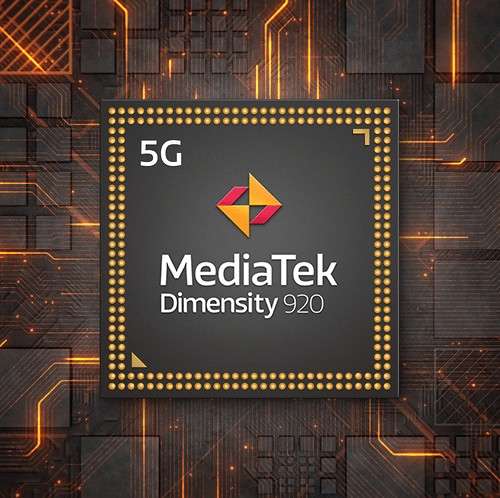
When people search for an unlocked Moto phone with MTK chips, they are usually talking about Motorola phones powered by MediaTek processors rather than Qualcomm chipsets. On Android forums and repair communities, “MTK” is short for MediaTek. Some Motorola budget and entry-level models use MediaTek hardware, and unlock behavior can vary depending on the device family, boot mode, and Android security implementation.
One example is the Moto G Pure, which uses the Mediatek Helio G25 (MT6762G) chipset, a 6.5-inch HD+ display, Android 11, and a 4000mAh battery. This makes it a relevant reference point for users searching for unlocking Motorola phones with MTK hardware.
Part 2. Why Moto Phones Get Locked
A Motorola phone may become inaccessible for several common reasons. You may have forgotten the screen PIN after changing it in a hurry. A child may have entered the wrong pattern too many times. A second-hand phone may still be protected by the previous user’s configuration. Sometimes, users also confuse a normal screen lock with FRP or Google account verification, which is a different security layer entirely.
That is why it is important to identify the exact problem first. If the phone is asking for a PIN, password, pattern, or fingerprint replacement screen, this is a screen lock issue. If it asks for the previously synced Google account after a reset, that is FRP and requires a different process.
Part 3. Before You Try to Unlock a Motorola MTK Device
Before you begin any unlock attempt, make sure you do three things. First, confirm that the phone really belongs to you or that you have legal authorization to access it. Dr.Fone clearly states that its unlock function is intended for personal use and should not be used for illegal or commercial misuse.
Second, understand the data risk. According to the official Dr.Fone guide, removing the screen lock without data loss is limited to some Samsung devices, while most other Android brands use a process that may erase device data. This matters for Motorola users because Moto phones generally fall under the “most Android devices” workflow rather than the Samsung-specific no-data-loss path.
Third, charge the phone and prepare a computer, plus a working USB cable. A failed connection in the middle of the process is the last thing you want when handling a locked device.
Part 4. Best Ways to Unlock a Moto Phone with MTK Chips
There is no single universal method that fits every Motorola model, but there are several realistic options. You can use a professional Android unlock tool, rely on official recovery options if available, or perform a factory reset as a last resort when your priority is simply regaining access to the phone.
If you want a guided desktop workflow, Dr.Fone - Screen Unlock (Android) is one of the most structured options because it walks you through brand selection, device mode entry, and the actual unlock flow.
 Unlock Android phone in seconds.
- Remove PIN, pattern, password, fingerprint.
- Bypass Google FRP lock easily.
- Works on all Android brands & models.
- No tech skills required – user-friendly.

Dr.Fone Screen Unlock for Motorola Phones
This is the section most users care about. If your goal is to unlock a Moto phone with MTK chips, Dr.Fone’s official Android workflow is the most relevant path to follow. The official guide explains that Wondershare Dr.Fone – Screen Unlock (Android) can help remove Android pattern, PIN, password, and fingerprint locks. It also notes an important limitation: data-preserving removal applies only to part of the Samsung lineup, while most Android brands—including typical Motorola cases—use the broader Android unlock route.
-
Step 1 Install Dr.Fone and Open Screen Unlock
Install the latest version of Dr.Fone on your computer. Then connect your locked Motorola phone with a USB cable. After the device is recognized, open the program and go to Toolbox > Screen Unlock. This is the official starting point in the guide.
-
Step 2 Choose Android
Once the Screen Unlock tool opens, select the Android option to continue. This tells the software that you want to work with an Android device rather than another platform.

-
Step 3 Select “Unlock Android Screen”
On the next page, choose Unlock Android Screen. The guide presents this as the main action for removing the lock from an Android device.

-
Step 4 Select the Device Brand - Motorola
For most Android brands, including Motorola, the guide instructs you to select the device brand first. Brand selection matters because the software uses it to guide you into the correct mode for the unlock process.

-
Step 5 Enter the Required Device Mode
After brand selection, Dr.Fone automatically leads you to the device-specific mode required for unlocking. The guide explains that the process for entering this mode varies by brand, and once the device is in the correct mode, Dr.Fone proceeds with the Android screen unlock workflow.
-
Step 6 Wait for the Unlock Process to Finish
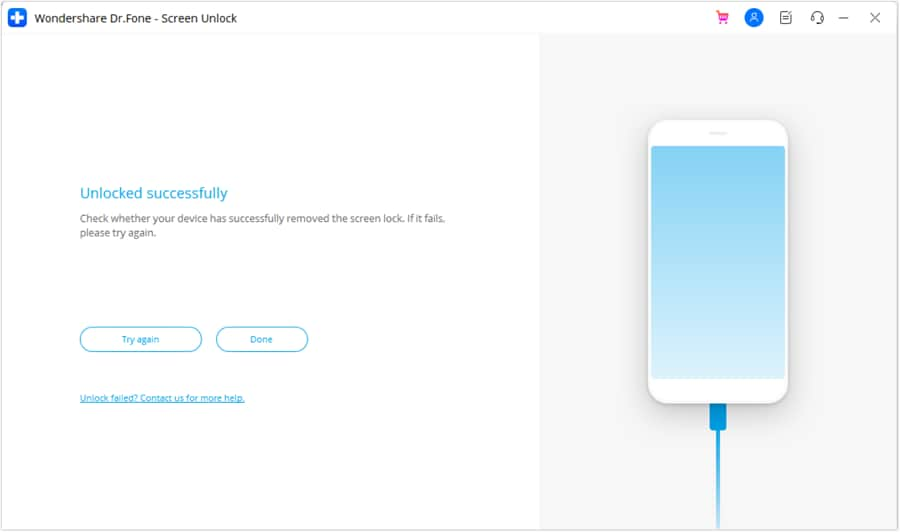
After the phone is in the required mode and the process begins, wait until Dr.Fone completes the unlock attempt. If the attempt fails, you can choose Try Again and repeat the effort. If the unlock succeeds, you can tap Done.




Part 5. Important Note About Data Loss

Part 6. Tips to Improve Your Success Rate
If you are trying to unlock a Moto phone with MTK chips, preparation matters more than speed. Use the original cable if possible. Charge the phone above 50 percent. Do not disconnect the device in the middle of the workflow. Read the brand-specific on-screen instructions carefully, because entering the wrong mode can delay the process or force you to start over.
You should also make sure you are solving the right problem. A screen lock is not the same as a carrier lock, bootloader lock, SIM lock, or FRP. Many failed unlock attempts happen because users mix up these terms.
Final Thoughts
If you need to unlock a Moto phone with MTK chips, the smartest approach is to identify whether you are dealing with a simple screen lock, understand the data risk in advance, and then choose a method that matches your device situation. For users who want a guided path, Dr.Fone - Screen Unlock (Android) offers a clear workflow for Android screen lock removal, but Motorola owners should pay special attention to the fact that the no-data-loss route is not the default path for most non-Samsung devices.
FAQ
-
1. Is unlocking a Moto phone with MTK chips the same as bypassing FRP?
No. A screen lock removal targets the local lock screen, such as a PIN, password, or pattern. FRP is Google account protection that can appear after a reset. -
2. Can I unlock a Motorola phone without losing data?
It depends on the device and method. Based on the official Dr.Fone guide, the no-data-loss route is limited to part of Samsung devices, not most Motorola phones. -
3. Does the chipset matter when unlocking a Moto phone?
Yes, indirectly. The chipset can affect recovery behavior, tool compatibility, and community repair methods. That is why many users specifically search for Motorola phones with MTK chips. -
4. Should I use free methods first?
Yes, if your device still has official recovery options available. But if you want a guided desktop workflow, using a structured tool can save time and confusion.
 Add Wondershare Dr.Fone as a preferred source on Google