Bypass iCloud Activation Lock and Android FRP without password.

 100% Security Verified | No Subscription Required | No Malware

 :
: 
 ChatGPT
 Perplexity
 Gemini
 Claude
 Grok
Grok
We all know that getting locked out of your one device by a persistent Factory Reset Protection, AKA FRP, is a nightmare. Whether you’ve forgotten your Google credentials after a reset or purchased a second-hand phone with an active lock, the frustration is universal. This lock turns a powerful smartphone into an expensive paperweight.
In this regard, this guide explores the most effective solutions to reclaim your mobile freedom. To ensure you make an informed decision, the following tools will be rigorously compared based on verified performance stats, success rates, and compatibility figures. Through this, you will be able to decide whether Dr.Fone is actually the best FRP Android unlock tool or just a marketing claim.
In this article
- Part 1. 5 Benefits of Using Android FRP Unlock Tool
- Part 2. 5 Best FRP Android Unlock Tool Guide: Full Comparison of Top Software
- Part 3. FRP Android Unlock Tool Comparison: Features, Tools & Performance Breakdown
- Part 4. Why Users Prefer Dr.Fone FRP Unlock Over Competitors
- Frequently Asked Questions
Part 1. 5 Benefits of Using Android FRP Unlock Tool
To begin with the Android FRP unlock tool comparison, let’s see why FRP bypass are a must and their significance in 2026.
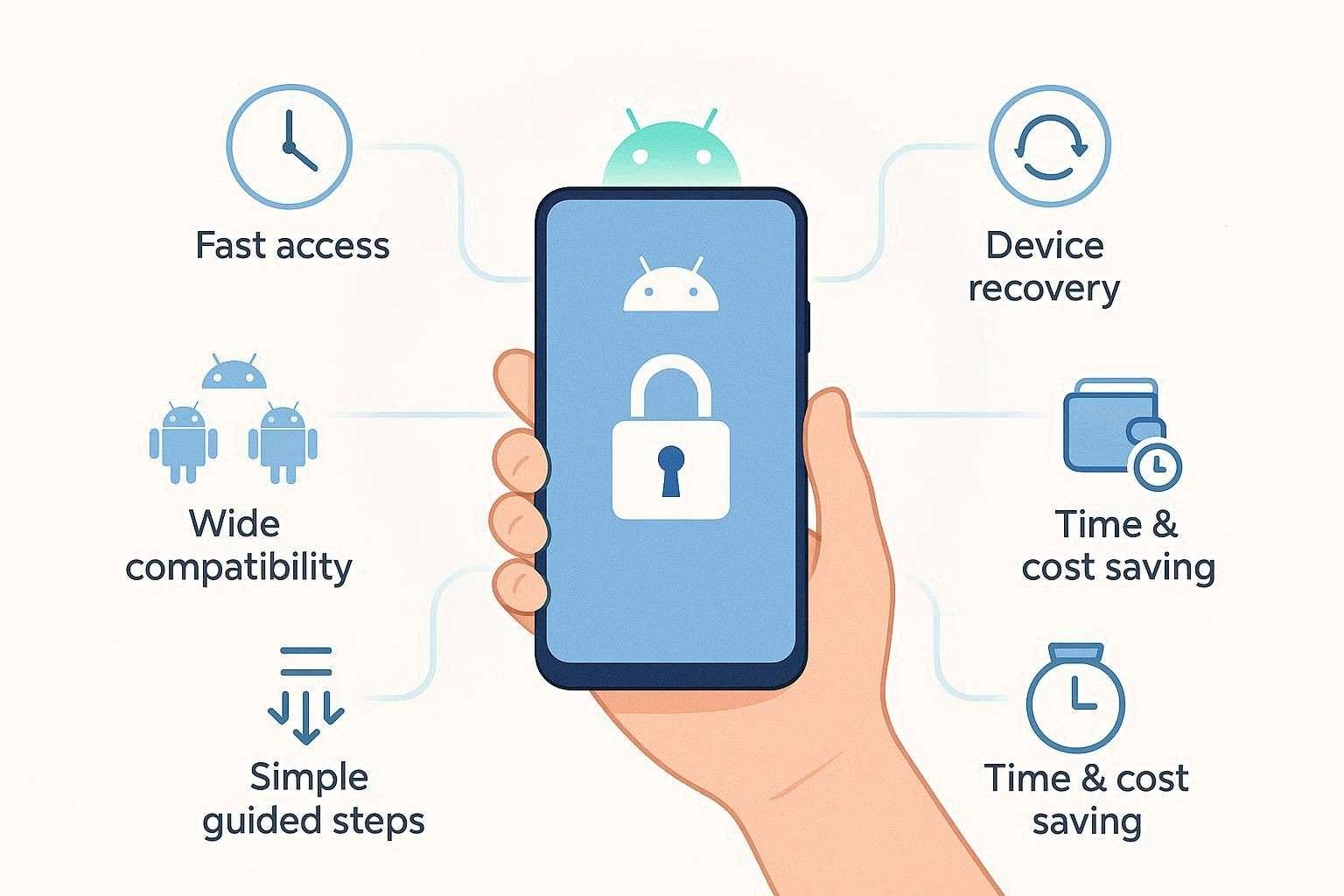
- Fast Access: The right FRP bypass tool gives fast access to a Google-locked phone within minutes, instead of long wait times or complex manual setup. It works after a forgotten account, a second-hand purchase, or a factory reset lock when normal login details no longer work or are unknown.
- Recover Device: We know that FRP lock protects the phone from theft, but it also locks out real owners who no longer have the correct Google account details. Therefore, FRP tools bring unusable or locked phones and tablets back to a normal working state, and having AI-powered solutions is a blessing in disguise.
- Wide Support: These tools support a wide range of popular brands, including Samsung, Xiaomi, OPPO, Vivo, Motorola, and other Android devices, across multiple markets worldwide. One software works on many Android versions and models, so you do not need separate methods for each device type or update.
- Easy Safe: Manual FRP bypass has risky steps like unknown APK files, hidden codes, and complex menus that can confuse non-technical users. Thus, tools provide simple one-click solutions across multiple Android versions, with tested steps and compatibility checks to reduce errors.
- Save Time Cost: One license works on multiple devices, which limits the repeated service center visits and extra paid unlocking charges over time. Additionally, it saves time for repair shops and users with many phones, delivering faster results and a better workflow for daily work.
Part 2. 5 Best FRP Android Unlock Tool Guide: Full Comparison of Top Software
Now, if you are on the hunt for the best FRP bypass tool for Android, this section has you covered. Here, we have listed 5 frequently searched and top-rated FRP bypass tools with detailed key aspects. A proper usage test is performed to determine the success rate and bypass time for each tool.
1. Dr.Fone - Screen Unlock (Android)
Ease of Use: Simple, visually-guided steps make it perfect for non-technical beginners.
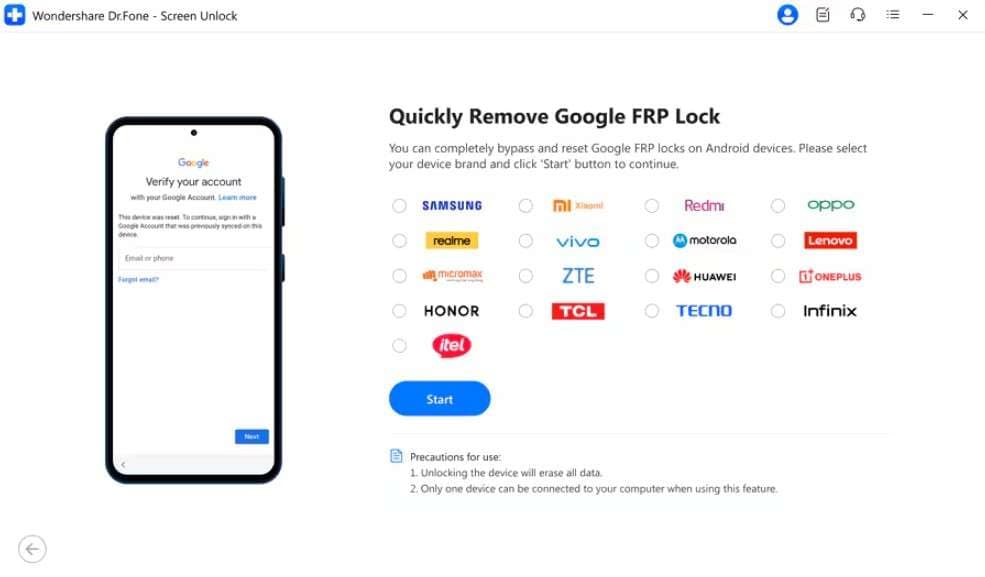
This tool, accessible on Windows and Mac, allows you to bypass FRP on 19 major Android brands. The list includes Samsung, Xiaomi, Redmi, Oppo, Realme, Vivo, Motorola, Lenovo, Huawei, Micromax, ZTE, POCO, OnePlus, Honor, TCL, Tecno, Infinix, iTel, and Sony phones. We must say, for Samsung FRP bypass, Dr.Fone is the ideal choice, as it was the first tool to introduce one-click FRP removal for Samsung Android 16.
Being the pioneer, its FRP bypass tool is AI-powered and supports Samsung S26/S25 devices, unlike other options. On Samsung Snapdragon devices, it also claims a 100% success rate and no learning curve. What we loved about this tool was its detailed, separate guides for Samsung and non-Samsung Android models, with clear security prompts.
 Unlock Android phone in seconds.
- Remove PIN, pattern, password, fingerprint.
- Bypass Google FRP lock easily.
- Works on all Android brands & models.
- No tech skills required – user-friendly.

Key Features
- Supports online FRP bypass for all Samsung phones.
- From Android 7 to Android 16, Dr.Fone supports all Android versions.
- Removes Google account verification without needing the previous owner's email or password.
- Step-by-step instructions, including specific sequences for entering Recovery or Download modes.
- Standard Mode uses a standard USB debugging or system exploit to bypass the lock.
- For some older OS versions, it guides users through accessibility settings to disable Google Play Services.
- Utilizes *#0*# test menu or emergency dialer exploits to trigger ADB commands for Samsung devices.
- For specific security patches, it helps users access the device browser to install custom bypass utilities.
- It handles both high-end Snapdragon and international Exynos variants.
- Bypasses FRP on MIUI 10 to MIUI 15 and HyperOS for Redmi Note and Poco phones.
- Works on MediaTek and Qualcomm chips in Reno, Find X, V series, including V40.
- Supports Moto G, Edge, Razr, Realme, OnePlus, Huawei pre-HarmonyOS, and ZTE models widely.
Detailed Guide for Bypassing Google FRP Lock via Dr.Fone
-
Step 1 Access the FRP Bypass Tool on Screen Unlock Android
Tap on the “Remove Google FRP Lock” in the Screen Unlock Android tool, choose the brand, and press “Start” to commence.

-
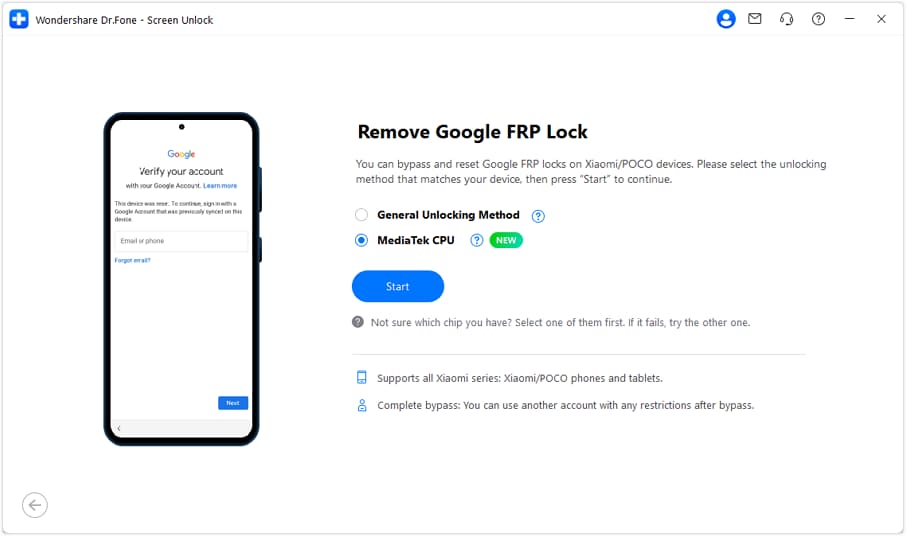
Step 2 Choose General Unlocking or MediaTek CPU Method
After selecting the MediaTek CPU unlocking method for the Xiaomi/Redmi/Poco brand, press the “Start” button. If it fails, you can try the “General Unlocking Method,” a plus point that many other tools might lack.
-
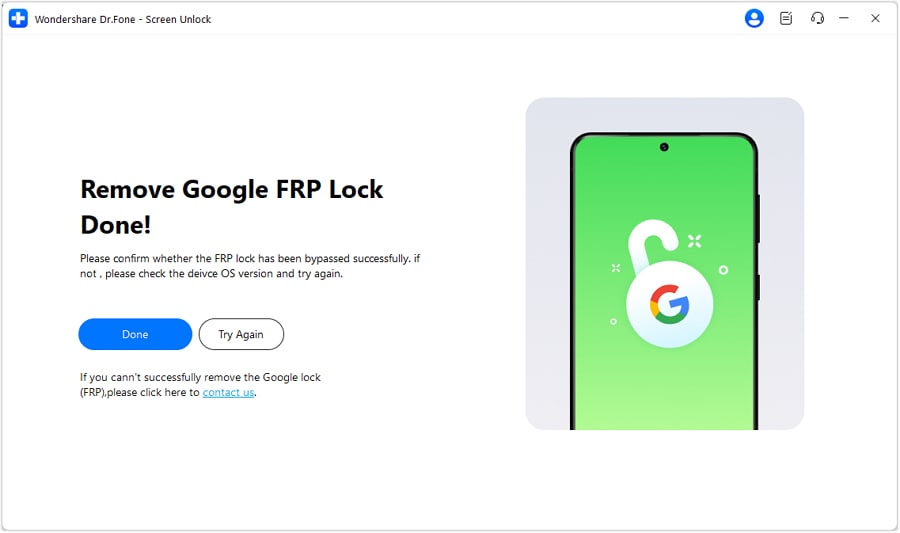
Step 3 Access Download or Recovery Mode and Pick Done
If the MediaTek CPU unlocking method works, the tool will start installing the drivers; follow the instructions and access Download mode. For the General Unlocking Method, you can access Recovery Mode using the simple guide provided. As you access the modes according to brand type, the tool will start FRP bypassing in a few minutes. Once done, press the "Done" button to conclude.




2. Tenorshare 4uKey for Android
Ease of Use: Effective but less intuitive for beginners.
Using this solution, you can remove FRP lock from 9 brands with 4uKey while learning “Is it safe to use Android FRP unlock tools?” For Samsung FRP, users get the option to bypass lock from Samsung S26/S25 devices, including Android versions 6-16. This vendor claims a 99% success rate, which can vary by device. Furthermore, the tools come with almost 2 options for removing FRP on Redmi/Xiaomi/OPPO/Realme devices.
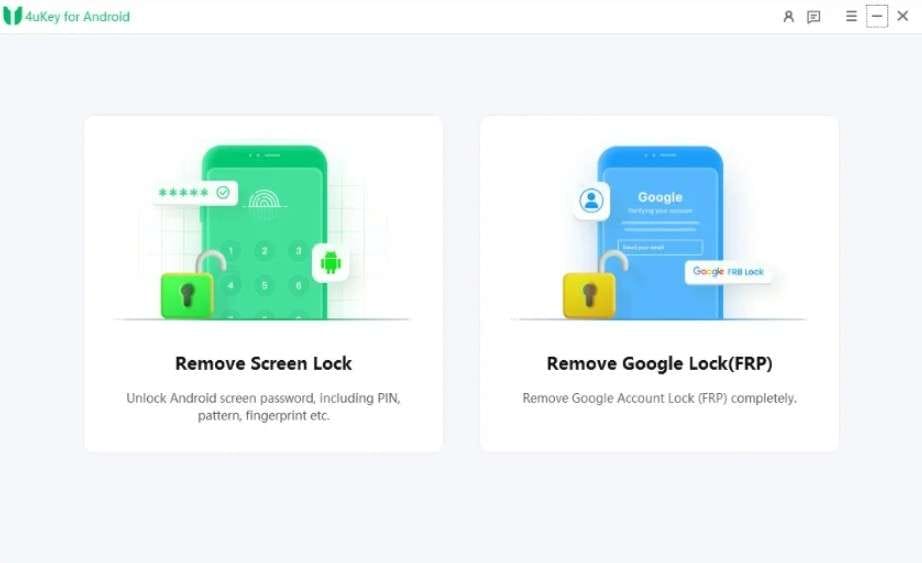
Key Features
- Supports MIUI 10-14 and Android version 10 to remove FRP lock on Huawei, Xiaomi, and Redmi.
- Lists separate guides for Samsung MTK, Qualcomm, and USA models.
- Automatically detects the connected device and installs the necessary drivers.
Guide to Use Tenorshare 4uKey for Android for FRP Bypass
We tested this tool for Xiaomi/Redmi to determine whether its 99% success rate claim is true as an FRP bypass tool for Android. Additionally, for your assistance and decision-making, detailed steps are mentioned ahead:
-
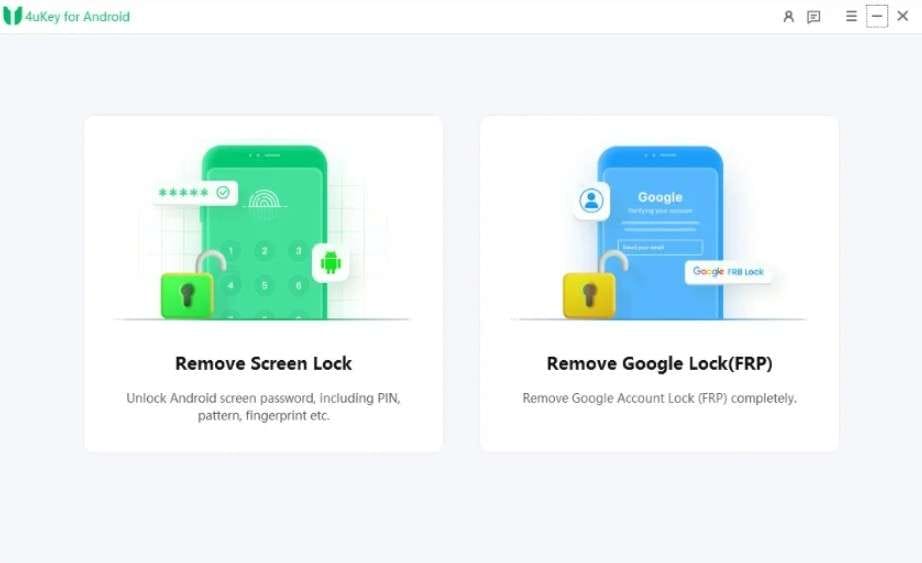
Step 1 Start by connecting the devices, then choose the “Remove Google Lock(FRP)” option in the tool.
-
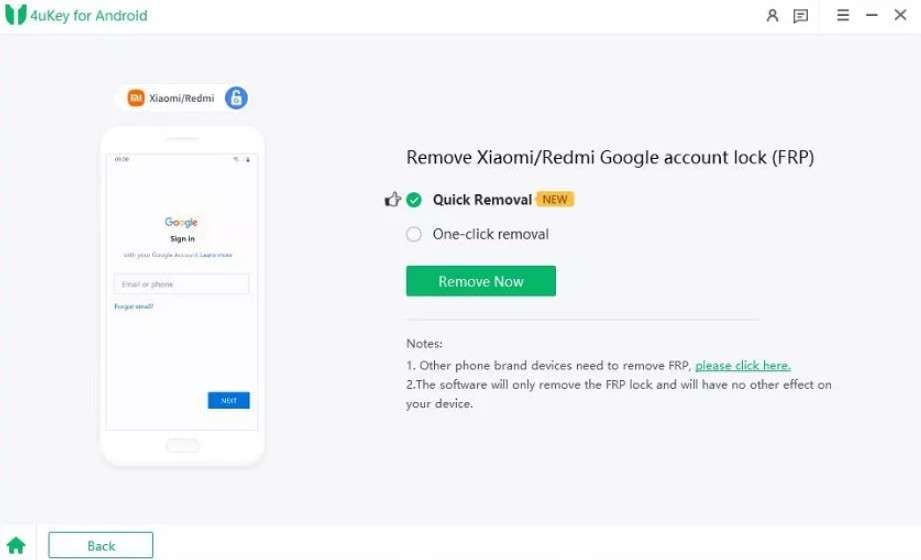
Step 2 Now, pick a brand (Xiaomi/Redmi) and select a “Quick/One-click” removal method.
-
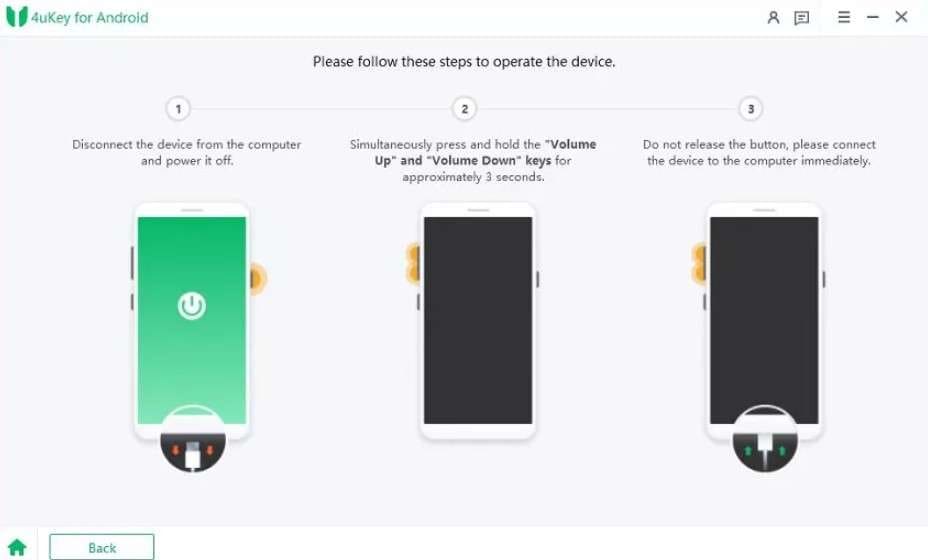
Step 3 Once the tools install the driver as you opt for the Quick method, follow the given instructions, and the tool will bypass the FRP lock easily.
3. iMyFone LockWiper Android
Ease of Use: Requires manual driver installation and complex, multi-step navigation.
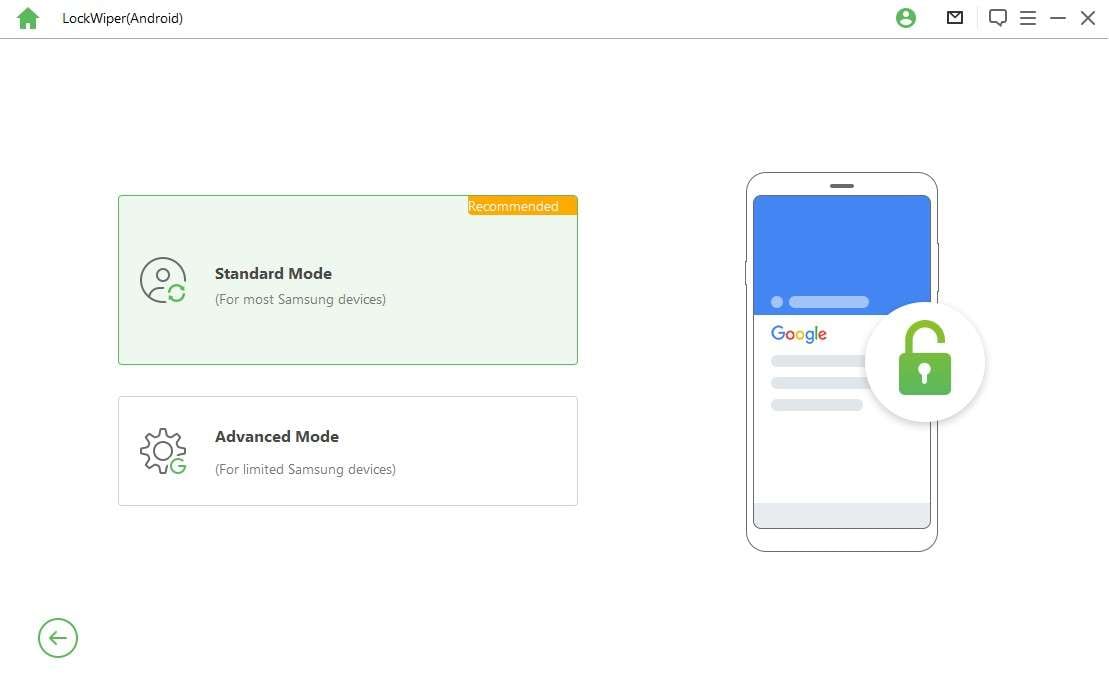
As you are learning how to use the FRP Android unlock tool safely, you can use this tool too and bypass FRP from 3-4 brands. In addition, from Android 2.3 to Android 15, this tool supports all versions, but support for Android 16 is not a concern. Regarding usage, it offers 2 modes: Advanced and Standard, with Advanced suitable for Samsung devices.
Key Features
- Standard Mode unlocks devices quickly without changing Android; use it when Advanced Mode lacks device support.
- Being accessible only on Windows 11/10/8.1/8/7, leverage the FRP removal option on 1 device only.
- With Advanced Mode, Samsung devices upgrade the Android version to the latest after the unlock process.
How to Use iMyFone LockWiper Android 11/12 [Standard Mode]
Before you explore how to unlock an Android phone fast with this tool, we must say that using its Standard Mode was not easy at all. Still, we tested this tool to bypass FRP for Android 11/12, and the guide is given below:
-
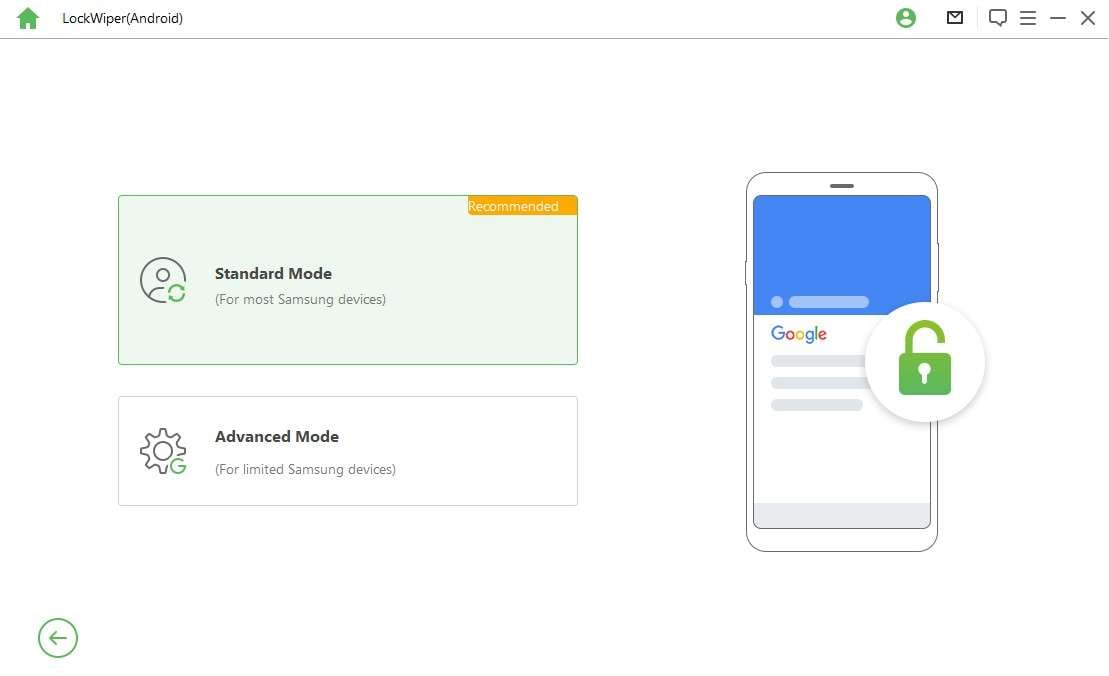
Step 1 As you choose the “Remove Google Lock(FRP)” option, tap on “Standard Mode.”
-
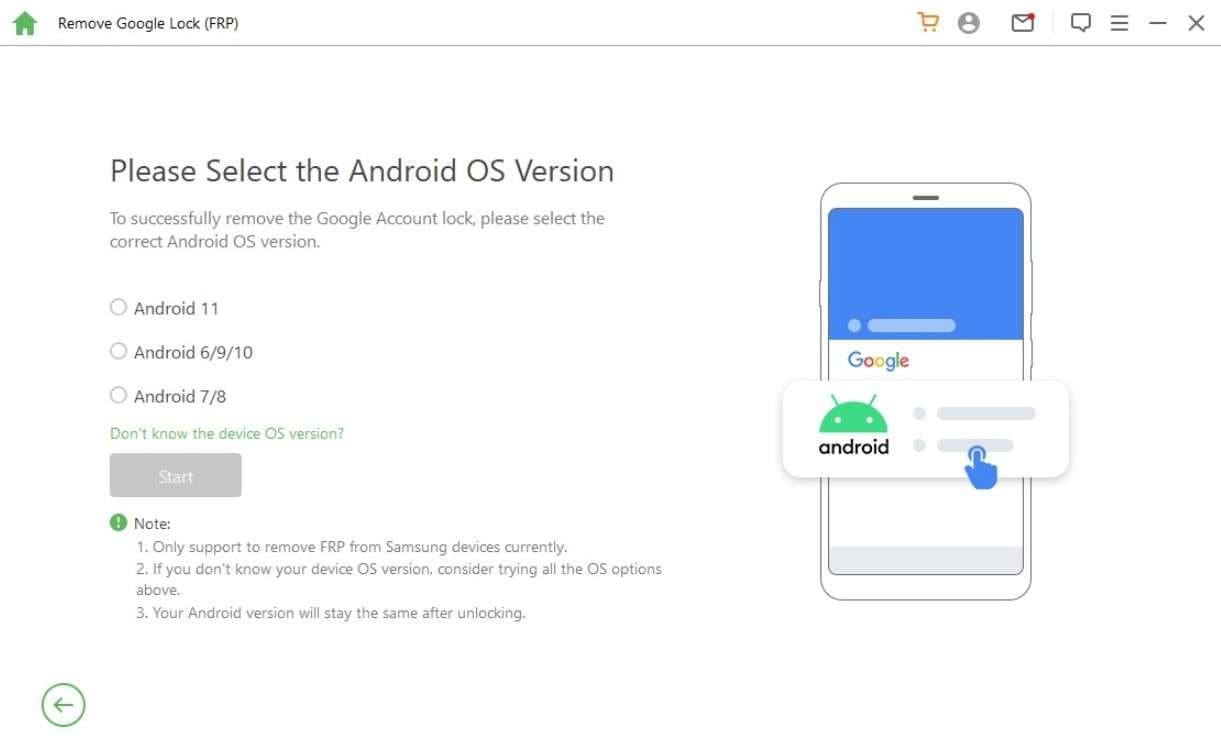
Step 2 After that, choose the Android 11 or 12 versions from the list; no need to connect the device to the tool.
-
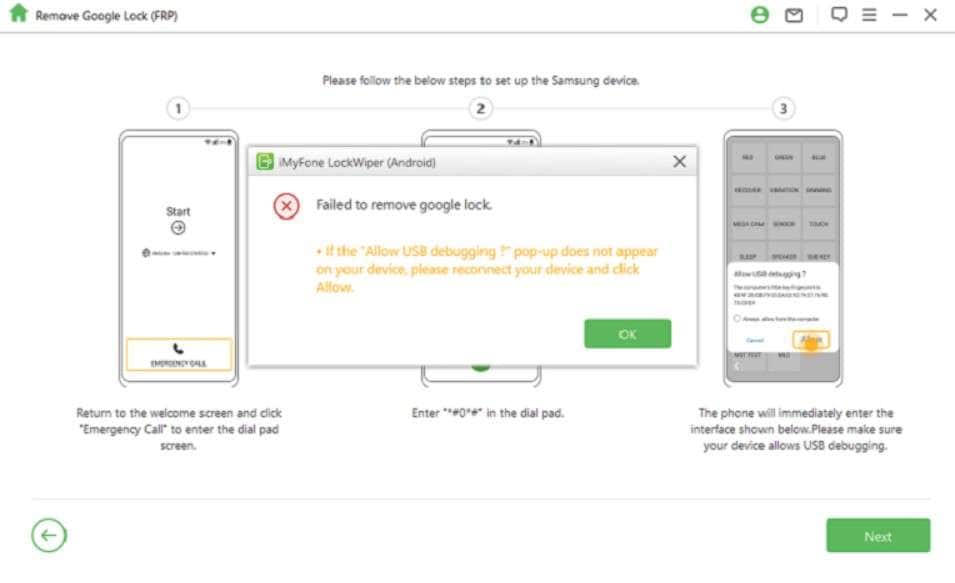
Step 3 Then follow the instructions to access the Samsung Diagnostics menu after enabling USB debugging. If USB debugging fails, connect the device and manually download the Samsung USB driver and install it yourself.
-
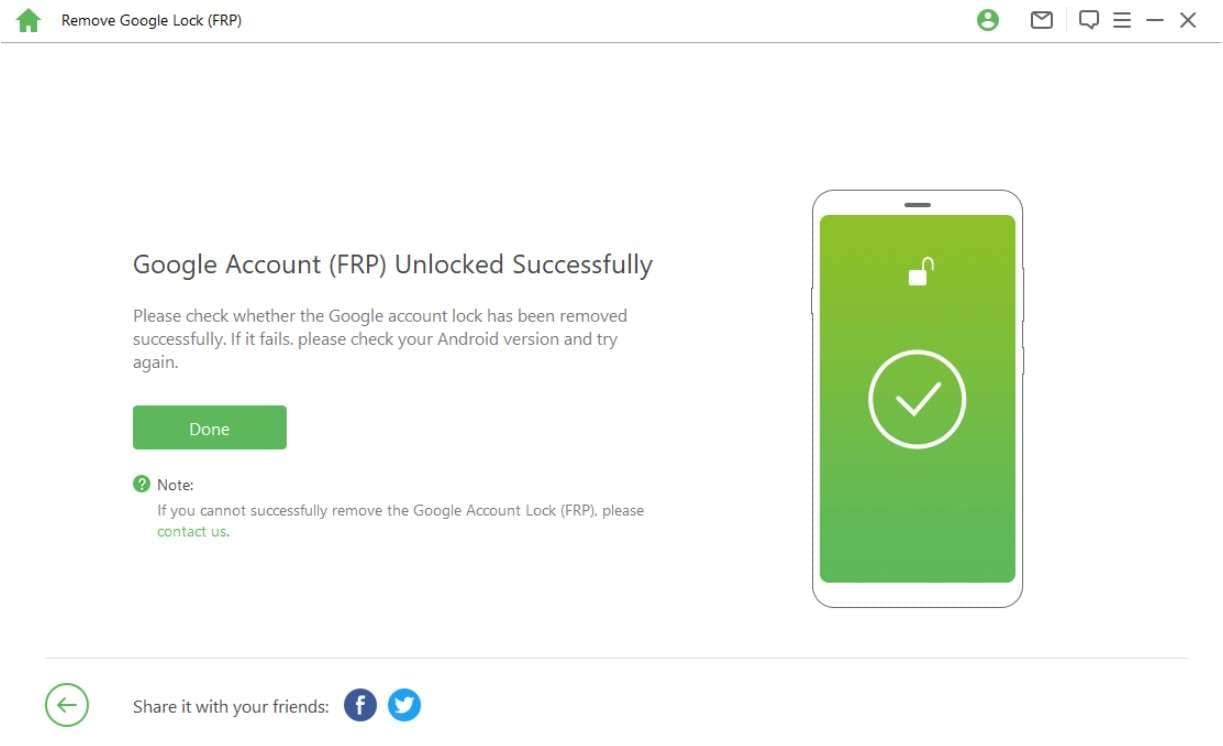
Step 4 The tool will start bypassing FRP, and you might notice the screen is blinking after removal. Later, restart the device, and when the lock is removed, tap “Done” on the tool.
4. PassFab Android Unlocker
Ease of Use: Simple, quick removal process, but requires multiple retries to succeed.
Using this FRP bypass tool for Android, you can remove the lock from 9 brands. It is compatible with Android 6-13 and MIUI 10-14 on Xiaomi and Redmi devices. For OnePlus devices, it supports Android 6-16, and Android 10/11/12 for Vivo. Moreover, new updates include Samsung models such as Galaxy S24, S24 Ultra, and S25 Edge, running Android 16/15/14/13/12/11/10/9/8/7/6.
Key Features
- The tool supports major Samsung US Versions and chipsets, but limits support for Android 16.
- Xiaomi and Redmi users can use 2 different methods to bypass FRP, depending on their preferences.
- Comes with a detailed guide, but failed attempts can affect the success rate.
PassFab Remove Xiaomi/Redmi FRP Unlock Guide
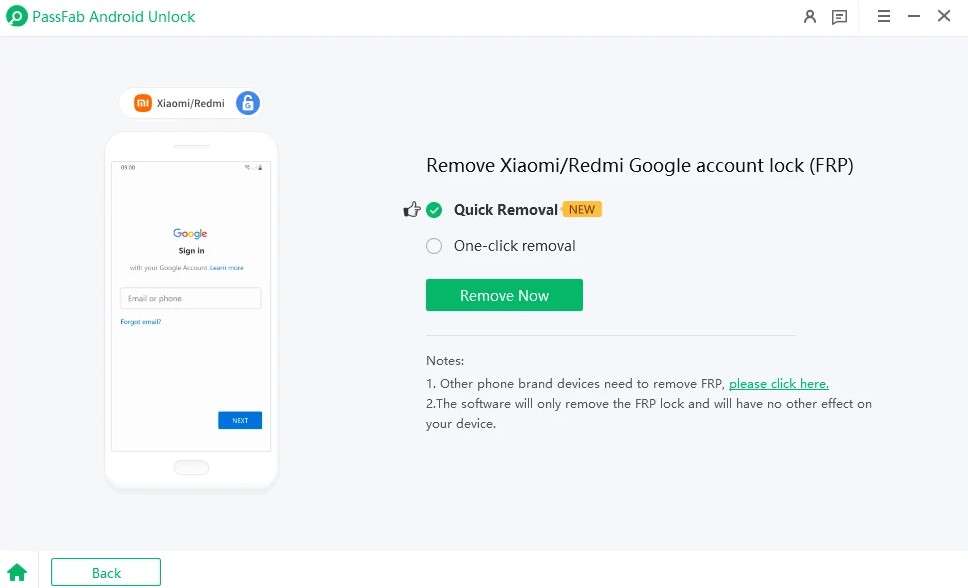
Like all other tools, we tested its success rate for Xiaomi and Redmi devices and used its “Quick Removal” method. To know if it's the best Android unlock software 2026, adhere to the given FRP bypass steps:
-
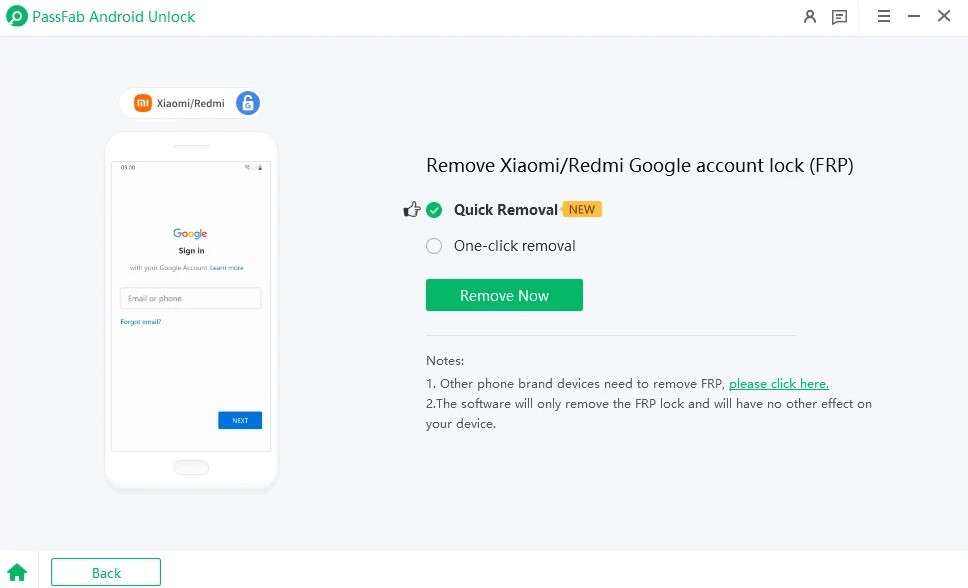
Step 1 After choosing the “Remove Google Lock(FRP)” option, choose the brand, and opt for the “Quick Removal” method.
-
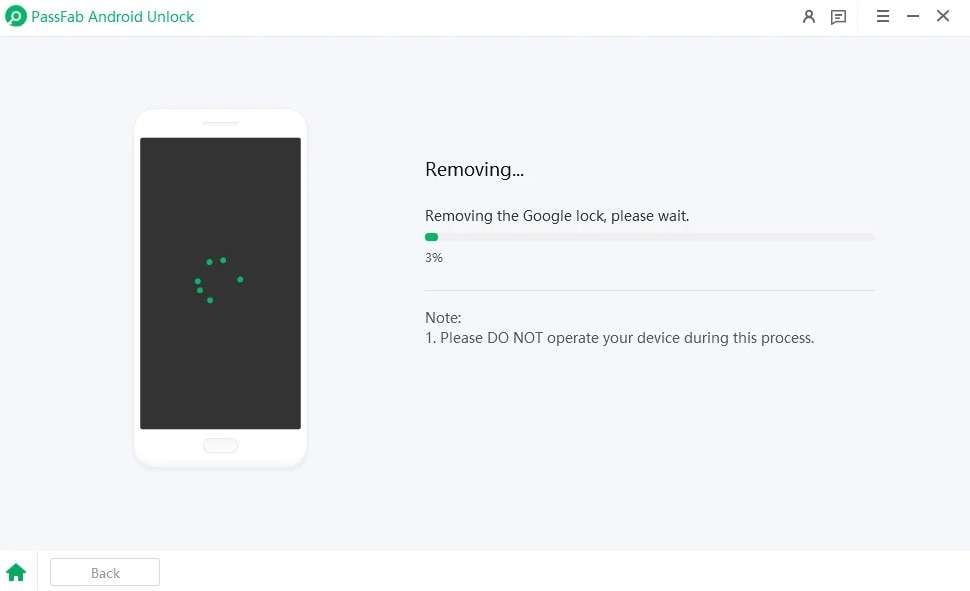
Step 2 As the tool installs the drivers, follow the on-screen instructions and wait until the tool shows the “Removing” progress bar. Once it completes, select the “Done” button, or retry if it fails.
5. UnlockGo Android Tool
Ease of Use: Requires multiple manual attempts to enter Fastboot mode for success.
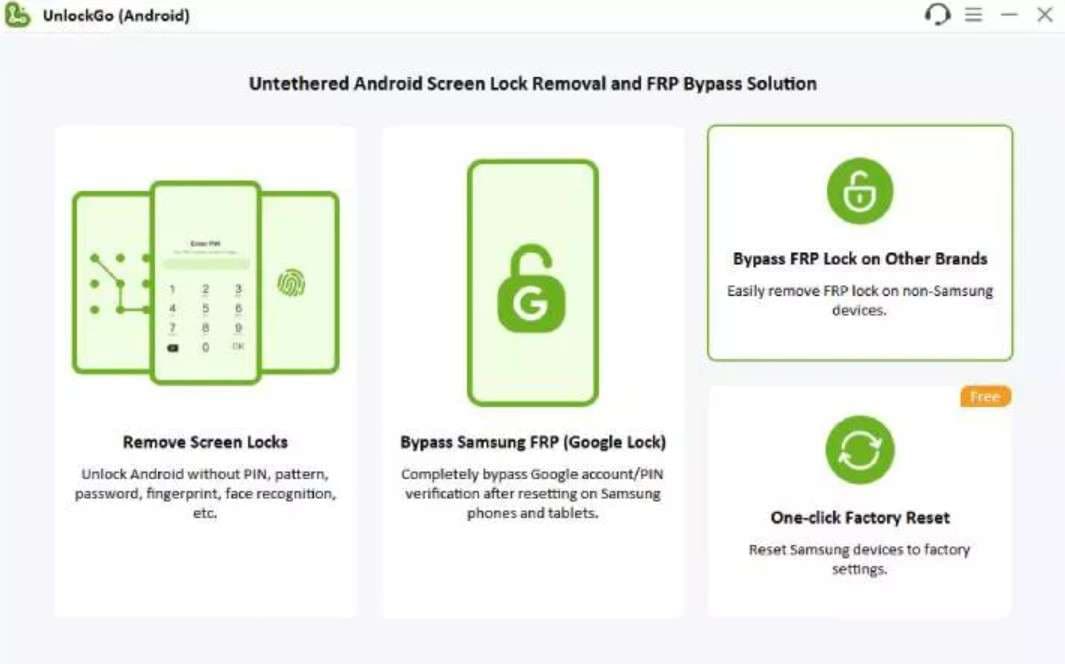
While you are choosing the best FRP Android unlock tool, UnlockGo is another option that removes FRP from 11 brands. In addition, it can support Samsung phones and tablets running Android 5-16, and the vendor claims a higher success rate. Other than Samsung, it is compatible with MIUI 10-14, ColorOS 2.1-16, and Android 5.0 and later on Micromax and Lenovo devices.
Key Features
- Unlike other tools, it features separate tabs to bypass FRP from Samsung and non-Samsung devices.
- Compatible with USA Models and Qualcomm Snapdragon devices for Samsung FRP removal.
- Accessible on Windows and Mac, and automates the exploit process.
FRP Removal from Xiaomi/Redmi Devices with UnlockGo
In our Android FRP unlock tool comparison, get to know the success rate of this tool via the mentioned evaluation guide:
-
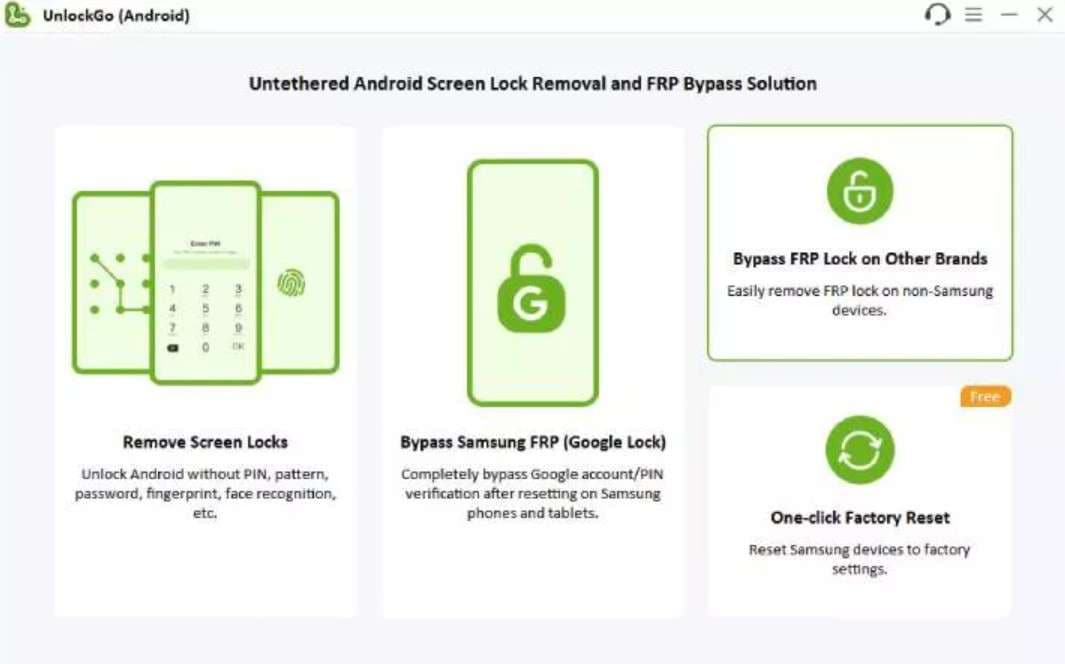
Step 1 Choose the “Bypass FRP Lock on Other Brands” option in the tool, then select the brand as you connect devices.
-
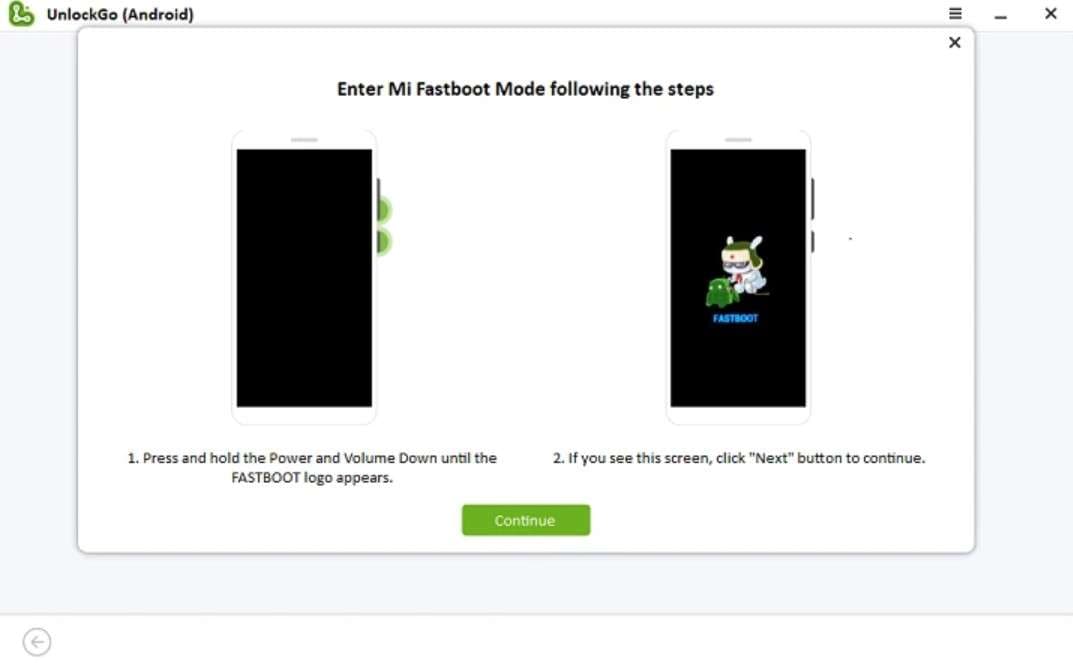
Step 2 On the new interface, select the “1 Click to Bypass Xiaomi/Redmi FRP” option, then enter Fastboot mode using the provided instructions.
-
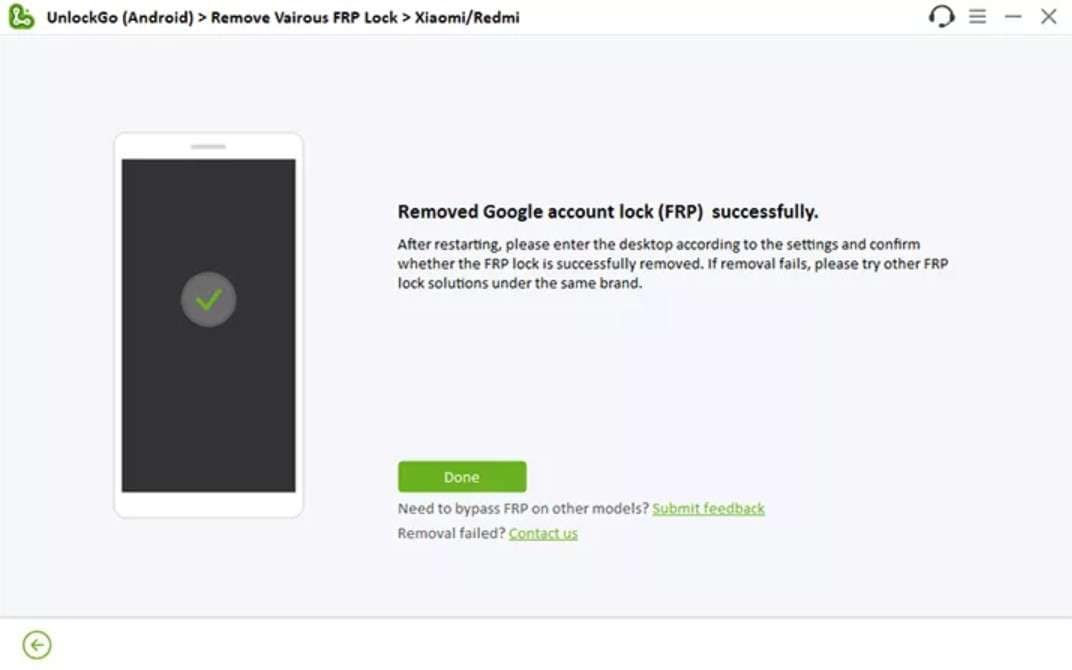
Step 3 After some attempts and given instructions, your Xiaomi/Redmi should be restarted without Google account verification. You have to choose "Done" to end the process.
Part 3. FRP Android Unlock Tool Comparison: Features, Tools & Performance Breakdown
| Metrics | Dr.Fone Screen Unlock | Tenorshare 4uKey for Android | iMyFone LockWiper Android | PassFab Android Unlocker | UnlockGo Android Tool |
|---|---|---|---|---|---|
| FRP Brand Coverage | 12 major Samsung + other key brands | 9 brands, especially Samsung, and popular models | 4 brands, mainly Samsung/Xiaomi, and a few | 9 brands, mainly newer Samsung flagships | 11 brands, Samsung + several Chinese brands |
| Supported Android (FRP) | Broad, including the latest versions, like Android 16. The first tool to introduce one-click FRP removal for Samsung Android 16. | Broad, up to the latest Android releases | Good, but version‑dependent | Good on recent Samsung versions | Broad, supports recent Android versions |
| FRP Unlock Success | 100% Success rate, very high on supported models | Very high on supported models | Solid but clearly device‑limited | High but more model‑sensitive | High on the listed supported models |
| Ease of FRP Use | Very simple wizard, clear on‑screen steps | Simple guided FRP flow | Clear, but more options to pick | Straightforward but less polished | Clear, but more options to pick |
| FRP Requirements | Just PC + USB; device‑specific steps guided | PC + USB; some manual steps on certain brands | PC + USB; may need more user input | PC + USB; often needs extra manual steps | PC + USB; some models require extra steps |
| Extra FRP Utilities | Online FRP methods + AI‑style guidance + various FRP bypass techniques | Several FRP modes for different Android versions | Fewer dedicated FRP presets | Mainly one or two FRP procedures | Multiple FRP modes (brand/version based) |
| License/Device Limit (FRP) | 1-5 mobile devices + 2 PCs | 1 PC, 5 Mobile Devices | 1-5 mobile devices, with no PC support. | Use for 5 mobile devices with 1 PC | 1-5 devices and 1 PC |
| Best Suited For | Users want the most reliable, easy FRP tool across many brands | Users mainly handling Samsung + popular phones | Users with a few specific, supported models | Users with newer Samsung models and basic needs | Users handling FRP on several common brands |
Part 4. Why Users Prefer Dr.Fone FRP Unlock Over Competitors
Based on the usage and comparison, we think that Dr.Fone is the foremost FRP bypass tool for Android. This is because the tool not only supports more Android brands but also offers AI-powered and online FRP bypass with a 100% success rate. Additionally, it uses secure, encrypted protocols that ensure the device's firmware remains stable, and FRP method selection is seamless, unlike other tools.
The interface is designed for beginners, providing clear, step-by-step visual guides that remove the guesswork from the process. Compared to others, it includes extensive, specialized modules for Qualcomm, MTK (MediaTek), and Exynos chipsets. With all these capabilities, the driver setup is automated with zero bricking risk, and FRP bypass time in ~2–5 Minutes.
What Users Say

I took the time to use an EDL cable on my S22 Ultra, but it removed the FRP lock.
jaxon
I used Dr.Fone to remove FRP on a Galaxy S9 locked to an old Gmail account; the first PC failed, support helped, and a new laptop worked.
Willem Herpels
Conclusion
Summing up, if you are looking for the best FRP Android unlock tool, this comprehensive guide has compared 5 options for you. In this regard, we have highlighted the key aspects and usage guide to help you make the right choice.
Of all the reviewed FRP tools, we think Dr.Fone - Screen Unlock (Android) is the right option, as it offers broad brand coverage and its automated one-click bypass ensures a seamless experience. Being the pioneer in introducing FRP bypass for Samsung Android 16, use this tool if you prefer a user-friendly option.
FAQ
-
1. Is it legal to use an Android FRP unlock tool?
Yes, it is legal to unlock your own phone or to have the owner's permission, so you stay safe. However, it becomes illegal on stolen devices or without consent; therefore, always verify ownership before use. -
2. Which is the best FRP Android unlock tool for beginners?
Dr.Fone is the right tool, as it ensures a seamless experience without technical hurdles and includes a detailed guide for each model. Additionally, it handles most of the bypass work and requires less manual effort with clear guidelines if needed. -
3. Can FRP bypass tools unlock any Google‑locked Android phone?
Generally, these tools work on most major brands, but they cannot unlock every single model or chip, as the support varies. However, if you are looking for a tool with massive brand coverage, Dr.Fone allows you to bypass FRP from 12 brands, including Android 16.
 Add Wondershare Dr.Fone as a preferred source on Google