Resolve common problems and system crashes on both iPhone and Android devices.

 100% Security Verified | No Subscription Required | No Malware

 :
: 
 ChatGPT
 Perplexity
 Gemini
 Claude
 Grok
Grok
A bright spot on iPhone screen that stays in the same place can come from pressure on the display, a damaged panel or backlight layer, a pixel defect, or—less often—a software display glitch. The safest first step is to diagnose whether the spot is physical or software-related before trying repairs.
The safest troubleshooting path is to identify whether the spot is physical before trying resets or repair tools. Do not press hard on the bright area; extra pressure can worsen panel damage.
In this article
- Part 1. What a Bright Spot on an iPhone Screen Means (How to Identify & Common Causes)
- Part 2. Troubleshooting and Fixing Bright Spots on iPhone: 9 Fixes
- Fix 1. Clean Dust Around the Screen
- Fix 2. Take a Screenshot to Separate Hardware from Software
- Fix 3. Force Restart Your iPhone
- Fix 4. Update Your iOS Software
- Fix 5. Use iOS System Repair Only for a Software Display Glitch

- Fix 6. Use Solid Color Backgrounds to Detect Pixel Issues
- Fix 7. Change Brightness and Display Settings to Confirm the Pattern
- Fix 8. Reset All iPhone Settings
- Fix 9. Inspect for Physical or Water Damage
- Part 3. Situations Where You Must Replace the iPhone Screen
Part 1. What a Bright Spot on an iPhone Screen Usually Means
A fixed light spot on an iPhone screen that stays in the same place across apps is more consistent with a physical display issue than with a normal iOS feature. Before replacing the screen, rule out simple surface causes such as a tight case, protector bubble, or trapped debris.

| Cause Type | What It Is / Why It Happens | Clues It's the Cause |
|---|---|---|
| Pressure or display-layer damage | Internal pressure or a damaged panel layer creates a fixed bright patch. | Spot stays in one place; often more obvious on light backgrounds; may follow a drop or pressure. |
| Pixel/subpixel defect | One pixel or a small pixel cluster remains unusually bright or the wrong color. | Very small fixed point visible across apps and colors. |
| Battery swelling or internal pressure | An expanding battery or internal component can push against the display. | Screen lifts from the frame, gap appears at the edge, device may feel unusually hot. |
| Liquid or impact damage | Moisture or a drop can damage display layers or connectors. | Spot starts after liquid/impact and may come with flicker, discoloration, or touch issues. |
| Case, protector, dust, or bubble | Pressure or trapped debris changes how light reflects at the surface. | Appearance changes after removing the case/protector and cleaning the display. |
Part 2. Troubleshooting a Bright Spot on iPhone: 9 Safe Checks and Fixes
Use the checks below in order. They begin with diagnosis and low-risk steps, then move to software repair only when the symptom supports a software cause.
Fix 1. Remove Surface Causes First
Remove any tight case and inspect the screen protector for bubbles, trapped dust, or edge pressure. Wipe the display with a soft, lint-free cloth. If the bright area changes or disappears after the protector/case is removed, the display panel itself may be fine.

Fix 2. Take a Screenshot to Separate Hardware from Software
Take a screenshot while the bright spot is visible, then open that screenshot on another phone or computer. If the spot does not appear in the screenshot, the issue is likely in the physical display path rather than the pixels rendered by iOS. If the mark appears in the screenshot too, investigate a software overlay, app, or image/content issue.
Do not press the bright area. Pressing a damaged display can spread pressure damage or make an internal hardware problem worse.
Fix 3. Force Restart Your iPhone
A force restart is reasonable if the mark appeared suddenly with other display glitches, flicker, or an unresponsive interface. It will not repair a physical pressure spot or damaged panel.
- iPhone 8 and later: Press and release Volume Up, press and release Volume Down, then hold the Side button until the Apple logo appears.
- iPhone 7 / 7 Plus: Hold Volume Down and the Side button until the Apple logo appears.
- iPhone 6s, iPhone SE (1st generation), and earlier: Hold Home and the Side/Top button until the Apple logo appears.

Fix 4. Update iOS if the Symptom Looks Software-Related
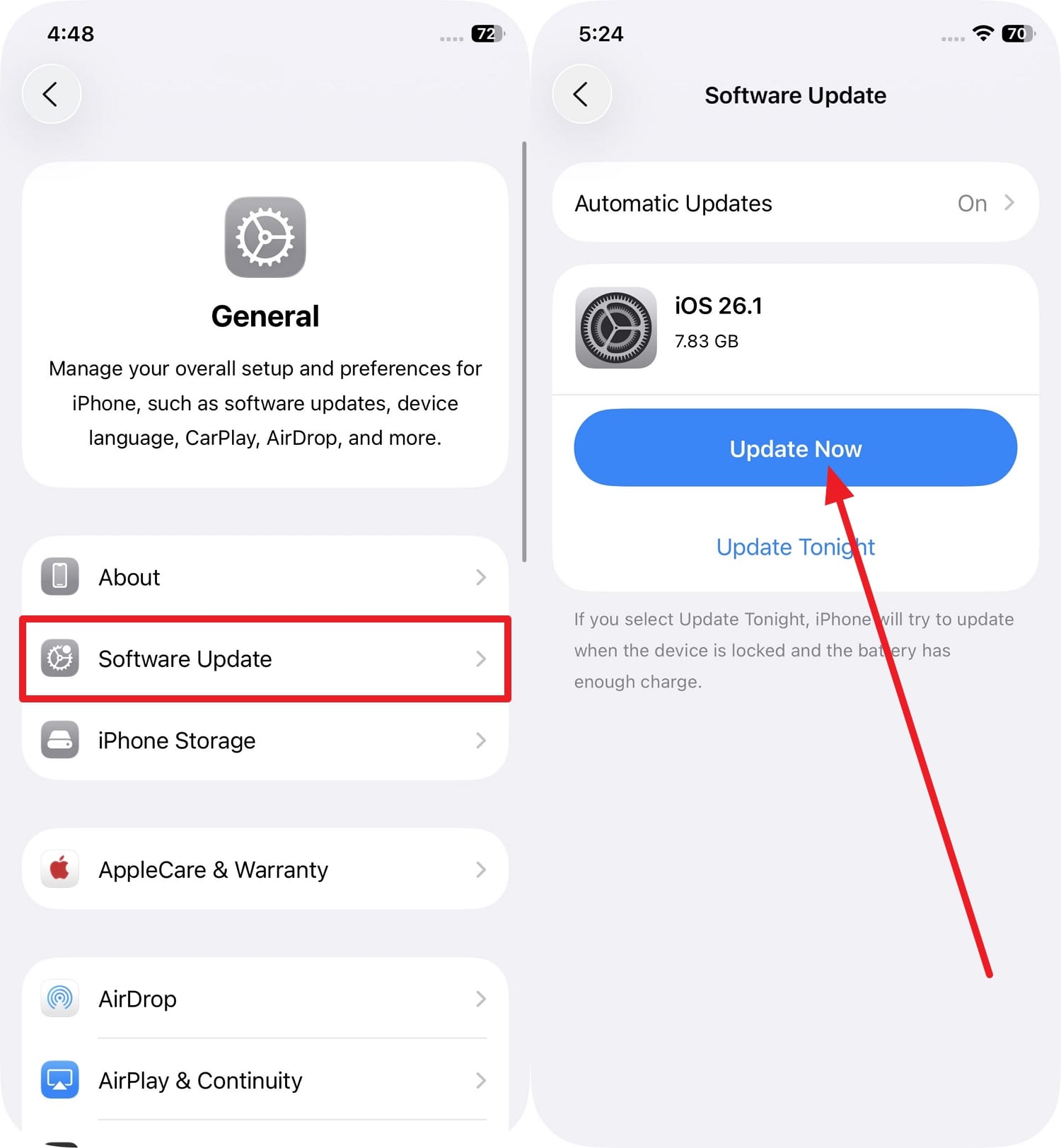
If the bright area started with broader visual glitches and it is not clearly a fixed physical defect, install an available iOS update. Go to Settings > General > Software Update and follow the on-screen update instructions. Back up first when practical.
Fix 5. Use iOS System Repair Only for a Software Display Glitch
If the bright area behaves like a software display glitch—such as appearing together with system crashes, flicker, or other abnormal iOS behavior—Dr.Fone - System Repair (iOS) is an optional guided repair path. It is not a repair for pressure spots, cracked displays, swollen batteries, or liquid-damaged panels.
 Fix iOS issues, no data loss.
- One-click repair for all iOS problems.
- Solve recovery mode, Apple logo, black screen, etc.
- Upgrade or downgrade iOS without iTunes

Use Standard Repair for a software-related display issue
-
Step 1 Choose Standard Repair
Open Toolbox > System Repair, connect the iPhone, choose iPhone > iOS Repair, then select Standard Repair.

-
Step 2 Enter Recovery Mode and download firmware
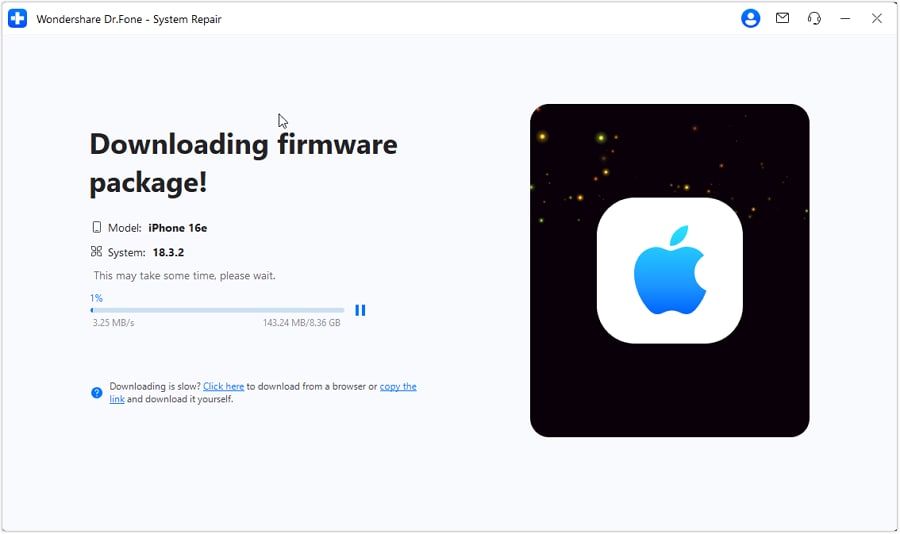
Follow the on-screen Recovery Mode instructions, select a compatible firmware package, and click Download.
-
Step 3 Start the repair
Click Repair Now and keep the iPhone connected until the process finishes. Standard Repair is designed to preserve personal data; Advanced Repair erases data.

Fix 6. Use Solid Colors to See the Shape of the Spot
Open full-screen black, white, red, green, and blue images. A tiny pixel defect, a larger pressure patch, and surface reflection look different against solid colors. If the bright spot stays in exactly the same place and shape across colors, a physical display defect becomes more likely.
Fix 7. Change Brightness and Display Settings to Confirm the Pattern
Raise and lower screen brightness and temporarily disable visual features such as True Tone, Night Shift, or color filters. If the spot remains fixed while the rest of the screen changes normally, the panel itself is more likely to be involved. Avoid flashing “pixel fixer” apps as a repair promise; they cannot fix pressure damage or a damaged display layer.
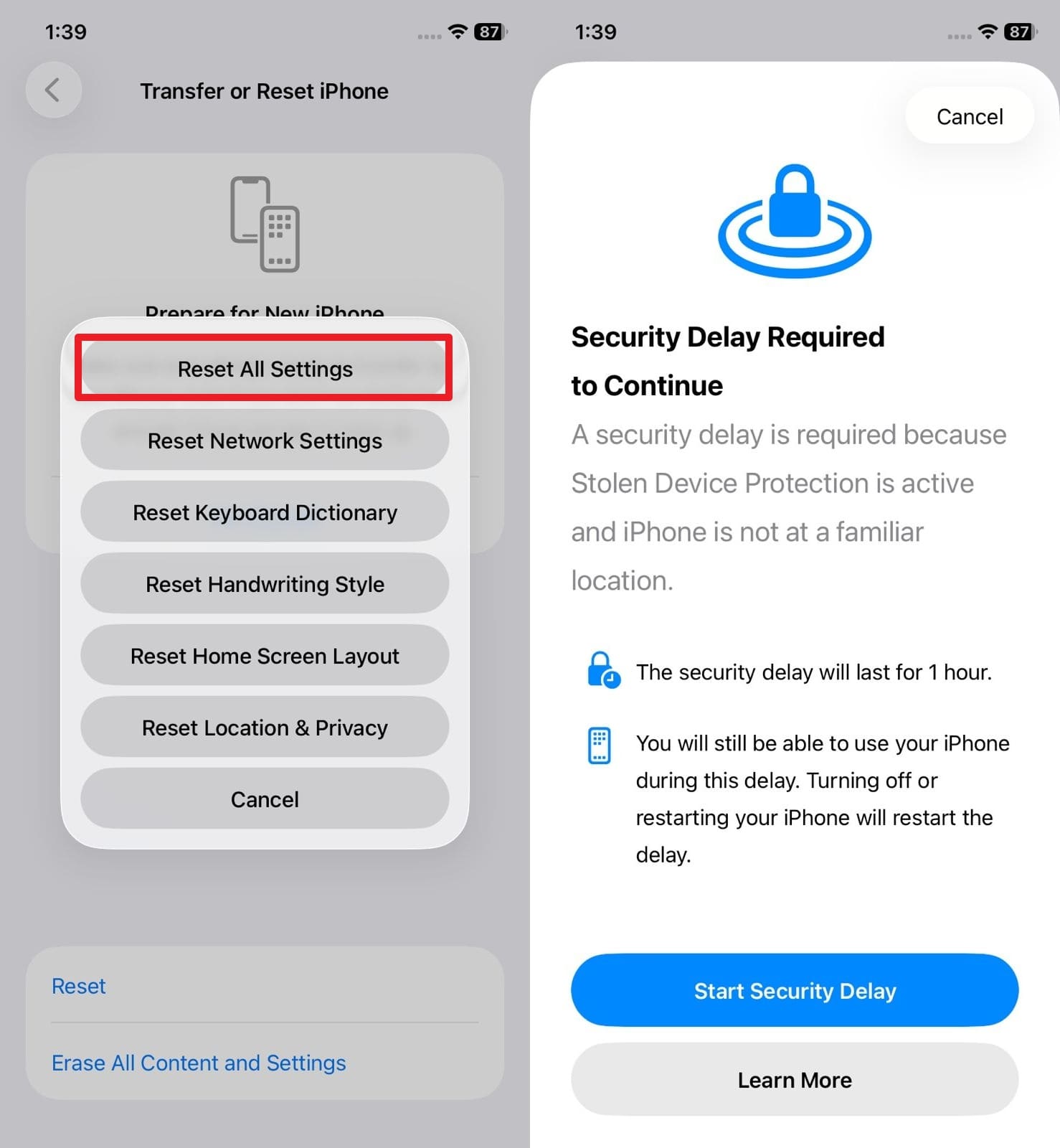
Fix 8. Reset All Settings Only if Software Settings Are Suspected
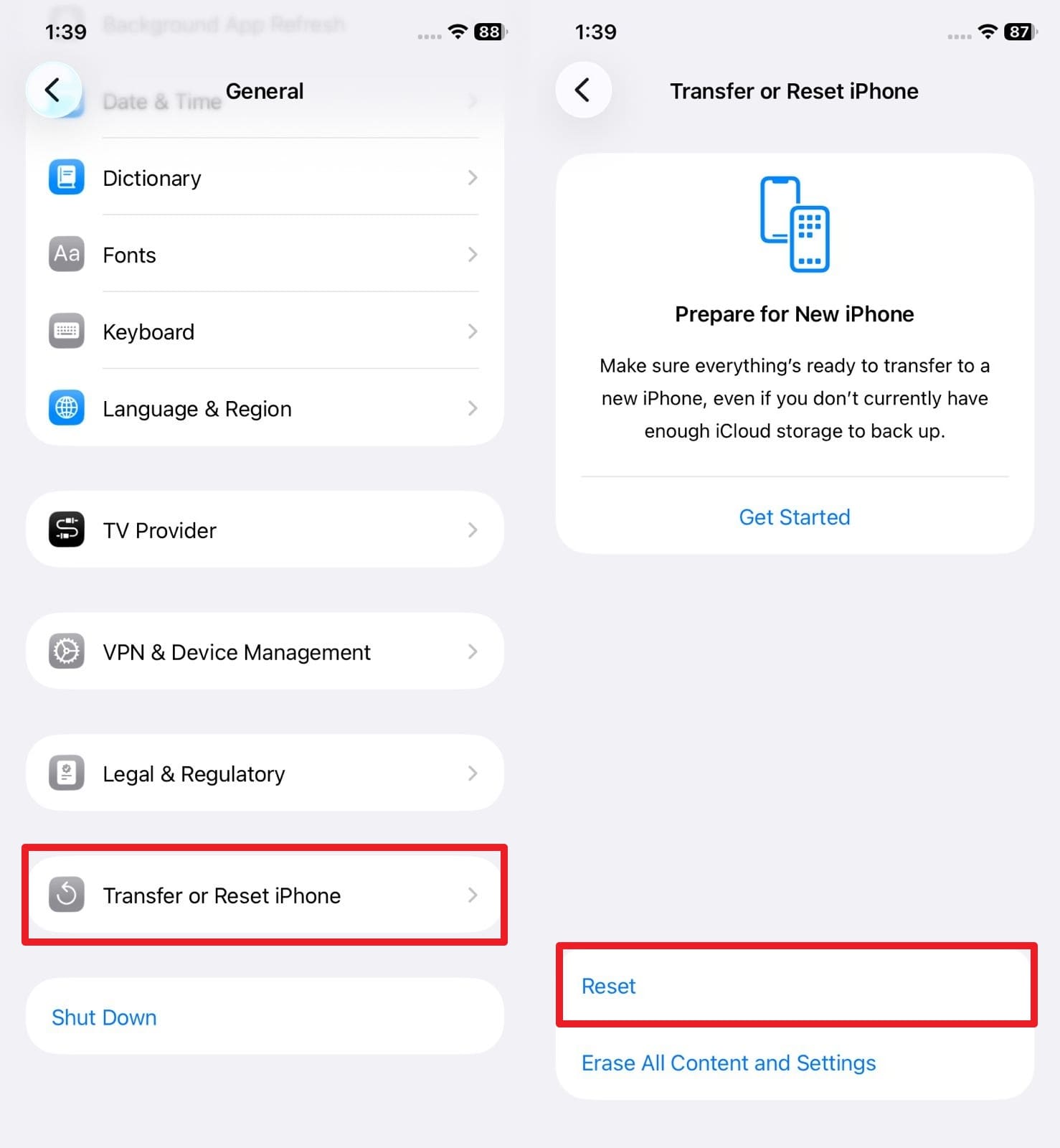
If the screenshot test suggests a software-rendered issue and restart/update did not help, you can reset system settings without deleting photos or apps. Go to Settings > General > Transfer or Reset iPhone > Reset > Reset All Settings. This resets settings such as network, keyboard, privacy, location, and display preferences; it is not a hardware repair.
Fix 9. Inspect for Physical Damage and Arrange Service
Stop software troubleshooting and arrange service if the bright spot on the phone screen is fixed and persistent, follows a drop or liquid exposure, or appears with cracks, touch failure, flicker, frame bending, screen separation, or unusual heat. If the screen is lifting away from the frame, do not press it back down; internal pressure needs professional inspection.
Part 3. When a Bright Spot Usually Needs Screen Service or Replacement
A persistent display-level bright spot often cannot be removed with software. Use the signs below to decide when a screen inspection or replacement is more appropriate.
| Situation | What Happens | Why Replacement Is Needed |
|---|---|---|
| Persistent Bright Spot | Bright spot remains after restarts, updates, and resets. | Indicates permanent hardware damage in the backlight or display pixels. |
| Cracked or Shattered Glass | Glass is visibly broken, chipped, or sharp. | Prevents injury and stops further internal or external damage. |
| Touch Not Responding | Certain screen areas fail to register taps or swipes. | The touch digitizer is damaged and cannot be repaired by software. |
| Large Discoloration | A wide area shows uneven color or brightness. | An LCD or OLED panel failure degrades display quality permanently. |
| Water or Liquid Damage | Blotches, flickering, or bright areas appear after moisture exposure. | Internal display components corrode and become unreliable. |
| Bent or Warped Frame | The phone's body bends, and the screen follows the curve. | Ongoing pressure worsens cracks, bright spots, and panel damage. |
Will Replacing an iPhone Screen Erase Your Data?
A normal screen replacement for a light spot on an iPhone screen does not inherently erase the phone’s internal storage. However, a repair visit can involve additional diagnostics, an erase, or a device replacement in some cases, so back up first whenever the iPhone still works well enough to do so.
If the iPhone cannot be backed up because the display or device has failed, discuss data-preservation options with the repair provider before authorizing work. Dr.Fone - Data Recovery (iOS) may be relevant only for supported recovery scenarios; it does not make a physically damaged screen functional.
Conclusion
A bright spot on an iPhone screen can come from either a temporary display glitch or a physical screen problem, so the key is to identify the cause before choosing a fix. If the spot does not appear in a screenshot viewed on another device and remains in the same position across apps and backgrounds, the issue is more likely related to the display panel, pressure, pixel damage, or another hardware condition.
If the abnormal brightness appears alongside other iOS display glitches and there are no signs of physical damage, you can first try software troubleshooting such as restarting the iPhone, updating iOS, or resetting settings. For suspected iOS system-related display problems, Dr.Fone - System Repair (iOS) can also be considered as an optional system repair method. However, it cannot repair a damaged display panel, pressure-related bright spots, or problems caused by a swollen battery.
If the bright spot is getting larger, the screen is lifting from the frame, touch response is affected, or the issue appeared after a drop or liquid exposure, stop software troubleshooting and arrange professional inspection or screen repair.




 safe & secure
4,624,541 people have downloaded it
FAQs
-
1. Can a bright spot affect iPhone touch response?
A small display-only bright spot may leave touch response normal, but broader impact, liquid damage, or panel damage can affect both the image and touch. If touch is failing near the spot, treat that as a stronger hardware-service signal. -
2. Can a case or screen protector cause a bright spot?
A tight case, protector bubble, trapped debris, or edge pressure can change how the screen looks. Remove the case/protector carefully and clean the surface. If the spot remains fixed under the glass, the cause is more likely internal. -
3. Will a physical bright spot show up in an iPhone screenshot?
A physical display defect normally is not encoded into a screenshot. Take a screenshot and view it on another display: if the mark is absent there, the physical screen path is the more likely cause. If the mark is present in the screenshot too, investigate software or the content being displayed. -
4. Is a bright spot covered by Apple warranty or AppleCare?
Coverage depends on the cause, device coverage, and Apple’s inspection. A manufacturing defect may be handled differently from accidental, liquid, or pressure damage. Check your coverage and have Apple or an authorized provider inspect the device rather than assuming the spot is covered.
 Add Wondershare Dr.Fone as a preferred source on Google