 Resolve common problems and system crashes on both iPhone and Android devices.

 100% Security Verified | No Subscription Required | No Malware

 :
: 
 ChatGPT
 Perplexity
 Gemini
 Claude
 Grok
Grok
It's a common frustration: you search for an official SanDisk repair tool only to find that SanDisk doesn't offer a single, all-in-one solution. In reality, the best repair method depends entirely on the problem you're facing. Your SanDisk USB drive might be corrupted, write-protected, or not showing its full capacity, and each issue requires a different approach.
This guide demystifies the process by presenting a curated mix of Windows' built-in utilities and powerful third-party software. We will explore how these tools can fix file system errors, format stubborn drives, restore lost storage space, and even recover precious data. For users experiencing issues on mobile, we also touch on how an Android data eraser software can help manage your device's storage effectively.
In this article
Part 1. In-Depth Review of the Top 5 SanDisk Repair Tools
Before diving into repairs, it's crucial to understand that each tool serves a distinct purpose. Some excel at formatting and deep-level repairs, while others are built for data recovery. If your goal is SD card recovery for Android, time is of the essence. The five tools below provide a comprehensive toolkit for nearly any issue a SanDisk drive might encounter.
1. SanDisk SecureErase Utility
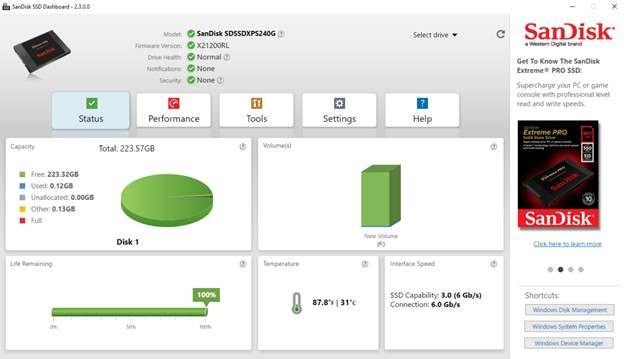
SanDisk SecureErase is an official utility specifically designed to securely wipe supported SanDisk and WD Solid State Drives (SSDs). It functions by clearing the drive's internal mapping tables, effectively erasing all data and restoring the SSD to its original factory performance. The process is executed via a bootable USB, ensuring a complete and secure data wipe that cannot be undone.
Key Features of SanDisk SecureErase
- Utilizes a "Sanitize" mode to wipe all previously written blocks for a thorough cleaning process.
- Compatible with a range of supported internal and external SanDisk and WD SSDs (Black, Blue, Green series).
- Verifies drive compatibility before initiating the erase, minimizing the risk of errors or incomplete wipes.
- Helps restore peak SSD performance by clearing accumulated block data and resetting the drive's internal state.
- Official SanDisk utility ensuring high compatibility and safety.
- Permanently erases all data, maximizing user privacy.
- Simple interface accessible via the SanDisk Dashboard.
- Creates a bootable DOS environment for a secure erase process.
- Only works with specific SanDisk/WD SSDs.
- Not designed for repairing logical file system errors on USB drives.
2. HP USB Disk Storage Format Tool

The HP USB Disk Storage Format Tool is a lightweight and highly effective Windows utility for formatting SanDisk USB drives, especially when Windows' native tool fails. It supports FAT, FAT32, and NTFS file systems, making it excellent for fixing corruption, removing stubborn partitions, and restoring a drive to its full capacity. It's a portable tool that doesn't require installation, making it a go-to for quick and difficult formatting tasks.
Key Features of HP USB Disk Storage Format Tool
- Effectively removes malware by completely erasing and reformatting the drive's contents.
- Automatically detects any connected USB flash drive or SD card for quick selection.
- Allows the creation of FAT32 volumes larger than the standard 32 GB Windows limit.
- Offers both a "Quick Format" for speed and a more thorough standard format option.
- Maintains compatibility with older Windows versions, including Windows XP and Vista.
- Works with USB drives from any manufacturer, not just SanDisk.
- Successfully formats drives that are resistant to Windows' own tool.
- Portable and extremely small, requiring no installation.
- Allows you to set a custom volume label during the format process.
- Does not format internal hard drives or SSDs.
- Lacks support for modern file systems like exFAT.
3. EaseUS Partition Master
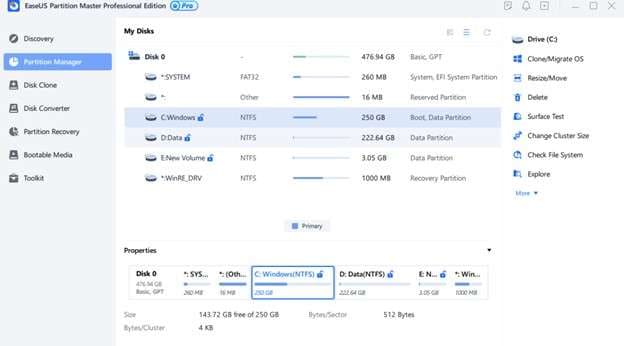
EaseUS Partition Master is a comprehensive disk and partition management software for Windows. It goes far beyond simple formatting, allowing you to resize, merge, and clone partitions. For SanDisk users, it's particularly useful for formatting large-capacity (64GB+) cards to the FAT32 file system, checking for and repairing file system errors, and converting between file systems without data loss.
Key Features of EaseUS Partition Master
- Safely format or wipe partitions, with an option to preview and undo changes before applying them.
- Merge adjacent partitions into a single larger one to simplify storage management.
- Convert partitions between FAT32 and NTFS without losing the data stored on them.
- Includes a "Check File System" tool to scan for and repair bad sectors and other disk errors.
- Supports SanDisk cards up to 256GB and can format them to FAT32, NTFS, or exFAT.
- Can format very large drives to FAT32, bypassing Windows' 32GB limit.
- Intuitive graphical user interface is easy for beginners to navigate.
- Supports large disks up to 8 TB in capacity.
- Offers cloning functionality to back up or migrate your entire OS.
- The free version has limitations on advanced features.
- May display advertisements or prompts to upgrade to the Pro version.
4. DiskGenius
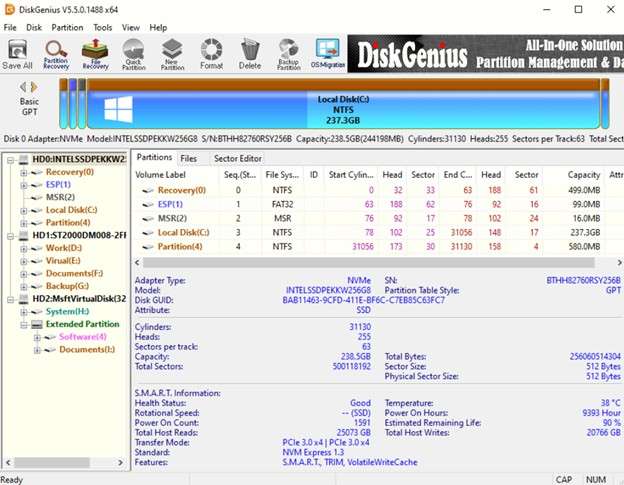
DiskGenius is an all-in-one data recovery and disk management powerhouse. For corrupted SanDisk drives that have become RAW or inaccessible, this is often the first tool to turn to. It can recover lost data from damaged partitions before you format, recreate partition tables, and perform deep scans to repair drive errors. Its compatibility with various file systems like exFAT, NTFS, and EXT4 makes it incredibly versatile.
Key Features of DiskGenius
- Built-in hex editor allows advanced users to view and edit raw disk data at the sector level.
- Partition recovery feature can restore accidentally deleted or lost partitions and their data.
- Can create a bootable USB or WinPE environment to recover data when your OS fails to start.
- Advanced disk cloning and OS migration capabilities for backing up or moving systems.
- Supports recovery from multiple RAID configurations (RAID 0, 1, 5, 6).
- Extremely feature-rich, combining recovery, partitioning, and cloning.
- Capable of handling complex cases like RAID arrays and virtual disks.
- Provides disk health diagnostics like surface tests and S.M.A.R.T. data.
- Trusted and safe, with a clean record from antivirus tests.
- The free version has severe limitations on file recovery size.
- Scans cannot be paused and resumed at a later time.
5. IM-Magic Partition Resizer
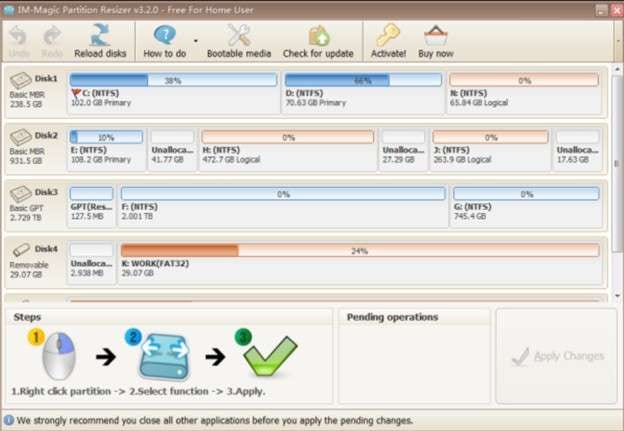
IM-Magic Partition Resizer is a user-friendly Windows application that excels at managing disk partitions with an intuitive drag-and-drop interface. For corrupted SanDisk drives, this tool can be used to repair partition errors and fix damaged disk structures. Its rollback technology adds a layer of safety, allowing you to undo changes if an operation doesn't go as planned.
Key Features of IM-Magic Partition Resizer
- Converts between NTFS and FAT32 file systems without erasing existing data.
- Supports modern Windows versions (up to 11) and works with large disks and RAID arrays.
- Features unique rollback technology to protect your data and undo any problematic changes.
- Allows you to move partitions and reallocate unallocated space freely across the disk.
- Clones entire partitions or disks with a full bit-for-bit copy for backup purposes.
- Supports very large disks (up to 16 TB), making it future-proof.
- Compatible with hardware RAID volumes for complex storage setups.
- Extremely easy to use, even for non-technical users.
- Lightweight application that doesn't consume significant system resources.
- The free edition is limited to basic resizing and moving functions.
- Lacks advanced features like wiping or multi-boot management.
Part 2. Common Issues and Problems with SanDisk Drives
Before attempting a repair, it's essential to diagnose the problem correctly. Different symptoms point to different underlying issues, and understanding them will help you choose the right SanDisk pen drive repair tool. The table below outlines the most frequent problems SanDisk users face and the recommended course of action.
| Issue/Problem | Common Symptoms | Recommended Fix Approach |
|---|---|---|
| Drive Not Showing Full Capacity | A 32GB drive only appears as 8GB or less in the operating system. | Repartition and format the drive using a tool like EaseUS Partition Master to restore full capacity. |
| SanDisk Device Not Recognized | The drive does not appear in File Explorer or Disk Management when plugged in. | Try initializing the drive in Disk Management, or use DiskPart to clean and reformat. |
| Drive Becomes RAW or Inaccessible | Windows prompts you to format the drive upon connection; files cannot be accessed. | First, recover essential data with DiskGenius, then format the drive to a usable file system. |
| "Write Protected" Error | You cannot add, delete, or modify files; the drive is in a read-only state. | Remove the write protection using the DiskPart command 'attributes disk clear readonly'. |
| Drive is Corrupted or Damaged | Files fail to open, frequent I/O errors occur, or the system freezes when accessing the drive. | Run the CHKDSK command to fix file system errors. If that fails, recover data and reformat. |
| Bad Sectors Detected | Reading or writing data is extremely slow, or operations fail with errors. | Use a disk utility with a surface scan feature (like DiskGenius) to check for and mark bad sectors. |
Part 3. How to Repair Corrupted SanDisk Drives: A Step-by-Step Guide
When your SanDisk drive becomes corrupted, always start with the tools already built into Windows. They are safe, easy to use, and can often resolve common file system issues. If these methods fail, you can then proceed to more powerful third-party utilities.
-
Step 1 Use the Error Checking (CHKDSK) Tool
This is the first line of defense for logical file system errors. Connect your SanDisk drive, open File Explorer, right-click the drive, and select 'Properties'. Navigate to the 'Tools' tab and click 'Check' under Error checking. Windows will scan the drive for errors and attempt to repair them automatically.
-
Step 2 Format the Drive in Disk Management
If CHKDSK fails or the drive is still inaccessible, formatting can often solve the problem by creating a fresh file system. Press 'Win + X' and select 'Disk Management'. Find your SanDisk drive, right-click on its partition, and choose 'Format'. Select a file system (exFAT for broad compatibility, NTFS for Windows-only use) and perform a quick format.
-
Step 3 Use DiskPart for Stubborn Issues
For write-protected errors or when formatting fails, the Command Prompt tool DiskPart offers more control. Open Command Prompt as an administrator and type the following commands, pressing Enter after each one:
list disk(Identify your SanDisk drive by its size)select disk X(Replace X with your drive's number)attributes disk clear readonly(Removes write protection)clean(Erases all partition information)create partition primaryformat fs=exfat quick(Or fs=ntfs)
-
Step 4 Turn to Third-Party Repair Tools
If the built-in Windows tools are unsuccessful, it's time to use a dedicated SanDisk flash drive repair tool. Based on your issue, choose one of the utilities from Part 1. For example, use the HP USB Disk Storage Format Tool for stubborn formatting, or DiskGenius to first recover data from a RAW drive before attempting to format it.
Part 4. Where to Securely Download SanDisk Repair Tools
While SanDisk does not offer a single, unified "Repair Tool," you can download a variety of official and trusted third-party applications to address specific problems. Always download software from official sources to avoid malware and ensure you're getting the latest, most stable version.
- SanDisk Dashboard: This is the official software for managing SanDisk/WD SSDs. It is available directly from the Western Digital support site and includes the SecureErase feature for securely wiping drives.
- HP USB Disk Format Tool: This legacy tool can be downloaded from trusted software repositories. It is excellent for formatting SanDisk USB drives that Windows fails to recognize or format.
- EaseUS Partition Master Free: Download this directly from the official EaseUS website. The free version is powerful enough to handle file system repairs, formatting, and partition management.
- DiskGenius: The official DiskGenius site is the best place to download this tool. It is your best bet for recovering lost partitions and data from corrupted drives.
- IM-Magic Partition Resizer Free: Available from the IM-Magic official website, this tool is free for home use and specializes in resizing, moving, and repairing partitions without data loss.
Part 5. Bonus Tip: Fix Android System Issues with Dr.Fone
Sometimes, a SanDisk drive that works perfectly on a computer will repeatedly fail or cause errors when connected to an Android device. In such cases, the problem might not be with the drive itself, but with the Android operating system. System file corruption, software glitches, or driver issues can prevent your phone from properly recognizing external storage.
Dr.Fone - System Repair (Android) is a tool designed to resolve a wide array of Android system issues, including boot loops, black screens, and app crashes, which can indirectly affect external device connectivity. By repairing the core Android system, you can often restore stable and reliable communication between your phone and your SanDisk drives.
 Fix Android instantly – no skills needed.
- Solve boot loop, black screen, won’t turn on, etc.
- High success rate for all system issues.
- User-friendly interface with easy-to-follow steps.

Steps to Use Dr.Fone System Repair (Android)
Follow these straightforward steps to repair your Android system using Wondershare Dr.Fone:
-
Step 1 Launch System Repair
Open Wondershare Dr.Fone on your computer and navigate to the "Toolbox" section. Connect your Android device via USB and select the "System Repair" module to begin.

-
Step 2 Specify Device Type
In the following window, choose "Android" as your device type and click "Start" to proceed. The software will display a list of system problems it can effectively resolve.

-
Step 3 Confirm Device Details
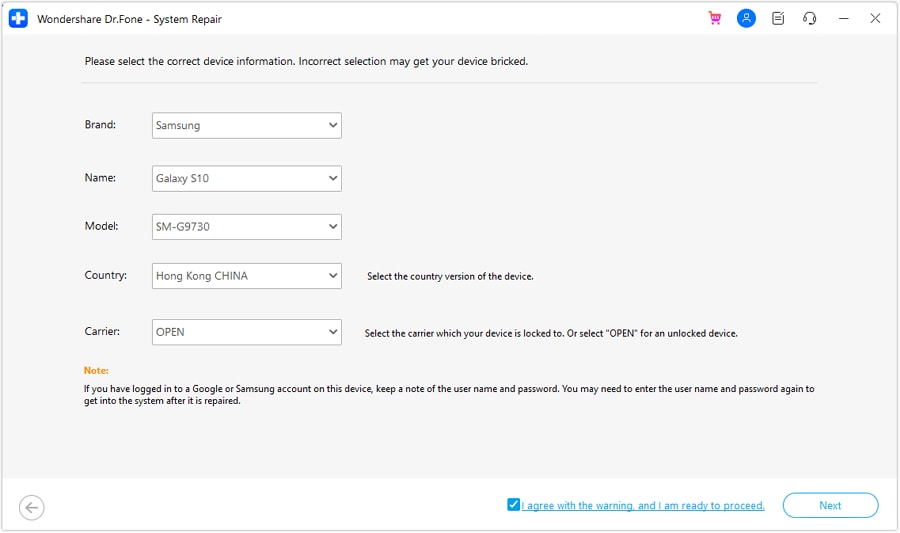
Dr.Fone will attempt to detect your device's brand. You must accurately select the Name, Model, Country, and Carrier from the drop-down menus. For unlocked devices, choose "OPEN" under Carrier. Check the warning box and click "Next."
-
Step 4 Enter Download Mode
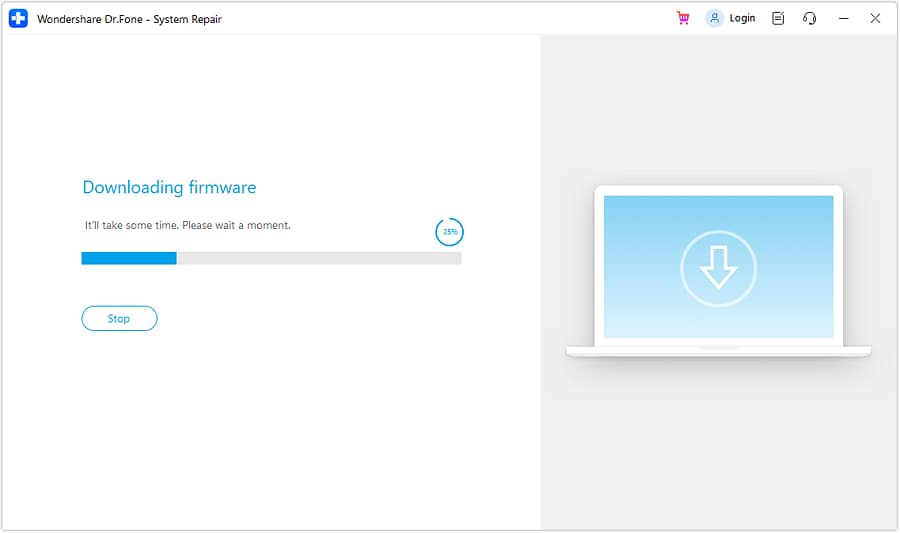
Carefully follow the on-screen instructions to put your Android device into Download Mode. Once in this mode, Dr.Fone will automatically begin downloading the correct firmware package for your specific model.
-
Step 5 Initiate the Repair
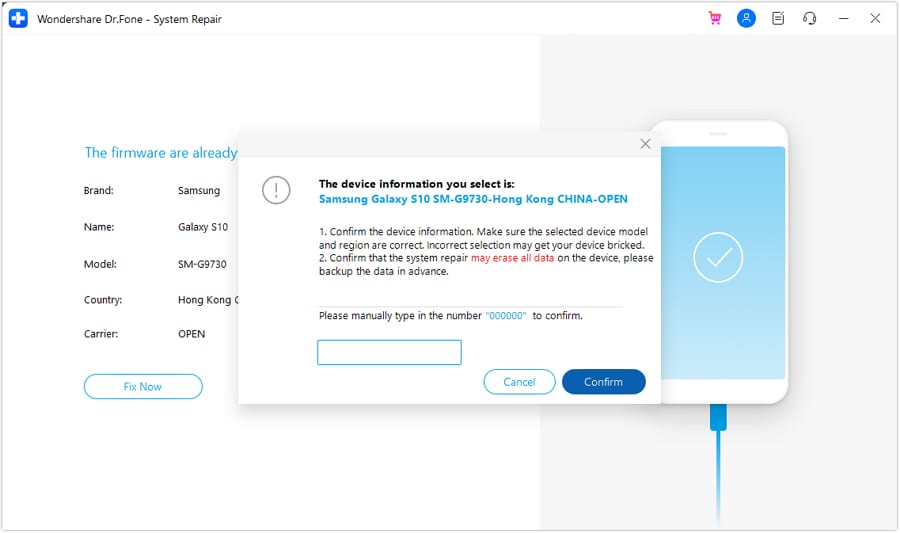
After the firmware is downloaded and verified, click "Fix Now." You will be prompted to enter "000000" to confirm, as this process will erase all data on the device. Ensure you have backed up your data before proceeding.
-
Step 6 Complete the Process
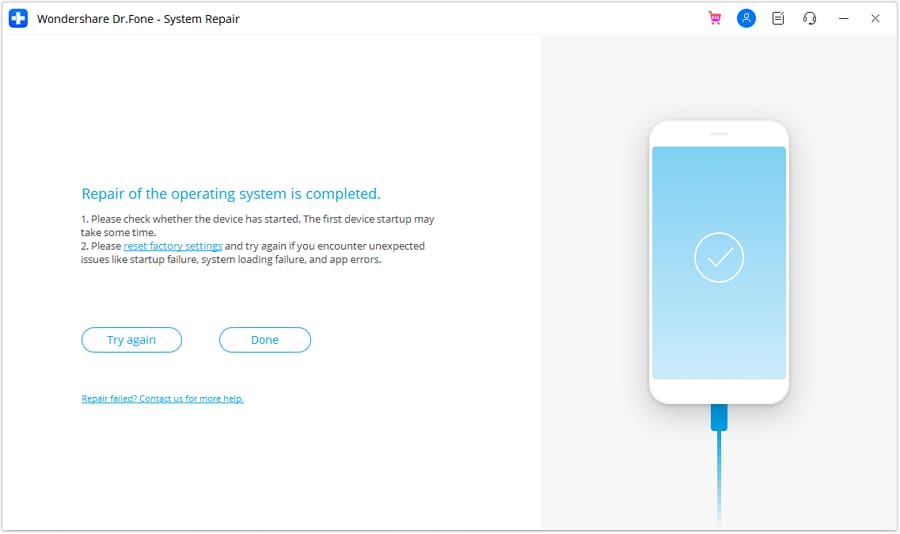
The repair process will begin automatically. Once it is finished, a completion message will appear. Click "Done" to finish. If your device fails to boot correctly, you can use the "Try Again" button to repeat the process.
Conclusion
While there isn't a single official SanDisk repair tool, a powerful arsenal of utilities is available to tackle any issue. From built-in Windows commands like CHKDSK and DiskPart for basic repairs to specialized third-party software like EaseUS Partition Master and DiskGenius for complex formatting and data recovery, you have multiple options to revive a broken or unresponsive SanDisk drive.
Remember to diagnose the problem correctly before choosing your tool. And if your SanDisk flash drive repair tool efforts succeed on a PC but fail on mobile, consider that the root cause might be your phone's operating system. In such scenarios, a dedicated solution like Dr.Fone - System Repair (Android) can restore system stability and resolve underlying connectivity issues.




FAQ
-
1. Can I recover data from a corrupted SanDisk USB drive?
Absolutely. It is critical to perform data recovery *before* attempting any repairs or formatting. Use a specialized data recovery tool like DiskGenius to scan the corrupted drive and save your important files to a different location first. Once your data is safe, you can proceed with formatting the drive to fix the corruption. -
2. How do I fix a write-protected SanDisk flash drive?
The most reliable method is using the Windows DiskPart command-line utility. Open Command Prompt as an administrator, use the 'list disk' and 'select disk' commands to target your SanDisk drive, and then run the command 'attributes disk clear readonly'. This will remove the software-based write protection, allowing you to format or modify the drive. -
3. Why is my SanDisk drive showing the wrong capacity?
This issue, often called the "wrong capacity bug," is typically caused by a corrupted partition table or file system. The drive's controller gets confused and reports an incorrect size. Completely reformatting the drive using a tool like the HP USB Disk Storage Format Tool or EaseUS Partition Master will recreate the partition table and restore the drive to its full, original capacity. -
4. What should I do if the SanDisk repair process fails?
If one tool or method fails, don't give up. Try a different utility from our list, as some tools are better at handling specific types of corruption. For example, if Windows' format fails, try the HP tool. If the drive is still unresponsive after trying multiple software solutions, it may have physical damage. In this case, professional data recovery services or contacting SanDisk support are your last options.
 Add Wondershare Dr.Fone as a preferred source on Google




