Resolve common problems and system crashes on both iPhone and Android devices.

 100% Security Verified | No Subscription Required | No Malware

 :
: 
 ChatGPT
 Perplexity
 Gemini
 Claude
 Grok
Grok

I woke up this morning and my camera app is gone from my home screen. I've searched everywhere but can't find it. What do I do when my camera app disappeared on Android?
Android Community Forum User, 2026
The sudden disappearance of core system apps like the camera is a frustrating experience for many Android users. In 2026, where we rely on our smartphones for capturing memories, scanning QR codes, and social media, a missing camera icon can feel like losing a limb. This issue often occurs on Samsung, Google Pixel, and OnePlus devices following system updates or accidental setting changes.
The good news is that built-in system apps are typically protected from permanent deletion. Whether your camera app disappeared Android because of a launcher glitch, a disabled setting, or a deeper system corruption, this guide provides the most effective, step-by-step solutions to restore your access immediately.
In this article
- Part 1. Why My Camera Icon Disappeared on Android?
- Part 2. Camera Icon Disappeared on Android: Top Fixes
- Fix 1. Check the App Drawer and Hidden Folders
- Fix 2. Re-enable the Camera App in Settings
- Fix 3. Clear Camera Cache and System Data
- Fix 4. Reset App Preferences to Defaults
- Fix 5. Force Restart the Android Device
- Fix 6. Install the Latest Android Security Patches
- Fix 7. Perform a Factory Data Reset
- Part 3. Use Dr.Fone - System Repair for Persistent Glitches
Part 1. Why My Camera Icon Disappeared on Android?
Identifying the root cause is the first step toward a permanent fix. If you are wondering why my camera app is gone, consider these common culprits in the 2026 Android ecosystem:
- Software Bugs & Glitches: Minor errors in the system UI or the third-party launcher you are using can cause icons to vanish temporarily.
- System Updates: A major OS update might relocate system apps or cause compatibility issues that hide the camera icon from the home screen.
- Accidental Disabling: In the App Info settings, it is possible to "Disable" the camera. This removes the icon from the app drawer entirely until it is manually toggled back on.
- App Hiding Features: Many modern Android skins (like Samsung's One UI) allow you to hide apps for privacy. You might have added the camera to this list by mistake.
- Third-Party Security Apps: Parental control software or enterprise management profiles can restrict camera access, causing the app to disappear.
Part 2. Camera Icon Disappeared on Android: Top Fixes
Restoring a missing app icon is usually a matter of toggling the right settings. Follow these verified fixes to find your missing camera.
Fix 1. Check the App Drawer and Hidden Folders
Before assuming a system error, check if the icon was simply moved. Sometimes, users accidentally drag the camera icon into a pre-existing folder like "Google" or "Tools." Use the search bar at the top of your App Drawer and type "Camera." If it appears there, long-press it and drag it back to your primary home screen. Also, check your launcher settings for a "Hide Apps" menu to ensure it wasn't filtered out.
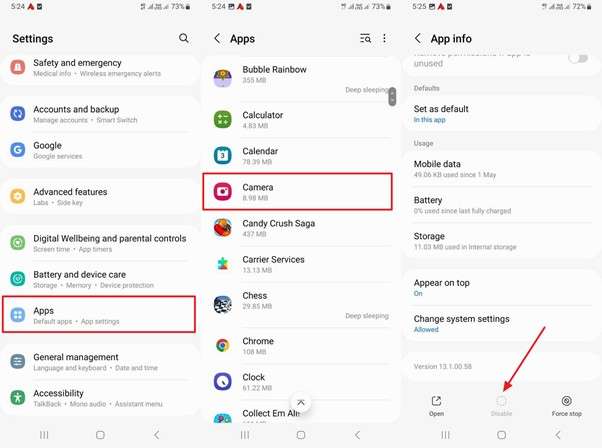
Fix 2. Re-enable the Camera App (if Disabled)
System apps like the Camera cannot be uninstalled, but they can be disabled. When disabled, the app remains on the storage but is completely hidden from the user interface. This is a common reason why my camera app disappeared.
How to check: Open Settings > Apps (or Applications) > See all apps. Find "Camera" in the list. If you see an "Enable" button, tap it. If it says "Disable," then the app is already active, and you should try the next fix.
Fix 3. Clear Camera Cache and Data
Corrupted temporary files can cause the camera app to crash or fail to register with the Android launcher. Clearing the cache refreshes the app's state without deleting your photos.
-
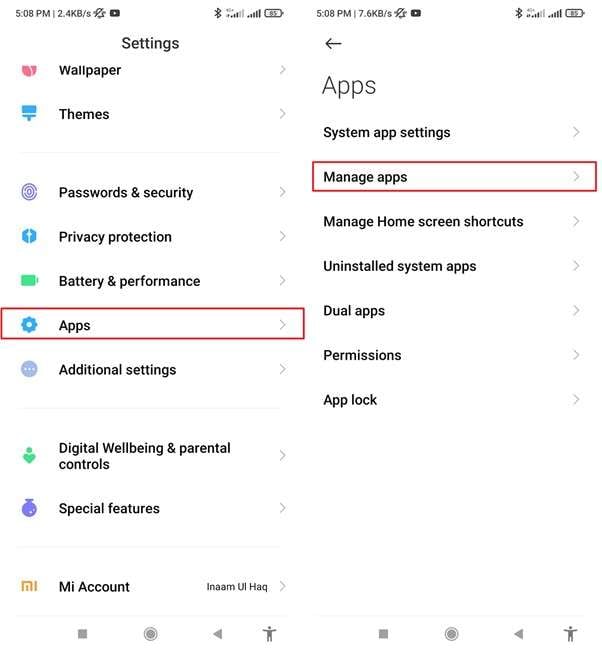
Step 1Navigate to App Management
Open Settings and tap on Apps. Choose Manage apps to see the full list of installed software on your device.
-
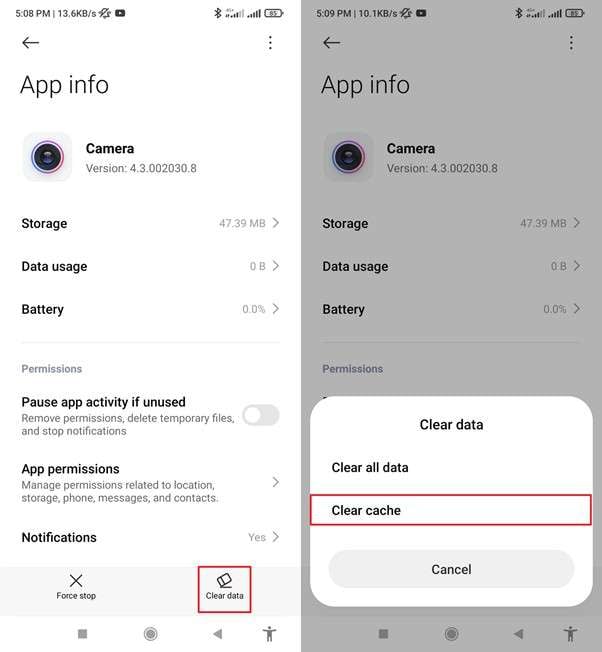
Step 2Clear Cache and Storage
Locate the Camera app. Tap Storage (or Storage & cache), then select Clear Cache. If the icon is still missing, try Clear Data (this resets camera settings but keeps your pictures safe).
Fix 4. Reset App Preferences
If you've changed complex settings or if a third-party app has interfered with system permissions, resetting app preferences can bring the camera back. This action restores all disabled apps, notification restrictions, and default app actions.
-
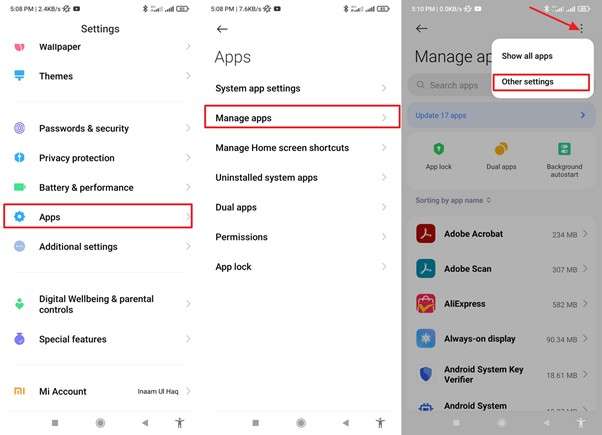
Step 1Access App Settings
In the Settings menu, go to Apps and tap the three-dot menu icon in the top-right corner.
-
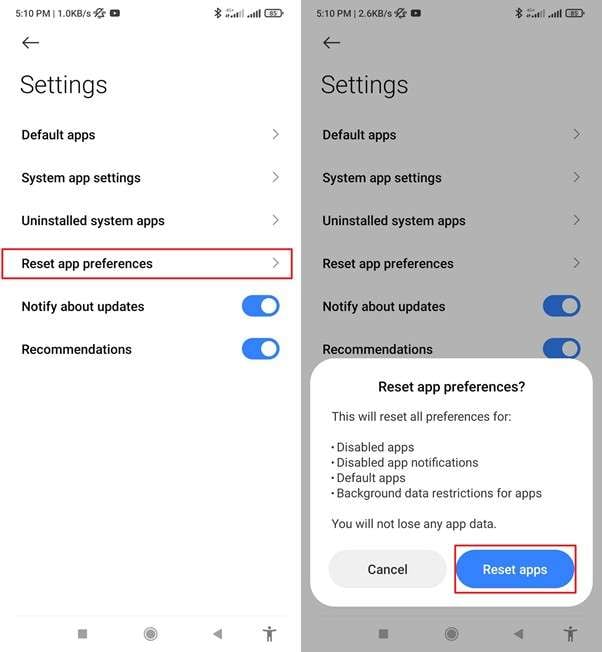
Step 2Confirm Reset
Select Reset app preferences and confirm. Your phone will not lose any data, but hidden system icons will often reappear.
Fix 5. Restart Your Device
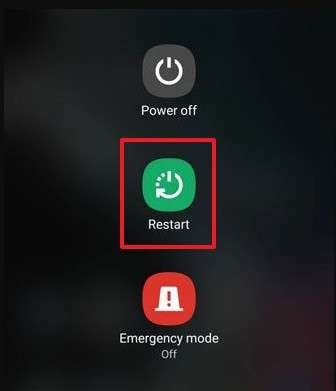
It sounds simple, but a reboot clears the temporary RAM and restarts the system UI. If a background process was preventing the camera icon from loading, a restart will usually fix it. Long-press the Power button (or Power + Volume Up) and select Restart.
Fix 6. Update Android System Software
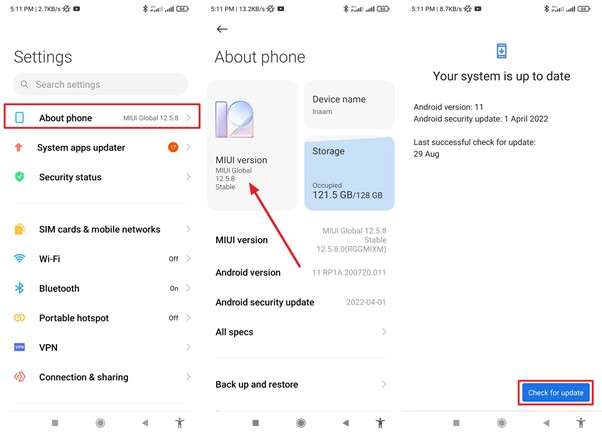
If your Samsung camera app disappeared after skipping several updates, you might be dealing with a known bug that was patched in a newer version. Always keep your firmware current to ensure system apps function correctly.
Go to Settings > Software Update (or About phone > Check for updates). If an update is available, download and install it immediately.
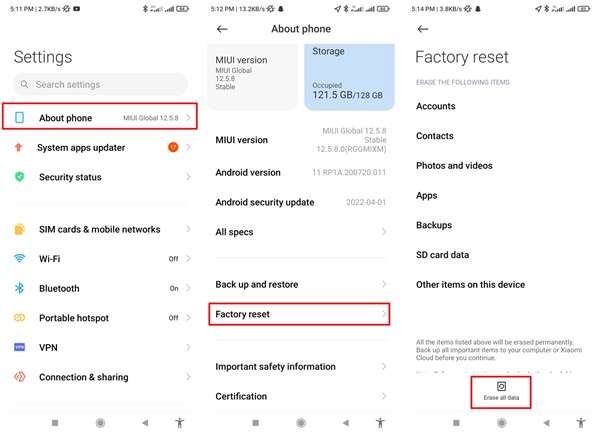
Fix 7. Factory Reset (Last Resort)
If all else fails and the camera app is still missing, a factory reset will return the phone to its original out-of-the-box state. Warning: This will erase all photos, contacts, and messages. Back up your data to the cloud or a PC before proceeding.
Go to Settings > General Management > Reset > Factory data reset. Follow the prompts to wipe the device.
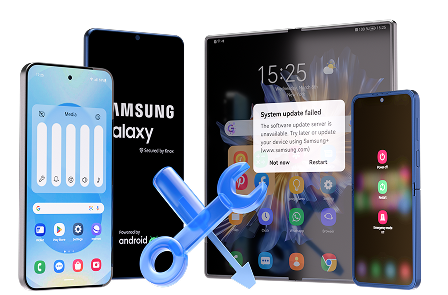
Part 3. Dr.Fone - System Repair (Android) Is the Best Android System Fix Tool
Manual troubleshooting can be tedious and risky. If your camera app disappeared Android because of a deep-seated firmware issue or a failed system update, Dr.Fone - System Repair (Android) is the professional solution you need. It is designed to fix complex system errors that standard phone settings cannot reach, such as the black screen of death, boot loops, and missing system apps.System repair should only be considered when the missing Camera icon remains after checking the App Drawer, hidden-app settings, disabled apps, cache, and software updates, and when the issue appears together with broader Android problems such as repeated crashes, boot loops, black screens, or failed system updates.
Unlike a standard factory reset which might not fix corrupted system files, Dr.Fone downloads and reinstalls the official firmware specific to your device model, ensuring a clean and functional operating system. It supports over 1,000 Samsung models and offers a high success rate for even the most stubborn Android glitches.For supported Samsung devices, Dr.Fone provides a guided Android system repair workflow. For eligible Xiaomi, Redmi, and POCO devices, the available repair workflow is designed to retain user data. Users should confirm device compatibility and review the repair notice before starting.
 Fix Android instantly – no skills needed.
- Solve boot loop, black screen, won’t turn on, etc.
- High success rate for all system issues.
- User-friendly interface with easy-to-follow steps.
Step-by-Step: Restore Your Missing Camera with Dr.Fone
-
Step 1Open System Repair Tool
Launch Wondershare Dr.Fone on your computer and navigate to Toolbox > System Repair.

-
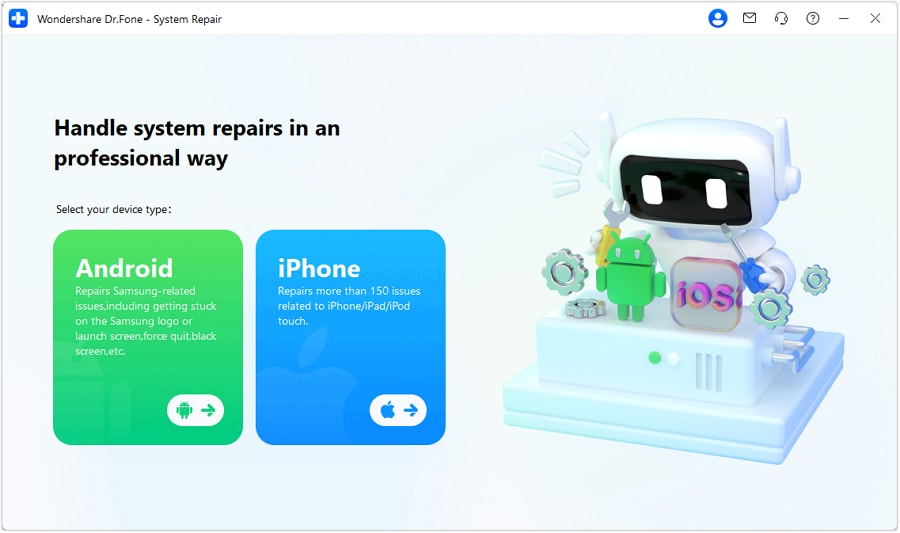
Step 2Connect Your Android
Connect your phone via USB and select Android as your device type to begin the diagnostics.
-
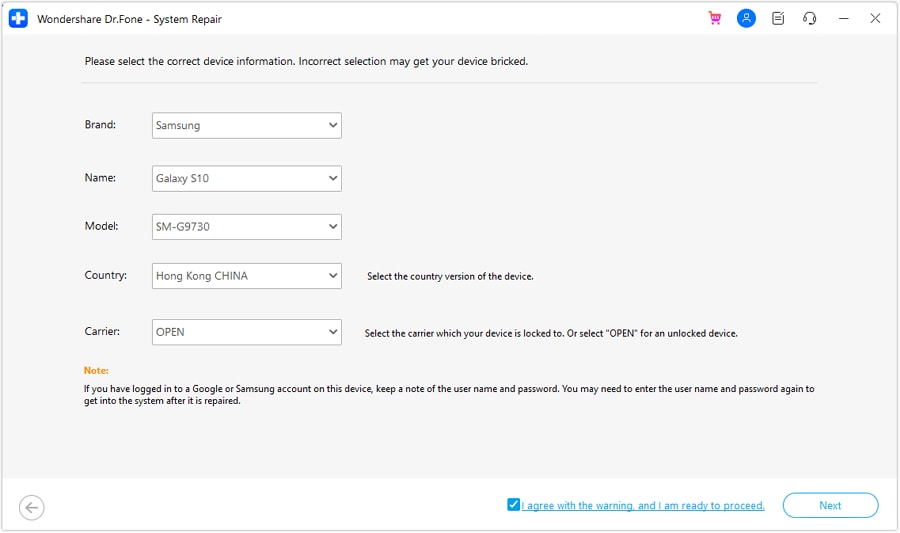
Step 3Enter Device Details
Select your brand, model, and carrier. This ensures the tool downloads the 100% correct firmware for your specific hardware.
-
Step 4Repair and Finish
Follow the on-screen instructions to enter Download Mode. The software will download the firmware and repair the system. Once done, your camera app will be restored to its original location.
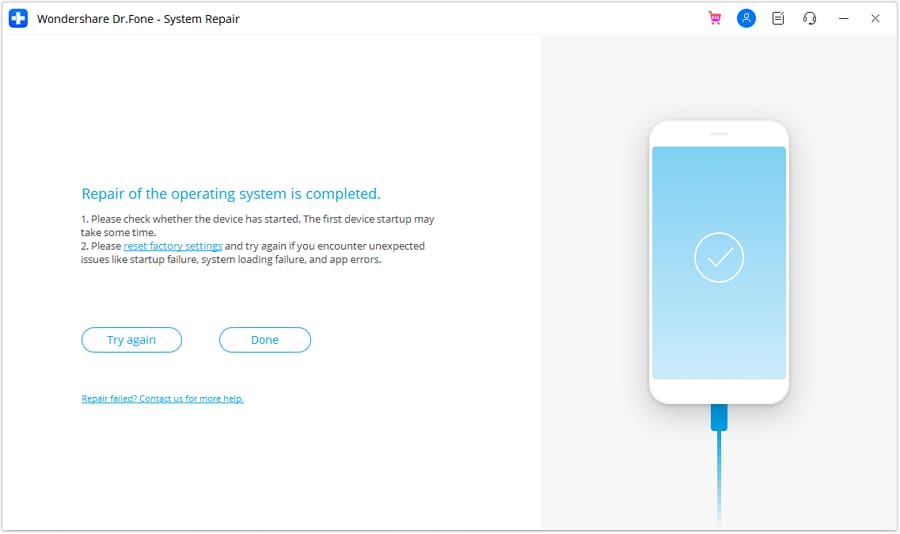
Conclusion
Finding that your camera app disappeared Android can be stressful, but as we've explored, it's rarely a permanent loss. By checking your app drawer, re-enabling disabled services, and clearing system cache, you can resolve 90% of these cases. If the icon remains missing due to deeper OS corruption, Dr.Fone - System Repair (Android) offers a safe and efficient way to refresh your device and restore all missing system features effortlessly.For supported Samsung devices, users can follow a guided repair process for system-level failures. Eligible Xiaomi, Redmi, and POCO devices can use a repair workflow designed to retain user data, while free Recovery Mode, Fastboot Mode, and Download Mode tools are available for entering or exiting Android maintenance environments.


FAQ
-
1. Can the camera app be accidentally deleted on Android?
No, the built-in camera app is a system-level application that cannot be permanently uninstalled by the user. However, it can be disabled in the settings or removed from the home screen grid, making it appear as if it is gone. -
2. Will a factory reset restore my missing camera icon?
Yes, a factory reset returns the software to its original state, which will restore the camera icon. However, it also deletes all user data, so it is highly recommended to use a repair tool like Dr.Fone first to avoid data loss. -
3. Why did my camera icon disappear after an update?
Major Android updates can sometimes cause "system UI" glitches where icons fail to load, or they may move the app to a different folder. Checking for a small follow-up security patch often fixes this. -
4. How do I find my camera if it is in the Secure Folder?
On Samsung devices, if you move the Camera app to the Secure Folder, it may disappear from your main app drawer. Check your Secure Folder settings to see if the app was migrated there for privacy.
 Add Wondershare Dr.Fone as a preferred source on Google