Resolve common problems and system crashes on both iPhone and Android devices.

 100% Security Verified | No Subscription Required | No Malware

 :
: 
 ChatGPT
 Perplexity
 Gemini
 Claude
 Grok
Grok
iOS 27 is officially available, but it may still fail to appear in Settings > General > Software Update. The most common reasons are device compatibility, a launch-day Software Update display issue, beta-channel settings, VPN or network interference, limited storage, or a stalled update check.
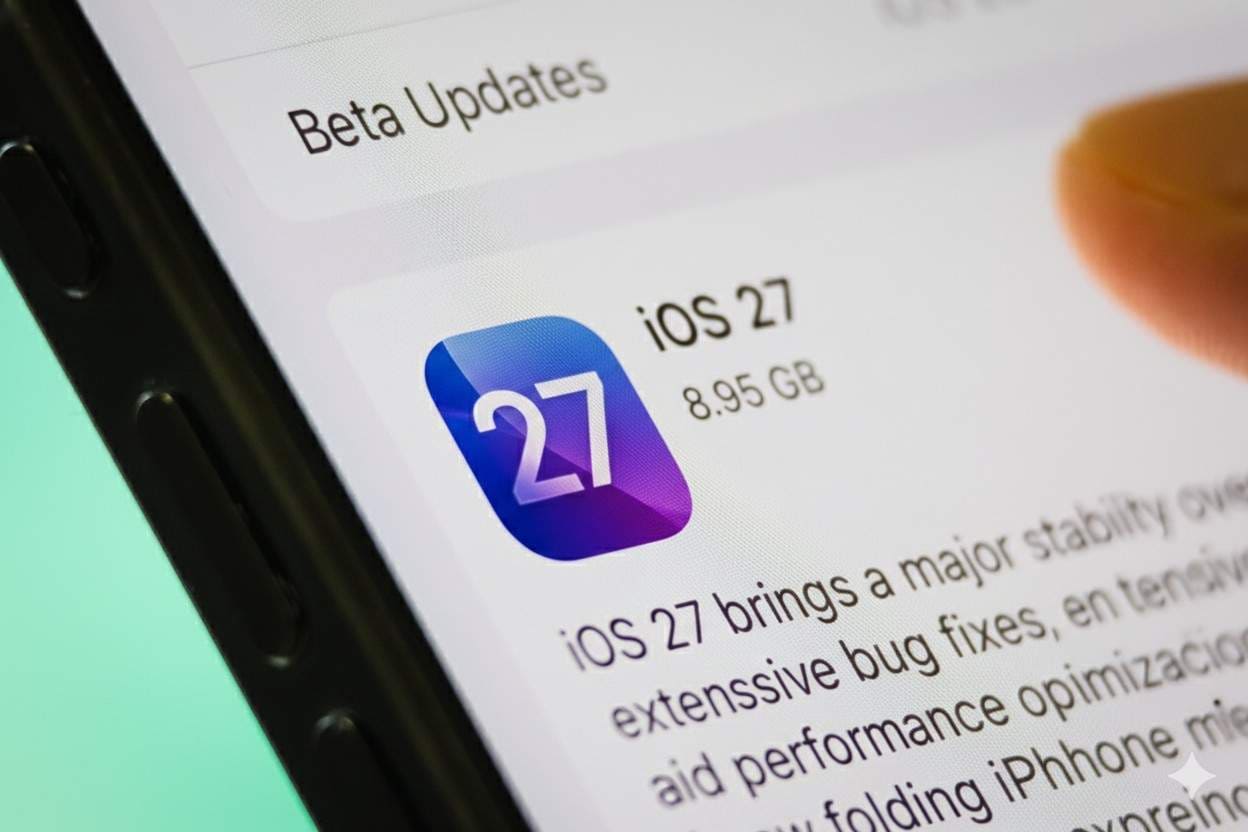
If tapping Upgrade to iOS 27 takes you to an iOS 26.7 screen, do not assume that installing 26.7 will turn into iOS 27. Current launch-day reports show that iOS 26.7 is a separate update and some users are seeing a Software Update labeling/redirect issue. Recheck Software Update later, or use a computer-based update path if you need to move to iOS 27 sooner.
In this article

Part 1. Why Is My iOS 27 Update Not Showing Up?
If the iOS 27 update is not showing up, start by identifying which of these situations matches your iPhone. The cause matters because a compatibility problem needs a different fix from a network, beta-channel, or stalled-update issue.
- Your iPhone is not compatible with iOS 27: Apple's current iOS 27 compatibility list starts with the iPhone 11 family and includes iPhone SE (2nd generation and later). Older models such as iPhone XS, XS Max, and XR are not on the iOS 27 list.
- The Software Update screen is showing iOS 26.7 instead: launch-day reports show that some users tap Upgrade to iOS 27 but are redirected to a larger iOS 26.7 package. iOS 26.7 is a separate release, so do not treat the 26.7 label as confirmation that you are installing iOS 27.
- Beta Updates are still enabled: if you were on a developer or public beta channel, the public-release path may not appear as expected until the Beta Updates setting is changed.
- A VPN, proxy, or unstable network is interfering: Apple notes that VPN or proxy connections can prevent a device from contacting update servers.
- Your iPhone does not have enough available storage: Apple does not publish a fixed iOS 27 free-space requirement. If storage is tight, clear space or allow iOS to offload apps temporarily.
- A previous update download is stalled: an incomplete update package can block a clean retry until it is deleted from iPhone Storage.
- Apple's update servers are busy: immediately after a major release, many devices check for the same update at once. If the Software Update page is blank or slow, retry later before assuming your iPhone has a deeper problem.

Part 2. How to Fix iOS 27 Update Not Showing Up: 8 Fixes
Work through these fixes in order. The first seven use Apple's normal update paths; the last option gives you an alternative iOS upgrade workflow when Software Update or iTunes/Finder is not working as expected.
Fix 1: Check Whether Your iPhone Supports iOS 27
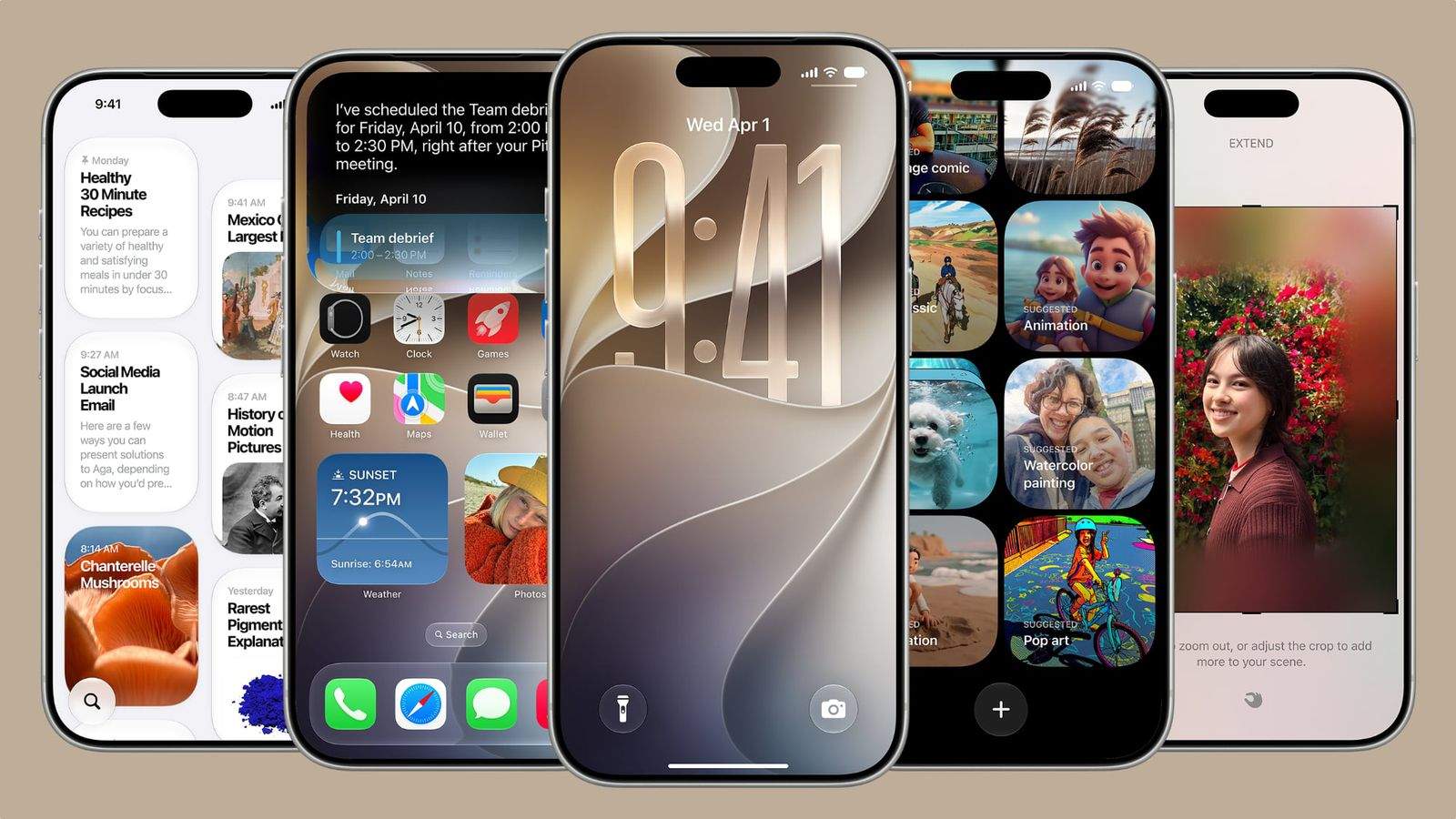
Apple's current iOS 27 page lists iPhone 11 models and newer, plus iPhone SE (2nd generation and later), as compatible. If your iPhone is older than that, iOS 27 will not appear as an available upgrade.
If you are unsure which model you have, go to Settings > General > About and check the model name before trying other fixes.
Fix 2: If “Upgrade to iOS 27” Shows iOS 26.7, Do Not Treat 26.7 as iOS 27
This is the most important launch-day scenario missing from the original page. Current reports show some users selecting Upgrade to iOS 27 and then seeing an iOS 26.7 download instead. iOS 26.7 is a separate update.
- Exit the Software Update screen and open it again after a short interval.
- Restart the iPhone, then check Settings > General > Software Update again.
- If the screen still points to iOS 26.7, use a Mac/PC update path to check for iOS 27 instead of assuming the larger 26.7 package is iOS 27.
Fix 3: Turn Off Beta Updates for the Public iOS 27 Release
If you previously installed iOS 27 beta or RC builds, check the update channel:
- Go to Settings > General > Software Update.
- Tap Beta Updates.
- Choose Off if you want the public iOS 27 release, then return to Software Update and check again.
Fix 4: Check Wi-Fi and Disconnect VPN or Proxy Connections
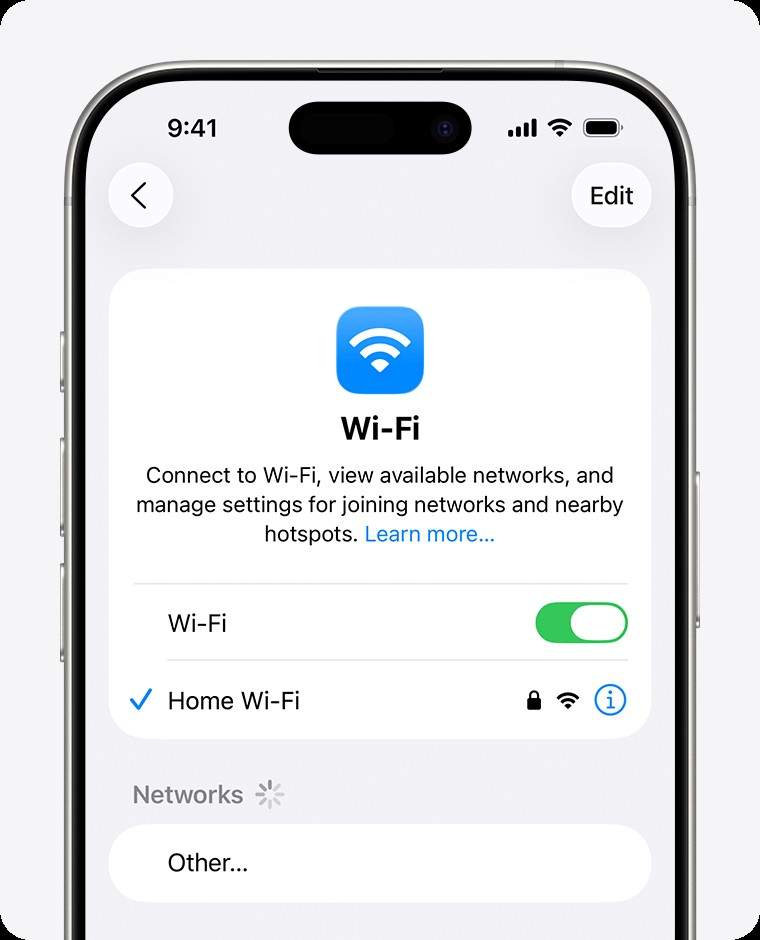
A network can appear usable for browsing but still fail to reach Apple's update servers. Apple specifically notes that VPN or proxy connections may interfere with software updates.
- Connect to a stable Wi-Fi network and keep the iPhone connected to power.
- Temporarily disconnect any VPN or proxy profile.
- If the update still does not appear, try another trusted Wi-Fi network.
- Toggle Airplane Mode on and off, then reopen Software Update.
Fix 5: Free Storage and Delete a Stalled Update
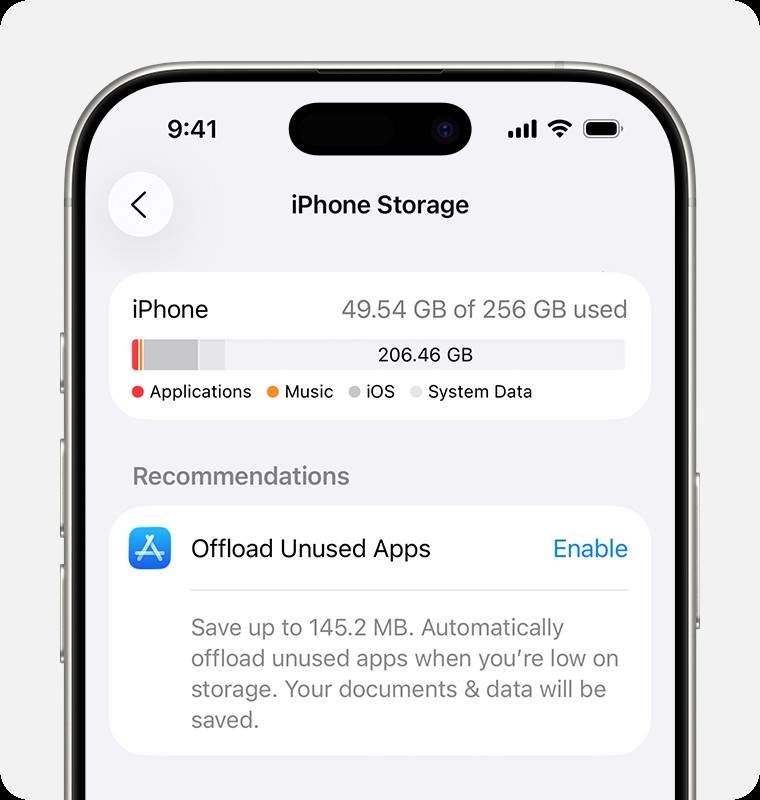
Go to Settings > General > iPhone Storage and make sure you have enough available space for iOS to download and unpack the update. Apple does not publish a fixed iOS 27 storage requirement, so avoid relying on a specific GB number.
If an iOS update already appears in iPhone Storage but will not install:
- Open Settings > General > iPhone Storage.
- Find the downloaded iOS update.
- Tap it, then tap Delete Update.
- Return to Settings > General > Software Update and download the update again.
Fix 6: Restart Your iPhone and Recheck Software Update
A restart can refresh the update service and clear a temporary Settings glitch. Restart the iPhone normally, reconnect to Wi-Fi and power, then go back to Settings > General > Software Update.
Fix 7: Update iOS 27 with Finder or iTunes
If iOS 27 still does not appear over the air, Apple recommends using a computer as the next update path.
- Back up your iPhone first.
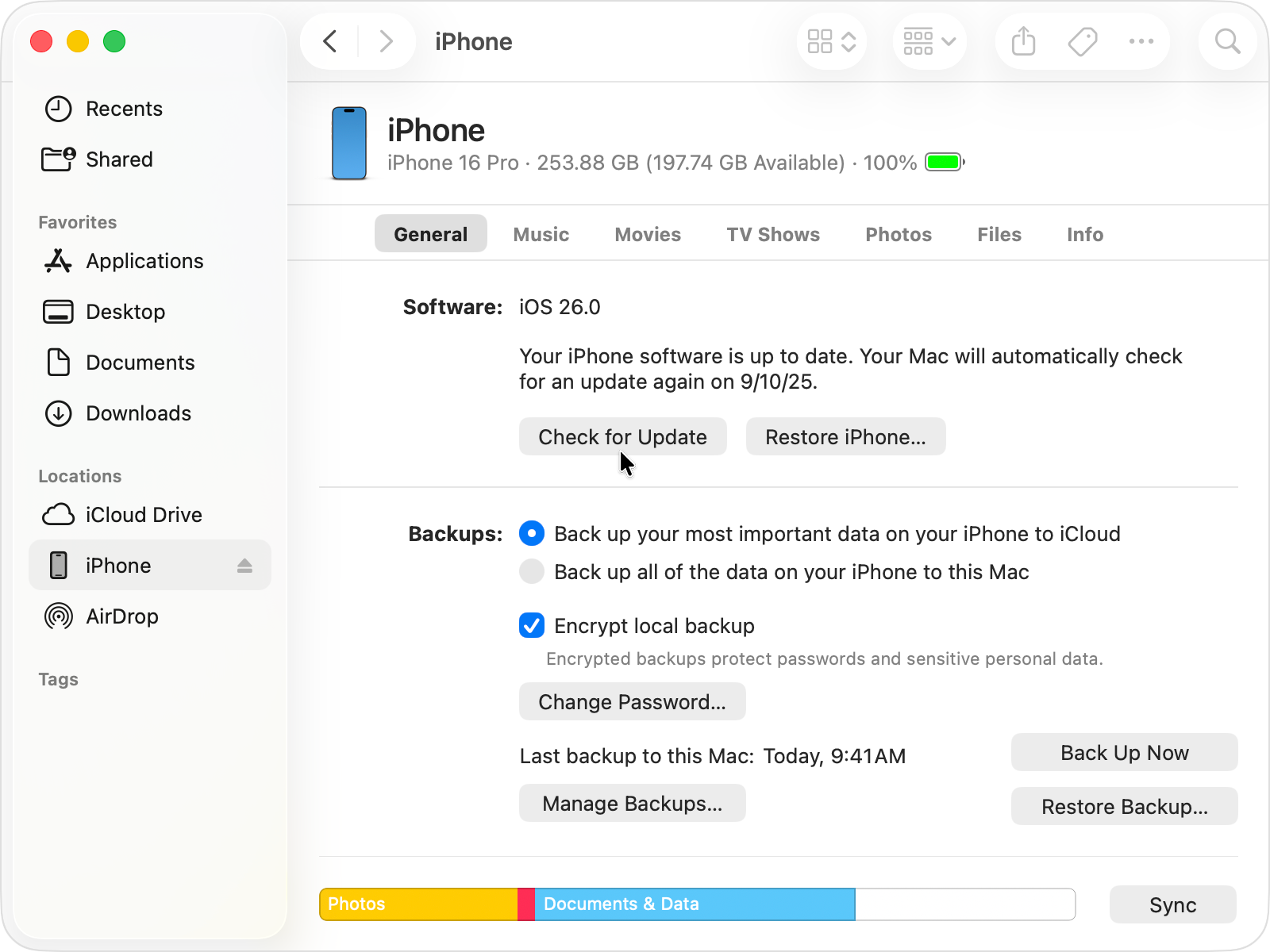
- Connect the iPhone to your Mac or PC with a USB cable.
- On macOS Catalina or later, open Finder. On older Macs or supported Windows setups, use iTunes.
- Select your iPhone and choose Check for Update.
- If iOS 27 is offered, follow the onscreen prompts to download and install it.
For a broader walkthrough of the release, compatibility, preparation, and update choices, see the Dr.Fone iOS 27 Update Guide.
Fix 8: Upgrade to iOS 27 Without iTunes Using Dr.Fone
If the normal Software Update path is not showing iOS 27 and you want a guided alternative, Dr.Fone - System Repair includes an iOS Upgrade/Downgrade workflow.
 Fix iOS issues, no data loss.
- One-click repair for all iOS problems.
- Solve recovery mode, Apple logo, black screen, etc.
- Upgrade or downgrade iOS without iTunes

-
Step 1: Launch Dr.Fone and open System Repair
Install and launch Dr.Fone on your computer. From the main Toolbox, select System Repair to access the iOS repair and upgrade tools.

-
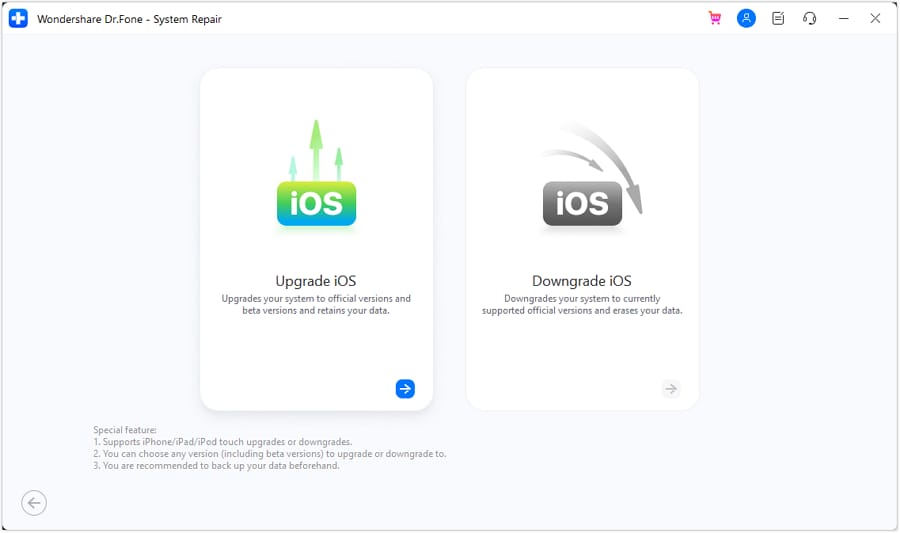
Step 2: Choose iPhone and open iOS Upgrade
Select iPhone as the device type. Then choose iOS Upgrade/Downgrade and continue with Upgrade iOS.
-
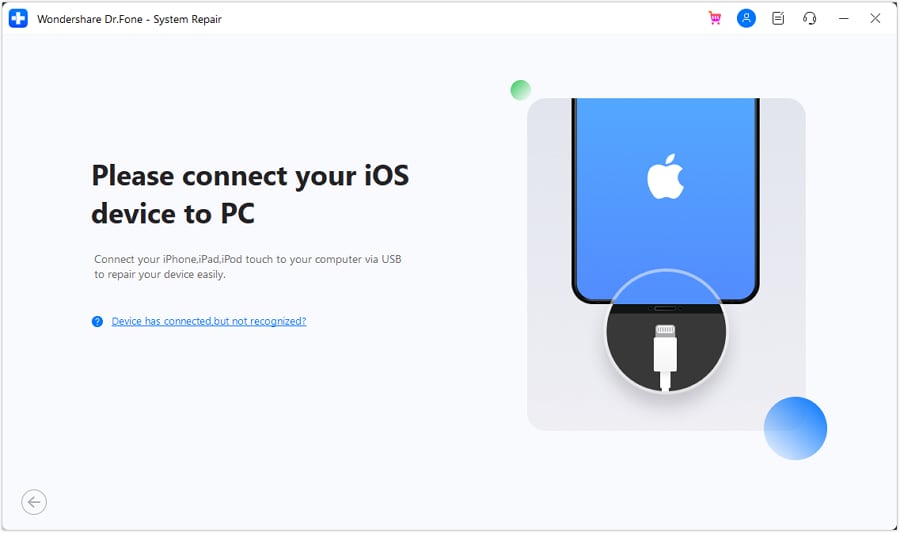
Step 3: Connect your iPhone to the computer
Connect the iPhone with a USB cable and wait for Dr.Fone to detect the device. Keep the iPhone connected throughout the upgrade process.
-
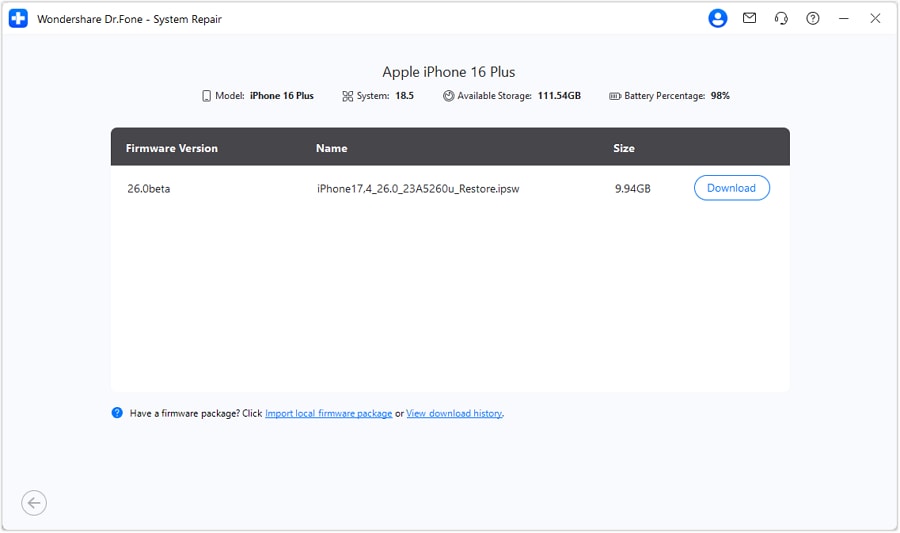
Step 4: Select and download the iOS 27 firmware
After the device is detected, Dr.Fone displays the firmware versions available for your iPhone. Find the appropriate iOS 27 firmware if it is available for your device, then click Download. Dr.Fone will download and verify the firmware before installation.
-
Step 5: Start the iOS 27 upgrade
Once the firmware is ready, click Repair Now to begin installing the selected iOS version. Keep the iPhone connected while the progress bar is running. When the upgrade finishes, follow the on-screen prompt to complete the process.




Part 3. What If iOS 27 Appears but Won't Download or Install?
Once iOS 27 appears in Software Update, the troubleshooting changes. At that point you are no longer fixing a discovery problem; you are fixing a download, verification, or installation problem.
- Unable to Check for Update / Unable to Download: retry on another Wi-Fi network, disconnect VPN/proxy connections, and then try again.
- Downloaded update will not install: delete the downloaded update from iPhone Storage, then download it again.
- Progress bar appears stuck: keep the iPhone connected to power. Update time can vary with the package size and the number of files on the device.
- Apple logo or restart loop after the update begins: use Apple's computer/recovery options first. If you need a broader troubleshooting guide, see iOS 27 Update Problems & Fixes.
FAQs About iOS 27 Not Showing Up
Why is the iOS 27 update not showing up on my iPhone?
Common causes are an unsupported iPhone, a temporary Software Update issue, beta-channel settings, VPN or network interference, limited storage, or a stalled update package. Start with compatibility, then work through the update-path fixes above.
Why does “Upgrade to iOS 27” show iOS 26.7?
Some users have reported that tapping Upgrade to iOS 27 opens or displays iOS 26.7 instead. iOS 26.7 is a separate update, so do not assume it is actually iOS 27. Recheck Software Update later or use Finder or iTunes on a computer to check for iOS 27.
Which iPhones support iOS 27?
Apple's current compatibility list includes iPhone 11 models and newer, plus iPhone SE (2nd generation and later).
How much free storage do I need for iOS 27?
Apple does not publish one fixed free-space requirement for iOS 27. Go to Settings > General > iPhone Storage and make sure you have enough available space for the update to download and install.
Will updating to iOS 27 erase my data?
A normal iOS update is designed to keep your personal data. However, it is still a good idea to back up your iPhone before installing a major system update.
How can I get iOS 27 if it still does not appear in Software Update?
First check device compatibility, beta settings, network or VPN issues, and available storage. If iOS 27 still does not appear, connect the iPhone to a computer and check for the update with Finder or iTunes. You can also use the Dr.Fone iOS Upgrade workflow described above.
Conclusion
If the iOS 27 update is not showing up, do not jump straight to a full restore. First confirm that the iPhone supports iOS 27, then rule out the iOS 26.7 display issue, beta-channel settings, VPN/network problems, storage limits, and a stalled update package. If the over-the-air update still fails, move to a computer-based update path.
For users who want another guided upgrade route, Dr.Fone - System Repair provides an iOS Upgrade/Downgrade workflow with firmware download and verification steps.
 Add Wondershare Dr.Fone as a preferred source on Google