 Resolve common problems and system crashes on both iPhone and Android devices.

 100% Security Verified | No Subscription Required | No Malware

 :
: 
 ChatGPT
 Perplexity
 Gemini
 Claude
 Grok
Grok
Apple's iOS 27 update introduces new capabilities, security feature updates, and faster system functioning. Yet, similar to many significant iOS version launches, it can at times result in unintentional bugs and reduced stability.
Most of the issues that users experience with their iPhones post-updating to iOS 27, fortunately, cannot be solved by getting a new phone or professional servicing. This post discusses a number of useful troubleshooting methods that can help in fixing the iOS 27 glitches and restoring the device to normal operation.
In this article

Part 1. Common iPhone Glitches After iOS 27 Update
Here are a few common iPhone glitches after the iOS 27 update:
| Glitch Type | Typical Symptoms |
|---|---|
| Battery drain | Battery drops faster than usual, frequent charging is needed |
| App crashes | Apps close unexpectedly or freeze |
| Touch issues | Delayed response or unresponsive screen areas |
| Wi-Fi problems | Slow speed or frequent disconnections |
| Bluetooth issues | Pairing failures or unstable connections |
| Overheating | The device becomes warm during normal use |
| System lag | Slow performance and delayed animations |
| Black screen | The screen freezes or stays black |
Part 3. How to Fix iPhone Glitches After iOS 27 Update
In fact, many iPhone glitches after an iOS 27 update are usually temporary and can be fixed even with the help of the simplest troubleshooting methods. Initially, you should try restarting your device, and if problems persist, then only consider advanced technical ways of resolving the matter.
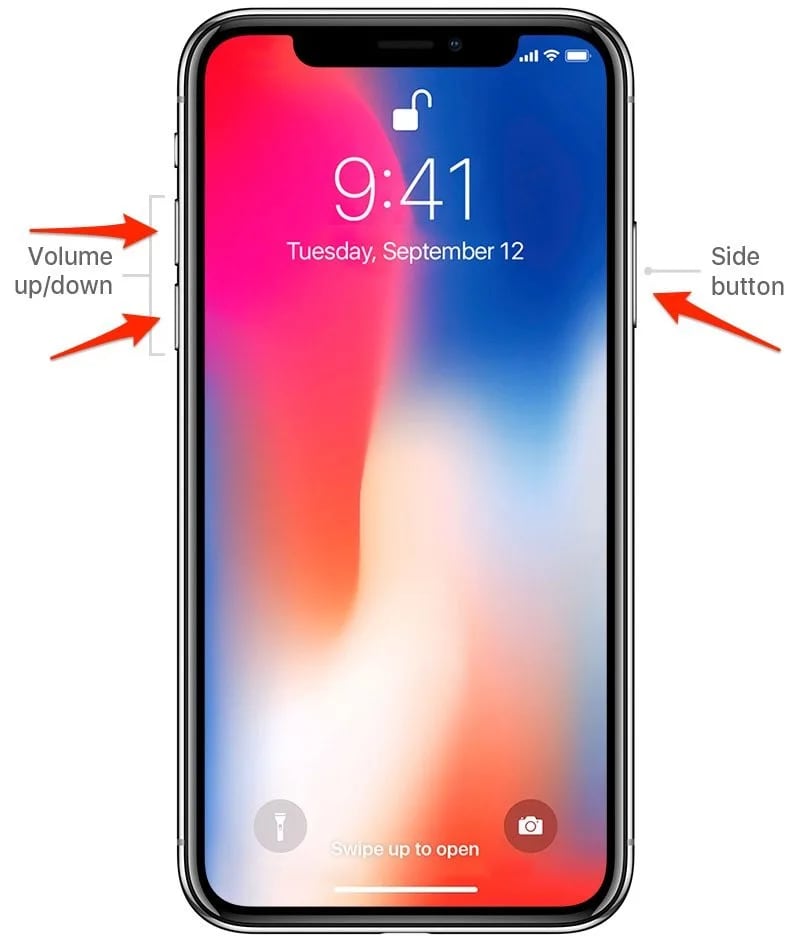
Fix 1: Force Restart Your iPhone
Sometimes all you need to do is a force restart to clear a minor software bug, frozen screen, and unresponsive behavior without deleting any of your data.
- iPhone 8 and later: Press and quickly release Volume Up, press and quickly release Volume Down, and then press and hold the Side button until the Apple logo shows up.
- iPhone 7 / 7 Plus: Press and hold the Volume Down + Power button simultaneously until the Apple logo appears.
When to do this:
If your iPhone doesn't work anymore, the screen's not reacting, the apps are stuck, or there are minor glitches, then force restart your device after the update.
Fix 2: Check and Free Up Storage Space
Not having enough storage after updating your iOS could result in various issues such as system slowdowns, app crashes, and generally degraded performance. It's quite critical to keep some storage space free if you want your device to work without any hiccups.
Check storage: Go to Settings > General > iPhone Storage to view available space and storage usage breakdown.
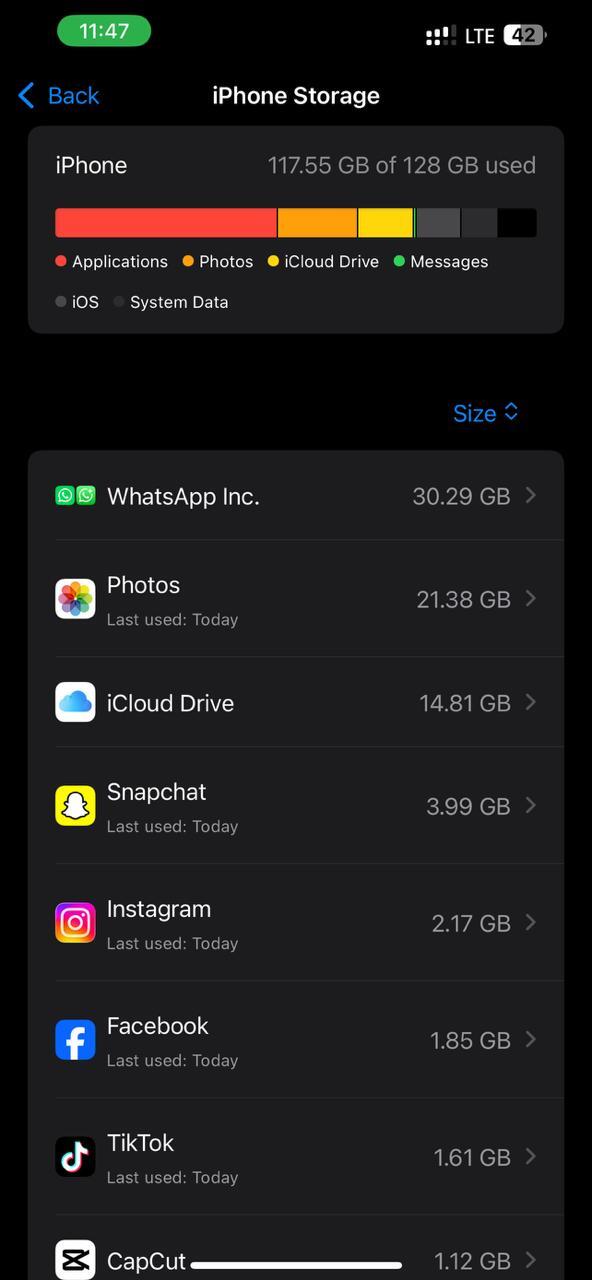
Recommended free space: For the best and most reliable performance, it is advisable to have at least 1 to 2 GB free.
Quick cleanup tips:
- Deactivate and delete rarely used apps
- Remove Safari browsing history and website data
- Get rid of duplicate or huge photo/video files
- Clean up old message attachments
Fix 3: Update Apps to iOS 27 Compatible Versions
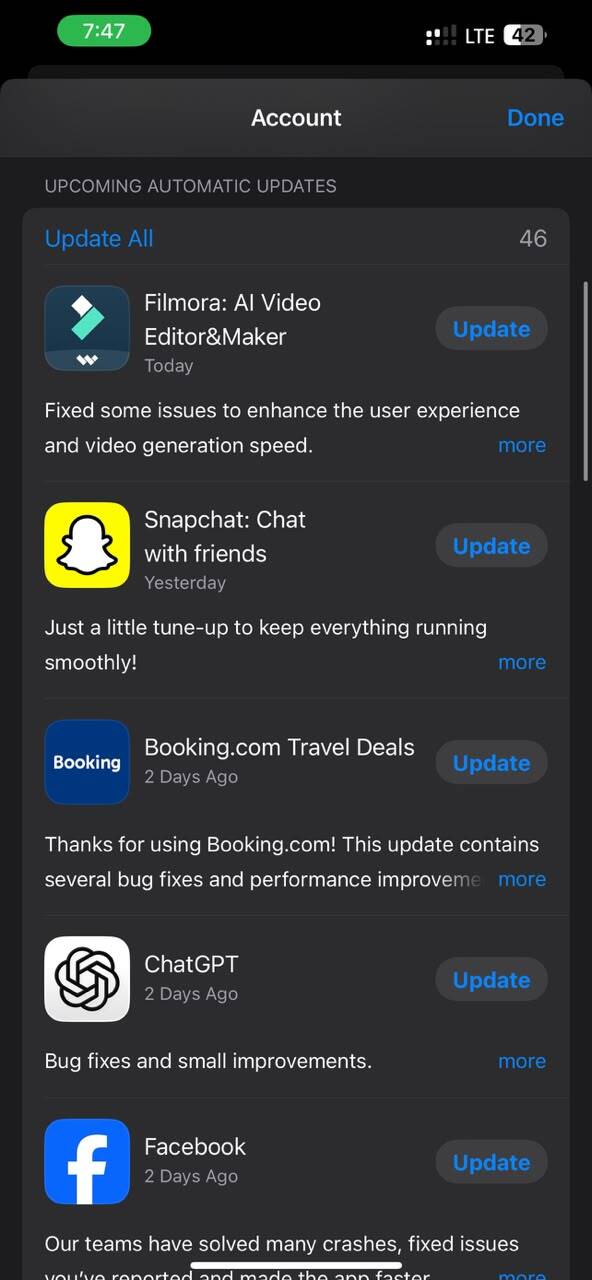
If apps haven't been updated or optimized for the newly released system, they may misbehave or show some issues after a major iOS update. Besides better compatibility, updating the apps will also lead to fewer crashes and increased performance.
- Step 1. Launch the App Store.
- Step 2. Tap your Profile icon in the top-right corner.
- Step 3. Scroll down to see Pending Updates.
- Step 4. Tap Update All or update apps individually.
It usually takes developers some time to make their apps more efficient and remedy the compatibility problems after a new iOS gets released. Therefore, during this period, the older versions of apps may not be fully compatible with iOS 27 and may cause apps to crash, lag, or show other unexpected problems which will be resolved only after the updates are installed.
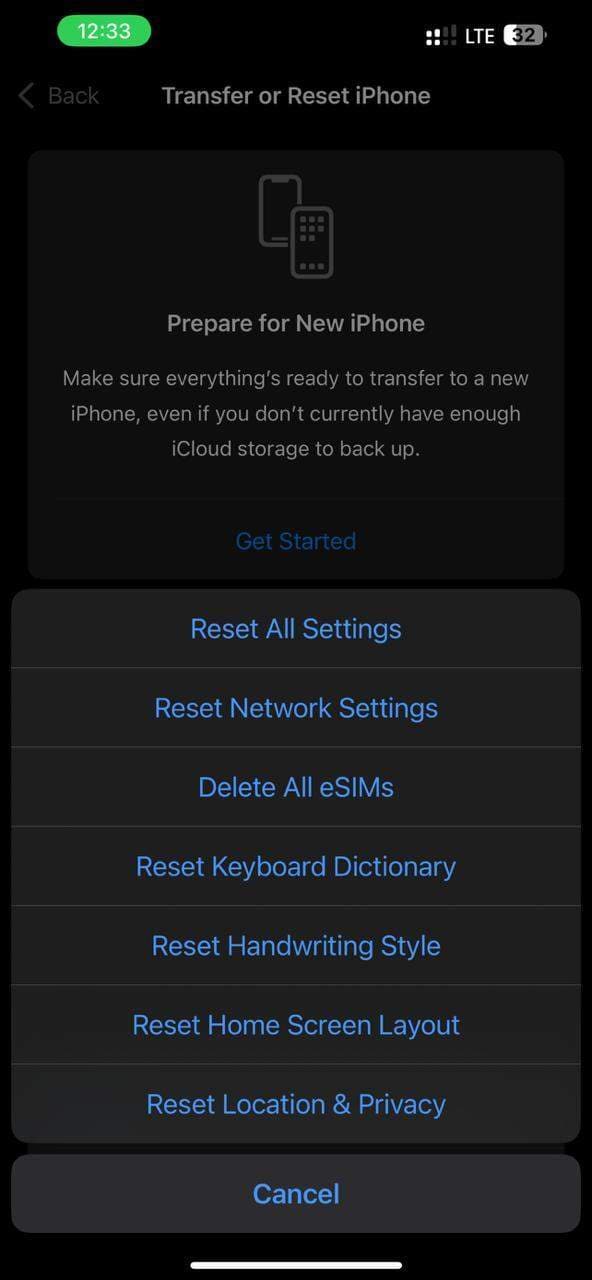
Fix 4: Reset Network Settings
Typically, network issues that arise once iOS 27 is installed are most likely a consequence of corrupt Wi-Fi, Bluetooth, or cellular configurations. You could think of a reset in network configurations as completely erasing the old settings to make a fresh start with default network arrangements. This method is very effective in resolving problems like getting disconnected, being unable to pair, or having weak signals.
How to reset network settings:
- Step 1. Launch the Settings app.
- Step 2. Navigate to General > Transfer or Reset iPhone.
- Step 3. Select Reset > Reset Network Settings and confirm.
Fix 5: Disable Background App Refresh
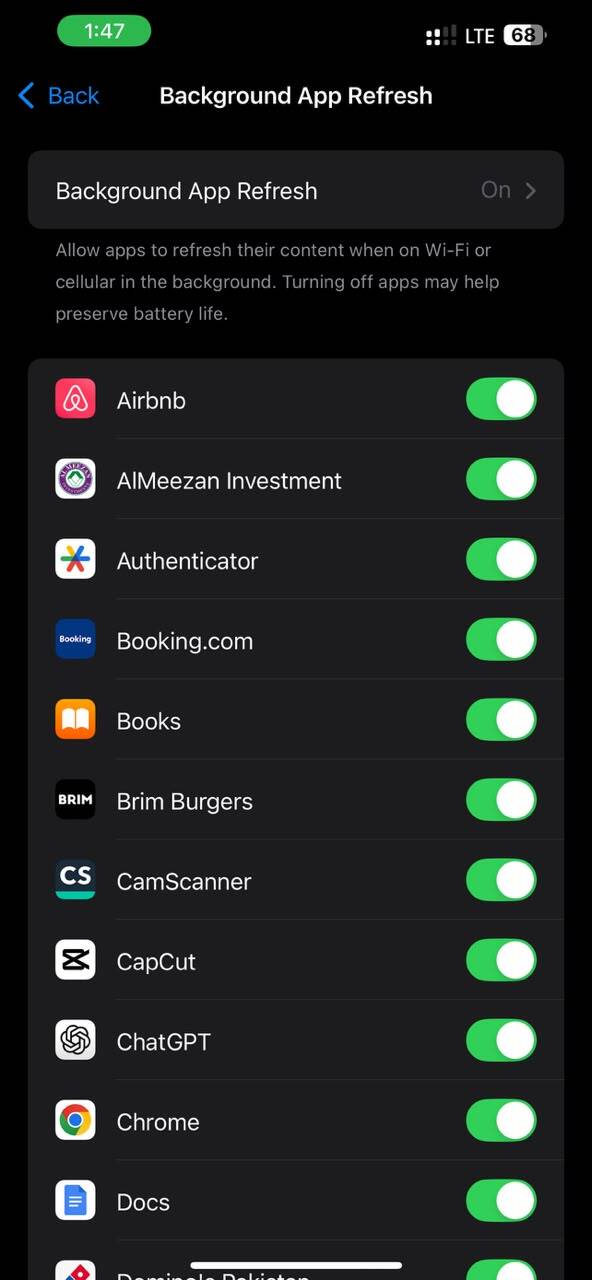
Background App Refresh feature empowers the apps to refresh content in the background, but it can cause battery drain, overheating, and system lag, especially after a major update like iOS 27.
Switch Off Background App Refresh:
- Step 1. Go to Settings.
- Step 2. Tap General > Background App Refresh.
- Step 3. Tap Off.
It is wise to disable this feature because it curtails unnecessary background work and thereby helps conserve batteries and enhance the overall performance of the device.
Fix 6: Reset All Settings
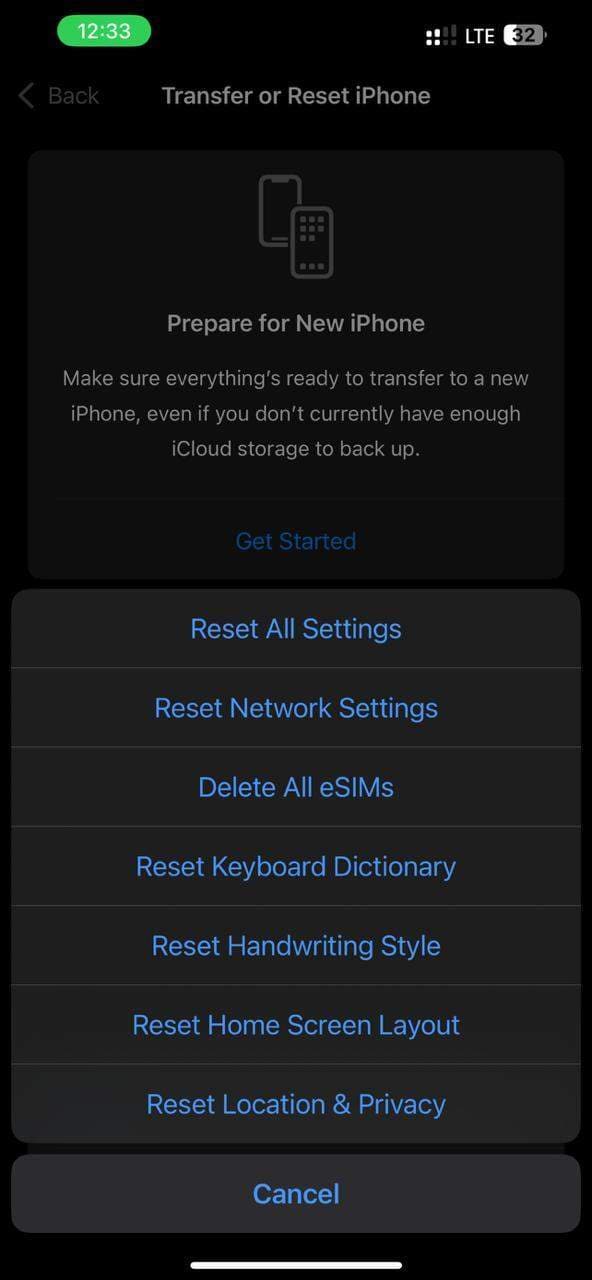
Restoring all settings back to factory defaults is an effective solution to fix series of stubborn iOS 27 problems which might be coming from system errors or corrupted configurations. The main thing is that it adjusts the system's settings to their original default versions in a really simple way, and there is no requirement to also get rid of personal stuff like images, apps or texts.
- Step 1. Launch Settings.
- Step 2. Proceed to General > Transfer or Reset iPhone.
- Step 3. Select Reset > Reset All Settings and then confirm.
When it is appropriate:
This technique works well if problems such as Wi-Fi issues, screen flickers, or slow system behavior persist after you have done the very first fixes.

Fix 7: Restore iPhone via iTunes / Finder
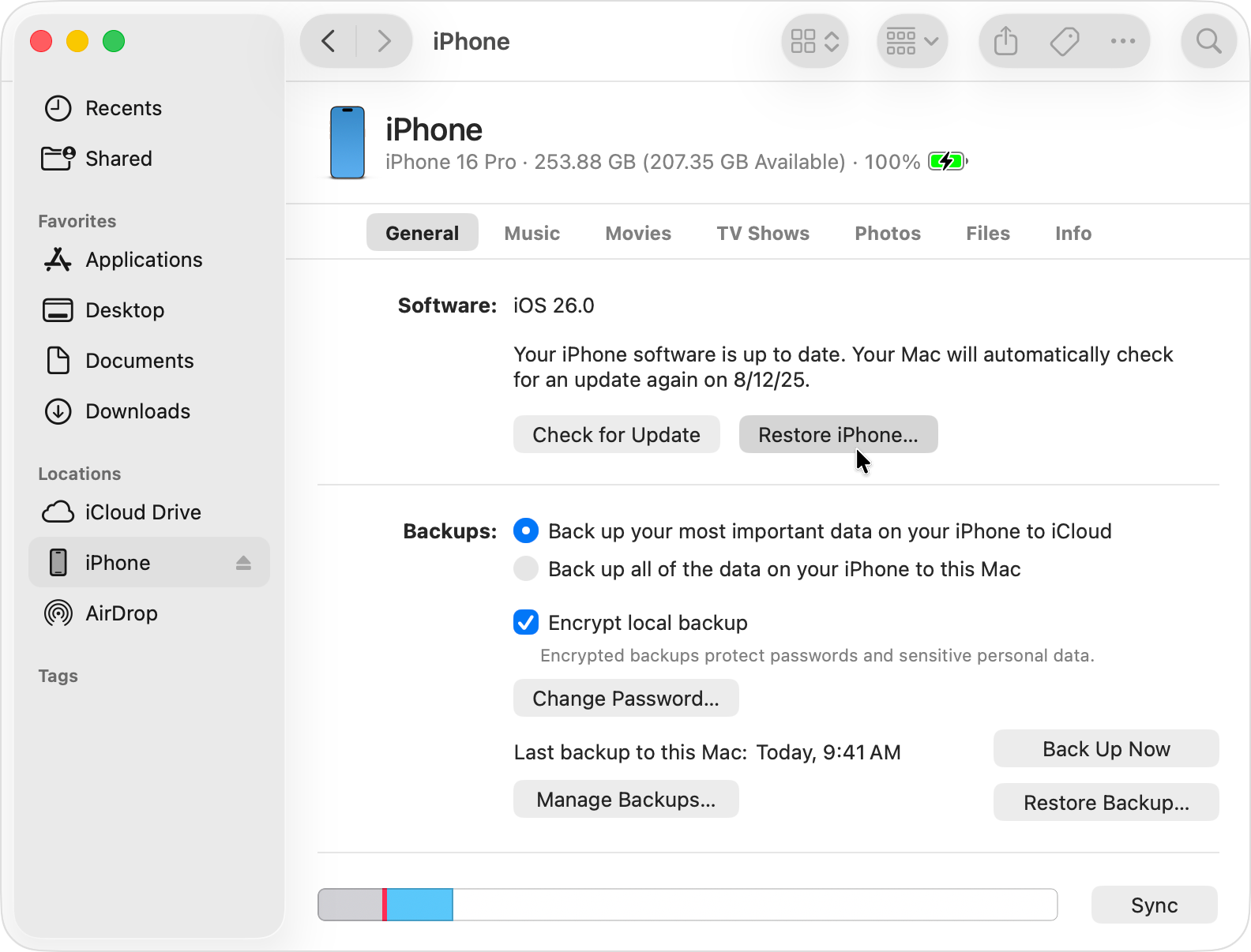
If iOS 27 is the culprit behind severe system corruption on your device, a restoration of your iPhone through Finder or iTunes could help. This will load a fresh iOS version on your device and fix major software problems like boot loops or constant crashes.
Here is how you can restore the iPhone:
- Step 1. Connect your iPhone to a Mac or PC via a cable
- Step 2. Launch Finder (Mac) or iTunes (Windows/older macOS)
- Step 3. Choose the iPhone, click Restore iPhone, and then follow the directions on the screen
A thing to keep in mind:
All the data on the device will be deleted during this process. So, it is highly advisable to make a backup either using iCloud or iTunes before you go ahead with this.
When to consider:
This is the method to choose when you are dealing with very serious issues like boot loops, incessant freezing, or widespread system corruption following the iOS 27 update.
Part 4. Recommended Solution: System Repair and iOS Downgrade with Dr.Fone
If iOS 27 problems become stubborn or can't be fixed by simple troubleshooting, then a system repair tool like Dr.Fone - System Repair can be your saving grace to bring your device back to normal performance. It's capable of addressing more than 150+ iOS system issues, such as boot loops, Apple logo freezes, black screens, update failures, and random crashes, all without the need for complicated manual steps. Besides that, the tool can also get you out of Recovery Mode and DFU Mode situations, which is quite handy when your system is unstable after major iOS updates.
What sets it apart is the feature that allows fixing iOS system problems without losing any data (standard mode), and it provides repair options for more serious system issues. Besides that, Dr.Fone enables users to switch iOS versions, either upgrade or downgrade, without the need for iTunes or jailbreak, which can come in handy if iOS 27 is messing up with your device performance seriously, and you want to go back to a stable version. So yes, it is indeed a very handy combined solution for both system repair and iOS version management when normal fixes are not enough.
 Fix iOS issues, no data loss.
- One-click repair for all iOS problems.
- Solve recovery mode, Apple logo, black screen, etc.
- Upgrade or downgrade iOS without iTunes

Steps to Downgrade iOS 27 without iTunes Using Dr.Fone
-
Step 1Launch Dr.Fone and choose system repail tool
Install Dr.Fone on your computer and launch it. Click on System Repair and select Downgrade iOS/iPadOS. You may be asked to back up your iPhone data if you want to continue

-
Step 2Connect iPhone and select iOS version
Using a USB cable, connect your iPhone with your PC. Once your device is detected by the program, choose the latest and most stable iOS version which you consider safe for downgrading from the list of available firmware versions.

-
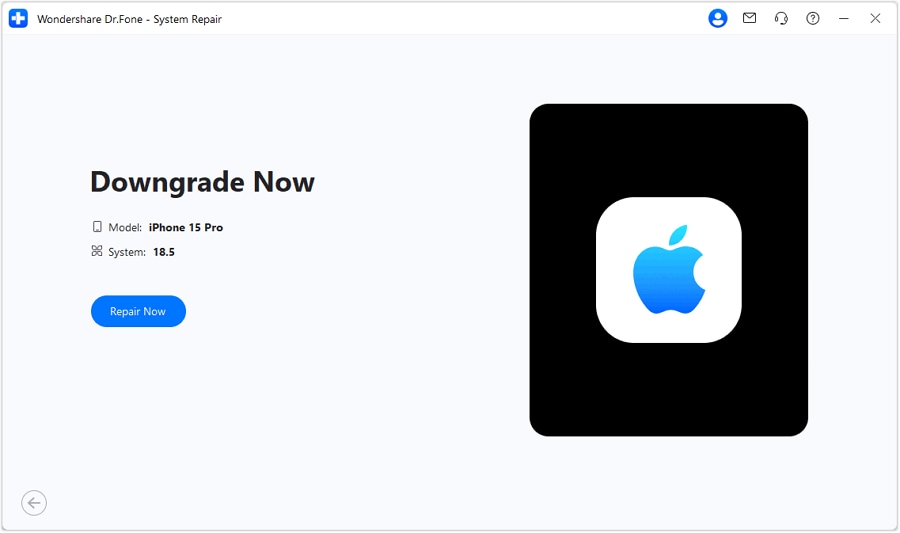
Step 3Execute the iOS downgrade process
Click on Repair Now to start the downgrade. After installation is done, your iPhone will reboot and the iOS version will be rolled back to the selected one.




Steps to Repair iOS System Issues with Dr.Fone
-
Step 1Launch Dr.Fone and choose system repail tool
Navigate to the Toolbox area on the main interface, and then tap System Repair.

-
Step 2Choose iOS repair and standard mode
Connect your iPhone to the PC. Click on iOS Repair for the repair options presented and then tap Standard Repair mode.

-
Step 3Put device in recovery mode and begin the repair process
Proceed with on-screen directions to get your iPhone into Recovery Mode. Dr.Fone will identify with and obtain the perfect iOS firmware by itself. Click Repair Now after downloading.

Part 5. How to Prevent iPhone Glitches After Future iOS Updates
In many cases, iPhone problems following major iOS updates can be easily tackled just by following simple steps before, during, and after installing the new OS. Thorough preparation goes a long way toward lowering the chances of bugs, performance lags, and data loss.
Before Updating
- Preparation is the single most important factor if you want a smooth update experience.
- Hold off on the installation of major iOS updates until getting 1 or 2 patches so as not to suffer early bugs.
- Always make a backup with either iCloud or Dr.Fone before upgrading.
- Free at least 10- 15% of the device's memory to ensure stable installation and operation.
- Investigate iOS 27 related issues and possible bugs via forums and user reports before clicking on "Update".
During Updating
Having a stable update process in place is one of the things that contributes to the avoidance of installation errors and system corruption.
- Update through a reliable and strong Wi-Fi connection.
- Do not update if the battery level is below 50%, keep the device plugged in at the same time.
- Once the update is started, do not interfere with it.
After Updating
- Taking care of yourself after updating is just making sure that the system will run well after installation.
- Restart your iPhone once you have updated.
- Make sure all apps are updated to the latest versions.
- Keep an eye on battery and device performance over the next 24 to 48 hours, since iOS needs this time to work in the background.
Conclusion
iPhone glitches after iOS 27 upgrade were largely understood as short-term and related to system optimization, and network changes. In most cases, these difficulties can be resolved by just restarting the phone, updating the apps, or resetting the settings. On the other hand, if the issues are still present, a thorough solution may be required.
In such cases, Dr.Fone - System Repair can be excellent software to fix rather serious iOS troubles like reboot loops, black screens, or update failures, even without the necessity to perform complex manual operations.
FAQs
-
Is it safe to downgrade iOS 27?
Yes, it can be safe if done using a reliable method or tool, but it should be performed carefully and ideally after backing up all data, as some downgrade processes may lead to data loss depending on Apple's signing status. -
What if my iPhone is stuck in a boot loop after iOS 27?
A force restart or recovery mode restore usually helps. If the issue continues, a system repair tool like Dr.Fone or a full restore via Finder/iTunes may be required. -
Why is my iPhone glitching after the iOS 27 update?
Usually, the cause would be software bugs that are fixed shortly, not completed background optimization, apps that are still running outdated versions, low storage, or even an issue of compatibility between iOS 27 and the apps that have been installed on the phone. -
How long do iPhone glitches last after updating to iOS 27?
In most cases the small glitches will only be around a few hours to a couple of days at the most while the system is performing background indexing and updating the apps. If the problems are not resolved by then, it is wise to do some troubleshooting.
 Add Wondershare Dr.Fone as a preferred source on Google



