 Resolve common problems and system crashes on both iPhone and Android devices.

 100% Security Verified | No Subscription Required | No Malware

 :
: 
 ChatGPT
 Perplexity
 Gemini
 Claude
 Grok
Grok
You're looking forward to the new features in iOS 27 and may have even set aside time to update. But as the progress bar moves, your iPhone suddenly says, "Unable to Install iOS 27." You're not the only one—this problem is happening to users everywhere. Statista reports that over 20% of iOS users run into installation or upgrade issues with major updates. Missing out on security patches and new features is frustrating and can put your device at risk.
The good news is that you don't have to wait or risk your data. Equipping yourself with some practical steps and expert advice, you can fix the "Unable to Install iOS 27" error and get your update working. Tools like the trusted Dr.Fone - System Repair could be a great help for you. This guide will walk you through each step, with clear instructions, real-life examples, and helpful tips to make your update go smoothly.
In this article

Part 1. Why am I Unable to install iOS 27?
If you see the "Unable to Install iOS 27" error, it helps to know what's causing it before you try to fix it. Here are the most common reasons, and most can be solved with the right steps:

- Insufficient Storage: The iOS 27 update requires several gigabytes of free space. If your device is nearly full, the update will not proceed.
- Unstable or Slow Wi-Fi: Internet interruptions or slow connection speeds can corrupt the update process, especially when large downloads are involved.
- Device Compatibility: Older iPhones and iPads may not support iOS 27 or specific new features.
- Apple Server Issues: During peak times (especially right after release), Apple's servers may be overloaded, causing failed downloads or verifications.
- Corrupted Update Files: Sometimes, the update package may get partially downloaded or corrupted during the process, which can prevent installation.
- Low Battery or Overheating: If your battery is below 50% or your device is overheating, iOS may stop the update for safety.
- Regional Restrictions/Phased Rollouts: Apple often releases updates in waves and batches. So, if you're in a region where iOS 27 isn't yet available, installations might still be blocked.
On the Apple Support Community, one user shared: "Tried updating to iOS 27 on my iPhone 12, but got stuck at 'Unable to Install.' Freed up 6GB, but still no luck until I used a third-party tool." This example shows that even after following Apple's tips, installation problems can still happen and sometimes need more advanced fixes.

Part 2. Basic Fixes for Unable to Install iOS 27
Before proceeding to the advanced solutions, start with the quickest fixes that help most people. These simple steps solve most "unable to Install iOS 27" problems. With a bit of luck, one of them might be all you need to get your update started.

Fix 1. Check Available Storage
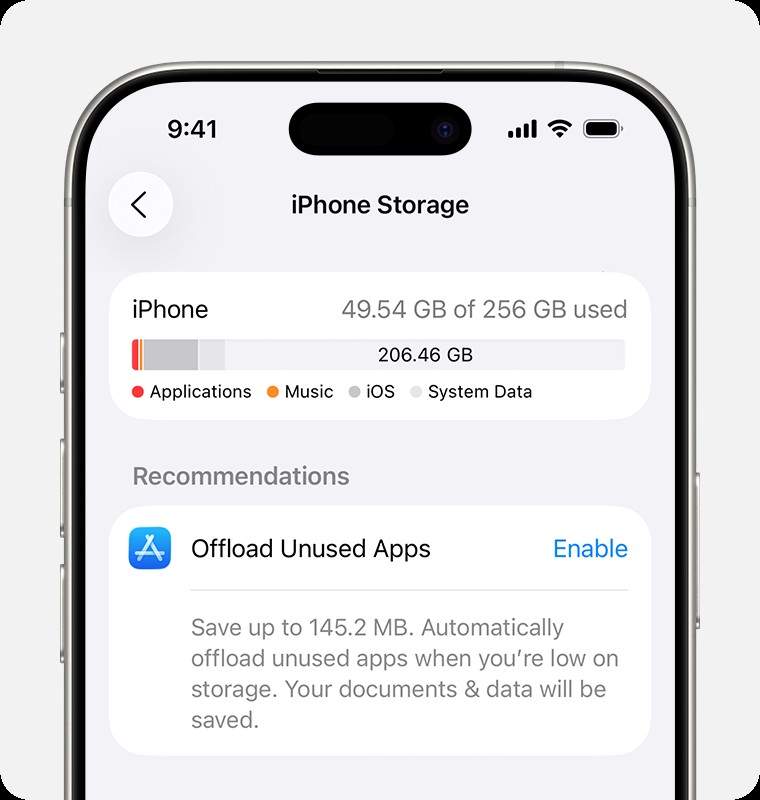
- To check your iPhone's available storage: Go to Settings > General > iPhone Storage.
- Aim for at least 6GB of free space. Major updates like iOS 27 may fail with less. Many users say that 4GB is not enough.
- Pro tip: Offload unused apps or back up photos to iCloud/Google Photos for a fast storage boost.
Fix 2. Connect to a Stable Wi-Fi Network
- Always use a trusted private Wi-Fi network. Using a public connection can cause interrupted downloads and update errors.
- Move closer to your router for a stronger signal.
- If your internet is slow, try restarting your router. Many tech experts say this simple step can fix a lot of update problems.
Fix 3. Restart Your iPhone
- Press and hold the Power button to turn your phone off, wait 30 seconds, and then turn your phone back on. This quick restart can clear minor issues that stop updates.
Fix 4. Check Apple's System Status
- Visit Apple's System Status page. (Search for "Apple System Status" or use [this link]
- Look for a green status next to "iOS Software Update."
- If it's yellow or red, Apple's servers are having problems. You'll need to wait for Apple to fix it, since there's nothing you can do until then.
Fix 5. Delete and Re-download the Update
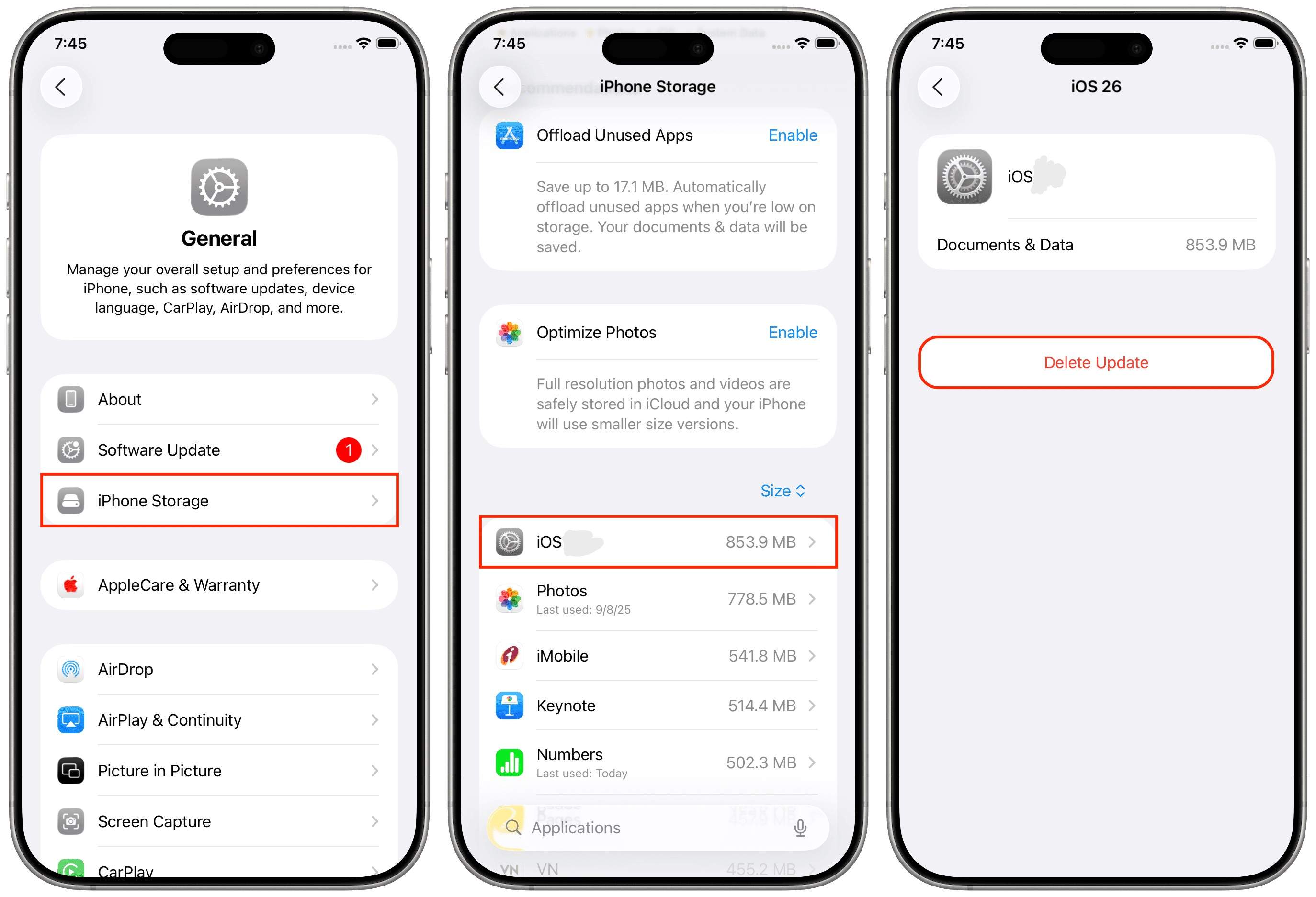
- Go to Settings > General > iPhone Storage.
- Find "iOS 27" in the list, tap it, and choose "Delete Update.
- Return to Settings > General > Software Update and download the update again. This often fixes mysterious installation errors caused by corrupted downloads.
Part 3. Advanced Ways to Install iOS 27 When Basic Fixes Don't Work
If you still see the "Unable to Install iOS 27" error after trying the basic steps, don't worry. Move on to the advanced options that have helped many users. These methods give you different ways to get iOS 27 on your device, no matter what's causing the problem. Here's what to do next:
Method 1. Install iOS 27 Using Finder or iTunes
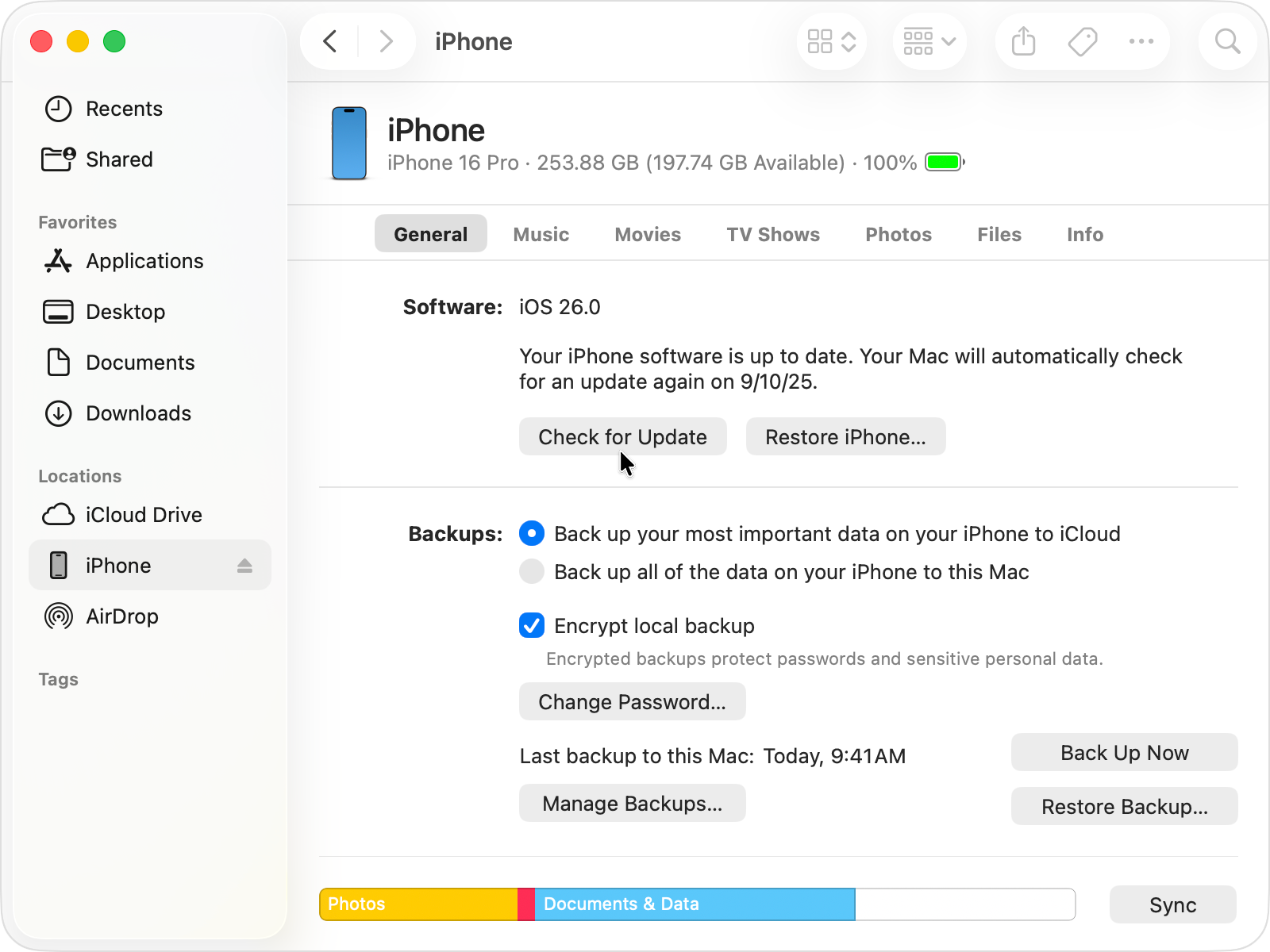
- Connect your iPhone to your Mac (Finder) or PC (iTunes).
- Select your device
- Click "Check for Update"
- Follow displayed prompts to download and install iOS 27
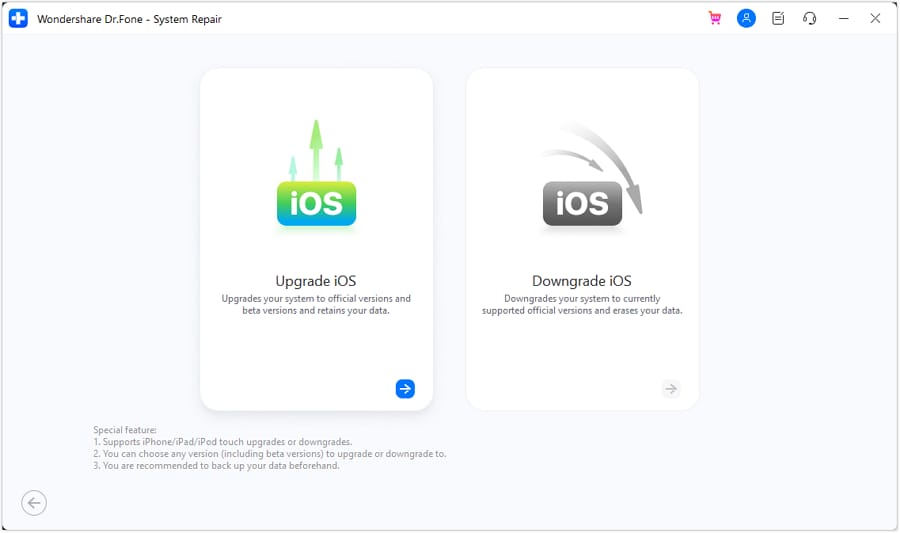
Method 2. Upgrade to iOS 27 with Dr.Fone - System Repair
Dr.Fone - System Repair is an easy way to update iOS devices, especially if standard methods do not work. Tech experts recommend this tool because of its reliability and data safety.
 Fix iOS issues, no data loss.
- One-click repair for all iOS problems.
- Solve recovery mode, Apple logo, black screen, etc.
- Upgrade or downgrade iOS without iTunes

Steps to Use Dr.Fone - System Repair:
-
Step 1
Download and install Dr.Fone - System Repair from the official site. Then choose iPhone.

-
Step 2
Connect your iPhone to your computer, then select "System Repair," and choose "iOS Upgrade/Downgrade."

-
Step 3
Proceed with the on-screen steps to upgrade to iOS 27.




Method 3. Install iOS 27 Using IPSW Firmware Files
- Download the correct iOS 27 IPSW file for your device from a trusted source
- Connect your iPhone to your computer
- Open Finder or iTunes, select your device
- Hold Option (Mac) or Shift (Windows) and click "Update."
- Choose the IPSW file, then follow the prompts
Part 4. How to Prevent Future iOS Update Installation Problems
- Ensure you have at least 8GB or more of free storage before doing the update. This gives enough space for the whole update package and temporary installation files. Having low storage is one of the main reasons updates fail.
- Always do the update using a reliable, private Wi-Fi connection. Avoid public networks, as they tend to be unstable or insecure. An unstable connection can interrupt downloads. And, interrupted downloads are a common cause of failed updates.
- Restart your device before updating. A quick reboot helps your phone clear minor glitches and refresh system resources.
- Check Apple's official regional rollout schedule. Sometimes, updates are released in phases or batches based on your location or carrier. If you don't see the iOS 27 update yet, be patient and keep an eye on Apple's announcements.
- Back up your device before any major update. Use iCloud or your computer to ensure all your data is safe, just in case.
- Update your apps. Out-of-date apps can cause compatibility conflicts during system upgrades.
- Keep your device charged above 50% and avoid overheating. Low battery or too much heat can pause or block updates.
If you keep having installation problems, try using a professional tool like Dr.Fone - System Repair. It's especially helpful if you've had several failed updates as well as ongoing errors, and it's a good option when other steps don't work.
A report from MacRumors notes that Apple has stopped signing older versions like iOS 17.3.1, which means users can no longer downgrade after updating. To avoid installation issues such as the common "Unable to Install iOS 27" error, it is important to frequently back up your device and keep your software up to date.
Conclusion
Dealing with the "Unable to Install iOS 27" error can be frustrating, but now you have a clear plan to update your device smoothly. Start with the quick fixes, like freeing up storage, checking your Wi-Fi, or restarting your iPhone. If those don't work, try the advanced solutions experts recommend, like using Finder, IPSW files, or the Dr.Fone - System Repair.
Remember, being prepared is key to a successful update. Always back up your data, keep your device charged, and check your region's rollout schedule. For ongoing or tricky problems, Dr.Fone is a trusted tool used by people around the world and recommended by experts. No matter where you are, you can fix "Unable to Install iOS 27" and start enjoying all the new features from Apple.
FAQs
-
What should I do if my iPhone says "Unable to Install iOS 27"?
Try freeing up storage first, then connecting to stable Wi-Fi, and restarting. If these fail, Dr.Fone - System Repair is a recommended tool for a guided fix. -
Will using Dr.Fone - System Repair erase my data?
No, standard repairs and updates via Dr.Fone do not erase your data. -
Are there regional restrictions for iOS 27 updates?
Yes, Apple often releases iOS updates in phases by region. Check Apple's rollout schedule if you can't see the update. -
Can I install iOS 27 without using OTA updates?
Yes. Use Finder, iTunes, IPSW files, or Dr.Fone - System Repair. -
Why does iOS 27 keep failing during verification?
This can be due to network issues, server overload, or damaged files. Try a different Wi-Fi connection or use Dr.Fone - System Repair. -
How much free storage do I need to install iOS 27?
At least 6GB, though 8GB is recommended for a smooth update process.
 Add Wondershare Dr.Fone as a preferred source on Google



