 Resolve common problems and system crashes on both iPhone and Android devices.

 100% Security Verified | No Subscription Required | No Malware

 :
: 
 ChatGPT
 Perplexity
 Gemini
 Claude
 Grok
Grok
Android 17 comes with more intelligent multitasking, including bubbles and floating apps, but some users say that apps behave differently after the update. Chat bubbles vanish, some apps close in the background, multitasking while playing games or messaging sounds limited.
This is due to the Android 17 app memory limit that enhances battery life and phone performance. While these changes improve the performance and stability of phones, they can also cause issues for users who use multitasking and floating apps daily. So, this guide explains everything in simple terms and offers easy fixes for common Android 17 issues, along with tools like Dr.Fone - System Repair (Android).
In this article
Part 1. What Are Android 17 Bubbles?
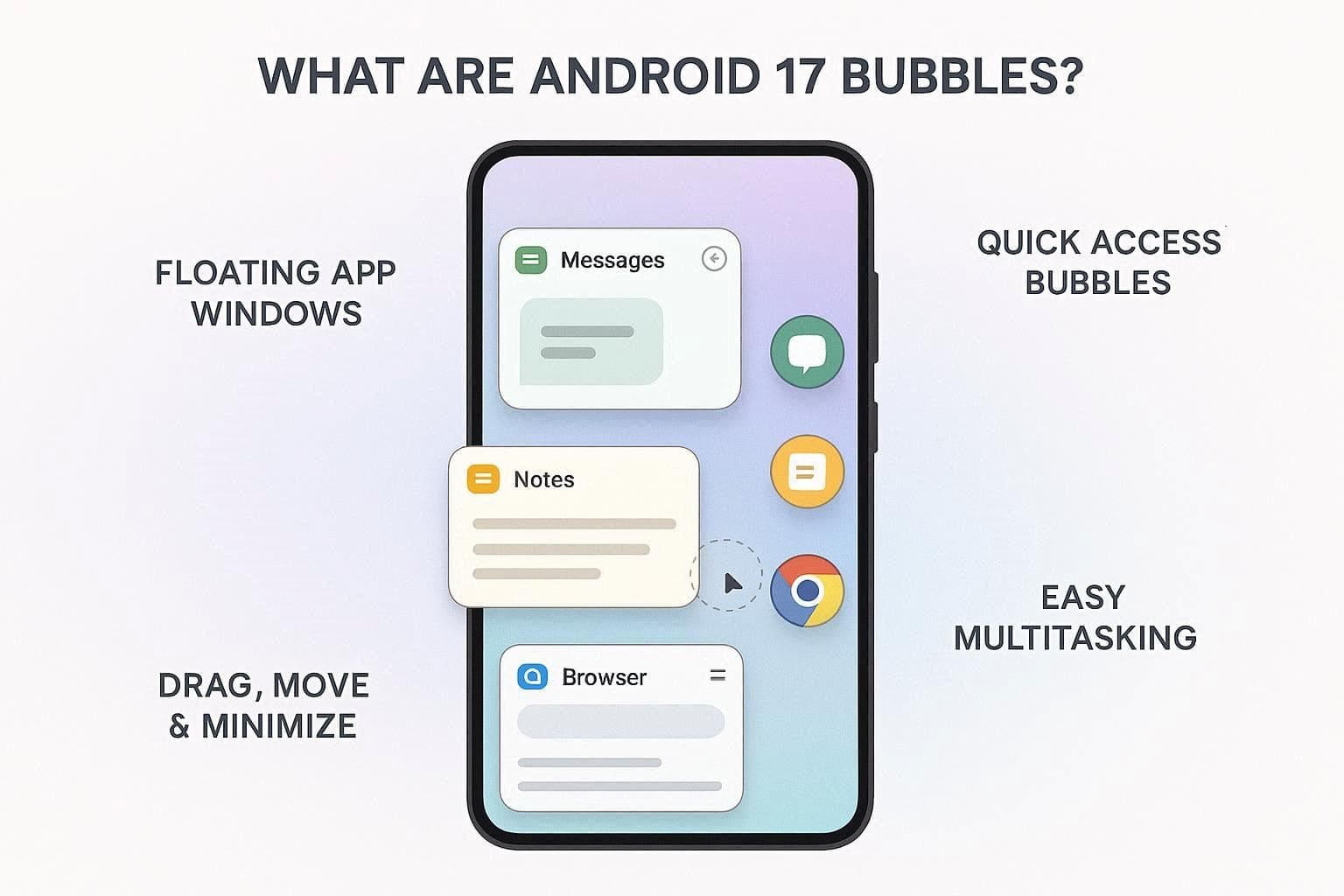
Android 17 Bubbles is a multitasking feature that helps apps open in small floating windows instead of full screen. To know how it works and where it's supported, review the details mentioned ahead:
How Bubbles Work in Android 17
As you long-press an app icon and tap the “Bubble” option, you can access this feature. Upon doing so, the app opens in a movable window that can be minimized into a small circular icon on the edge of the screen.
In addition, users can switch between the app bubbles, move them around easily, and drag them to the “X” icon to close them. Hence, making Android 17 multitasking seamless, bubbles work with a special bubble bar on tablets and foldable devices, according to the Android Developer report.
Supported Apps for Bubbles
Note that you can leverage this feature if it supports multi-window mode. Thus, the list of apps includes Google Docs, Google Chrome, and messaging applications since they need no extra setup. Apps designed for split-screen or tablet layouts can also automatically support floating bubbles.
How to Turn Bubbles On or Off
If you're wondering how to turn simple apps into Android 17 floating apps, this section is for you. Though it's directly through on-screen gestures, it needs to be activated via the settings first. So, from activating it globally to specific apps, learn how to do that via the mentioned steps:
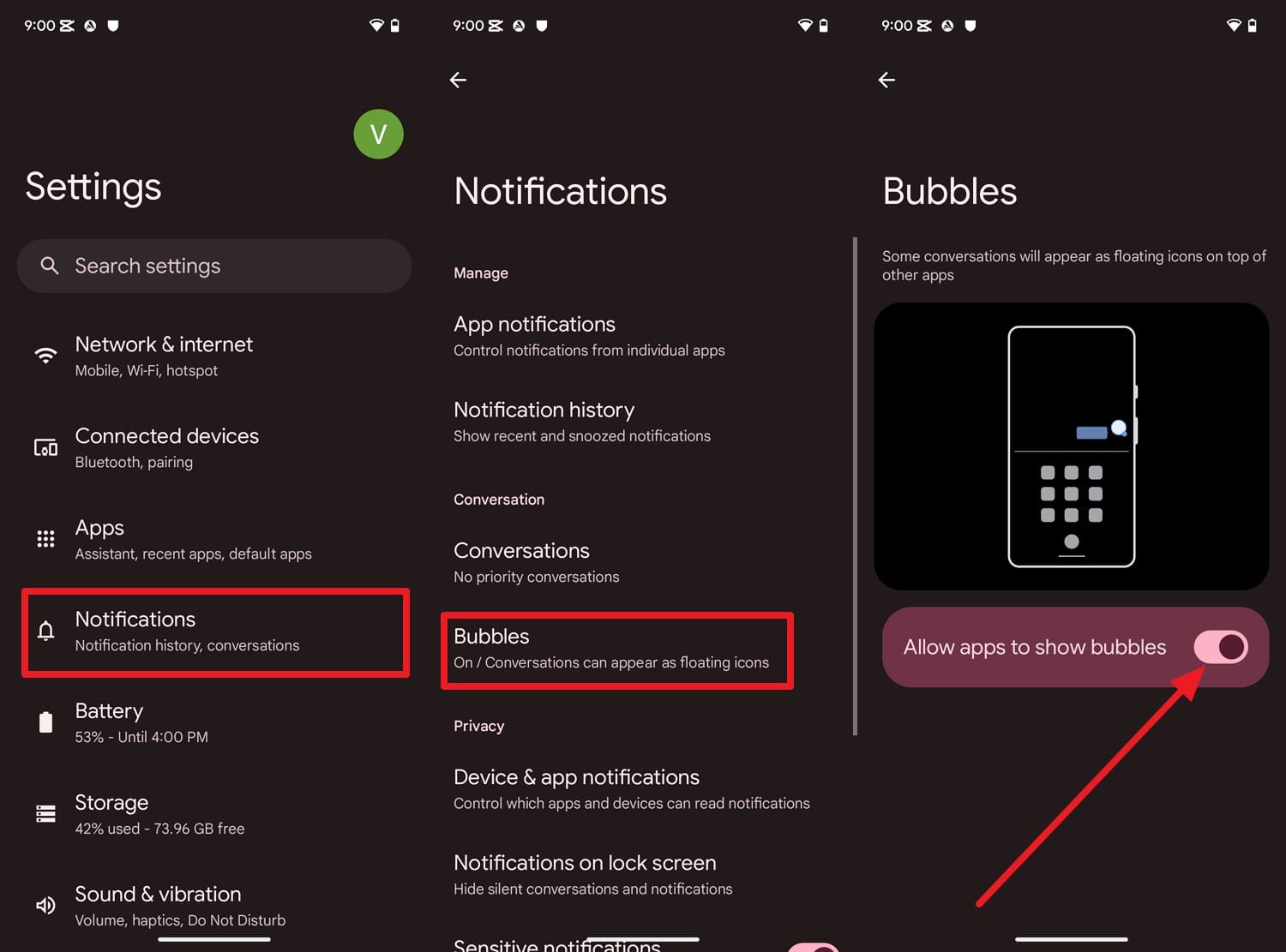
Global Bubble Settings:
Instructions. In the settings, go to “Notifications” and choose the “Bubbles” option to toggle on “Allow Apps to Show Bubbles.”
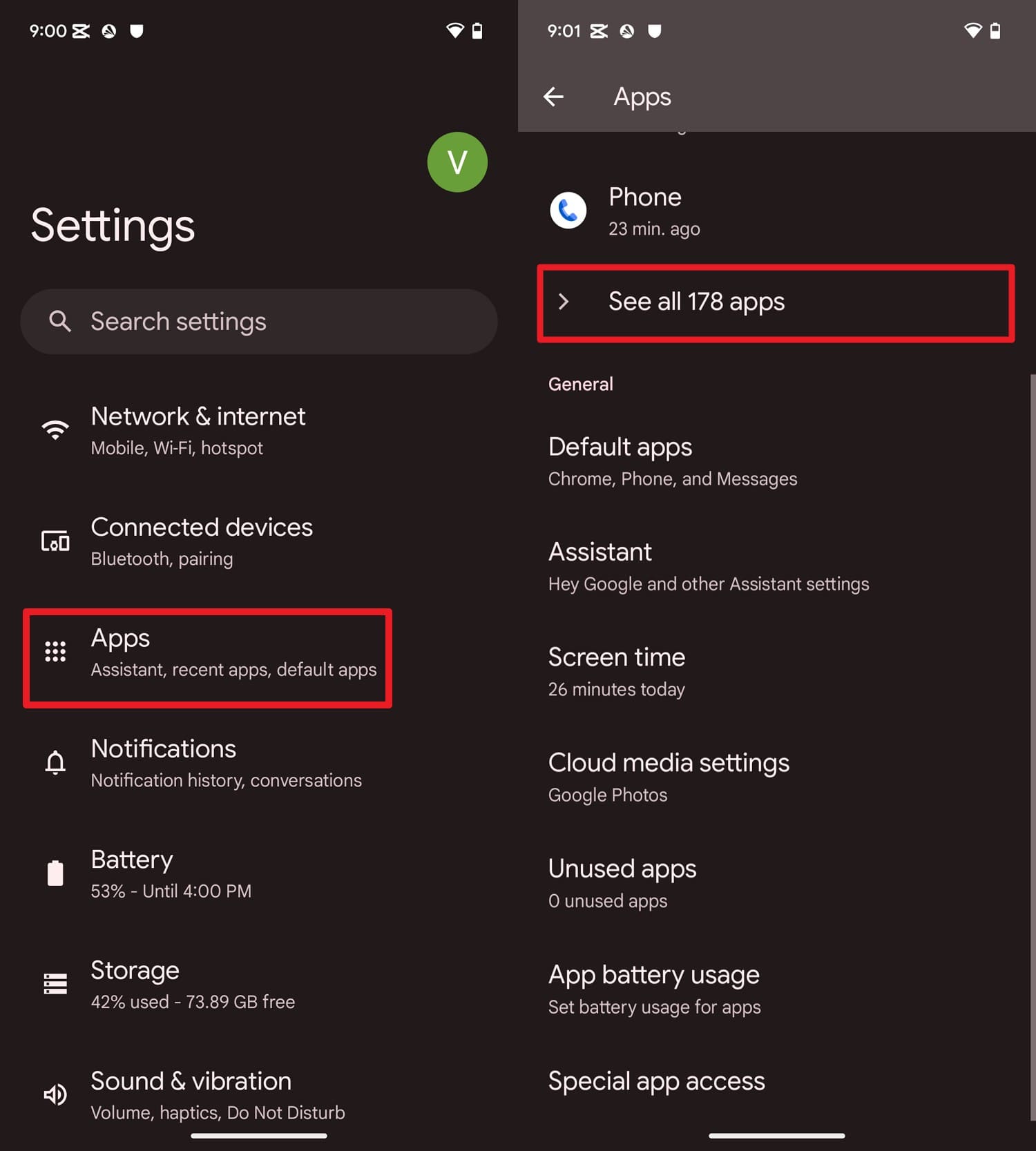
App-Specific Bubble Settings:
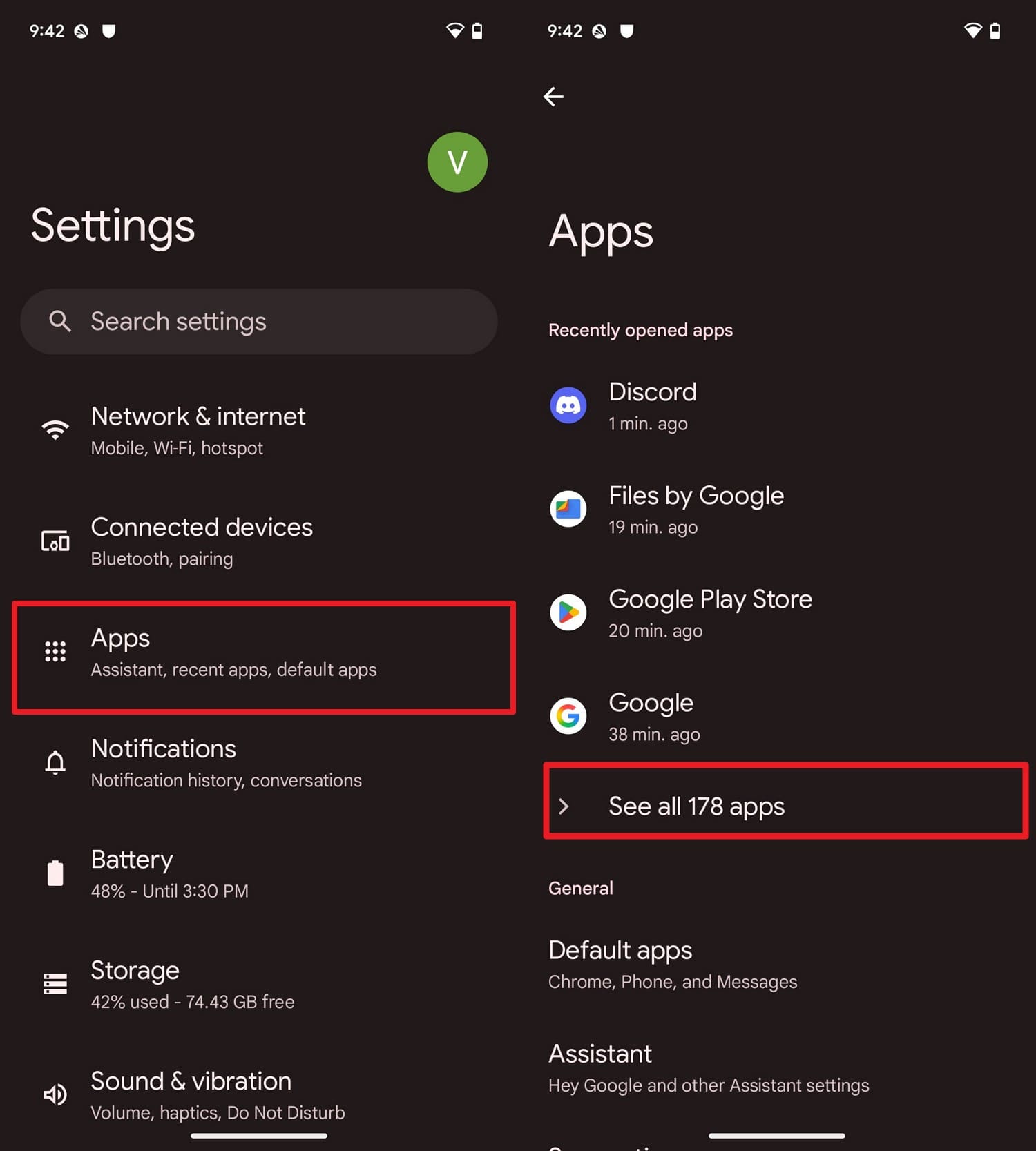
Instructions. Go to "Apps" in the settings and pick the "See All Apps" option to select the app you want to configure. Then, choose "Notifications" and choose "Bubbles" to determine whether you want the app to bubble All Conversations, Selected Conversations, or None.
Part 2. Android 17 App Memory Limits Explained
What Are App Memory Limits?
The rules in Android that dictate how much RAM can be used by an app at any given time are called app memory limits. These restrictions prevent heavy or defective applications from slowing down or crashing the entire phone.
According to the Android Developer report, every application is allocated a fixed memory limit. Therefore, if it consumes a lot of RAM, Android will either close the application or indicate an “Out of Memory” error.
Why Google Introduced Stricter Limits
The memory limits make the phone smoother and more stable when using the multi-tasking feature of Android 17. Specifically, the limits ensure that memory-hungry and poorly coded applications do not use up too much RAM in the background. Therefore, this will regulate the sharing of memory between applications, preventing lag, UI stuttering, overheating, and battery drain.
Part 3. Why Apps Behave Differently After Android 17 Update?
So, as you update the Beta version, here are some reason that highlights why apps behave differently:
| Reason/Change in Android 17 | Why It Makes Apps Behave Differently |
|---|---|
| Stricter Memory Management | Android 17 is more aggressive about closing background apps when RAM is low, so some apps are killed sooner than before. |
| Smarter Battery and Power Controls | New or updated power‑saving rules limit what apps can do in the background, which can stop them from running continuously. |
| Changed Background Execution Limits | Apps that relied on old background behaviors (services, broadcasts, alarms) may now be paused or restricted more often. |
| Notification & Bubble Behavior Updates | Bubbles and notifications follow updated rules, so bubbles may appear less often or close when the system needs memory. |
| Apps Not Optimized For Android 17 | Some apps are still tuned for older Android versions, so they may not handle the new limits and policies correctly yet. |
Part 4. Common Problems Users Face with Android 17 Bubbles
After the update, most users cannot resize Android 17 floating apps, and they might take up too much space on smaller phones. Users also report that bubbles close too easily when they accidentally tap the background.
Most of all, Android 17 supports bubbles only in limited ways, so they cannot be managed on the Recent Apps screen. Furthermore, they may not work properly with third-party launchers instead of the default home screen.
Part 5. How to Fix Android 17 App Memory and Bubbles Issues?
Despite the Android 17 app memory limits, if you want to know how to resolve the bubble issue, try the 11 simple solutions mentioned ahead:
-
Way 1 Restart Your Phone
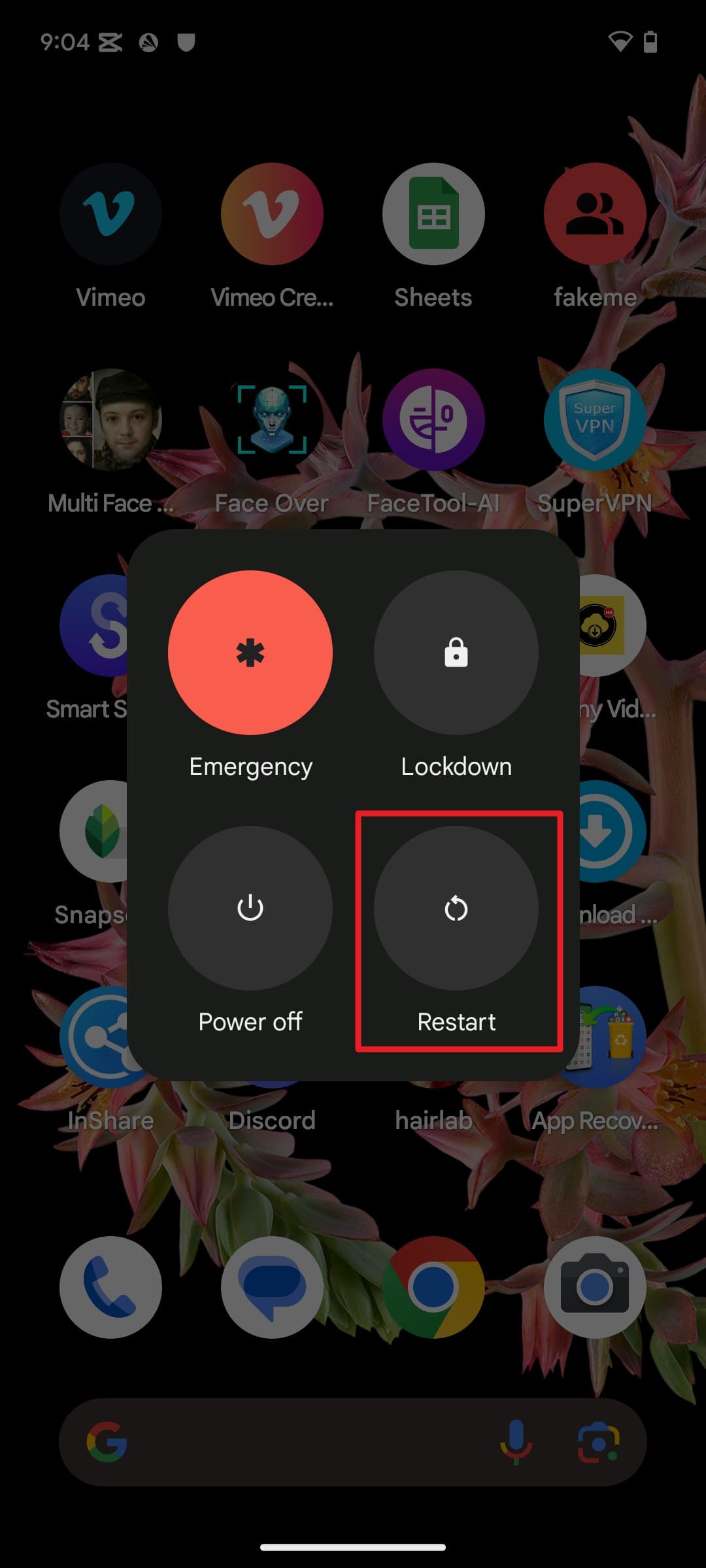
This solution clears temporary system glitches, refreshes RAM, and stops stuck background apps. In addition, it can reload the Bubbles feature and improve multitasking performance, as guided:
Instructions. Press the “Power + Volume Up” button for the Google Pixel and choose the “Restart” button to continue.
-
Way 2 Update Apps to Latest Version
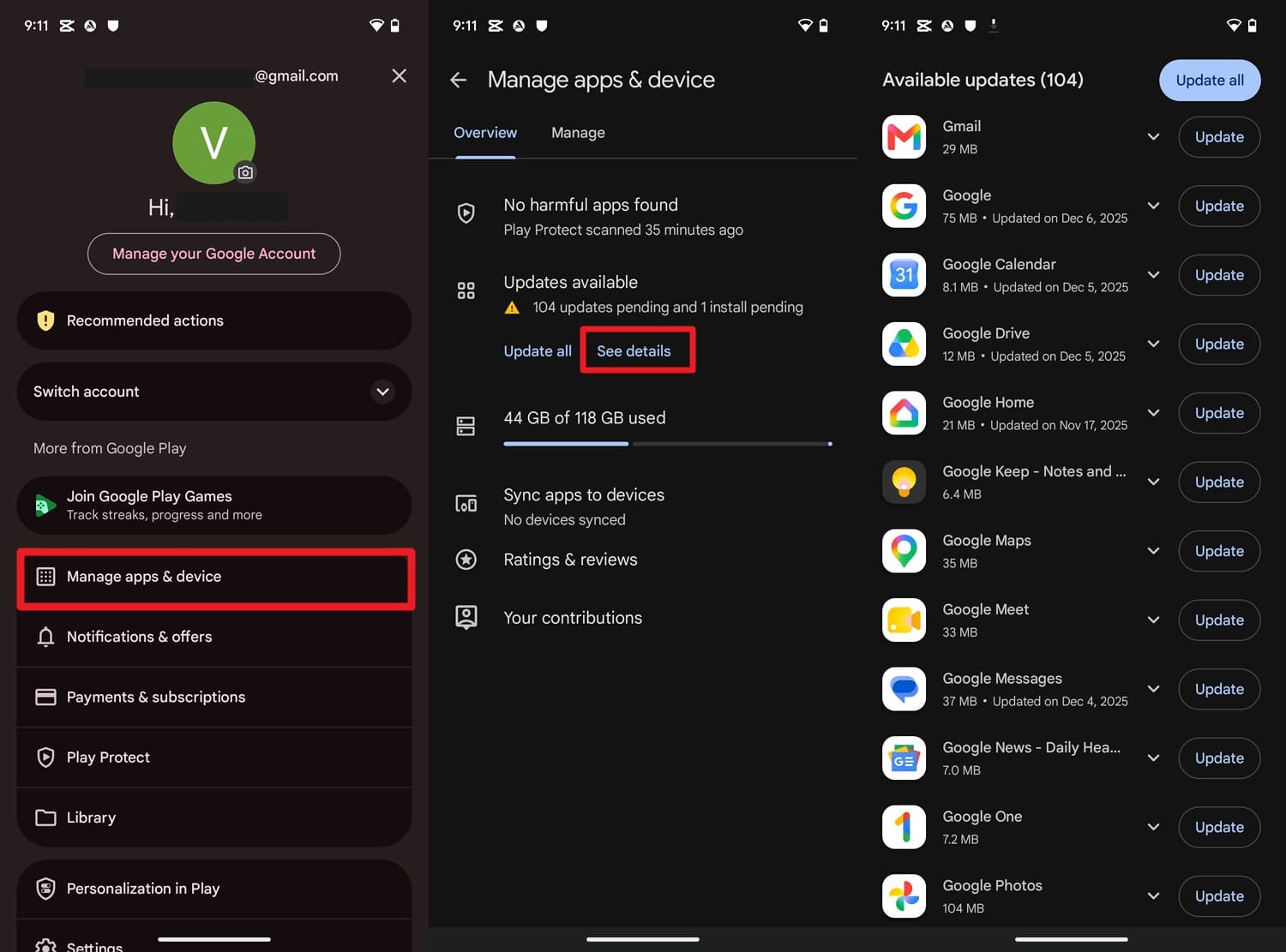
For Android 17 floating apps, updates help reduce app memory issues and ensure the new Bubble feature works smoothly. In addition, it introduced new memory limits and system behaviors, as mentioned, guided by the steps:
Instructions. Tap the “Profile” icon in the Play Store, then choose “Manage Apps & Device,” then select “See Details” under “Updates Available.” There, locate the app that uses bubbles a lot, press the “Update” button, then restart the device.
-
Way 3 Clear App Cache
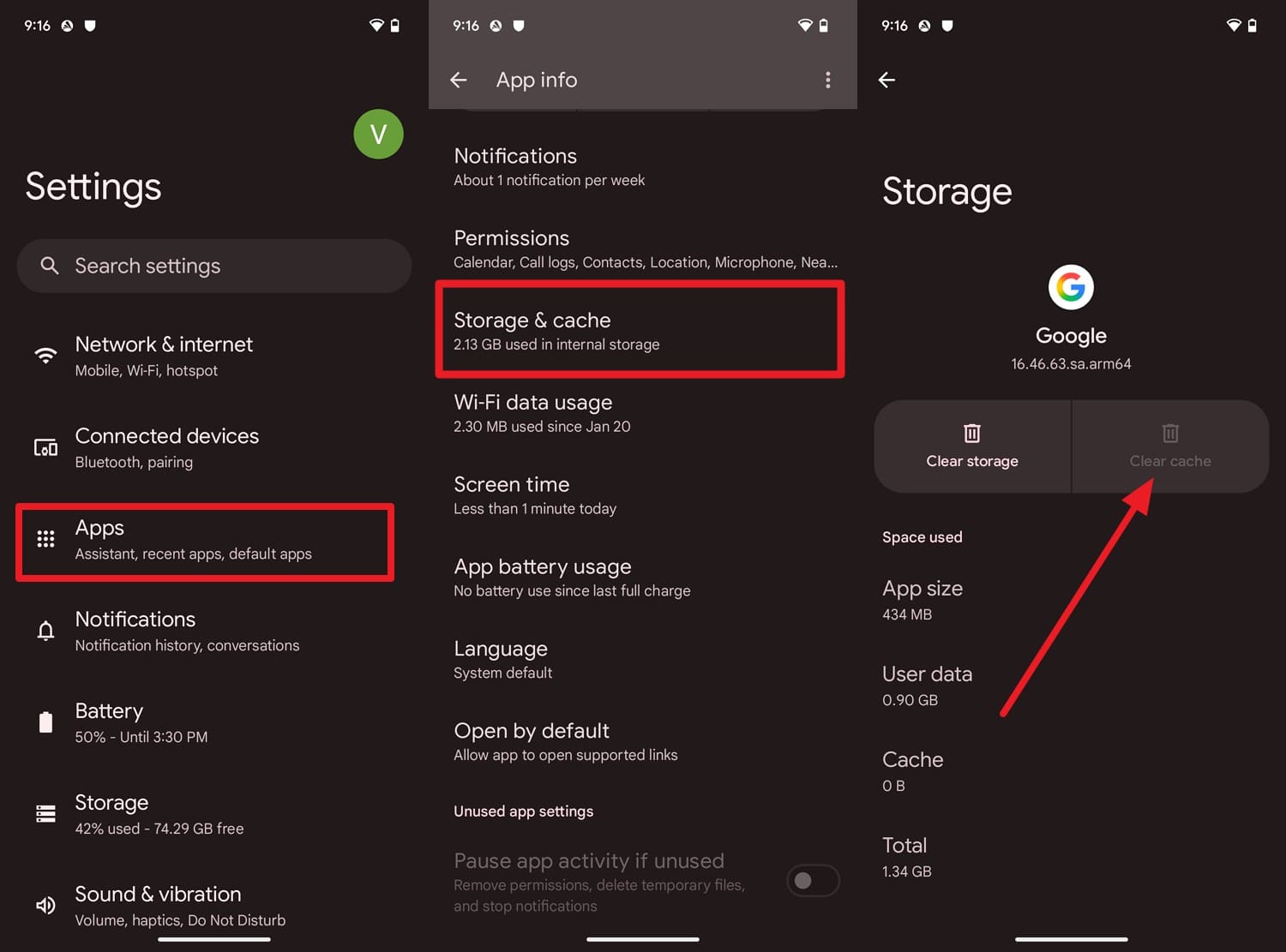
Users can remove the old temporary files that may be corrupted or incompatible with the new system changes. Moreover, it helps the app rebuild the fresh files for smoother performance without deleting your personal data or logins, as shown:
Instructions. In the “Apps” settings, select the app using the bubbles, then choose the “Storage & Cache” option. Here, press the “Clear Cache” button to confirm.
-
Way 4 Free Up Device Storage
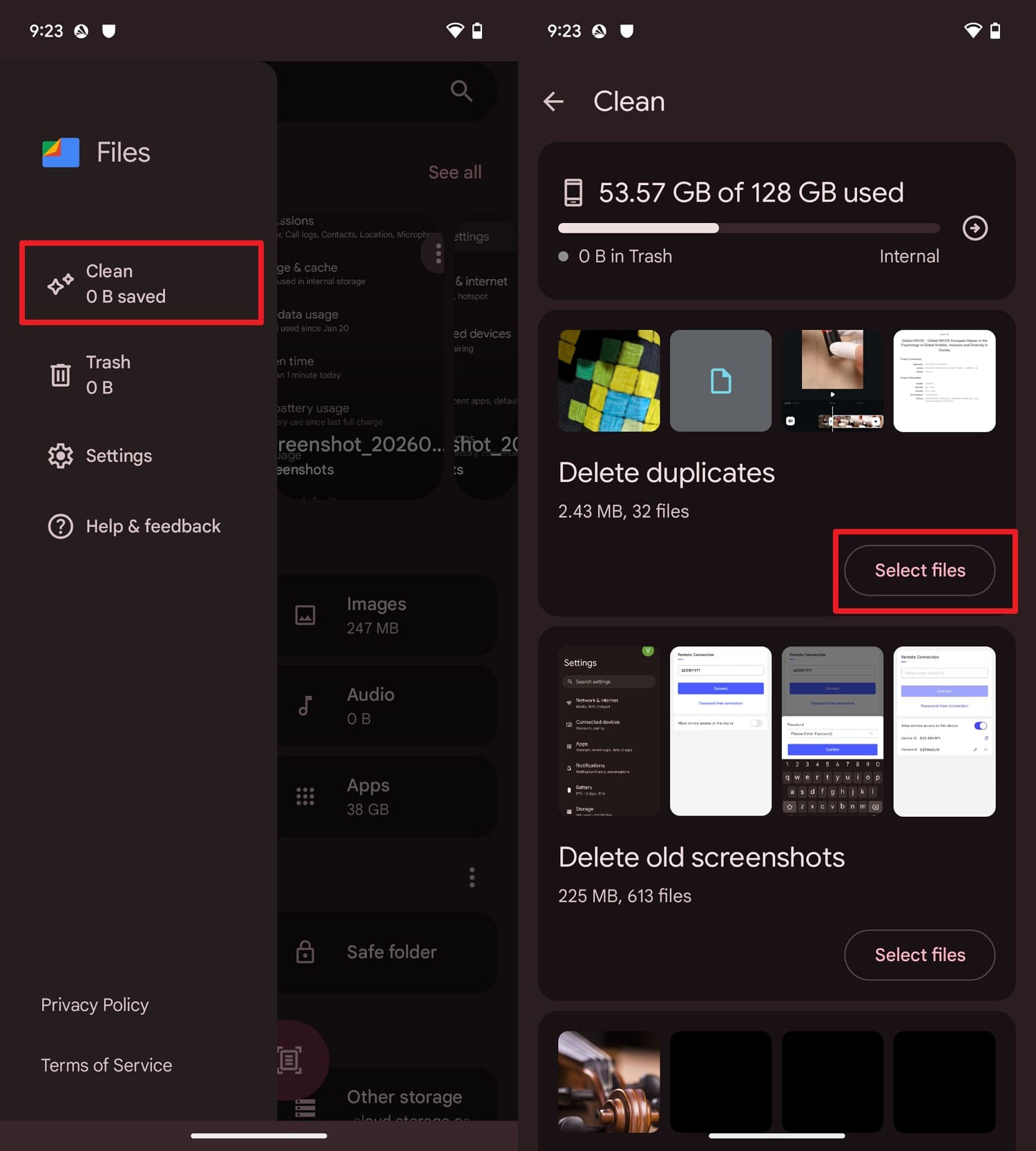
For seamless Android 17 multitasking, enough space can improve performance and reduce lag, crashes, and bubble glitches. Hence, keep 10-15% storage free to help the app launch faster and improve multitasking and responsiveness via the given steps:
Step 1. Select the “Hamburger” icon in the Files app to open the “Clean” tab, then choose the “Select Files” button for the media you want to remove.
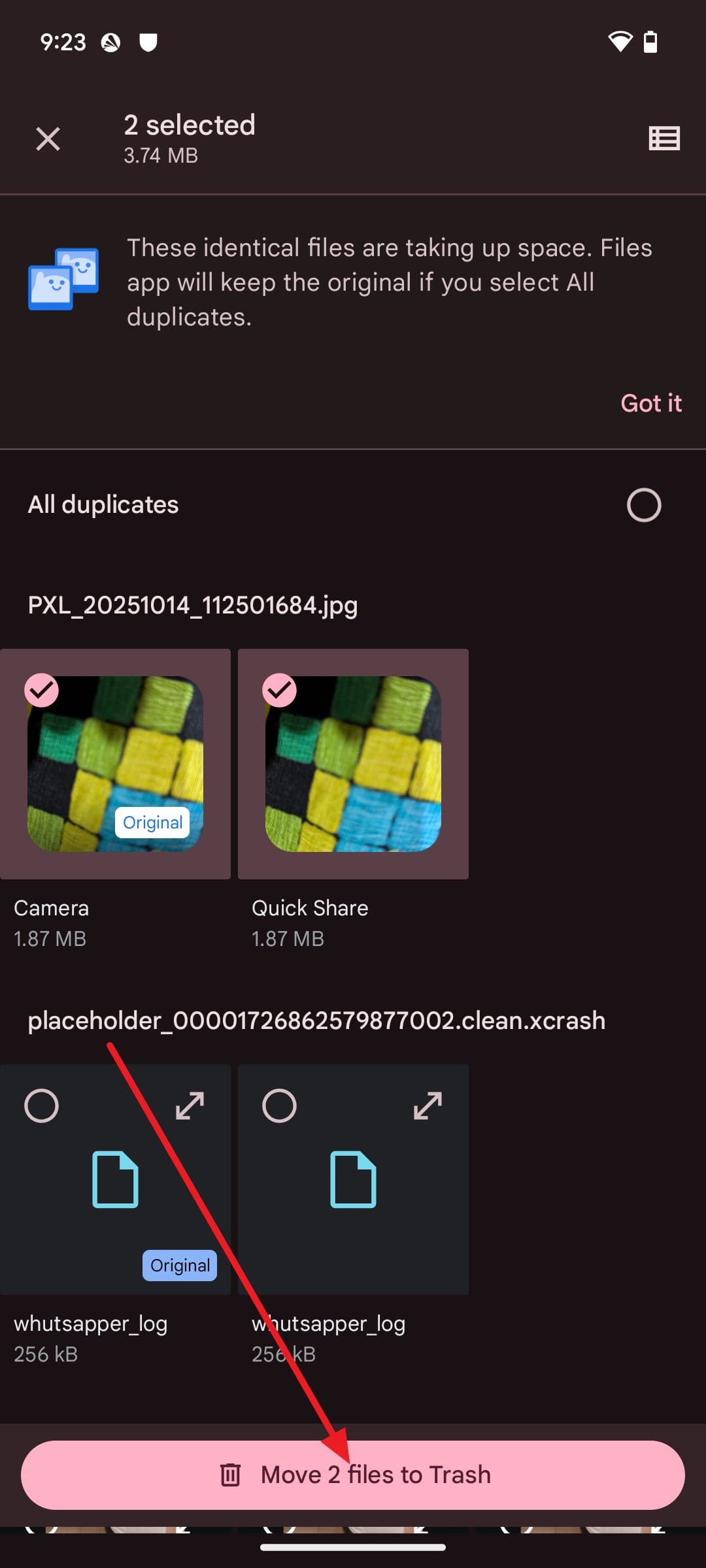
Step 2. In the new interface, select the junk and duplicates, then tap the “Move Files to Trash” button to free up space.
-
Way 5 Disable App Bubbles in Settings
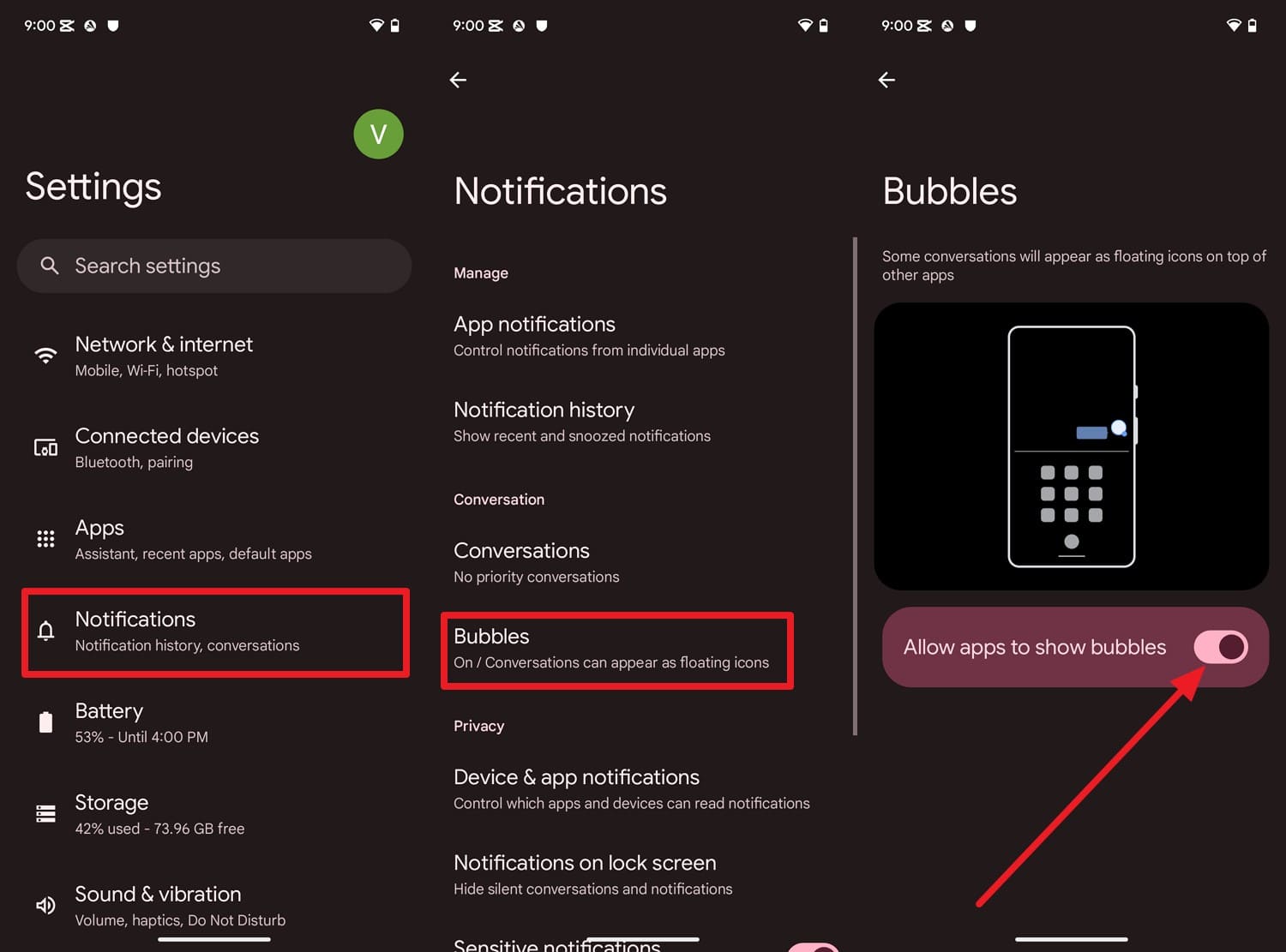
Since Android 17’s Bubbles are still evolving, turning them off forces apps to use the more stable normal app view. Thus, this can reduce crashes, improve multitasking, and lower distractions, as guided for all apps:
Instructions. Tap on the “Notifications” settings and pick the “Bubbles” option to toggle off “Allow Apps to Show Bubbles.”
-
Way 6 Use System Repair Tool - Dr.Fone
Dr.Fone - System Repair (Android)should be considered only when bubble or app problems appear alongside broader system-level symptoms, such as repeated crashes across multiple apps, a failed Android update, boot loops, black screens, or startup failures. It is not intended to change Android 17's normal memory-management rules or repair a problem limited to one app's bubble settings.
Dr.Fone provides guided Android system repair workflows for supported Samsung and Xiaomi devices. Samsung users can troubleshoot supported system failures through a guided repair process, while eligible Xiaomi, Redmi, and POCO devices can use a repair workflow designed to retain user data. Users should confirm the supported model and available repair method before starting.
Guide to Resolve the Android 17 System-Level Issues via Dr.Fone
Step 1. Choose the Android Repair Tool for Dr.Fone. Select the “Repair Now” button under the “Android Repair” feature in the “System Repair” tool to fix bubbles and memory issues on Xiaomi/Redmi/POCO devices.

Step 2. Choose the brand and pick the “Start” button to “Download” the desired firmware package on the tool.
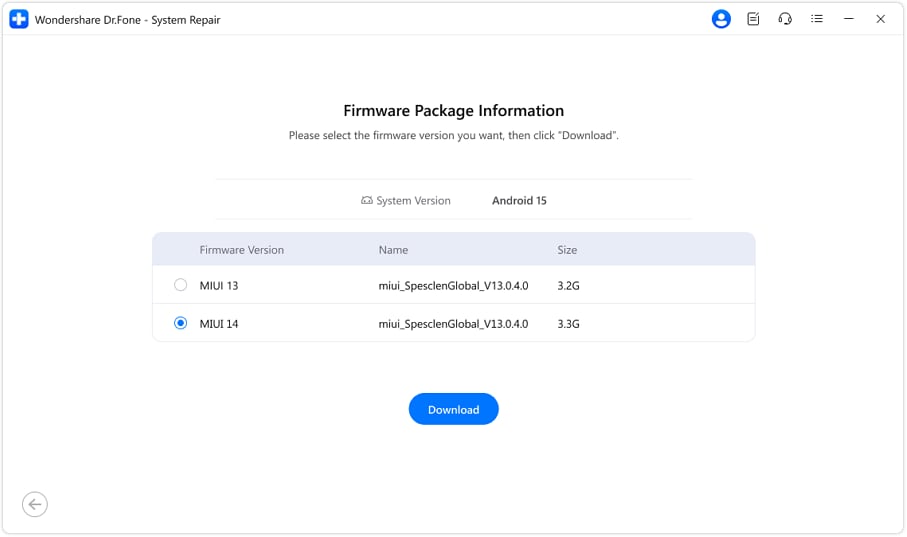
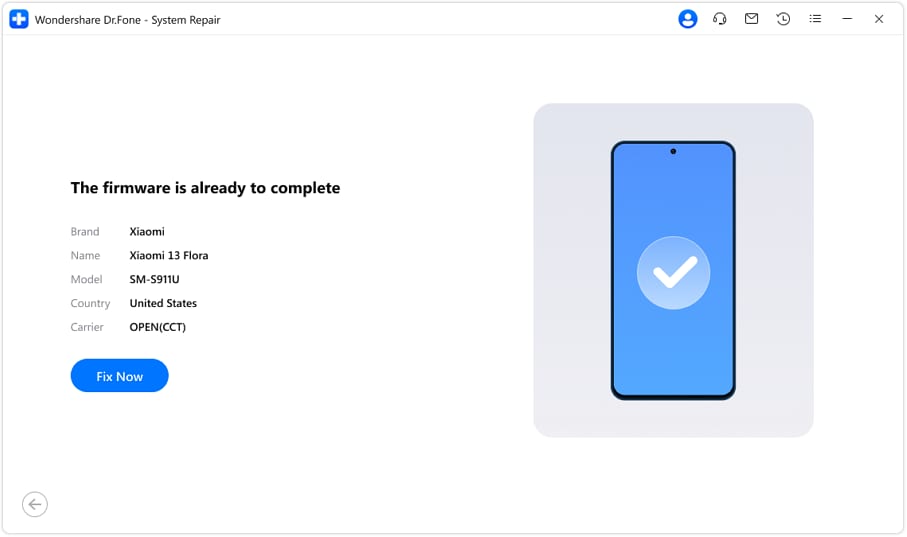
Step 3. After installing the firmware, select the “Fix Now” button and wait for the tool to fix Android 17’s system-level issues.




-
Way 7 Reset App Preferences
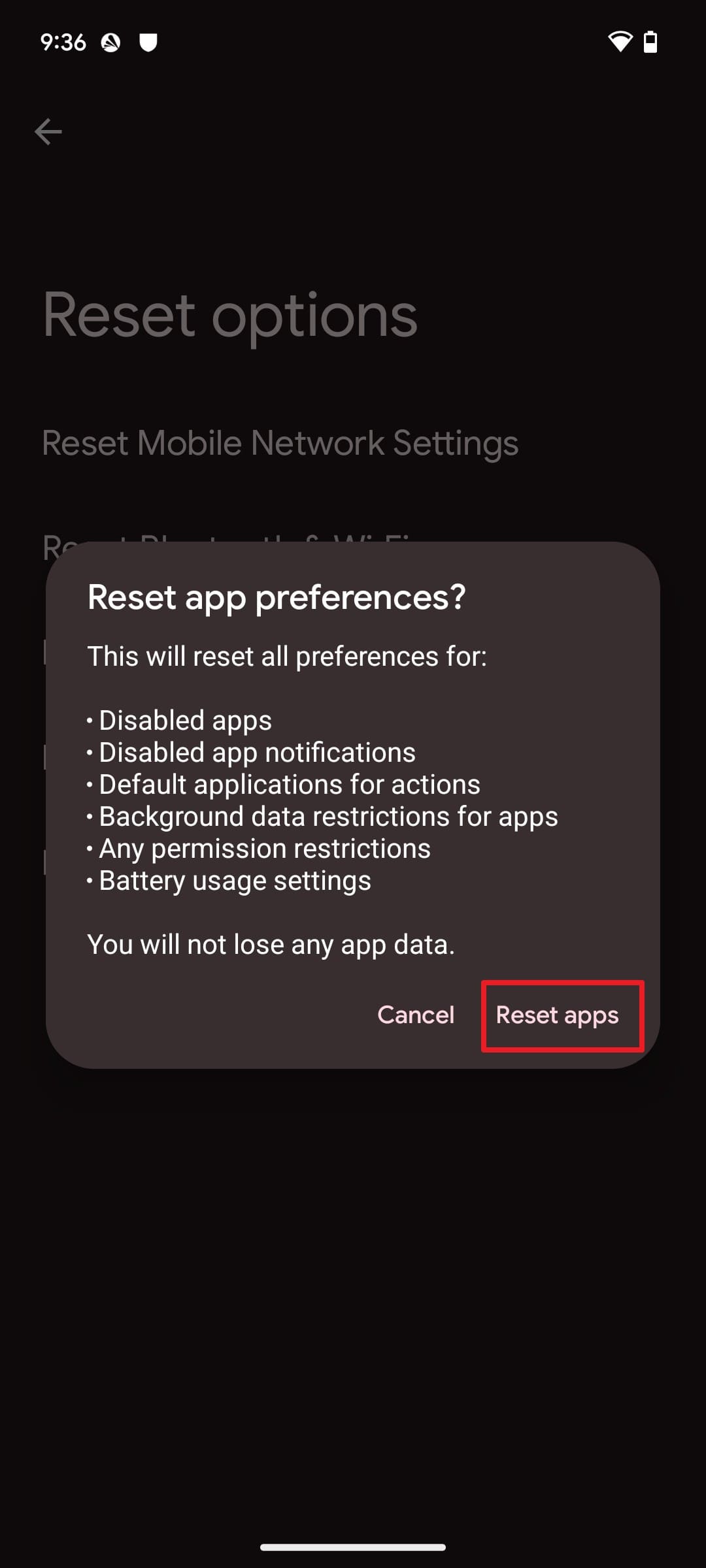
To resolve the Android 17 app memory limits and bubble issue, you can restore app settings back to the default state without deleting your data. It re-enables disabled apps and services along with other settings and clears incorrect fault app choices, as demonstrated:
Step 1. In the System settings, choose “Reset Options” and tap the “Reset App Preferences” option.
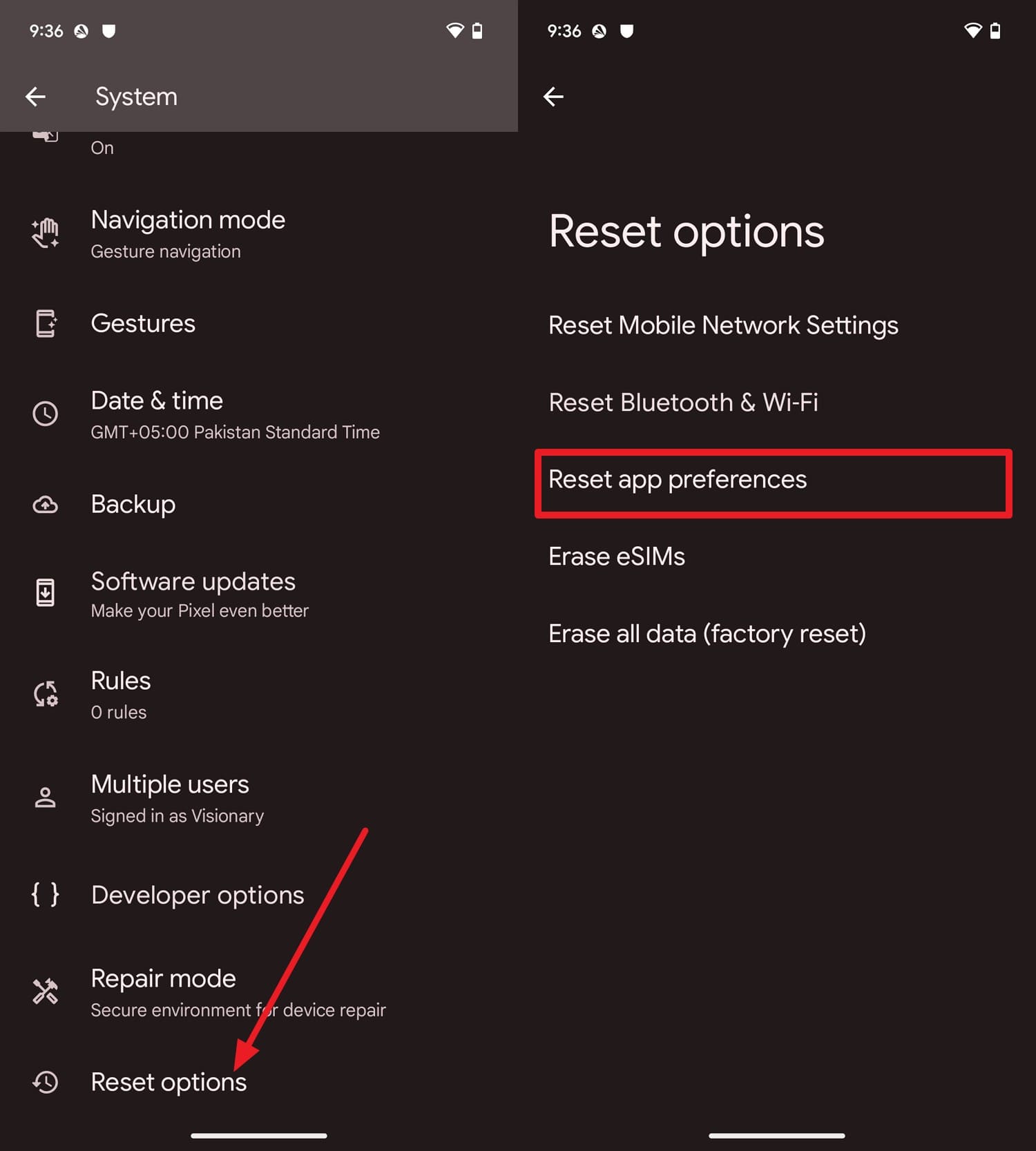
Step 2. On the confirmation pop-up, read the instructions and press the “Reset Apps” option.
-
Way 8 Check App Permissions
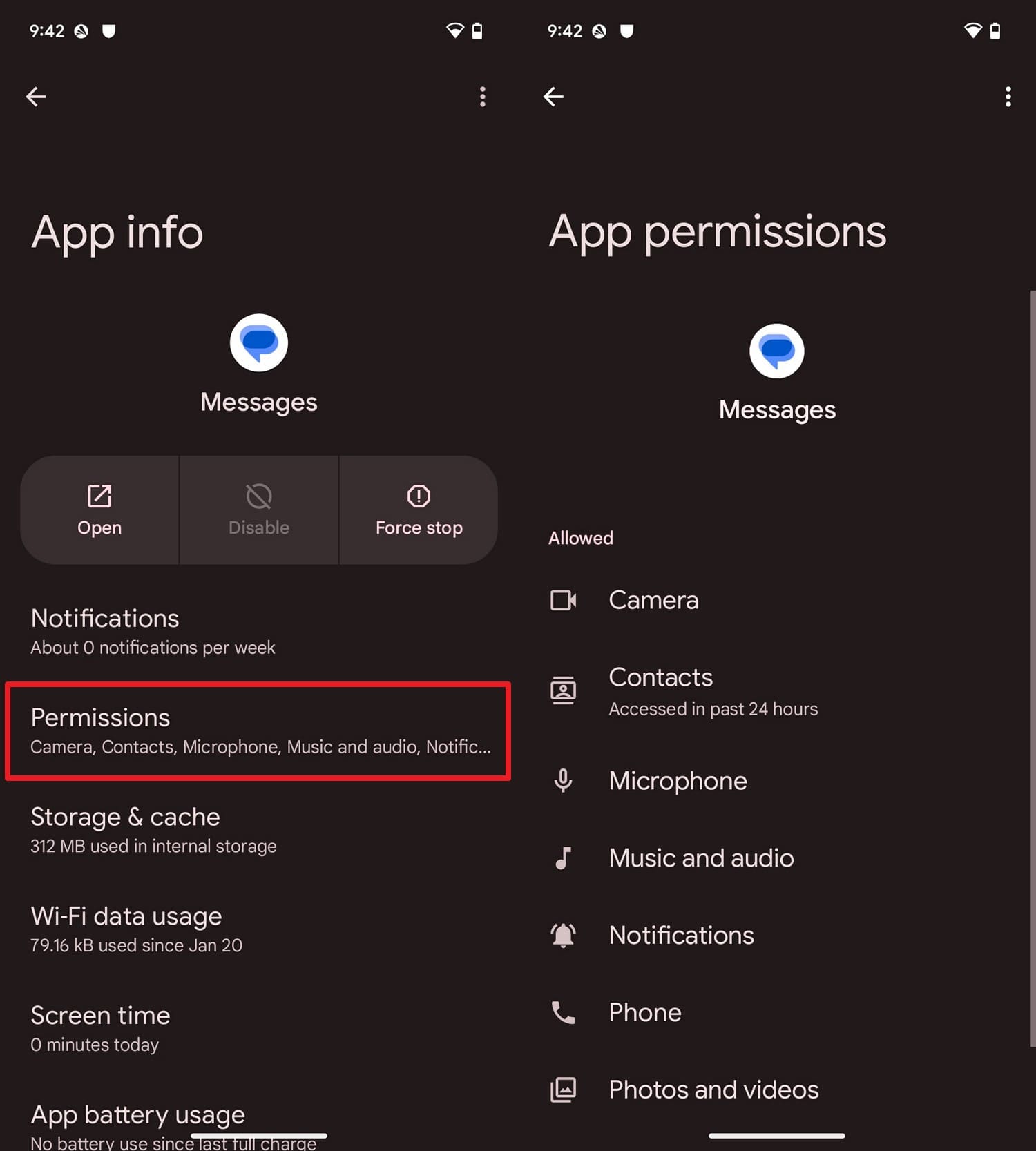
If the necessary permissions are restricted or denied, apps may crash or fail to show bubbles. So, review the permissions to help the app run more smoothly with Android 17’s stricter background rules, as guided:
Step 1. In the “Apps” settings, choose the “See All Apps” option, then pick the application with the issue.
Step 2. Pick the “Permissions” on the App Info interface and check and “Allow” the listed permissions one by one.
-
Way 9 Reinstall Problematic Apps
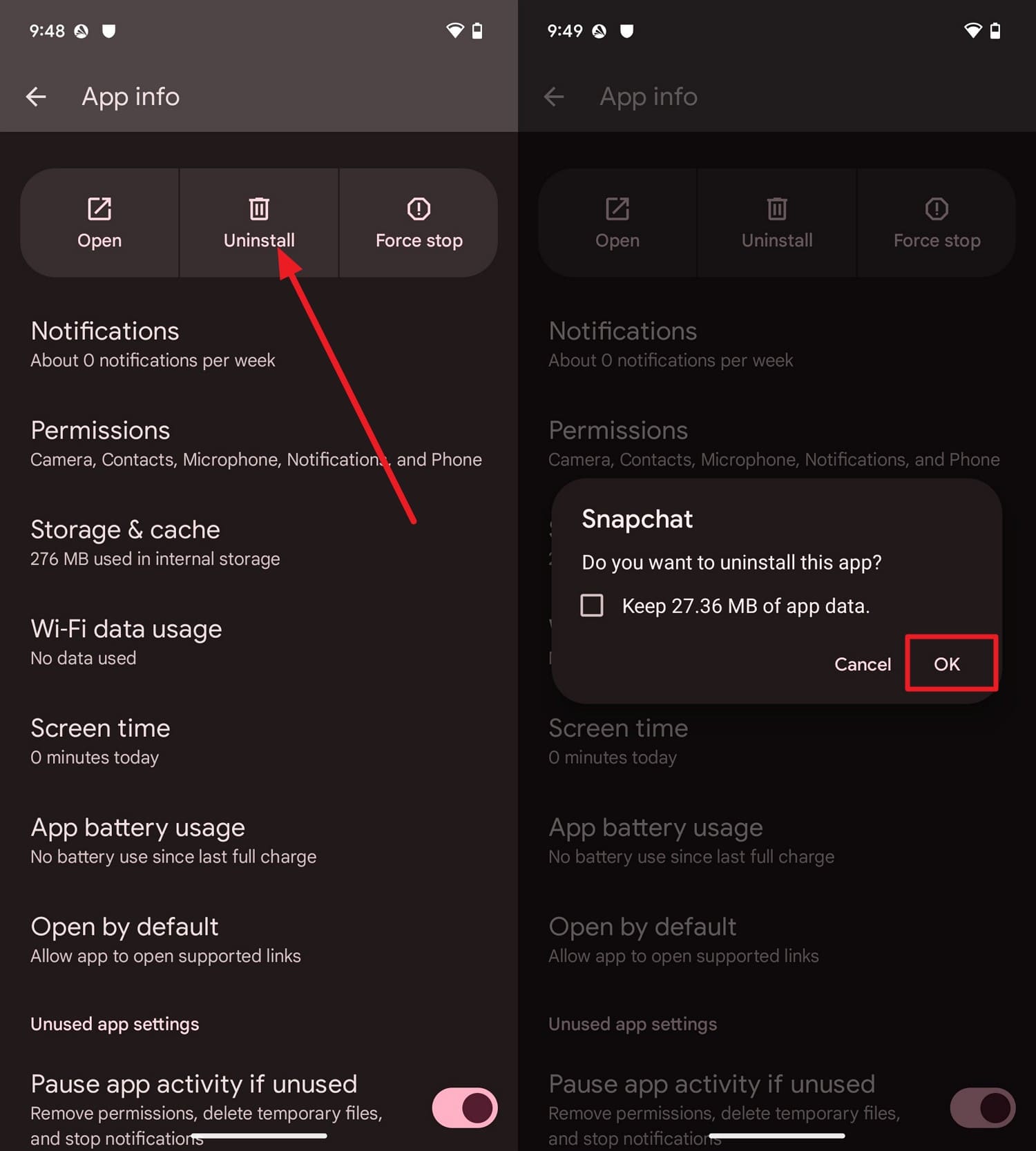
For the Android 17 floating apps issue, a quick reinstall can replace corrupted files and broken settings. Additionally, it can clear hidden cache and bloated app data once done through the listed steps in detail:
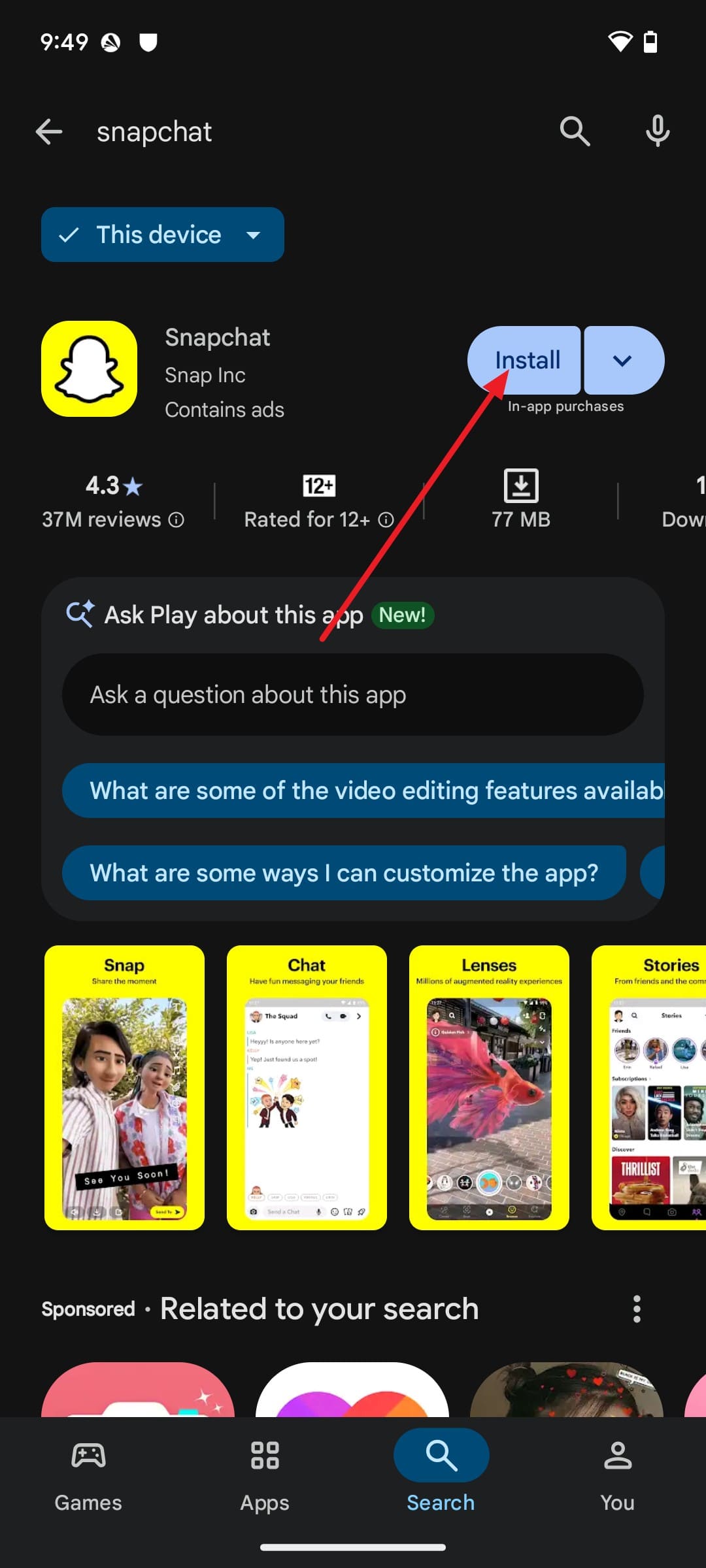
Step 1. Long-press the app to choose “App Info” and press “Uninstall > OK” on the new interface.
Step 2. On the Play Store, search for the app after installation and choose the “Install” button to resolve the bubble issues.
-
Way 10 Boot into Safe Mode
This solution diagnoses the Android 17 memory and bubbles issue because it disables all third-party apps and runs only the core system apps. It reduces RAM and CPU usage to see whether the crashes and bubbles glitches are caused by Android 17 or by a problematic app. If the issues appear in Safe Mode through the given instructions, you can later remove the apps:
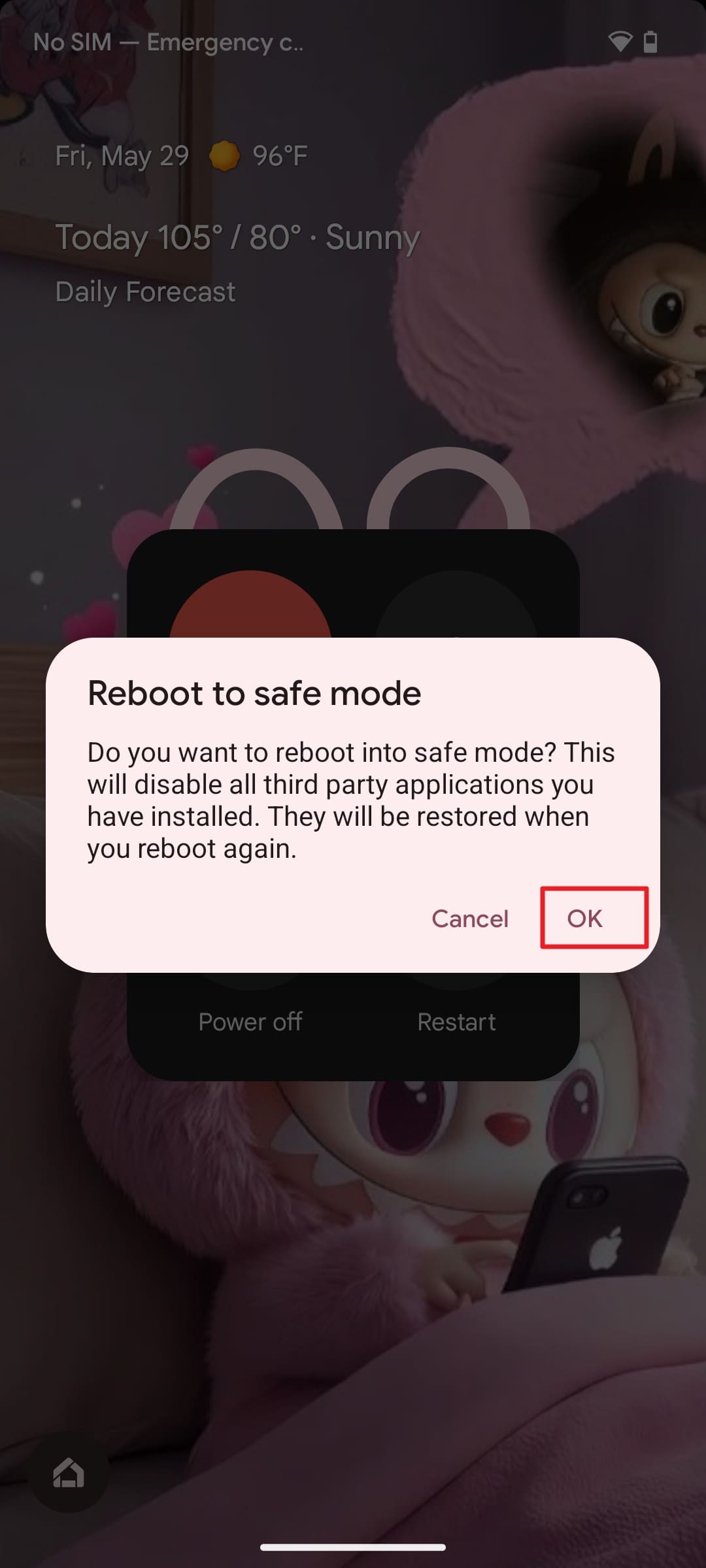
Instructions. Press and hold the “Power” and “Volume Up” buttons, and hold the “Power Off” option for a few seconds. When the “Reboot to Safe Mode” popup menu appears, tap the “Ok” button to continue. The phone will restart, and you can see the “Safe Mode” indicator at the bottom.
-
Way 11 Reset Network Settings
If Android 17 multitasking via bubbles is still limited, reset the network settings to clear any corrupted Wi-Fi, mobile data, Bluetooth, or VPN settings. Since they can cause the app to freeze or fail to sync, this solution rebuilds these settings and improves connectivity, as guided:
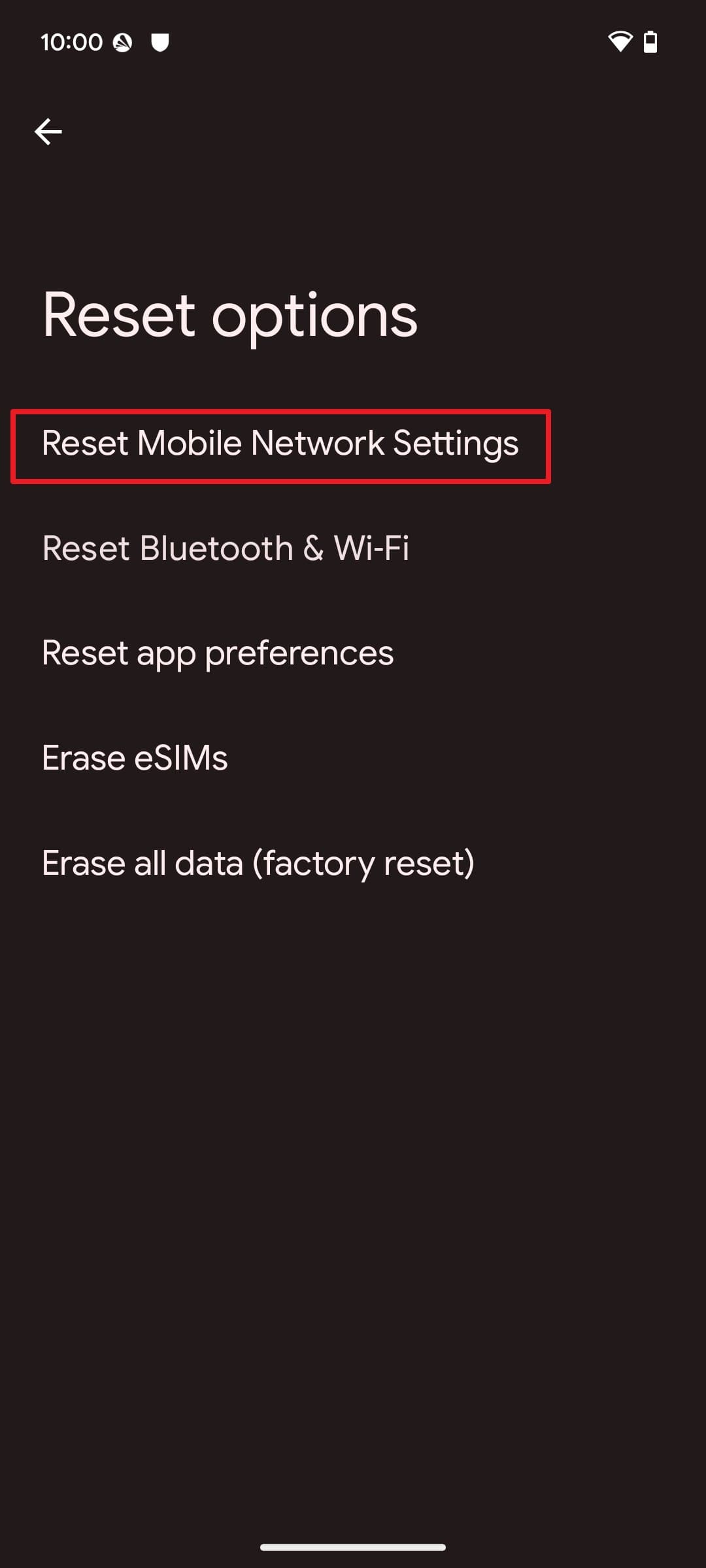
Step 1. On the “System > Reset Options,” choose the “Reset Mobile Network Settings” option.
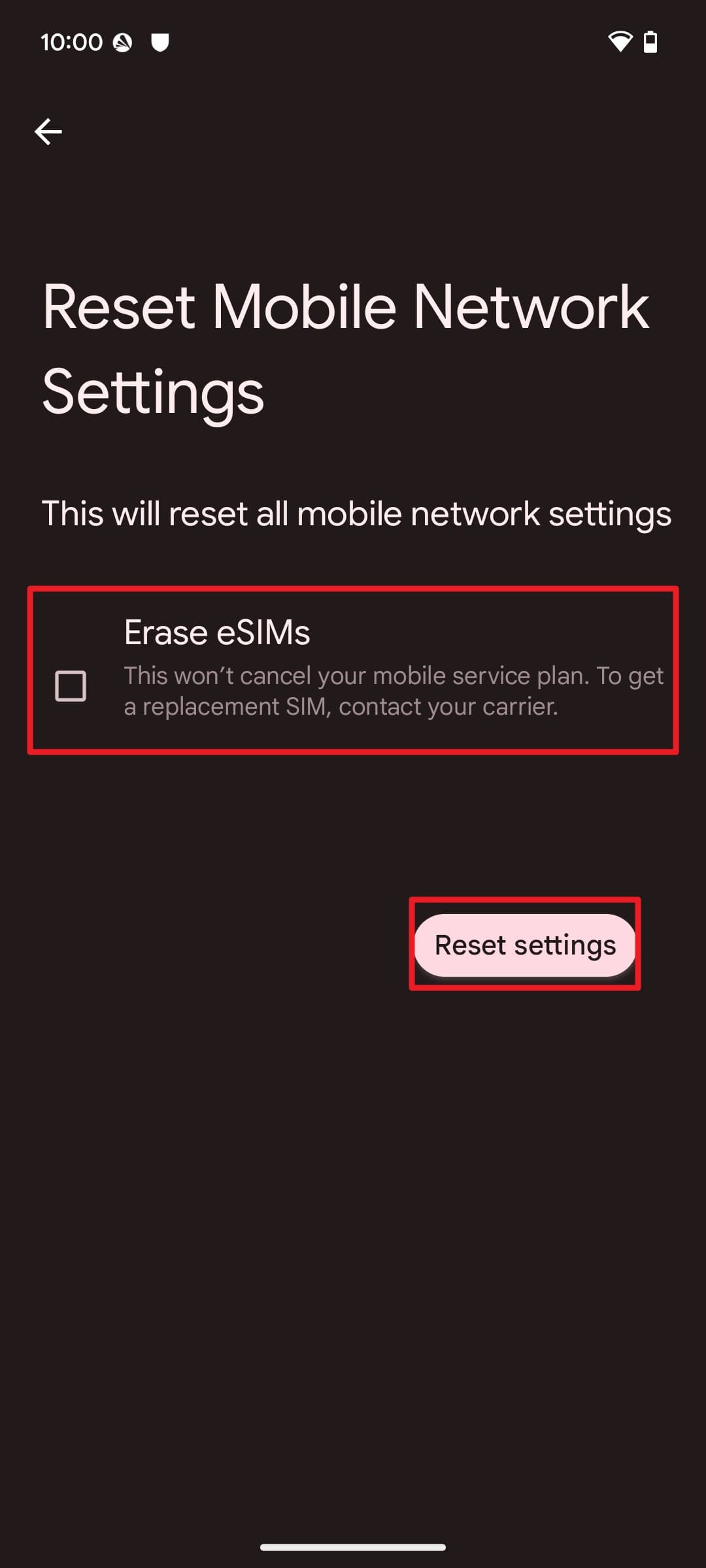
Step 2. Choose to pick the “Erase eSIMs” option if you like, and press the “Reset Settings” option to continue.
Conclusion
To sum up, Android 17 introduces app memory limits intended to prevent excessive memory use from affecting overall system stability. Users should first check bubble settings, app updates, permissions, storage, cache, and app compatibility because these changes do not necessarily indicate that the Android system is damaged.
When bubble failures occur together with broader system problems, users with supported Samsung or Xiaomi devices can consider Dr.Fone - System Repair (Android).Eligible Xiaomi, Redmi, and POCO devices can use a repair workflow designed to retain user data, while free Recovery Mode, Fastboot Mode, and Download Mode tools are available for entering or exiting the required maintenance environment.
FAQ
-
1. Why do bubbles stop working when I switch apps too much?
Switching apps too fast uses memory, and Android 17 may slow or freeze bubbles to keep the phone stable. -
2. Why do bubble messages sometimes come late?
Android 17 can delay bubbles when background activity is limited or the internet connection is unstable. -
3. Why do some apps still not have bubbles after the update?
Some apps are not fully updated to Android 17, so they do not yet support the bubble feature.
 Add Wondershare Dr.Fone as a preferred source on Google




