 Resolve common problems and system crashes on both iPhone and Android devices.

 100% Security Verified | No Subscription Required | No Malware

 :
: 
 ChatGPT
 Perplexity
 Gemini
 Claude
 Grok
Grok
Is your iPhone stuck on the Apple Logo, or does it show the iOS 27 update failed error? Although the update brings improved features, it can cause download errors and installation failures.
This issue is linked to multiple issues, and this guide will uncover them, including simple and advanced solutions. Of all the fixes, learn how Dr.Fone - System Repair (iOS) and its modes can resolve the “stuck Apple Logo” issue.
In this article
- Part 1. Why iPhones Get Stuck During the iOS 27 Update
- Part 2. First Things to Do Before Fixing the Problem
- Part 3. Fix iPhone Stuck on iOS 27 “Update Requested” or Downloading
- Part 4. Fix iPhone Stuck on Apple Logo or Install Screen
- Part 5. How to Prevent iOS 27 Update Problems in the Future?
- Frequently Asked Questions
Part 1. Why iPhones Get Stuck During the iOS 27 Update
Learn why the iOS 27 frozen issue happens in the first place in this section.
Common Causes of iOS 27 Update Failures
The following table highlights the potential causes for the failure of iOS 27 updates:
| Cause | What happens |
|---|---|
| Not Enough Free Storage | Download or installation stops or fails. |
| Weak or Unstable Wi‑Fi | Update download is corrupted or interrupted. |
| Low Battery or Power Interruptions | iPhone may shut down mid‑update. |
| Old or Buggy iOS Beta Build | Conflicts during installation, stuck at progress. |
| Corrupted System Files | Device freezes, boot loops, Apple logo hang. |
| Outdated or Faulty Apps | Crashes or freezes during or after the update. |
| USB or Computer Connection Issues | Errors when updating via Finder/iTunes. |
Signs Your iPhone Is Truly Stuck
Your update is stuck if the Apple Logo and progress bar remain consistent for hours. Another sign is that you see the “Preparing Update” or “Verifying Update” screen for too long.
Other signs can include a boot loop, where the Apple logo repeatedly appears, and you are stuck in Recovery Mode. In most cases, you might get an iOS 27 installation error repeatedly despite connecting to a stable connection and proper charging.
When You Should Wait Before Trying Fixes
If the progress bar is moving or if the update has been running for less than an hour, your iPhone may require some time to complete. This is common when Apple’s servers are busy or the internet is too slow.
So, keep it connected to Wi-Fi and let it keep going when plugged in. If nothing changes after an hour, there is a problem, and you should begin troubleshooting.
Part 2. First Things to Do Before Fixing the Problem
For the iOS 27 update failed or Apple Logo stuck issue, perform the listed pre-checks:
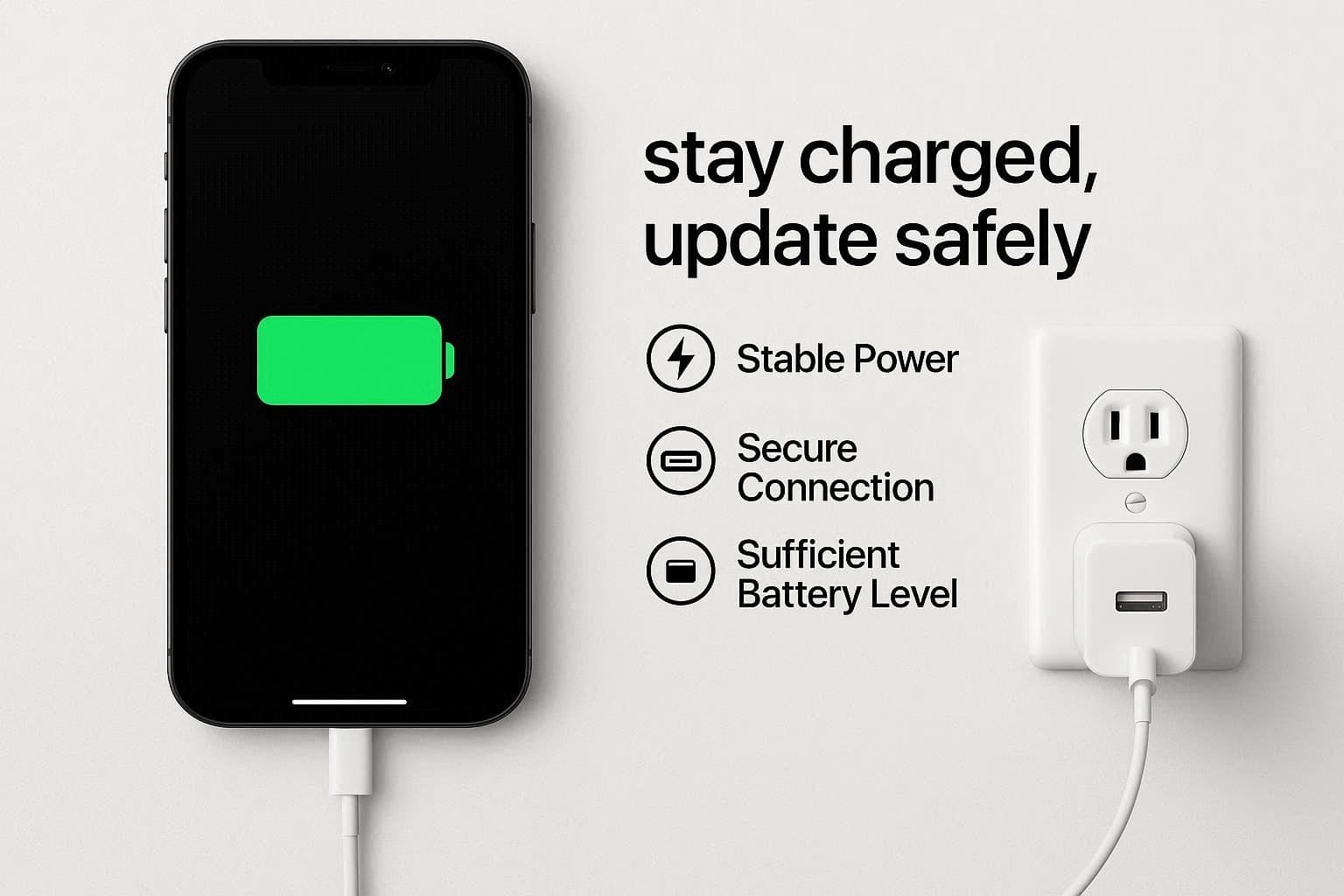
1. Check Battery and Charger
An iOS update can fail if the phone is not fully charged or the connection is unstable. So, ensure your cable, port, and adapter are fine and that the phone is charging normally.
2. Leave the iPhone Connected to Wi-Fi
Since a weak internet can pause downloads and the verification process, leave the device plugged in and connected to stable Wi-Fi. Once the connection improves, most update issues resolve automatically and avoid unnecessary fixes.
3. Do Not Interrupt the Update Too Early
For the iOS 27 frozen issue, note that some updates can take longer than expected to finish. Hence, don’t interrupt the update if it shows signs of activity, and give it up to 1 hour to complete.
4. Avoid Repeated Force Restarts
Though a single restart can help if the device is frozen. Nonetheless, doing it more than once can interrupt important system processes and make the problem worse. Avoid that, or this can lead to boot loops, Apple logo issues, or failed installations, which will require Recovery Mode or a full restore.
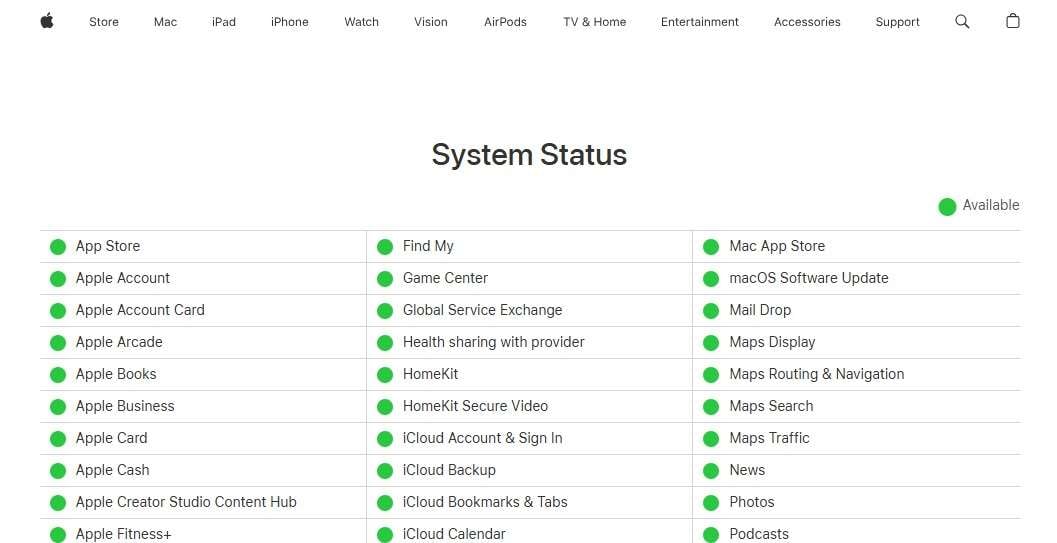
5. Check Apple Server Status
Sometimes the problem is not the phone, as Apple’s updates or iCloud Servers can be overloaded or temporarily unavailable. So, check Apple’s System Status page to avoid unnecessary troubleshooting, such as force restarts or restores.
Part 3. Fix iPhone Stuck on iOS 27 “Update Requested” or Downloading
If the iOS 27 install error persists, try the 5 solutions mentioned in this section for guidance:
Pro Tip. Back Up Your iPhone Before Updating
Since any serious solution for the iOS 27 update failed issue can erase the device, it's suggested to back up the data. In this regard, you can use Dr.Fone - Phone Backup (iOS) or iCloud, and the following details explain why:
Option 1: iCloud Backup
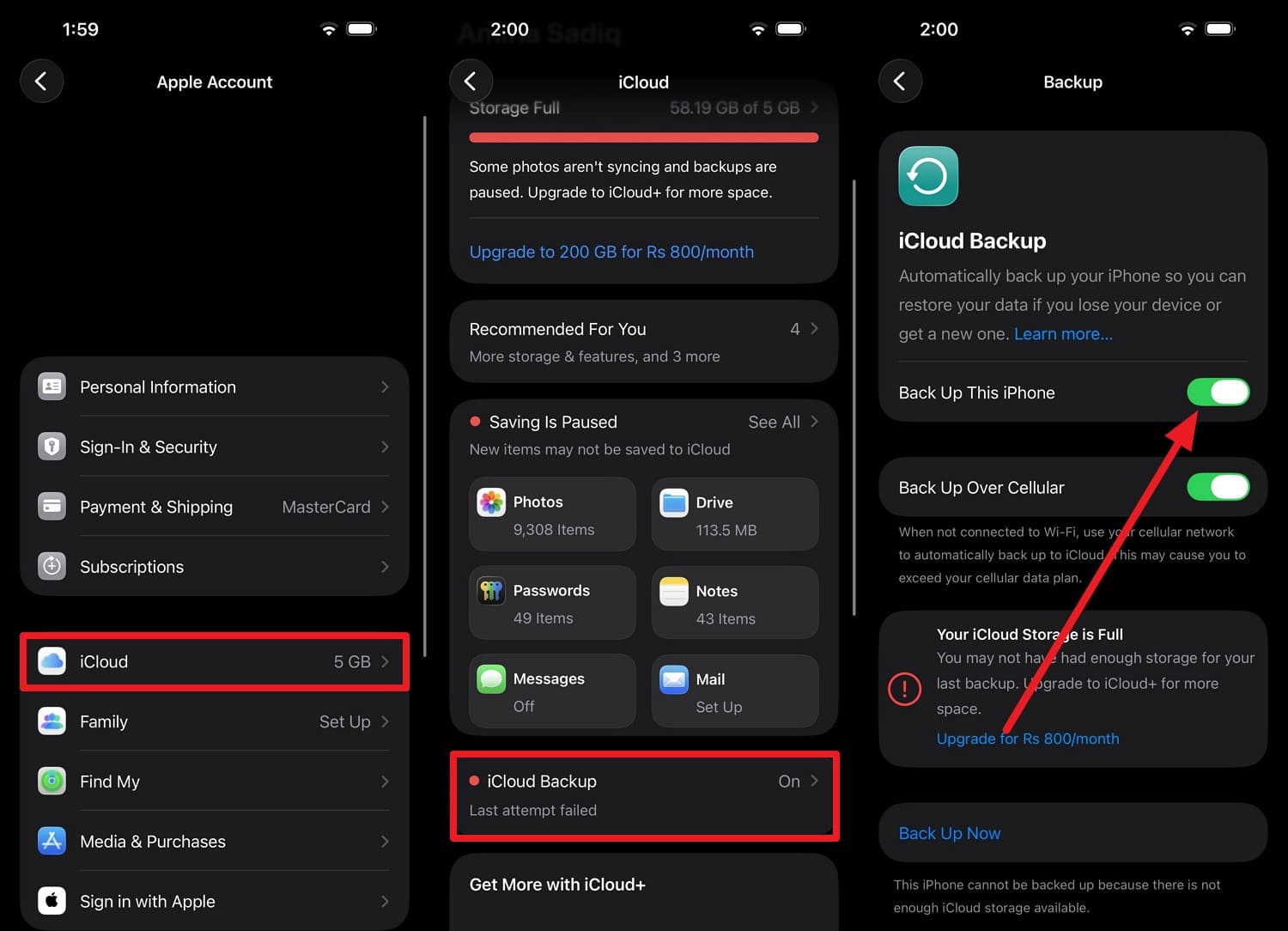
This backup method saves all important data to Apple Cloud and requires a stable connection and sufficient storage space. Users can restore on Apple devices with an active internet connection when a backup is created through these steps:
Instructions. Tap on the “Apple ID” to pick the “iCloud > iCloud Backup” option. Here, toggle the “Back Up This iPhone” option and press the “Back Up Now” option to create a backup manually.
Option 2: Wondershare Dr.Fone
iCloud Backups save all iPhone data to the cloud, which can get overwritten easily. Therefore, tools like Wondershare Dr.Fone let you create selective and incremental backups of 20+ data types. Users can later preview the files in detail and filter them to determine the accuracy.
Additionally, the data will not be overwritten, as users can choose to create a secure local copy on a PC or other device. When the iOS 27 frozen issue can lead to data loss, here is how you can create a local backup:
 Effortlessly manage data through preview, delete, export, etc.
- Transfer all data between devices.
- Robust backup solutions for reliable data protection.
- Mirror screens to PC for meetings, teaching, and control.

-
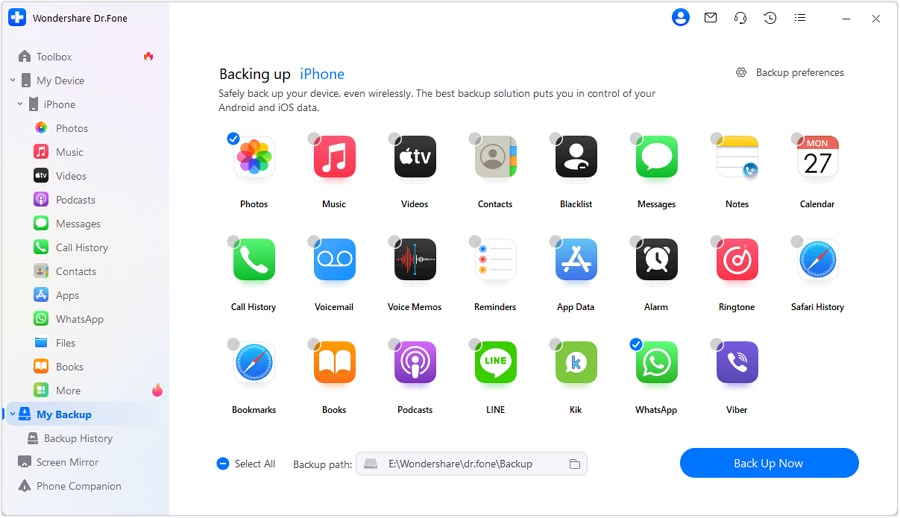
Step 1 Locate My Backups in Dr.Fone Toolbox
In the “My Backup” section, choose the data type and backup location on the “Select All” menu. After that, tap the “Back Up Now” button and wait for the tool to detect the device and data types.
-
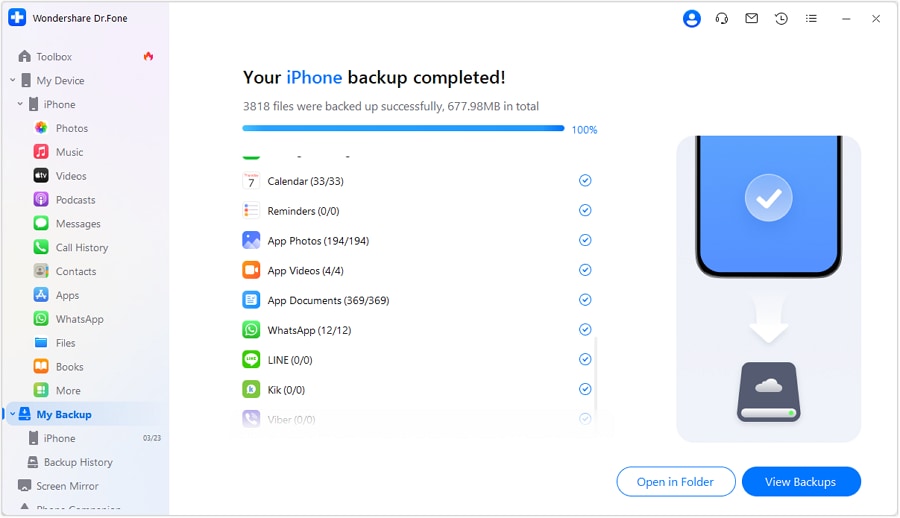
Step 2 Preview the Created Dr.Fone Backup
Upon detection, the tool will display a progress bar; choose to view backups through the given options when it ends.




Way 1. Force Restart an iPhone Stuck on iOS 27
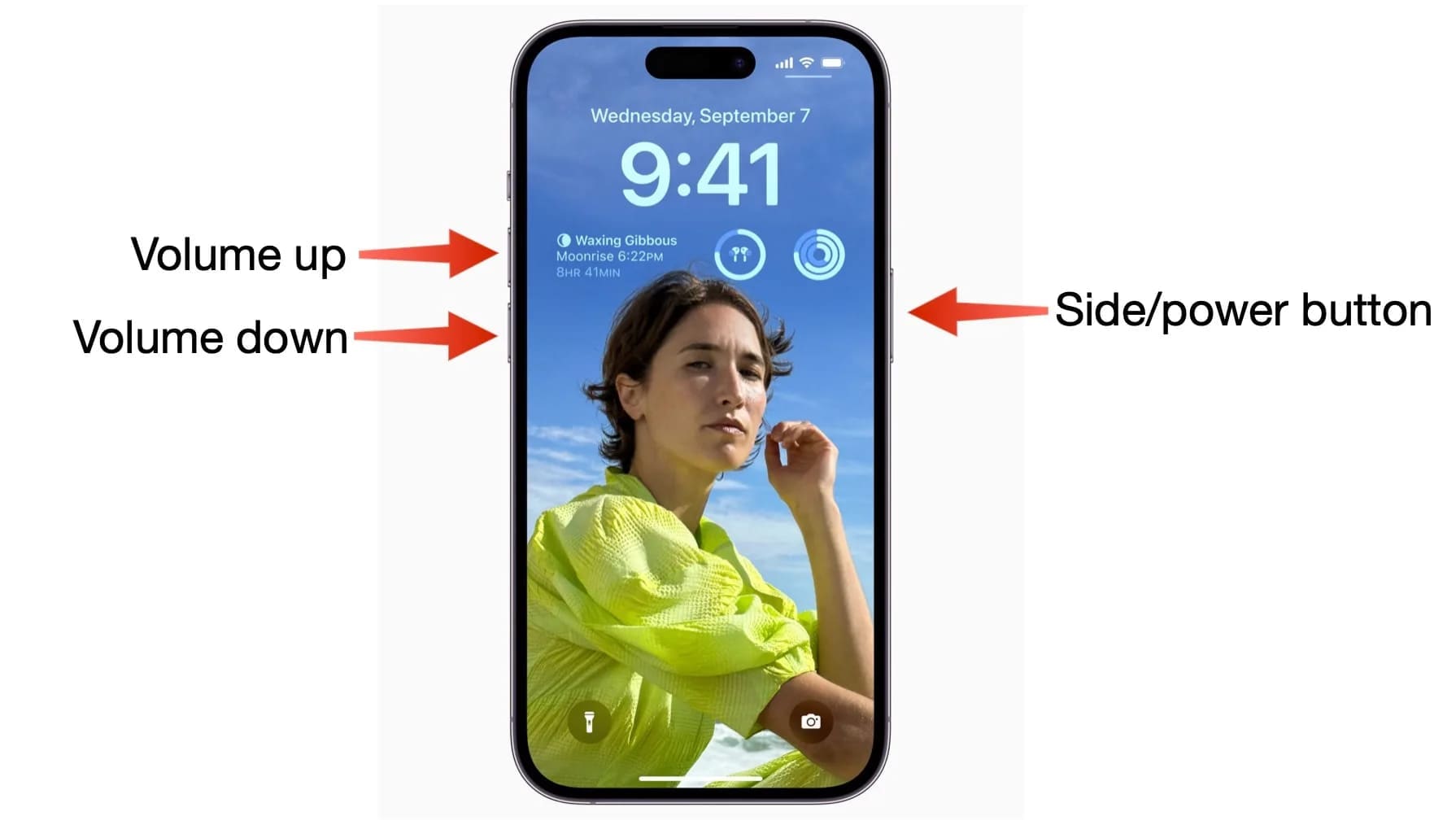
A force restart can help clear temporary glitches and restart the update process because it safely boots the device without deleting data. After the force restart via the listed steps, iOS can check the update and continue normally:
Instructions. Press the “Volume Up and Volume Down” buttons one by one and hold the “Power” button until the Apple Logo appears. This can take 10-30 seconds, so release the buttons to boot the phone.
Way 2. Remove the Old iOS Update File
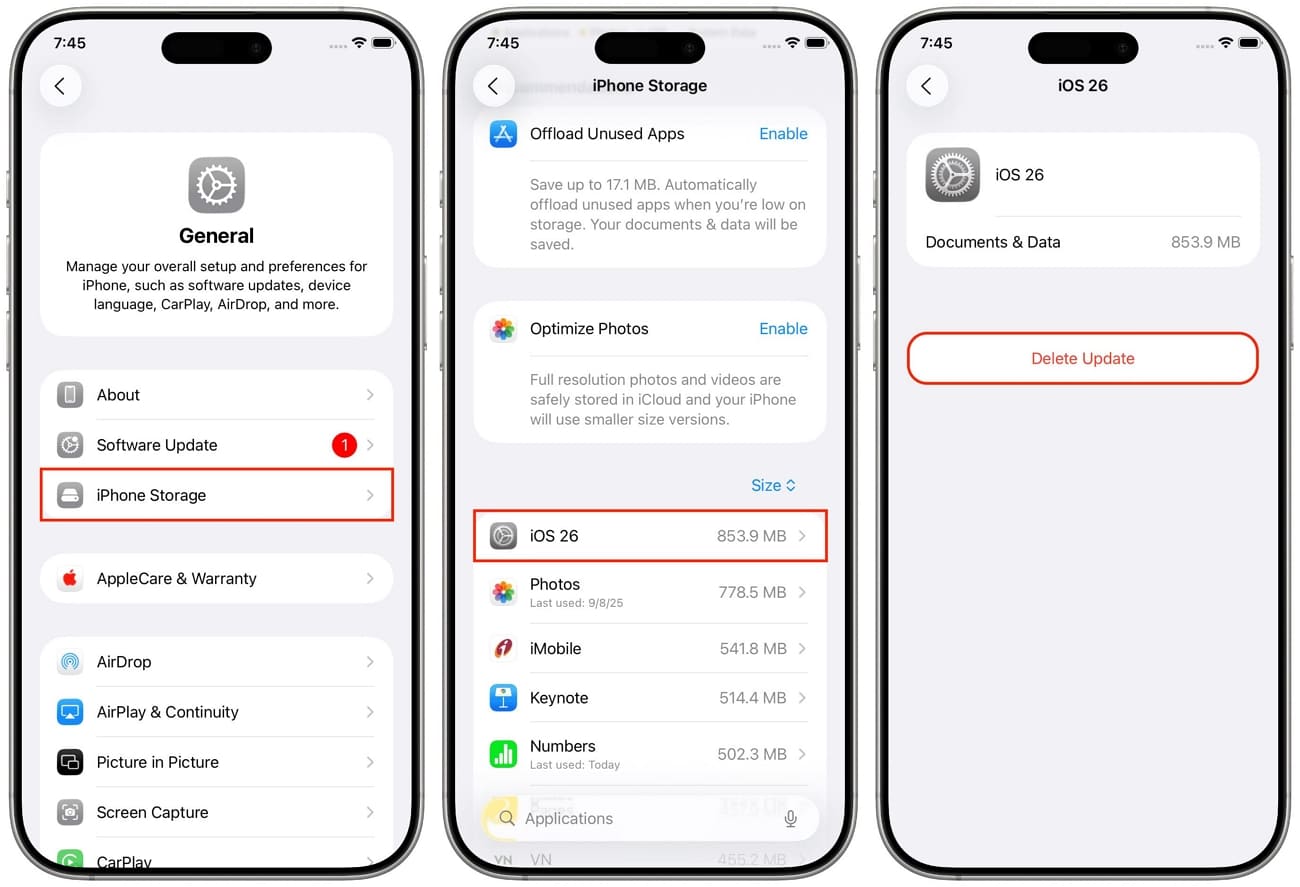
If the update file was interrupted, the download file may become corrupted and get stuck on the iOS 27 install error. So, as you delete the file from the iPhone storage, it forces the phone to download a fresh copy from Apple’s server, as guided:
Instructions. In the General settings, go to “iPhone Storage” and search for the iOS Update File. There, press the “Delete App” and “Delete” option to confirm the action.
Way 3. Update Through Finder or iTunes If Needed
If the screen is stuck on “Update Requested” iOS 27 install error, use iTunes or Finder to update. Here, a computer downloads the full update directly from Apple and installs it using the USB connection. It's more reliable than the over-the-air and can bypass issues caused by a weak connection, as demonstrated:
-
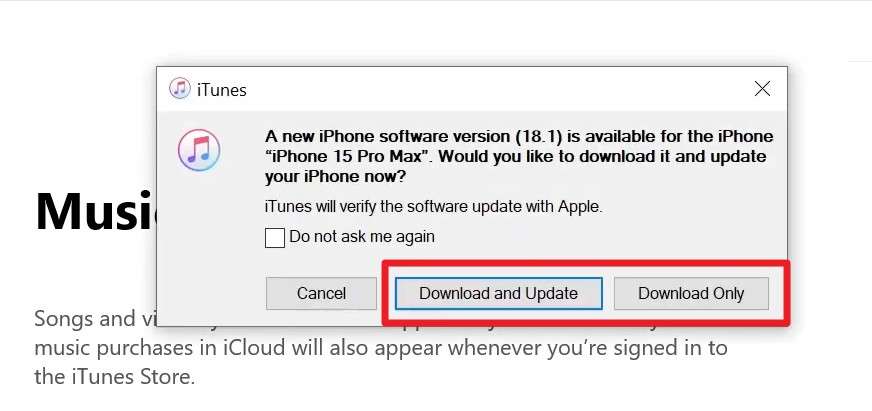
Step 1 Connect the iPhone, then choose the "Trust" option when you launch iTunes on Windows. In the popup menu, pick the "Download and Update" option when it detects the device.
-
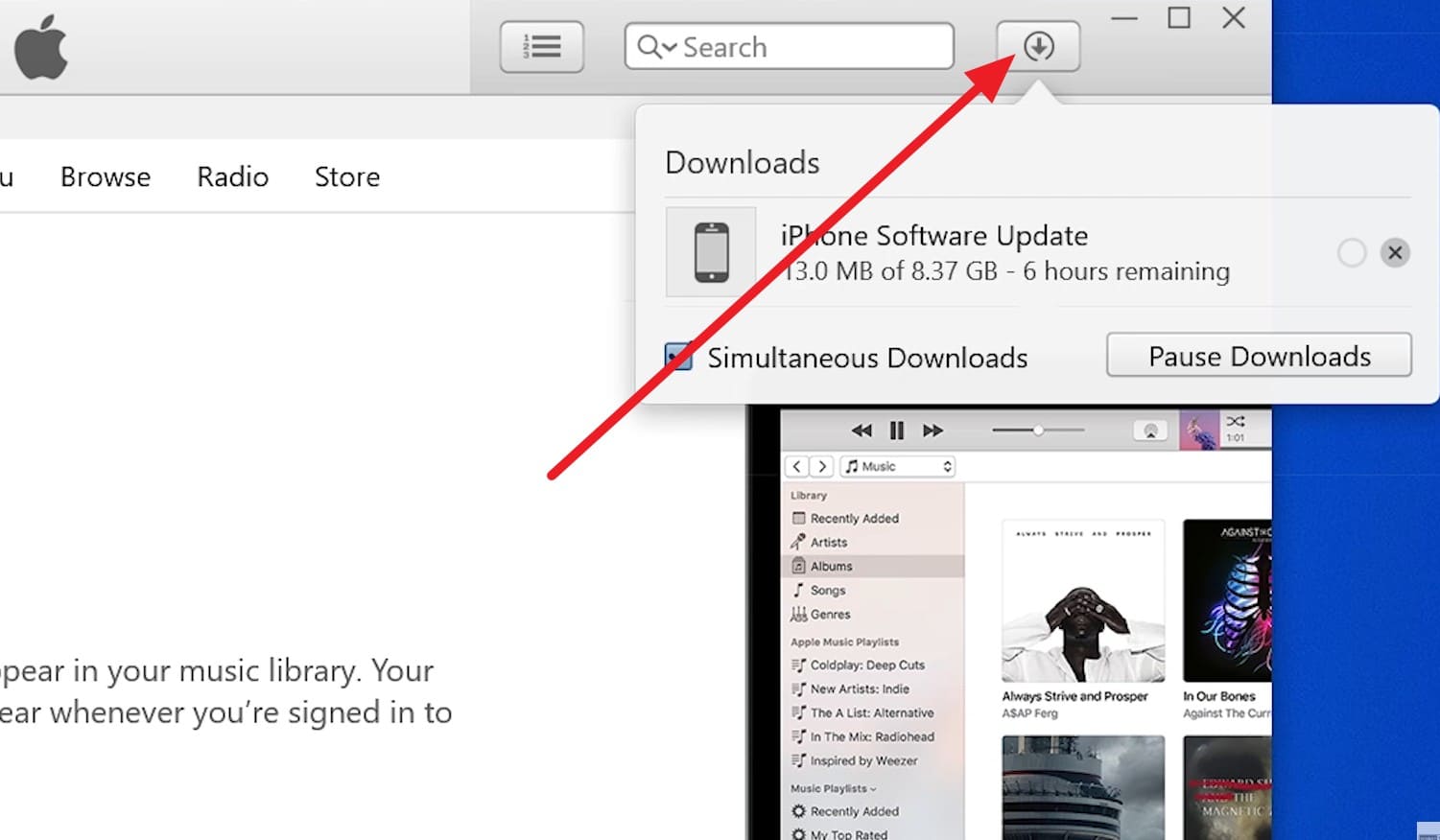
Step 2 After that, review the Apple file, choose “Next,” and tap the “Download” icon at the top right corner if you want to check the progress.
-
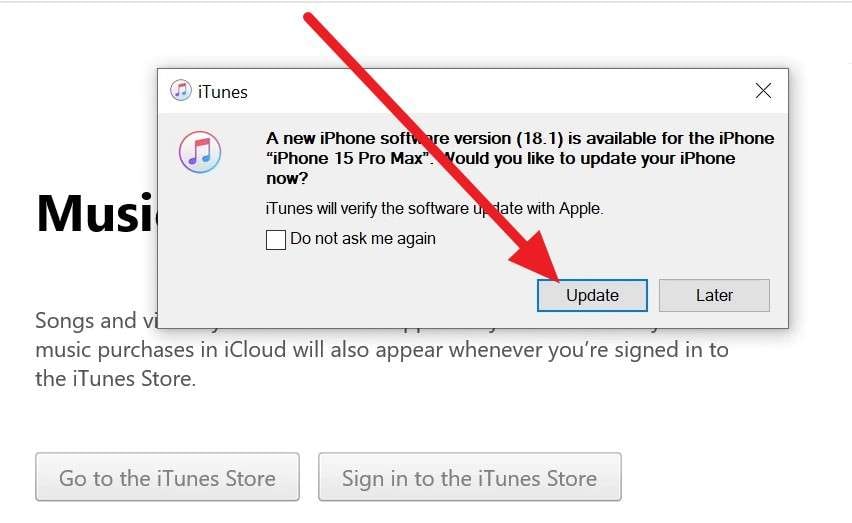
Step 3 When the file is downloaded, click the “Update” button in the popup and wait for it to end.
Way 4. Reset Network Settings if Downloads Fail
Before you try advanced solutions for the iOS 27 install error, Reset Network Settings when the problem is caused by Wi-Fi, VPN settings, or DNS issues. This will remove the saved Wi-Fi networks and network caches, so that the iPhone creates fresh connections, as shown:
-
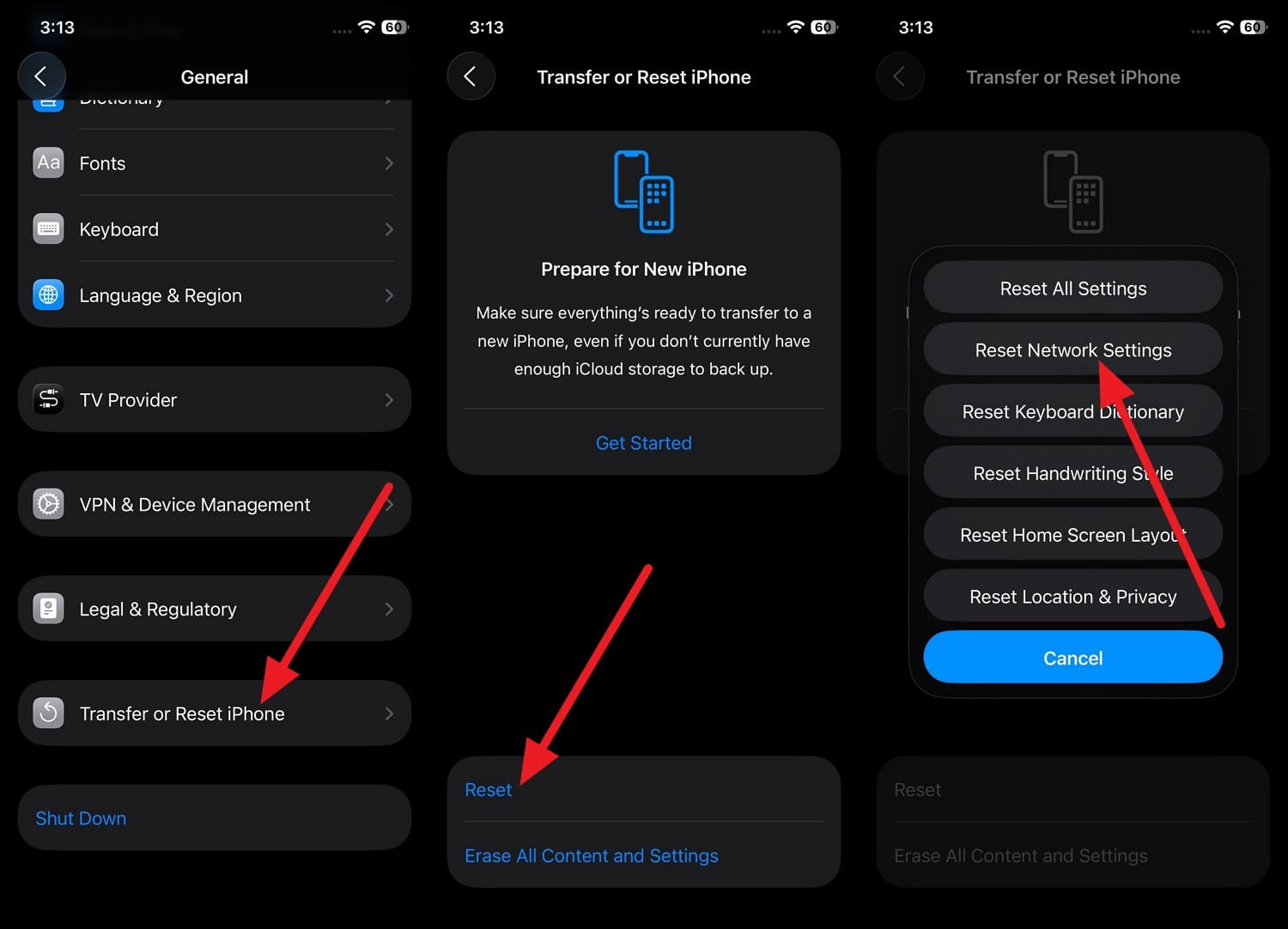
Step 1 Tap on the “Transfer or Reset iPhone” option in General Settings and choose “Reset” to pick the “Reset Network Settings” option.
-
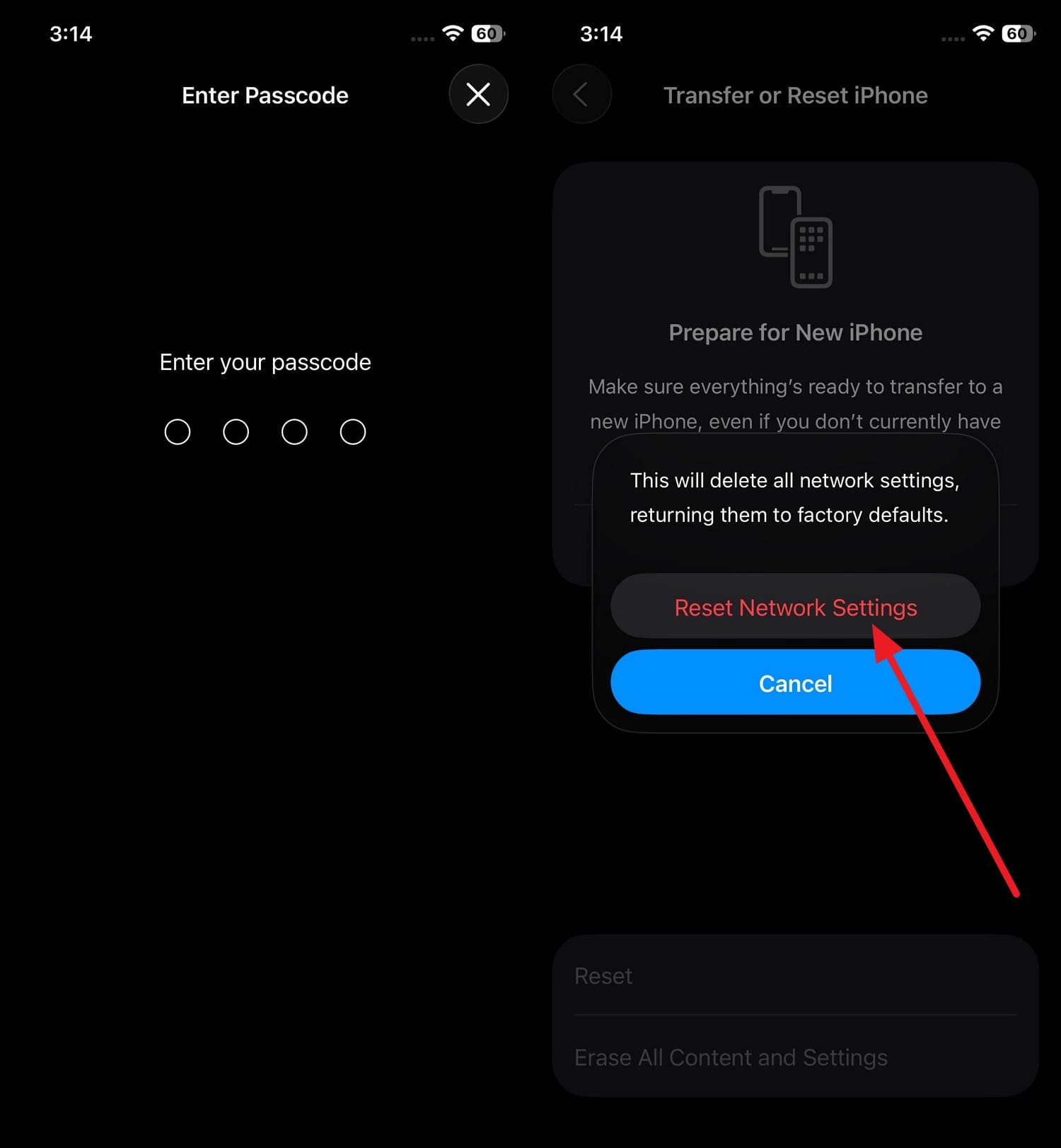
Step 2 At this point, enter the device passcode twice, then press the “Reset Network Settings” option to confirm.
Part 4. Fix iPhone Stuck on Apple Logo or Install Screen
For the iOS 27 update failed error, if the Apple Logo is stuck, here are 2 solutions that can help you:
Way 1. Connect to a Computer and Use Recovery Mode
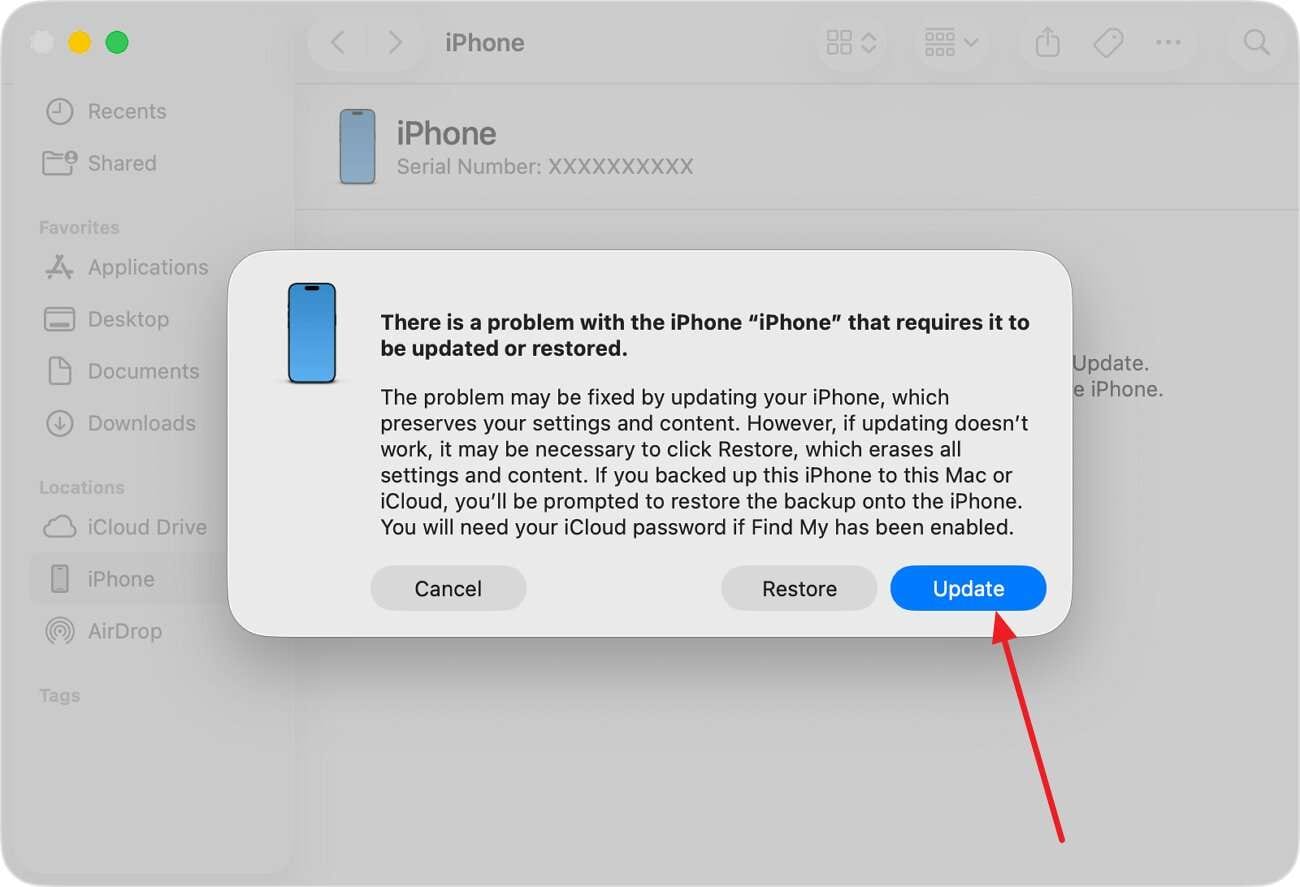
This is Apple’s official method to fix failed iOS installations, especially when the Apple logo or progress bar is stuck for more than an hour. Recovery mode lets Finder and iTunes download a fresh copy of iOS 27 and install it directly on the phone. Since it's the safe option to choose “Update” first, here is how it can be done in a few taps:
Instructions. Keep your phone connected with iTunes/Finder and press “Volume Up”, then “Volume Down,” and the “Power” button until the screen appears. The prompt will ask you to update or restore; choose the “Update” button and wait for the download to complete.
Way 2. Use Dr.Fone - System Repair (iOS) to Fix iOS 27 Update Issues
If you want to repair your iOS device while limiting the risk of data loss, or if the Recovery Mode method fails, you can use Dr.Fone - System Repair (iOS). With this tool, you can resolve 150+ iOS-related issues, like Apple Logo and boot loops. In addition, you can resolve 200+ iTunes errors, such as 4013 and 1110, when you are unable to update.
Nonetheless, the tool requires no key combinations and lets you access Recovery and DFU modes for free. As this option makes it intuitive and cost-effective for beginners, they can use 3 different repair modes. The Standard Mode can fix iOS issues without any data loss, and the Advanced Mode steps in when the Standard one fails. However, if you want to sell a phone, Anti-Recovery Mode can perform a deep data erase.
- Fix iOS issues, no data loss.
- One-click repair for all iOS problems.
- Solve recovery mode, Apple logo, black screen, etc.
- Upgrade or downgrade iOS without iTunes

Why Users Choose System Repair Tools
For issues like iOS 27 install error, users opt for Dr.Fone - System Repair (iOS) when the basic methods fail. With its Standard Mode, you can repair common iOS issues while keeping personal data intact, and it reduces the need for a full device wipe. In addition, the tool provides a stepwise guide for this mode and makes it easier for users to deal with Recovery Mode, DFU, or iTunes errors.
How to Fix an iPhone Stuck on iOS 27 With Dr.Fone
For users who don’t have a recent backup, the ability to repair the iOS 27 frozen issue without data loss is a key feature of this tool. So, review the guide mentioned below, and let’s test all the claims for its Standard Mode:
-
Step 1 Access the System Repair iOS and Standard Mode
Tap on “Repair Now” under the “iOS Repair” tool and choose the “Standard Mode” to fix the iOS 27 update issue.

-
Step 2 Enter Recovery Mode and Choose to Download
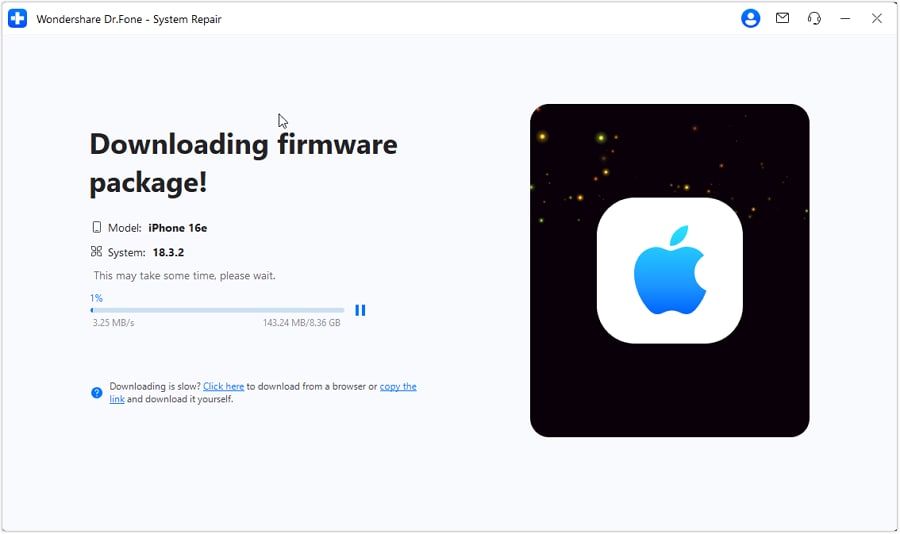
Now, follow the on-screen instructions to access Recovery Mode, and the tool will automatically detect the corresponding iOS firmware. Choose the “Download” button and wait for the package to install.
-
Step 3 Tap the Fix Now to Repair iOS 27 Issues
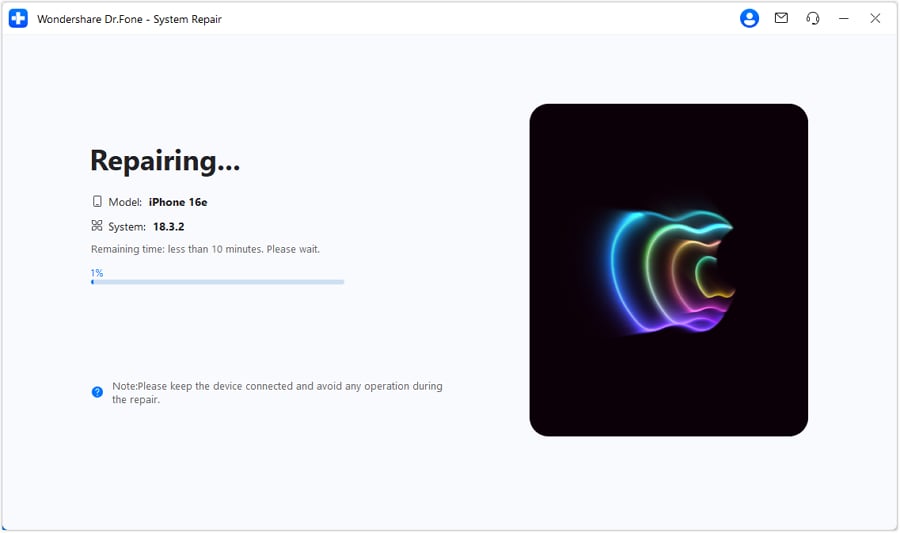
When done, choose the “Fix Now” button, and the tool will start fixing the iOS 27 update issues.
Standard Repair vs Advanced Repair
For the iOS 27 update failed, if you are confused between 2 main modes of this tool, review the mentioned table:
| Aspect | Standard Repair (Recommended First) | Advanced Repair (Last Resort) |
|---|---|---|
| Main Goal | Fix common iOS 27 update issues without data loss | Fix deeper / stubborn system issues when Standard fails |
| Typical Issues | Apple logo stuck, boot loop, frozen install, black/white screen | Severe boot loops, failed updates, devices that won’t start at all |
| Data Impact | Designed to keep apps, photos, and settings intact | Usually erases device data and reinstalls a clean system |
| When To Use | After a force restart and Recovery‑mode “Update,” don’t fix it | After Standard Repair fails or the system is too damaged |
| Required Technical Level | Beginner‑friendly, guided steps | Also guided, but should be used only if you accept data loss |
| Recommended Order | Try first for the iOS 27 update problems | Use only as a final option before full restore/device replacement |
Part 5. How to Prevent iOS 27 Update Problems in the Future?
To ensure you don’t get the iOS 27 install error in the future, follow the practical tips given below:
| Tip | What to Do Briefly |
|---|---|
| Back Up Before Updating | Create an iCloud or computer backup using Dr.Fone - Phone Backup so you can restore if anything goes wrong. |
| Check the Battery and Charger | Charge it to at least 50% and keep the iPhone plugged into a reliable charger. |
| Ensure Strong Wi‑Fi | Use a fast, stable Wi‑Fi network and avoid VPNs or captive/public portals. |
| Free Up Storage | Aim for 10-15 GB free by deleting or offloading unused apps, photos, and files. |
| Update Apps and Wait a Bit | Update critical apps first, and avoid updating iOS 27 in the first few hours after release. |
Conclusion
The iOS 27 update failed error can leave your phone stuck on the Apple logo or frozen during installation. Hence, this guide has not only listed basic checks but also simple and advanced solutions.
So, keep your data safe with Dr.Fone - Phone Backup (iOS) and fix the iOS issues with Dr.Fone - System Repair (iOS) when all methods fail.
Frequently Asked Questions
-
1. Can I use cellular data to download iOS 27?
Yes, but a stable Wi-Fi connection is generally more reliable for larger updates. -
2. Why is my iPhone getting hot during the iOS 27 update?
Some heat is normal because the device is downloading, verifying, and installing system files. -
3. Can I skip iOS 27 and stay on my current iOS version?
Yes, updating is optional unless required for security, app compatibility, or new features.
 Add Wondershare Dr.Fone as a preferred source on Google



