 Resolve common problems and system crashes on both iPhone and Android devices.

 100% Security Verified | No Subscription Required | No Malware

 :
: 
 ChatGPT
 Perplexity
 Gemini
 Claude
 Grok
Grok
When you hear about iOS 27's release, you might wonder whether your phone will be compatible. This matters because Apple removes older devices, which makes users wonder if the iPhone 11 and SE models will get iOS 27 updates. Since iOS 27 is expected to introduce multiple AI features, users want to know about the iOS 27 supported devices and features in detail.
In this case, this guide explains the main aspects of this update, including the release date and timeline. If you are compatible and want to update, learn how to create a selective or automatic backup with tools like Dr.Fone - Phone Backup.
In this article
- Part 1. What is iOS 27? Basic Info
- Part 2. iOS 27 Compatibility List (Expected) - Major Models
- Part 3. Which iPhones May Not Get iOS 27?
- Part 4. Should You Upgrade Your iPhone for iOS 27?
- Part 5. What to Do Before Updating to iOS 27
- Part 6. Not Sure Which iPhone You Have? Check Your Model Here
- Part 7. How to Download and Install iOS 27 (When Available)
Part 1. What is iOS 27? Basic Info
Before you learn if iPhone 11 iOS 27 is on the compatibility list, review this section to grab some basics:
Key Expected Features in iOS 27
Here are some of the rumored features that you are going to have in iOS 27-supported devices:
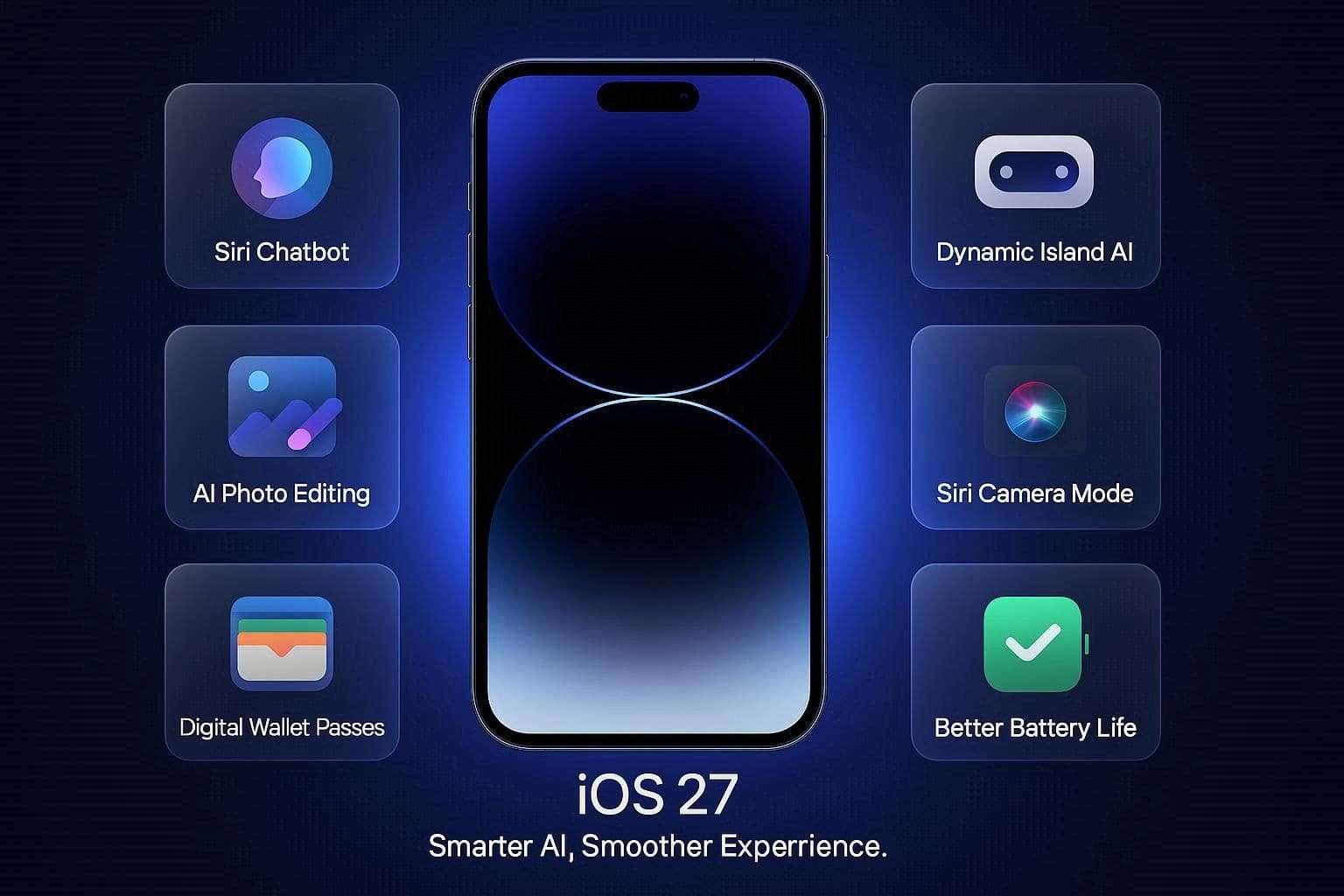
- Siri Chatbot App: Siri is going to be updated into a full ChatGPT-style app, according to leaks from Gadget 360. The report says that users will be able to type complex tasks and attach photos or files for analysis. As a result, Siri will be able to look back at saved history and analyze the data from past conversations, says Notebookcheck report.
- Dynamic Island Integration: When you ask the question, Siri will now trigger a smooth animation directly inside the Dynamic Island at the top of the screen. Furthermore, reports from The Times of India say that the answers will appear as neat, descriptive cards without taking over the whole screen.
- Camera App “Siri Mode”: The standard Camera app will feature a dedicated “Siri” button, letting you point your lens at an item to get details, according to PhoneArena leaks. You can also use it to get information about the package's food items to log calorie details, or to scan the business card to add a new number.
- AI Photo Editing (Extend & Reframe): In the Photos app, you will have 3 main editing features: extend, enhance, and reframe. With these options, you can generate matching background details if you crop a photo too close or adjust the perspective and angle of a photo that is upscale-able.
- Custom Apple Wallet Passes: Instead of carrying plastic cards, iOS 27 will let you use your camera to scan physical gym cards or concert tickets. So, on the iOS 27 supported devices, you will be able to convert them directly into digital passes inside the Apple Wallet app.
- Keyboard Grammar Checker: The built-in keyboard will offer an upgraded “Write with Siri” tool, says PhoneArena. It will work like Grammarly and scan sentences as you type to suggest better words and fix grammar issues.
- Better Battery & Stability: Apple is prioritizing system cleanup this year, as stated in the Box report. This means that engineers are focusing on fixing old software bugs and smoothing out our system animations while optimizing code to save the phone’s battery.
iOS 27 Release Date Timeline
To know whether the iPhone SE iOS 27 is on the list, you should also be familiar with Apple’s timeline. Based on the MacRumors and Forbes leaks, the complete iOS 27 update schedule is mentioned below:
| Phase | Expected Date | What It Means |
|---|---|---|
| Official Announcement | June 8, 2026 | Apple showcases new features at its WWDC event. |
| Developer Beta | June 8, 2026 | Released immediately after the event for software app builders to test. |
| Public Beta | Mid-July 2026 | The free trial version is available to any regular user brave enough to test it. |
| Final Public Release | Mid-September 2026 | The stable, finished software rolls out to everyone with a supported iPhone. |
| iOS 27.1 Update | October / November 2026 | The first major patch arrives to clear out early bugs and optimize performance. |
Part 2. iOS 27 Compatibility List (Expected) - Major Models
As for the iOS 27 supported devices, the complete model details are given in the mentioned table:
| iPhone Generation | Get iOS 27? | Get Full AI Features? |
|---|---|---|
| iPhone 17 & 18 Series (Plus Upcoming Fold) | Yes (Full Access) | |
| iPhone 16 Series (16, Plus, 16e, Pro, Pro Max) | Yes (Full Access) | |
| iPhone 15 Pro & Pro Max | Yes (Full Access) | |
| iPhone 15 & 15 Plus | Limited (Basic AI Tools Only) | |
| iPhone 14 Series (14, Plus, Pro, Pro Max) | No (Standard Features Only) | |
| iPhone 13 Series (13, mini, Pro, Pro Max) | No (Standard Features Only) | |
| iPhone 12 Series (12, mini, Pro, Pro Max) | No (Standard Features Only) | |
| iPhone SE (3rd Gen, 2022) | No (Standard Features Only) |
Part 3. Which iPhones May Not Get iOS 27?
Regarding the iPhone 11 iOS 27, note that the iPhone 11, iPhone 11 Pro, iPhone 11 Pro Max, and the second-generation iPhone SE (2020) will not get the iOS 27 update. If you own any of these models, your phone will stay completely functional on iOS 26, but it will miss out on the new features.
Why Apple May Drop These Devices
Apple has dropped these devices due to hardware limitations and because they run on Apple's older A13 Bionic chip. Such older chipsets lack the processing power and RAM required to run heavy software demands smoothly.
Part 4. Should You Upgrade Your iPhone for iOS 27?
Now that you are clear on iPhone SE iOS 27 support, it's time to know who should update and who should skip the update.
When Does It Make Sense to Buy a New iPhone?
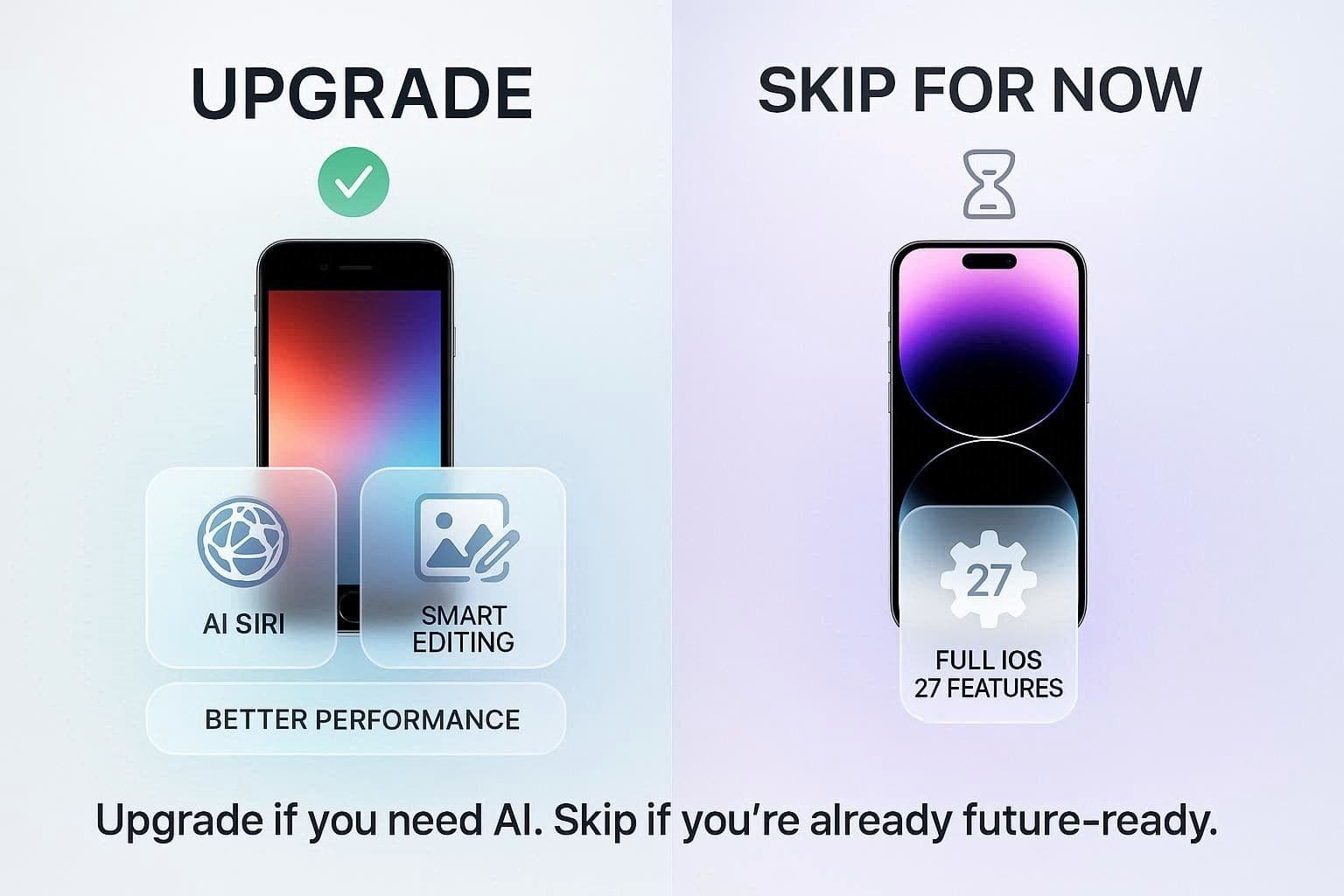
If you currently use an iPhone 11 series or an older model, it's best to upgrade your phone so that you don’t miss out on iOS 27 entirely. Upgrading also matters if you have a standard iPhone 12, 13, or 14 and want to experience Apple's major new chatbot-style Siri and AI editing tools. This will ensure your device has a modern processor and enough RAM to handle AI tasks without lag issues.
Who Can Safely Skip Upgrading for Now?
You can skip the update if you have an iPhone 15 Pro, iPhone 15 Pro Max, or any model from the newer iPhone 16 or 17 series. With a powerful processor and RAM, they have full access to Apple’s advanced AI tools and customizable system settings. Additionally, if you own a standard iPhone 12 or 13 and do not care about flashy smart tools, you can stick with your current device.
Part 5. What to Do Before Updating to iOS 27
After having the idea of iOS 27 supported devices, if you want to update your device to leverage the iOS 27 update, here’s what you need to do:
1. Back Up Your iPhone First
Before updating or switching to a new device, create a backup to protect important data since iOS updates can sometimes fail and cause data loss. Additionally, transfers can occasionally be interrupted, and the backup methods outlined in this section provide a safe way to recover the data.
Way 1. iCloud Backup
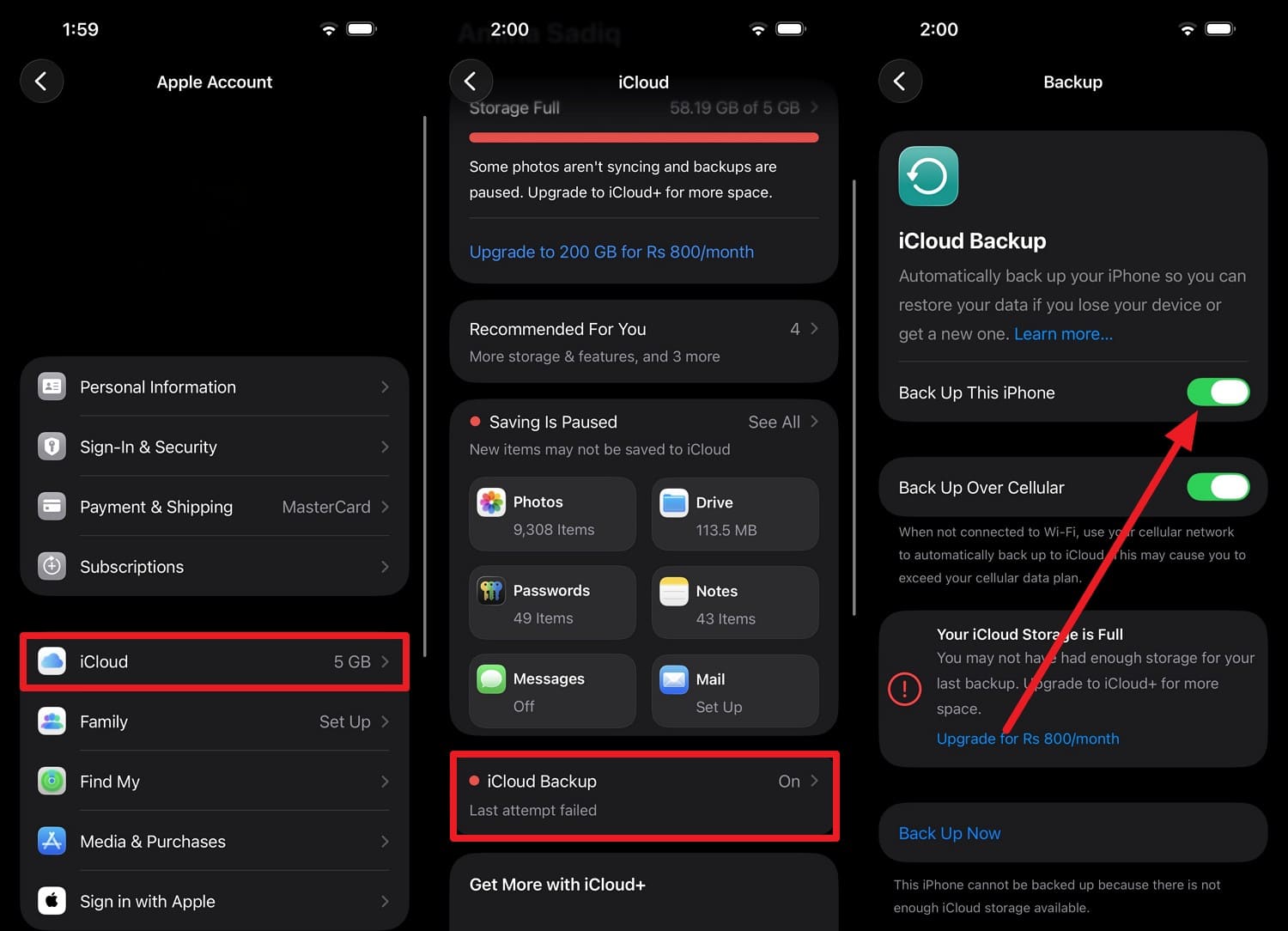
iCloud backup is convenient and works wirelessly, and restoring the data feels like you have your old phone. Note that iOS 27 backups generally cannot be restored to the device running on older iOS versions, so the method is guided below:
Instructions: Tap the Apple ID, then go to “iCloud > iCloud Backup” and toggle on “Back Up This iPhone.” Afterward, press the “Back Up Now” option to create a backup immediately.
Way 2. Finder or iTunes Backup
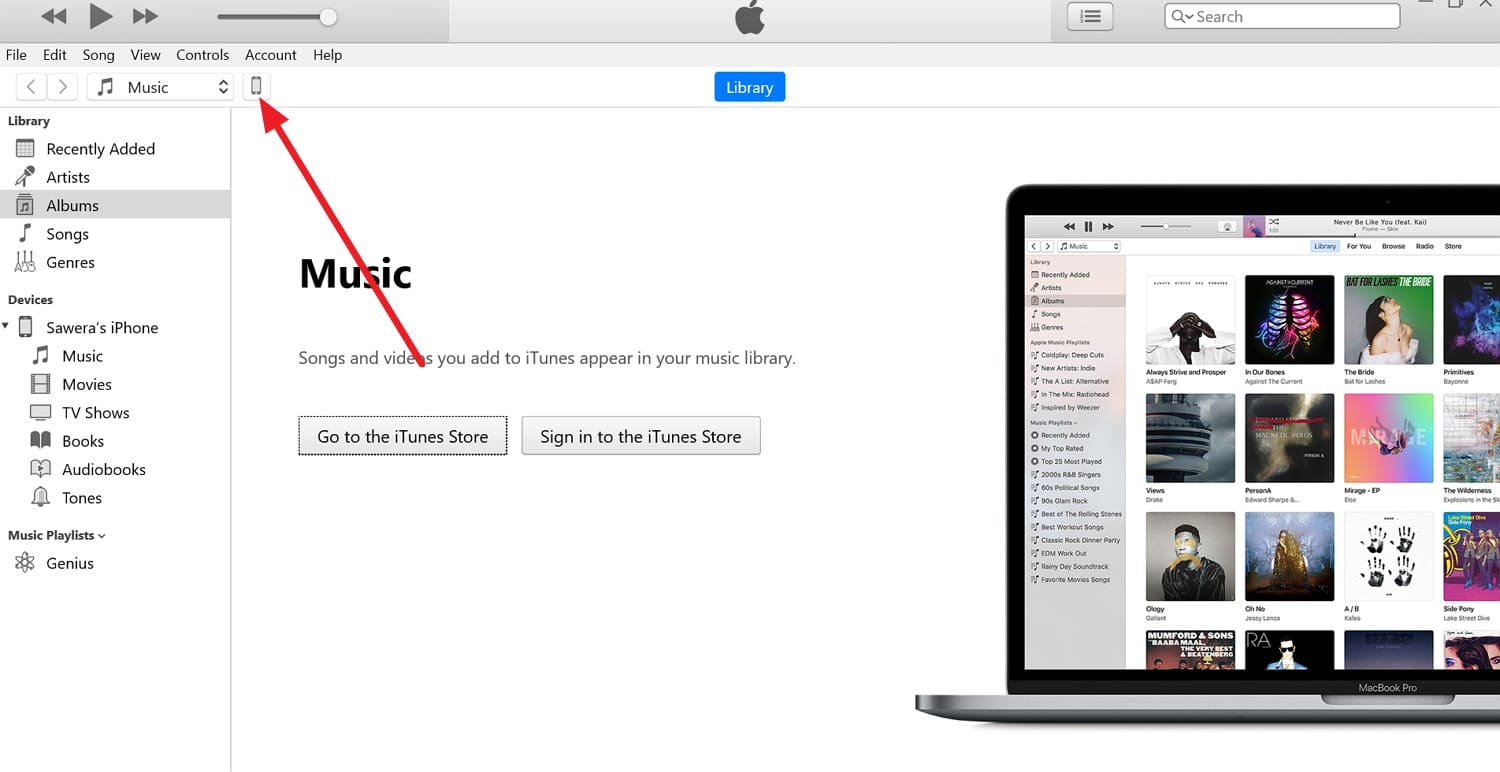
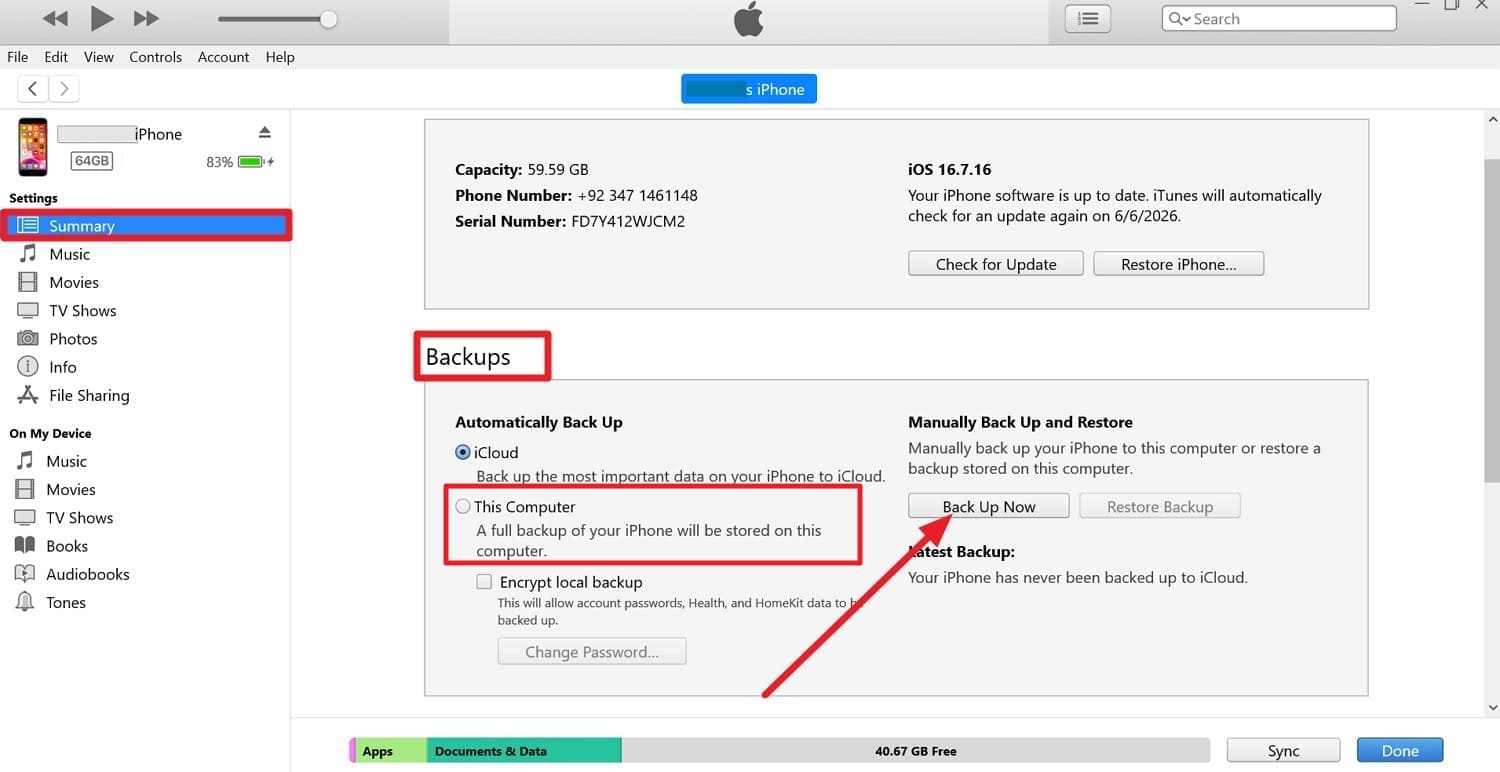
Using Finder on Mac or iTunes on Windows helps create a local backup of your data and can be encrypted. In addition, these backups are faster to restore, and the detailed steps are as follows for iOS 27-supported devices:
-
Step 1 Pick the “Trust” option on the phone as you connect the device and launch iTunes. After that, tap the small “Phone” icon at the top and go to the “Summary” tab.
-
Step 2 There, locate the “Backups” section, select the “This Computer” option, and press the “Back Up Now” button.
Way 3. Back Up and Transfer Your iPhone Data the Smart Way [Dr.Fone - Phone Transfer]
For selective backups, you can use Wondershare Dr.Fone, which offers incremental and manual backup options. Each method contains separate, detailed guides that make it easy for beginners to create a backup in 2-3 steps. Unlike other ways, the Incremental Backup option lets you pick the auto-backup date and path for complete automation.
Nonetheless, the backup is performed over Wi-Fi and doesn’t overwrite the existing data. Users can later restore to any iOS or Android device and can preview the created Dr.Fone backups. Through all these options, you can back up and restore 20 data types, including apps, without needing any technical skills.
 Effortlessly manage data through preview, delete, export, etc.
- Transfer all data between devices.
- Robust backup solutions for reliable data protection.
- Mirror screens to PC for meetings, teaching, and control.

Guide to Create the Manual Backup Before iOS 27
-
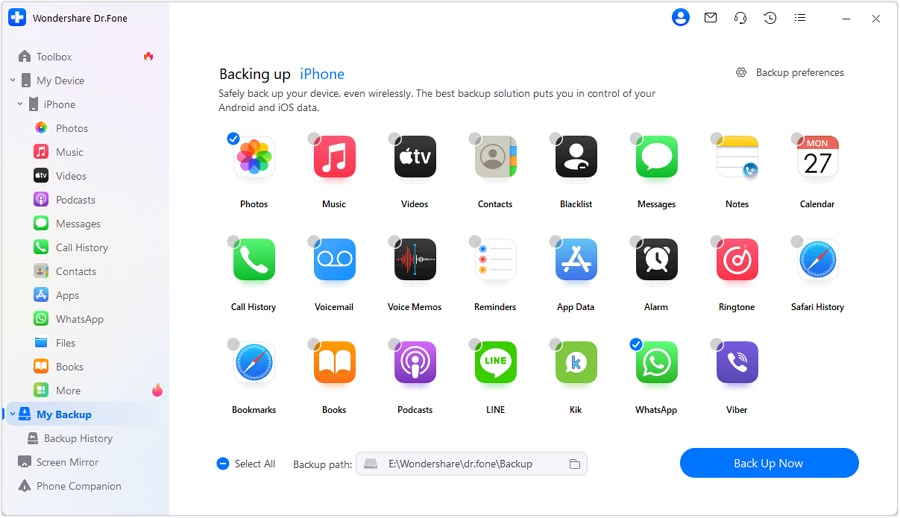
Step 1 Pick Data Types in My Backup Dr.Fone Tab
In the “My Backup” section, select the data types, then press the “Back Up Now” button and wait for the device to be detected.
-
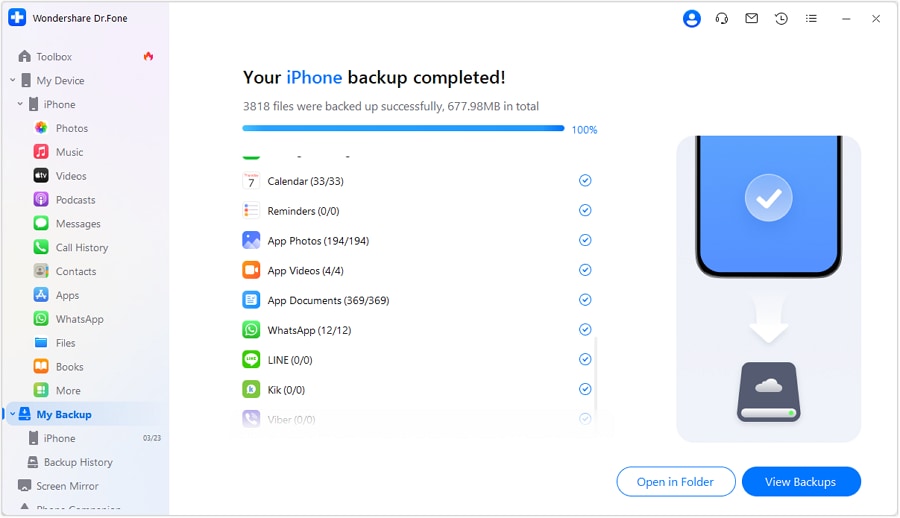
Step 2 Preview or Open the Created Dr.Fone Backup
Once done, let the tool complete the progress bar, then choose between the “Open in Folder” and “View Backups” options to preview.




2. Free Up Storage Space
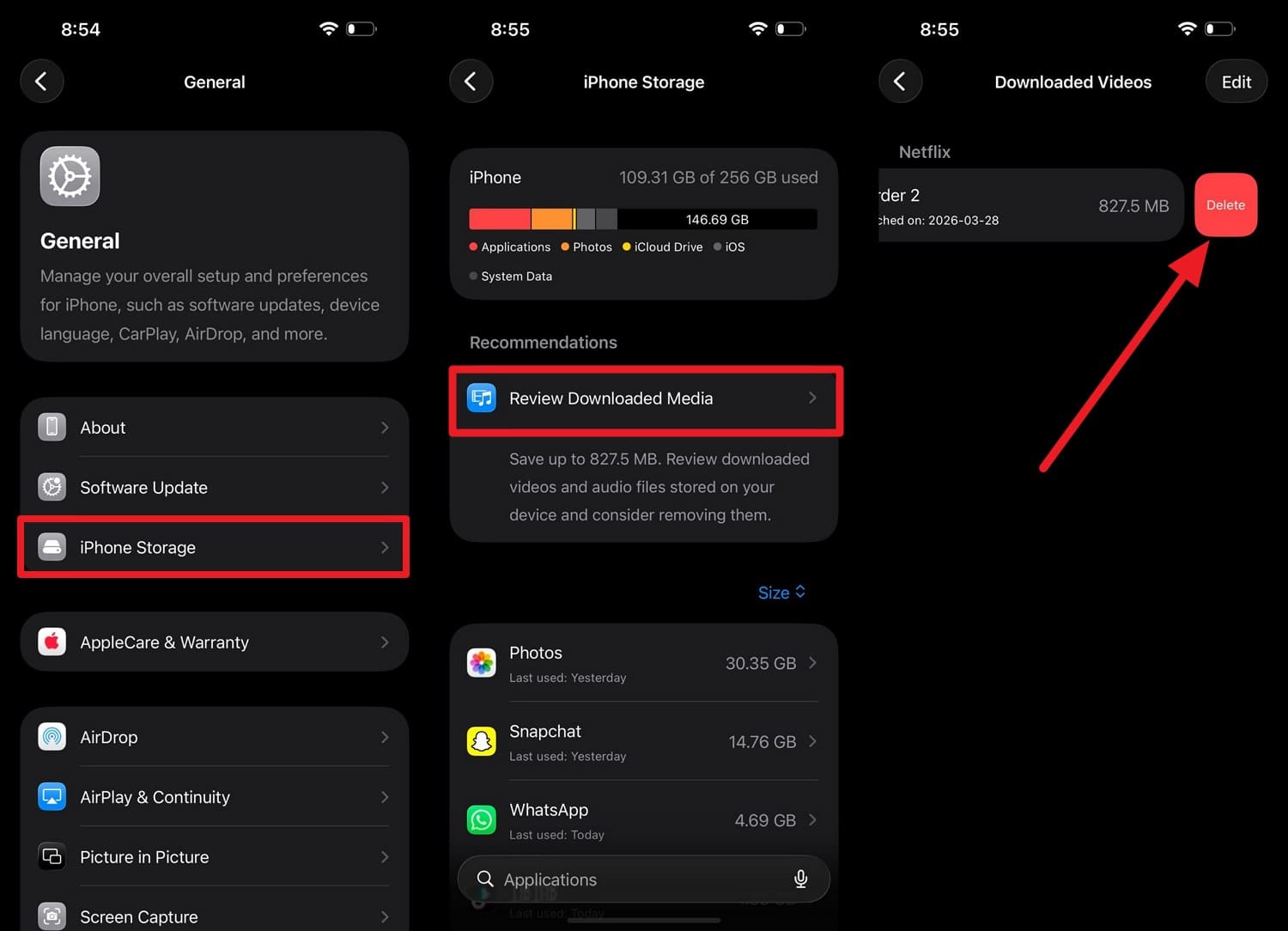
When you want to update to iOS 27, you must have around 12-17 GB of free storage space to ensure update downloads and installation are successful. In this case, you can remove the large media files from settings through the listed steps:
Instructions. In the General settings, pick the “iPhone Storage” and “Review Download Media” options. Swipe to the left on files that take up more space and press the “Delete” option.
3. Update Apps Before Installing iOS 27
On the iOS 27 supported devices, this step ensures apps are compatible with the new operating system and are less likely to crash or experience bugs. Since you can reduce the performance problems beforehand, here is how it's done:
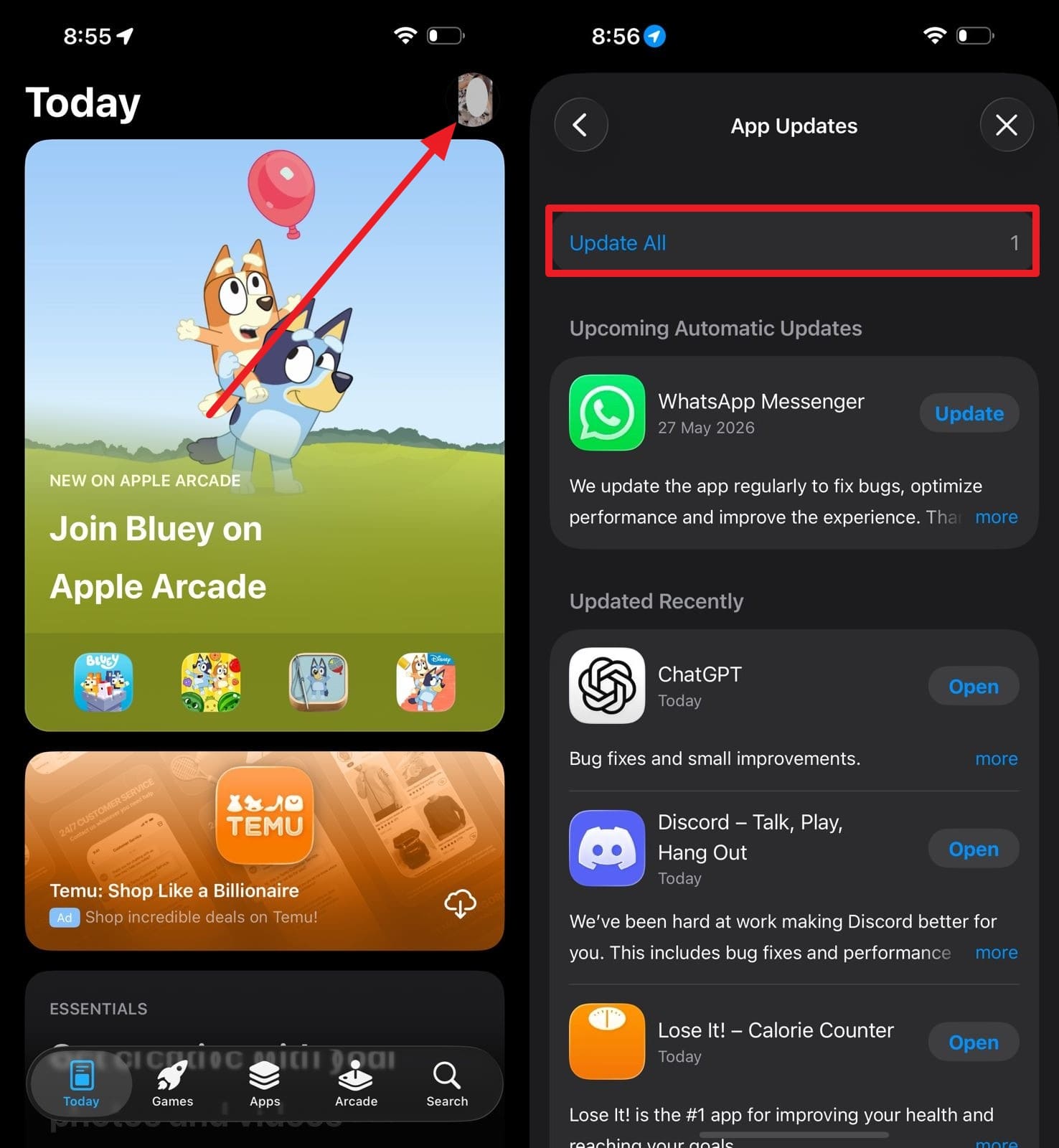
Instructions. Tap the “Profile” icon in the App Store and scroll down to the “App Updates” option. If the list shows pending updates, press the “Update All” option.
4. Charge Battery and Connect to Wi-Fi
As major updates can be several gigabytes in size, they need a stable internet connection to download successfully. So, make sure you have enough battery and a reliable Wi-Fi connection to reduce the risk of failed downloads and installation errors.
Part 6. Not Sure Which iPhone You Have? Check Your Model Here
If you don’t know the device details and want to get information for iOS 27-supported devices, review this section.
Option 1. Check Your Model
First, identify your exact phone model via the mentioned steps, and then compare it with the rumored compatibility list given in this article:
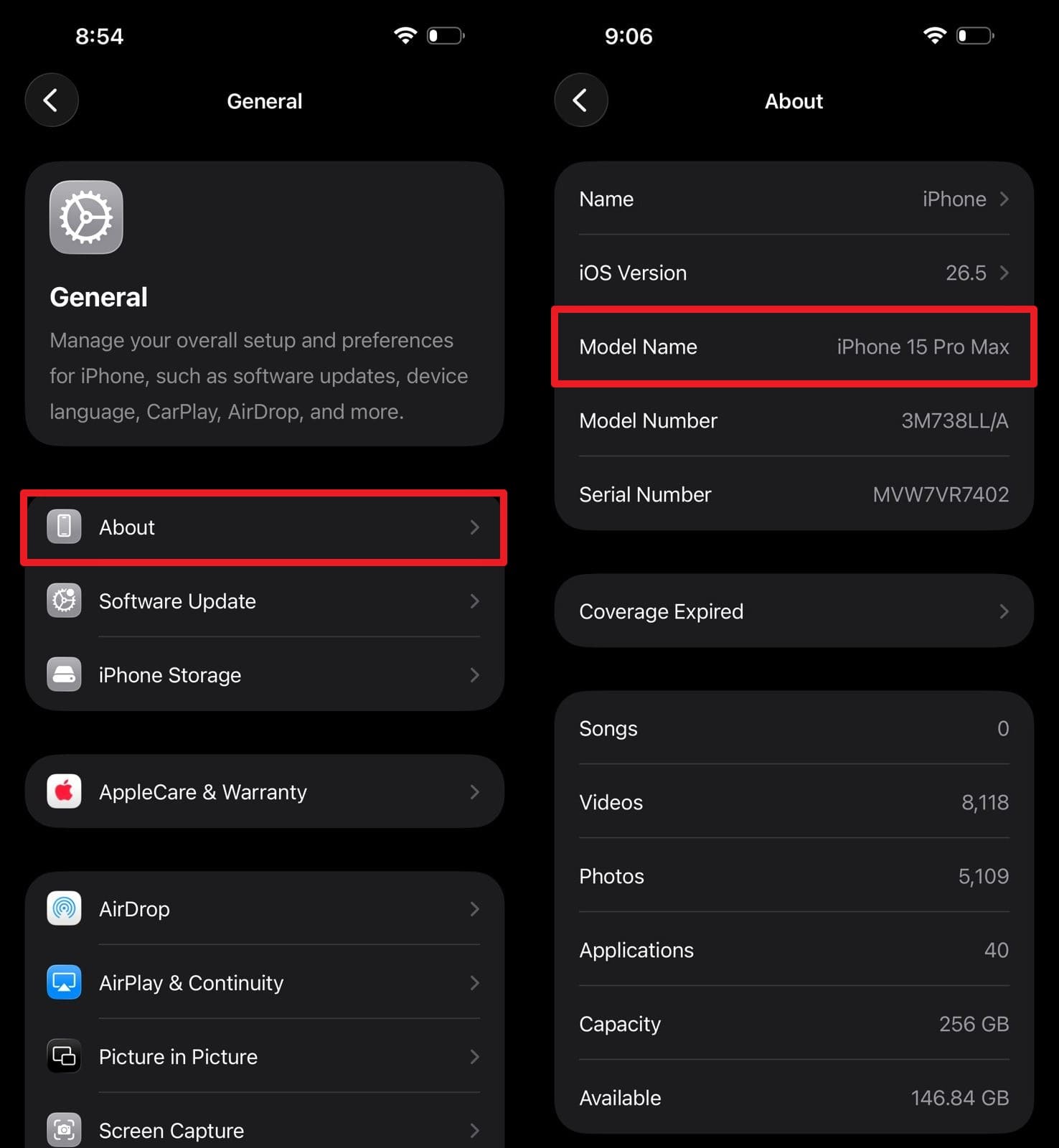
Instructions. In Settings, go to General > About, then search for “Model Name” to find your exact iPhone generation.
Option 2. Verify Chipset
The processor determines which iOS versions and features your device can support, as mentioned on the “About” page.
Option 3. Watch for the Official Announcement
When you need true news for iPhone SE iOS 27 compatibility, wait for the official Apple announcement. Relying on official announcements will help you avoid inaccurate rumors and make an informed choice.
Part 7. How to Download and Install iOS 27 (When Available)
If you have decided to update to iOS 27, here are 2 main methods to do so:
1. Install Over the Air
Since this direct phone access method is easy for most users, it requires stable Wi-Fi and a sufficient battery. Since they can be scheduled, here is how you can install the beta or official version when available:
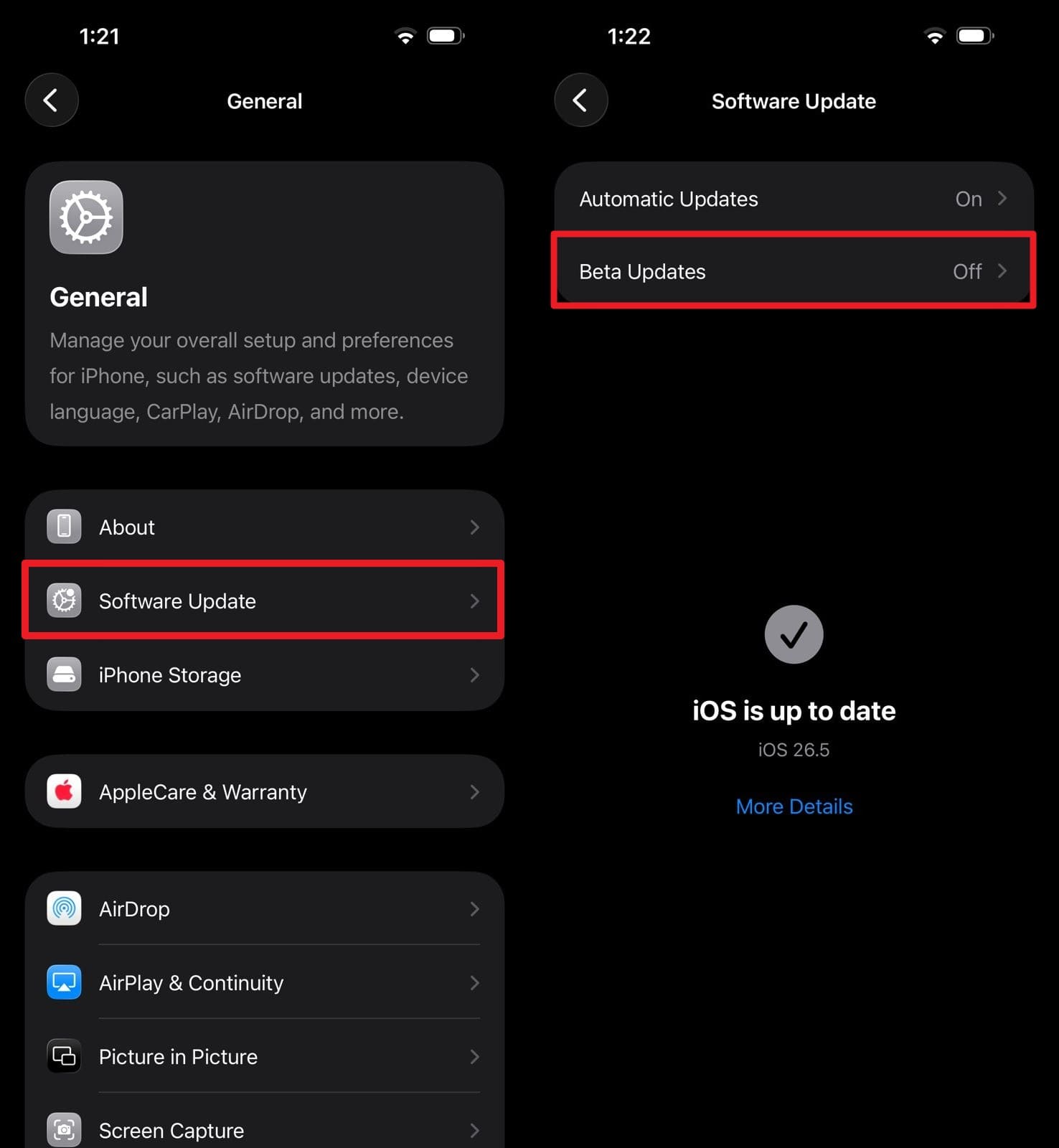
Instructions (For iOS 27 Beta). Choose the “Software Update” option in the General settings and pick the “Beta Updates” for iOS 27 to activate the “Update Now” option.
2. Install Using a Computer (Finder or iTunes)
Since you are clear on iPhone 11 iOS 27 compatibility, you can use iTunes if you have connection or update-related issues. As the update file is downloaded on the computer first, you can also create a local backup before updating via the mentioned steps:
-
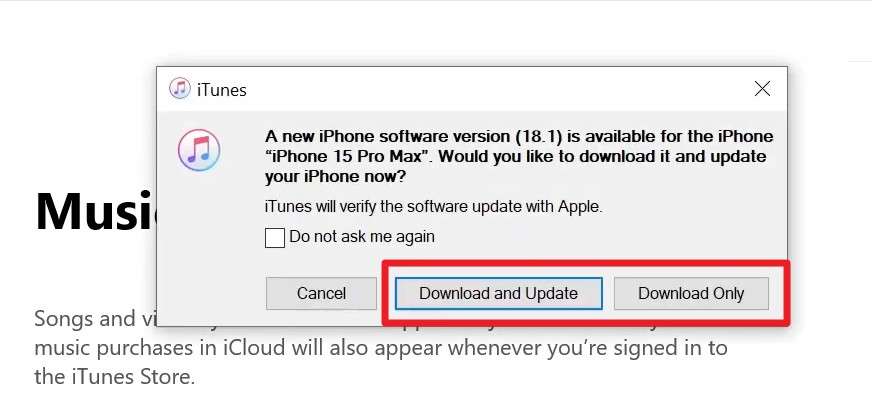
Step 1 Press “Trust” on the iPhone and select “Download and Update” in iTunes as you connect the device with a USB cable.
-
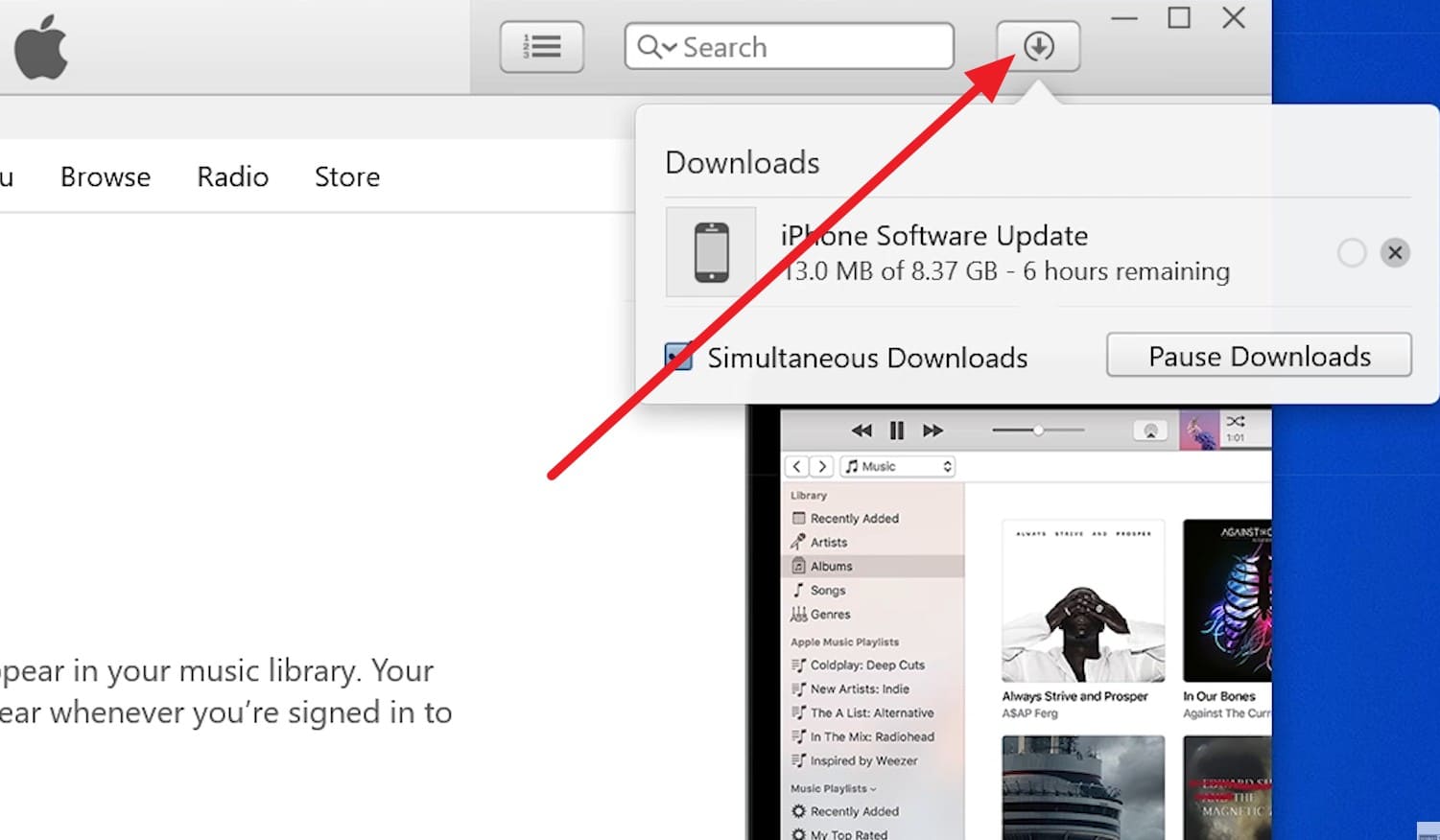
Step 2 Continue by tapping “Next” in the Apple update file details. You can also tap the “Download” icon while the file is downloading to check the remaining time.
-
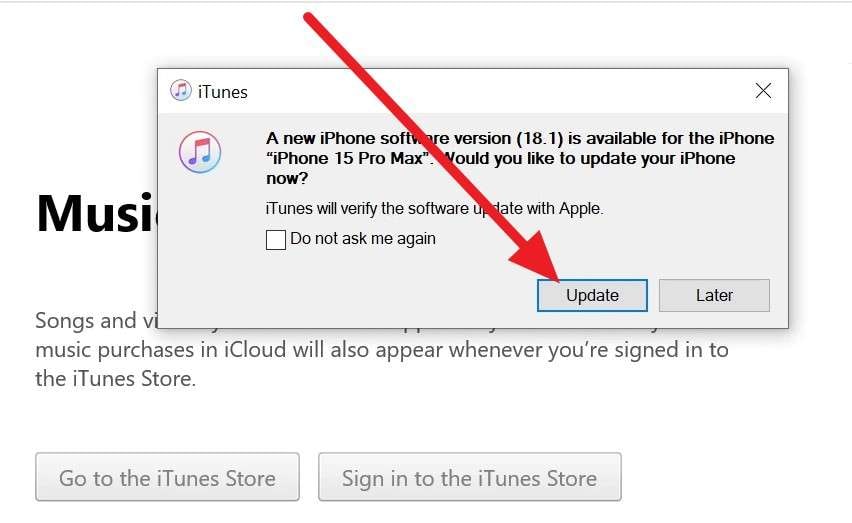
Step 3 Then, in the pop-up, choose the “Update” button and wait for iOS 27 to update when available.
Conclusion
As iOS 27 is expected to have major updates, this guide has explained all the iOS 27-supported devices along with the upcoming updates. Since Apple has not officially confirmed the final compatibility list yet, users should monitor future announcements for the most accurate information. So, while following Apple’s timeline, it is recommended to create a selective, incremental backup using Wondershare Dr.Fone.
FAQ
-
1. How long will Apple support older devices after they lose updates?
Apple may continue to provide occasional security updates for older iPhones, but full software support usually ends once the device loses eligibility for major OS updates. -
2. Is it safe to install the iOS 27 beta on my main iPhone?
iOS 27 beta versions can contain bugs and app compatibility issues, so they are generally not recommended for primary devices. -
3. Will iOS 27 make my iPhone slower?
Most supported iPhones should run iOS 27 smoothly, although older models may experience minor performance differences compared to newer ones.
 Add Wondershare Dr.Fone as a preferred source on Google



