 Resolve common problems and system crashes on both iPhone and Android devices.

 100% Security Verified | No Subscription Required | No Malware

 :
: 
 ChatGPT
 Perplexity
 Gemini
 Claude
 Grok
Grok
What if you try to update to iOS 27 and you get an "Unable to Verify Update iOS 27" alert repeatedly? This issue can appear for multiple reasons, and this guide will uncover them all so you can update iOS 27 easily. Once you know the root cause, learn how Dr.Fone - System Repair (iOS) can resolve this issue in its Standard Mode.
In this article

Part 1. What Causes the Unable to Verify Update Error When Installing iOS 27?
To know the root cause of the Unable to Verify Update iOS 27 alert, go through the mentioned reasons:
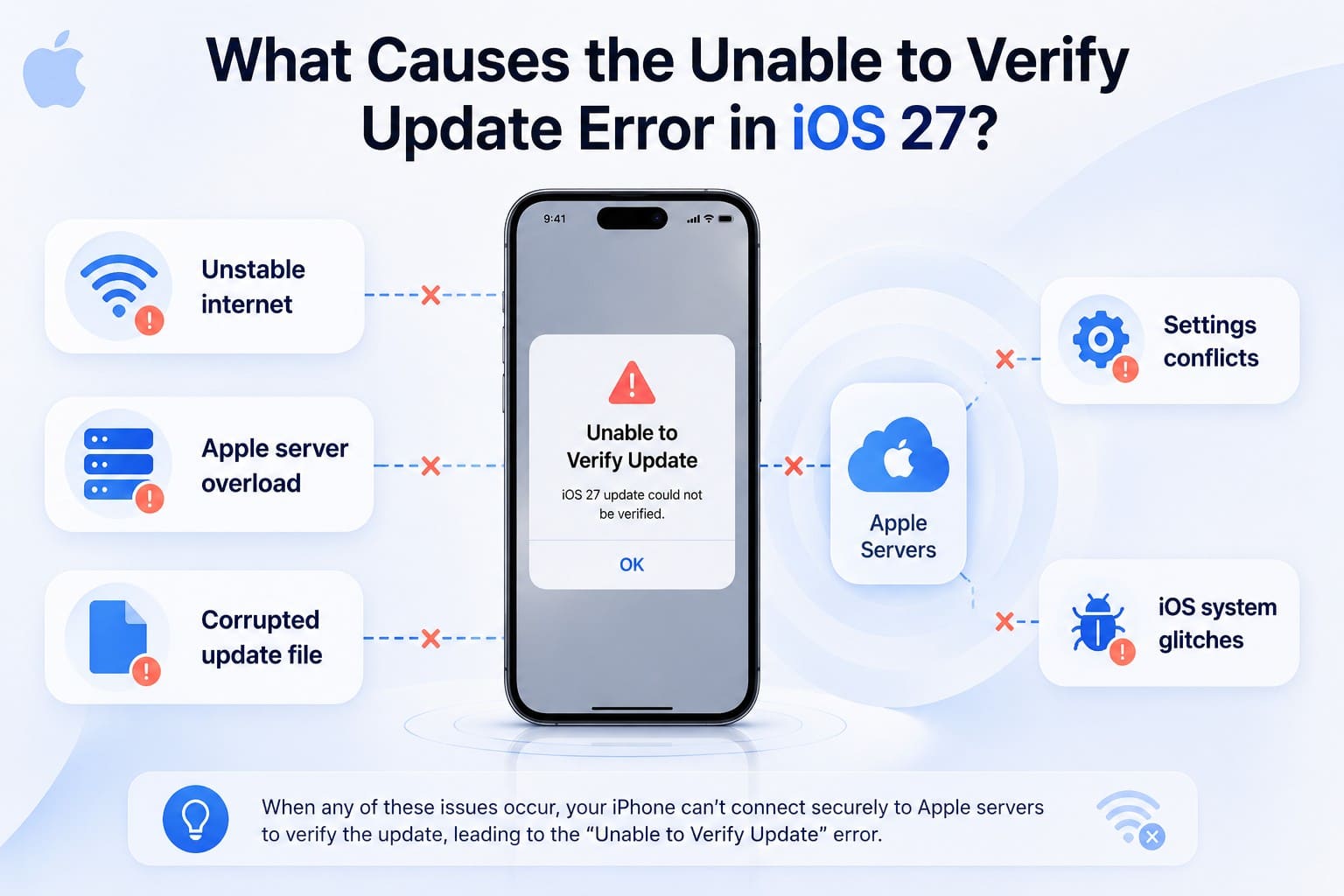
- Unstable Internet Connection: Note that iOS 27 verification requires a strong, stable internet connection to contact Apple Servers. So, a weak connection or frequent disconnections can easily disrupt the verification process and trigger the error.
- Apple Server Overload: When iOS 27 is in Beta, Apple servers often face heavy global traffic. Hence, if the server is busy, down for maintenance, or temporarily unreachable, your device may fail at the verification stage.
- Corrupted Update File: If the iOS 27 download is interrupted due to low storage or system glitches, the file may become incomplete. During verification, iOS detects file corruption or signature mismatches and stops the installation right away.
- Device or Settings Conflicts: Low storage space or VPN/proxy connections can block the verification process. These settings interfere with a secure connection between your iPhone and Apple servers and cause repeated verification failures.
- iOS System Glitches: Hidden system bugs, leftover cache from failed updates, and beta profile conflicts can disrupt the verification. Hence, normal entries may not work, and you may need system repair tools for repeated verification issues.
Part 2. Before You Begin: Essential Checks
Now that you know the cause of the Unable to Verify Update iOS 27 alert, perform the mentioned checks before you try fixes:
Check 1. Ensure Battery is Above 50% or Plugged In
When your battery is over 50%, or you have a stable power source, you can prevent interruptions during download, verification, and installation. If the phone has a weak battery, this step is important because sudden drops in charge can interrupt the update.
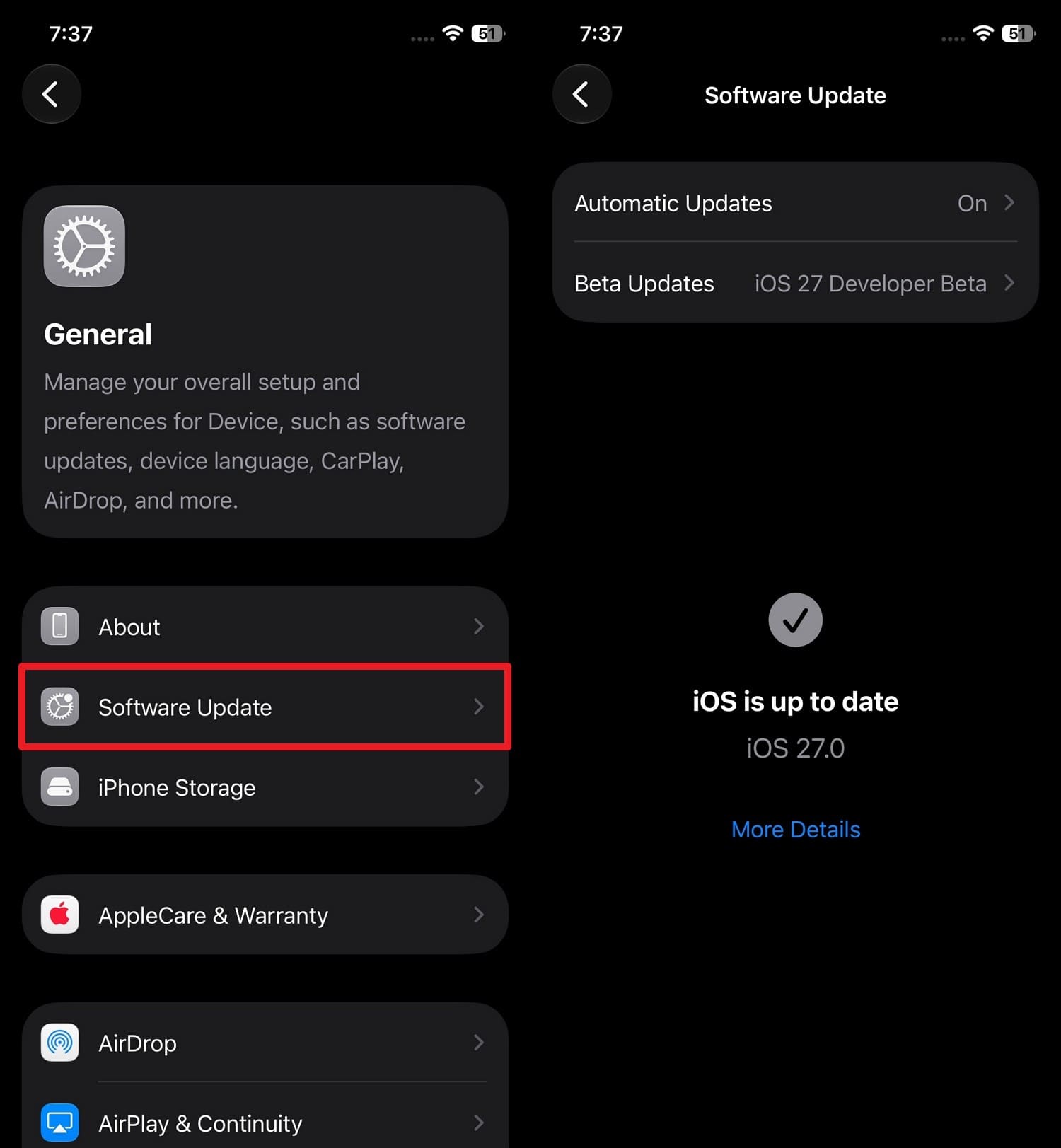
Check 2. Confirm Your Device Supports iOS 27
This check ensures you are not trying to install an incompatible version and can be performed via the steps mentioned. In addition, you can choose the correct iOS build or beta profile for your model and prevent the performance issue.
Instructions: Go to "General > Software Update" and check whether an iOS 27 update is offered for your device model.
Check 3. Check Available Storage Space
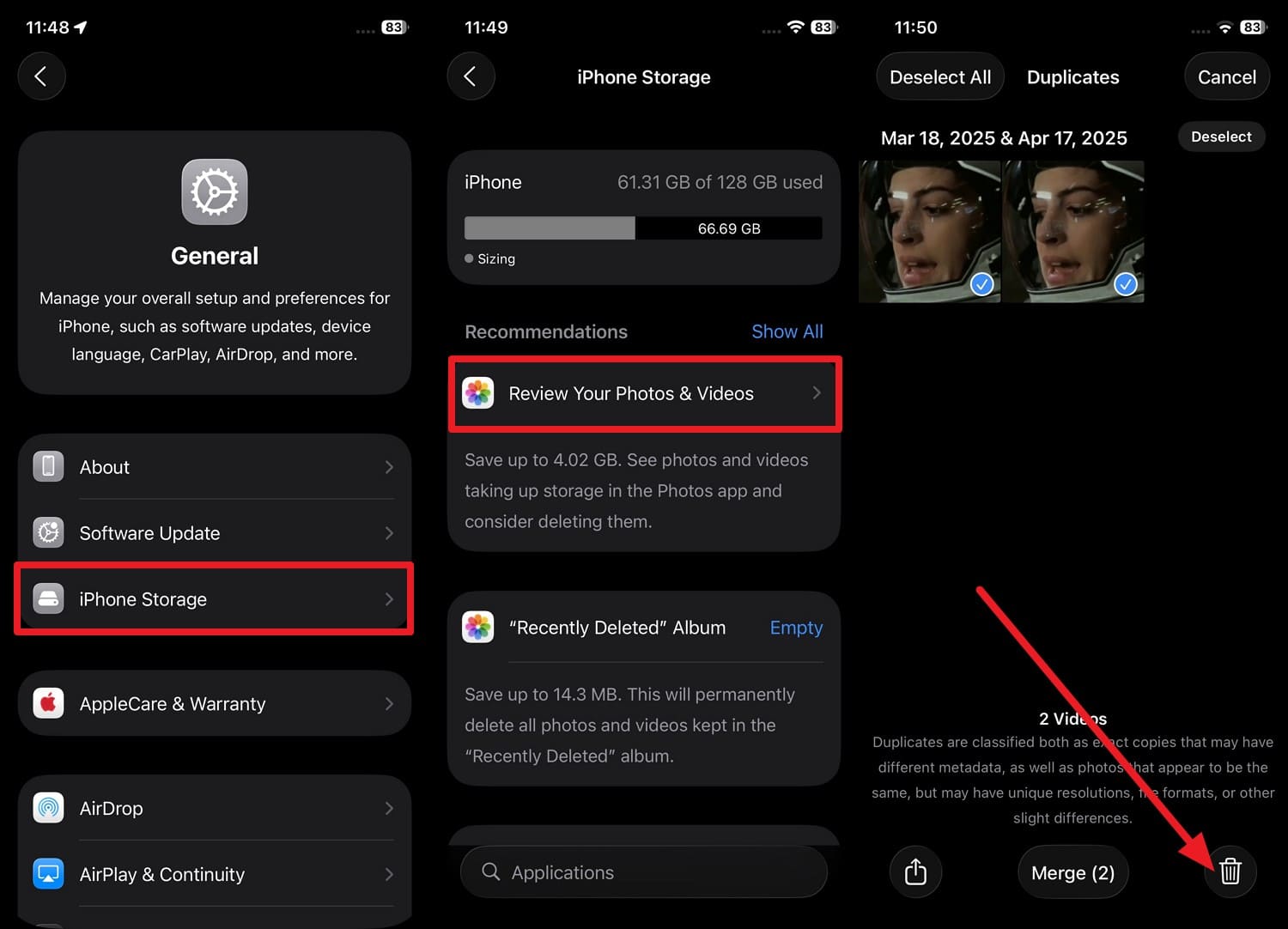
To fix the Unable to Verify Update iOS 27 issue, make sure you have enough space on the iPhone. Since it needs several gigabytes beyond the update size itself, freeing the space via the mentioned steps will improve the update reliability:
Instructions: Go to "General > iPhone Storage > Review storage recommendations > Remove unnecessary apps, media, or files."
Check 4. Check Your Internet Connection
It's important that your iPhone maintains a stable connection to Apple's servers throughout the verification process. This check will help you determine whether you need to switch Wi-Fi networks or move closer to the router to prevent the Unable to Verify Update iOS 27 issue.
Check 5. Verify Apple Server Status
This helps you know whether the problem is caused by Apple rather than the device itself. Through this, you can save time on unnecessary troubleshooting and decide whether to wait or use a computer to update iOS 27.
Part 3. How to Fix Unable to Verify Update iOS 27
If the Unable to Verify Update iOS 27 issue remains after the check, try these 6 practical fixes:
Fix 1. Restart Your iPhone and Try Again
As a quick fix, this can clear temporary system glitches and refresh the network connection to restart the update-related services. This can also resolve the issues caused by the cached data, failed verification attempts, and is guided ahead:
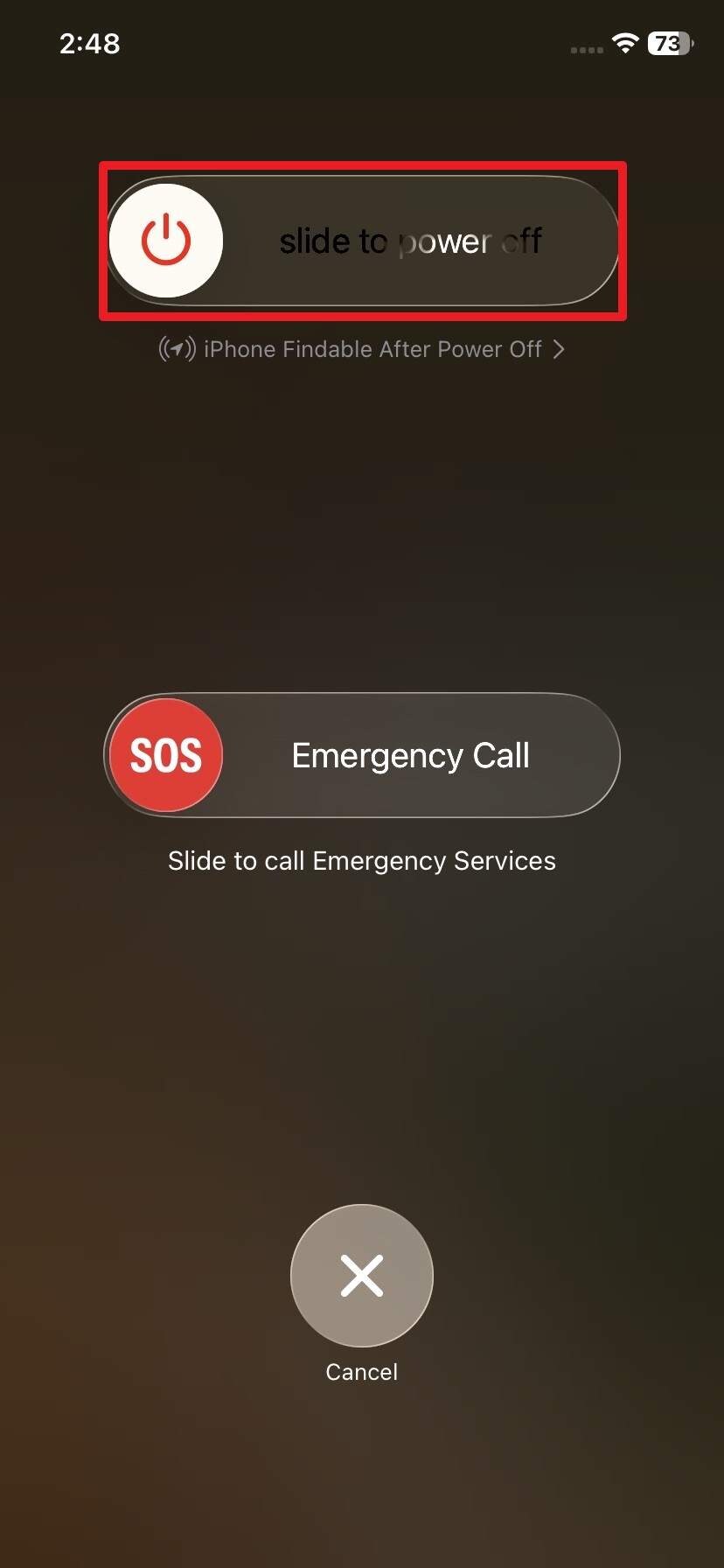
Step 1 Press and hold the Side + Volume button > Slide to Power Off > Wait for 20-30 seconds.
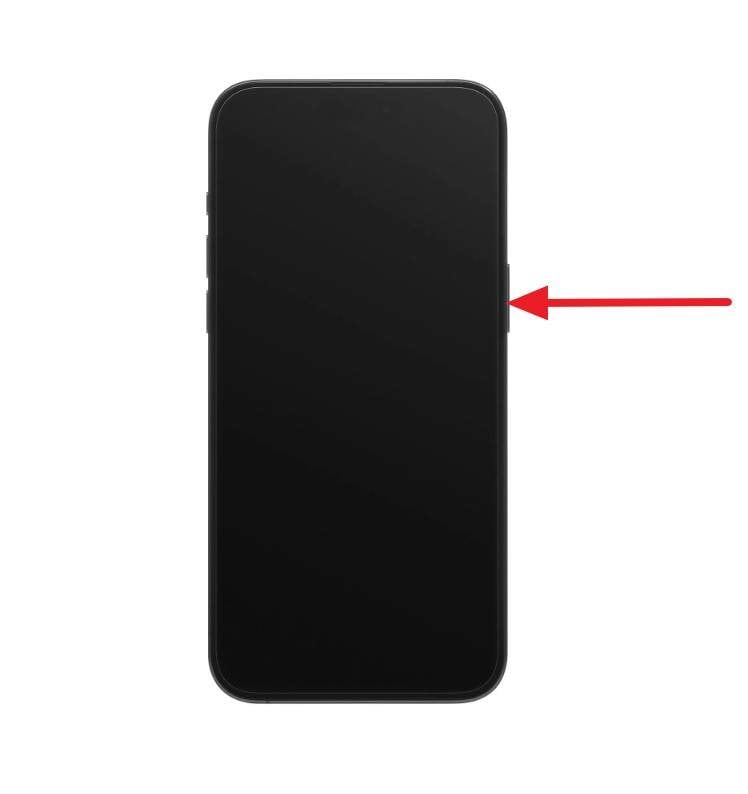
Step 2 Hold down the "Power" button until the Apple logo appears to see if the "Unable to Verify Update iOS 27" issue is resolved.
Fix 2. Delete the Downloaded Update and Re-Download
Through this, you can replace the corrupt, incomplete, and outdated installer with a fresh copy from Apple's servers. This can also provide free storage space and reset the over-the-air update process, once the given steps are performed:
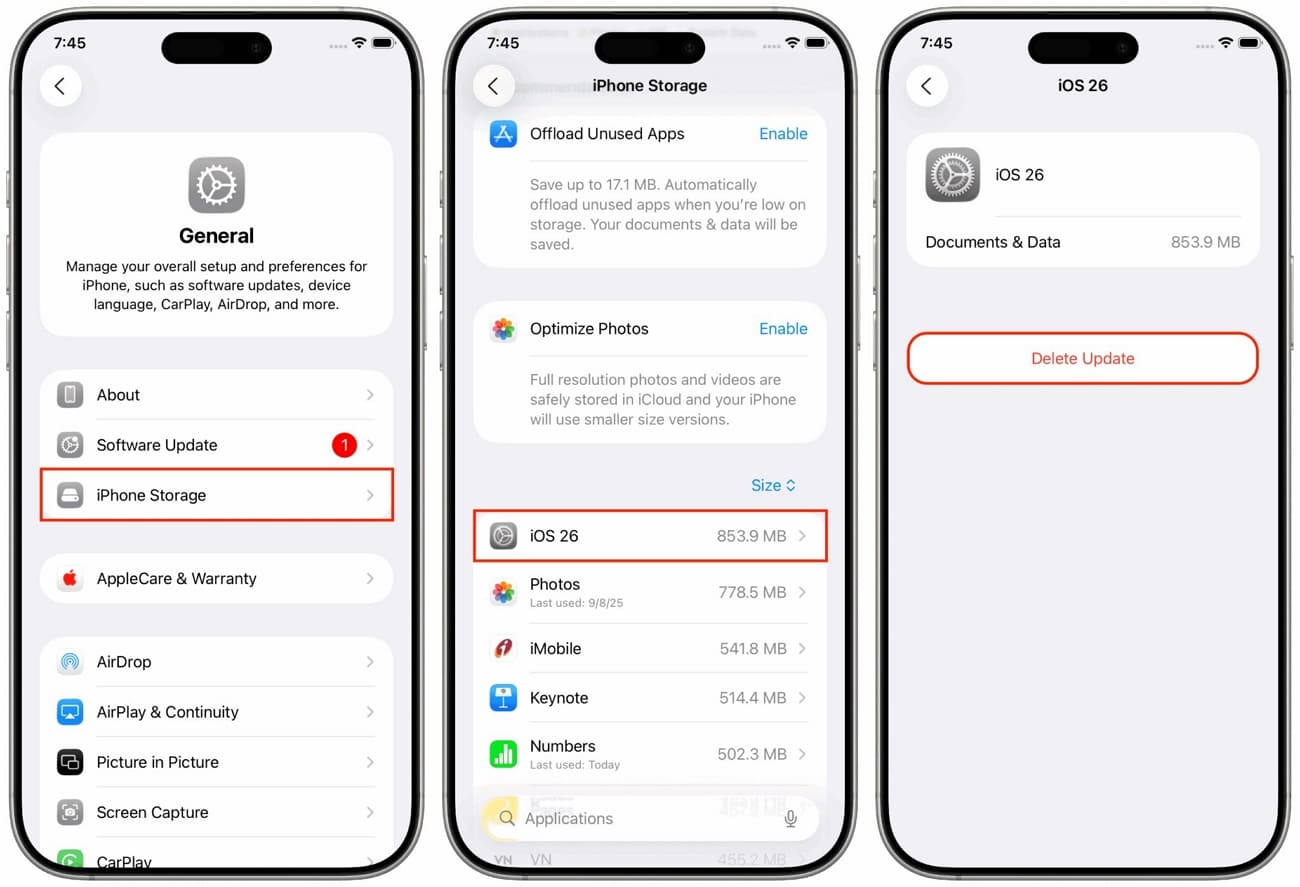
Step 1 In the General settings, go to "iPhone Storage" > Search for the iOS update file > Choose "Delete Update."
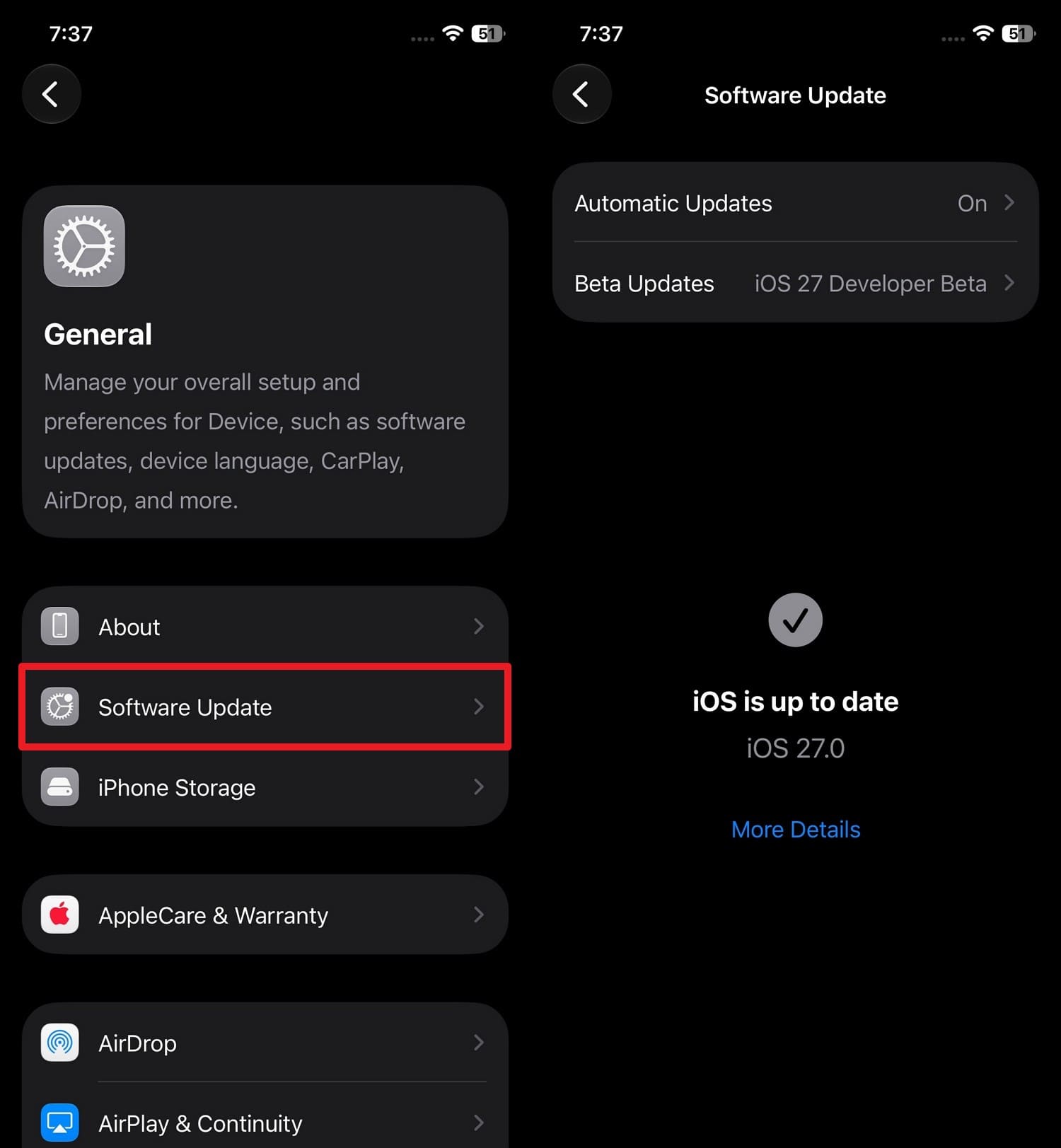
Step 2 To reinstall iOS 27, pick "General > Software Update > Update Now" to fix the Unable to Verify Update iOS 27 issue.
Fix 3. Use Dr.Fone - System Repair to Fix iOS Verification Errors
When the problem goes beyond simple network and storage issues, Dr.Fone - System Repair can help. In Standard Mode, you can keep iPhone data intact and resolve system-level issues that cause the Unable to Verify Update iOS 27 error. If this fails, you can leverage its Advanced and Anti-Recover mode when data loss is not your concern.
For iOS 27, iPadOS 27, and iPhone 17 Series, this tool can resolve 150+ iOS issues without any skills required. In addition, you can access the Recovery Mode and exit the DFU mode for free, and Dr.Fone offers you a detailed guide, which makes it an ideal choice for novices. Due to its versatility, you can also use it to fix 200+ iTunes errors like 4013 and 1110 without any data loss.
 Fix iOS issues, no data loss.
- One-click repair for all iOS problems.
- Solve recovery mode, Apple logo, black screen, etc.
- Upgrade or downgrade iOS without iTunes

Simplified Guide to Fix the Unable to Verify Update iOS 27 Alert
To know if the claims for its Standard Mode are true, perform the real-world test via the mentioned guide:
Step 1 Access Standard and Recovery Mode on Dr.Fone
Open the System Repair tool in Dr.Fone for iPhone, access the "iOS Repair" feature, tap "Repair Now," choose "Standard Mode," and enter Recovery Mode for free.

Step 2 Download the iOS Firmware for Verification Alert
When you get a list of iOS firmware options, tap the "Download" button for the required one and wait for the installation.
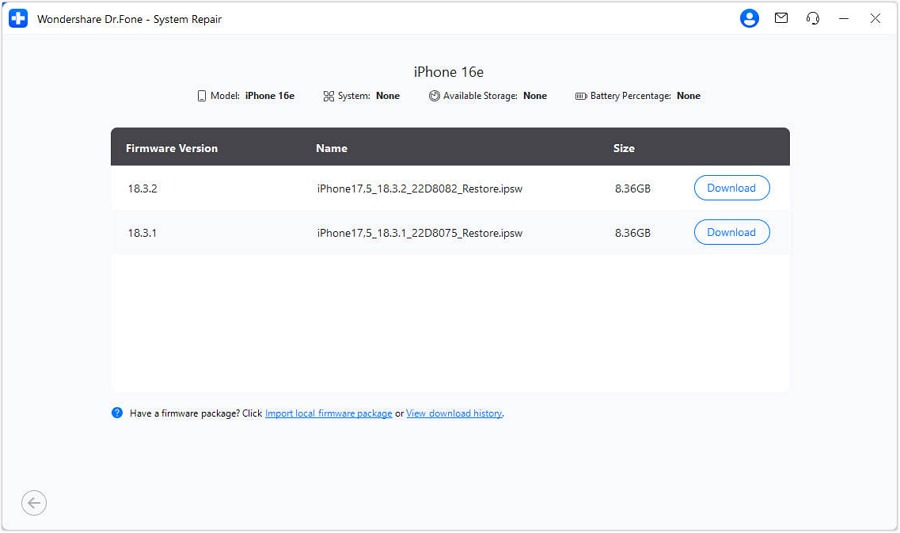
Step 3 Repair Unable to Verify Update iOS 27 Now
Finally, press the "Repair Now" button and wait until Dr.Fone fixes the system-level issue that causes the Unable to Verify Update iOS 27 alert.





Fix 4. Disable VPN or Proxy Services
Since they can interfere with the secure connection, turn them off via the mentioned steps to give your device a direct connection to Apple. Thus, this will make it easier to verify the update successfully, and the change is temporary and reversible.
Instructions: In "Settings > General > VPN & Device Management > VPN," toggle status to "Not Connected" to resolve the Unable to Verify Update iOS 27 alert.
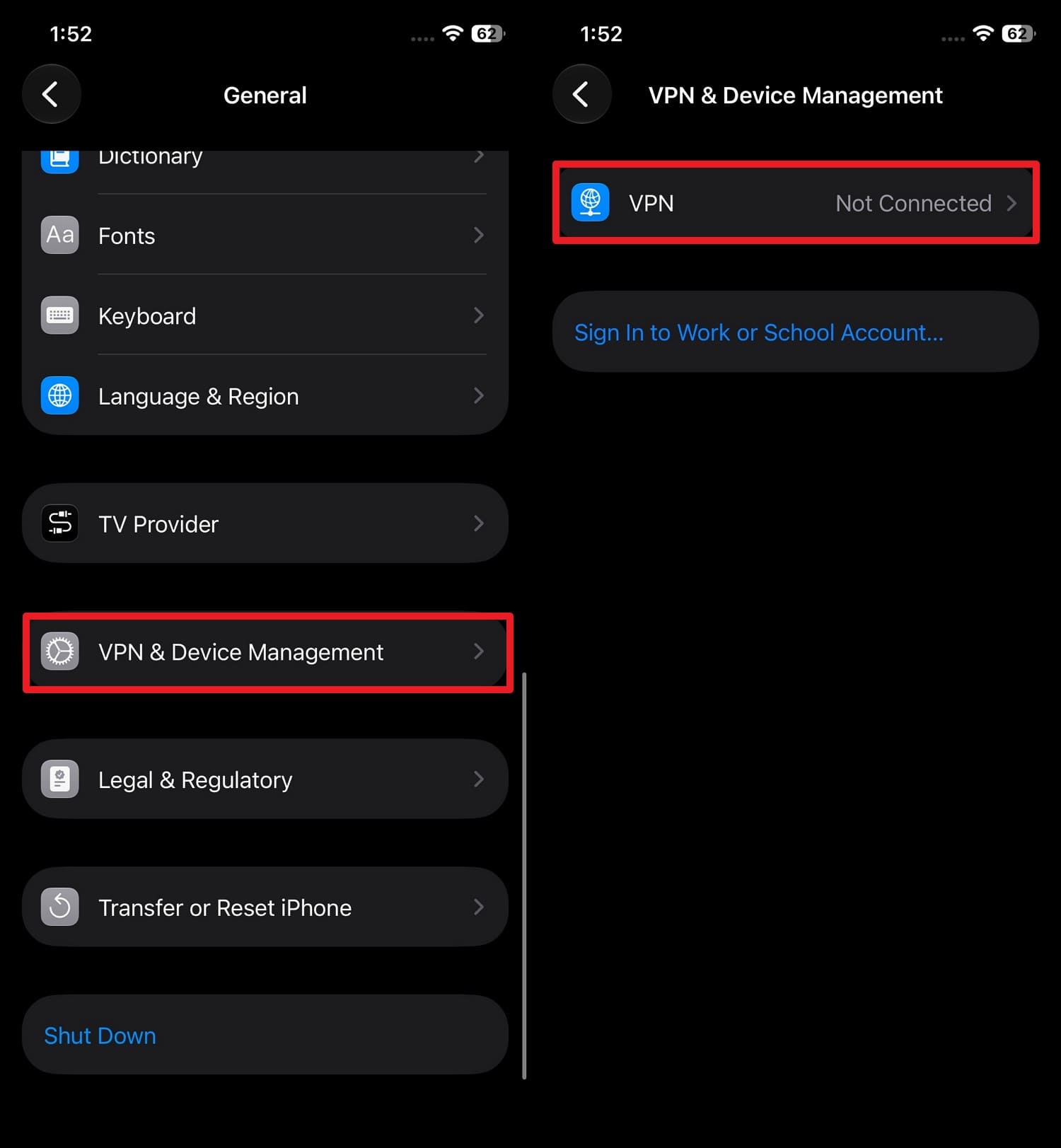
Fix 5. Reset Network Settings
To remove hidden network configurations that can block connections to Apple's servers, this fix can help. This clears corrupted Wi-Fi and cellular settings and VPN or DNS configurations via the mentioned steps:
Step 1 If you want to restore the network connection to its default state, go to "General > Transfer or Reset iPhone > Reset > Reset Network Settings."
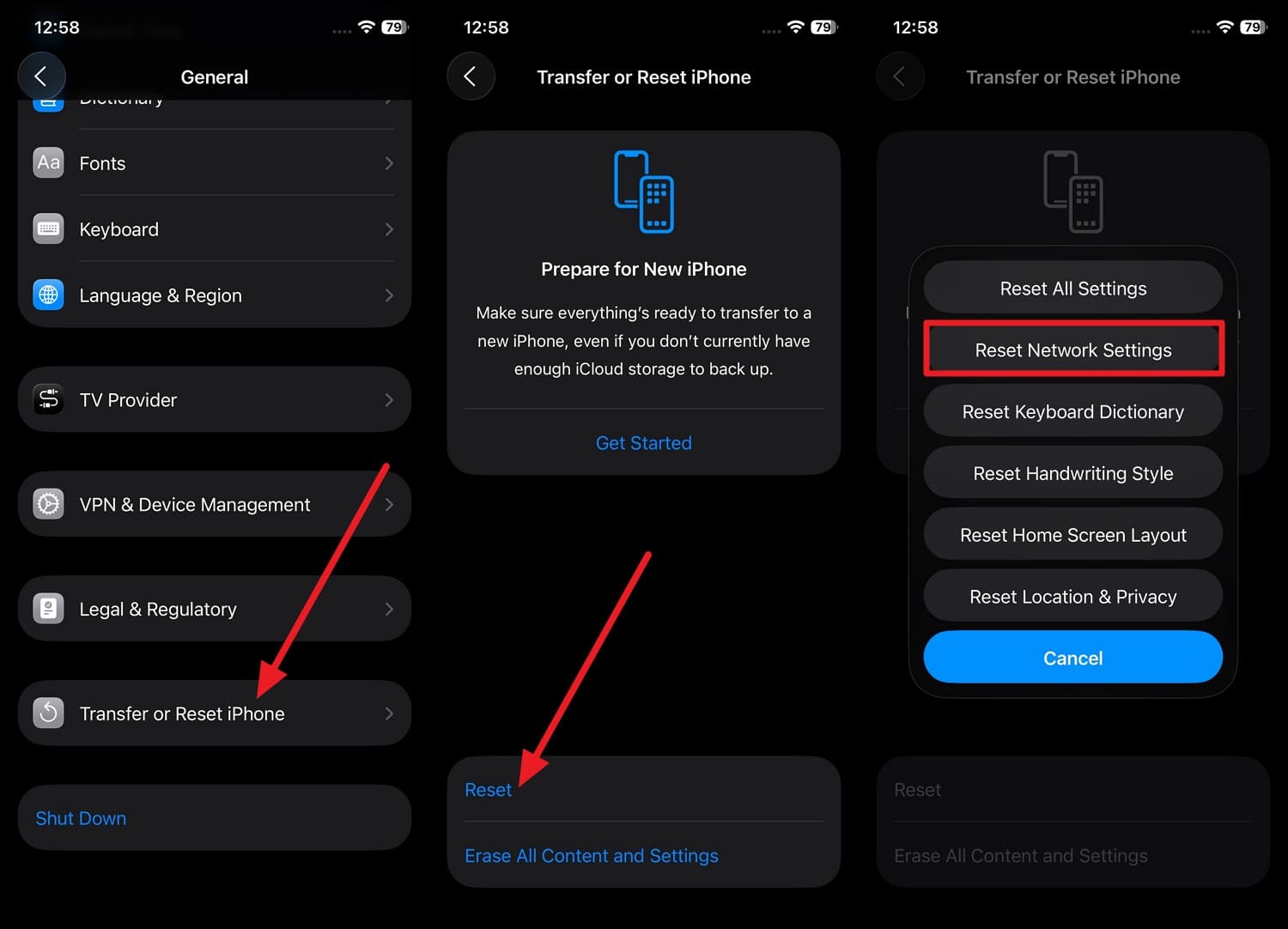
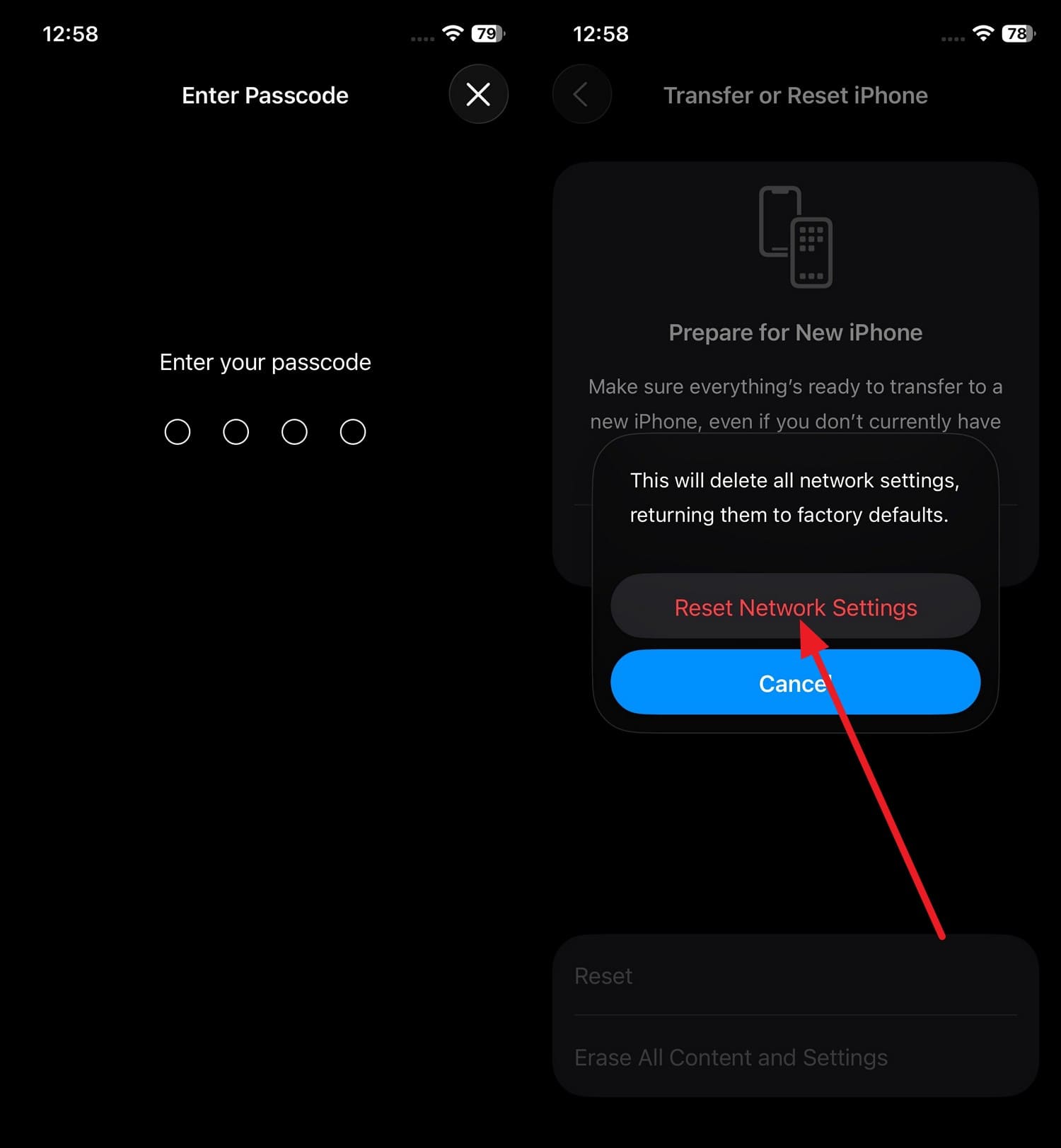
Step 2 Enter the passcode 2 times, then select the "Reset Network Settings" option to resolve the Unable to Verify Update iOS 27 alert.
Fix 6. Contact Apple Support
As the final step for the Unable to Verify Update iOS 27 alert, contact Apple support if the issue persists. Apple can check server-side issues and device restrictions that are not visible on the phone.
Part 4. How to Upgrade to iOS 27 If Verification Keeps Failing
For the constant Unable to Verify Update iOS 27 alert, here are 2 advanced solutions you can consider in 2026:
Method 1. Update iOS 27 Using iTunes on Windows PC
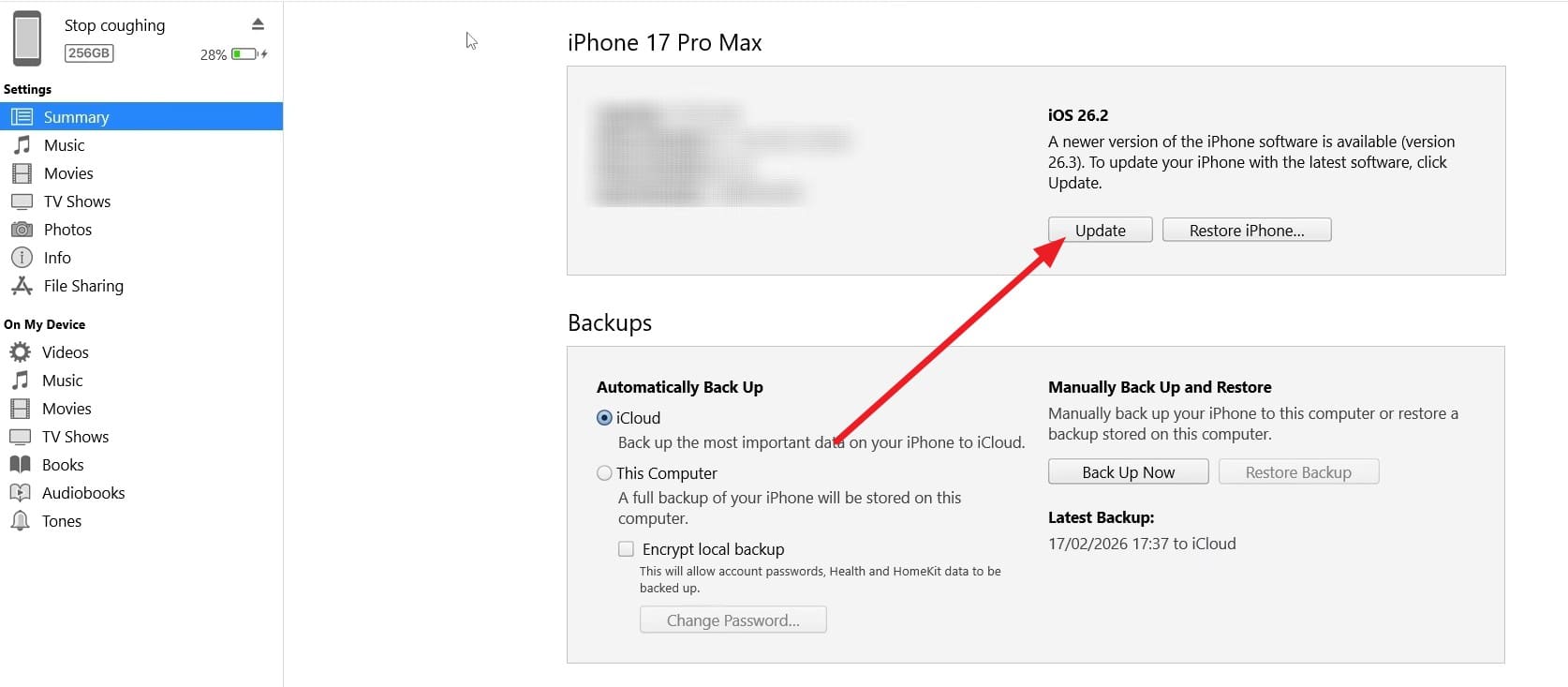
This is more reliable than the OTA updates because it uses a wired connection, and the full firmware download is handled by the computer. Since this also bypasses unstable Wi-Fi, network drops, or corrupted OTA downloads issues, it installs the complete iOS 27 firmware rather than a smaller incremental patch, as guided:
Instructions: Back up your phone with iCloud or Dr.Fone - Phone Backup to avoid any data loss, then launch iTunes on your PC. Connect the iPhone via a USB cable, then in the "Summary" tab, choose the "Update" button and wait for it to complete.
Method 2. Use Dr.Fone to Upgrade to iOS 27 Without Verification
If iTunes fails to update and the Unable to Verify Update iOS 27 alert remains, use Dr.Fone - System Repair to upgrade to iOS 27. With this, the firmware can be installed in just 2-3 simple steps, and you can downgrade later if there are any issues. Nonetheless, you can also resolve 200+ iTunes errors, such as 4013 and 1110, that failed to update to iOS 27.
Since the major concern is the iOS 27 upgrade, you will receive a detailed guide and a progress bar to track the upgrade. To know how and why this tool is better than iTunes, review this practical to upgrade your iOS version:
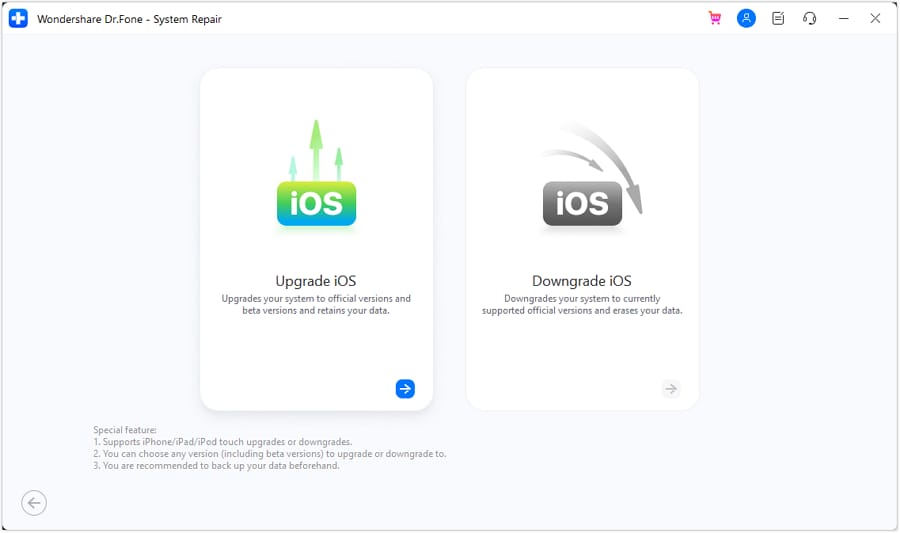
Step 1 Pick Upgrade iOS 27 on Dr.Fone
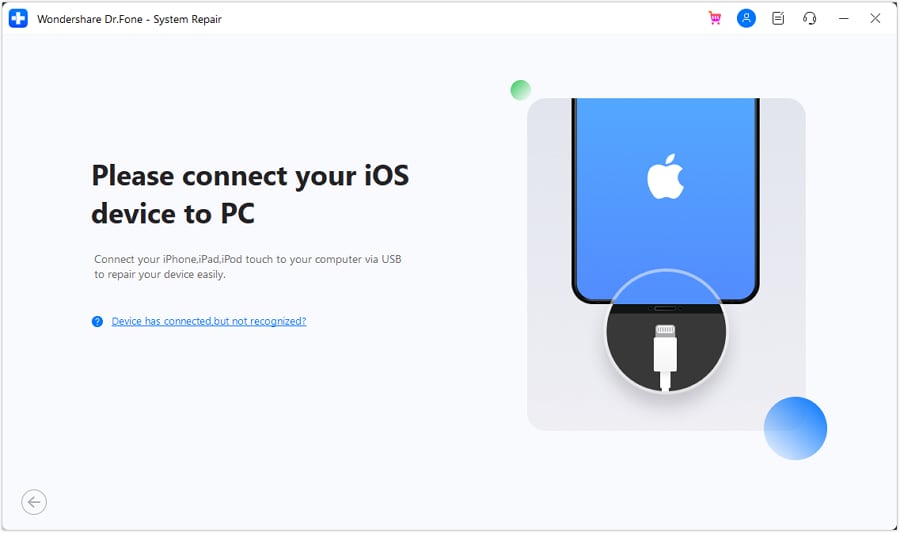
On the "System Repair" tool for iOS, pick the "Upgrade iOS" option and connect the iOS device via USB when prompted.
Step 2 Download the iOS 27 Firmware Option
From the list of iOS 27 upgrade options, choose one, and press the "Download" button to continue.
Step 3 Repair Now to Avoid Verify Update iOS 27
Tap the "Repair Now" button and wait for the tool to upgrade to iOS 27 and avoid the Unable to Verify Update iOS 27 alert.

Conclusion
This guide has explained why you face the Unable to Verify Update iOS 27 alert repeatedly. So, when the issue remains after the basic check and solution, experts say you can try Dr.Fone - System Repair. This tool can help you avoid system-level issues that cause this verification issue and later upgrade to iOS 27 without iTunes or OTA methods.
FAQs
-
Is it safe to retry the iOS 27 update multiple times?
Yes, but repeated failures indicate deeper issues such as server problems, VPN interference, or system corruption. So, for system-level issues, you can use Dr.Fone - System Repair (iOS) to resolve 150+ iOS issues, and its Standard Mode keeps data safe. -
Can a beta profile cause "Unable to Verify Update iOS 27"?
Yes, an outdated, corrupted, or incomplete beta profile can block verification and stop the update installation. Hence, remove the update file and use Dr.Fone - System Repair (iOS) to upgrade when iTunes and OTA methods fail. -
Why does deleting the update file sometimes not fix the issue?
If the root cause is network, server, or system-level corruption, simply re-downloading the update won't help. Thus, Dr.Fone - System Repair (iOS) can help you either fix the system-level issue or upgrade, based on your preferences.
 Add Wondershare Dr.Fone as a preferred source on Google



