 Resolve common problems and system crashes on both iPhone and Android devices.

 100% Security Verified | No Subscription Required | No Malware

 :
: 
 ChatGPT
 Perplexity
 Gemini
 Claude
 Grok
Grok
What if you finally see the iOS 27 update notification, but wonder, “Is it safe to update right away?” Many users worry about the battery drain, app crashes, and storage problems after a major iOS update and think about iOS 27 backup and data safety. At the same time, iOS 27 is expected to bring new Apple Intelligence features, smarter Siri improvements, and better privacy controls.
So, to help you make a better decision, this guide explains the perks and pitfalls of iOS 27. If you decide to update, you will learn how to create a backup and resolve update issues with tools like Dr.Fone Phone Backup and Dr.Fone - System Repair (iOS).
In this article
- Part 1. What’s New in iOS 27?
- Part 2. Should You Update to iOS 27 Right Away?
- Part 3. What Happens If You Update Without a Backup?
- Part 4. What to Back Up Before Updating to iOS 27
- Part 5. How to Back Up Your iPhone Before Installing iOS 27
- Part 6. How to Verify Your Backup Is Complete
- Part 7. Common iOS 27 Update Problems Users May Face
- Part 8. Can You Downgrade From iOS 27?
Part 1. What’s New in iOS 27?
To uncover this iOS 27 update guide, this section explains all the basics you need to know:
Biggest Features Expected in iOS 27
Here are some of the features you will have in iOS 27 after its official launch:
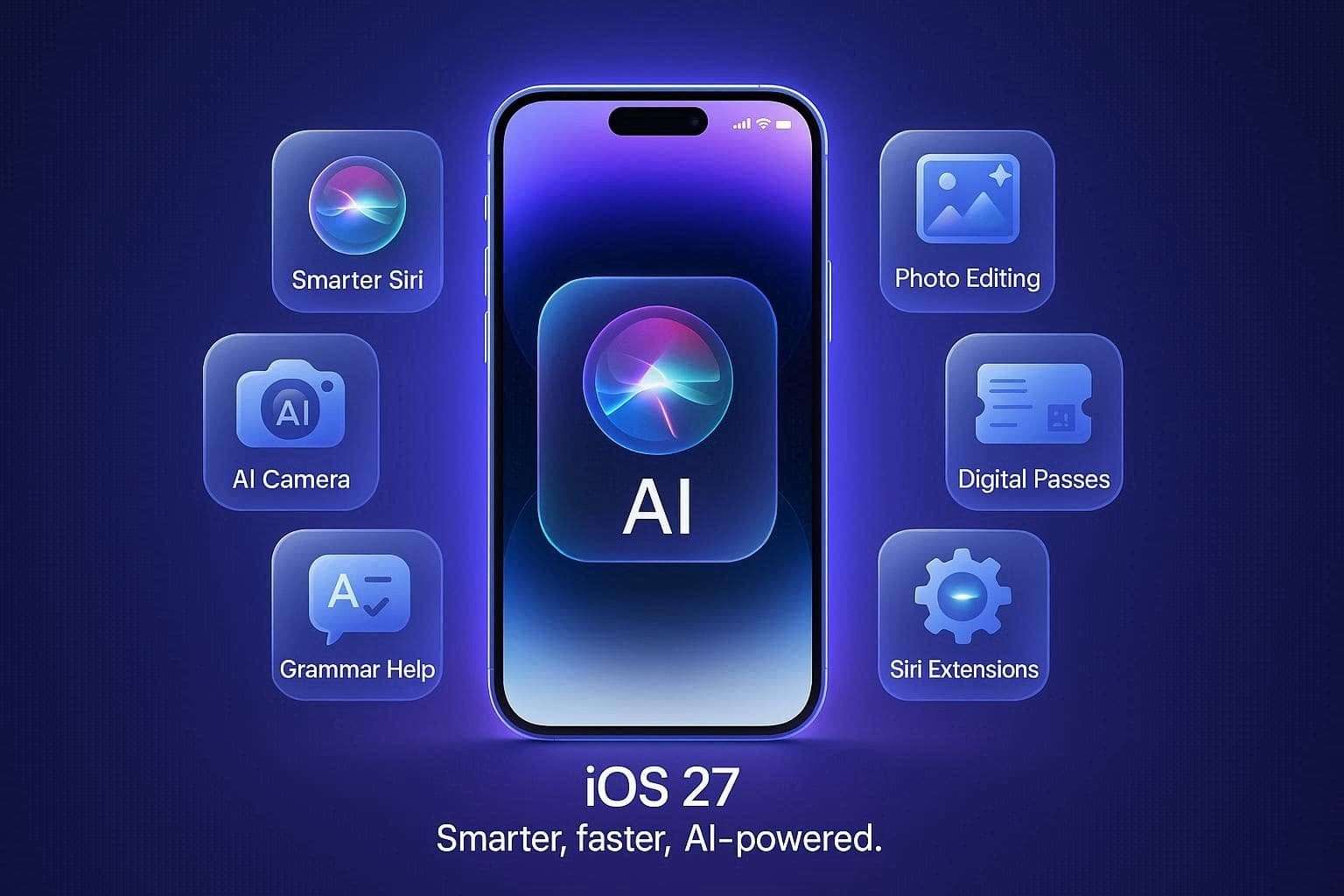
- Smarter Siri Chat: iOS 27 may make Siri much smarter with real conversations like ChatGPT and Google Gemini. On the Dynamic Island, Siri will act as an always-on agent, and you can have back-and-forth conversations with the dedicated Siri app to save chat history. Boomerang and iTiger reports further say that this upgrade is powered by a deeper partnership using Google’s Gemini technology to make Siri faster and smarter.
- Better Personal Help: Siri will be able to look at what’s happening on your phone to help you out in both text and voice modes, says MacRumors. This report further states that when you trigger Siri, you will see a glowing cursor, and Siri will look through your emails and texts to find the answer for you.
- Siri Inside Camera: Rather than using a separate tool, the iPhone Camera app will have built-in “Siri Mode.” 9to5Mac reports that you will be able to point your camera at real-world objects to get instant information. Tom’s Guide further adds that you can scan a nutrition label on food packaging to quickly log calories or scan the business cards.
- Custom Camera Controls: As for the Apple Intelligence features in iOS 27, users will have the option to completely rearrange buttons in the Camera app, according to Laptop Outlet. Hence, you will be able to add custom Widgets to the camera screen for the settings you mostly use and hide the buttons you don’t need.
- Smarter Photo Editing: The Photo app will get 3 main AI tools to fix your pictures, such as extend, enhance, and reframe. The “Extend” will add extra background which will match the rest of the image, and “Enhance” will automatically fix color and lights. With the “Reframe” option, you can slightly shift the perspective of a photo after you have already taken it.
- Create Digital Passes: Having the tentative iOS 27 release date, Apple Wallet is adding a feature called “Create A Pass.” According to 9to5Mac, if you have a paper ticket or membership QR code, you can use your Camera to scan it. Hence, this will immediately turn it into a digital pass in Apple Wallet.
- Better Keyboard Grammar: In the iOS 27 update, the phone’s built-in keyboard will be able to do more than just fix typos. MacWorld says that it will work just like Grammarly and will offer alternate suggestions to help improve your grammar as you type.
- Siri Extensions: iOS 27 may let Siri work with other AI chatbots, like Gemini and Claude, not just ChatGPT. Users might get the option to choose a favorite AI for Siri, writing tools, images, and other Apple Intelligence features through new “Extensions” settings.
- Faster Speed & Battery: While the new features are intuitive, Apple will prioritize system stability. This means that the engineers are focused on clearing out old, messy code to fix bugs, make the phone feel faster, and save battery life.
iOS 27 Release Date Expectations
Regarding the iOS 27 release date, MacWorld says that Apple will launch iOS 27 during its WWDC keynote on June 8, 2026. On the same day, Apple will release the Developer Beta version, and the stable, public version will follow in early July. However, the final version will be launched to the general public in September 2026 alongside the release of the new iPhone lineup.
Which iPhone Models Support iOS 27?
The iOS 27 update will be available for all iPhone 12-series and newer models, including the iPhone 13 and iPhone 17 lineups. This list also includes the third-generation iPhone SE, meaning Apple is dropping support for the devices powered by the older A13 Bionic chip.
Devices That Will Not Get iOS 27
According to the 9to5Mac leaks, Apple is dropping 4 specific models from the iOS compatibility list this year. This will include iPhone 11, iPhone 11 Pro, iPhone 11 Pro Max, or the second-generation iPhone SE (released in 2020). Since these devices run on the older A13 Bionic chip, they lack the power needed for the new operating system.
Part 2. Should You Update to iOS 27 Right Away?
So, if you have compatible iPhone models, review this section before you seek iOS 27 backup methods.
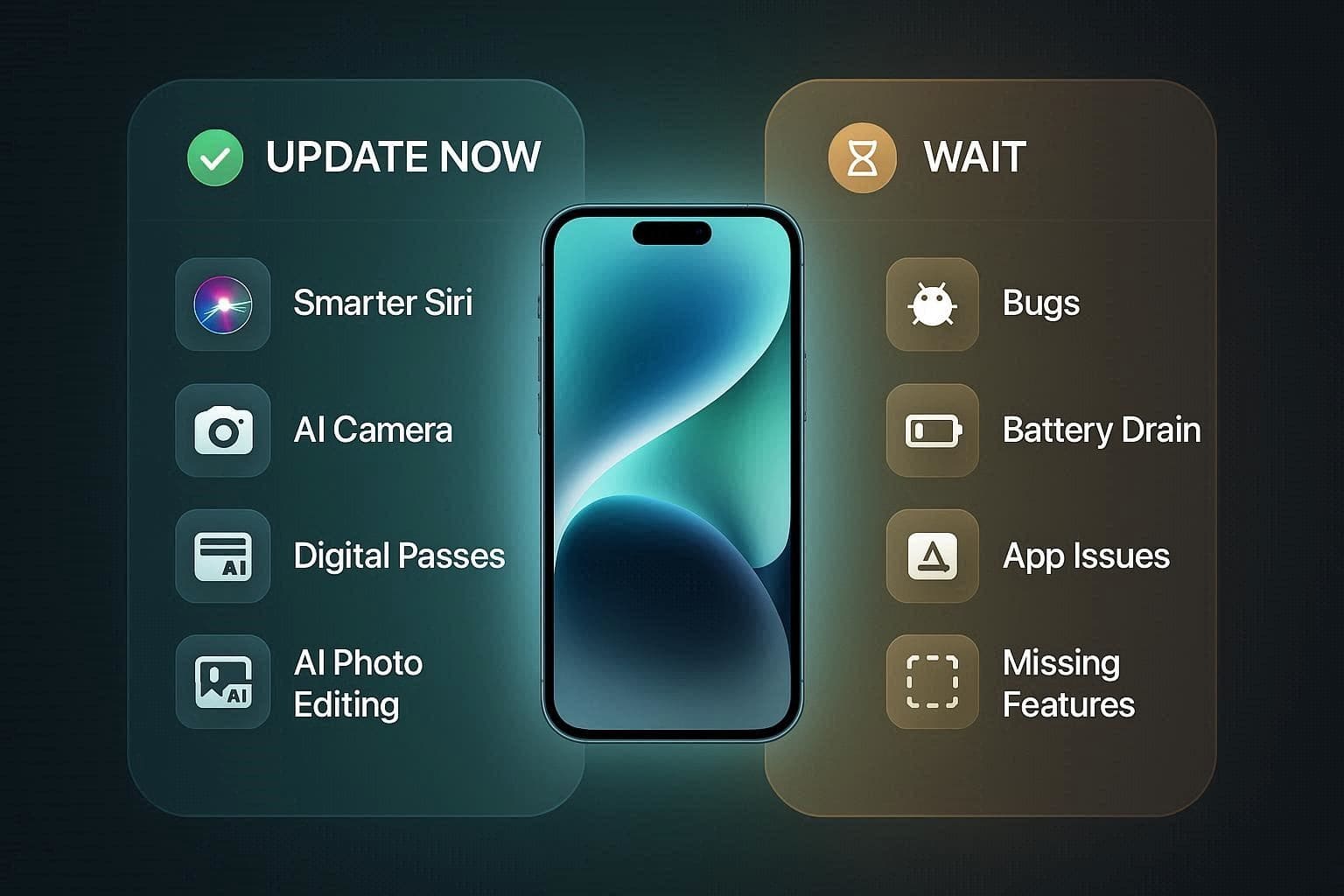
Reasons to Update Early
Here are some reasons that highlight why you should upgrade to iOS 27 after June or July:
- Get the upgraded, smart Siri chatbot for better text and voice conversations.
- Scan business cards to log food calories inside the Camera app.
- Scan paper tickets or member cards to create digital Apple passes.
- Fix photos instantly using new AI tools to extend or reframe backgrounds.
- Speed up the phone and improve battery life with cleaned-up system code.
Reasons to Wait Before Updating
Despite the exciting features, here’s why you should wait for the stable iOS 27 update till September 2026 or after that:
- Early software versions often have hidden glitches that can slow down your device.
- New background features can accidentally drain your phone's battery much faster at first.
- Your favorite daily apps might crash until developers update them for compatibility.
- Some promised tools will not be ready until later updates arrive.
Who Should Wait for iOS 27.1?
Based on the key features and rumors in this iOS 27 update guide, it's best to wait for iOS 27.1 to avoid early software bugs and app crashes. In the past, it's evident that all the “.0” updates came with unexpected performance glitches, so waiting until the “.1” version is recommended by experts.
Part 3. What Happens If You Update Without a Backup?
After June or September, if you want to update without any iOS 27 backup, here are some consequences you will have:
| Potential Issue | What It Means |
|---|---|
| Total Data Loss | If the update fails halfway through, you could permanently lose all your photos, texts, and notes. |
| Stuck on Apple Logo | A system glitch can freeze your phone; fixing it usually requires erasing the device completely. |
| Lost App Progress | Game saves, local chat histories, and offline documents not synced to iCloud will disappear. |
| No Way to Go Back | If the update slows down your phone, you cannot safely downgrade to your old software without a backup. |
Part 4. What to Back Up Before Updating to iOS 27
To avoid data loss and preserve app progress, this iOS 27 update guide suggests you back up all important data. This can include the entire photo and video library, contacts, reminders, and notes. Moreover, you must verify that local messages (SMS and iMessages) and WhatsApp Chat histories are fully synced to the cloud. Additionally, ensure that the backup adds your Keychain Passwords and any essential security setups from 2FA apps.
Part 5. How to Back Up Your iPhone Before Installing iOS 27
Regarding the iOS 27 backup, this section explains 3 simple ways to create a backup as you update to iOS 27:
1. Back Up Using iCloud
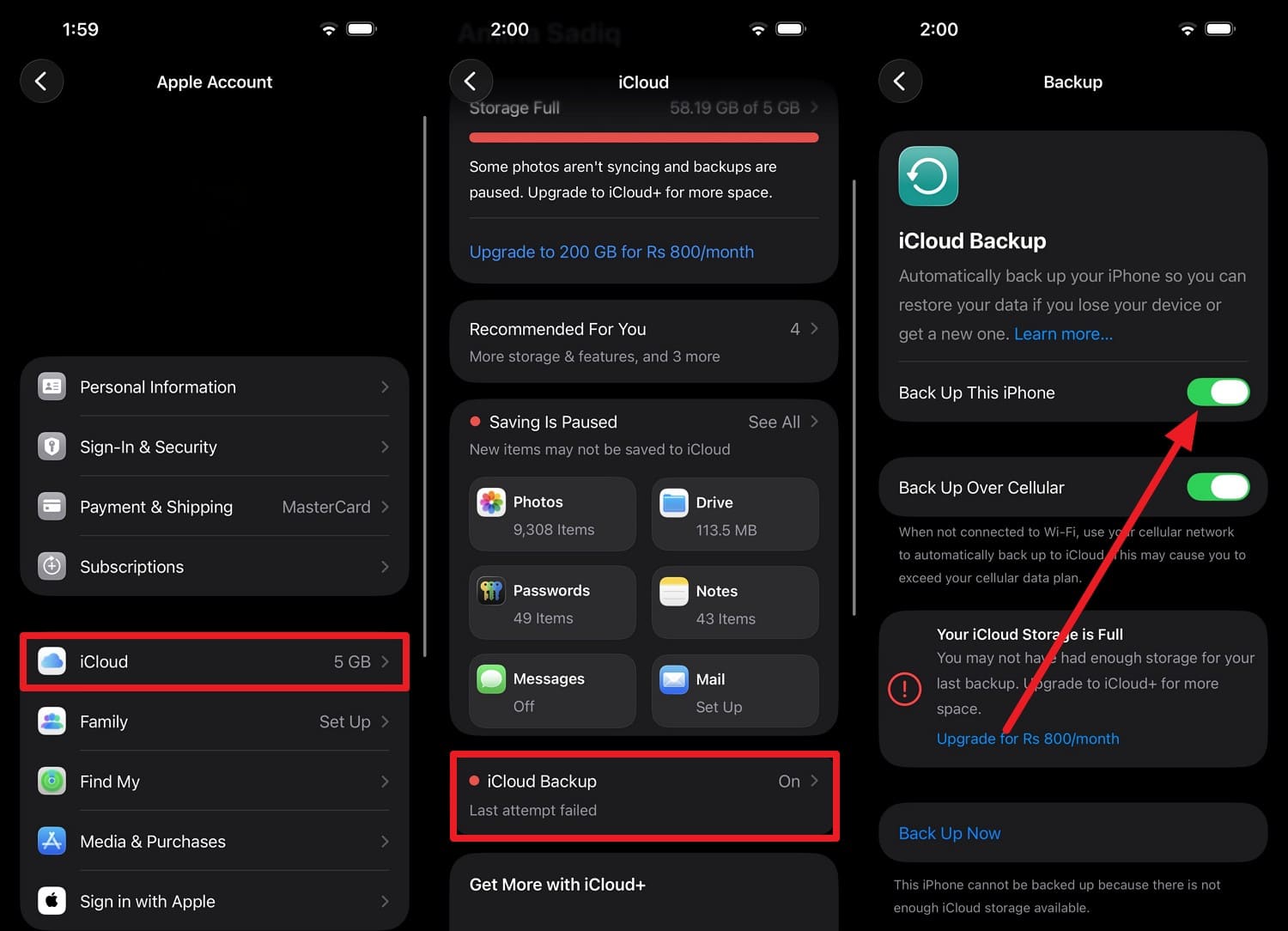
If the failed update forces you to erase and restore your iPhone, use this method to save important data. Since the backup is stored on Apple’s servers, users can easily recover once the backup is made via the mentioned steps:
Instructions. Go to “iCloud” as you tap the Apple ID in settings and choose the “iCloud Backup” option. Following this, toggle on the “Back Up This iPhone” option and tap “Back Up Now” while connected to Wi‑Fi and power.
2. Back Up Using Mac or Windows PC
Near the iOS 27 release date, you can create a complete local copy of your device using iTunes or Finder on a Mac or Windows. Unlike iCloud backups, computer backups are not limited by cloud storage and can be encrypted, as guided below:
-
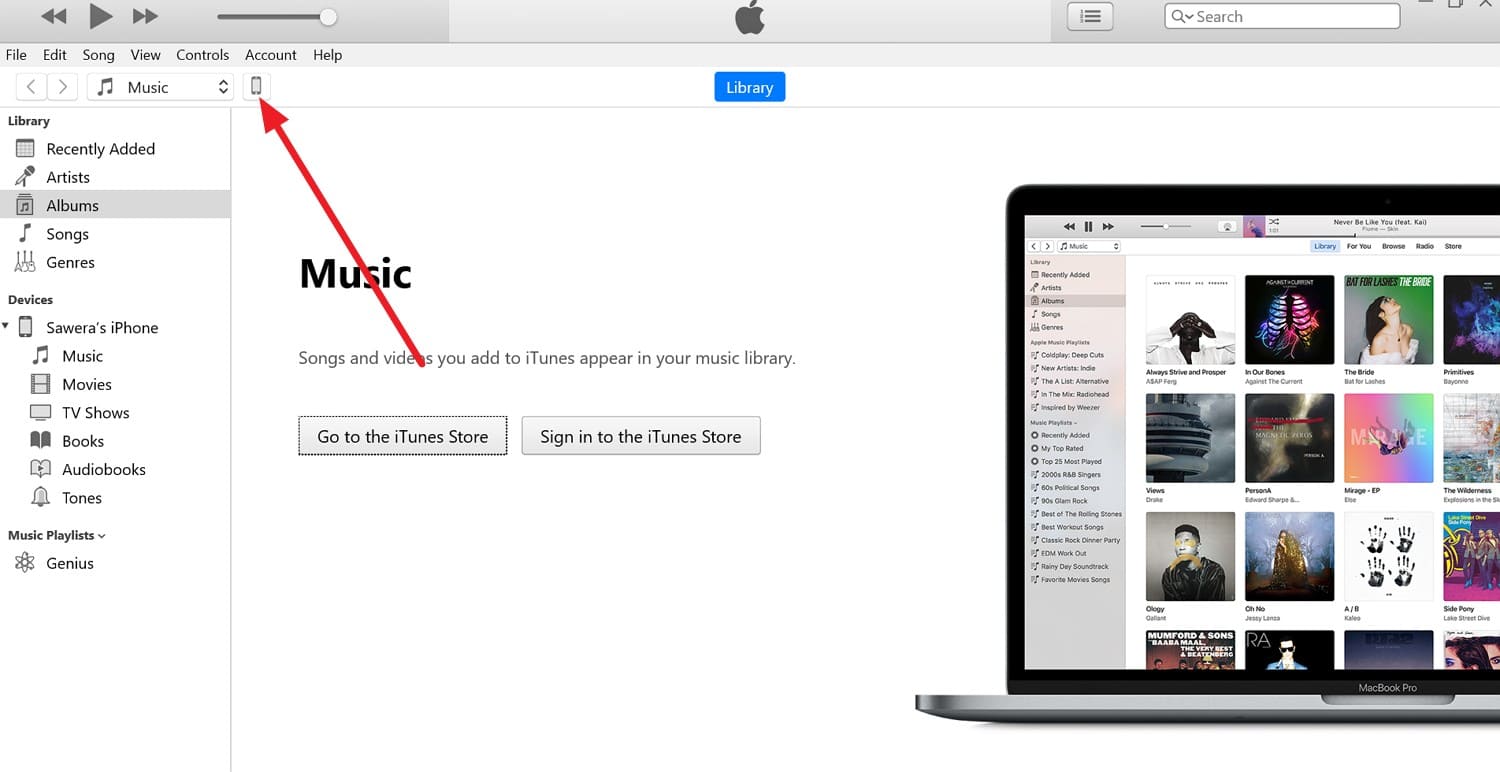
Step 1 Use your USB or USB-C cable to connect your iPhone to your Mac or Windows PC, then launch iTunes or Finder. Upon doing so, press the “Trust” option on the iPhone, then choose the “Phone” icon in iTunes to go to the summary tab.
-
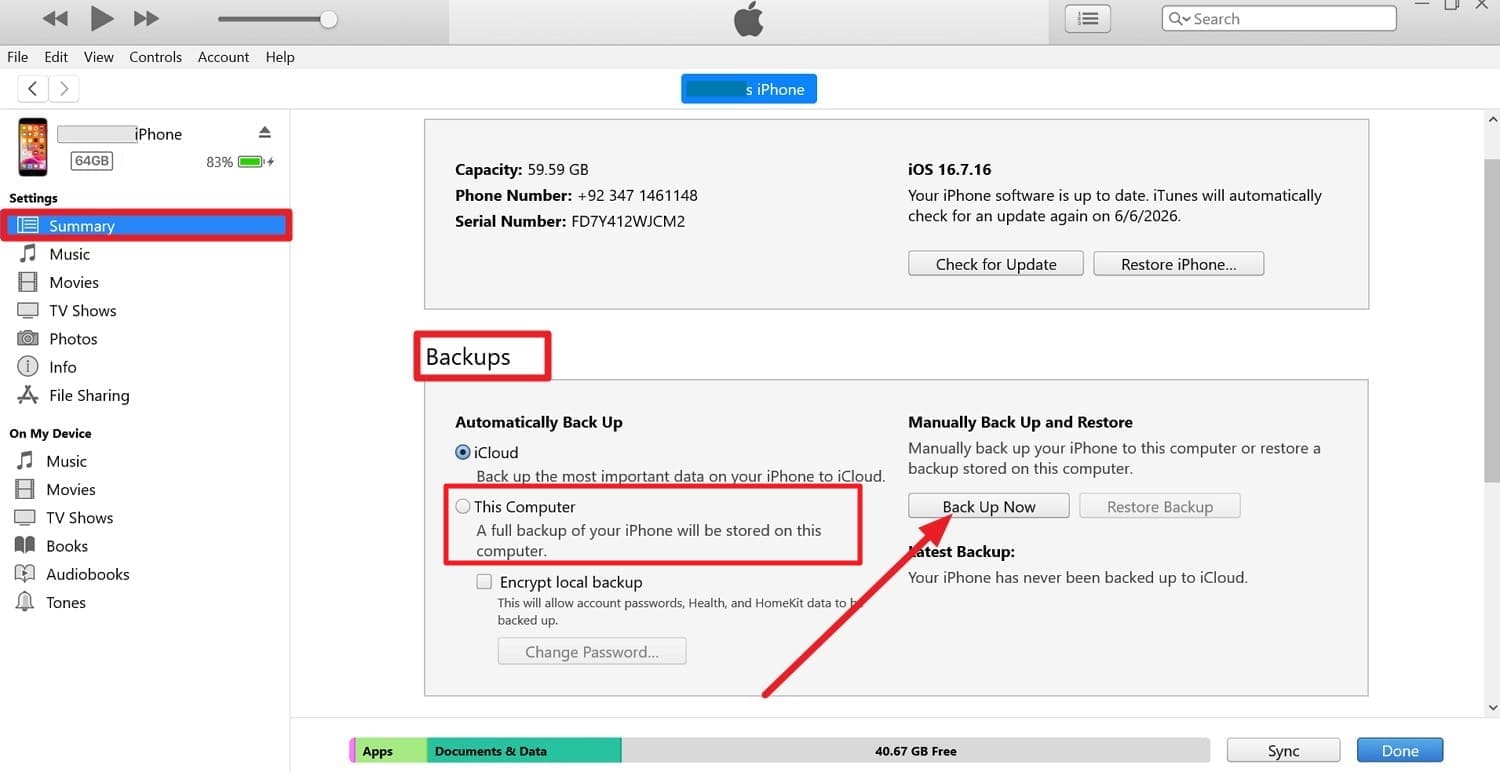
Step 2 In the “Backups” section, choose between the “iCloud” and “This Computer” options and add the password if you want to use "Encrypt Local Backup.” Finally, press the “Back Up Now” button and wait for the progress bar to finish.
3. Create a Full Backup via Third-Party Desktop Tool: Wondershare Dr.Fone
When you want to create a backup of selected data types, this iOS 27 update guide suggests that you use the Wondershare Dr.Fone. The tool allows you to secure 26 data types of iOS devices over Wi-Fi, without needing any manual setup. Additionally, Dr.Fone guarantees it will not overwrite existing data and allows you to restore later on iOS or Android.
Whether one creates iCloud, iTunes, or Dr.Fone backups, they can later preview them in detail to determine accuracy. Since the preview aspect is missing in official methods, users can leverage incremental backup and restore with Dr.Fone without needing any skills. Users can easily back up and restore their iPhone, iPad, or iPod touch, along with WhatsApp, LINE, Kik, and Viber Data.
 Effortlessly manage data through preview, delete, export, etc.
- Transfer all data between devices.
- Robust backup solutions for reliable data protection.
- Mirror screens to PC for meetings, teaching, and control.

Guide to Create the Manual Backup Using Dr.Fone for iOS
-
Step 1 Locate the Data Types in My Backup Section
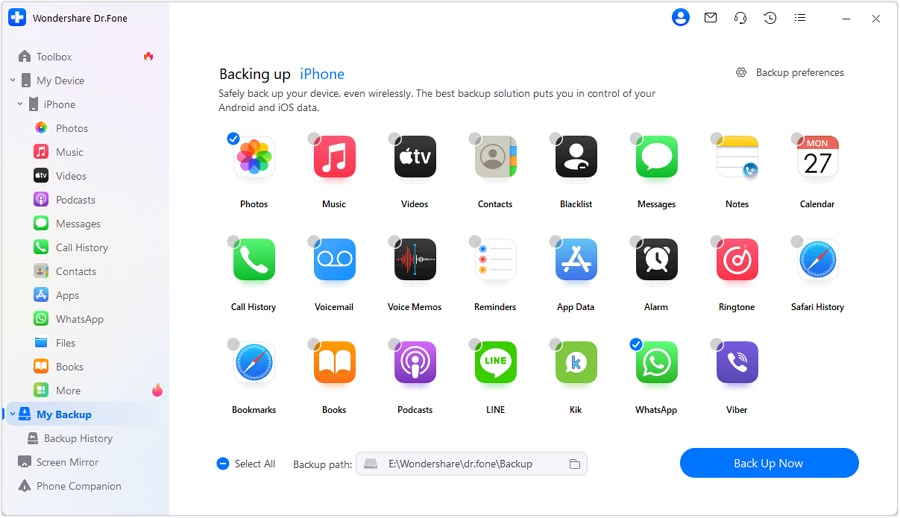
In the “My Backup” section, choose the “Back Up Now” button as you choose the data types you want to back up.
-
Step 2 Choose to Preview the Created Dr.Fone Backup
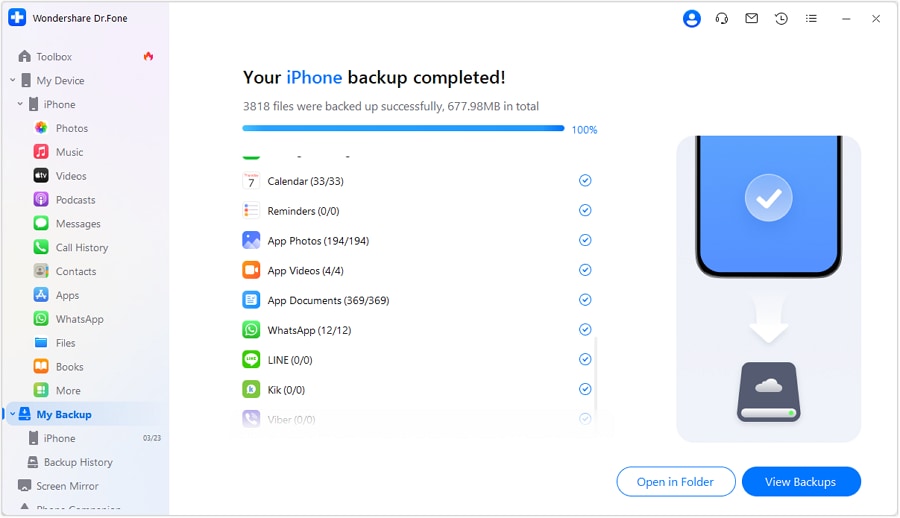
The tool will detect the data and start creating the backup, which you can preview by pressing the “Open in Folder” button.




Part 6. How to Verify Your Backup Is Complete
After you have the iOS 27 backup, follow the mentioned ways to confirm if the backup is created:
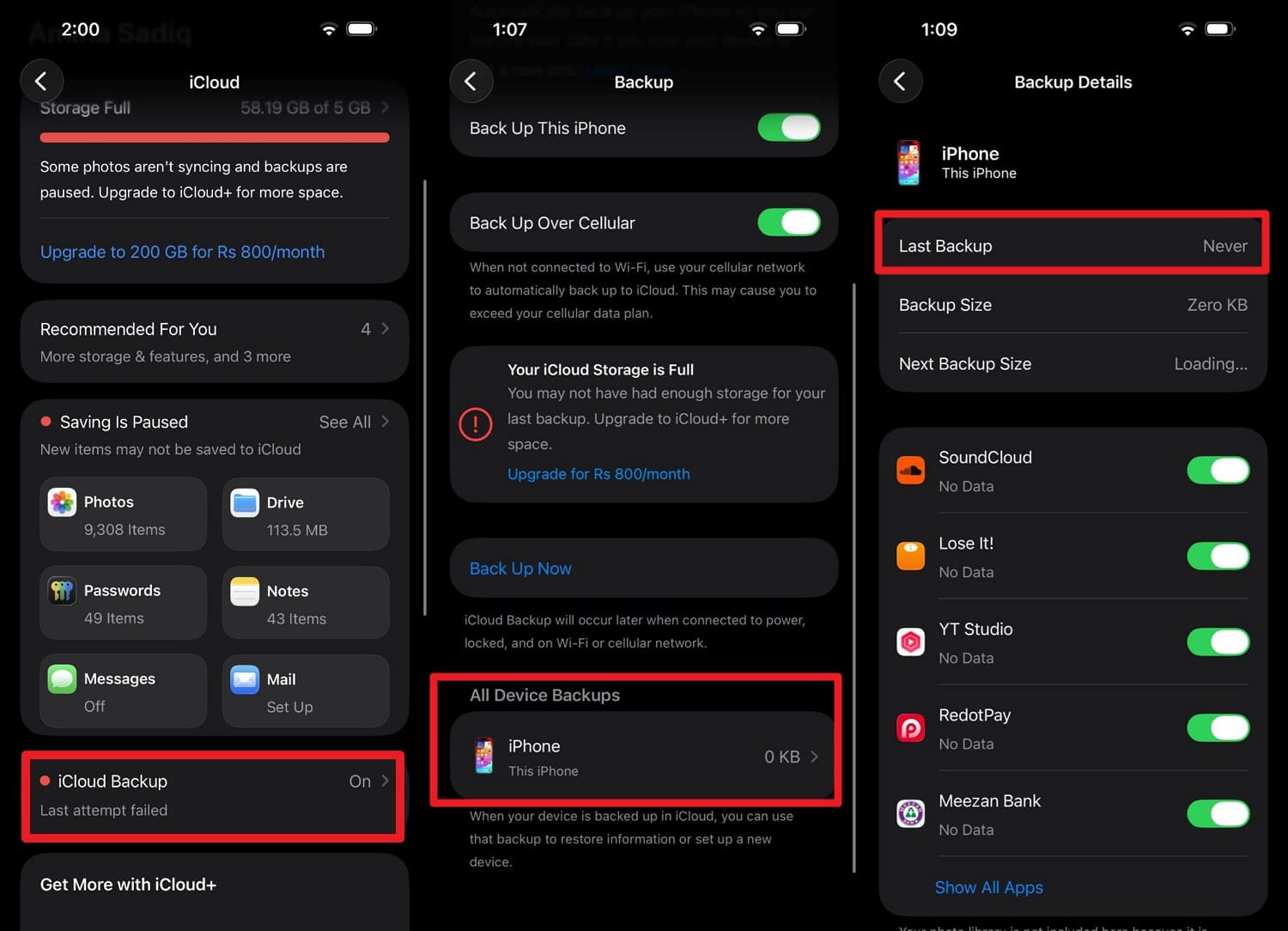
- For iCloud: Go to Settings > Apple ID > iCloud > iCloud Backup > All Devices Backup > Last Backup to confirm the date and time.
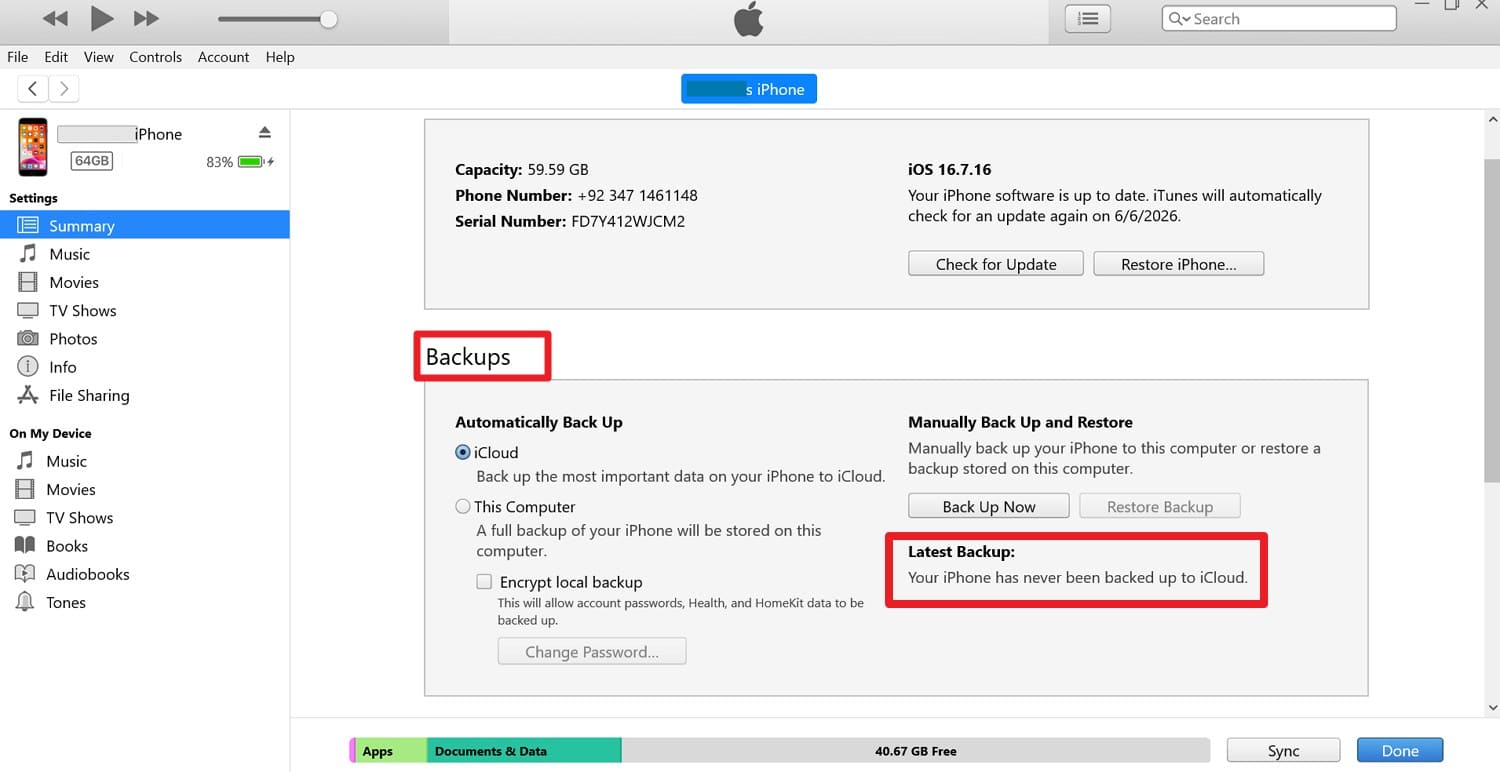
- For iTunes: In the “Backups” section, locate the “Latest Backup” section to know the date and time.
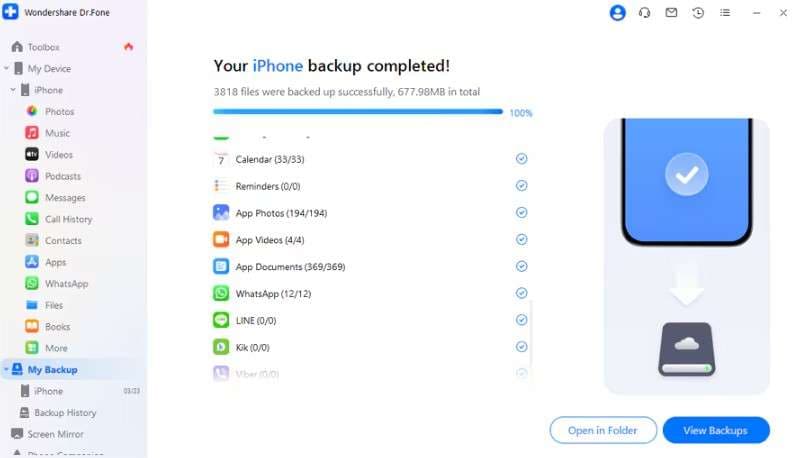
- For Dr.Fone Phone Backup: The tool will show the “Complete” prompt and will give you the option to “View Backups” or “Open in Folder” to confirm.
How Much Storage Do You Need for iOS 27?
To install the iOS update, you will need between 12 GB and 17 GB of free storage space available on your device. While the installation file itself only takes up around 5-6 GB, your phone requires roughly double that amount.
How to Download and Install iOS 27?
If you want to try iOS 27 before the official iOS 27 release date, here is how you can do that:
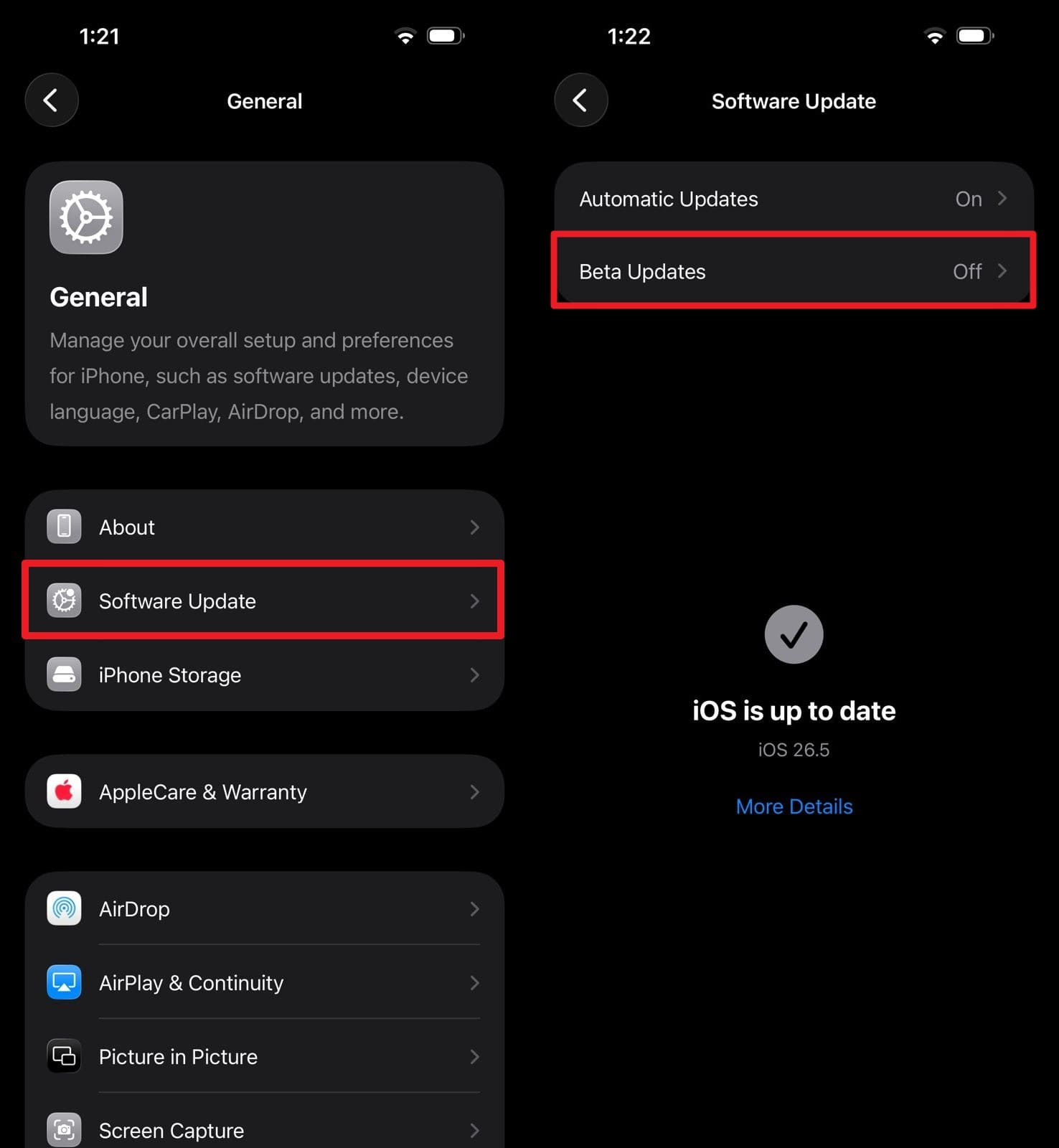
Instructions. In the General settings, go to “Software Update > Beta Updates” and select iOS 27 Developer Beta or Public Beta from the list. Following this, press the “Update Now” button to start downloading iOS 27.
Part 7. Common iOS 27 Update Problems Users May Face
While reviewing this iOS 27 update guide, learn what types of issues you can face during update installation and how to fix them.
| Problem | What It Looks Like |
|---|---|
| Battery Drain | The phone gets hot; the battery drops fast. |
| Frozen Install | Stuck on the Apple logo or error screen. |
| Keyboard Lag | Delayed letters when typing. |
| App Crashes | Apps close automatically. |
How to Fix iOS 27 Update Issues?
For all the update issues mentioned, you can use Dr.Fone - System Repair (iOS) to resolve 150+ iOS system issues. The tool also allows you to fix 200+ iTunes errors, such as 4013 and 1110, without any data loss or technical expertise. Right after the beta version release, they will ensure it's compatible with iOS 27/iPadOS 27 and iPhone 17 Series.
- Fix iOS issues, no data loss.
- One-click repair for all iOS problems.
- Solve recovery mode, Apple logo, black screen, etc.
- Upgrade or downgrade iOS without iTunes

Since its Recovery Mode and Exit DFU Mode access can resolve such issues, these modes of access are free and fully guided. So, to know how you can use this tool to fix the iOS 27 update issue, follow the guide given ahead:
-
Step 1 Use the iOS System Repair Tool on Dr.Fone
Pick the “System Repair” tool for iOS and press the “Repair Now” button on “iOS Repair.”

-
Step 2 Download the Firmware in Standard Mode
Then, choose the “Standard Repair” mode, put the device in Recovery Mode, and tap “Download” to install the firmware. Once done, choose the “Fix Now” button, and the tool will start resolving iOS 27 update issues.

Part 8. Can You Downgrade From iOS 27?
You cannot officially downgrade from iOS 27 to an older version using iPhone settings, but third-party tools like Dr.Fone - System Repair (iOS) can. After the iOS 27 release date, if you find an issue in the beta or official versions, you can do so while creating the backup, without jailbreak or iTunes.

Conclusion
With iOS 27 update rumors, an iOS 27 backup is a must to keep data secure. So, if you find the features exciting, create a selective data backup using Wondershare Dr.Fone, or resolve the update error with Dr.Fone - System Repair (iOS).
FAQ
-
1. Will iOS 27 make my iPhone slower?
On supported devices, iOS 27 is expected to maintain or improve performance, though early beta versions may feel less stable. -
2. How long does the iOS 27 update take to install?
Most iPhones should complete the update in 20-60 minutes, depending on device speed and internet connection. -
3. Can I use my iPhone while iOS 27 is downloading?
Yes, you can use your device during the download, but not while the installation is in progress.
 Add Wondershare Dr.Fone as a preferred source on Google



