 Resolve common problems and system crashes on both iPhone and Android devices.

 100% Security Verified | No Subscription Required | No Malware

 :
: 
 ChatGPT
 Perplexity
 Gemini
 Claude
 Grok
Grok
After an update like Android 17, people suddenly find their device is frozen, battery is draining, apps are crashing, or it's boot looping. In most cases, the phone is stuck in a boot loop or becomes very slow after the update. This is frequently due to software bloat, incompatible applications, corrupted update files, and a lack of space.
Fortunately, the majority of Android 17 boot loop, freeze, or update issues can be resolved without the need to purchase a new phone or take it to a repair shop. Thus, this guide explains the common issues, reasons, and 9 fixes to regain the device functionality. In extreme cases, consider using system repair tools like Dr.Fone - System Repair (Android) to resolve major update issues.
In this article
Part 1. Why Do Android 17 Problems Happen? 5 Reasons
If Android 17 is stuck on the logo or freezes randomly, then check the 5 reasons listed below to learn why:
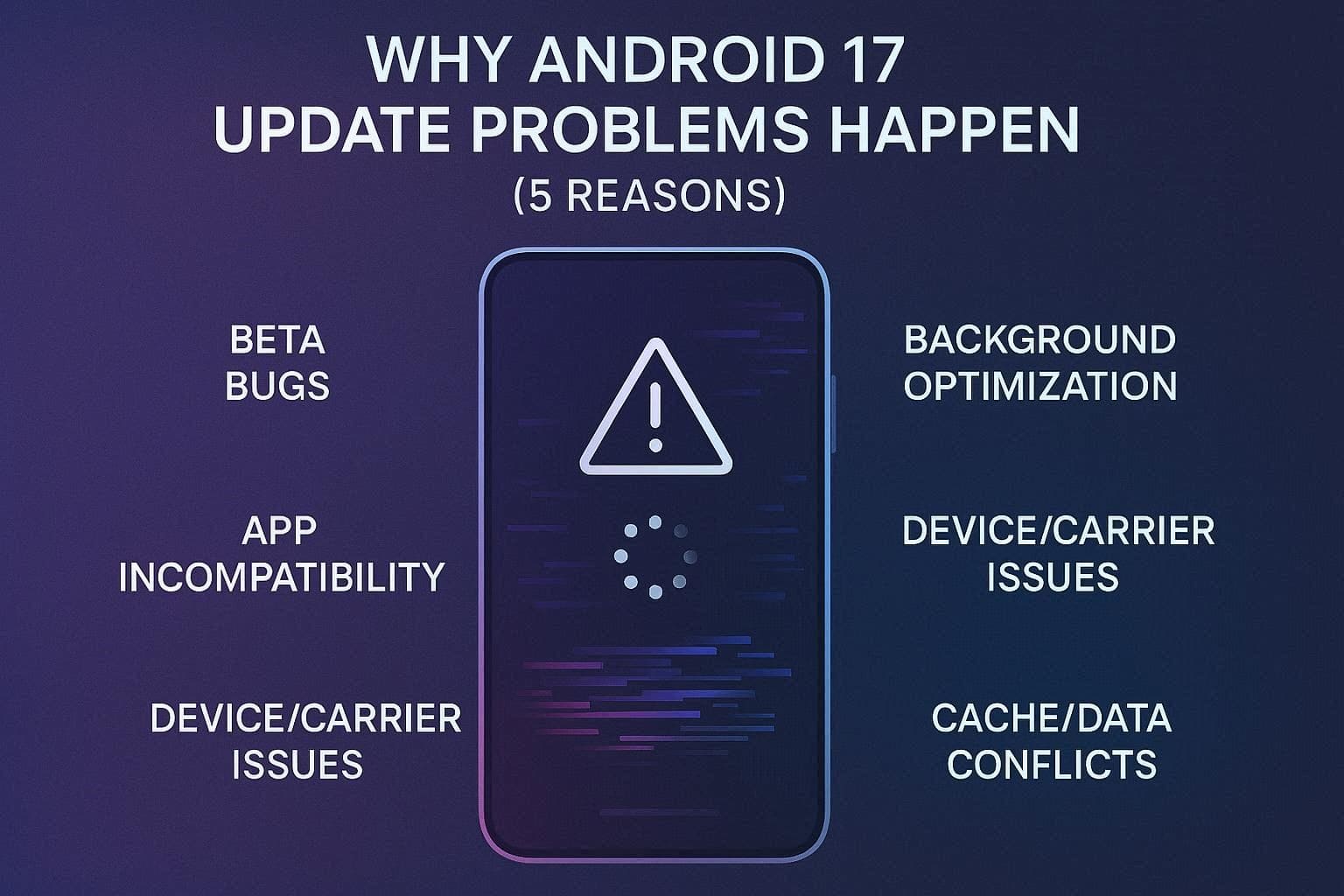
- Android 17 Is Still in Beta: Android 17 Beta versions are still under testing, so bugs and unstable features are common. Until newer beta patches arrive, users may face crashes, random reboots, UI glitches, or missing features.
- Apps Are Not Fully Compatible: Many apps are designed for older Android versions and may not work properly on Android 17. Thus, this can cause app crashes, broken notifications, and issues with payment apps.
- Background Optimization After Update: After installing Android 17, the system starts optimizing apps, files, and new features in the background. During this time, phones may heat up, lag, or drain battery faster.
- Compatibility with the device or carrier: Android 17 updates are different on phone models, firmware versions, and carrier networks. Therefore, it may fail to update for some and may cause a weak signal after the update, SIM card problems, or network bugs.
- Android 17 Conflicts with Old Cache and Corrupted Data: Data conflict (old system cache, app data, or corrupted files) may arise after the update. This can cause app crashes, battery usage, notification failures, or random freezes.
Part 2. 5 Common Android 17 Post-Update Problems
Along with Android 17 not booting, users face many update or freezing issues, and most of them are mentioned in the table below:
| Problem | What Users Experience |
|---|---|
| Battery Drain | The phone loses charge much faster than before, even on light use or standby. |
| Heating/Overheating | The device becomes unusually warm during normal tasks like browsing, camera, or charging. |
| Lag and Performance Issues | App opening delays, stuttery animations, slow camera response, and occasional freezes. |
| Apps are Crashing or Not Working Properly | Banking, UPI, games, and other apps crash, fail to open, or behave unpredictably. |
| Network and Connectivity Problems | Weak signal, slow mobile data, Wi‑Fi drops, call issues, or incorrect signal icons. |
Part 3. First Things to Do Before Advanced Fixes
Whether Android 17 is stuck on the logo or the app crashes randomly, try the 3 quick fixes first mentioned in this section:
-
Step 1 Wait for Temporary Optimization
Your phone will now need to complete background optimization and system setup. Therefore, it is better to wait for a few hours or 1-2 days for the system to stabilize on its own and avoid data loss.
-
Step 2 Check Battery and Charging
This check is to let you know if battery drain, overheating, charging issues, or power-consuming applications are causing the problem. With this, you can also determine if it's a temporary software problem or a more serious hardware problem.
-
Step 3 Force Restart Device
For the Android 17 boot loop or any other update issue, this fix can refresh the system and clear stuck background apps. In addition, it frees up memory without deleting your data, is safe to perform, and is guided ahead:
Most Android Phones (Google Pixel, Motorola, OnePlus, Xiaomi)
Instructions: Press and hold the “Power” and “Volume Down” buttons at the same time for 10-15 seconds. When the screen goes black, release the buttons and let the phone boot up normally.
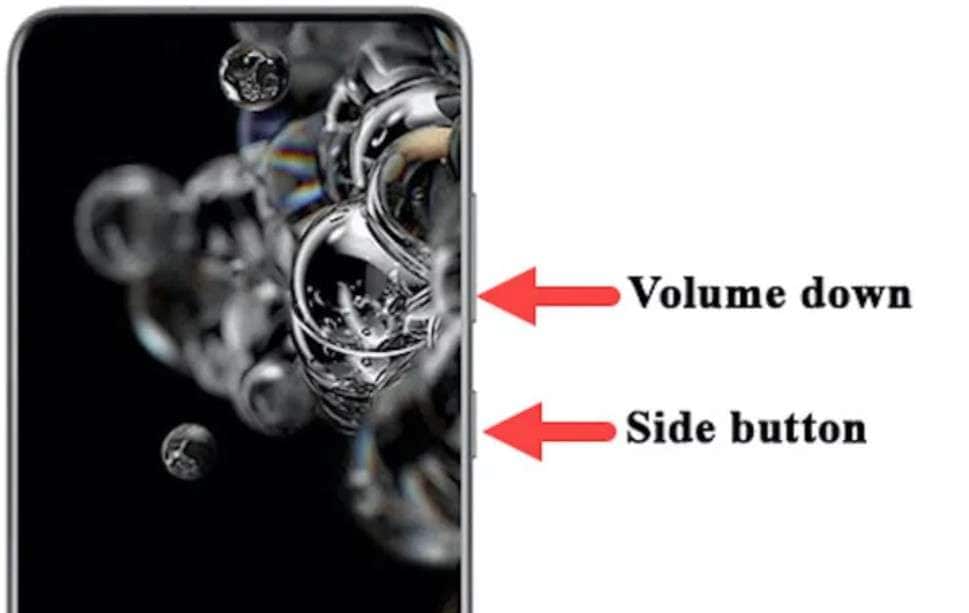
Samsung Galaxy Devices
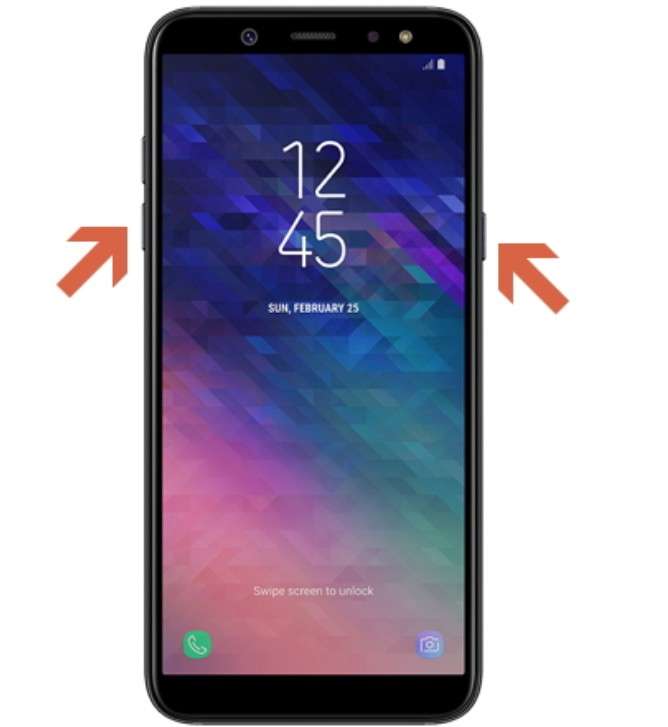
Instructions: Hold the “Power” and “Volume Down” keys for a few seconds, and as the screen goes black and you feel vibration, release the buttons. The Samsung logo will appear, indicating the restart was successful.
Part 4. How to Fix Android 17 Boot Loop or Freezing Issues - 9 Ways
If Android 17 is stuck on the logo or freezes during normal tasks after basic fixes, try the 9 advanced solutions mentioned ahead:
-
Way 1 Free Up Internal Storage Space
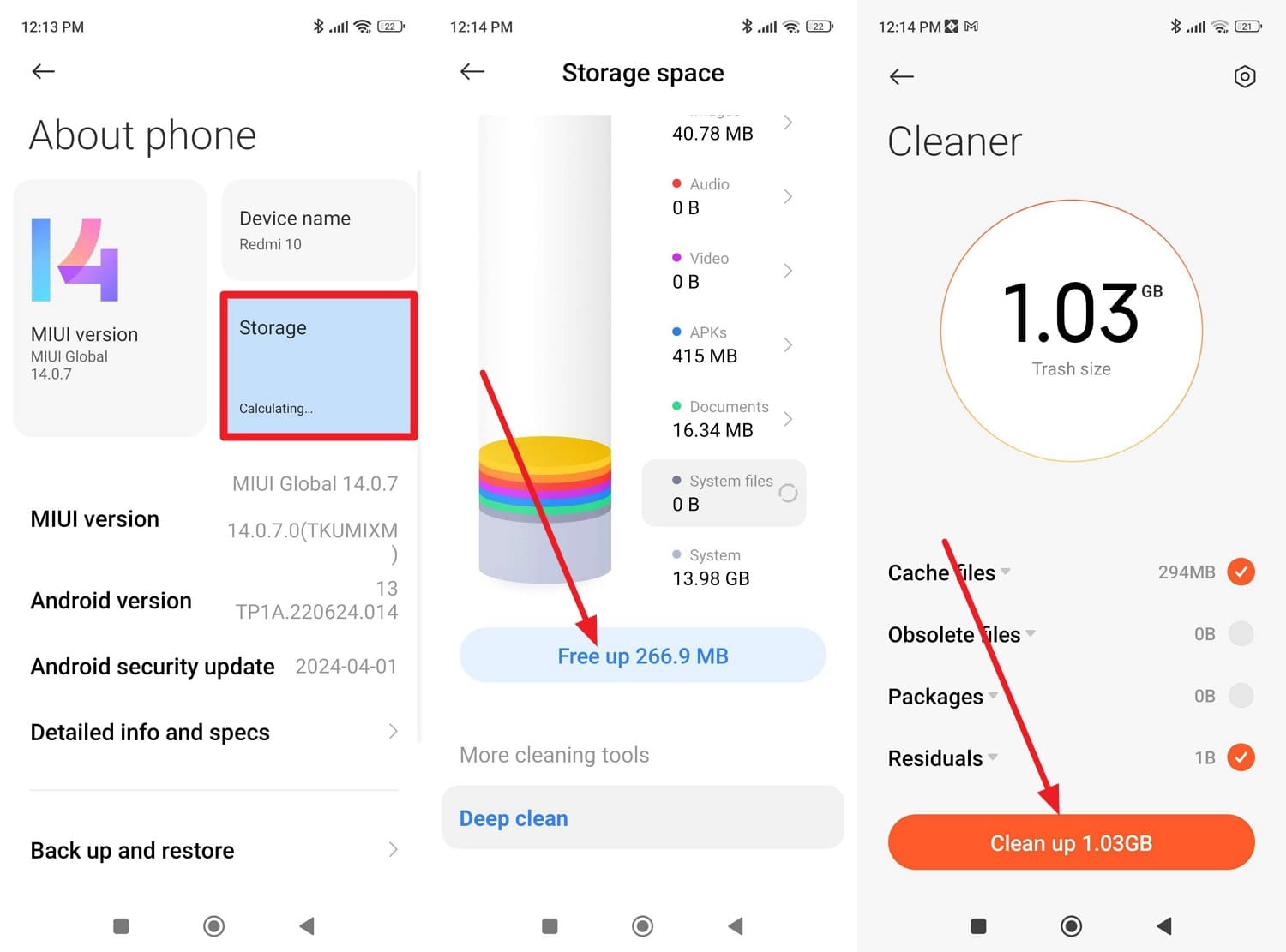
Note that Android needs enough free space for system files, cache, and background optimization after a major update. So, you can delete unused applications, clear cache, or use phone clear (For Redmi), as guided:
Instructions: In the “About Phone” interface, choose the “Storage” option and tap the “Free Up (Storage)” option. Here, press the “Clean Up (Storage)” button to free up enough space for the Android 17 update.
-
Way 2 Use Dr.Fone - System Repair (Android) for All Android 17 Issues | One-Stop Solution
If Android 17 is stuck on the logo, trapped in a boot loop, freezing randomly, or experiencing update-related issues despite trying the fixes above, consider using Dr.Fone - System Repair (Android). This software supports all major Android brands and provides a guided repair process for resolving common system problems without requiring technical knowledge.
Unlike manual methods that involve recovery commands, firmware flashing tools, or device-specific procedures, Dr.Fone streamlines the process by automatically downloading and installing the appropriate firmware package. It also supports Android phones and tablets, making it a practical option for users who want a simpler and more structured repair experience when standard troubleshooting fails.
 Fix Android instantly – no skills needed.
- Solve boot loop, black screen, won’t turn on, etc.
- High success rate for all system issues.
- User-friendly interface with easy-to-follow steps.

Simplified Guide to Fix All the Issues of Your Android 17
To test the claims of this fix, let’s perform a system repair test using the Xiaomi, Redmi, and POCO Phones:
Step 1. Access the Android Repair Tool on Dr.Fone
Locate the “Android Repair” feature after accessing the “System Repair” tool for Android and tap the “Repair Now” button.

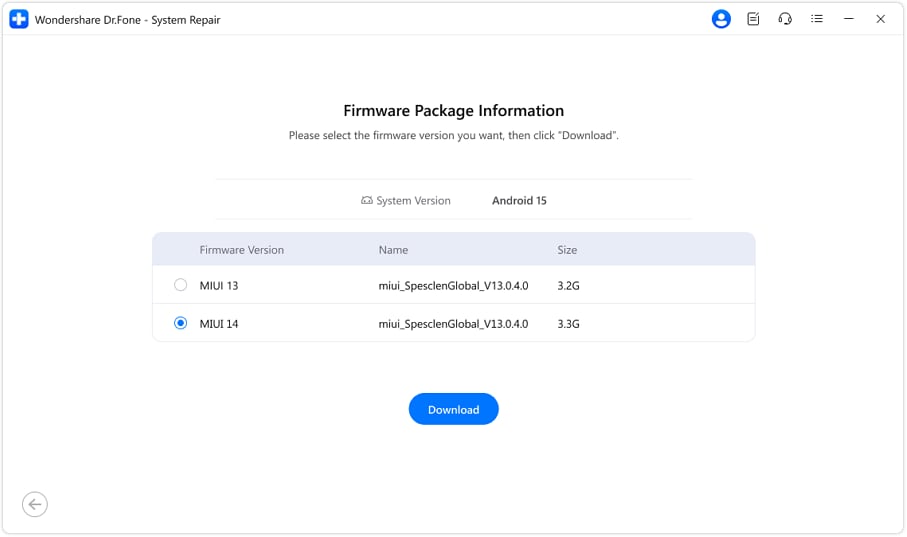
Step 2. Download the Firmware Package on the Tool
Choose the brands from the list and press the “Download” button when the tool displays the firmware packages.
Step 3. Tap Fix Now to Resolve Android 17 Issues
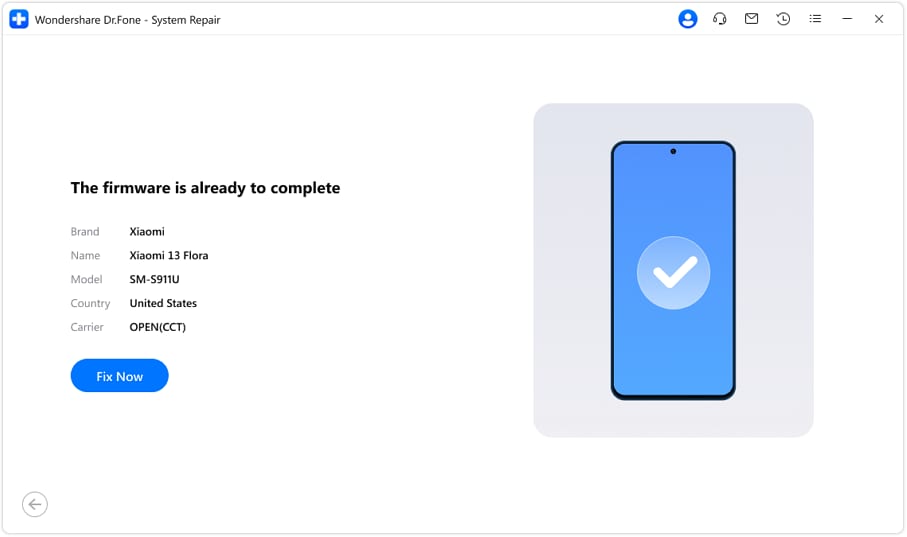
When the package is installed, choose the “Fix Now” button, and the tool will start fixing the Android 17 boot loop or other issues.




-
Way 3 Update to the Latest Android 17 Patch
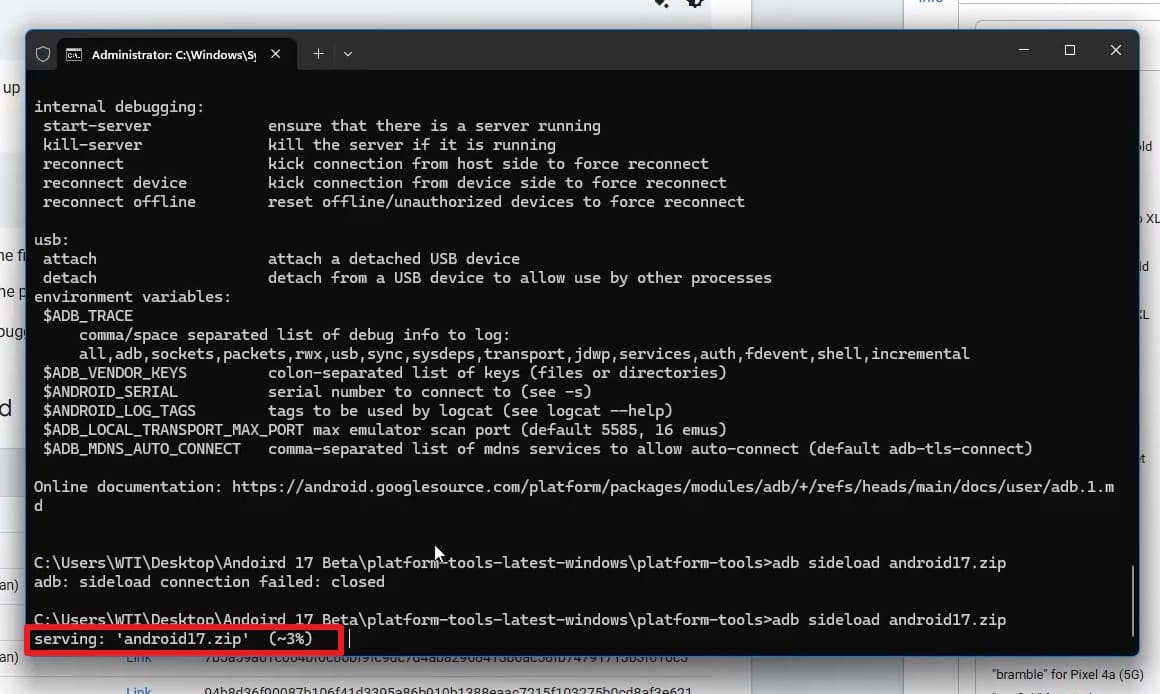
For the persistent Android 17 boot loop issue, this solution can fix common problems caused by the earlier builds. New updates usually fix bugs such as app crashes, random reboots, Wi-Fi issues, and broken notifications. So, your phone won’t start, or you don’t want to wait for an OTA update, you can manually install the firmware by sideloading it onto the device, as shown:
Prerequisites:
- Install Android SDK Platform‑Tools on PC (ADB).
- Enable USB debugging before the problem, if possible.
- Backup (sideload normally keeps data, but things can go wrong).
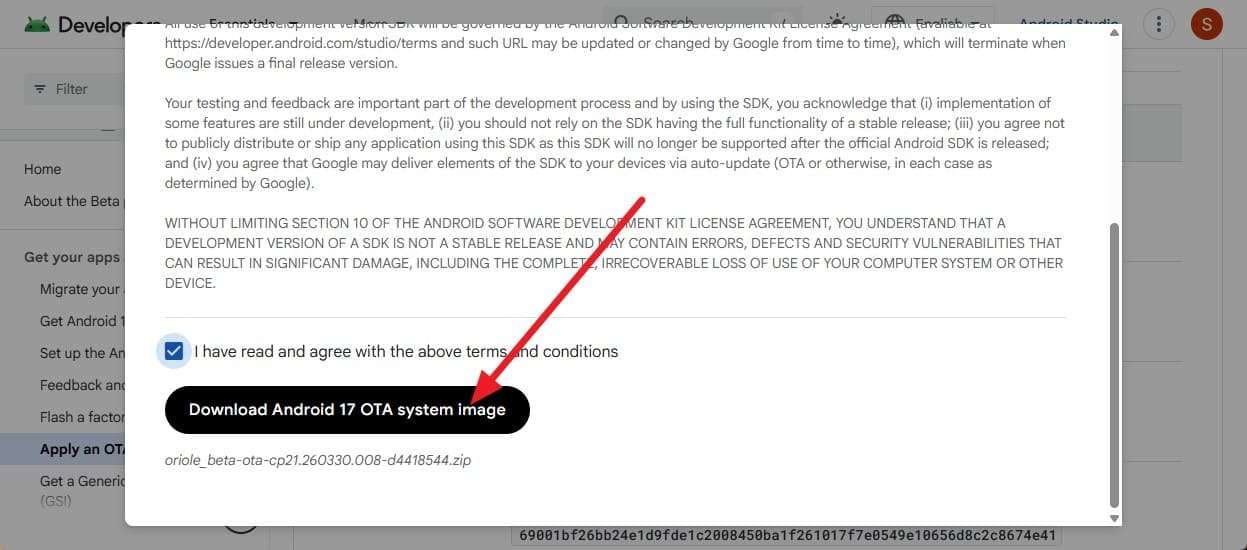
Step 1. Download the latest official OTA images for your specific device using the Android Developers OTA Images page.
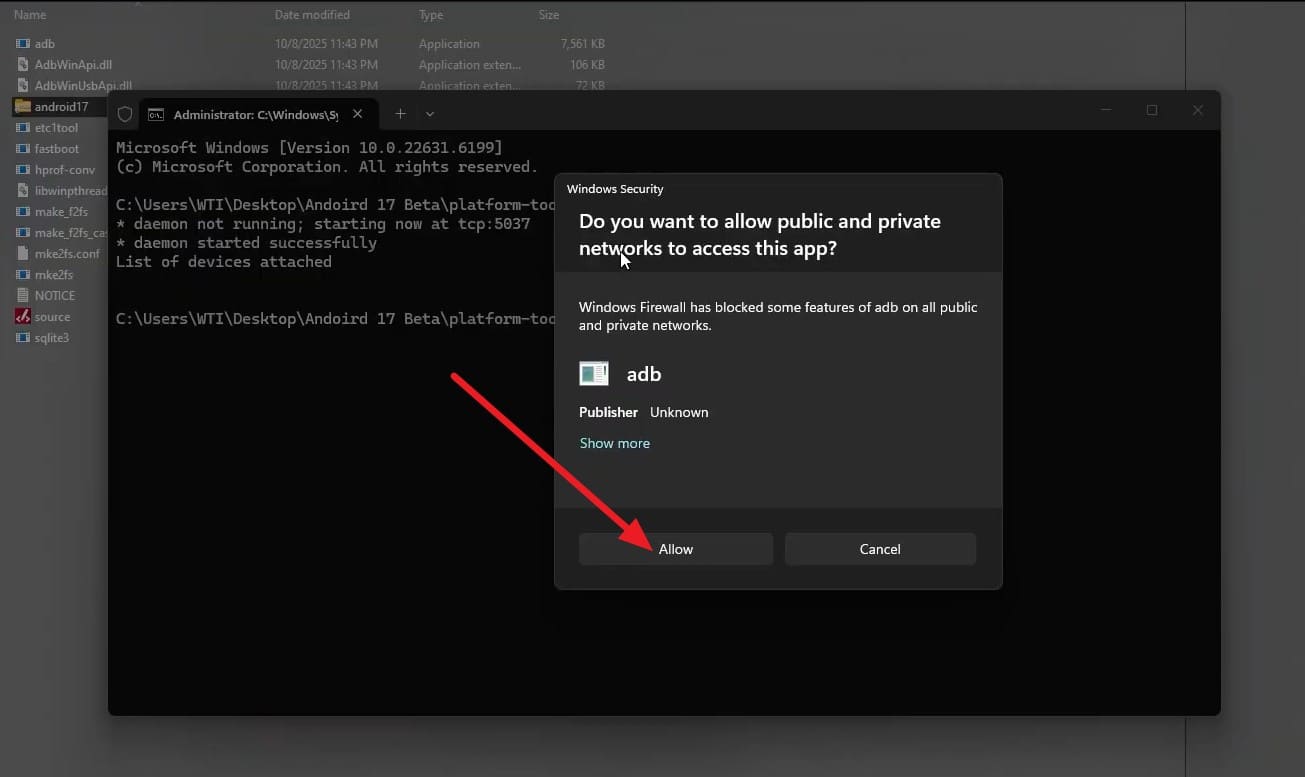
Step 2. Connect your phone to a PC, open Command Prompt or Terminal, and run the ADB sideload command “adb devices” to confirm connection by pressing the “Allow” button.
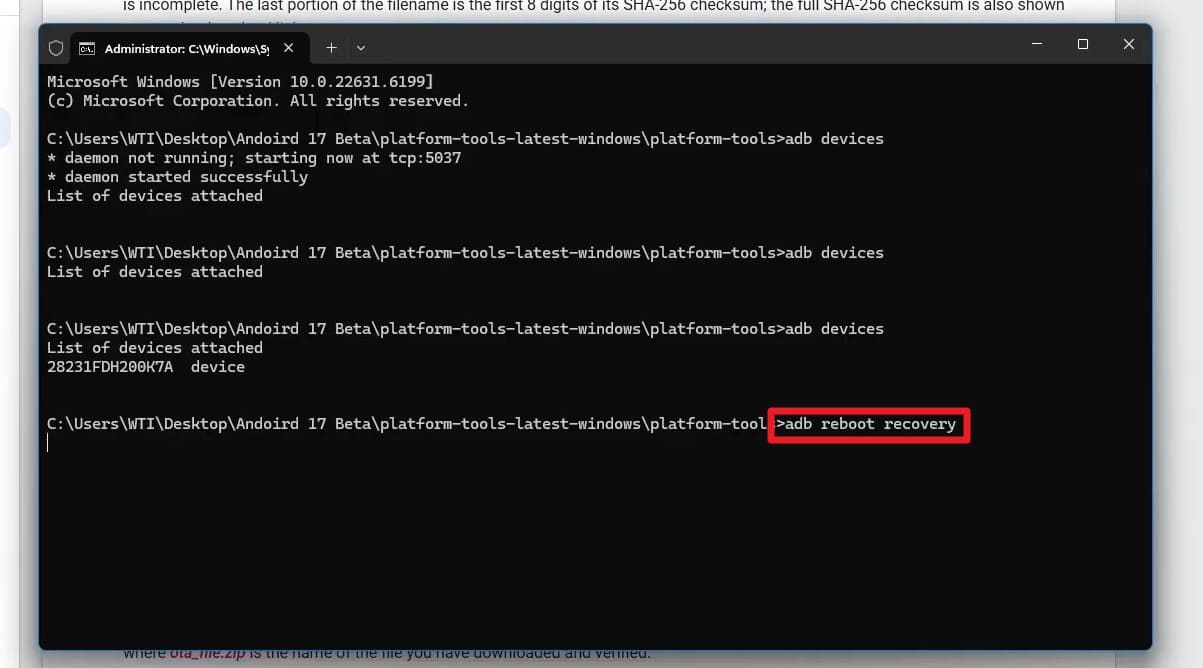
Step 3. Type “adb devices" again and confirm that your device's serial number appears in the list. Then enter the "adb reboot recovery" command.
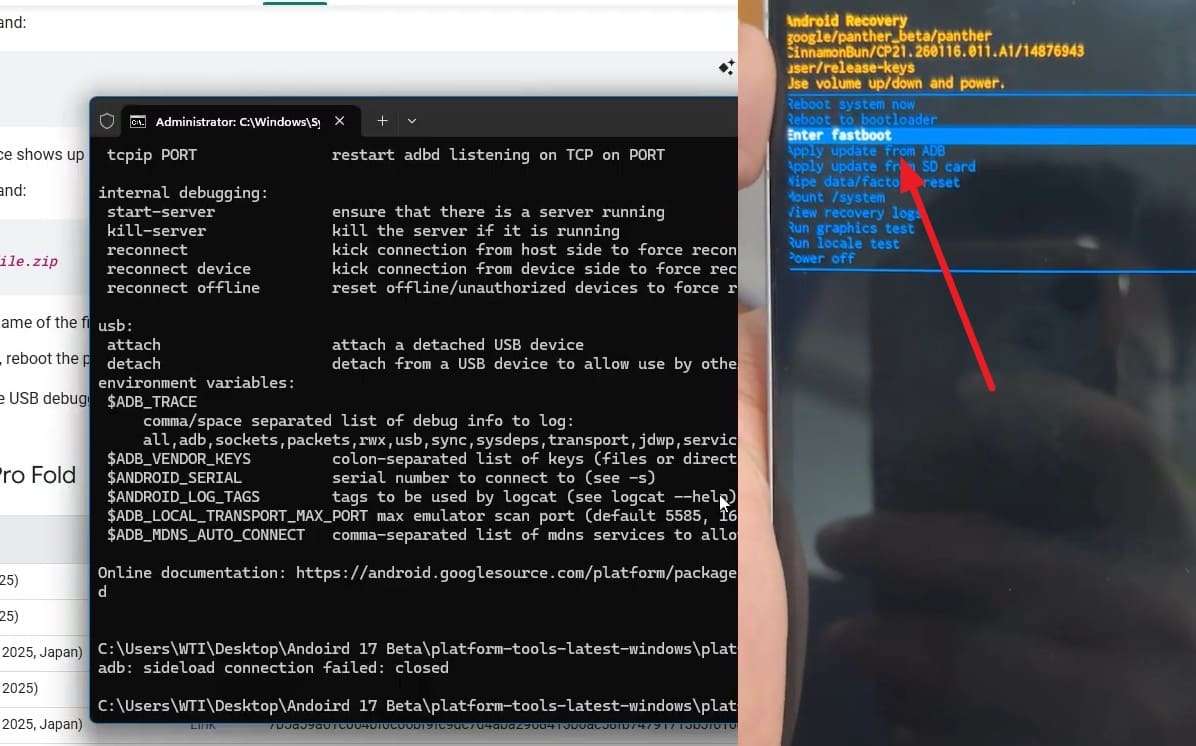
Step 4. This will put the phone into recovery mode, so press the “Power + Volume Up” button. Once there, choose the “Apply Update from ADB” option using the volume keys, then press the “Power” key to confirm.
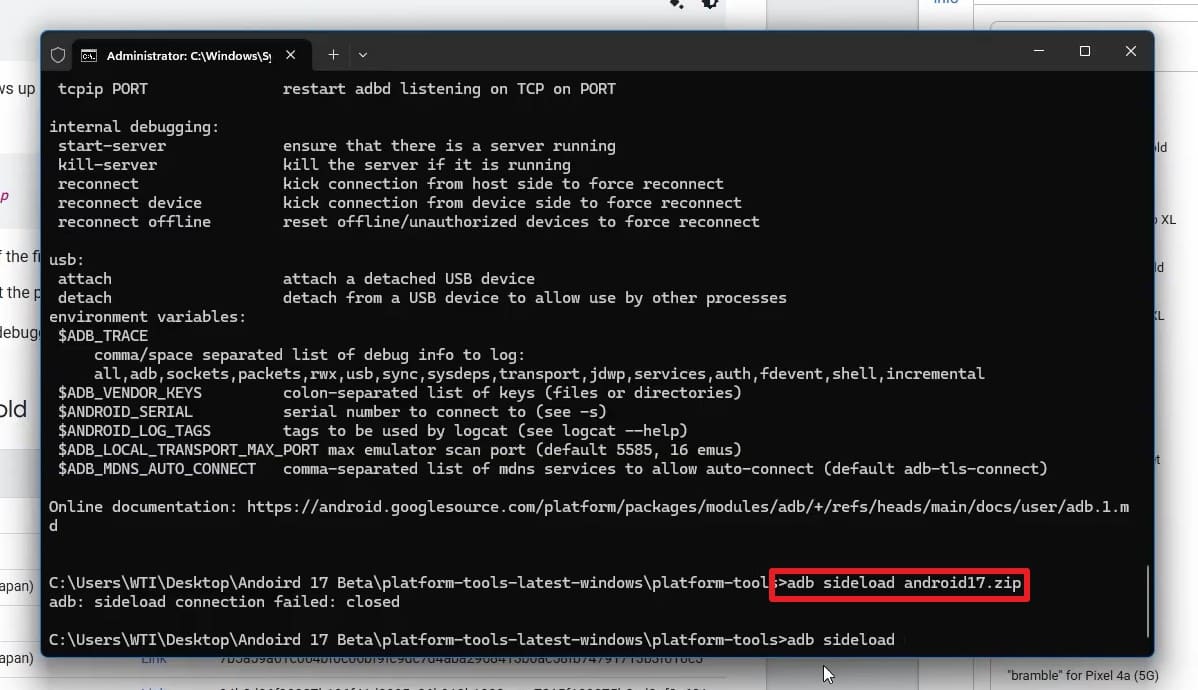
Step 5. On the Terminal or Command Prompt, type “adb sideload <filename>.zip.”
Step 6. The ROM will start updating; keep the PC powered on, and the update will complete.
-
Way 4 Boot into Safe Mode
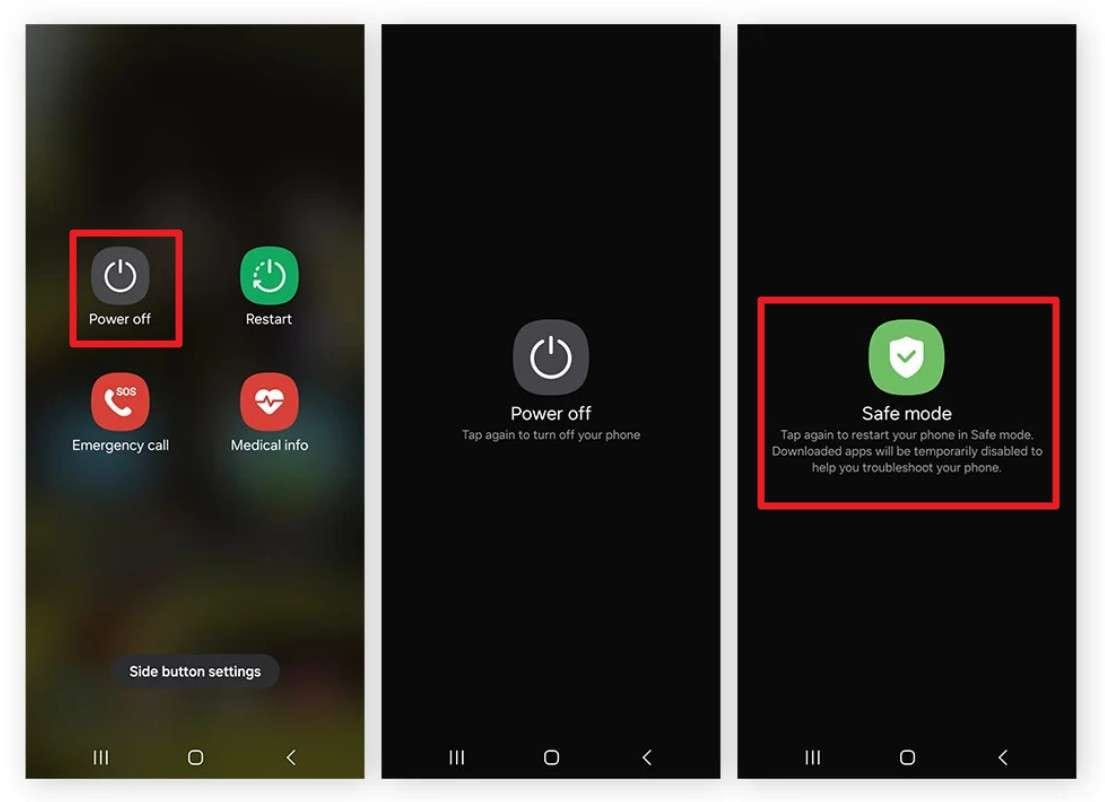
If Android 17 is not booting or crashing, boot into safe mode to determine what is causing the issue. In Safe Mode, all third-party apps are disabled, so if problems like lag, crashes, or reboots stop, it means an installed app is responsible. It also helps you quickly find and uninstall buggy or harmful apps via the mentioned steps:
Instructions. Press and hold the “Power” and “Volume Down” buttons to bring up the power menu. Then, touch and hold “Power Off” until the Safe Mode prompt appears. Tap “Safe Mode,” and the phone will restart with only essential system apps enabled. Once restarted, you will see Safe Mode displayed in the bottom corner of the screen.
-
Way 5 Remove Recently Installed Apps
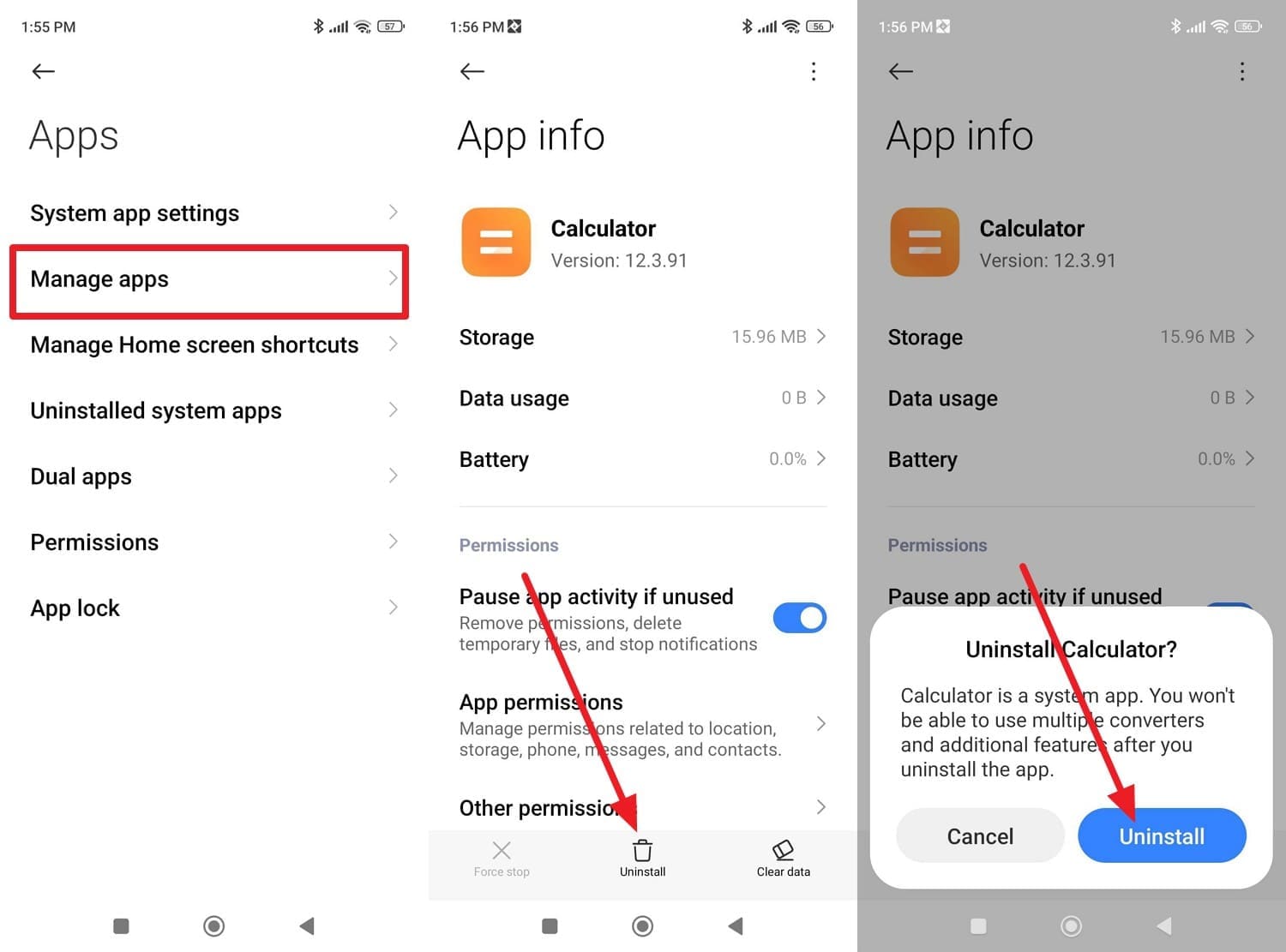
As another solution, remove the recently installed applications, especially if those apps are incompatible or buggy. As you uninstalled them via the given steps, you can remove the cause of crashes, freezes, and unusual loop behaviors:
Redmi As an Example
Instructions. Choose the “Apps” option in the settings to pick “Manage Apps” and locate the app you want to remove. In the “App Info” interface, pick the “Uninstall > Uninstall” to confirm the action.
-
Way 6 Clear Cache Partition via Recovery Mode
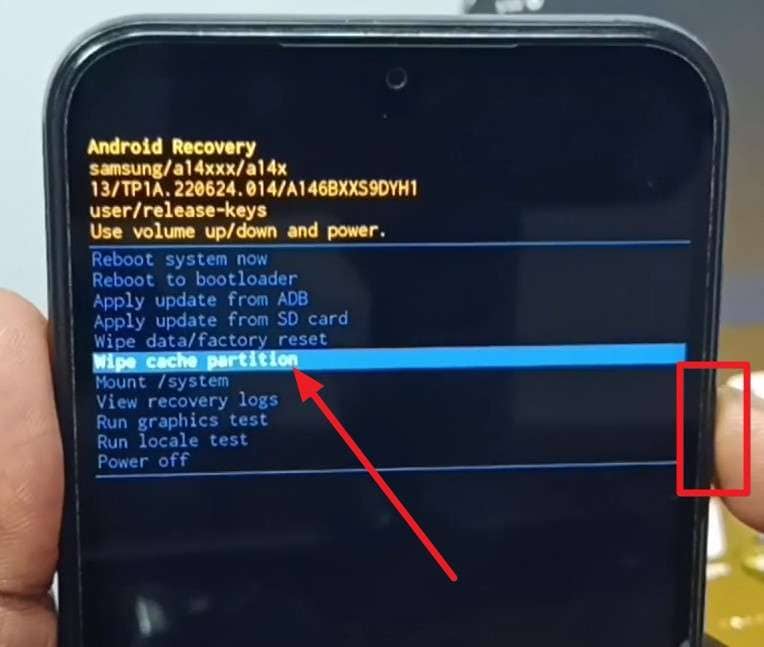
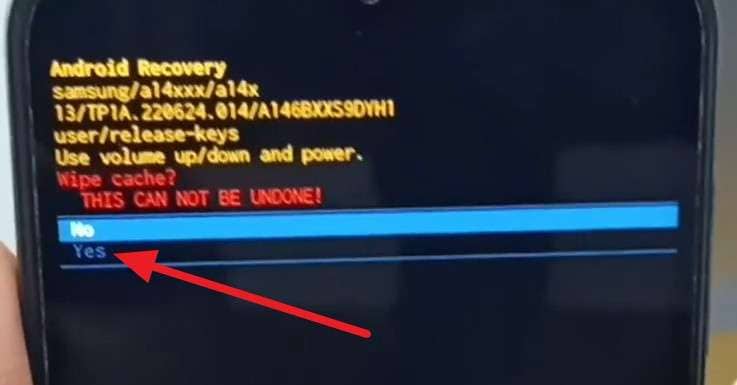
If you are still stuck in the Android 17 boot loop, remove corrupted temporary system files that can cause issues after an update. Without deleting your personal data, this fix deletes outdated or broken cache files left behind by the update, as demonstrated:
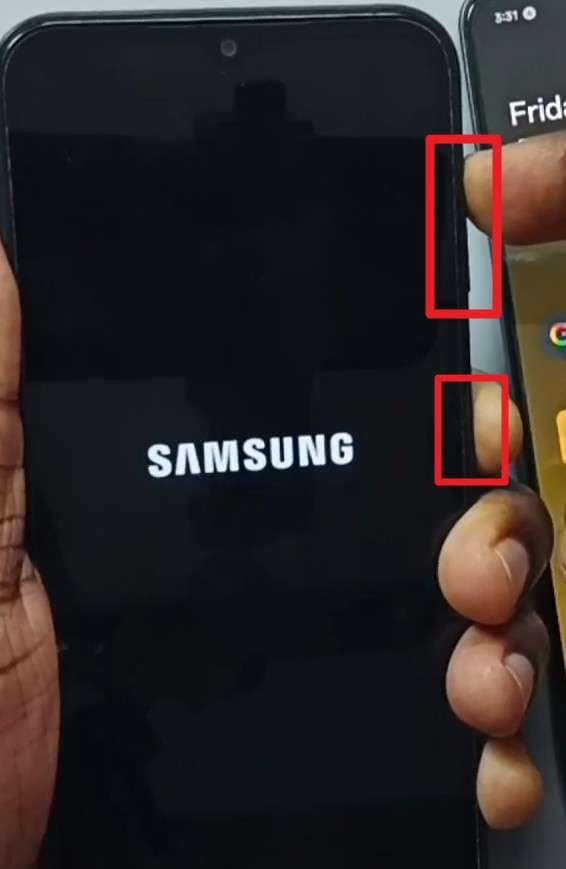
Step 1. For most modern phones (Samsung), you must connect your powered-off phone to a PC, laptop, or another phone via a USB-C cable. Now press and hold the “Volume Up and Power” buttons simultaneously, and when the boot/logo screen appears, release the buttons.
Step 2. Use the “Volume Down” to highlight the “Wipe Cache Partition” option and press “Power” to confirm.
Step 3. Here, select “Yes,” then confirm with the “Power” button to wipe the cache partition. Once the wipe is complete, select “Reboot system now” and press the “Power” button.
-
Way 7 Reset Network Settings
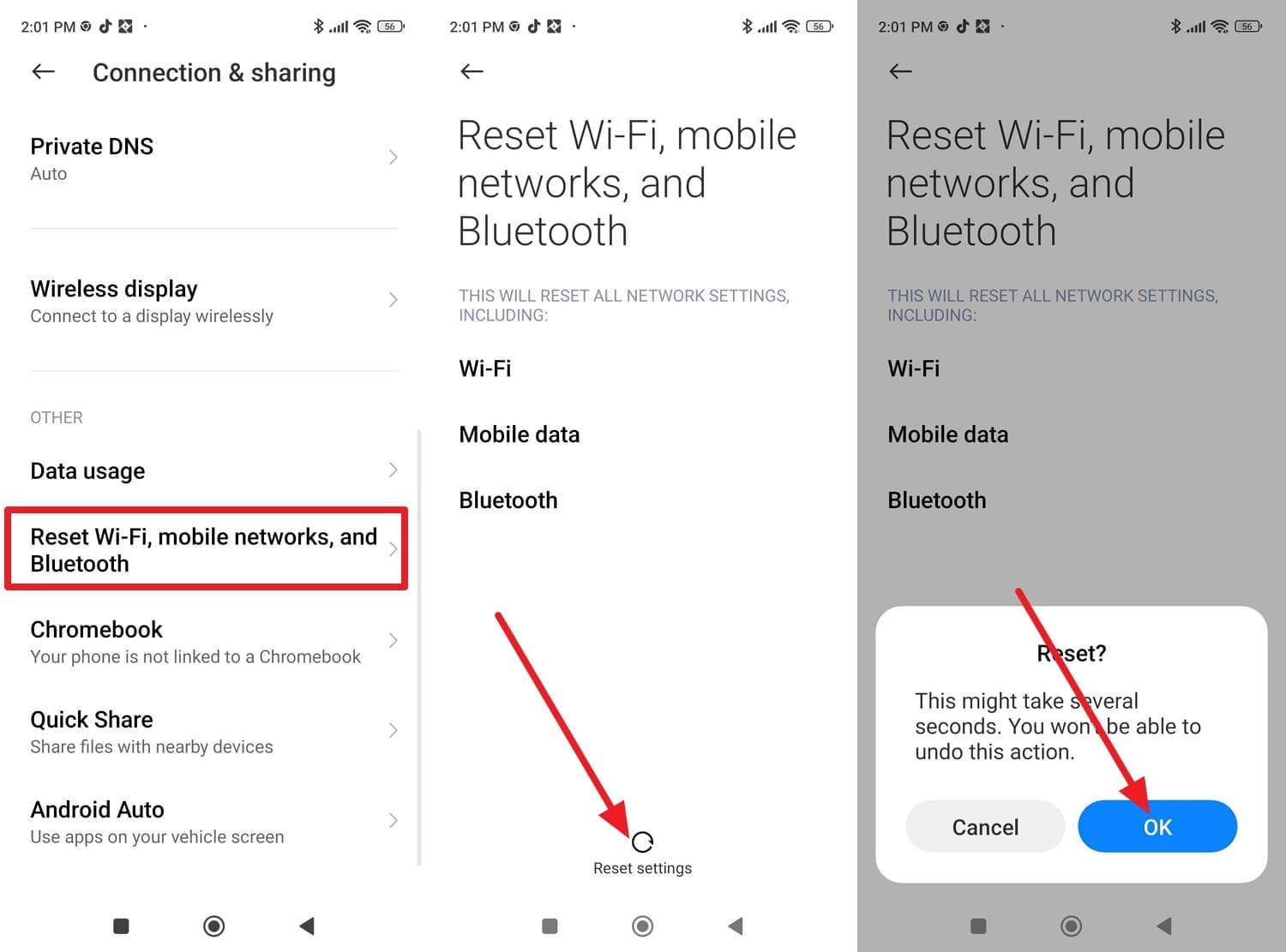
You can also reset the network settings when Android 17 is not booting or to fix the Wi-Fi, mobile data, Bluetooth, or VPN issues. This solution is suitable for post‑update problems, as it doesn’t affect your data, and restores all the connections to the default, as shown:
Redmi Instructions. On the “Connection & Sharing” interface in the settings, choose the “Reset Wi-Fi, mobile networks, and Bluetooth” option under the “Others” tab. Tap the “Reset Settings” option, add the passcode, and press “OK” to confirm.
-
Way 8 Perform Factory Reset
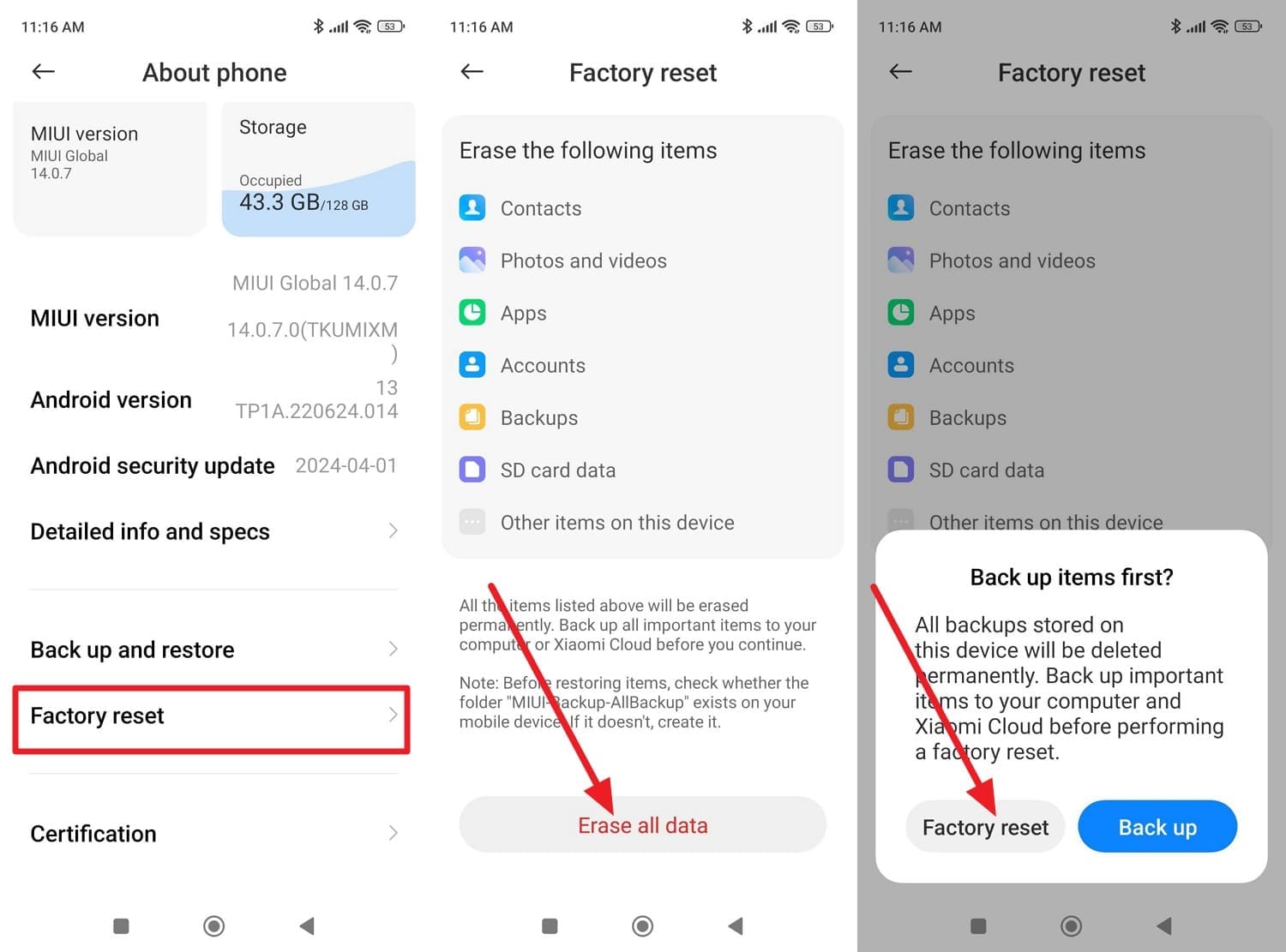
For the Android 17 boot loop or freezing issue, a factory reset removes corrupted app settings and damaged system data, returning the device to a clean state. This solution can also reduce stress on the battery and storage, but it erases personal data. So, if all the mentioned ways have failed to resolve the issue, perform the listed steps:
Instruction. On the Redmi’s About Phone settings, choose the “Factory Reset” option and pick the “Erase All Data” button. Enter the device's passkey and confirm the action by pressing “Factory Reset.”
-
Way 9 Reinstall Firmware Using PC Tools (Advanced Fix)
This solution replaces the corrupted system with a clean official firmware image and fixes the issues that a factory reset can’t. Hence, the method restores the stable stock system and repairs the deep software corruption. It can also prevent the data erasing depending on the tool used, and is guided ahead:
Note: For Xiaomi, Redmi, and POCO devices, you can use the Mi Flash Tool, which reinstalls a full official fastboot ROM to fix the Android 17 boot loop. However, it only works with the exact correct ROM and usually requires an unlocked bootloader.
Prerequisites:
- Download the Mi Flash Tool on a Windows PC and get the correct Fastboot ROM for your Redmi model.
- Unzip the ROM and move the folder to the root of the C drive, including the “flash_all.bat script.”
Step 1. Power off the device, and if it keeps restarting, hold the “Power” button for 10-15 seconds to force a complete shutdown. Then, press the “Power” and “Volume Down” buttons, and when the “FASTBOOT” screen appears, connect it to the PC. Open the Mi Flash tool and tap the “Select” button to choose the folder and pick the “Install” button.
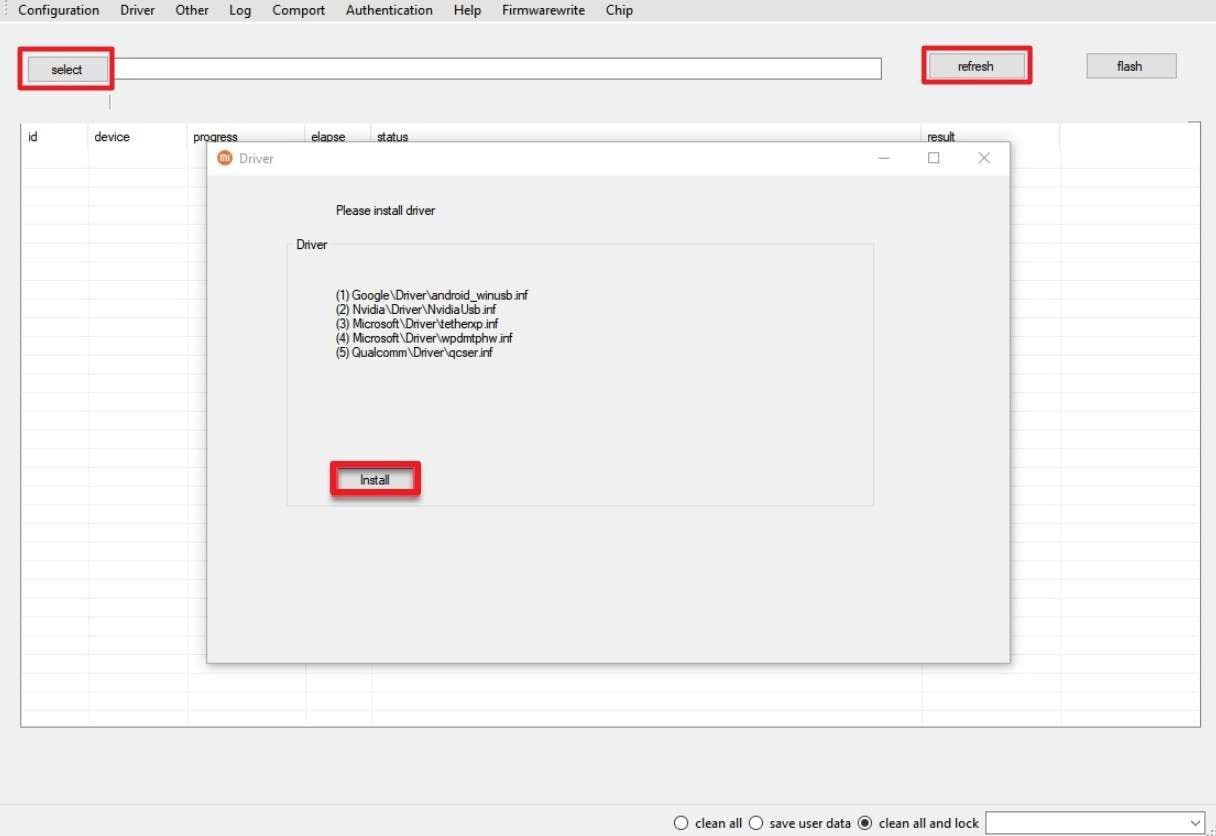
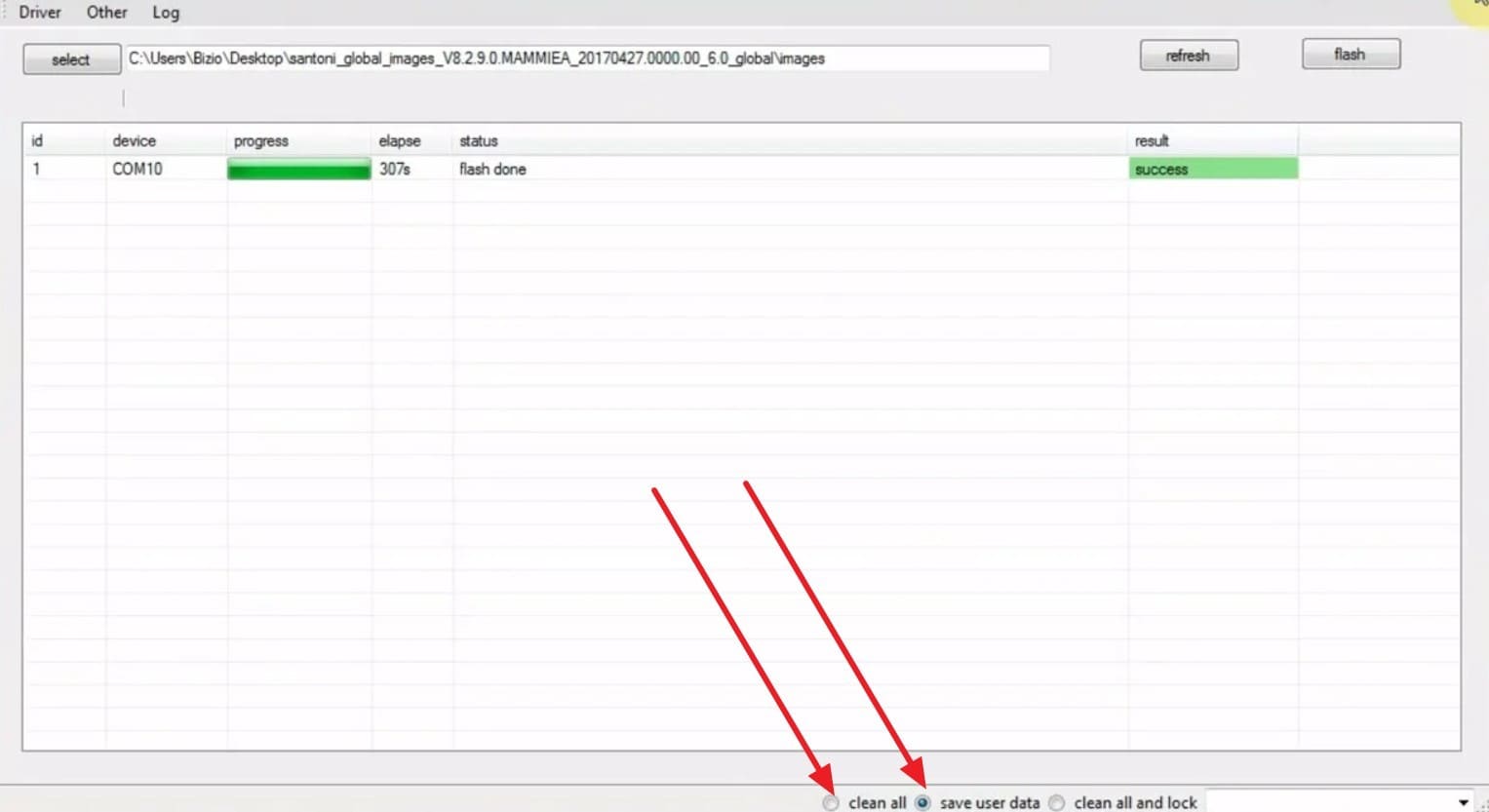
Step 2. After that, press the “Refresh” button, then choose the flashing options once the device is detected. Select from “Clean All, Save User Data, or Clean All and Lock” options and pick the “Flash” button to continue. Keep the phone connected until you get the “Success” prompt on the tool.
Part 5. How to Prevent Android 17 Problems After an Update in the Future?
To avoid having the constant Android 17 boot loop or other issues, follow the expert-proven tips in this section:
| Tip | What to Do Briefly | Main Benefit |
|---|---|---|
| Wait Before Installing Day‑1 Updates | Don’t rush; wait a few days and read user feedback first | Avoid major bugs from the first Android 17 builds |
| Keep Regular Full Backups | Use Google backup and copy important files to PC / cloud | Easy recovery if an update causes serious issues |
| Maintain At Least 15–20% Free Storage | Periodically delete unused apps, media, and large downloads | Smoother updates and fewer install/performance bugs |
| Update Apps Before and After Updating | Open the Play Store and update all apps around the OS update time | Reduces crashes from apps that lag behind Android 17 |
| Avoid Risky Mods on the Main Device | Don’t heavily root, mod, or install unknown APKs on your main phone | Lower chance of boot loops and incompatibility issues |
Conclusion
The Android 17 boot loop, freezes, and other post-update issues can often be resolved through basic troubleshooting methods such as a force restart, safe mode, clearing the cache partition, or updating to the latest software patch. However, if severe software corruption persists, tools like Dr.Fone - System Repair (Android) provide a guided way to repair the system without requiring advanced technical skills.
FAQ
-
1. Can Android 17 cause apps to crash after updating?
Yes, some apps may crash temporarily because developers need time to optimize updates for Android 17 compatibility. -
2. Why is my phone battery draining faster after Android 17?
Battery drain often occurs while Android completes background optimization, indexes files, and adapts apps after updating. -
3. How long should I wait before troubleshooting Android 17 issues?
Wait 24 to 48 hours after updating, as many performance, heating, and battery issues resolve naturally.
 Add Wondershare Dr.Fone as a preferred source on Google



