Resolve common problems and system crashes on both iPhone and Android devices.

 100% Security Verified | No Subscription Required | No Malware

 :
: 
 ChatGPT
 Perplexity
 Gemini
 Claude
 Grok
Grok
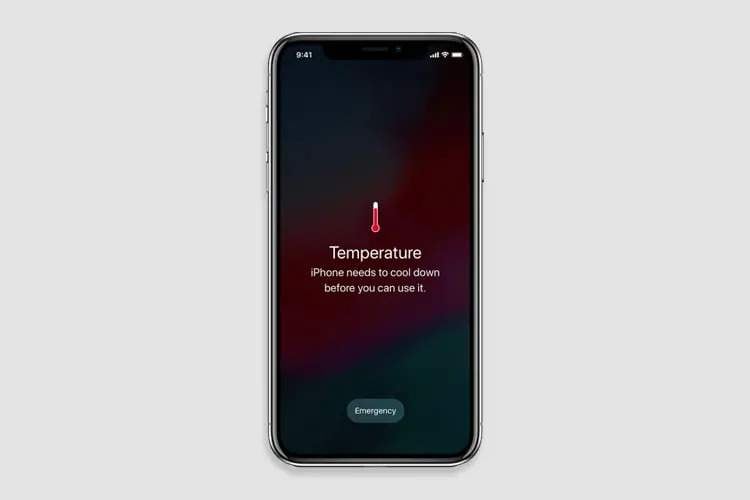
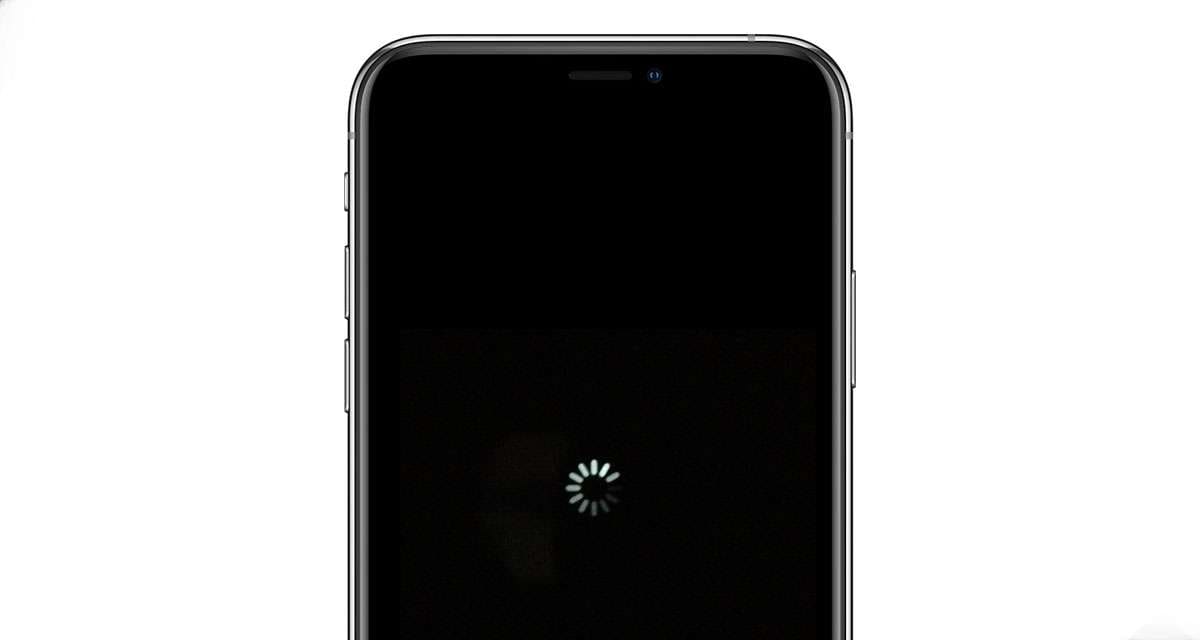
Upon updating to iOS 27, a few users may face an issue where the screen of their iPhone remains black and the phone doesn't light up. In many cases, the device may still be operating internally, however, the system fails to load properly due to an error.
The issue could be as simple as occasional minor freezing, or it can be a severe system crash induced by the update. This guide contains all the ways to repair the issues related to iOS 27 black screen after update and informs you about the time when downgrading or system restore could be your last resort option.
In this article
- Emergency Check: Is Your iPhone Really Dead or Just Black Screen
- What Causes the iOS 27 Black Screen After Update
- How to Fix iOS 27 Black Screen After Update
- 3.1 Quick fixes for the iOS 27 black screen after update
- 3.2 Advanced Repair Methods (Data-Safe Options)
- 3.3 Recommended Solution: System Repair and iOS Downgrade with Dr.Fone

- How to Prevent iOS 27 Black Screen on Future Updates
Part 1. Emergency Check: Is Your iPhone Really Dead or Just Black Screen
Before you proceed with complicated fixes, it is very important to first establish the real situation of your iPhone. Are you absolutely certain that your iPhone is totally powered off? Or could it be that your phone screen is black only and still updating your iOS 27 device? Generally, the device is working fine, but the screen has frozen and is not responding probably due to a system bug.
Here's a quick check to help you identify the situation:
| Situation | What it means | What you should do |
|---|---|---|
| Phone does not respond to touch but vibrates or rings | iPhone is ON, but screen is frozen | Try a force restart |
| Siri responds when you call "Hey Siri" | The system is running, display issue only | Perform a display reset or restart |
| Phone shows sound/notifications but no display | Black screen bug after update | Use recovery or repair tools |
| No sound, no vibration, no charging response | Possible power or hardware issue | Charge for 30 minutes, then retry |
| Apple logo appears but disappears repeatedly | Boot loop issue | Use recovery mode or update via iTunes/Finder |
Part 2. What Causes the iOS 27 Black Screen After Update
Various factors might cause the black screen problem after upgrading to iOS 27.
- Partial iOS installation: If the updating process gets interrupted the installation might not finish properly.
- iOS 27 software bugs: As with any big release, iOS 27 can bring along some bugs or issues affecting stability temporarily.
- Corrupted system files: If system files are not verified correctly or get damaged, the operating system may fail to load.
- Application issues: Some apps that are either old or not compatible with iOS 27 might crash during the phone startup.
- Problems related to storage: If the storage on your iPhone was almost full before you did the update, the system might not have had sufficient free space to properly install.
- Hardware issues: Timing can be misleading sometimes. For example, the user may notice an old battery, a broken display, or a motherboard issue just after an update despite that the update is not the reason for the problem.
Part 3. How to Fix iOS 27 Black Screen After Update
If your iPhone's screen goes black after installing iOS 27, don't worry! A few basic troubleshooting steps can solve issues.
3.1 Quick fixes for the iOS 27 black screen after update
- Force Restart your iPhone (most effective method):
This is the first thing to try as it clears the temporary system glitches without the loss of your data.
First, press and quickly release the Volume Up button, then the Volume Down button. Now press and hold the Side button. - Charging your iPhone for 15 to 30 minutes:
If your display remains blank after the update, then possibly the battery was completely drained. Get your iPhone plugged and let it charge for 15 to 30 minutes. Later, try to power it on again. - Hard Reset Using Hardware Buttons:
A hard reset is a bit more thorough than a force restart because it fully reboots the system even if it's frozen. Use the same button combinations as for force restart and continue to hold them until the Apple logo is displayed. Don't let go of the buttons too soon. - Allow System Background Tasks to Finish:
If you perform a major system upgrade, such as an iOS 27 upgrade, your iPhone needs to carry out several processes, including app optimization, data indexing, and background setup finalization. Your screen being black or showing signs of non-responsiveness might be an indication of one of these processes. Just keep it plugged in and check again in 5 or 10 minutes. - Wake The Phone by Removing All Accessories:
Take off any Lightning cables, headphones, or external adapters that are connected to your iPhone. It can happen that defective or incompatible accessories disrupt the boot cycle and prevent the screen from loading properly.
3.2 Advanced Repair Methods (Data-Safe Options)
In case quick fixes fail to solve the black screen problem on iOS 27, perhaps you have to resort to more advanced repair methods. These solutions are quite potent as they are targeted at complex system issues. Still, it is essential to stick to the instructions strictly so that data loss can be avoided as much as possible.
Enter Recovery Mode (button sequence for all iPhone generations)
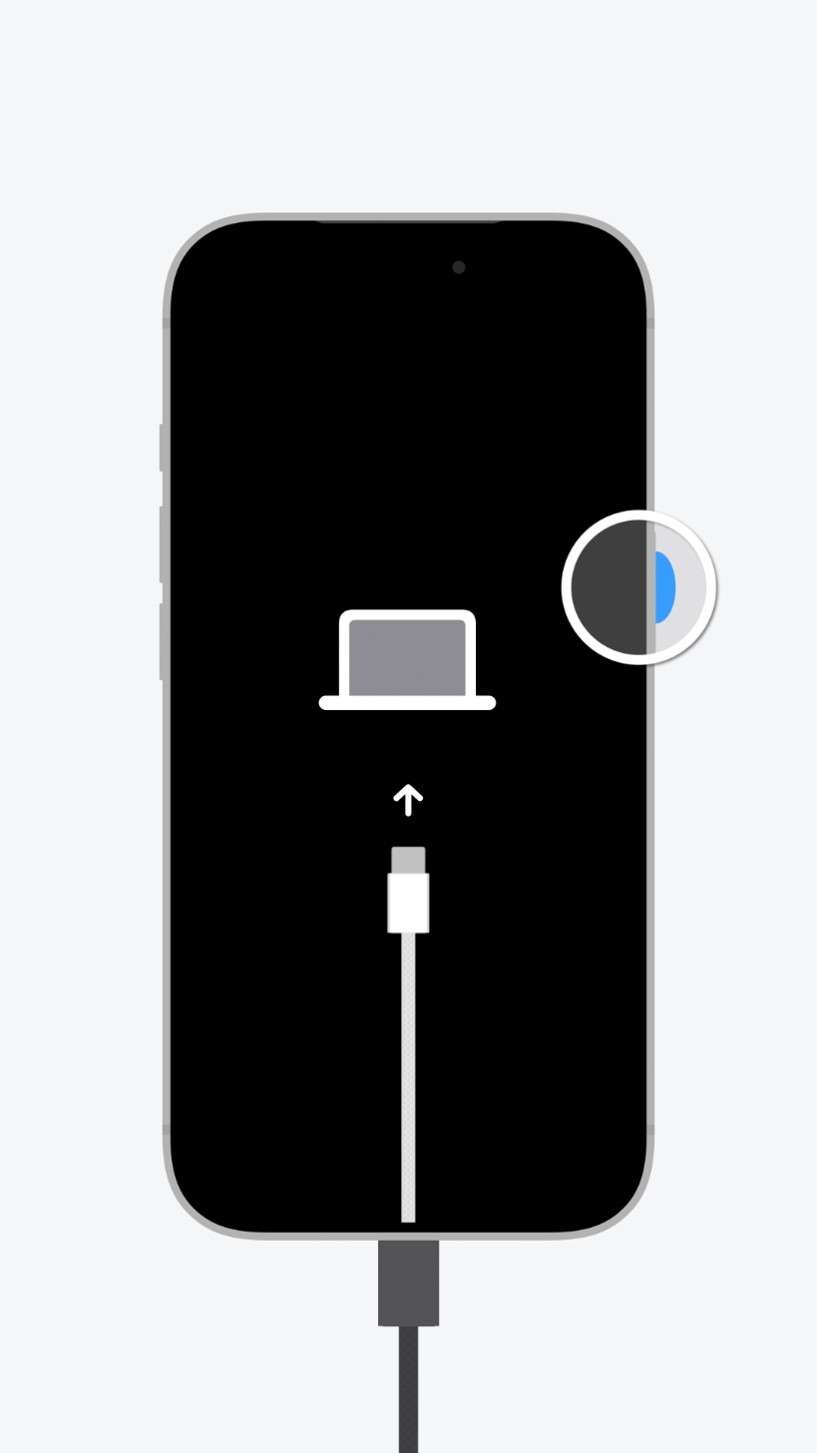
Recovery Mode is a feature that helps your iPhone get connected to a computer so that iOS can be fixed without erasing your data completely. It is the safest among the advanced methods of solving a black screen issue.
- Step 1: Connect your iPhone to a computer (Mac or Windows equipped with iTunes/Finder).
- Step 2: For Face ID models, quickly press and release Volume Up, then Volume Down.
- Step 3: Keep holding the Side button until the recovery mode screen showing the cable pointing to the laptop icon appears.
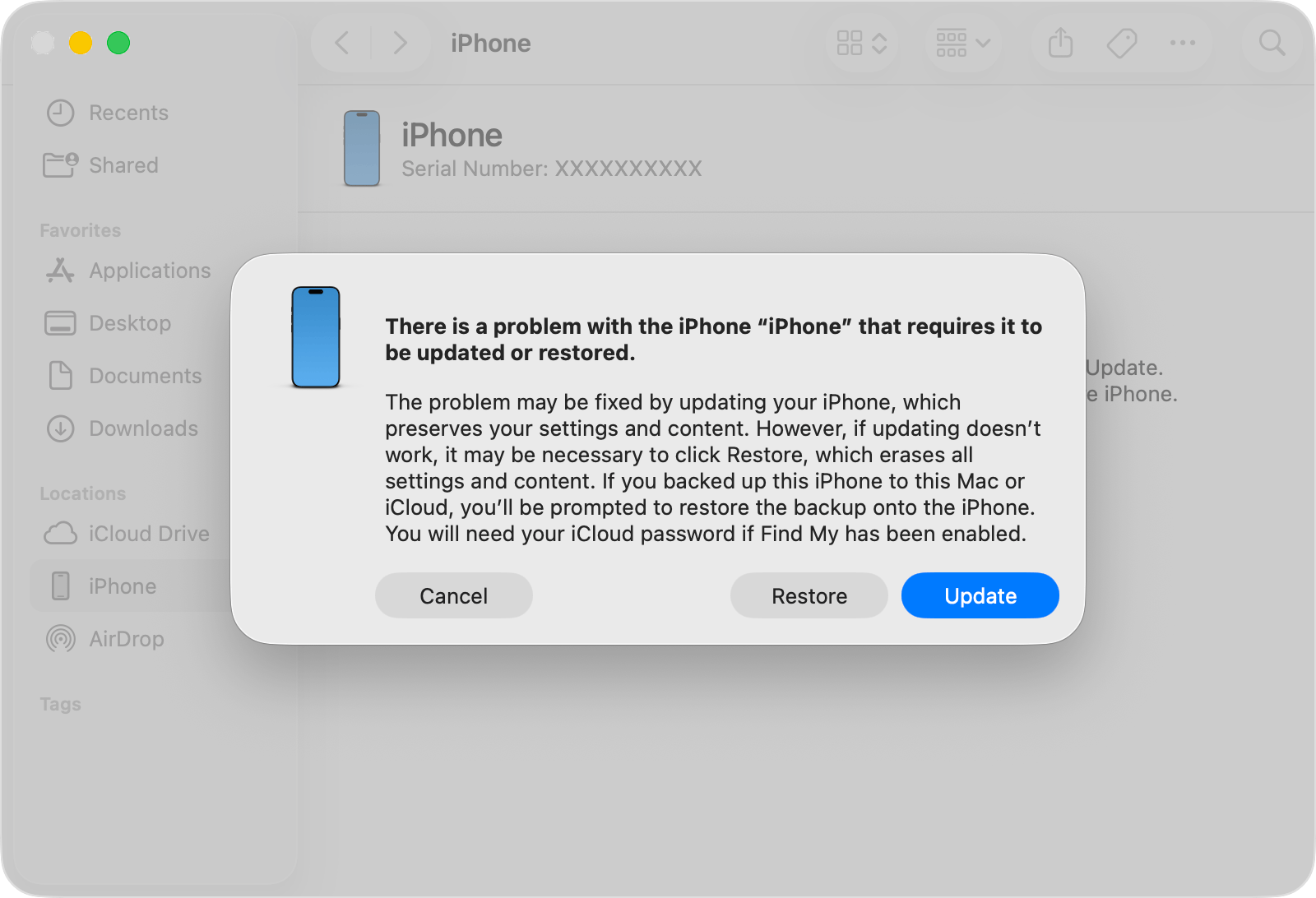
Try "Update" in iTunes/Finder before "Restore" to save data
Your computer will provide two options, Update or Restore when it detects your iPhone to be in Recovery Mode. However, you should always try Update first because it reinstalls iOS without erasing your data.
- Step 1: Have iTunes (Windows) or Finder (Mac) running after plugging in your iPhone.
- Step 2: Instead of Restore, choose "Update" once asked.
- Step 3: Wait for the system to download and reinstall iOS 27.
- Step 4: Do not disconnect the device until the whole operation is done, and the iPhone powers up as usual.
DFU Mode Restore for Complete Boot Failures
DFU (Device Firmware Update) mode enables the most thorough restore of a device and is intended for use when Recovery Mode is not working. It refreshes the operating system and the iPhone's firmware, thus resolving drastic software issues, however, it can also lead to data loss.
- Step 1: Open iTunes/Finder on a computer and connect your iPhone.
- Step 2: Press Volume Up briefly, then Volume Down, and keep holding the Side button. When the screen goes black, hold Volume Down + Side button.
- Step 3: Release the Side button but keep holding Volume Down until the device is detected in DFU mode on your computer. Select Restore iPhone in iTunes/Finder to carry out a full iOS reinstall.
Risks Of Advanced Repair Methods
Though advanced techniques such as Recovery Mode, iTunes/Finder update, and DFU restore can undoubtedly solve the iOS 27 black screen problem, these options have some risks that you must be aware of before proceeding.
- Possible data loss: If something goes wrong during the process or you decide to "Restore" instead of "Update, " all data, including photos, apps, and settings, can be wiped out. DFU mode is considered the riskiest in terms of leading to complete data loss.
- Interrupted update failure: If the link between your iPhone and computer is broken during Recovery Mode or DFU restore, it may cause your device to get stuck or become unusable.
- Software corruption risk: When a restore process is unsuccessful or only partially finished, iOS might be half-installed, and that can be a challenge to recover without professional assistance.
3.3 Recommended Solution: System Repair and iOS Downgrade with Dr.Fone
Let's say simple or even advanced troubleshooting methods didn't work. The problem could be rooted in very corrupted system files or an iOS 27 bug. The best thing to do might be to run your device through a professional repair program like Dr.Fone - System Repair.
This software is capable of helping your device recover from iOS issues such as a black screen, boot loop, Apple logo freeze, and update failures. Additionally, if your device must be restored, you will most probably not lose any data.
With iTunes/Finder, you normally have to do a full restore that would wipe off data. On the contrary, Dr.Fone gives you a standard repair mode to repair system errors without deleting any data. Besides, if your device model is known to have iOS 27 bugs, the tool allows you to upgrade and downgrade iOS without jailbreaking, which is very handy. The software can fix 150+ system issues, going into and coming out of recovery mode with one click, and is very efficient at handling iOS system crashes, so it is very useful when all other troubleshooting methods have failed.
 Fix iOS issues, no data loss.
- One-click repair for all iOS problems.
- Solve recovery mode, Apple logo, black screen, etc.
- Upgrade or downgrade iOS without iTunes

System Repair with Dr.Fone
-
Step 1Open System Repair tool
After you've installed Wondershare Dr.Fone, open it on your computer. Navigate to the Toolbox area on the main interface, and then tap System Repair.

-
Step 2Connect and select device type
Using a USB cord, plug your iPhone into the computer. When it is recognized, the program will request that you choose the type of device. To allow the software to fetch the suitable repair options, select iPhone.

-
Step 3Choose iOS repair and standard mode
Click on iOS Repair for the repair options presented and then tap Standard Repair mode.

-
Step 4Put device in recovery mode and install firmware
Proceed with on-screen directions to get your iPhone into Recovery Mode. Subsequently, Dr.Fone will identify with and obtain the perfect iOS firmware by itself. Click Repair Now after downloading.





Downgrade iOS with Dr.Fone
-
Step 1Choose downgrade option
Launch Dr.Fone and navigate to the System Repair segment. Select "Downgrade iOS/iPadOS" among the options presented to you for initiating the process of getting back to a previous stable version.
-
Step 2Consider backing up your iPhone
Before moving forward, the program will request you store your data. It is a wise decision as downgrading could wipe your device. You can either press Back Up if you want to safeguard your data or skip the step if no backup is required on your part.
-
Step 3Plug in your device and pick firmware
Use a USB cord to link your iPhone to your computer. When the device is detected, pick the matching version of the iOS firmware that you'd like to downgrade to. Hit Download and start the process of pulling the firmware.
-
Step 4Launch iOS downgrade process
When the firmware is downloaded and confirmed, hit Repair Now to initiate the downgrade operation.

Part 4. How to Prevent iOS 27 Black Screen on Future Updates
The best way not to get a black screen after the next iOS update is to set up your phone for that occasion. The little changes in your behavior while preparing your device can make a whole difference in the level of safety you will have.
- It is safest to create a backup of your iPhone with iCloud or Finder prior to updating.
- Make sure you always have at least 5- 6 GB of storage space free.
- Always update your system through a reliable Wi-Fi connection.
- If possible, consider delaying the update until the first minor update (.0.1 patch) is released.
- Be sure that the battery power level is 50% at least before you start.
Conclusion
The black screen problem on iOS 27 is most of the time a result of software bugs, partially updated systems, or conflicts in the system. It is a problem that could be solved potentially by resorting to a variety of troubleshooting techniques, ranging from simple to advanced. In fact, through the right measures, users can recover their devices without losing any data.
In case other quick recovery methods fail, you might consider resorting to Dr.Fone - System Repair, which could help you fix major system issues or allow you to safely downgrade your iOS. Also, by taking suitable precautions before the updates, you can prevent the occurrence of this problem and keep your iPhone in good working condition.
FAQs
-
Is the iOS 27 black screen a common issue?
It is not a very frequent problem, but it may appear after major iOS releases like iOS 27 due to temporary bugs, incomplete installations, or conflicts with the device. -
My iPhone is black but vibrating what does that mean?
Your iPhone vibrates, rings, or gives sounds, but the screen remains black is an indication that the device is on, but the display isn't working. Mostly it's a problem with software, and very rarely a hardware failure. -
Can I fix an iOS 27 black screen without losing data?
Yes, you can fix it most of the time in ways that won't cause any data loss like a force restart, recovery mode with "Update" option, or with standard repairing tools. Still, higher-level solutions such as DFU restore may wipe your data, so having backups is a must.
 Add Wondershare Dr.Fone as a preferred source on Google