Resolve common problems and system crashes on both iPhone and Android devices.

 100% Security Verified | No Subscription Required | No Malware

 :
: 
 ChatGPT
 Perplexity
 Gemini
 Claude
 Grok
Grok

My iPhone has a black screen and says "iPhone is Findable." Does that mean it is charging, and how do I turn it on?
Example symptom
If your iPhone is findable and won't turn on, the message is about Apple's Find My network, not proof that the phone is charging or stuck in a special repair mode. Start with a working charger and a force restart. If it still cannot boot, try a recovery-mode Update before considering an erasing Restore or hardware service.
A depleted battery, charging accessory problem, frozen iOS, or hardware fault can leave the screen black. The checks below help you choose the next step without assuming that every black screen needs a software repair.
In this article
- Part 1. What Does "iPhone Is Findable" Mean When Dead?
- Part 2. Why Your iPhone Is Findable But Won’t Turn On
- Part 3. How to Fix iPhone Is Findable and Won’t Turn On
- Part 4. Strategic Comparison of Repair Methods
- Part 5. Managing Your Privacy: Disabling 'Findable After Power Off'
- FAQs About a Findable iPhone That Will Not Start
Part 1. What Does "iPhone Is Findable" Mean When Dead?
iPhone Findable After Power Off means a supported iPhone can still be located through the Find My network after it is switched off. This is a lost-device feature, not an error message. It does not identify why iOS will not start.
Apple distinguishes two limits when Find My network is enabled: up to 24 hours after power off, or up to 5 hours in power reserve mode. These are maximum finding windows, not how long you should wait for the phone to charge. See Apple's Find My network conditions.

Does "iPhone is Findable" mean it is charging? No. The message can appear while the main battery is too low to start the phone; by itself it confirms neither successful charging nor a faulty charger. A low-battery screen alone is also not a test of the charging circuit. Use the timed charging checks below, then check whether the Apple logo appears, the phone starts, or its battery level rises after startup.
Part 2. Why Your iPhone Is Findable But Won’t Turn On
The message alone cannot distinguish these causes. Use what happened before the black screen and what the phone does next:
- Low battery or a charging-path problem: the phone died at low charge, shows a low-battery screen, or does not respond to its usual charger. Test a working cable, adapter, and outlet before assuming a firmware fault.
- Frozen iOS or an unsuccessful update: a force restart may recover a freeze; a persistent Apple logo or recovery screen can justify an Update. Do not interrupt an update that still shows a progressing bar.
- Temperature: excessive heat or cold can interrupt charging. Move the phone out of direct sun or extreme cold and let it return to a normal temperature naturally.
- Display, battery, connector, or other hardware trouble: damage or continued failure after charging needs diagnosis. Sounds or vibrations with a black screen are a reason to have the display checked, not proof that reinstalling iOS will fix it.
Stop point: after liquid exposure, disconnect a wired charger immediately and do not reconnect it while the connector is wet. For visible damage, a swollen battery, or unusual heat, stop using and charging the device and arrange service. Otherwise, if a known-working charging setup for about an hour plus the correct force restart produces no response, follow Apple's no-power service guidance. Software cannot repair a damaged battery or charging port.
Part 3. How to Fix iPhone Is Findable and Won’t Turn On
Start with Methods 1 and 2. If the phone can reach recovery mode, the free Apple Update in Method 4 is a sensible next attempt. Method 3 is an optional guided software-repair alternative, not a prerequisite or a hardware fix.
3-1. Method 1: Check Charging and Give It Time
If your iPhone is findable but not charging, test the power setup rather than using the Findable message as a charging indicator. A specific 20W adapter is not required for this check.
-
Step 1Check the Cable, Adapter, and Outlet
Connect a compatible, undamaged cable and USB power adapter to a wall outlet. Check both ends are firmly seated. Try another outlet and a known-working cable or adapter if there is no response. Do not use accessories with damaged cables or bent prongs.
-
Step 2Inspect the Connector and Temperature
Look for visible debris or damage at the charging port. Do not force the plug or dig inside the connector with a toothpick or other object; get help if debris prevents a secure connection. Let a very hot or cold phone return to a normal temperature naturally. Do not heat it, refrigerate it, or charge a wet connector.
-
Step 3Charge, Restart, and Check Again
Leave it charging for 30 minutes, try the force restart for your model, then charge for another 30 minutes if needed. Apple's black-screen guidance also recommends charging for one hour before trying again. You do not need to reach 100% before the phone can start.
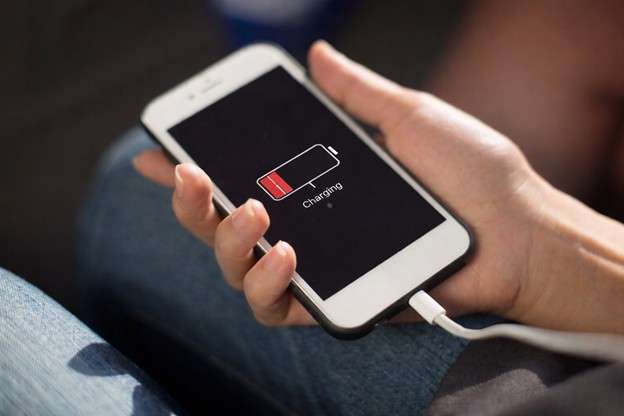
If it starts, check the battery level and back up important data. If it remains unresponsive after a working charging setup and a restart, seek service rather than repeatedly attempting a restore.
3-2. Method 2: Force Restart for Your iPhone Model
A force restart can recover an unresponsive iPhone without selecting a factory reset. It does not intentionally erase your photos or messages. Use the right button sequence and release when the Apple logo appears:
- iPhone 8 or later, including iPhone SE (2nd and 3rd generation): quickly press and release Volume Up, then quickly press and release Volume Down. Hold the Side button until the Apple logo appears; this can take longer than 10 seconds.
- iPhone 7 or 7 Plus: hold Side + Volume Down together until the Apple logo appears; this can take longer than 10 seconds.
- iPhone 6s or earlier, including iPhone SE (1st generation): hold Home + Side or Home + Top until the Apple logo appears, usually around 10 seconds.
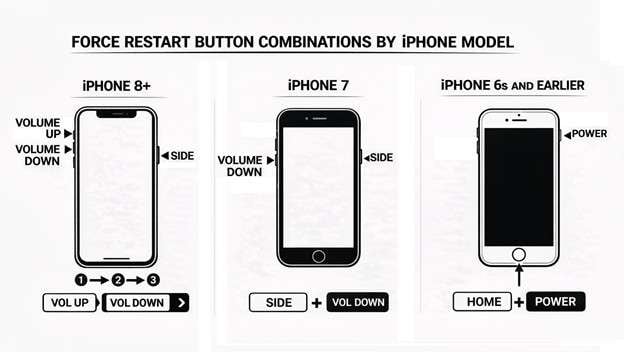
If the logo appears, allow the phone to start. If nothing happens, complete the charging check. If it stays on the Apple logo or shows a computer-and-cable screen, proceed to recovery-mode Update. Reaching recovery mode requires holding beyond the Apple logo; that is a different stopping point from a force restart.
3-3. Method 3: Use Dr.Fone Standard Repair for iOS Problems
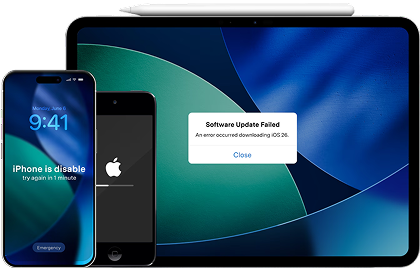
Dr.Fone - System Repair (iOS) offers a guided Standard Repair workflow for supported iOS startup and black-screen problems. It is designed to reinstall the system without erasing personal data, so it can be an alternative when basic checks fail and the phone can communicate with the computer in recovery mode.
Use it for a suspected software problem, not a wet connector, failed battery, or broken display. Standard Repair is not a guarantee of data recovery or a successful fix; back up first if the phone becomes accessible. Advanced Repair erases data. Downloading the app is free, but full repair may require a paid license. The Guide notes that repair updates iOS and can remove a jailbreak or relock a previously unlocked device.
 Standard Repair is designed to fix supported iOS issues without erasing data.
- Guided repair for software-related startup problems.
- Repair supported black-screen, Apple-logo, and recovery-mode issues.
- iOS upgrade and downgrade tools are also available.
-
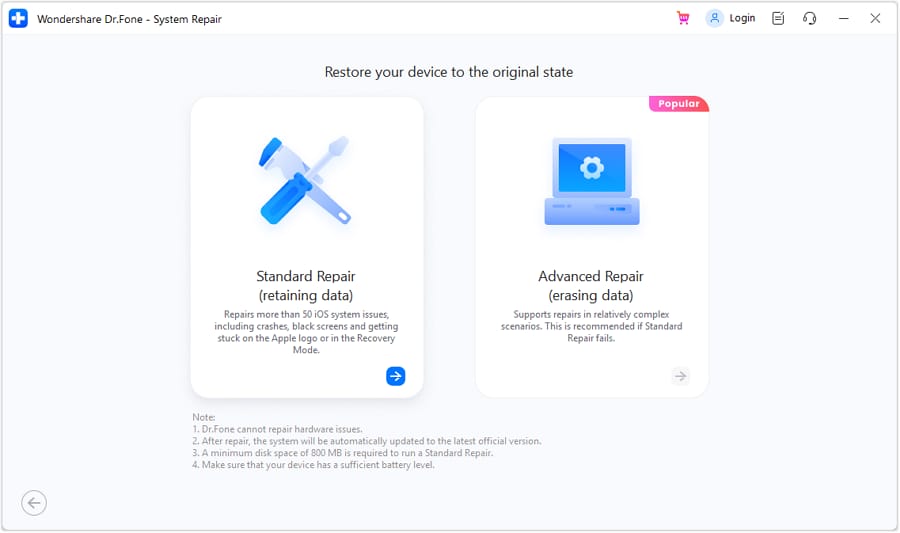
Step 1Open System Repair and Select Standard Repair
Install and open Dr.Fone on your computer. Connect the iPhone with a reliable USB cable. Choose Toolbox > System Repair > iPhone > iOS Repair > Standard Repair. Do not select Advanced Repair if you want to avoid erasing the device.

-
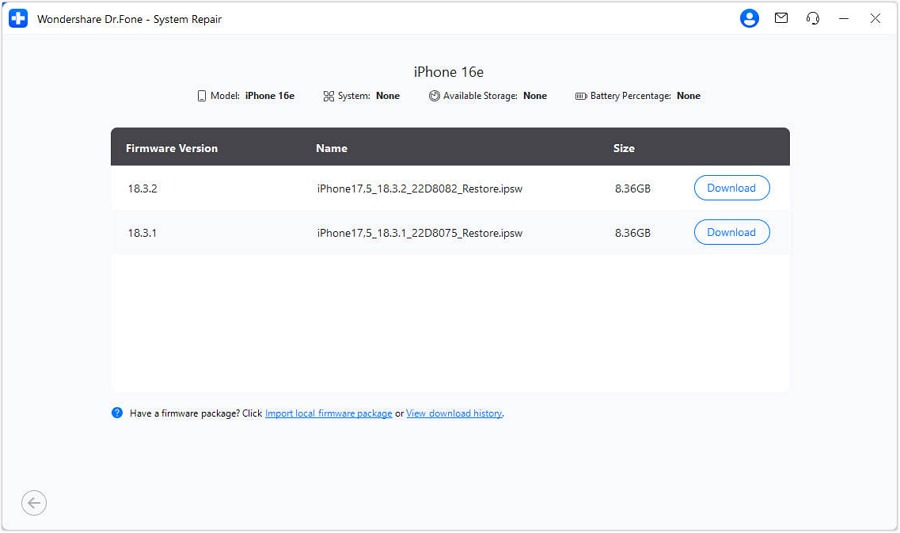
Step 2Enter Recovery Mode and Download Firmware
Follow the displayed model-specific instructions. Use Enter Recovery Mode when available, or Guide for an unresponsive phone. Once detected in recovery mode, confirm the device and offered firmware, then select Download. Wait for the download and verification to finish.
-
Step 3Repair and Check the Restarted iPhone
Click Repair Now after firmware verification. Keep the cable connected until the completion screen appears, then choose Done. Check that the iPhone starts normally and your data is accessible. If repair fails or the phone cannot be detected, stop and arrange further diagnosis rather than assuming an erasing mode is necessary.
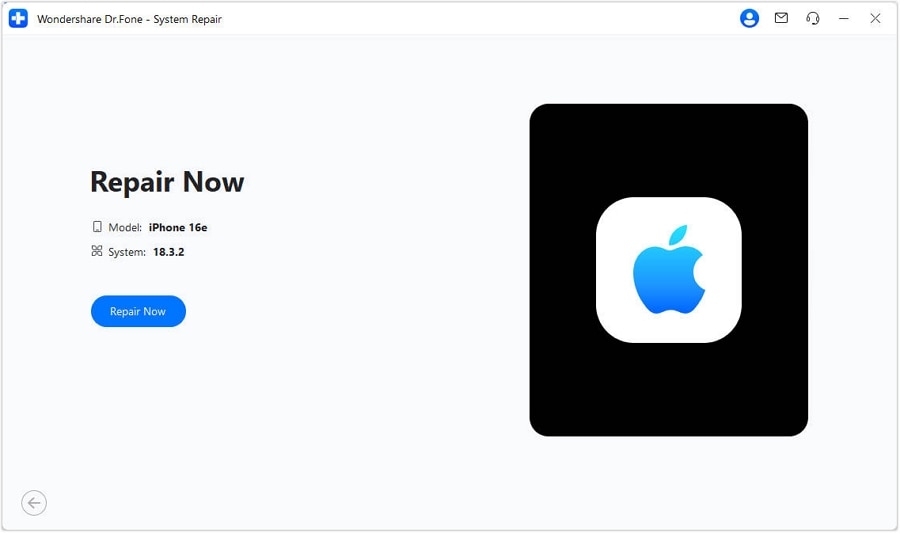
These are Windows Guide screens; the Mac interface can differ. Follow the same repair-mode choice and data-loss warnings. The complete iOS System Repair Guide provides the expanded screen sequence.




3-4. Method 4: Recovery Mode Update, Then Restore if Needed
If charging and a force restart do not resolve a software-related startup failure, recovery mode lets a computer try reinstalling iOS. Try Update first if offered. Restore reinstalls iOS and erases all data; do not choose it merely because the Findable message appears.
-
Step 1Connect to the Correct Computer App
Connect the iPhone by USB. Open Finder on a current Mac or Apple Devices on Windows. Compatible older setups use iTunes. Update the computer app first.
-
Step 2Keep Holding Until the Recovery Screen
- iPhone 8 or later / SE 2nd or 3rd generation: quickly press Volume Up, quickly press Volume Down, then hold Side.
- iPhone 7 / 7 Plus: hold Side or Top and Volume Down together.
- iPhone 6s or earlier / SE 1st generation: hold Home and Side or Top together.
Keep holding through the Apple logo until the Connect to computer screen appears. If a button is broken or stuck, use Apple's service route. For a device that can communicate with the app, Dr.Fone also offers free one-click recovery-mode entry; entering the mode is not itself an iOS repair.
-
Step 3Choose Update Before an Erasing Restore
Locate the iPhone in the computer app. Choose Update to try reinstalling iOS while keeping personal data. If updating fails and you decide to use Restore, check your available backup and accept that the iPhone will be erased. If irreplaceable data is not backed up, seek advice before consenting to an erase.
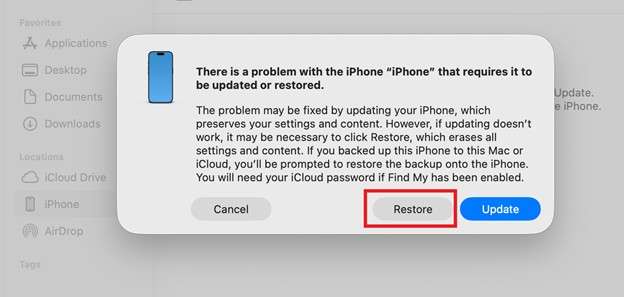
The example highlights Restore; choose Update first when available. Keep the phone connected during installation. If the software download takes more than 15 minutes and the iPhone leaves recovery mode, let the download finish, then repeat the recovery button sequence. After a successful Restore, set up the phone and restore an available backup. If recovery updating or restoring cannot complete, arrange service. See Apple's recovery-mode instructions.
Part 4. Strategic Comparison of Repair Methods
Choose by the phone's response, the likely fault, and your data priority. No method has a universal success rate; charging and software procedures do not fix every hardware fault.
| Method | Best Fit | Data and Cost Considerations | Next Decision |
|---|---|---|---|
| Charging checks | Low battery or an uncertain power setup | No intentional erase; a working accessory may be needed | If no response after about an hour and a restart, seek service |
| Force restart | A frozen or unresponsive iPhone | No intentional erase; no software purchase | Persistent logo or recovery screen: try Update |
| Finder / Apple Devices Update | A startup problem with a usable recovery connection | Attempts to keep data; free Apple software, not a success guarantee | If it fails, review repair choices and backup availability |
| Dr.Fone Standard Repair | Supported software faults; guided firmware workflow | Designed to avoid erasure; full repair may require a license | Not for physical damage; do not switch to Advanced Repair without accepting data loss |
| Finder / Apple Devices Restore | Update failed and you accept an erase | Erases the device; a backup is needed to restore saved data | Set up after restore; service if recovery still fails |
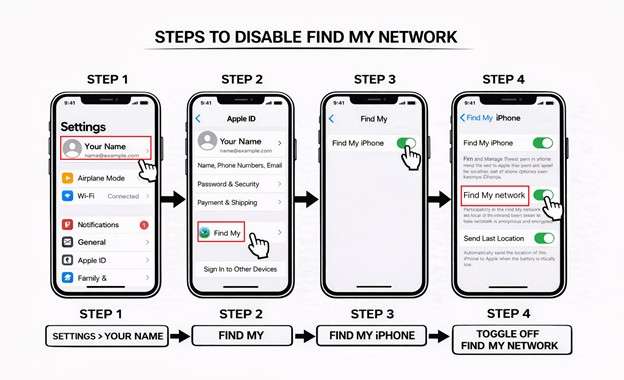
Part 5. Managing Your Privacy: Disabling 'Findable After Power Off'
Turning off Find My network will not revive a phone that cannot boot. Keep this as an optional privacy choice after the phone is working, not a troubleshooting requirement.
-
Step 1Open Your Find My Settings
On the working iPhone, open Settings > [your name] > Find My > Find My iPhone.
-
Step 2Choose Whether to Disable Offline Finding
Switch off Find My network if that is your intended privacy choice, and follow any confirmation shown. You can switch it back on in the same place. Do not turn off Find My iPhone or remove the phone from your account just to clear a black screen.

Conclusion
The iPhone is Findable message describes finding availability, not a cause of the black screen or proof of charging. Start with a working power setup and the correct force restart, then use recovery-mode Update when appropriate.
For supported software faults, Dr.Fone - System Repair (iOS) provides a guided alternative. If the phone has damage or remains unresponsive, choose professional diagnosis rather than repeated firmware attempts. For broader black-screen symptoms, see the iPhone won't turn on troubleshooting guide.
FAQ
-
1. Does "iPhone Findable" mean my battery is actually charging?
No. The Findable message is not a charging indicator. Test a working cable, adapter, and outlet, give it time to charge, then check whether it starts. A battery icon alone does not prove the charging circuit is healthy.
-
2. What if the Findable screen appears after a water spill?
Disconnect a wired charger immediately and leave the connector to dry with airflow. Do not insert objects, use heat or compressed air, or put it in rice. Do not keep charging it to test a restart. If damage is suspected or it still will not work after drying, seek service. Apple explains liquid-detection and drying precautions.
-
3. Can I track my iPhone more than 24 hours after it dies?
Do not treat 24 hours as the battery-depleted tracking window. Apple specifies up to 24 hours after power off, or up to 5 hours in power reserve, on supported iPhones with Find My network enabled. A last known location is not confirmation of a fresh live location.
-
4. Is the U1 chip available on all iPhone models?
No. Powered-off finding is model-dependent; do not assume every newer iPhone supports it. Apple links this feature to its supported Ultra Wideband model list. It includes iPhone 11; the 12 and 13 families including mini; the 14, 15, and 16 families including Plus and Pro variants; iPhone 17, 17 Pro, and 17 Pro Max; iPhone Air; iPhone 18 Pro and 18 Pro Max; and iPhone Duo. The linked list does not include iPhone SE, 16e, or 17e. This is different from force-restart compatibility: the iPhone 8 and SE button instructions above do not imply support for powered-off finding.
 Add Wondershare Dr.Fone as a preferred source on Google