 Resolve common problems and system crashes on both iPhone and Android devices.

 100% Security Verified | No Subscription Required | No Malware

 :
: 
 ChatGPT
 Perplexity
 Gemini
 Claude
 Grok
Grok
Let's say you tried to check the rumored Camera update after the iOS 27 install, and it failed to work. Regardless of the reasons this issue happens, it can disrupt your daily routine, mainly when you rely on a Camera app for photo or scanning tasks. Hence, this guide explains why you face the iOS 27 Camera not working issue and how Dr.Fone - System Repair (iOS) can be an effective solution.
In this article

Part 1. Common Reasons Why the Camera Stops Working After Updating to iOS 27
To determine the root cause of the iOS 27 Camera not working issue, glance at the 5 main reasons given below:
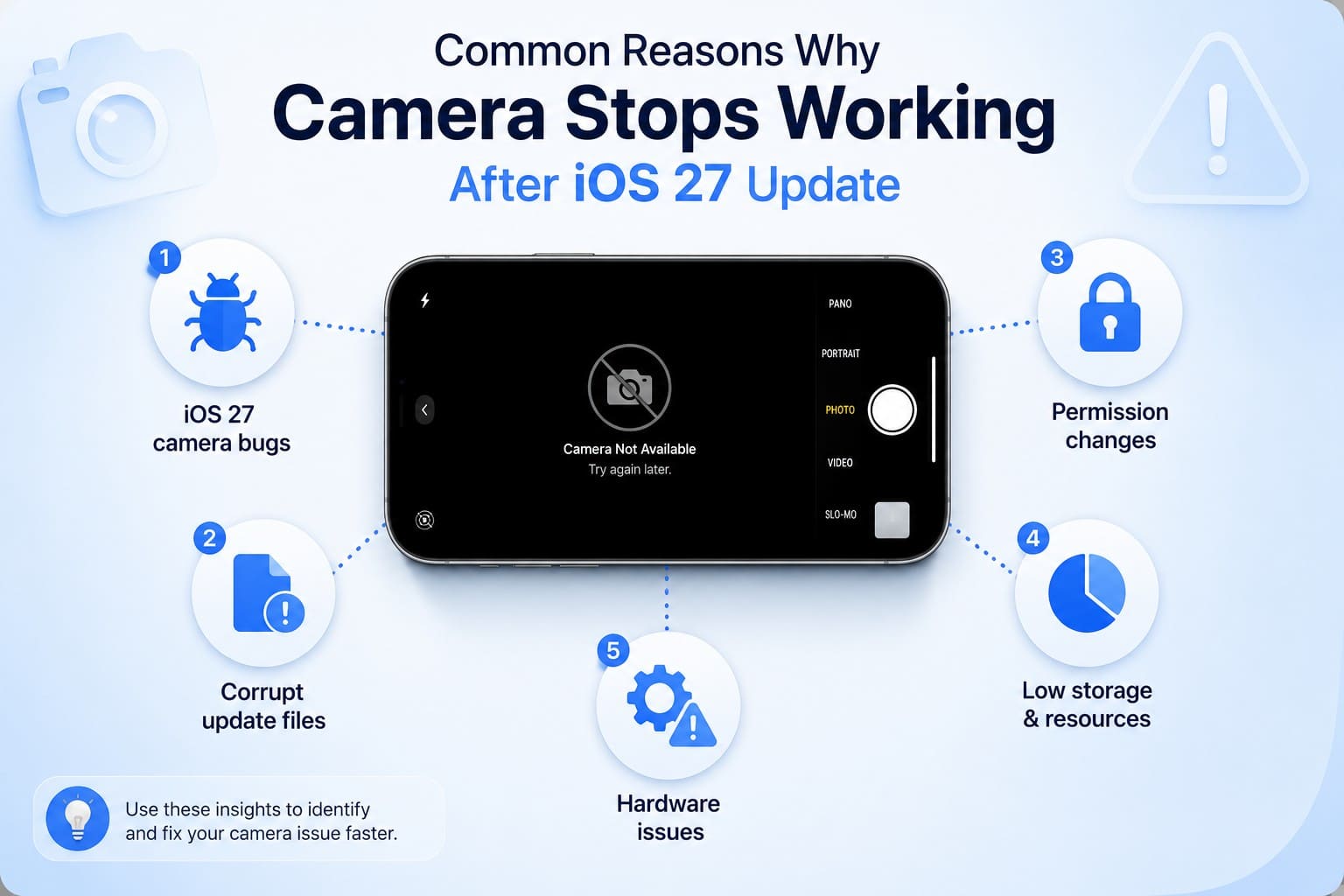
- Camera Bugs: New iOS 27 can introduce bugs that affect image processing, camera services, and sensor communication. Hence, these conflicts may cause the camera to freeze, show a black screen, or stop responding, as stated on Reddit.
- Corrupt Update: Note that an interrupted or faulty update can corrupt camera-related system files and frameworks. Consequently, the Camera app may crash, fail to load a certain mode, or behave unpredictably.
- Permission Issues: iOS 27 may reset or modify camera permissions, privacy settings, or device restrictions, as reported on the Instagram posts. Thus, this prevents the apps from accessing the camera even though it worked normally before the update.
- Low Resources: The Camera requires sufficient storage space, RAM, and processing power to function properly. Low storage, heavy background activity, overheating, and power saving restrictions can interfere with camera performance.
- Hardware Problems: New camera features and strict hardware checks in iOS 27 may reveal underlying hardware issues. Problems such as water damage, loose connectors, or worn components can become more noticeable after the update.
Part 2. Quick Diagnosis: Is the Problem Software or Hardware Related
Based on the reasons, if you wonder whether the iOS 27 Camera not working issue is software or hardware, review the given table:
| Symptom/Test Result | More Likely Cause | Why These Points That Way |
|---|---|---|
| The Problem Started Right After an Update or a New App | Software | Updates and new apps can introduce bugs, conflicts, or permission changes. |
| The Issue Appears Only in One App; Others Work Fine | Software | The affected app or its permissions/settings are likely causing the problem. |
| The Device Works Normally After a Restart or in Other Apps | Software | The issue is likely related to software, settings, or a specific app. |
| Reinstalling/Resetting Settings Temporarily Fixes It | Software | Changes to settings or software configuration are affecting behavior. |
| Same Issue Across All Apps and Modes | Hardware | A camera component may be failing regardless of the software used. |
| Symptoms Get Worse Over Time (More Frequent, Random) | Hardware | Hardware problems often become more noticeable as components deteriorate. |
| Device Shows Physical Signs (Heat, Damage, Moisture Exposure) | Hardware | Physical damage or environmental factors can affect camera operation. |
| Problem Persists After Reset, Update, And Clean Restore | Hardware | Eliminating software causes makes a hardware fault more likely. |
Part 3. How to Fix iOS 27 Camera Not Working?
Whether the issue is software- or hardware-related, try the 10 ways mentioned to fix the iOS 27 Camera not working issue:
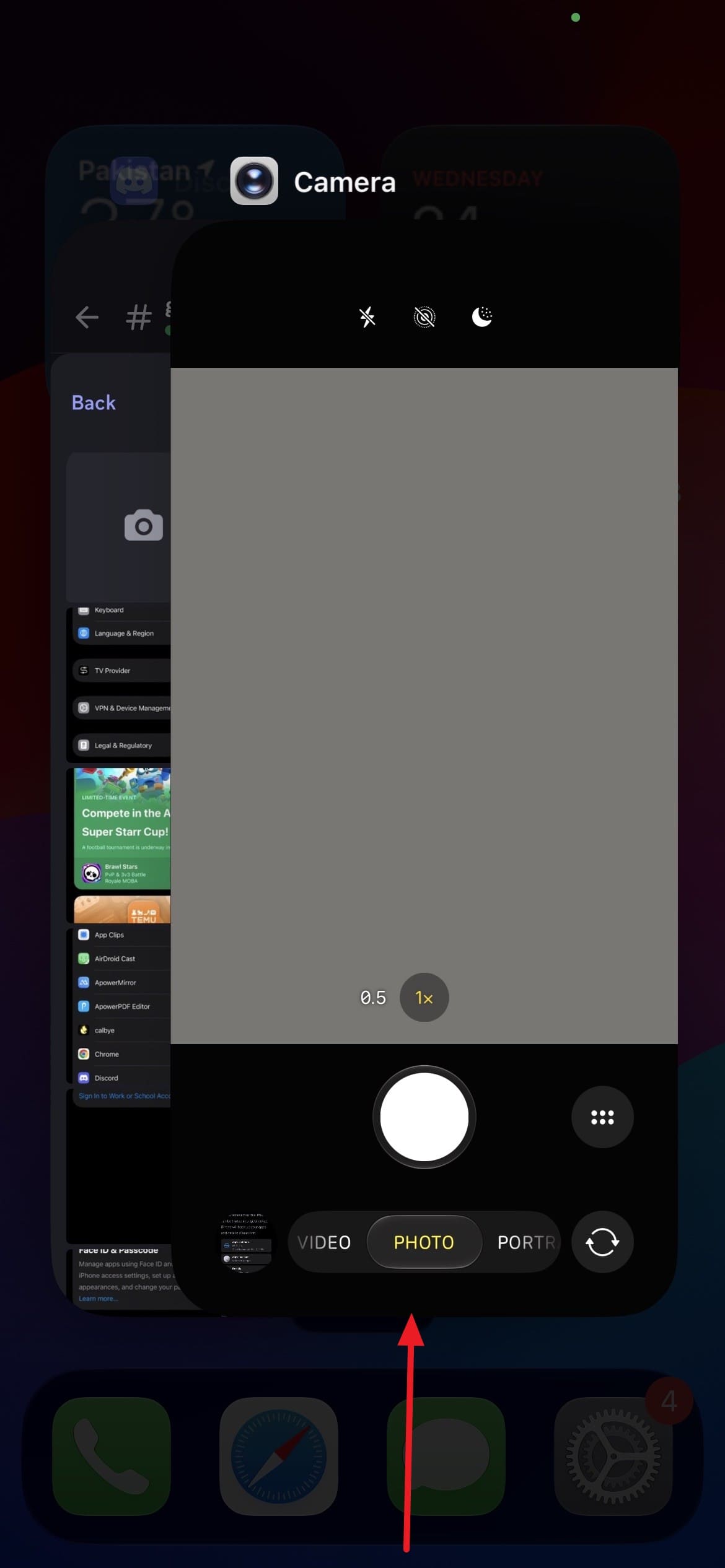
Fix 1. Force Close and Reopen the Camera App
When the Camera app freezes, lags, or crashes, this fix can refresh the camera sessions and clear temporary glitches. In addition, it helps determine whether the problem is limited to the Camera app or caused by a deeper system or hardware issue, as guided:
Instructions: Go to "App Switcher > Swipe Up > Locate Camera > Swipe Up" to force close and reopen.
Fix 2. Restart Your iPhone
With this, you can resolve temporary data conflicts and allow the Camera to reinitialize properly. Once done via the mentioned steps, if the Camera starts to function, the issue was likely a minor software problem:
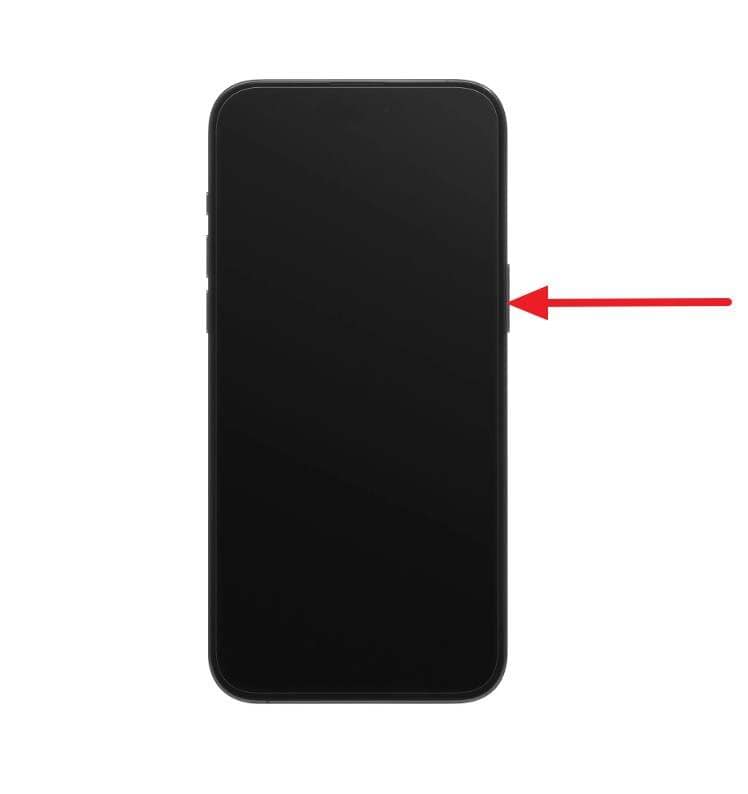
Step 1 Hold "Power + Volume Up" > Swipe "Slide to Power Off" option > Wait for a few seconds.
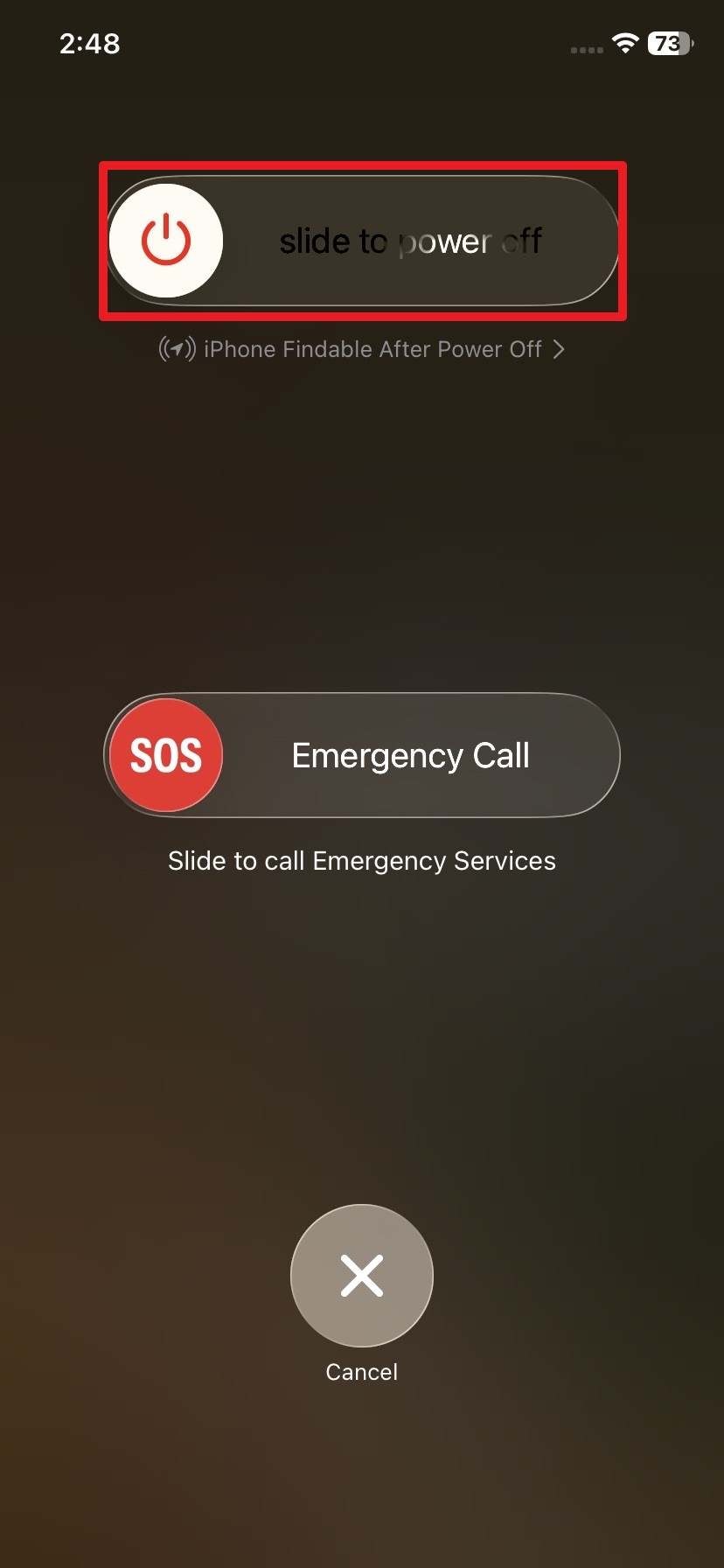
Step 2 Press the "Power" button > Wait for the Apple logo > Open the Camera app to see if the iOS 27 Camera not working issue is resolved.
Fix 3. Toggle Camera Permissions Off and On
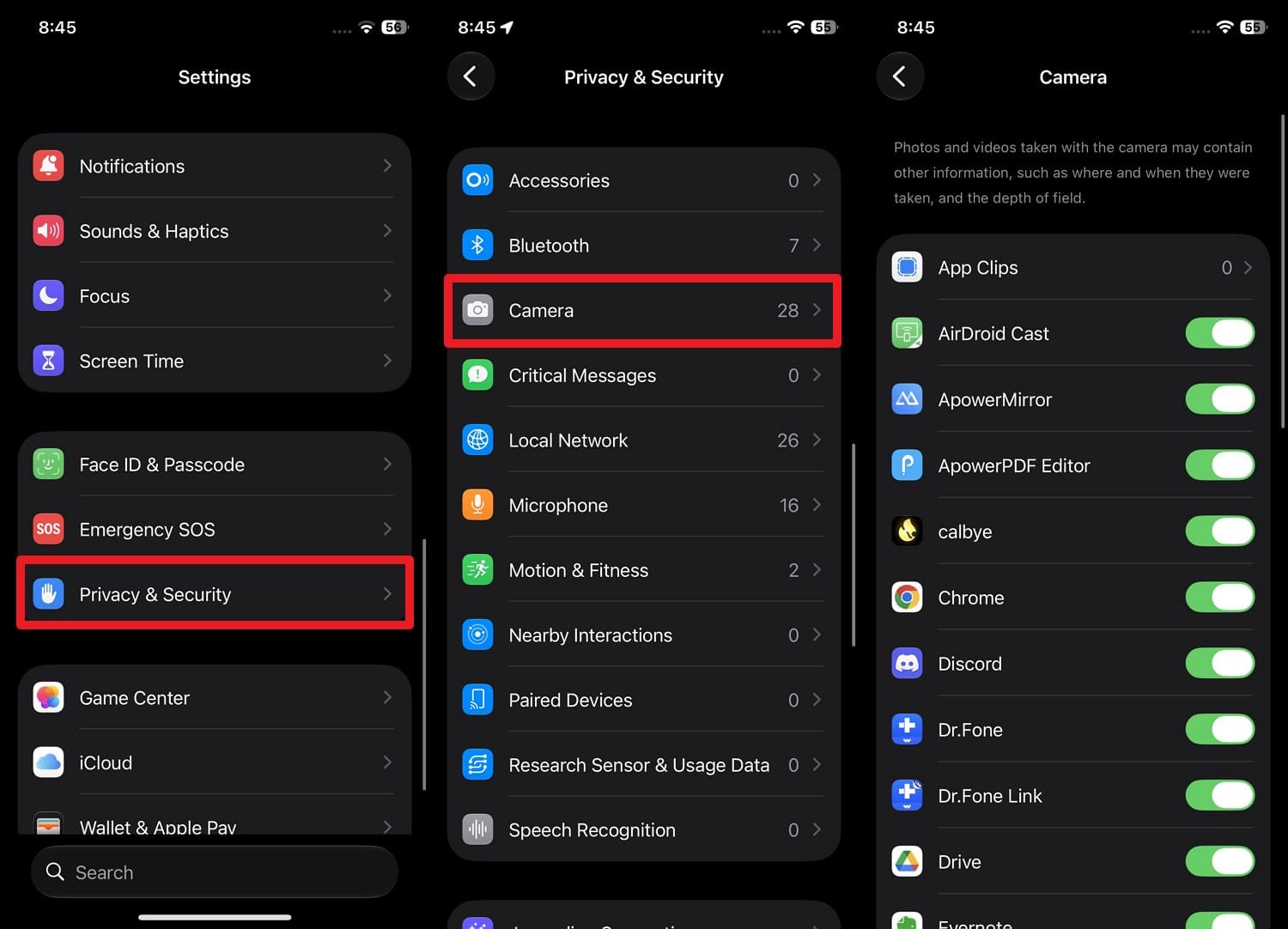
If the issue is caused by the permission glitch after the iOS 27 update, this fix can refresh camera access settings. It reapplies privacy permissions and can restore camera functionality in other apps, as demonstrated:
Instructions: Go to "Privacy & Security" settings > Tap "Camera" > Locate the app with permission issues. Then, toggle the option off for 3 seconds, then re-enable it to resolve the iOS 27 Camera not working issue.
Fix 4. Disable Low Power Mode
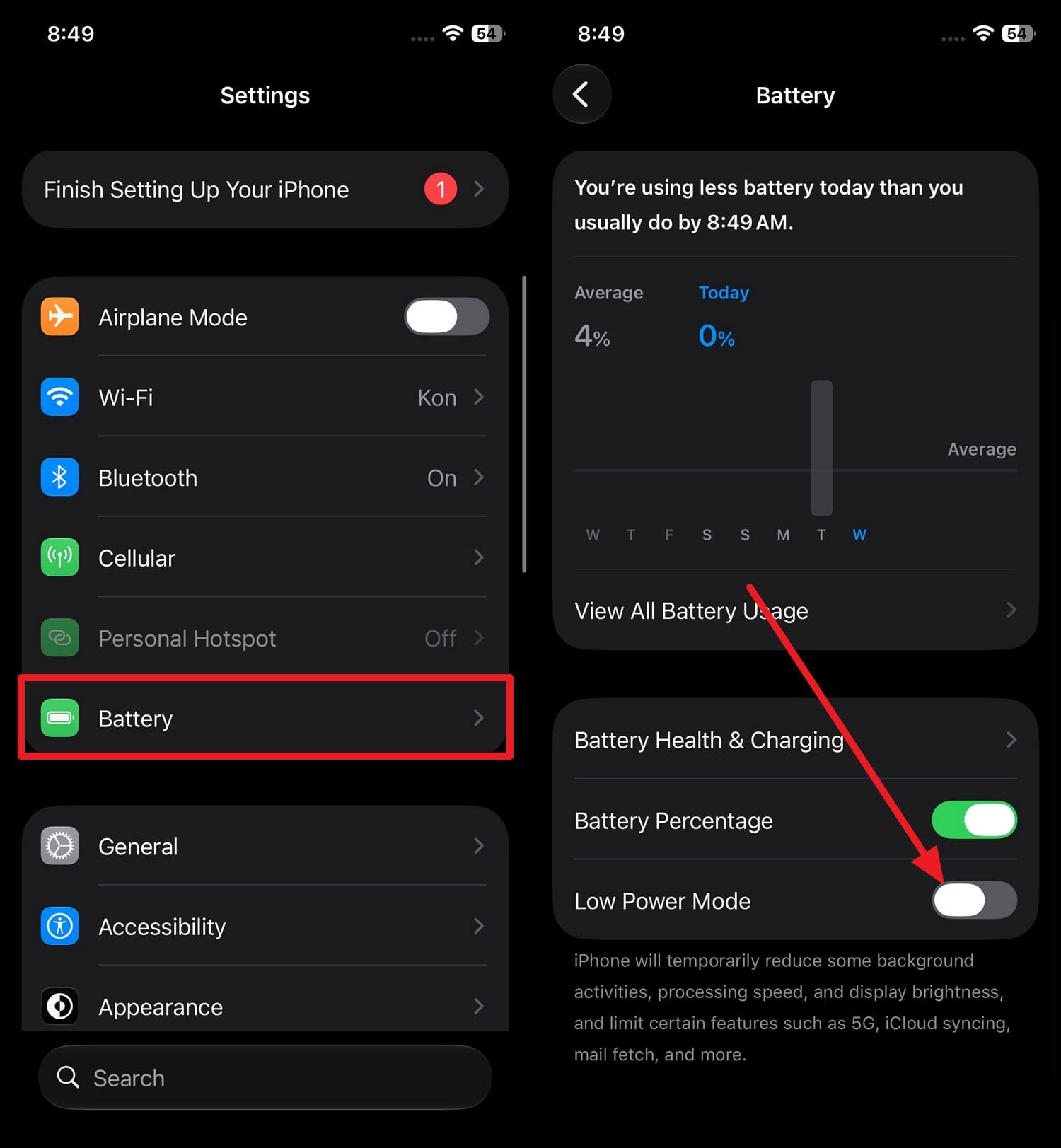
This allows the phone to use its full processing power and system resources to improve iOS 27 Camera performance. Thus, it reduces lags, improves mode switching, and helps flash function properly, once done via the mentioned steps:
Instructions: Locate the "Battery" settings in iOS 27 and toggle the "Low Power Mode" option off, and see if the iOS 27 Camera not working issue is fixed.
Fix 5. Use Dr.Fone - System Repair (iOS) to Fix iOS Camera Errors
When basic fixes do not work, you can use Dr.Fone - System Repair, which operates at the iOS firmware level to fix underlying system corruption. Its Standard Repair mode reinstalls the required firmware components without erasing user data, helping resolve the iOS 27 camera not working issue. Since it is compatible with iOS 27, iPadOS 27, and iPhone 17 Series, it can fix 150+ other iOS system issues.
As the tool is versatile, you have the option to access Recovery Mode and exit DFU mode to resolve system-level issues. Nonetheless, it can fix 200+ iTunes errors like 4013 and 1110 in most cases and keeps all the data intact. If the issue persists, users can try its Advanced or Anti-Recovery Mode or downgrade to a stable iOS version.
 Fix iOS issues, no data loss.
- One-click repair for all iOS problems.
- Solve recovery mode, Apple logo, black screen, etc.
- Upgrade or downgrade iOS without iTunes

Quick System Repair Guide to Fix iOS 27 Camera Not Working Issue
To determine whether all the system repair claims of this tool are true, perform a real-world test via the mentioned guide:
Step 1 Pick Standard Repair in iOS Repair
Choose the "Standard Repair" mode after you access the "iOS Repair" feature from the "System Repair" tool for iPhone.

Step 2 Access Recovery Mode to Install Firmware
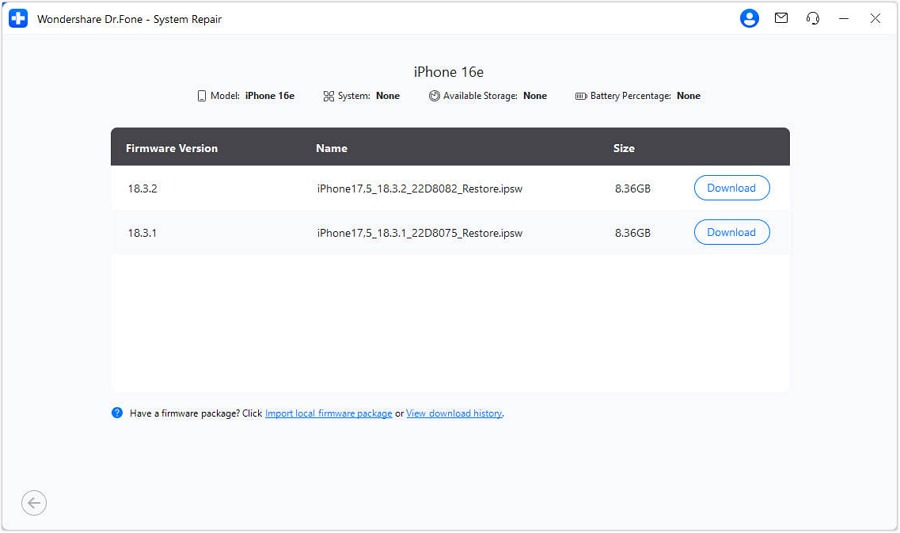
Follow the guide to enter Recovery Mode, and when you see the list of corresponding iOS firmware, click the "Download" button to begin the installation.
Step 3 Repair the iOS 27 Camera Not Working Now
When it ends, choose the "Repair Now" button to let Dr.Fone fix system-level issues that cause the iOS 27 Camera not working issue.





Fix 6. Free Up Storage Space
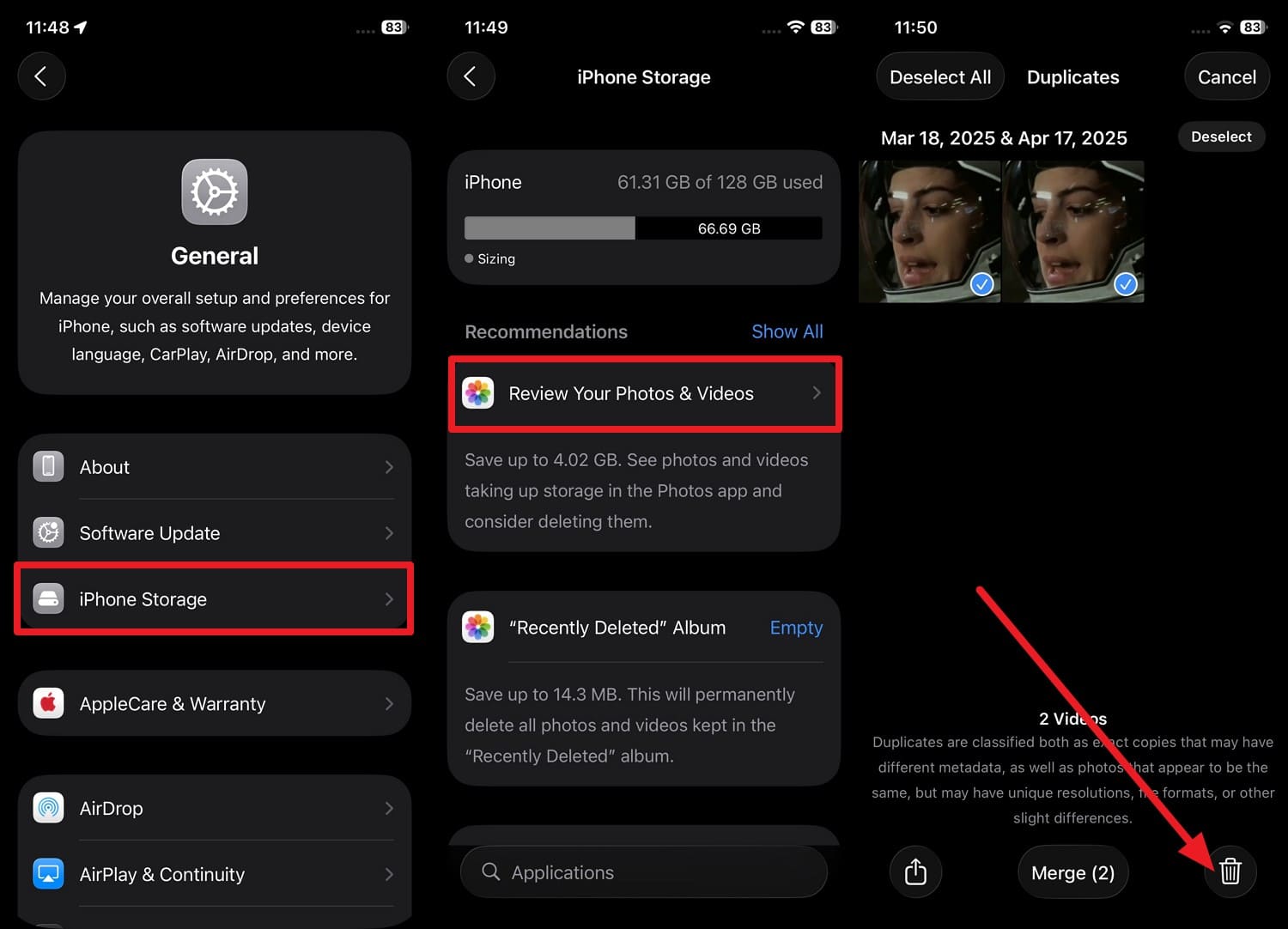
Since the Camera app needs available space to process, save, and manage photos and videos, low storage can cause issues. When you create extra space, it helps the Camera to run more smoothly and improve responsiveness, and is guided ahead:
Instructions: In "Settings > General > iPhone Storage," review storage recommendations, photos, videos, or large apps, and remove unnecessary content to free up space. Then check whether the iOS 27 camera not working issue persists.
Fix 7. Update or Reinstall Camera-Dependent Apps
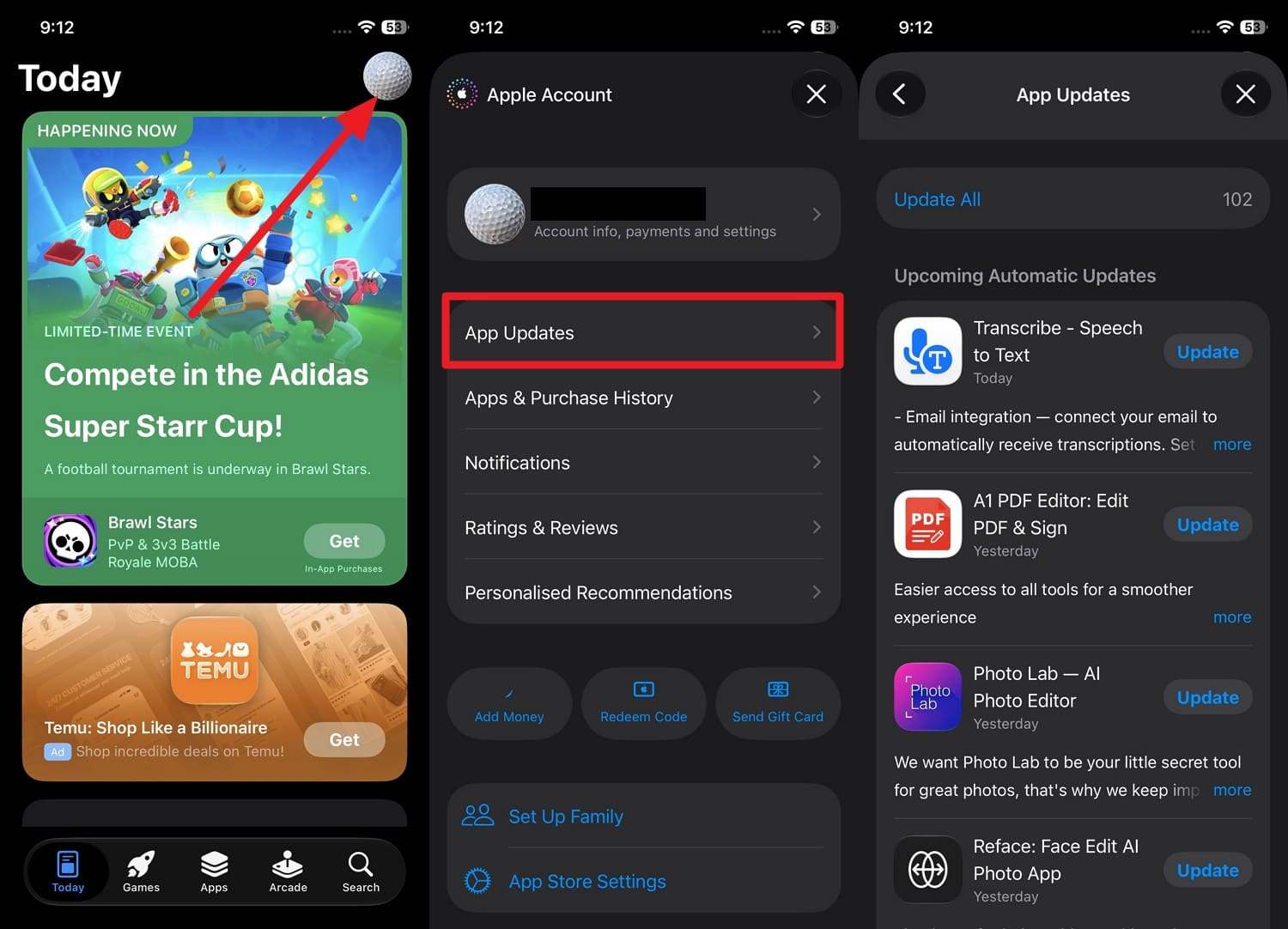
You can restore proper camera permissions, clear app-specific glitches, and ensure the app is optimized for iOS 27 Camera features. Through this, you can also determine whether the problem is limited to a specific app rather than the iPhone's Camera or hardware. So, if you want to update rather than reinstall, the detailed steps are given below:
Instructions: On the App Store, tap "Profile > App Updates," locate the problematic app, then tap "Update" to resolve the iOS 27 Camera not working issue.
Fix 8. Install the Latest iOS 27 Software Update or Patch
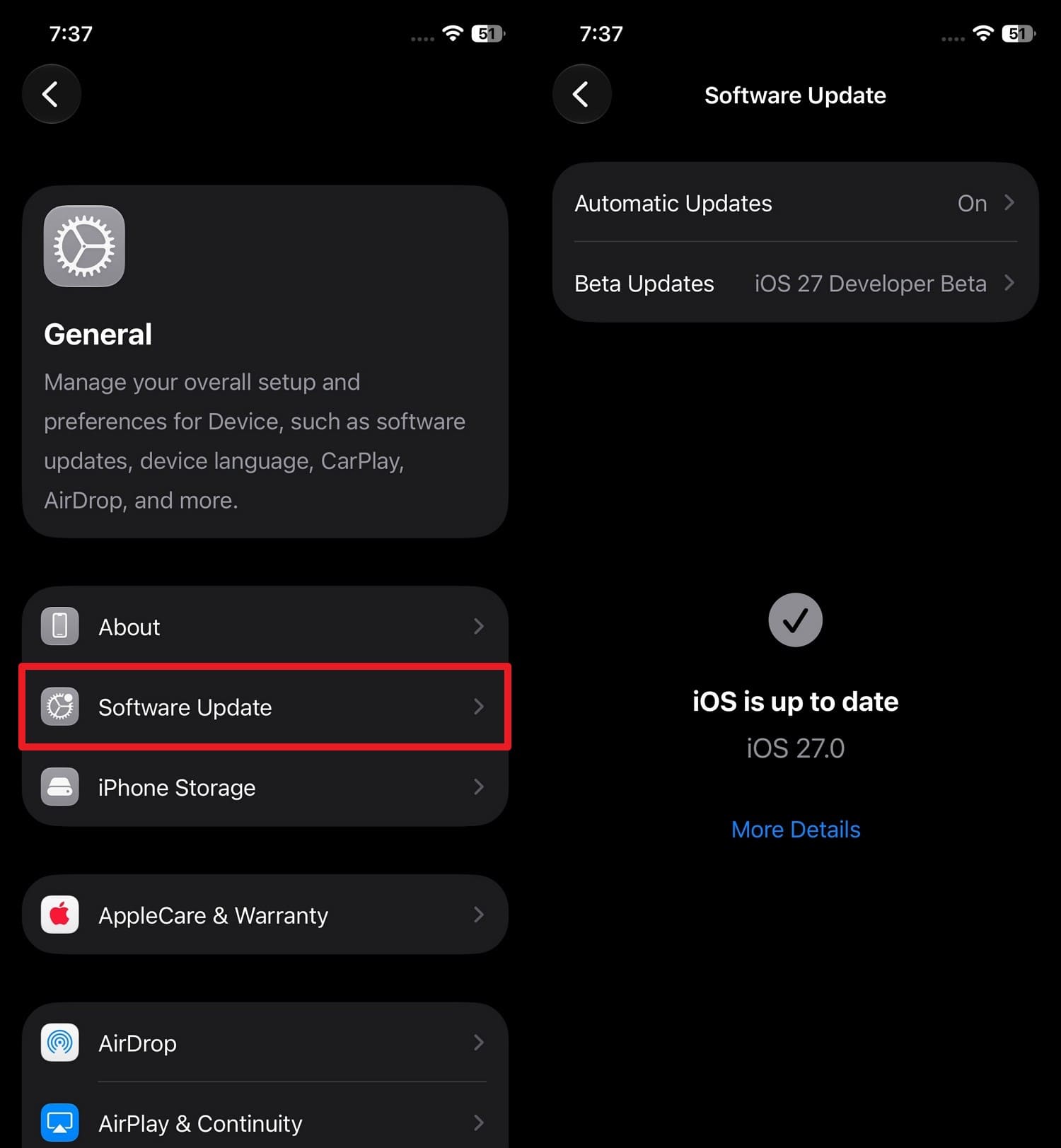
You can apply Apple's latest bug fixes, performance improvements, and stability patches with this solution. New updates often resolve the known camera problems and compatibility issues with third-party apps, once done via the mentioned guidelines:
Instructions: Access "Software Updates" in the General settings and pick "Update Now" if the new iOS 27 update is available to see if the iOS 27 Camera not working issue remains.
Fix 9. Reset All iPhone Settings
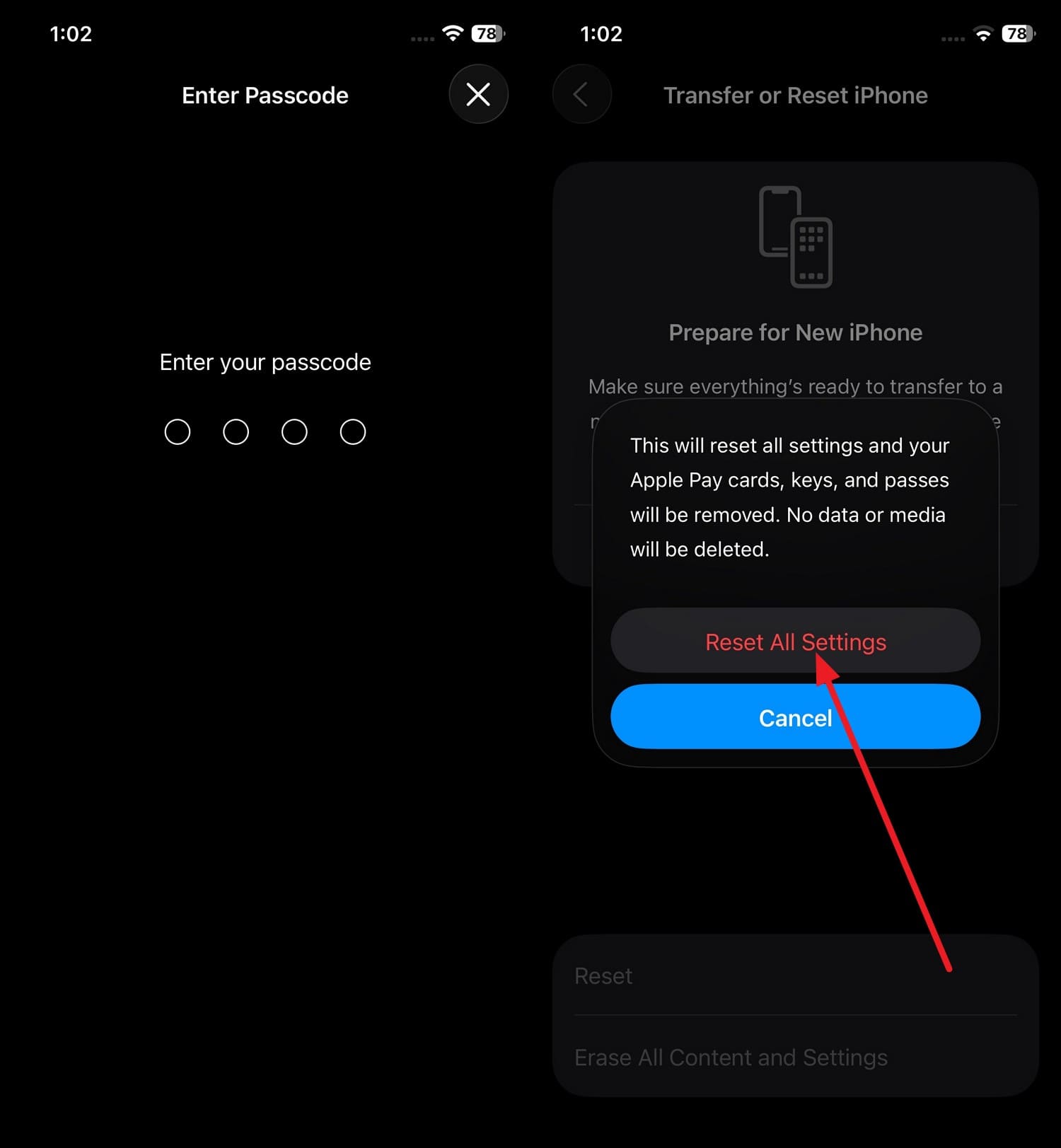
When the issue is caused by misconfigured system settings or permission conflicts, try this solution in iOS 27. This will restore all system preferences and display settings to default, and keep the data intact, as guided:
Step 1 In the iOS 27 General settings, tap the "Transfer or Reset iPhone > Reset > Reset All Settings" option.
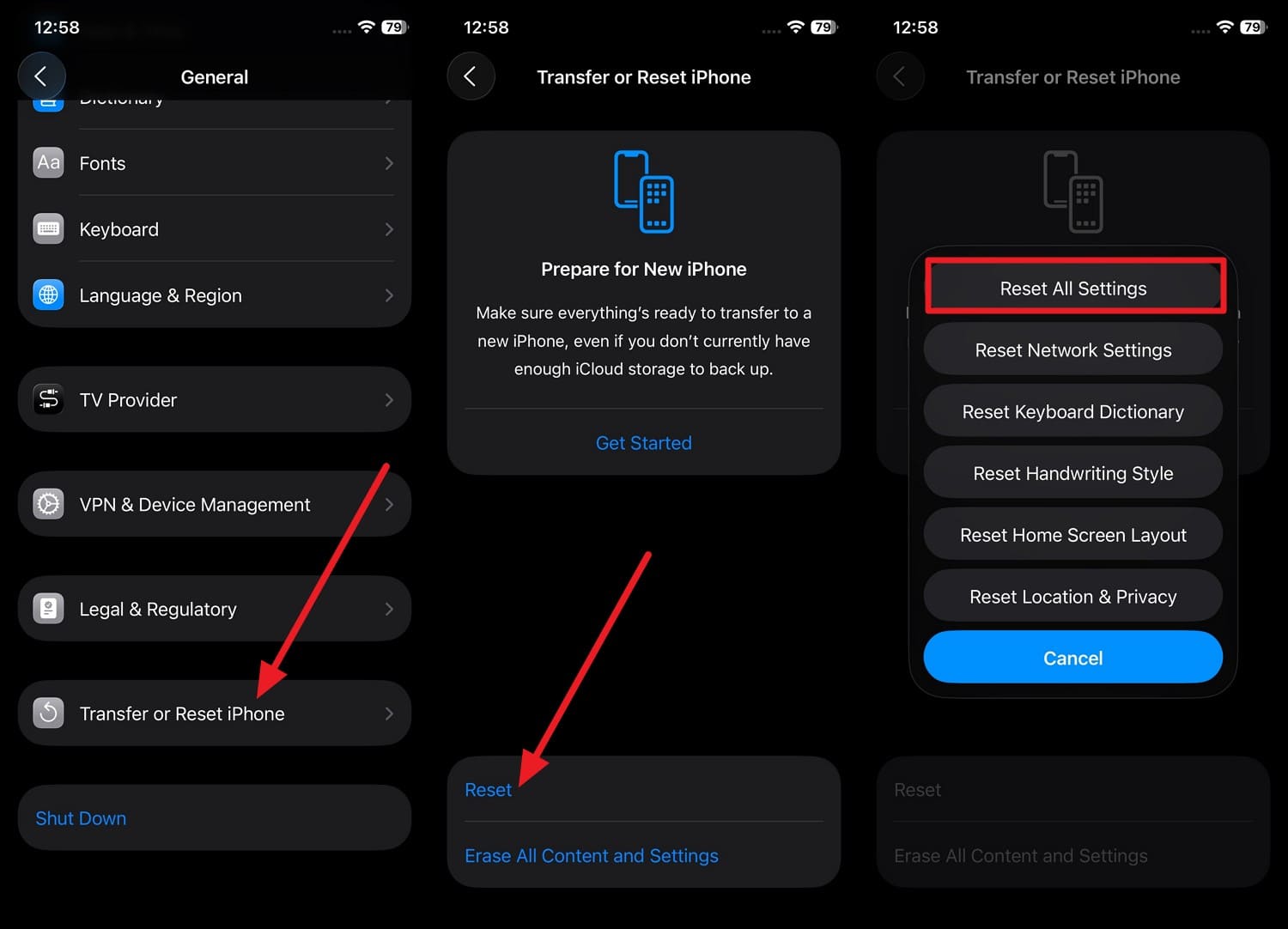
Step 2 Enter the passcode twice when prompted and press "Reset All Settings" to resolve the iOS 27 Camera not working issue.
Fix 10. Factory Reset or Restore iPhone (As a Last Resort)
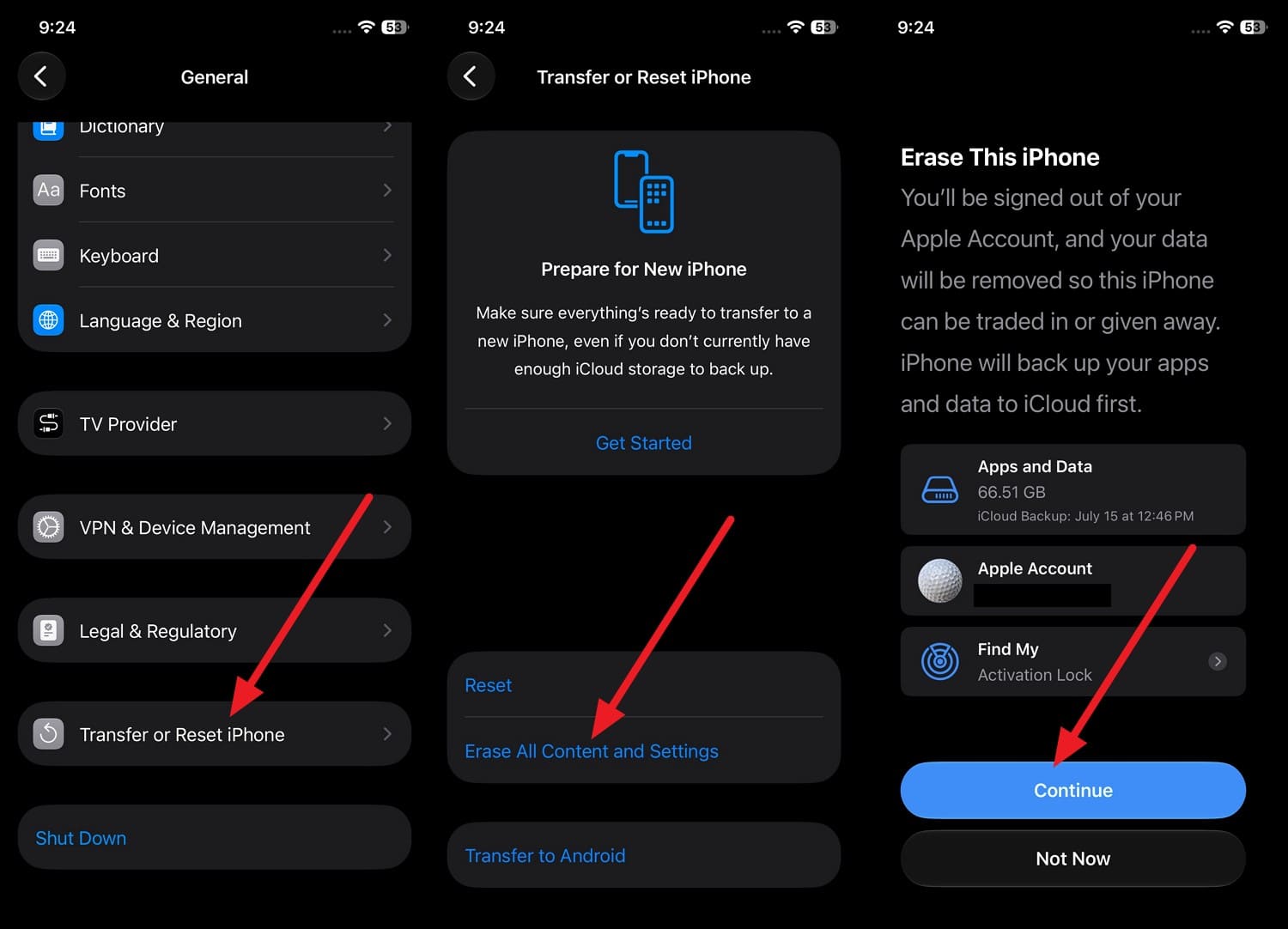
As a last resort, it completely reinstalls iOS and erases all data to fix deep software corruption in iOS 27. This solution can remove damaged files, conflicting apps, and profiles or hidden settings that may affect the camera, as shown:
Instructions: From the "Transfer or Reset iPhone" settings, choose "Erase All Content and Settings > Continue." Wait for the data to upload to iCloud (if iCloud backup is enabled), or skip backup and add the Apple ID passcode to erase the device. Later, restore the backup and set up the iPhone to see if the iOS 27 Camera not working issue is resolved.
Part 4. What If the Camera Still Doesn't Work After All Fixes?
For some reason, if you still face the iOS 27 Camera not working issue, here's what you can do:
Way 1. Run a Simple Hardware Test
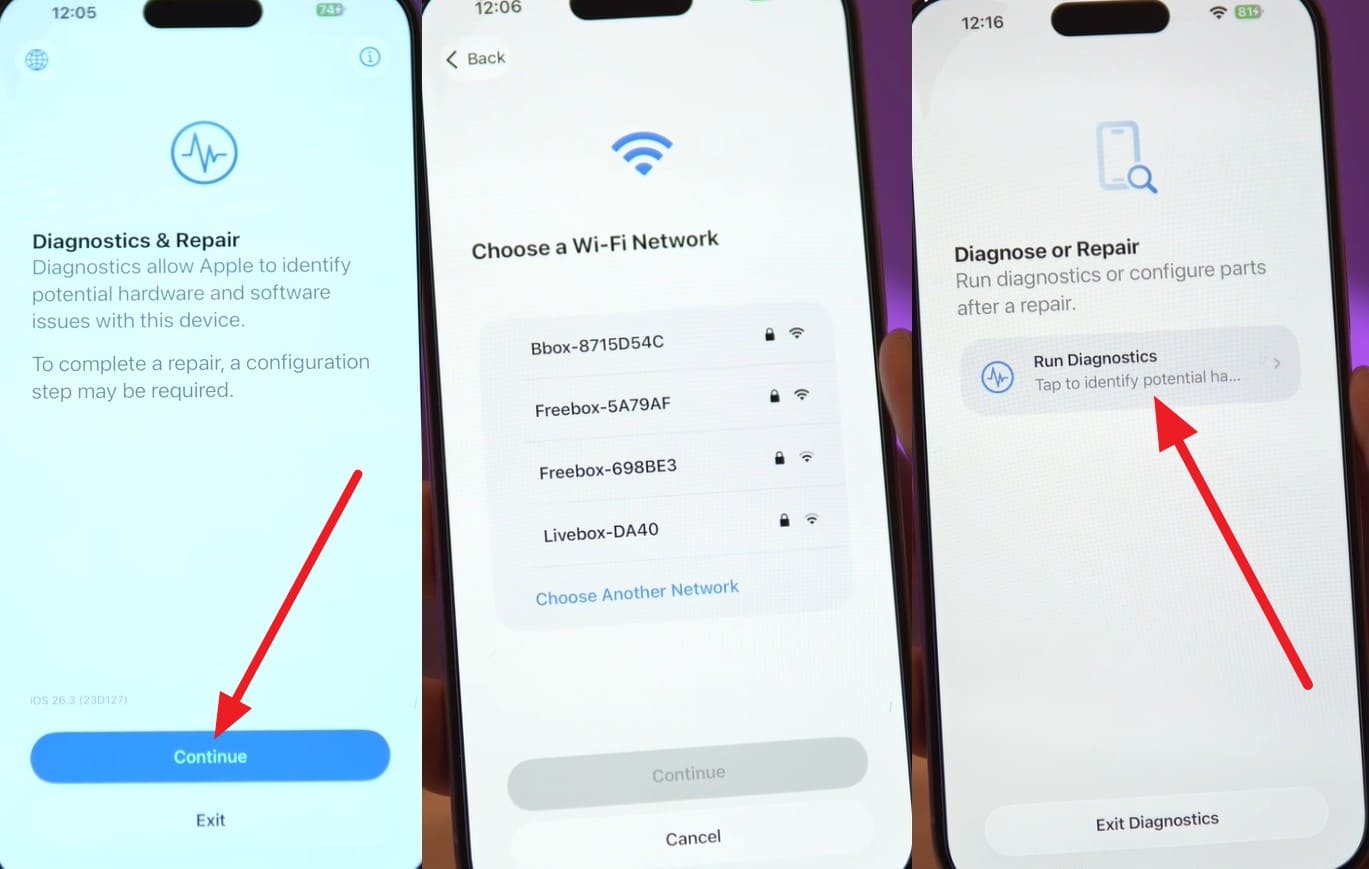
You can use Apple's Diagnostics/Diagnostics & Repair mode to determine whether the problem is hardware-related. It checks components like the front and rear cameras, sensor, and related circuits to detect physical faults, and is guided below:
Step 1 Charge the iPhone and turn it off. Connect it to a power adapter, then press and hold both the "Volume Up" and "Volume Down" buttons until the "Diagnostics & Repair" screen appears.
Step 2 Tap "Continue" on the Diagnostics & Repair screen, connect to a Wi-Fi network, agree to the terms, and select "Run Diagnostics."
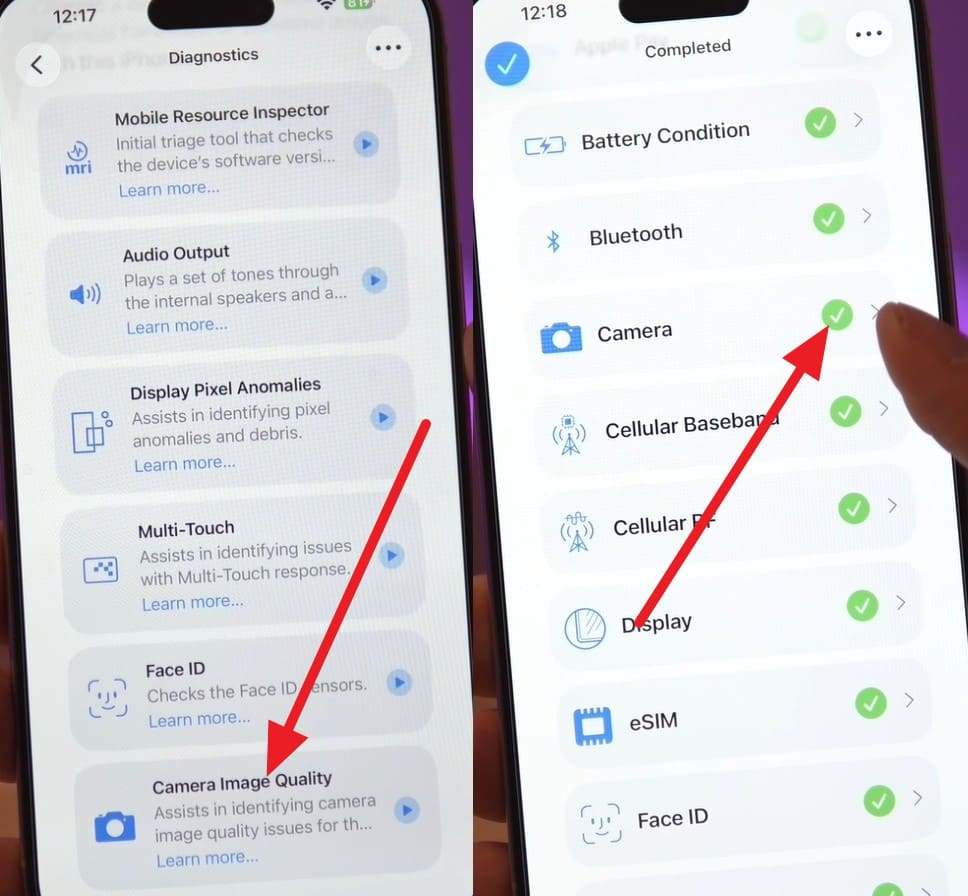
Step 3 Review the diagnostic results after the test completes. If no camera-related issues are detected, the report will indicate that the camera hardware passed the test.
Way 2. Book an Inspection with Apple Support or an Authorized Service Provider
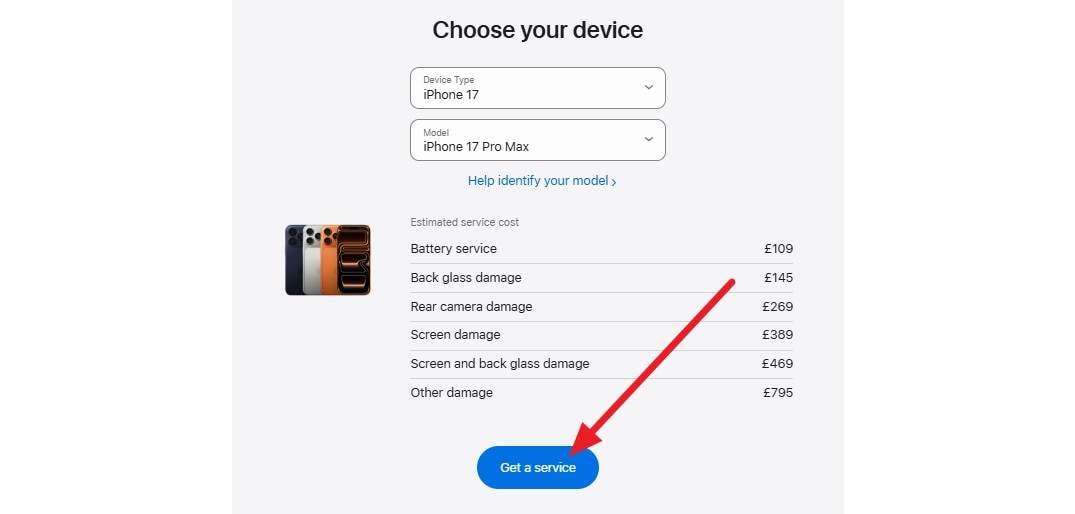
If the Camera hardware is fine, book an appointment with Apple Support or an authorized service provider to address deep system issues. Since they can run advanced diagnostics to check the camera module, sensors, and internal components, go to the Apple Support page. Choose "iPhone > Model > Pick service" and click on the "Get a Service" option to continue.
Way 3. Downgrade from iOS 27 to Fix the Camera Issue with Dr.Fone
When you can't afford to get the paid Apple services, downgrade to a stable iOS version to fix the iOS 27 Camera not working issue. In this regard, you can use Dr.Fone - System Repair, which lets you back up data to a PC to keep it safe.
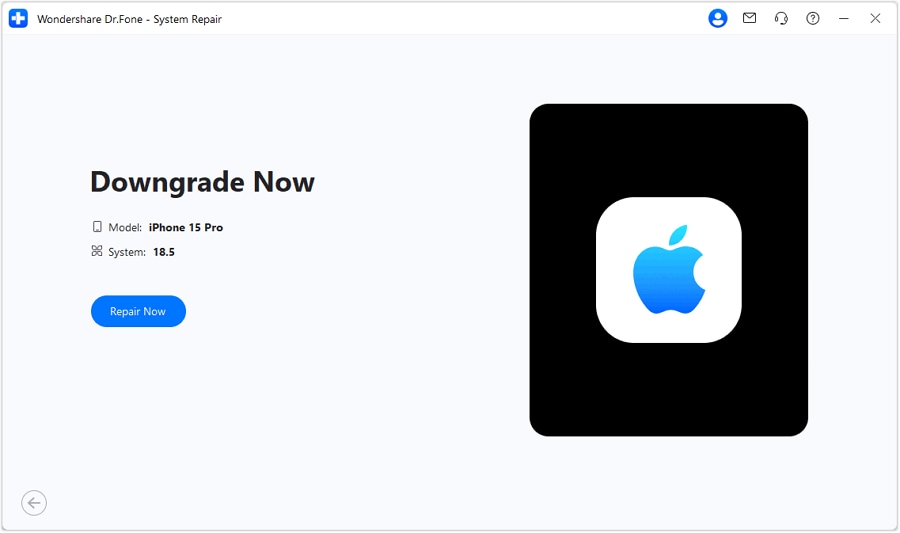
You just have to download the firmware, and Dr.Fone will handle the rest in 2-3 simple steps and a detailed guide. To get a brief idea of how to use its "Downgrade" option, adhere to the comprehensive guide and test it:
Step 1 Backup iOS Data to Downgrade
Tap the "Downgrade" option in the System Repair tool for iPhone, then press "Backup" in the pop-up to select the data types you want to secure.

Step 2 Download iOS firmware to Downgrade
Connect your iPhone when prompted, download the old stable iOS firmware, and click "Repair Now" to downgrade.
Conclusion
Since the iOS 27 Camera Not Working issue is common after the iOS 27 update, this guide has explained the reasons for this. So, when basic fixes fail to resolve this issue, experts suggest you try Dr.Fone - System Repair to resolve system-level issues or downgrade to a stable version.
FAQs
-
Why does the iOS 27 Camera sometimes open to a black screen?
This can happen due to a temporary conflict between the camera service and background apps. In addition, it can occur when the system switches between front and rear camera processes. -
Can iCloud syncing affect camera performance on iOS 27?
Heavy background syncing can temporarily reduce the system resources, which may indirectly affect the camera's responsiveness. Sometimes, this can cause stuttering in the camera, or images get delayed after you take a picture. -
Why does the flash work, but the camera preview stays black?
The flash and camera sensor run on separate hardware circuits, so one can work while the other fails. This issue can also be caused by a camera system crash or issues with third-party app permissions, even if the hardware is fine.
 Add Wondershare Dr.Fone as a preferred source on Google



