Resolve common problems and system crashes on both iPhone and Android devices.

 100% Security Verified | No Subscription Required | No Malware

 :
: 
 ChatGPT
 Perplexity
 Gemini
 Claude
 Grok
Grok
Have you recently updated to iOS 27 and facing the overheating issues in your iPhone? You're not alone!
Most of the time, this rapid heating is caused by background processes like system reindexing, updating apps, and other temporary software bugs. Even though it is something that usually goes away on its own, some people are looking for fixes. Here we will tell you why it happens and how you can cool down your iPhone quickly after installing the iOS 27 update.
Let's find out how to fix iOS 27 overheating after update.
In this article

Part 1. Quick Diagnosis: Is iOS 27 Overheating Normal or a Problem?
A small increase in the temperature of your phone can be considered normal after you upgrade it with a major software update like iOS 27. Right after the installation, your iPhone remains engaged in background tasks, e.g., reindexing of data, app updates, and optimization of system files. This is what heats the device and makes you feel warmth even for around 30-60 minutes or sometimes even for a few hours, depending on usage. But, as the system completes its setup process, this would likely fade away.
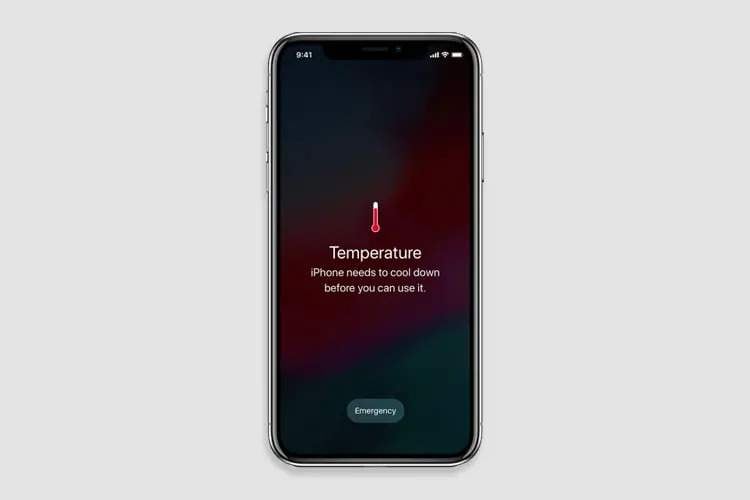
In general, heating up a device should be quite normal for the first couple of days if the device is used intensively, e.g. GPS, gaming, and installing lots of apps. On the other hand, if the phone becomes warm even when in a pocket, battery drains quite fast (like 1 % per minute), or a thermal warning screen appears, then this is an issue.
The problem is not limited to a specific model only, it can happen to any iPhone model that supports iOS 27. However, older phones tend to be more affected as they have weaker hardware, and their batteries are less healthy.
Part 2. Common Causes of iOS 27 Overheating After Update
- Background reindexing: After reinstalling iOS, the device reconstructs system data such as Spotlight search and Photos indexing. This also involves AI operations like Siri suggestions and media analysis, which in turn, temporarily raise CPU usage and temperature.
- App Optimization After Update: Applications adapt themselves to iOS 27 in the background. This short-lived operation may cause considerable processing power usage, particularly when several applications update simultaneously.
- App Compatibility Issues: Some software might still not be fully compatible with iOS 27. Bugs or poor optimization of apps can cause them to run in the background and consume plenty of CPU power, which ultimately leads to heating.
- Battery Health Problems: The older a battery is and the more charge cycles it has gone through, the more heat it generates during operation. Besides, battery health deterioration also makes the device less capable of efficiently performing the processes.
- iOS 27 Software Bugs: Newly launched updates may have some bugs or may be unstable, leading to unexpected CPU time or memory leaks, which can in turn cause the device to overheat.
- Excessive Background Activity: Location Services, Background App Refresh, and iCloud syncing working continuously after an update can be a big workout for the system resulting in heating.
Part 3. How to Fix iOS 27 Overheating After Update: Quick Fixes
Your phone might get warm or even hot after you update to iOS 27 because of background processes and the system being temporarily under load. However, the great thing is that many problems of this kind can be fixed with some easy steps that will lessen the load on your iPhone and allow you to get its usual performance back.
Fix 1: Wait 24–48 Hours After Updating
Once you've upgraded to iOS 27, your iPhone still requires some time for background optimization tasks such as indexing, photo scanning, and app updating, to be done. The phone getting a bit warm during this time is a usual indication and should not last for long.
Make sure your iPhone is on Wi-Fi and connected to a power source, particularly at night, so that these background activities can be completed more quickly and in a better way.
Fix 2: Restart Your iPhone
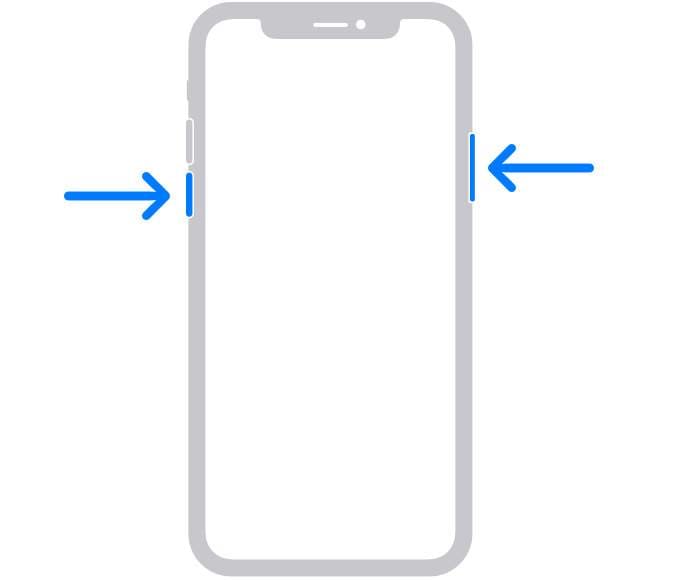
Simply restarting or forcing a restart might also be a quick help for the overheating issue since it would kill the "stuck" processes and refresh the memory of the system.
- Step 1. Keep pressing the power button (or power + volume button for the recent models) until you see a power slider.
- Step 2. Use your finger to move the slider to switch off your iPhone.
- Step 3. After a few seconds have passed, press and hold the power button again until you see the Apple logo. Allow the device to boot up completely and check if the overheating condition has been resolved.
Fix 3: Update All Apps
One of the easiest ways to get your device to cool down if it is still hot is to look for those apps that have updates pending. Updating those apps that have not been optimized for the new iOS 27 can be the cause why they are misbehaving in the background, thus using additional processing power and increasing the heat of the device. Changing them to the updated versions will make it more compatible and will run more smoothly.
- Step 1. Head to the App Store on your iPhone.
- Step 2. Click your profile picture in the upper right corner.
- Step 3. Go down the list to check the updates that are waiting.
- Step 4. Press "Update All" to perform a bulk update or update apps one by one.
After each major iOS release, developers release compatibility updates that fix bugs and reduce CPU inefficiency, which is one of the main causes of overheating.

Fix 4: Disable Background App Refresh
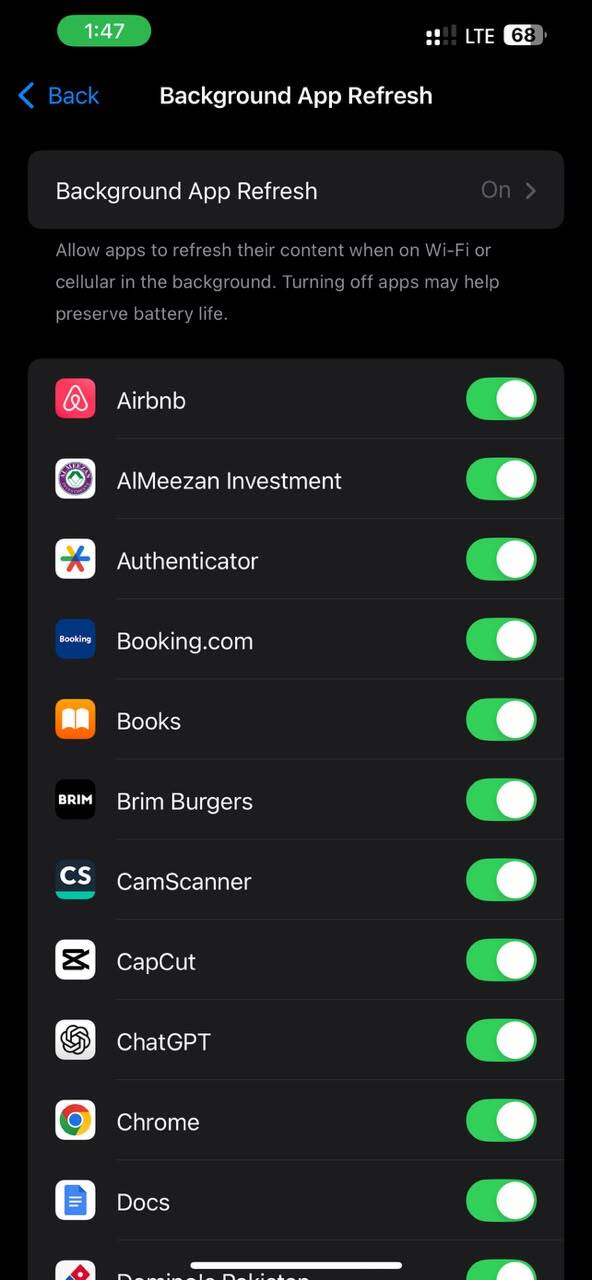
Background App Refresh enables apps to keep updating their content in the background without your direct usage. This leads to more CPU usage and could cause the device to get hotter, especially right after an iOS update.
- Step 1. Open Settings on your iPhone. Choose General.
- Step 2. Click "Background App Refresh".
- Step 3. Select "Off" or turn it off for specific apps only.
Besides reducing the CPU workload and limiting background activities, lowering heat levels and enhancing the overall efficiency of the battery are the top results one would notice.
Fix 5: Reduce Location Services Usage
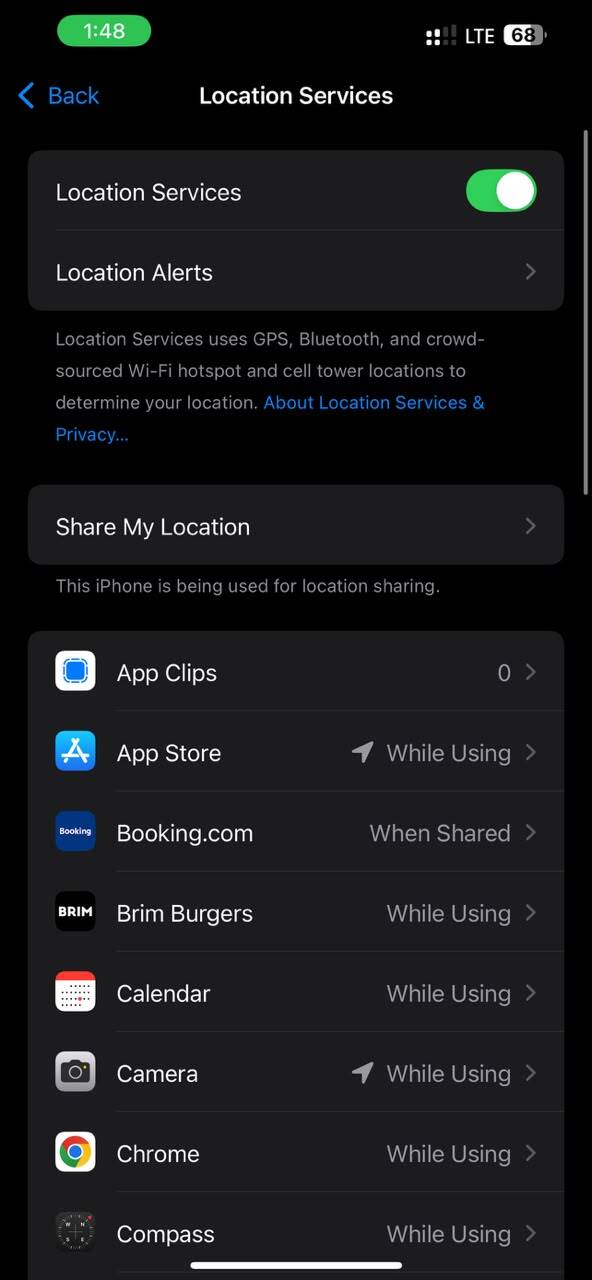
Location Services have the capability to keep accessing GPS, Wi-Fi, and cellular data in the background always. However, after updating to iOS 27, some apps might ask for location data more often which will increase processing power and ultimately make your iPhone heat up.
- Step 1. Go to iPhone Settings. Choose "Privacy & Security".
- Step 2. Tap on Location Services.
- Step 3. See which apps have access to your location. Where it is possible, modify permissions to "While Using the App".
- Step 4. Turn off location access for apps that are not necessary.
Fix 6: Turn Off Unnecessary Features
Features like Bluetooth, AirDrop, Personal Hotspot, widgets, and Live Activities use system resources continuously even if they are not actively used. Turning off features you don't use can decrease the CPU load, reduce the amount of heat produced, and improve the battery life.
Fix 7: Check Battery Health
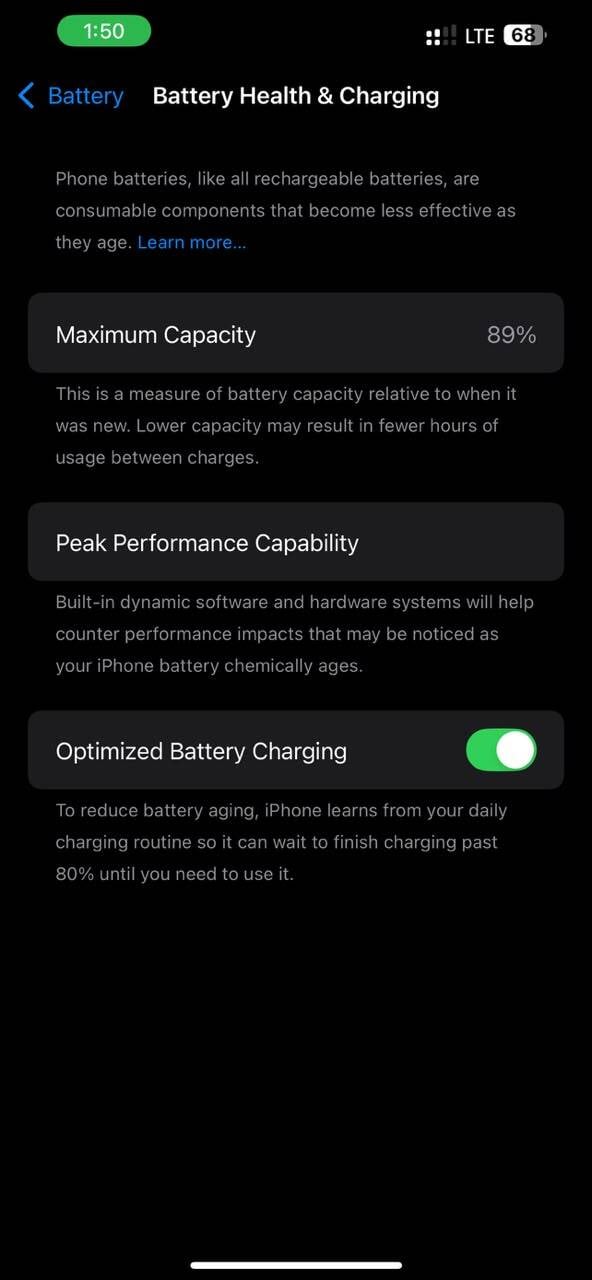
A worn battery can produce more heat not only when it is being charged but also during normal operation. If the health of your battery is considerably diminished, it is even possible that the battery cannot cope with the extra load that typically comes with a major iOS update.
- Step 1. Launch Settings on your iPhone. Tap Battery.
- Step 2. Choose Battery Health & Charging.
- Step 3. Check the Maximum Capacity percentage and any battery-related notifications.
What to look for
- Maximum Capacity below 80%
- Battery service or replacement recommendations from Apple
- Unexpected battery drains along with overheating
If your iPhone is still overheating after you have tried other fixes and the battery health is poor, then changing the battery might be the best long-term solution.
Fix 8: Free up iPhone Storage
Without enough storage, your device may need to work harder, thereby causing a system slowdown or even overheating.
Check how much storage space you are using by going to Settings → General → iPhone Storage and check unnecessary files you can remove.
Part 4. How to Stop Persistent iOS 27 Overheating: Advanced Fix
Upgrading to iOS 27 and then your iPhone overheating a few days after the update, in fact, the situation may be a software bug, unstable firmware, or feature incompatibility caused by the update. In such a case, going back to a previous stable iOS version may be a good solution to troubleshooting overheating, battery drain, app crashes, random restarts, and other performance issues after the update.
One of the most straightforward ways that you can go about it is to use Dr.Fone - System Repair. With this tool, you can execute an iOS upgrade or downgrade without the aid of iTunes, Finder, or jailbreaking. Besides iOS version management, it is the tool that can resolve up to 150 different iOS system issues, such as update failure, boot loops, frozen screens, Apple logo, and battery-related problems. The tool has one-click Recovery Mode and DFU Mode features, iTunes error repair as well as the Standard Repair mode to fix system issues without affecting the user's data.
 Fix iOS issues, no data loss.
- One-click repair for all iOS problems.
- Solve recovery mode, Apple logo, black screen, etc.
- Upgrade or downgrade iOS without iTunes

Steps to downgrade iOS 27 with Dr.Fone
-
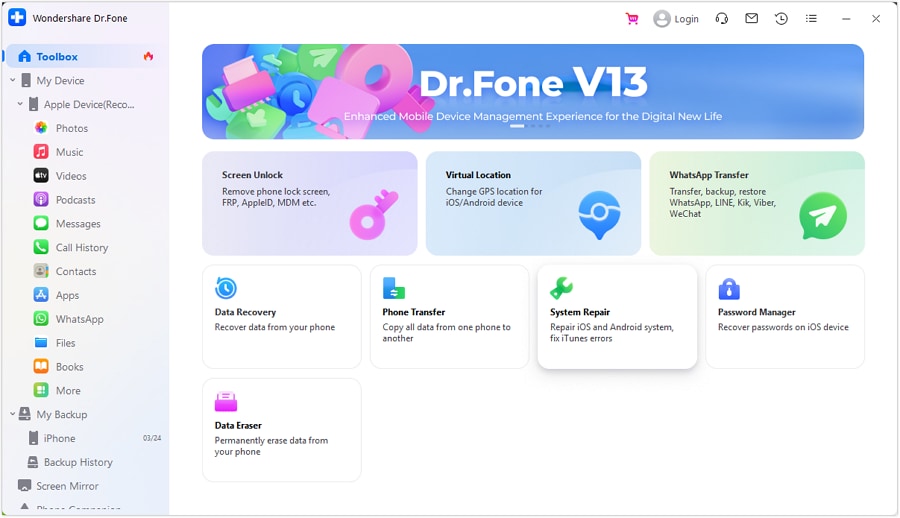
Step 1Launch Dr.Fone and choose Downgrade
Open Dr.Fone on your computer, go to "System Repair", and select the "Downgrade iOS/iPadOS" option. If prompted, back up your iPhone data before proceeding.
-
Step 2Connect your iPhone and select a firmware version
Use a USB cable to connect your iPhone to the computer. Once the device is detected, choose the stable iOS version you want to downgrade to from the available firmware options.

-
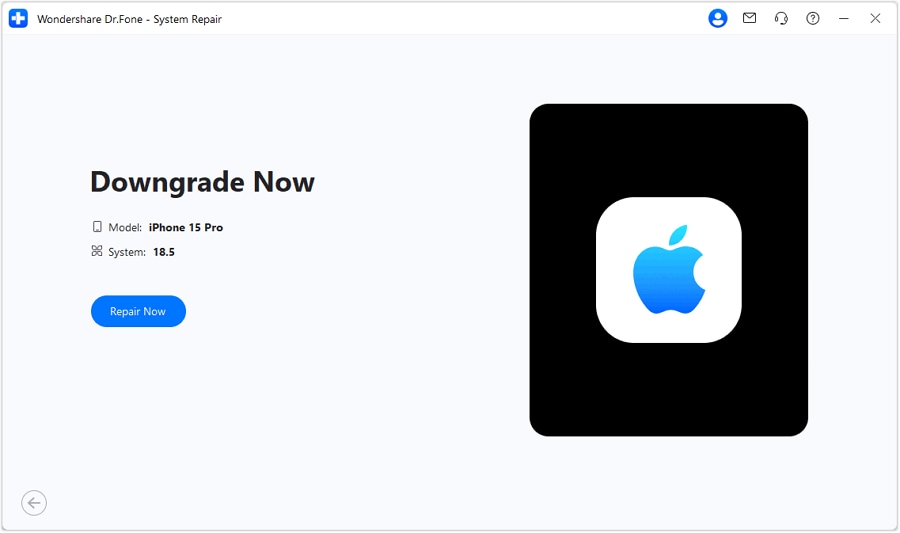
Step 3Start the downgrade process
Click "Repair Now" to begin the downgrade. Wait for the installation to be completed, and your iPhone will restart with the selected iOS version installed successfully.




Part 5. How to Prevent Overheating After Future iOS Updates
Though post-update heating is normal, some simple precautions can highly minimize the chances of the iPhone getting too hot and performance being affected after future iOS releases.
- Don't upgrade the OS immediately on the day it's rolled out. Wait for a patch such as.0.1 that will fix the bugs and stability issues detected in the first day version.
- Install the new software while sleeping and while charging.
- Investigate the feedback of users. Go through user forums, social media, or technical communities to find out if other users have been complaining about the phone becoming hot.
- Frequently update the apps. Developers generally bring out updates for compatibility either before or shortly after a big iOS launch.
- Regularly check your battery health. A good battery is better at handling system workloads.
Conclusion
The iOS 27 overheating after update should be just a short period of time for most iPhones, since the heating will disappear once the background processes have been completed. Still, if your phone is getting heated, battery is draining quickly, or you are experiencing performance issues, and you can try above methods to help you with the situation.
If the problems are related to the software and they persist, Dr.Fone - System Repair can be a great help in fixing the issues. Not only does it fix a wide range of iOS problems, but it also allows you to downgrade your iOS to a more stable version without the need for iTunes or jailbreaking. In case the overheating of your device is due to errors in a new update, this might be a very handy choice. Through proper troubleshooting, your device can be well-maintained and even avoid update-related issues in the future.
FAQs
-
Can my iPhone get damaged if it overheats?
If your iPhone overheats occasionally, say after a software update, it should not do any damage to your phone. However, frequent exposure to very high temperatures may lead to the reduction of your battery's lifespan and may also lead to a decrease in your device's performance over a long period of time. -
How does battery health relate to overheating?
It does. Less efficient older batteries with a very low maximum capacity generate more heat, especially during charge and heavy usage, which is why the experience of overheating may be more obvious in such cases. -
Should I downgrade iOS 27?
When overheating continues for a few days and simple troubleshooting does not resolve the issue, downgrading to a stable iOS version might be a good idea. Don't forget to back up your data before changing the system version. -
Is iOS 27 overheating a known issue?
There are chances that certain users may face the problem of their phone heating up, battery draining, or their device becoming slow right after upgrading to a new iOS version. In fact, for most users, these issues tend to go away on their own as the system does some background optimization or when Apple comes out with a subsequent update.
 Add Wondershare Dr.Fone as a preferred source on Google