 Resolve common problems and system crashes on both iPhone and Android devices.

 100% Security Verified | No Subscription Required | No Malware

 :
: 
 ChatGPT
 Perplexity
 Gemini
 Claude
 Grok
Grok
What if you need to test the app or connect your iPhone to Xcode, but the Developer Mode option is nowhere to be found? This can occur after you install the iOS 27 Beta update, preventing developer or advanced user testing.
iOS 27 Developer Mode not showing can occur for many reasons, and this guide will explain them all. Additionally, you will learn how to fix it with simple, practical solutions, like Dr.Fone - System Repair (iOS).
In this article
- Why is Developer Mode Not Showing on iOS 27?
- Quick Checks Before Fixing Developer Mode
- How to Fix iOS 27 Developer Mode Not Showing?
- Fix 1. Enable Developer Mode via Settings
- Fix 2. Connect iPhone to Mac with Xcode Installed
- Fix 3. Trust the Developer Certificate on Your iPhone
- Fix 4. Update to the Latest iOS 27 Patch
- Fix 5. Reset Network Settings
- Fix 6. Sign Out & Back Into Apple ID
- Fix 7. Reset All Settings (No Data Loss)
- Fix 8. Use Dr.Fone to Fix Developer Mode Not Showing

- How to Prevent Developer Mode Issues on iOS 27?
Part 1. Why is Developer Mode Not Showing on iOS 27?
Know that Developer Mode is the iPhone setting that allows developers to test apps, debug software, and use Xcode. So, if you wonder why iOS 27 Developer Mode is not showing, this section has you sorted:
Common Reasons Developer Mode Is Missing
Review the 5 mentioned reasons to know why your iOS 27 Developer Mode is not showing:
| Reason | Explanation |
|---|---|
| Device Never Connected to Xcode or Dev Tool | Developer Mode often appears only after connecting the iPhone to Xcode or another approved developer tool. |
| Device Restrictions or Configuration Issues | Screen Time restrictions or configuration profiles can sometimes prevent Developer Mode from appearing properly. |
| Running Unsupported or Outdated iOS 27 Beta | Early, outdated, or incomplete beta builds may temporarily hide the Developer Mode setting. |
| Bug or Glitch After Updating iOS 27 | System glitches after a major update can cause Developer Mode to disappear until the device is restarted or refreshed. |
| Third-Party Tool Failed to Trigger Activation | Some tools may not correctly initiate the Developer Mode prompt, leaving the option hidden in Settings. |
How Developer Mode Normally Appears on iPhone
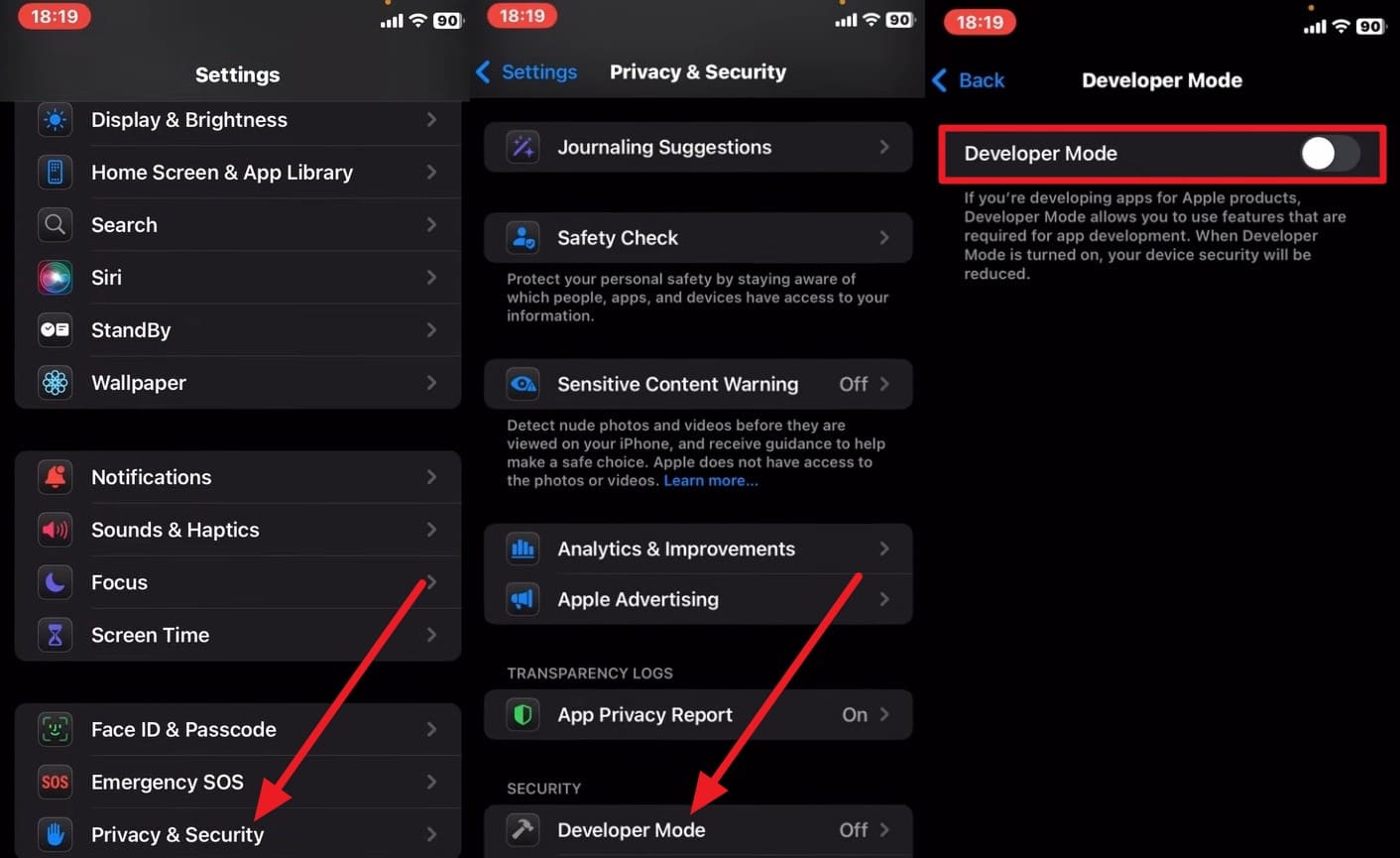
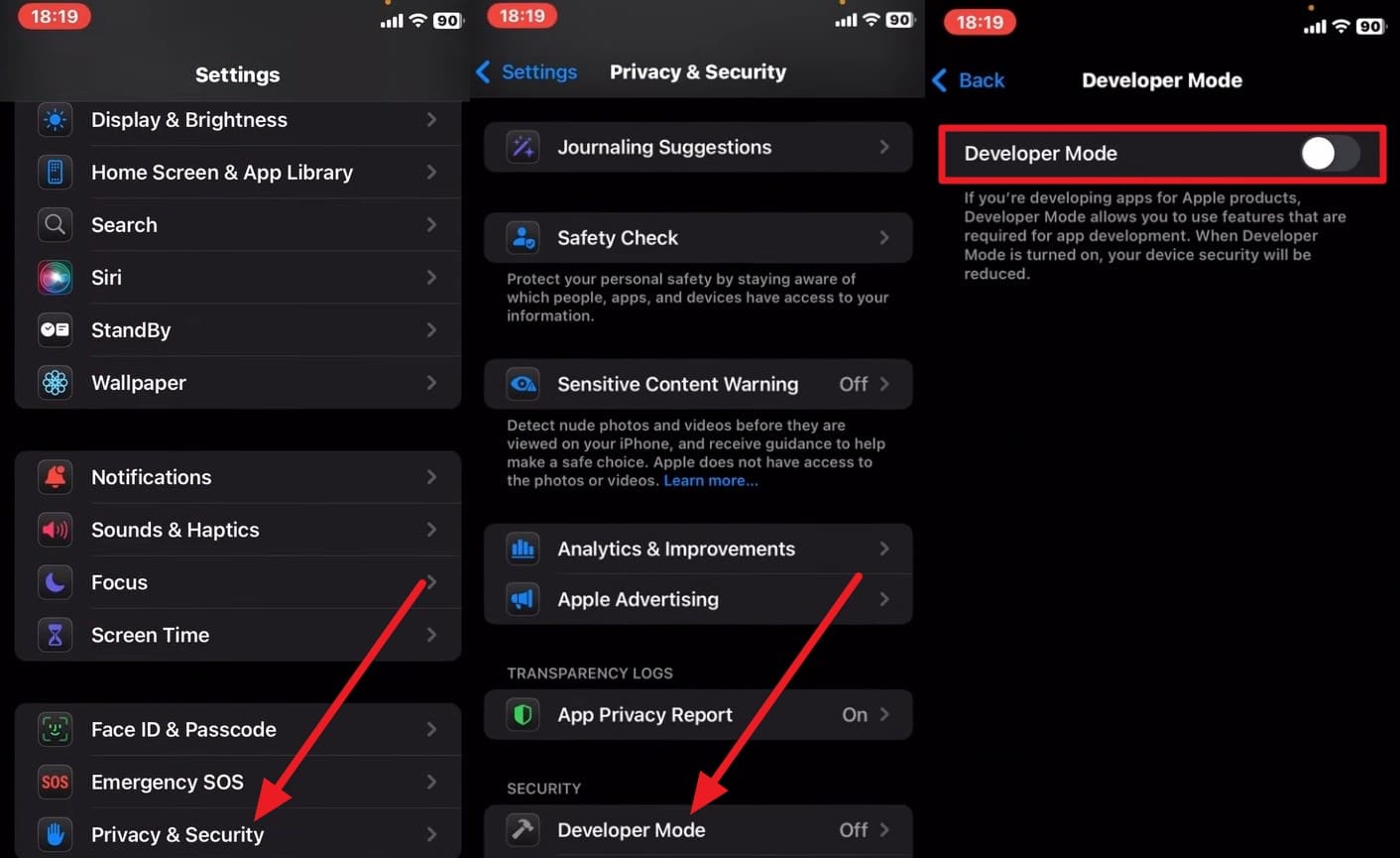
Since iOS 27 Developer Mode isn't showing, it's important to know its usual appearance on the iPhone. On iOS 16 and later, this mode is hidden by default and does not appear in settings until the phone is recognized for development. Once activated through Xcode or a development app, you can find it inside "Settings > Privacy & Security."
Part 2. Quick Checks Before Fixing Developer Mode
So, if you have activated it, you might face the iOS 27 Developer Mode not showing issue after the iOS 27 beta update. In this case, review the 4 basic checks mentioned and see if they can help before advanced fixes:
Confirm You Have Xcode or a Dev App Installed
Since you cannot use this mode without Xcode or a dev app, this check will let you run and test apps. In addition, it ensures that only those who need these advanced capabilities can turn them on, as guided:
- Check for the Apple Developer App on Your iPhone: Swipe all the way to the right to access your iPhone's App Library and search for the "Developer" to see if it's installed. You can also go to the App Store and see if the "Open" option appears beside it.
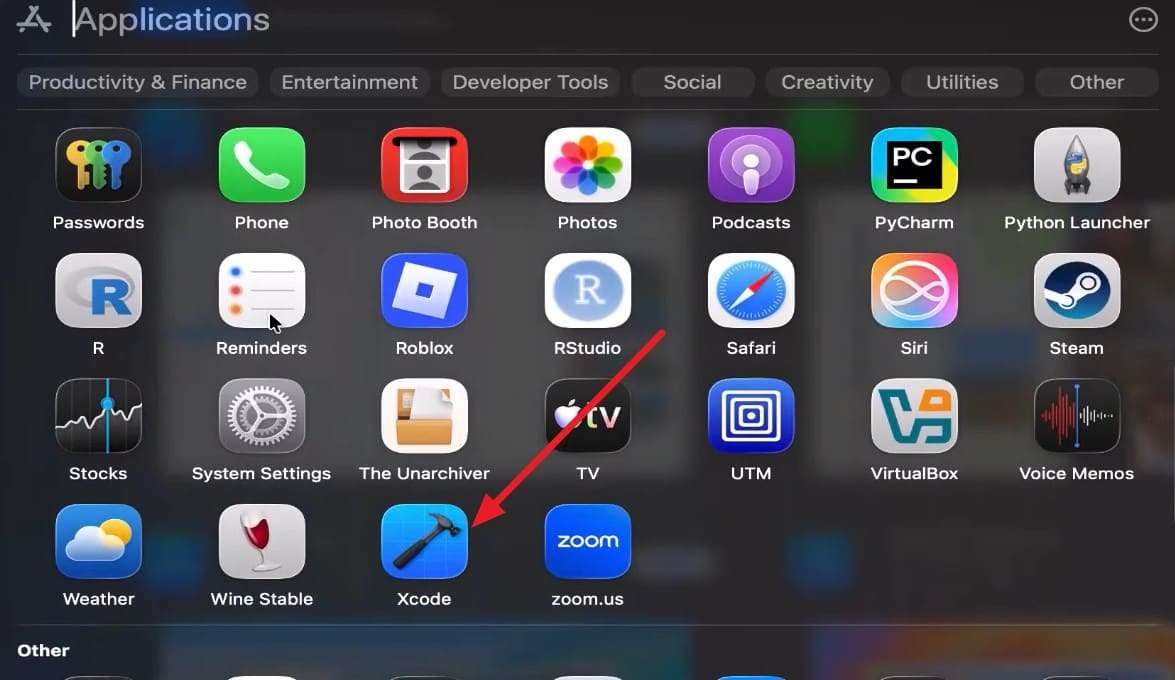
- Check for Xcode on Your Mac (App and Command Line Tools): Check via Finder. Go to "Finder > Applications" and look for the blue "Xcode" app icon in the list.
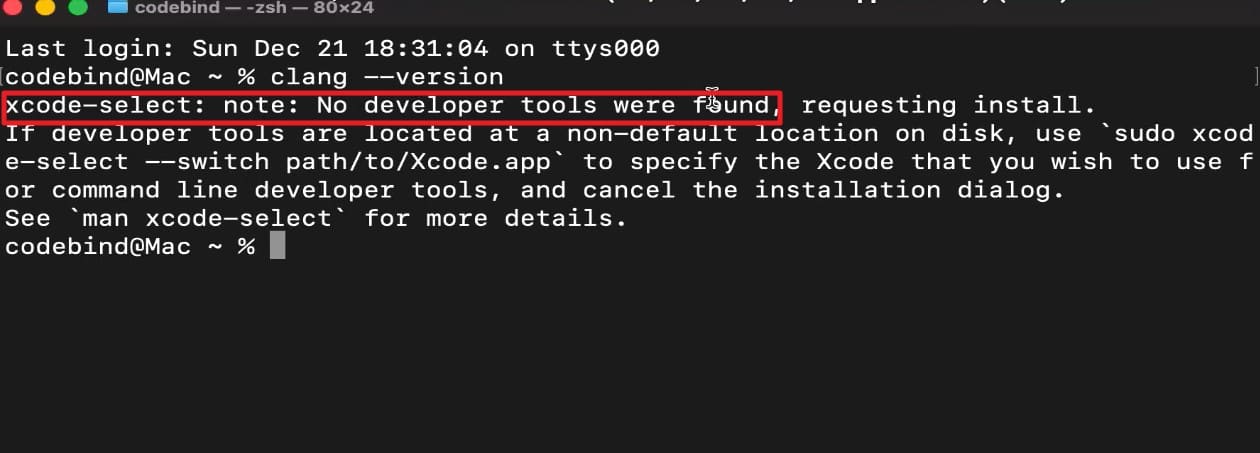
- Check Command Line Tools: On Terminal, run the command "$ xcode-select -p" and if it returns "/Library/Developer/CommandLineTools," it's installed. Otherwise, it will show a "No Developer Tool Was Found…" alert.
Check If Your iPhone Is Running iOS 27
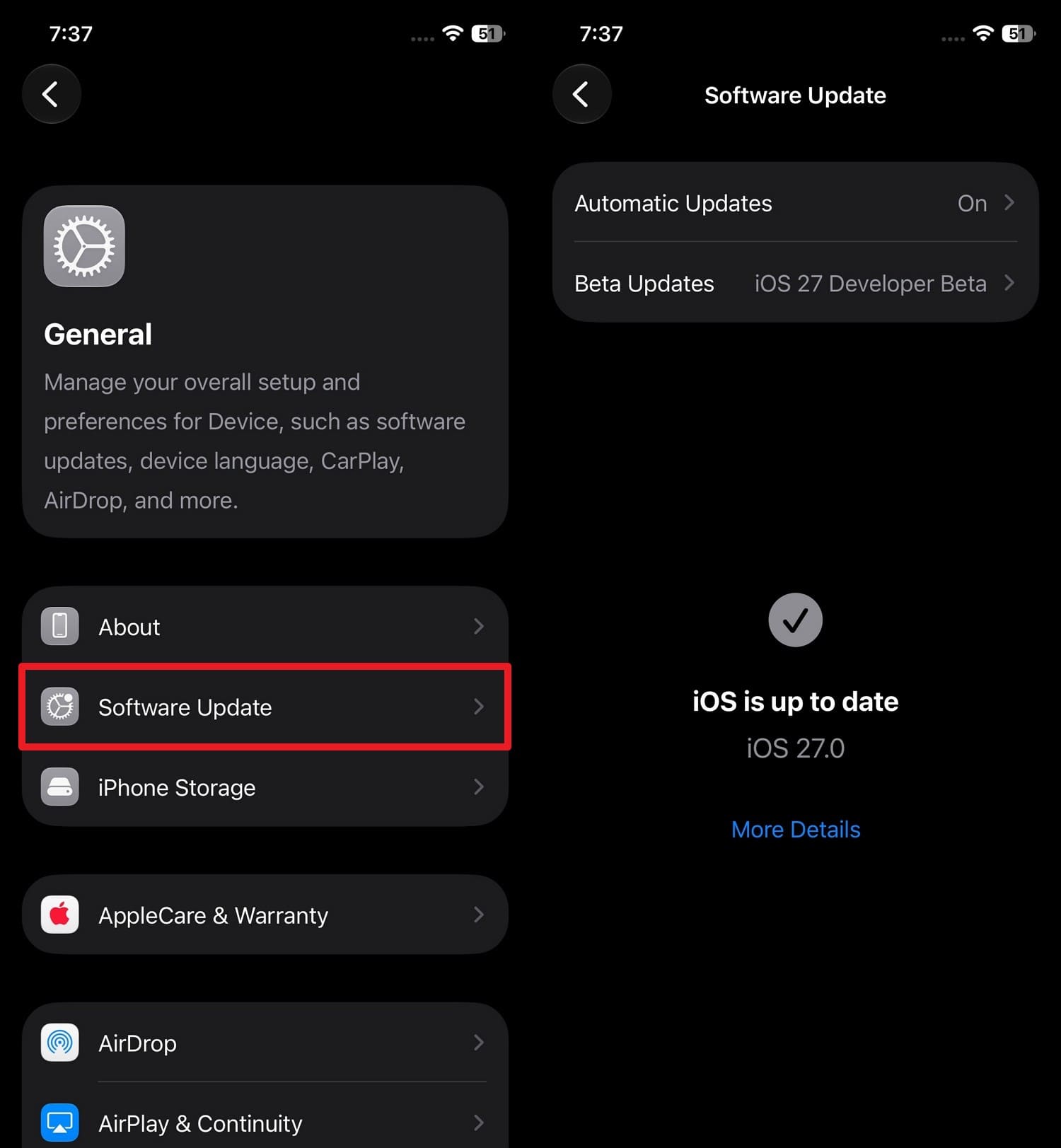
Note that Developer Mode settings, requirements, and bugs can vary between iOS versions. So, if you are still on iOS 26 or an older version, iOS 27-specific instructions may not work correctly. Once you check the version via the guide mentioned, you can pick the appropriate next step:
Instructions: Access the "General > Software Update" settings and confirm the iOS version to know why iOS 27 Developer Mode is not showing.
Restart Your iPhone First
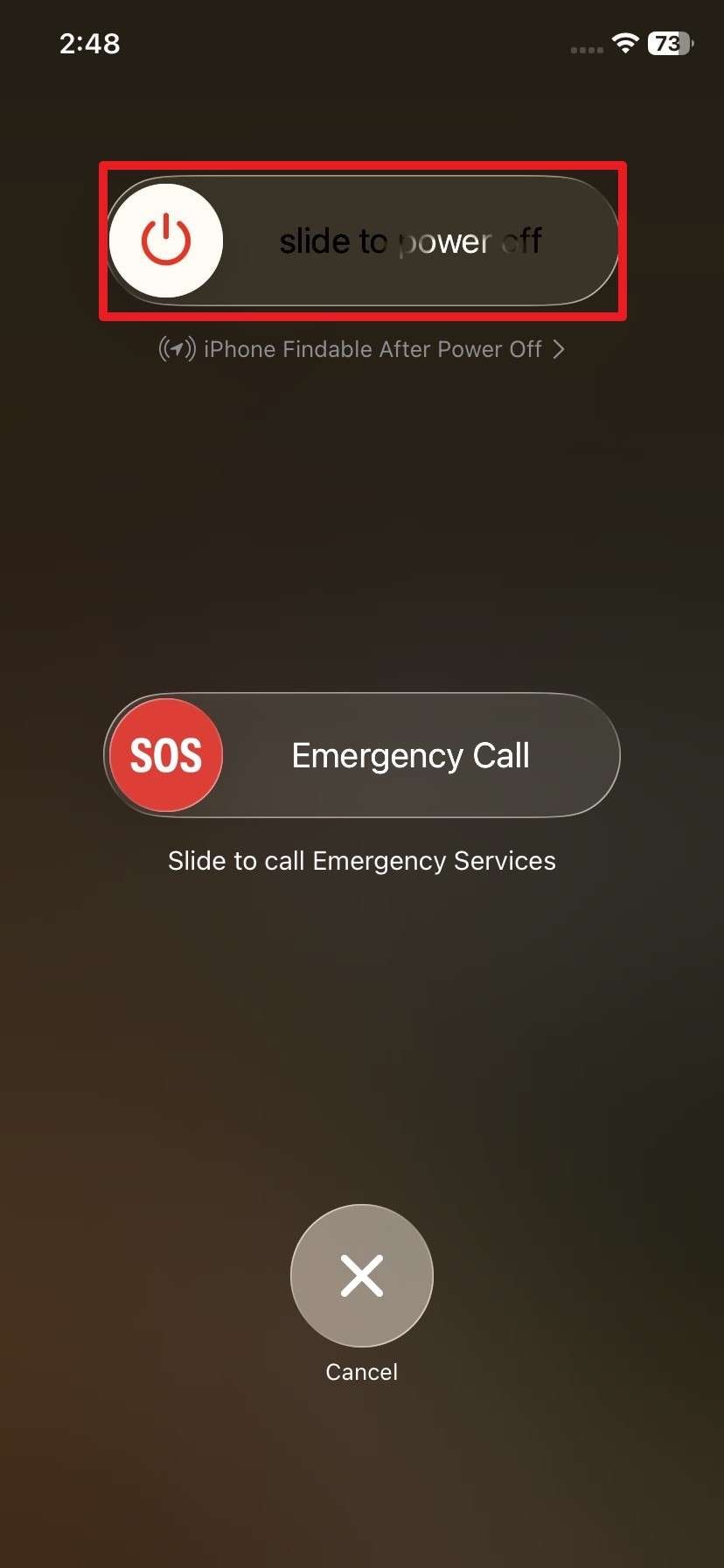
If the iOS version, Xcode, or a dev app is checked, this simple check can refresh system services. This way, it will also clear minor software glitches that prevent the mode from opening, as shown:
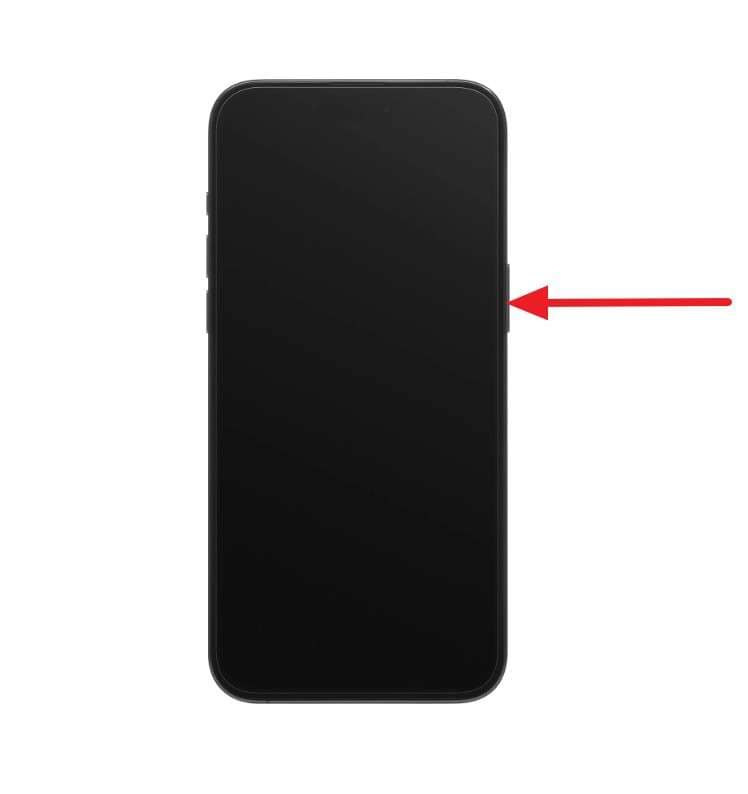
Step 1 Press and hold "Power + Volume Up" then swipe right using the "Slide to Power Off" slider when iOS 27 Developer Mode is not showing.
Step 2 After 30 seconds, press the "Power" button and check the settings to see if the Dev Mode is visible.
Make Sure You're in the Right Settings Path
Before you try the fixes for the iOS 27 Developer Mode not showing issue, ensure you are on the correct settings route. On iOS 27, this option appears under "Settings > Privacy & Security" in the "Security" section. So, if the phone is not set up for development, you will not see this option at all.
Part 3. How to Fix iOS 27 Developer Mode Not Showing?
When the basic checks fail to resolve the iOS 27 Developer Mode not showing issue, try these tested 8 solutions:
Fix 1. Enable Developer Mode via Settings
If Developer Mode appears in the settings, know that Xcode or the Dev app installation alone will not be enough. You have to enable this option to allow development, test, and enterprise apps to run properly, as guided:
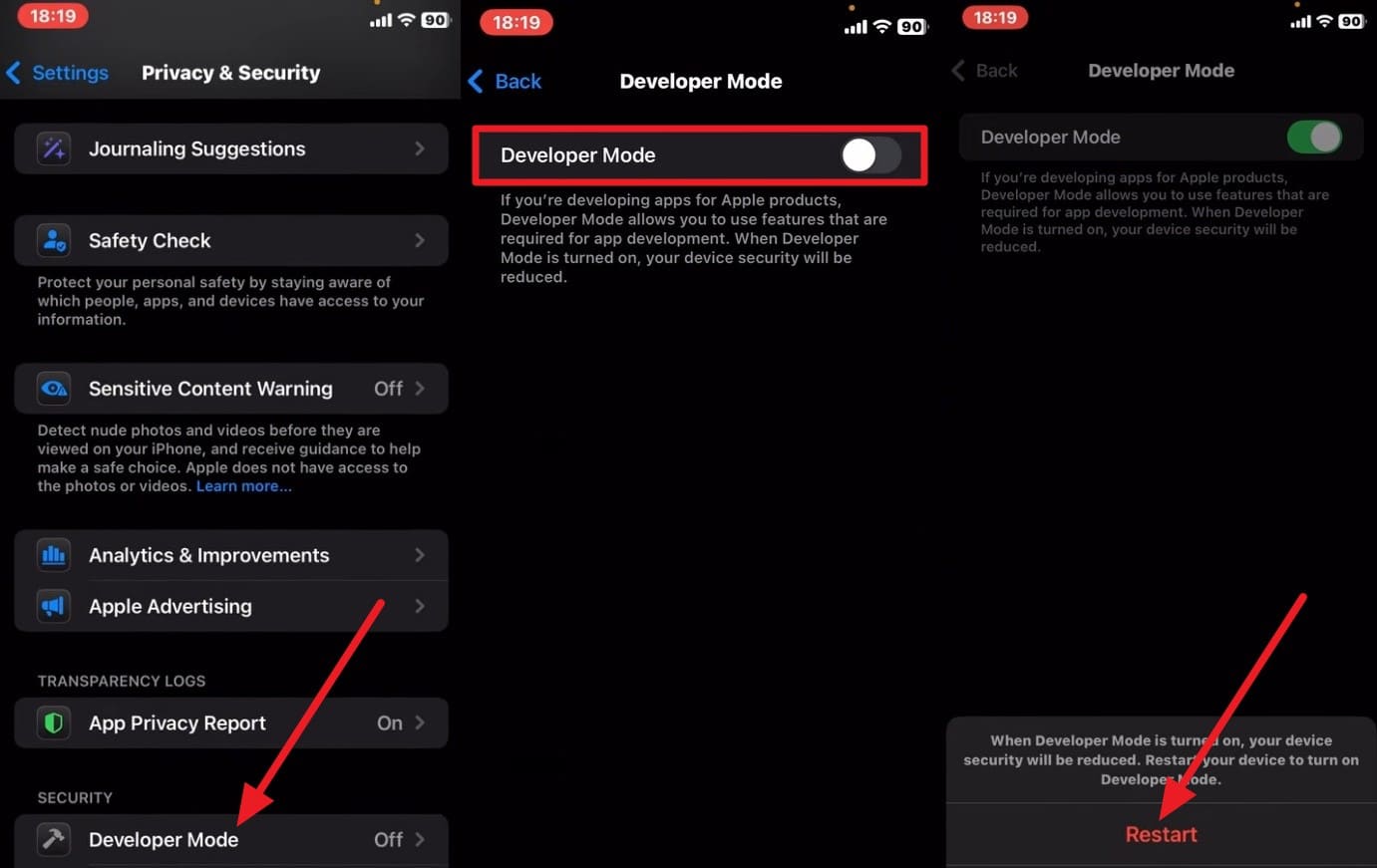
Instructions. In the "Privacy & Security" settings, access "Developer Mode > toggle on "Developer Mode." Choose "Restart" when prompted to ensure Developer Mode is properly applied.
Fix 2. Connect iPhone to Mac with Xcode Installed
If the option does not appear in the settings, know that Xcode can recognize the device through a USB connection. So, connect the iPhone to the Mac with Xcode installed to make it appear and fix the iOS 27 Developer Mode not showing issue via the listed steps:
Step 1 Press the "Cloud" icon beside Xcode on the Mac App Store to install it and press the "Agree" button.
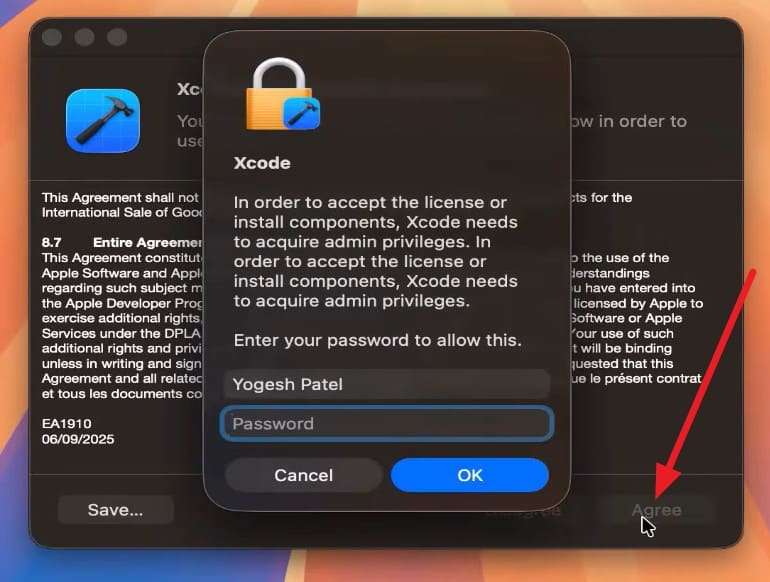
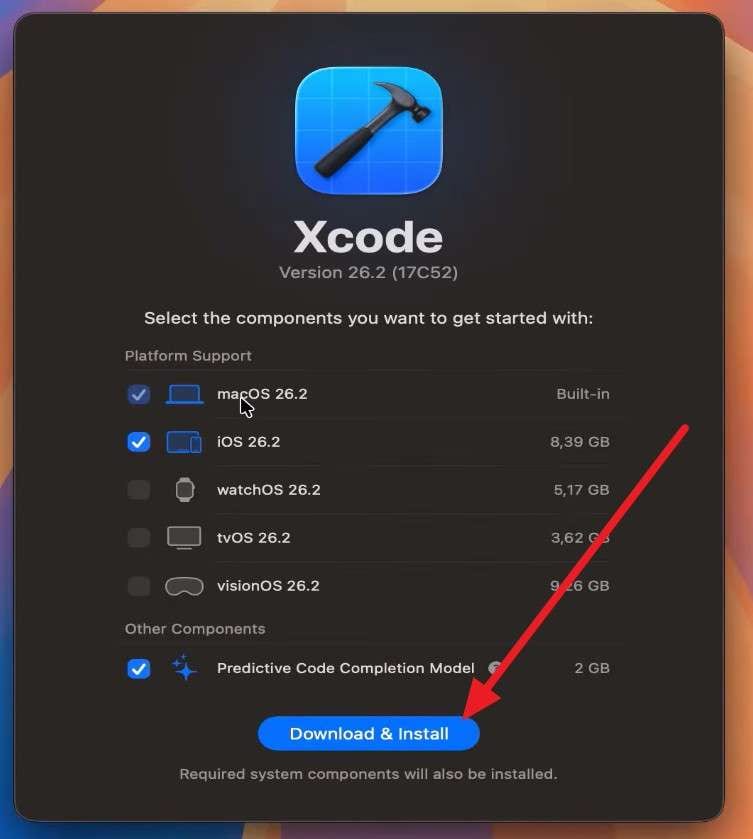
Step 2 Add the MacBook passcode in the popup and choose to "Download & Install" Xcode as you choose the supported devices and "Continue."
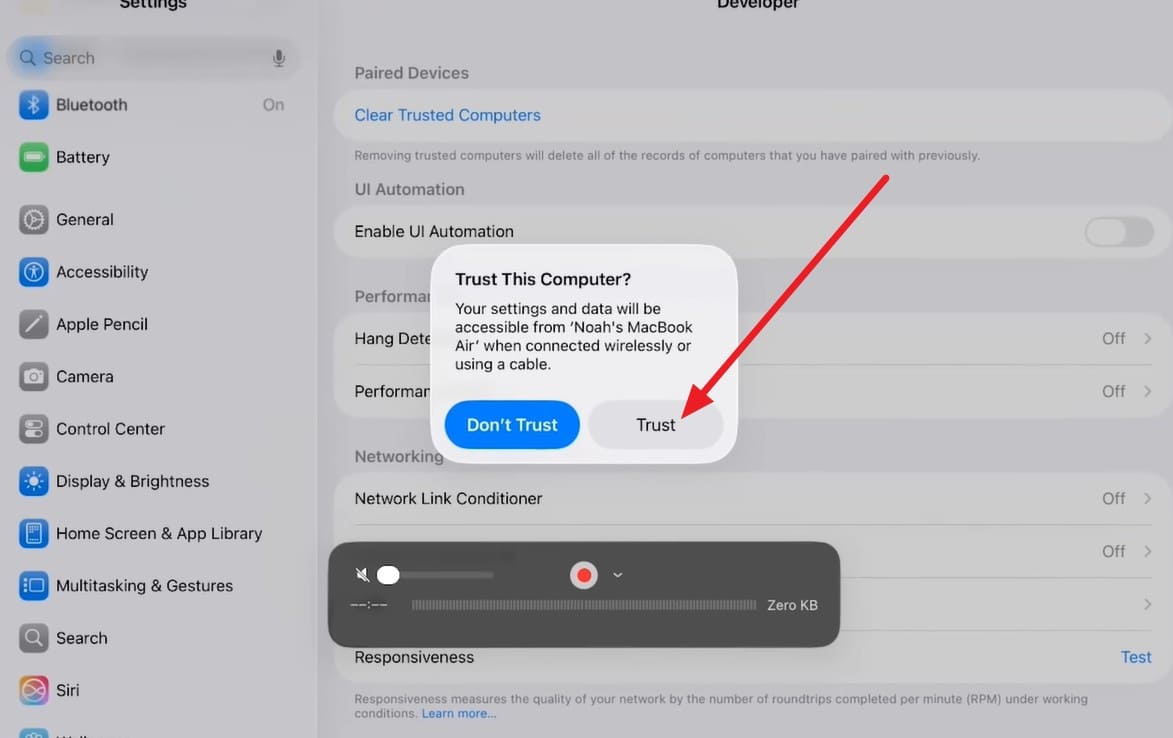
Step 3 Connect the iPhone to the Mac using the cable, and when the "Trust This Computer?" popup appears, click on "Trust" on the Mac.
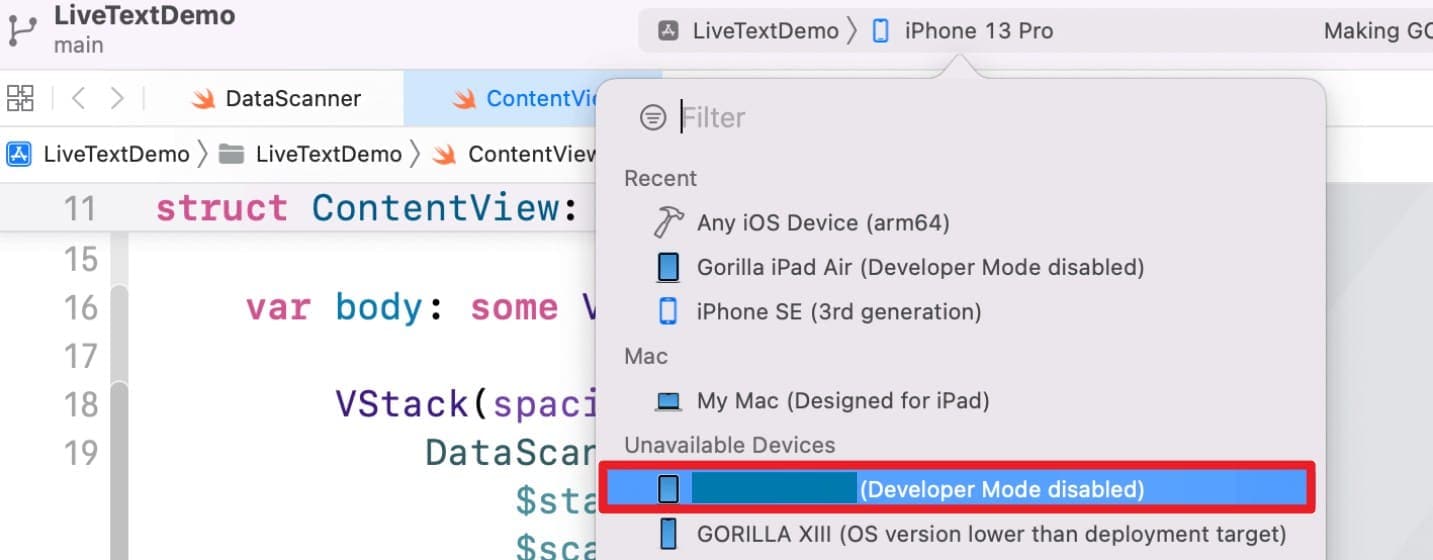
Step 4 In Xcode, check whether your iPhone appears in the device list. If a message such as "Developer Mode Disabled" appears, your iPhone has been recognized for development and may prompt you to enable Developer Mode on the device.
Fix 3. Trust the Developer Certificate on Your iPhone
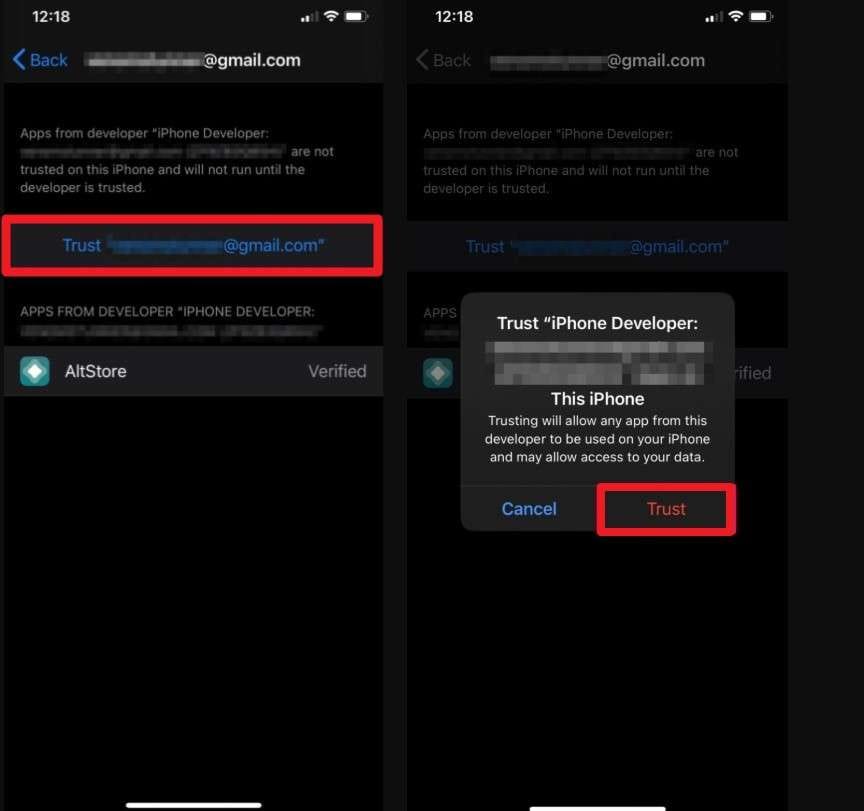
This step is important when you use enterprise apps or apps installed for development purposes on iOS 27. Even if the Developer Mode is enabled, iOS will block these apps until you trust the developer. Without this, the app will fail to open or display an error that makes it seem like iOS 27 Developer Mode Not Showing, and is guided below:
Instructions: Go to "General > VPN & Device Management > Enterprise App or Developer App" and tap "Trust [developer name] > Trust."
Fix 4. Update to the Latest iOS 27 Patch
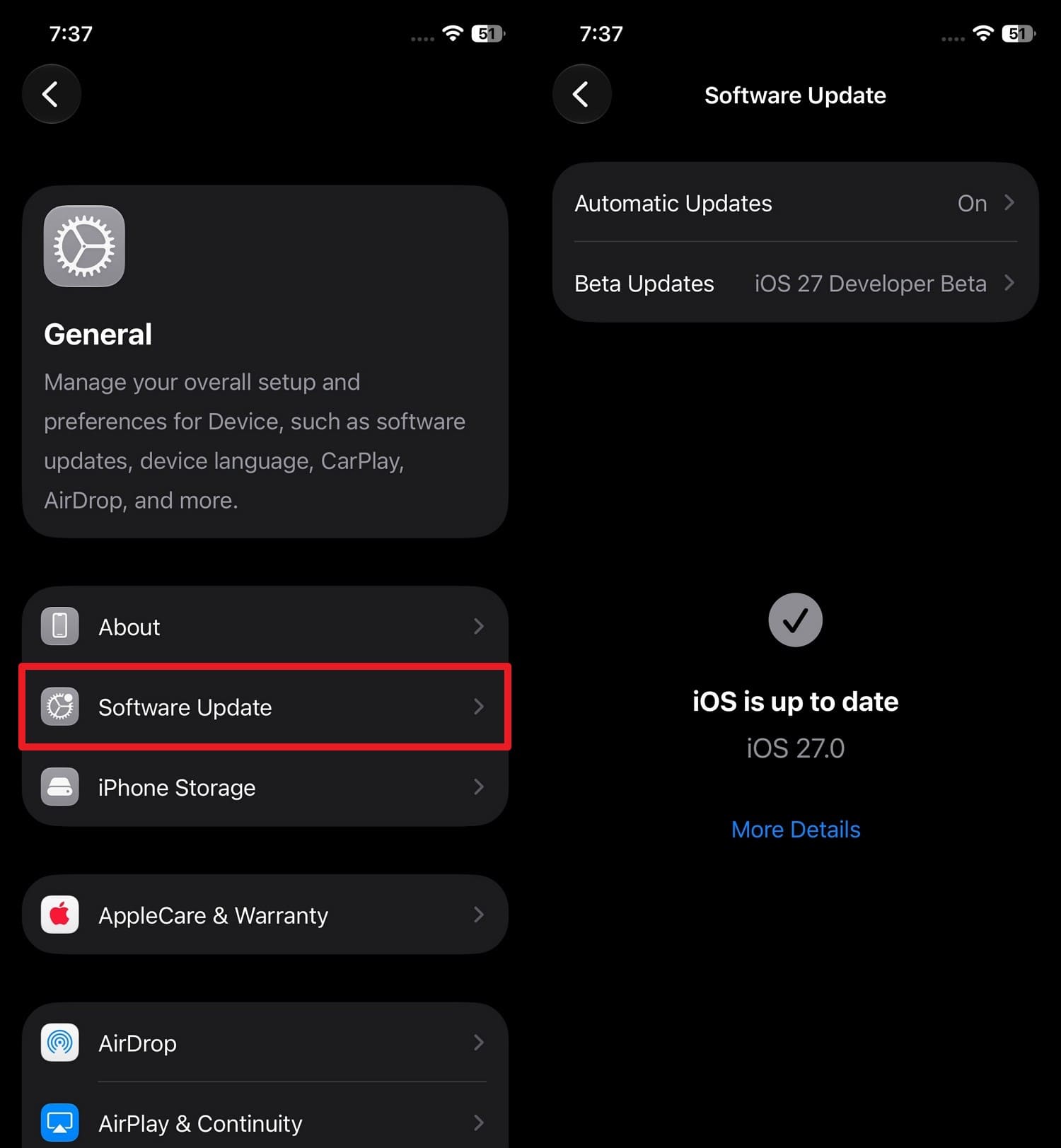
If the iOS 27 Developer Mode is not showing, and the issue persists, update to the latest iOS version, as early builds can have bugs. These can hide or break the Developer Mode, and Apple fixes these issues in later updates, once updated via the listed steps:
Instructions: In the "General > Software Update" settings, tap "Update Now" if the new iOS 27 update patch is available.
Fix 5. Reset Network Settings
If the issue is caused by temporary connectivity or system communication problems, this method can help. Resetting network settings refreshes network configurations and can eliminate issues that indirectly affect the device's connection with development tools. Here is how to do it:
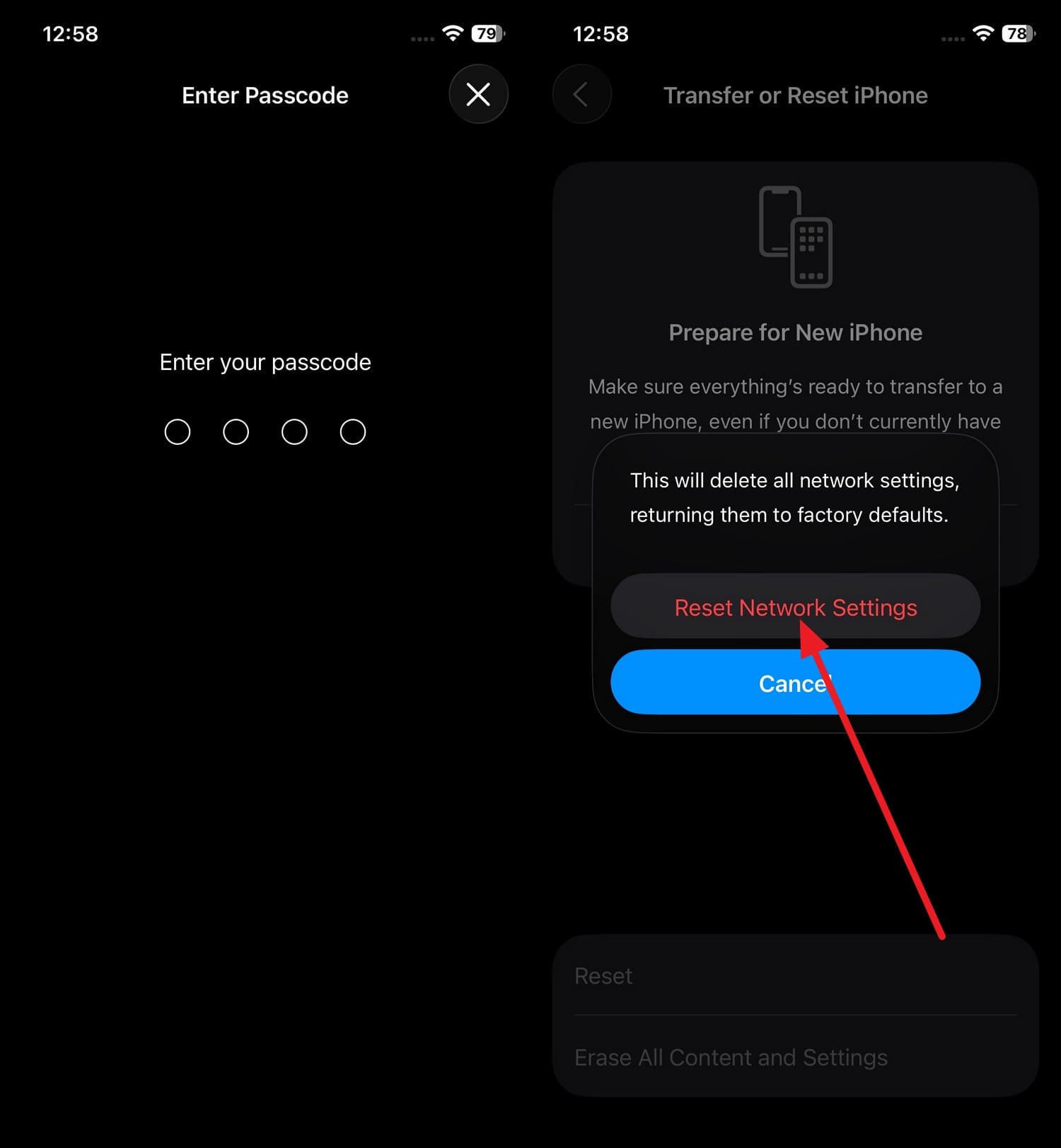
Step 1 To remove saved Wi-Fi networks, VPNs, and network configurations, go to "General > Transfer or Reset iPhone > Reset > Reset Network Settings."
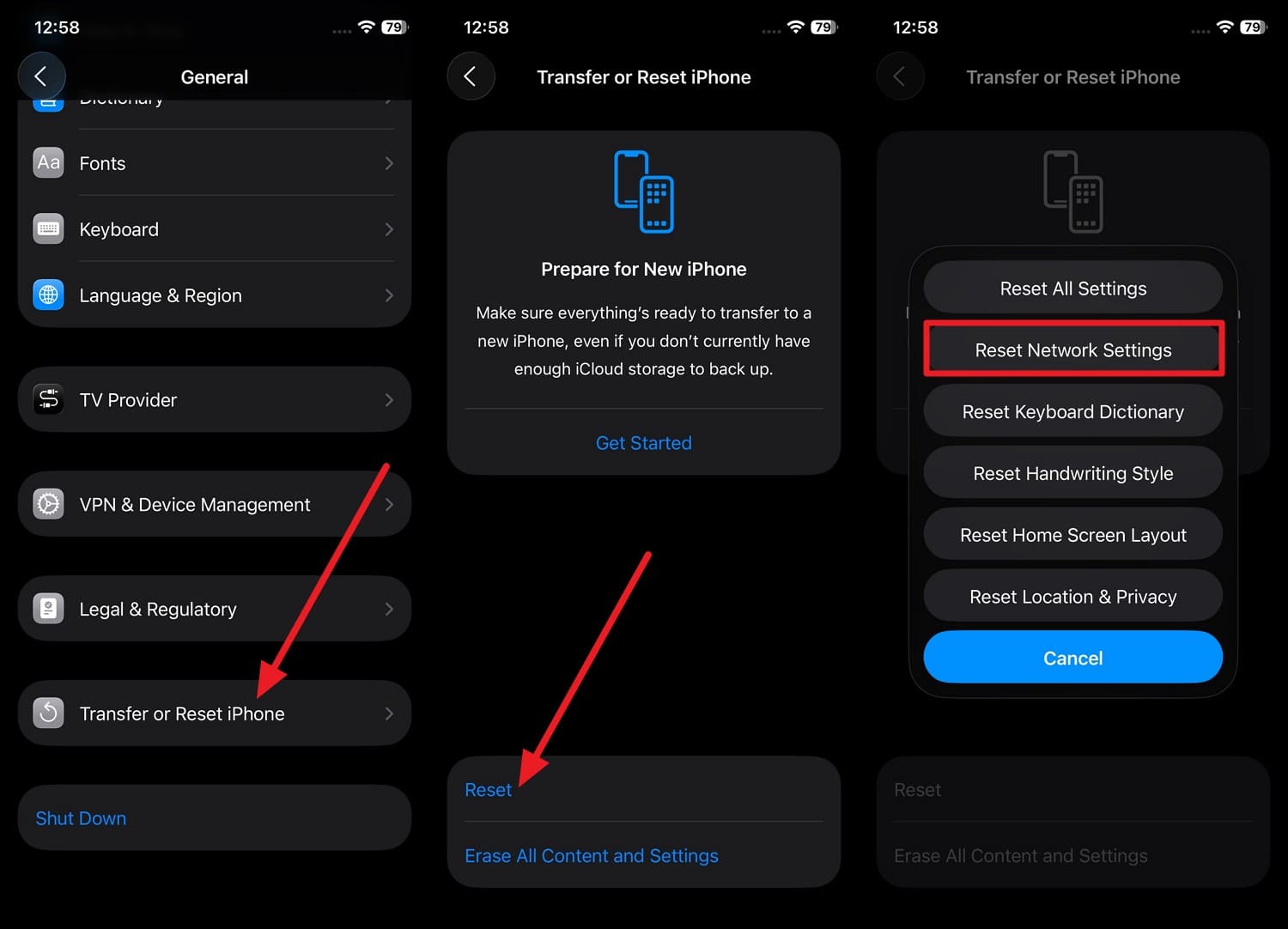
Step 2 Enter the device passcode 2 times, then select the "Reset Network Settings" option to fix the iOS 27 Developer Mode not showing issue.
Fix 6. Sign Out & Back Into Apple ID
This method can refresh the account connection to Apple's servers and may also fix the iOS 27 Developer Mode not showing issue. It can also help when developer beta features don't appear or behave correctly. Since it re-checks your Apple ID's beta or developer status and clears cached sign-in glitches, here is the guide:
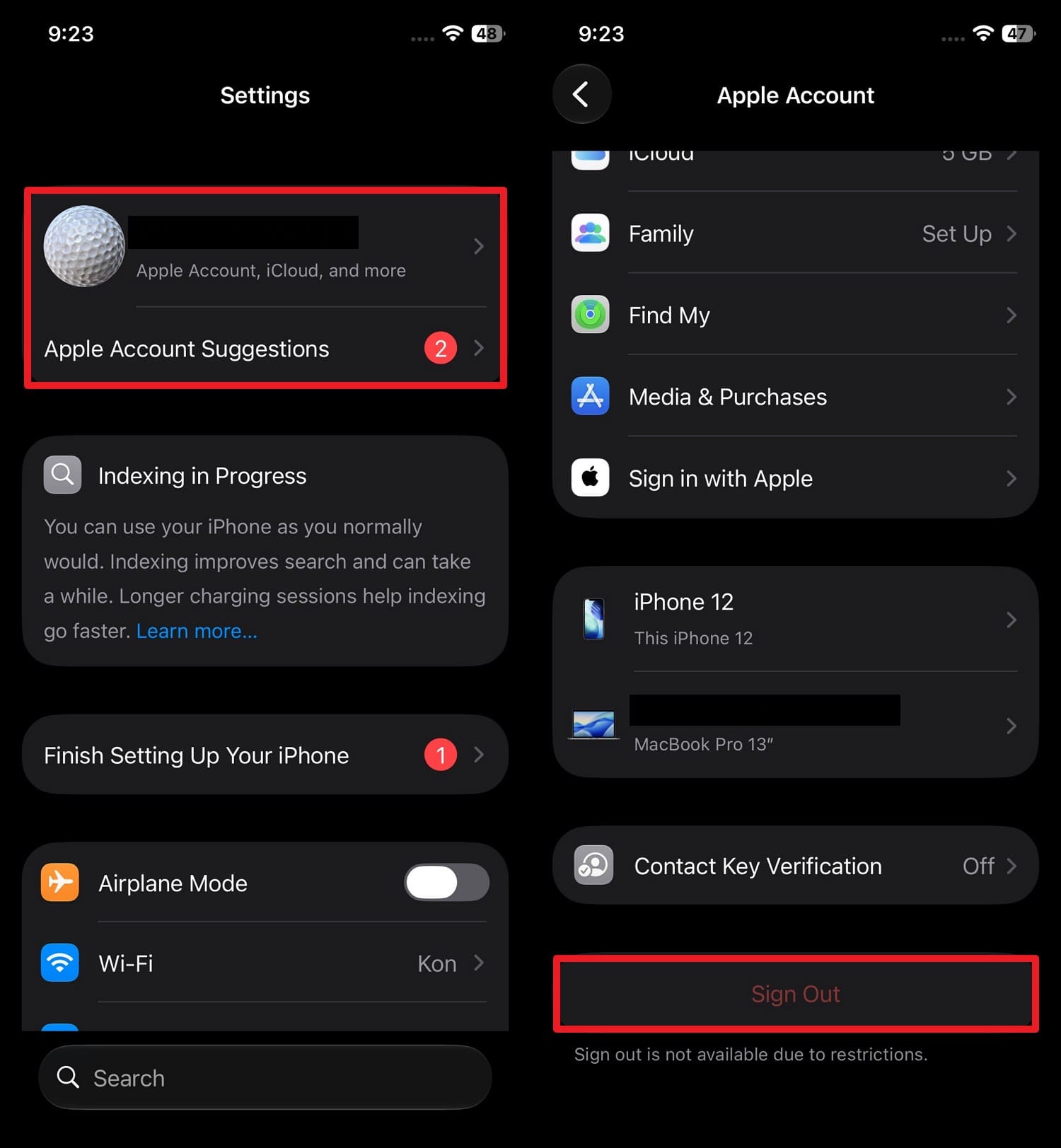
Step 1 Tap Apple ID in settings and scroll down to choose the "Sign Out" option, and add the passcode as you choose what copy of data to keep.
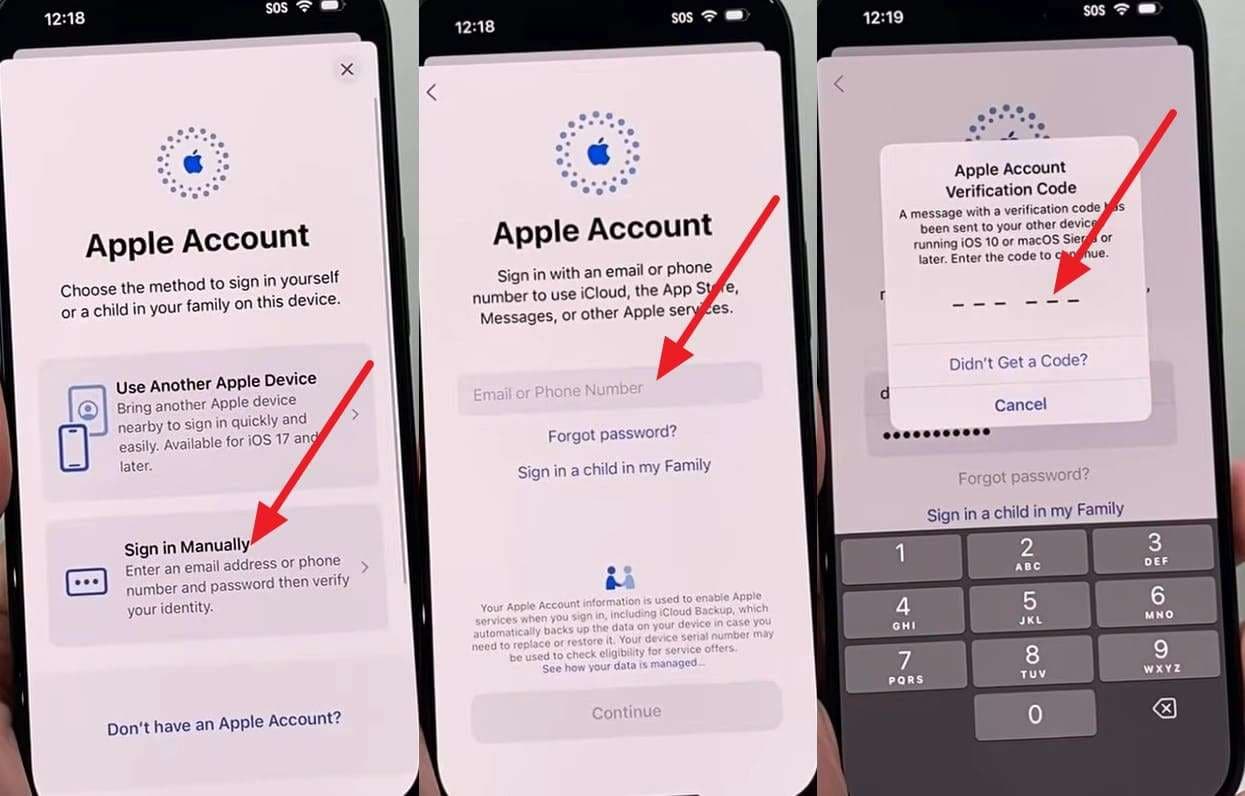
Step 2 Choose the "Sign In" option as you press the Apple ID to execute "Sign In Manually > Add Apple ID > Enter Code."
Fix 7. Reset All Settings (No Data Loss)
If the iOS 27 Developer Mode not showing issue is caused by a deeper system configuration, try this solution before a full restore. With this, you can reset all settings to their defaults and resolve hidden misconfigurations that affect the appearance of Developer Mode. Since it's better than resetting individual settings, the following steps show how it's done:
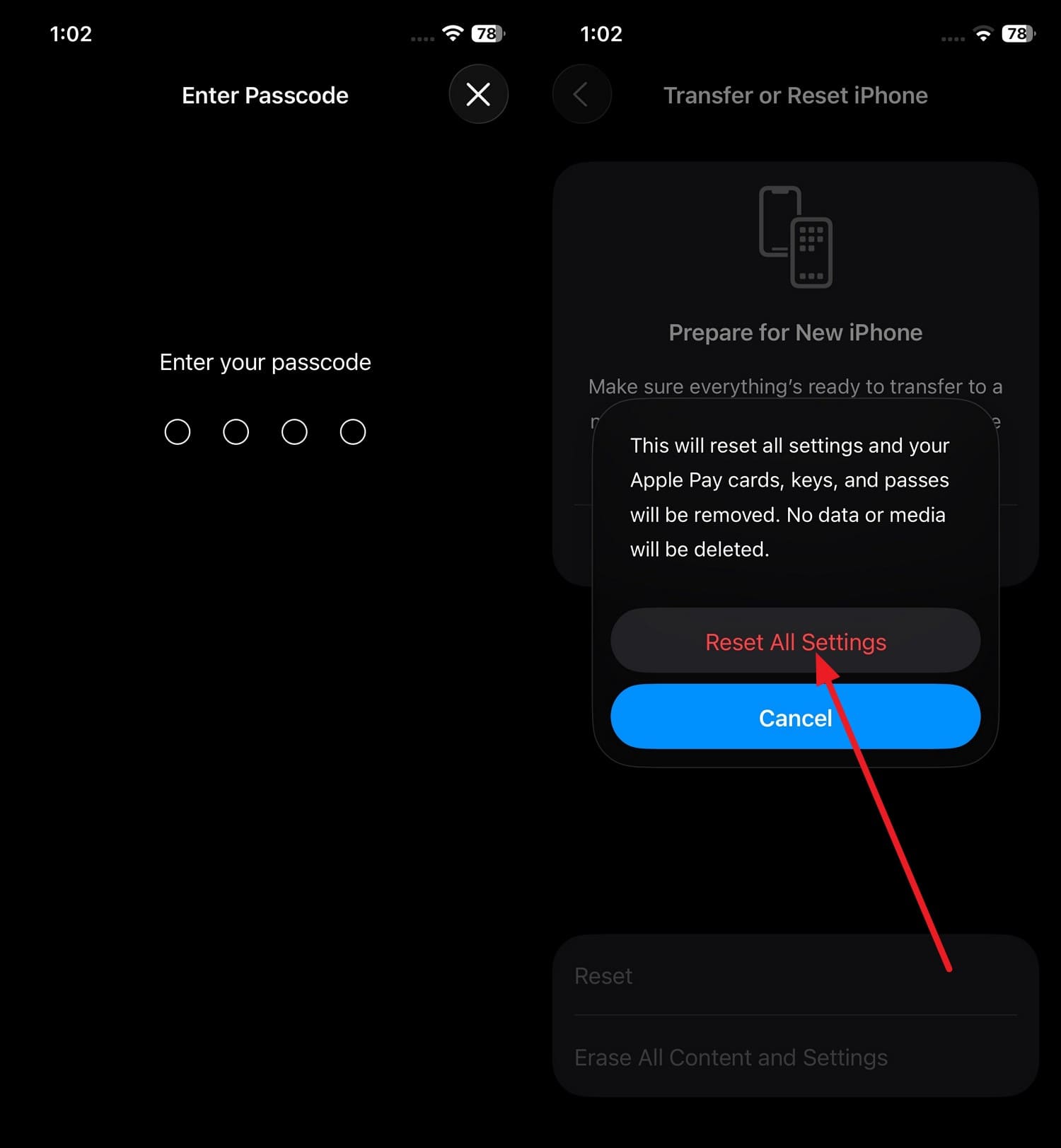
Step 1 To refresh the entire system configuration at once, go to "Transfer or Reset iPhone > Reset > Reset All Settings."
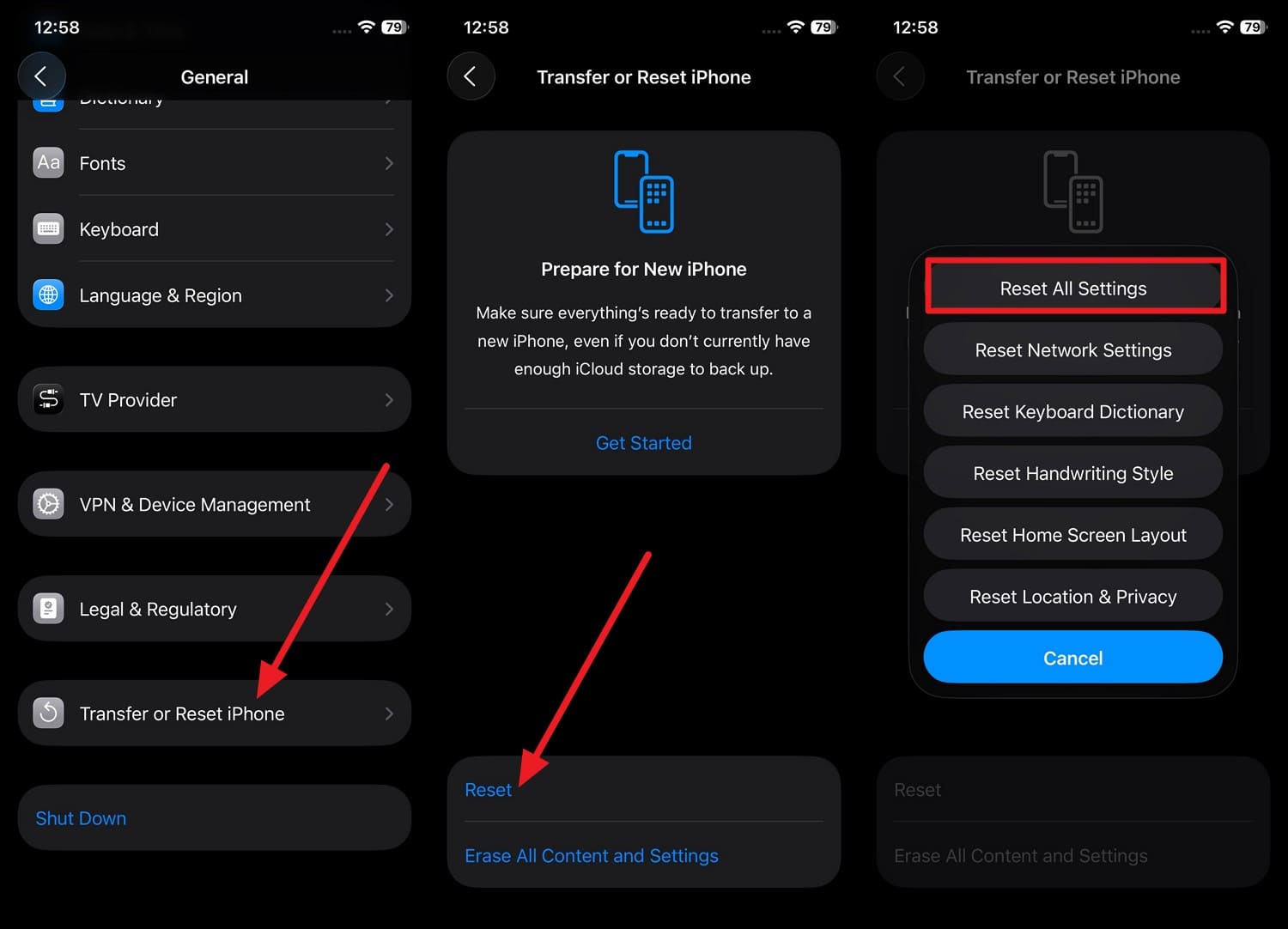
Step 2 Enter the device passcode 2 times on the new interfaces, then choose the "Reset All Settings" option to resolve issues related to Developer Mode.
Fix 8. Use Dr.Fone to Fix Developer Mode Not Showing
When common troubleshooting steps fail to resolve the iOS 27 Developer Mode not showing issue, use Dr.Fone - System Repair. Since it's compatible with iOS 27, iPadOS 27, and iPhone 17 Series, its Standard Mode can fix the system issues that conflict with Developer Mode. In this mode, your iDevice data will be saved, and you can choose to fix other 150+ iOS issues upon firmware installation.
In addition, the tool provides a detailed guide on how to enter Recovery Mode or exit DFU Mode for free. Users can also use this tool to resolve 200+ iTunes errors like 4013 and 1110, which makes Dr.Fone versatile. In extreme cases, you can also downgrade to a stable iOS version or use its other two modes, Advanced and Anti-Recovery.
 Fix iOS issues, no data loss.
- One-click repair for all iOS problems.
- Solve recovery mode, Apple logo, black screen, etc.
- Upgrade or downgrade iOS without iTunes

Guide to Resolve the Developer Mode Not Showing via Dr.Fone
When iOS itself seems corrupted and standard solutions fail, here is how Dr.Fone can resolve the deeper system bugs:
Step 1 Access the Standard Mode to Fix iOS 27 Developer Mode
Go to the "iOS Repair" feature in the System Repair tool for iOS and click the "Repair Now" button to choose "Standard Mode."

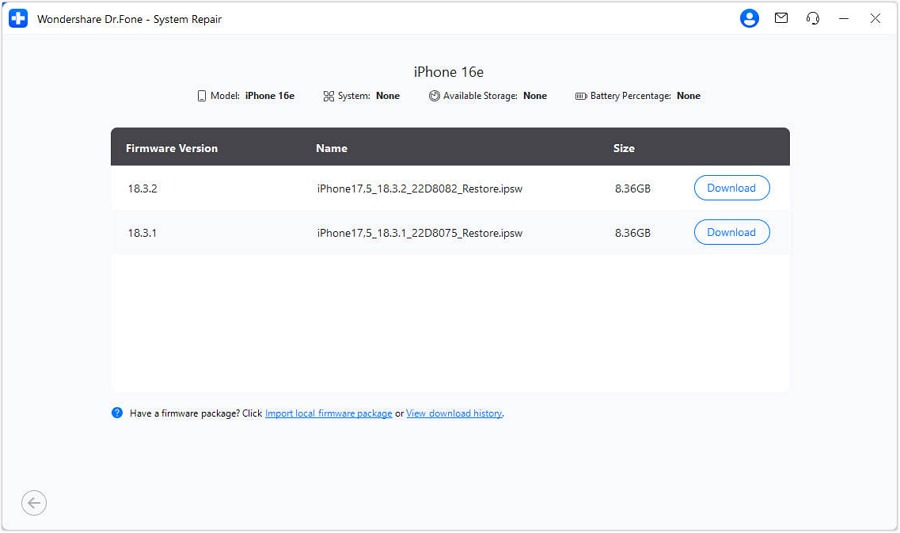
Step 2 Choose to Download the Firmware in Recovery Mode
Dr.Fone will guide you to enter Recovery Mode and choose the "Download" button when you see the iOS firmware options.
Step 3 Resolve the iOS 27 Developer Mode Issue
Once the firmware is installed, tap "Repair Now" and let Dr.Fone resolve the system-level issues that cause the iOS 27 Developer Mode not showing issue.





Part 4. How to Prevent Developer Mode Issues on iOS 27?
If you want to avoid the iOS 27 Developer Mode not showing issue in the future, follow the mentioned tips:
| Tips | What It Helps Avoid |
|---|---|
| Keep iOS Updated (Latest iOS 27 Patch) | Bugs that cause Developer Mode to disappear or behave unexpectedly after updates. |
| Use a Mac with an Updated Xcode Version | Recognition issues that prevent Developer Mode from appearing on the iPhone. |
| Avoid Unnecessary VPN or MDM Profiles | Restrictions that interfere with development features or device configuration. |
| Trust Only Legitimate Developer Certificates | Untrusted app errors and prompts that can be mistaken for Developer Mode issues. |
| Restart After Major Changes (New Beta, Xcode Pairing, Enabling Dev Mode) | Temporary glitches that prevent settings and new options from refreshing properly. |
Conclusion
This guide has explained why users face the iOS 27 Developer Mode Not Showing issue and how to fix it. So, when the basic solutions fail, experts suggest using Dr.Fone - System Repair when the iOS itself seems corrupted. Its Standard Mode will keep the data intact, and you will get weekly updates for all iOS versions.
FAQs
-
Does low storage space affect Developer Mode visibility?
Low storage does not affect the visibility of Developer Mode; it remains present in your settings. Nonetheless, your device might stop performing background processes when you're almost out of storage. -
Does using beta profiles affect Developer Mode behavior?
The iOS 27 Developer Mode not showing issue is not related to the Beta program enrollment. In fact, all your development tools, Xcode builds, and side-loaded apps will work normally if this mode is on. -
Can iCloud syncing issues delay Developer Mode activation?
iCloud Sync issues cannot cause the iOS 27 Developer Mode not showing issue. Since this mode is an OS-level security setting, it requires physical authentication and a reboot to take effect.
 Add Wondershare Dr.Fone as a preferred source on Google



