 Resolve common problems and system crashes on both iPhone and Android devices.

 100% Security Verified | No Subscription Required | No Malware

 :
: 
 ChatGPT
 Perplexity
 Gemini
 Claude
 Grok
Grok
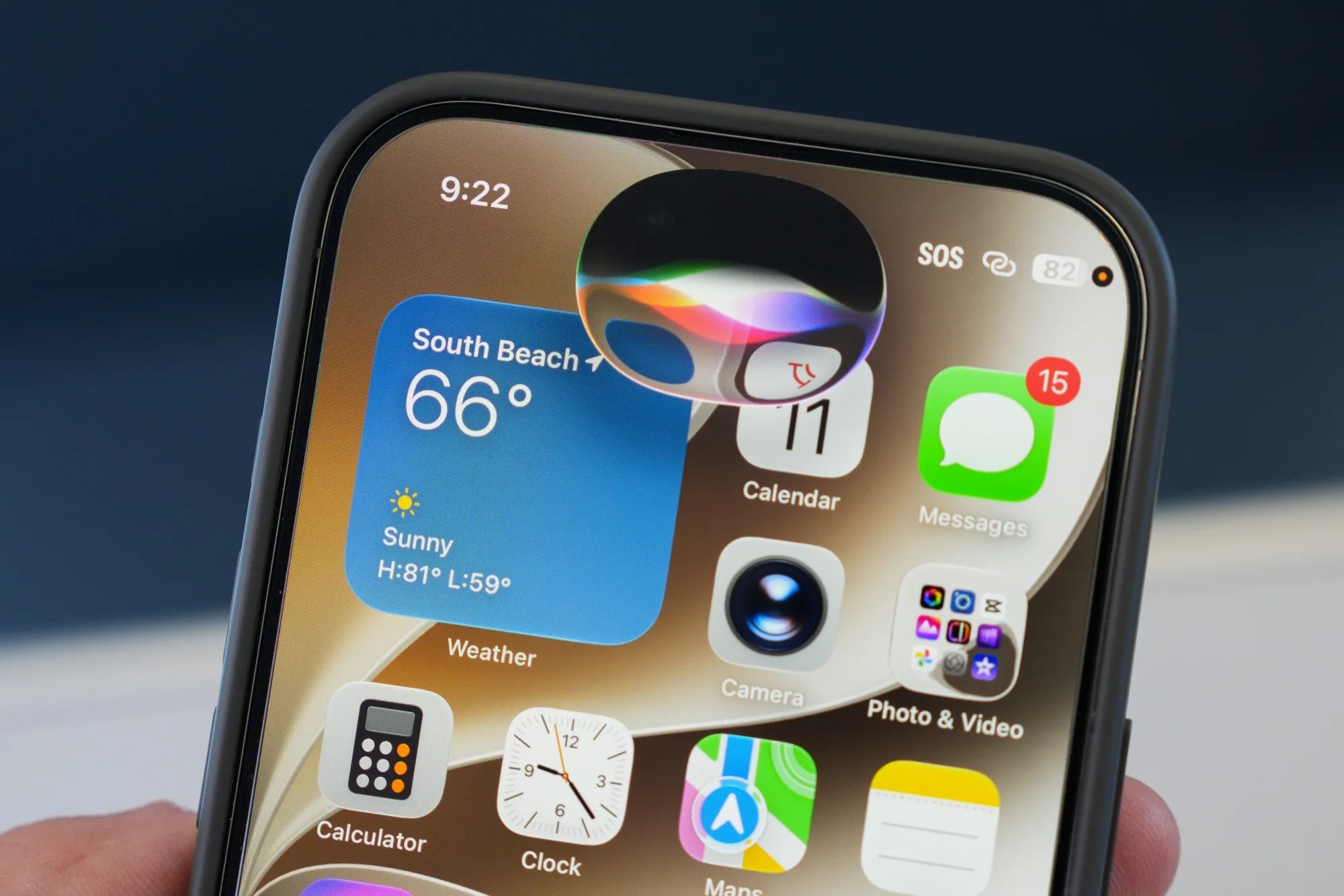
Siri is one of the coolest iPhone features. That virtual assistant by Apple allows iPhone users to send messages, make phone calls, and do basically everything else by just speaking to it. But after updating their phones to iOS 27, there have been reports that Siri stopped working on iOS 27 for some people.
Here, this article will discuss the most efficient solutions to help you get your Siri back up and running. If the problem is due to the major iOS 27 bugs in the system, then a program like Dr.Fone - System Repair can help.
In this article

Part 1. Siri Not Responding on iOS 27? Start With These Quick Checks
You may want to review some basic settings first even if you are planning to use advanced solutions. In fact, very often, Siri stops working after an iOS update because of changed settings, connection issues, or temporary software glitches.
Common Siri problems after the iOS 27 update
| Siri Problem | Typical Symptoms |
|---|---|
| Siri won't activate | "Hey Siri" or side button does nothing |
| Siri can't hear you | Siri opens but doesn't respond to voice commands |
| Siri says "Something went wrong" | Siri cannot process requests |
| Siri not speaking back | Siri works but gives no voice responses |
| Siri stuck loading | Siri animation appears but never completes the request |
| Siri unavailable | Siri shows an error message or remains disabled |
| Siri works intermittently | Siri responds sometimes but fails randomly |
Quick Checklist Before Diving into Fixes
- Ensure that you have verified these items before proceeding with the advanced troubleshooting:
- The internet connection is up and running, as Siri needs either Wi-Fi or cellular data to function properly.
- Low Power Mode is not enabled because this mode may limit some Siri features.
- The modes Focus or Do Not Disturb haven't been configured to the extent that they prevent Siri from being able to respond.
- If you want voice replies from Siri, then you should make sure that the volume of your iPhone is not muted.
- In the Settings, toggled on and given permission to use voice commands.
Part 2. How To Fix Siri Not Responding on iOS 27 — Step-By-Step
If Siri is not functioning after the iOS 27 update, there's no need to panic. Here's how to fix it.
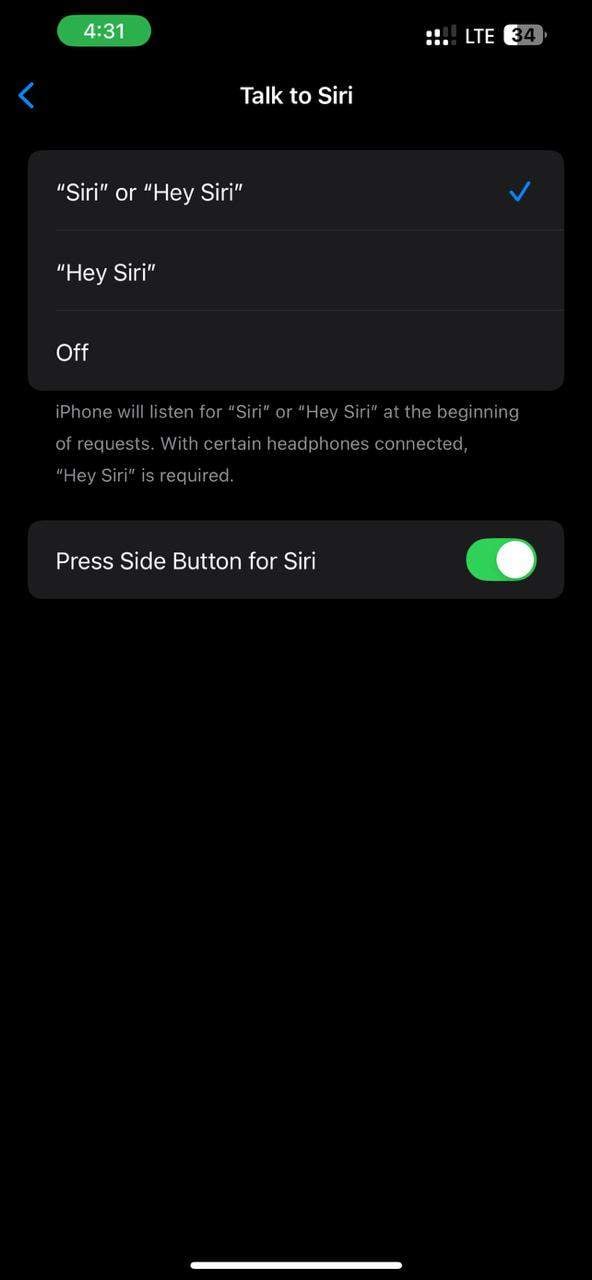
Fix 1: Check that Siri is enabled
Maybe a big iOS update will unintentionally alter your Siri settings or even turn off some Siri features. In case Siri is off, you will not have the option to give voice commands or use the side button to activate Siri.
Step 1 Go to Settings > Siri. Make sure to enable Listen for "Hey Siri".
Step 2 Enable the Press Side Button for Siri.
Fix 2: Check Microphone Access
If Siri does not reply or hear you, it could be that mic permission was not given, or maybe there's a mic problem in the first place. Privacy settings often get changed after the system update, which is where the problem comes from in most cases, with mic access for Siri. So, checking this guarantees that Siri always listens to your commands without interruption.
Step 1 Go to Settings > Siri. Make sure to enable Listen for "Hey Siri".
Step 2 Launch Voice Memos and record a short clip to check the microphone.
Step 3 If audio is muffled or no sound is captured, then there may be a hardware issue.
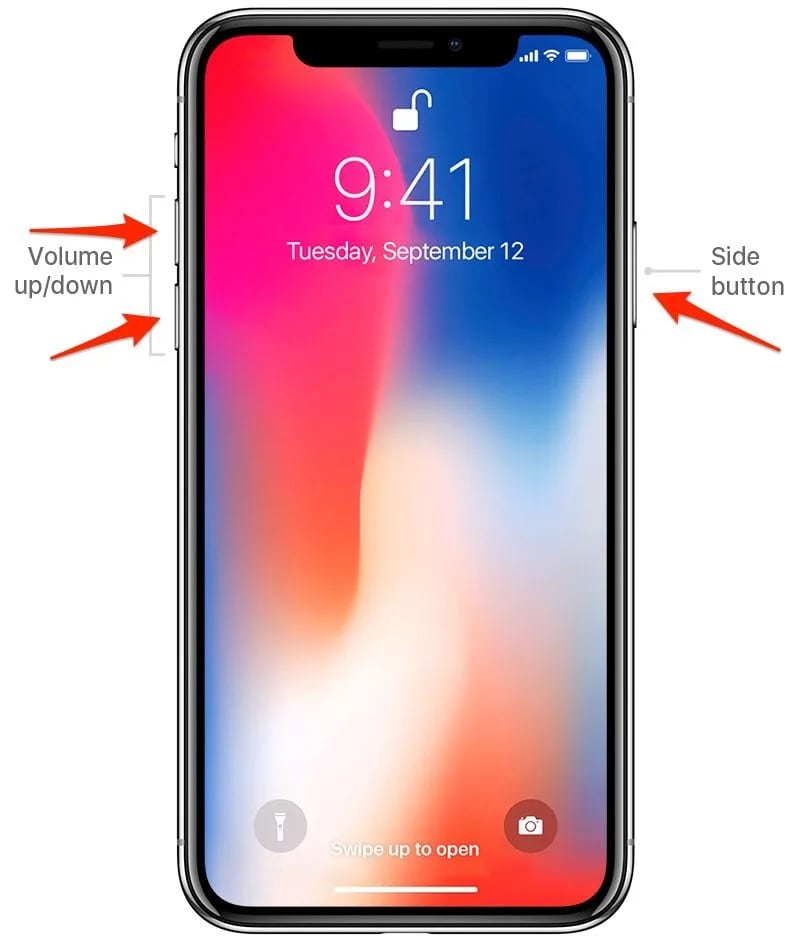
Fix 3: Force Restart Your iPhone
A force restart, in some cases, could be the solution to temporary problems that cause Siri to freeze or fail to respond on iOS 27. It shuts down the running processes and reboots the device without affecting your data, so it is an extremely simple and efficient technique.
Press Volume Up button briefly, then Volume Down button, then press and hold the Side Button until the Apple logo appears.
When your iPhone has restarted, try Siri again.
Fix 4: Disable and Re-enable Siri
Sometimes, Siri might be unresponsive because of a brief software hiccup or a changed setting that you didn't intend after iOS 27 update. A complete disable of Siri and then turning it back on changes and reconnects the virtual assistant to the system services. As a result, Siri usually gets back to voice response and activation as usual.
Step 1 Open Settings and tap on Siri & Search. Disable all the options related to Siri, including Listen for "Hey Siri", Press Side Button for Siri, and Allow Siri When Locked.
Step 2 Make a pause for at least 30 seconds so that the system can reset Siri services in the background.
Step 3 Turn all the Siri toggles back on. Follow the on-screen setup again and re-train the "Hey Siri" voice recognition for better accuracy.
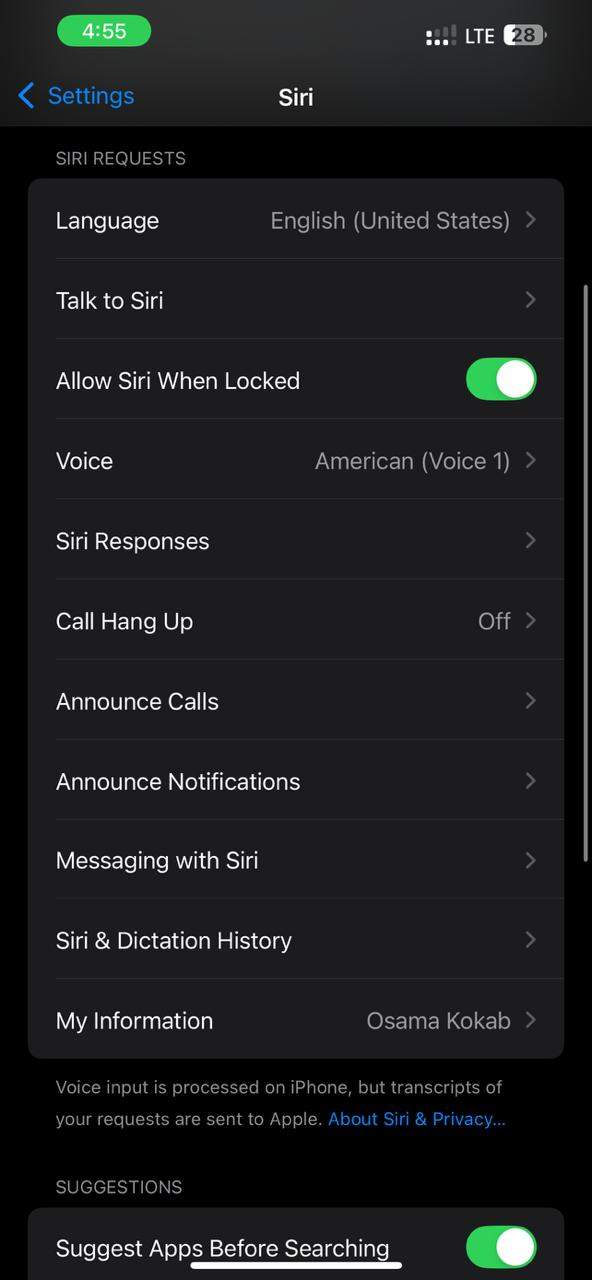
Fix 5: Check Siri Language & Region Settings
Most often Siri's language and region configuration will be reset to the default or changed without users' notice after a big iOS upgrade like iOS 27. Therefore, it may happen that Siri will fail to recognize your spoken commands properly if the language mode is different.
Step 1 Open Settings > Siri > Language. Check if the right language is selected for your voice commands.
Step 2 If it is not, change it to your preferred one and allow some time for the update. Open Settings > General > Language & Region.
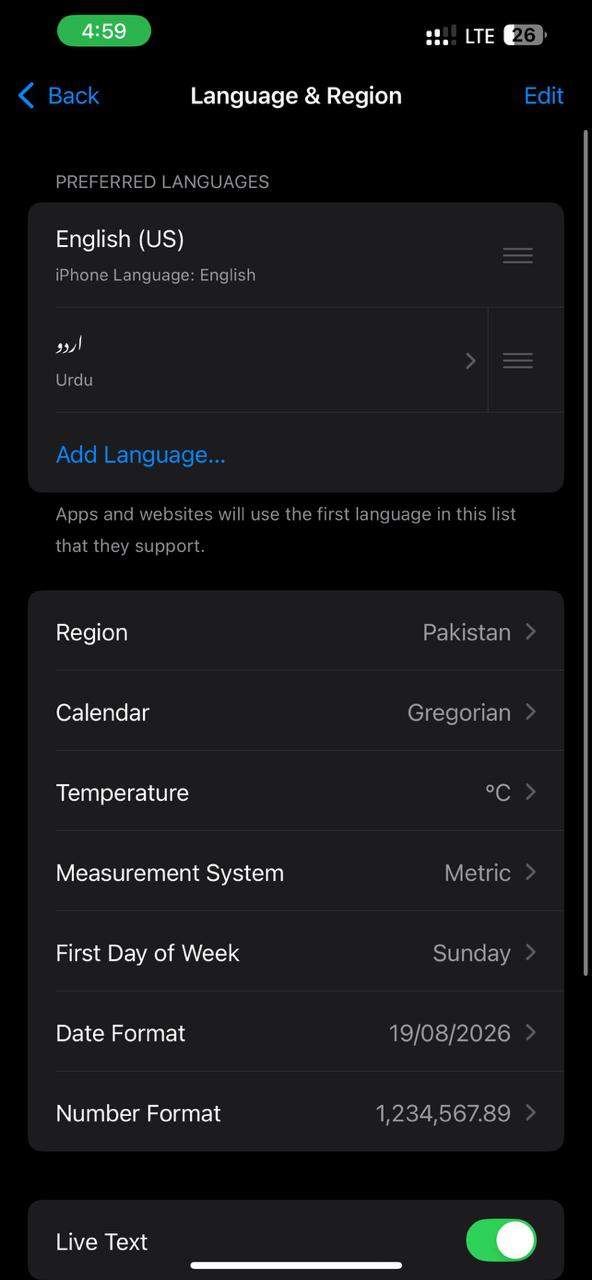
Step 3 Make sure that the region corresponds to your geographical location for enhanced Siri performance
Fix 6: Reset Network Settings
Since Siri is very dependent on a good internet connection to understand your voice commands and give you answers, if your network settings get corrupted or unstable after the iOS 27 update, Siri may not respond or just keep loading without any results. A reset of network settings usually resolves these hidden connectivity problems.
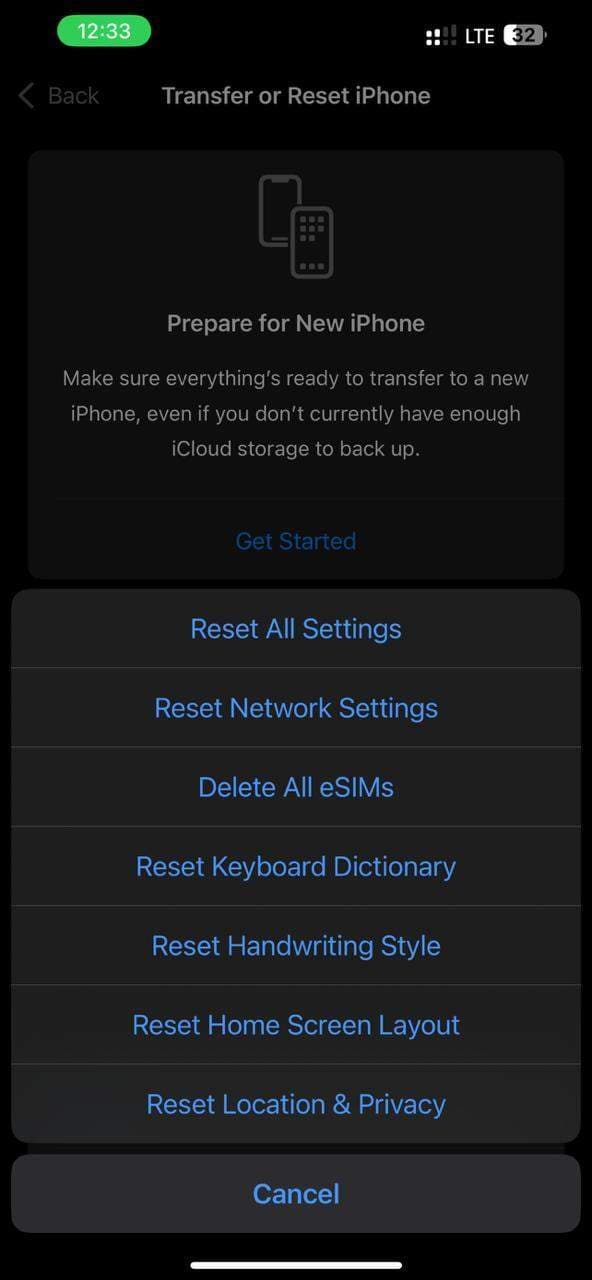
Step 1 Navigate to Settings > General > Transfer or Reset iPhone. Tap on Reset > Reset Network Settings.
Step 2 Type your passcode and then confirm the reset.
Step 3 After the reboot, you will need to reconnect to Wi-Fi and mobile data.

Fix 7: Update to the Latest iOS 27 Version
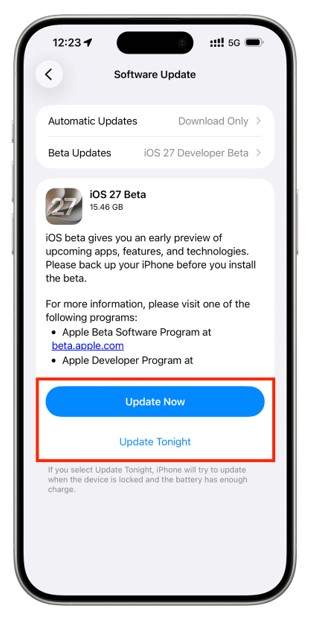
In some cases, malfunctioning of Siri arises from bugs in the first version of iOS 27. Apple typically fixes these issues in the subsequent releases, like iOS 27.0.1 or later, combined with performance improvements and bug fixes to Siri as well as other system features.
Step 1 Open Settings > General > Software Update. Look for the new iOS 27 updates.
Step 2 Install and download the latest one if there are any.
Step 3 Doing a reboot of your iPhone after the update is finished.
Fix 8: Reset all settings
One reason why Siri may not be responding to you yet is that during the iOS 27 update, some system settings that helped create the problem were incorrectly configured. By resetting all the settings to their defaults, you don't have to give up your personal data, apps, or media while restoring the original system configurations.
Step 1 Access Settings > General > Transfer or Reset iPhone. Click Reset > Reset All Settings.
Step 2 Enter your passcode and authenticate the reset. Let your iPhone reboot and reconfigure system settings.
Step 3 Step 3. Test Siri again to check if voice response is back.
Part 3. Advanced System Repair and iOS Downgrade with Dr.Fone
Dr.Fone - System Repair helps you fix more than 150+ iOS glitches without any data loss. In cases where even deep system bugs in iOS 27 make Siri not work, the app can fix the OS through reinstallation of the firmware without affecting your files. It supports repairing various issues like system errors, update issues, a stuck Apple logo, and unresponsive features such as Siri, so it is a safer option than iTunes restore.
If that Siri issue still persists after the fix, Dr.Fone will allow the user to downgrade from iOS 27 to the previous stable version that was signed by Apple, also without iTunes or jailbreak. It's really helpful when a fresh iOS update bugs the operation of Siri. The downgrade method reestablishes device stability whilst avoiding the troublesome manual procedures, thereby making it simple to retrieve a full and responsive Siri functionality.
 Fix iOS issues, no data loss.
- One-click repair for all iOS problems.
- Solve recovery mode, Apple logo, black screen, etc.
- Upgrade or downgrade iOS without iTunes

Repair VS Downgrade: Which Option Should You Choose?
| Situation | Recommended option |
|---|---|
| Siri not responding due to minor glitches | System Repair |
| iOS 27 system bugs affecting multiple features | System Repair |
| Siri issues started after update installation | System Repair |
| Persistent problems after all troubleshooting steps | System Repair |
| iPhone becomes unstable after iOS 27 update | iOS Downgrade |
| Battery drain, lag, and widespread bugs after update | iOS Downgrade |
| Need to return to a stable previous iOS version | iOS Downgrade |
Steps to downgrade iOS 27 with Dr.Fone
Step 1 Launch Dr.Fone and Select Downgrade iOS
Get Dr.Fone installed on your computer first, then open it. Hit System Repair feature and from it select Downgrade iOS/iPadOS. You might be prompted to make a backup of your iPhone if you want to continue.

Step 2 Connect your iPhone/device and choose the iOS version
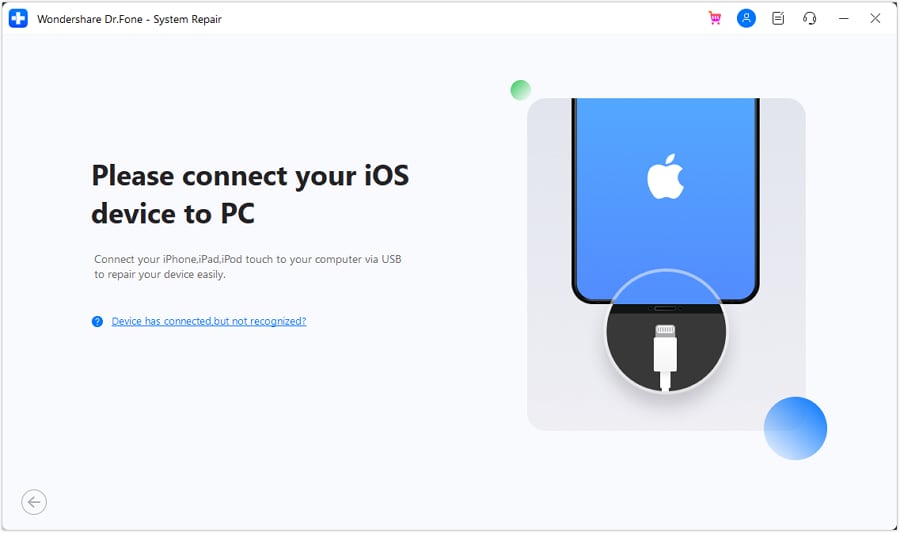
Connect your iPhone via USB cable to your PC. When your device is detected by the program, from the list of available firmware versions, choose the latest and most stable iOS version you consider safe for downgrading.
Step 3 Download the firmware and verify it
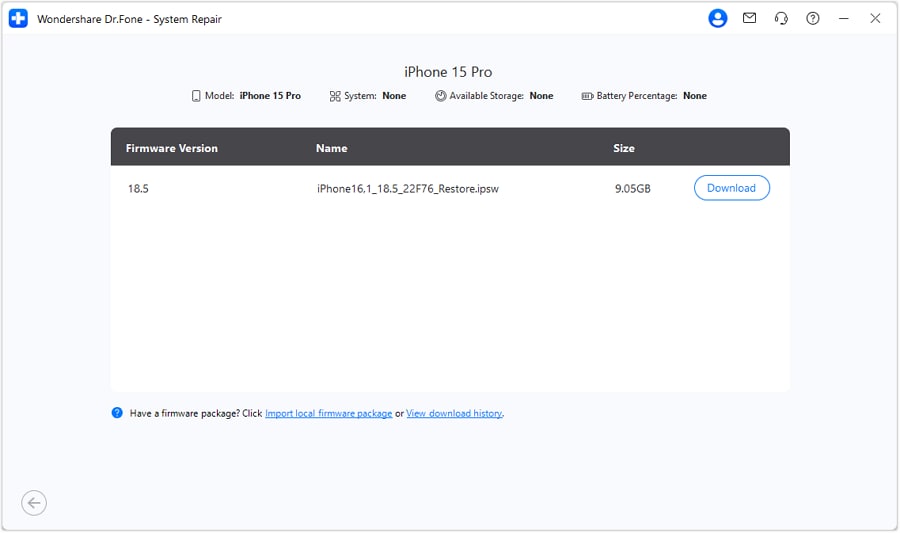
Press the Download button in order to get your hands on the chosen iOS firmware file. Upon finishing the download, Dr.Fone will proceed to confirm that the firmware is good to go for installation.
Step 4 Start the downgrade process
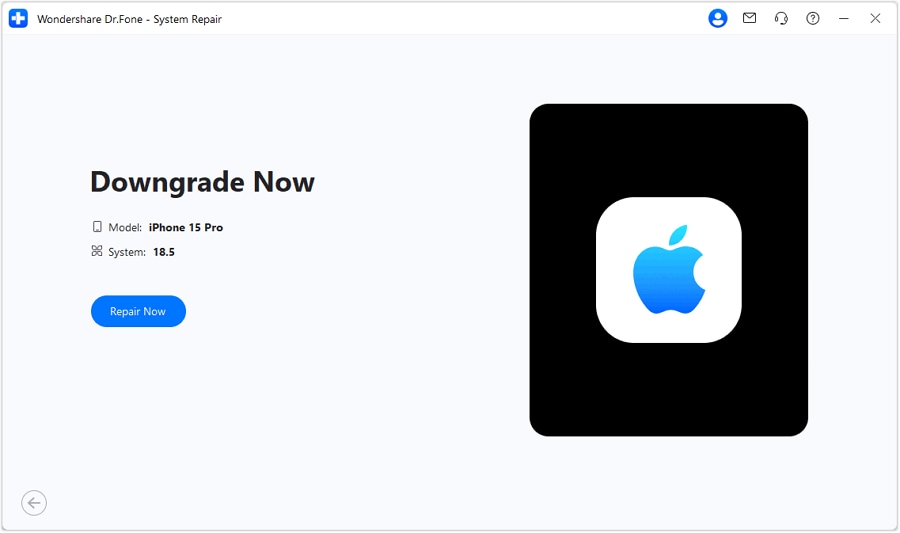
Hit Repair Now button to perform the downgrade. At the end of the installation your iPhone will restart, and the iOS version will be changed to the selected one.
Steps to Repair iOS System Issues Using Dr.Fone
Step 1 Launch the System Repair
Go to the Toolbox section on the main screen, then press System Repair.

Step 2 Connect and indicate device
Link your iPhone to the computer. In order to grant the program access to repair your iPhone, choose the iPhone option.

Step 3 Select iOS repair and standard mode
Hit the iOS Repair button to check out the repair options and then select the Standard Repair mode.

Step 4 Put the device into recovery mode and get the firmware
Follow the instructions on the screen to put your iPhone into Recovery mode. Dr.Fone will identify your device and download the appropriate version of iOS firmware automatically. Press Repair Now after the download.





Part 4. Preventing Siri Issues After Future iOS Updates
- Exercise caution when it comes to significant iOS updates, such as iOS 27, and hold off on installation until you get first-hand feedback from other users.
- Make it a point to always create a backup of your iPhone, either by using Dr.Fone or iCloud, so that you don't lose your data unintentionally when updating.
- Right after the update, it is a good idea to perform a quick check of Siri and other major functionalities to make sure that they are still performing smoothly.
- Ensure you maintain a minimum of 5GB free storage on your device because insufficient storage might result in Siri experiencing delays in voice recognition and overall reduced performance.
Conclusion
Mostly, the issues with Siri on iOS 27 are not that serious, and with some simple troubleshooting methods, one can easily get rid of them. In fact, these problems are related to settings, network issues, or system bugs and, in most cases, can be resolved without having to resort to complicated technical operations.
Still, if the problem persists, you always have at your disposal software like Dr.Fone - System Repair that can make your system back to normal operation or even perform an iOS downgrade without loss of any data in a safe manner.
FAQs
-
Why is Siri not responding after updating to iOS 27?
A temporary iOS bug, changes in the Siri settings, network problems, or update disabled permissions are the reasons why it is not responding that is most common. -
How do I fix "Hey Siri" not working on iOS 27?
Have a look at the Siri settings and see if "Hey Siri" is enabled. Secondly, make sure that microphone access is allowed. Thirdly, simply reboot your iPhone, and if it's still not working re-train the voice recognition. -
Can iOS 27 cause Siri to stop working?
It is possible for an iOS update to create temporary issues that might impact Siri's functioning, notably immediately after the update. -
Can I fix Siri issues without losing data?
Certainly, in most cases, Siri problems can be resolved through standard troubleshooting or by using a tool like Dr.Fone, System Repair, which is meant for fixing iOS problems without data loss.
 Add Wondershare Dr.Fone as a preferred source on Google



