 Resolve common problems and system crashes on both iPhone and Android devices.

 100% Security Verified | No Subscription Required | No Malware

 :
: 
 ChatGPT
 Perplexity
 Gemini
 Claude
 Grok
Grok
It is said that Siri in iOS 27 brings a major upgrade that changes how users interact with their iPhones in daily life.
Reports suggest Siri could feel smarter and more connected to apps and Apple Intelligence. However, users are also confused about its capabilities and how it differs from older versions. Thus, this guide will introduce all the new Siri iOS 27 features and clear common misconceptions. After the detailed idea, you will know how to enable it while using the best commands. In case of any issue, understand what types of issues tools like Dr.Fone - System Repair (iOS) can resolve.
In this article
- Part 1. What’s New in Siri on iOS 27?
- Part 2. Which iPhones Support New Siri Features in iOS 27?
- Part 3. Common Confusion About Siri in iOS 27
- Part 4. How to Use New Siri Features in iOS 27?
- Part 5. Problems Users May Face With Siri in iOS 27
- Part 6. How to Fix Siri Issues After iOS 27 Update
- Final Verdict: Is Siri in iOS 27 Worth It?
- Frequently Asked Questions
Part 1. What’s New in Siri on iOS 27?
To know how the Siri app on iOS 27 differs from the old version and what features it has, review this section in detail:
Siri in iOS 27 vs Older iOS Versions
The following table shows how Siri and Apple Intelligence iOS 27 differ from the older versions:
| Feature | New Siri (iOS 27) | Older iOS Versions |
|---|---|---|
| Interface | Full standalone app with chat history. | A small bubble overlays your current screen. |
| Input | Equal support for typing and speaking. | Voice-first; typing requires extra settings. |
| Context | Remembers context and follows multi-step talks. | Forgets previous prompts instantly. |
| Screen Reading | Scan your screen to find info or images. | Cannot see what app you have open. |
| File Sharing | The Paperclip tool lets you upload PDFs and photos. | Cannot accept document attachments. |
| AI Models | Routes tough questions to external AI like Gemini. | Limited to basic, built-in Apple commands. |
Why Apple Redesigned Siri
Apple has completely redesigned the Siri app for iOS 27 to make it much smarter and more like a modern AI chatbot instead of a voice assistant. Hence, all the updates make it faster and easier to use, with improvements in both voice and typing interactions, says MacWorld.
Major Differences Users Will Notice
Here are some of the features that you will have in the new Siri iOS 27:
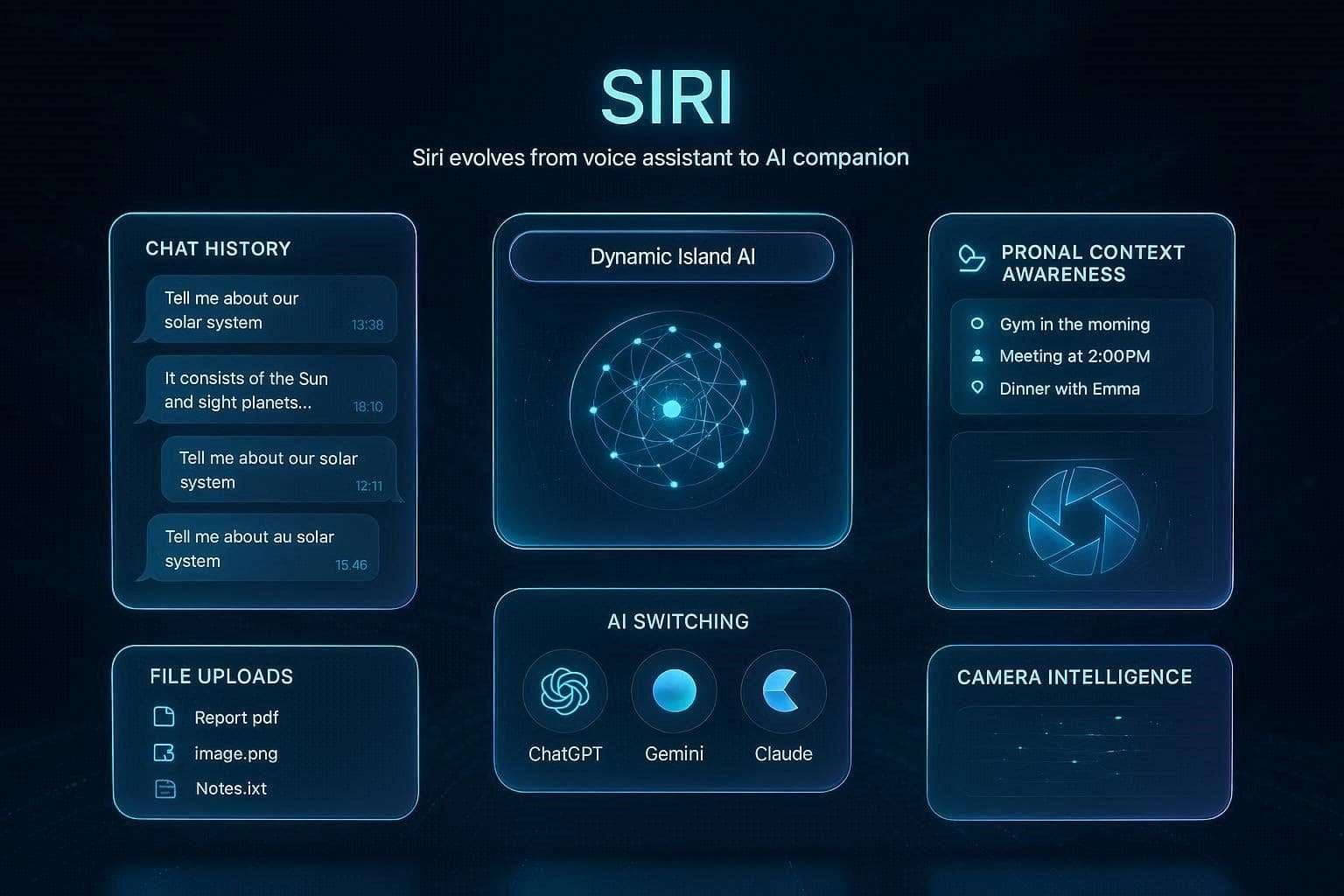
- A New Standalone App: According to MacRumors and TechBrew, Siri will now have an app that looks and works like ChatGPT or Claude. Hence, this app will store your chat history and let you access the past conversations and analyze data via voice and text commands.
- Conversational UI: Siri no longer has the floating orb; instead, it is available now in the Dynamic Island with a subtle glow. When activated, it responds with a pop-up as transparent cards, and pulling these cards open a persistent chat thread that supports natural back-and-forth conversations.
- Deep Personal Awareness: Siri in iOS 27 can now understand what is happening on the screen, and is deeply tied to Apple Intelligence. This means it can draw context directly from the device and extract specific messages, images, or other data for you. Furthermore, users get the same search options as Spotlight, and when you open the search bar by swiping up, Siri will act as an intelligent command center. Through this, you can easily search both web and personal data to answer complex questions.
- Share Files and Images: Its new interface now features a paper clip icon so that you can finally upload PDFs, Documents, and photos. MacRumors says you can use this feature to ask questions, generate images, or get quick summaries in real time.
- Choose Your Favorite AI: If Siri app iOS 27 doesn’t know the answer, you can ask the same question to other AI services from the drop-down menu. There, you can choose from Google Gemini, OpenAI's ChatGPT, or Anthropic's Claude via a new extension feature.
- Visual Intelligence in Camera: Siri is deeply integrated in the Camera app as a dedicated “Siri Mode.” Hence, you can point your camera at real-world images to extract information or summaries.
Part 2. Which iPhones Support New Siri Features in iOS 27?
Access to Siri and Apple Intelligence iOS 27 features requires strong processing power. The core iOS 27 update will run on older models like the iPhone 12, 13, and 14. However, you will need an iPhone 15 Pro, iPhone 15 Pro Max, or any model from the iPhone 16, iPhone 17, or upcoming iPhone 18 lineup to use Siri features.
Why Hardware Matters for Siri Upgrades
Hence, this hardware limit matters because Apple processes most AI tasks on the device to protect user privacy. Since Apple handles complex tasks itself, older models may struggle because they lack sufficient processing power, an advanced Neural Engine, or memory. Consequently, only newer devices can smoothly support the full Siri upgrade without performance issues or delays.
Part 3. Common Confusion About Siri in iOS 27
If you have any misconceptions about the new Siri in iOS 27, this section should help resolve a few of them.
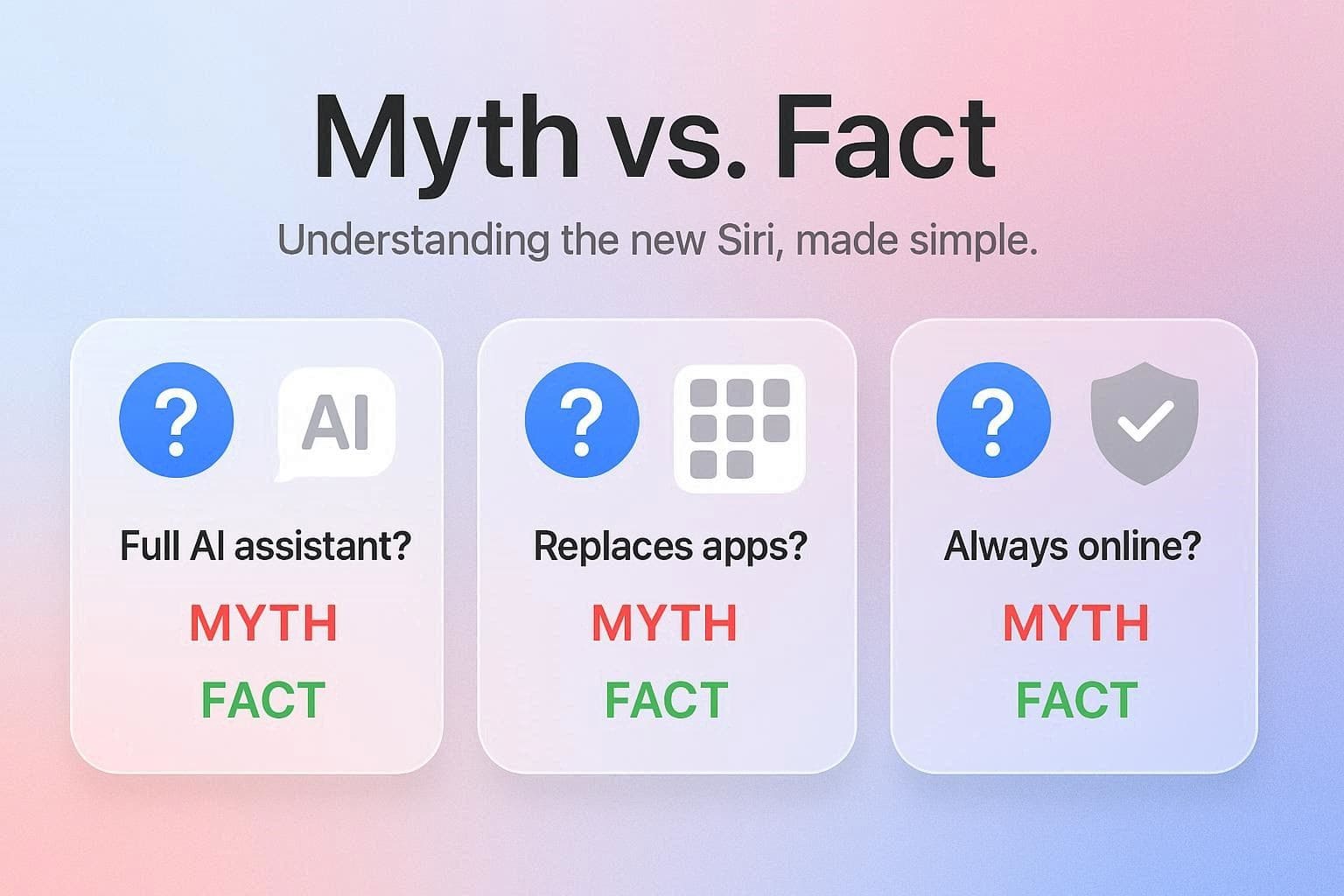
- “Is Siri Now a Full AI Assistant?” Yes, but with some limits, and most leaks like MacRumors highlight how. According to the report, Siri becomes much smarter and works like a chatbot that can handle natural conversations and remember context. Nevertheless, it is not fully dependent like an AI chatbot, and can use external AI systems like Google Gemini for broader knowledge tasks.
- “Does Siri Replace Apps?” No, Siri app iOS 27 does not replace your apps, but it completely changes how you use them. This means that Siri acts as an overlay that can see what is on your screen and can pull the data rather than opening individual apps.
- “Is Siri Always Online Now?” No, Siri is not always online, even though many features work directly on your phone to help protect your privacy. It can locally read on-screen content or understand personal information. Hence, it only goes online for web searches or more advanced AI requests that require cloud-based processing.
Part 4. How to Use New Siri Features in iOS 27?
1. Activating Siri on iOS 27
You can either choose the command to activate Siri or the Power buttons once enabled via the mentioned steps:
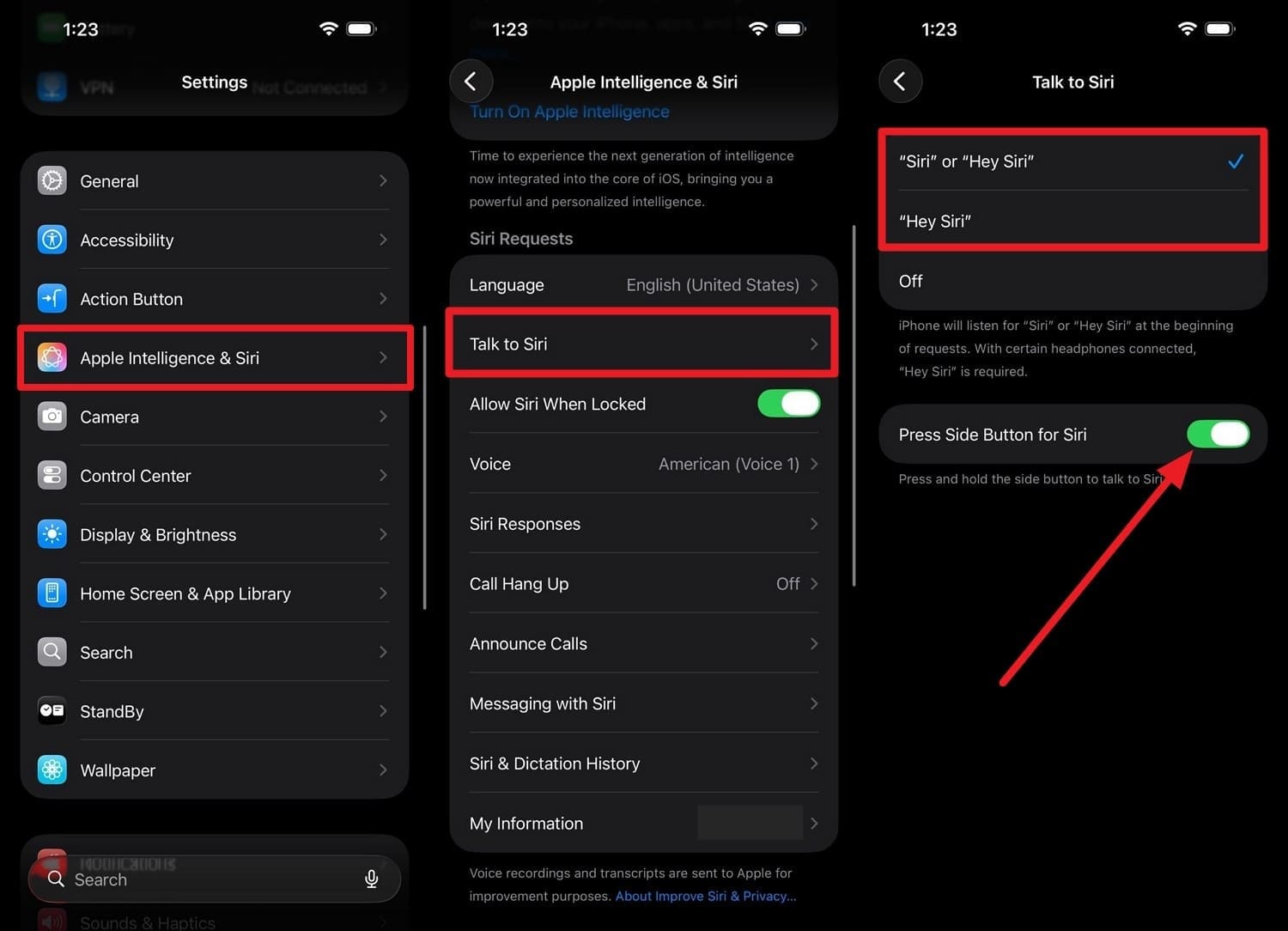
Instructions: To enable Siri in iOS 27, go to settings and choose the “Apple Intelligence & Siri” and “Talk & Type to Siri” options. There, choose the option between “Siri” or “Hey Siri” or toggle on “Press Side Button for Siri” to activate it through the “Power” button.
Best New Siri Commands to Try
Since Siri now acts as an AI agent, you can now ditch the robotic command and talk to it naturally. To give you an idea of how it can be done, a few command examples are given below:
- “Summarize the email that my boss sent me this morning at 9:00 am and see if those dates clash with my calendar.”
- “Find the photo of the restaurant menu I took last weekend and text it to Sarah.”
Using Siri with Apple Intelligence
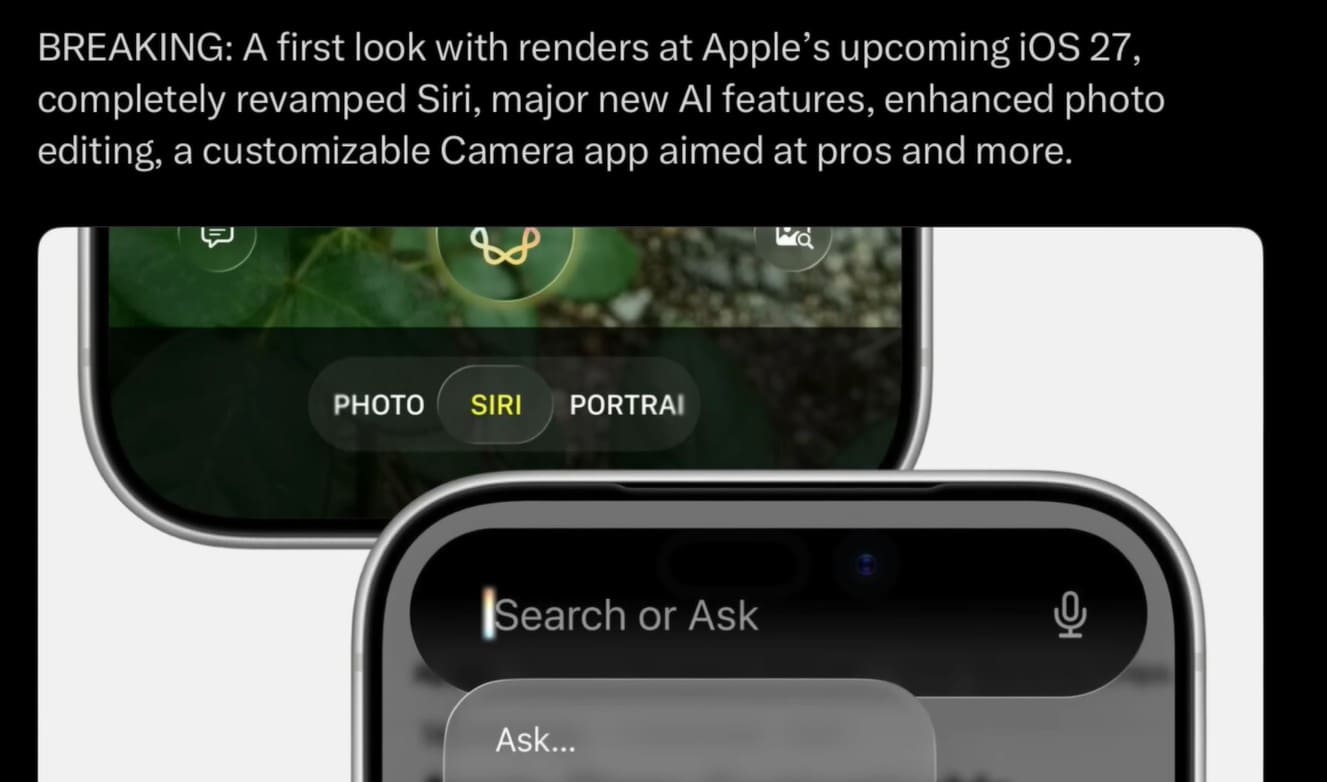
Siri also works closely with the Apple Intelligence iOS 27 to help complete tasks more naturally and faster. In a recent video leak by iDevice Help, a tweet was shared that shows how users can access the “Siri” mod in the Camera app. Hence, this can be used to identify objects and save details from a business card.
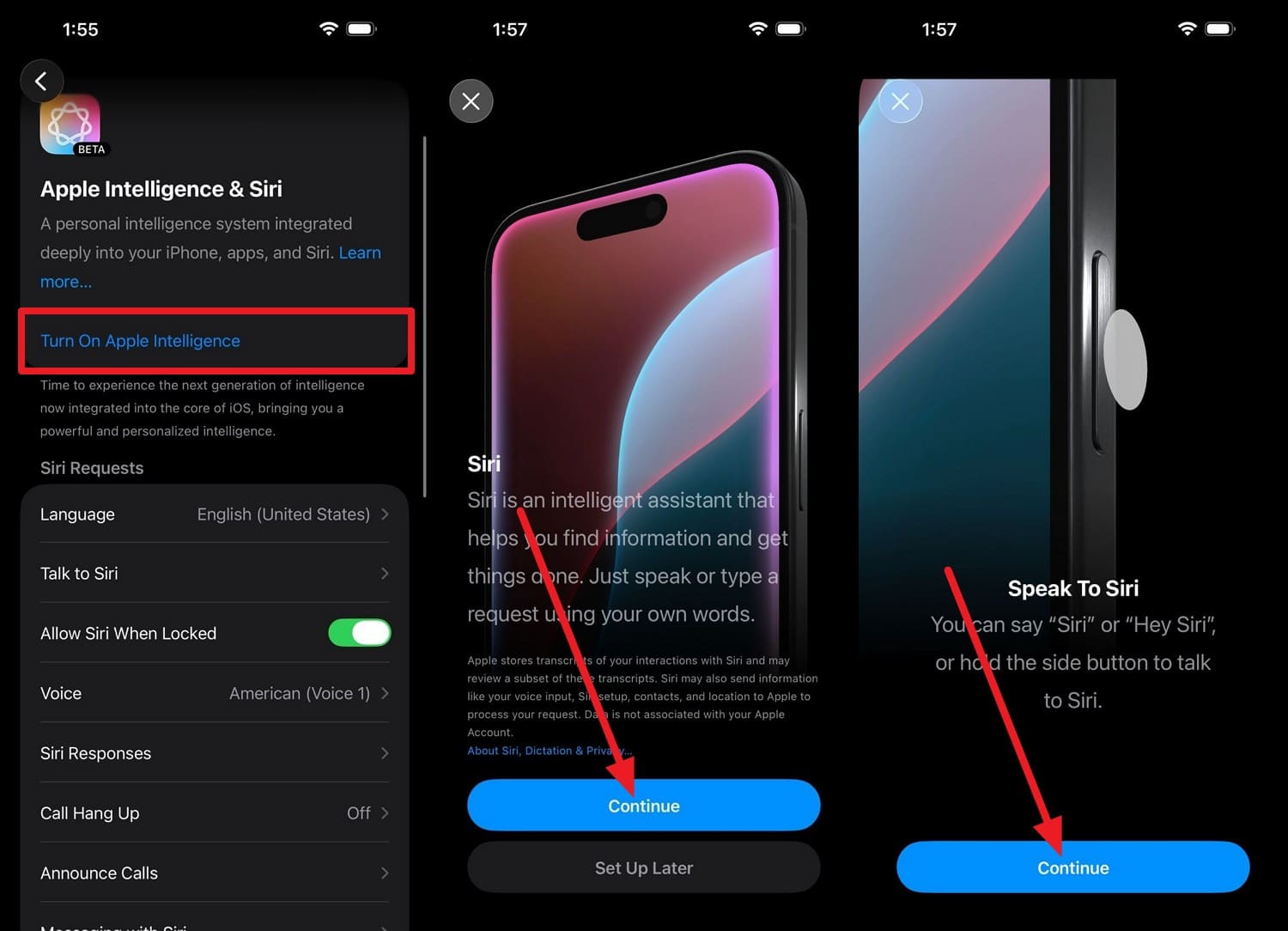
To set it up, you can perform the simple steps mentioned in this section, as only then can Siri work better:
Instructions: On the “Apple Intelligence & Siri” settings, choose the “Turn On Apple Intelligence” option and “Continue” on the following screens.
Part 5. Problems Users May Face With Siri in iOS 27
Let's say you have installed the beta version of iOS 27, and with the new Siri in iOS 27, you are facing some issues. So, to know what they can be or why they occur, review the table given ahead:
| Problem | What Happens | Reason |
|---|---|---|
| Siri Not Responding Properly | The interface freezes, crashes, or refuses to open from the Dynamic Island. | Background software bugs in early iOS 27 builds cause the new standalone app to crash. |
| Misunderstanding Commands | Siri misinterprets screen details or shows facts when summarizing files. | On-device AI models can still struggle to accurately map complex app layouts or dense PDFs. |
| Delayed Responses | Heavy AI tasks trigger high battery drain and lag on older supported devices. | Processing multi-step prompts locally overloads older internal chips and strains the battery. |
| Limited Feature Availability | Advanced chatbot and screen-reading tools are blocked on standard iPhone models. | Older base models lack the required 8GB of RAM and advanced Neural Engine hardware. |
Part 6. How to Fix Siri Issues After iOS 27 Update
Way 1. Restart Siri and Device
This method can fix the temporary software glitches and refresh the background activities. It can also reload Siri settings and help if Siri is unresponsive or cannot connect properly. So, to restart Siri and then the device, follow the steps to refresh its configuration:
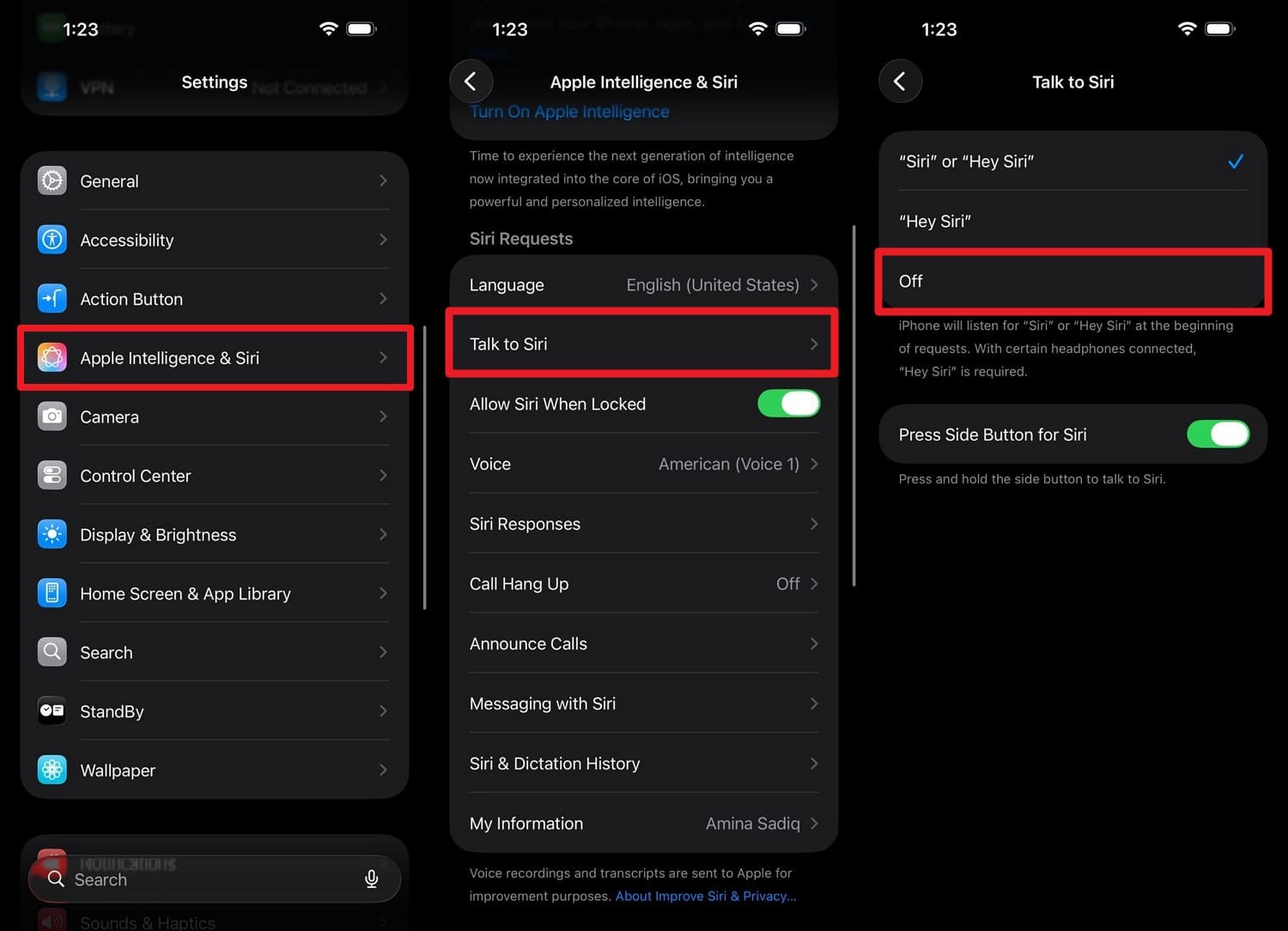
To Restart Siri:
On Apple Intelligence & Siri > Talk & Type to Siri, set the option to “Off” and wait for a few seconds to set it to “Siri” or “Hey Siri.”
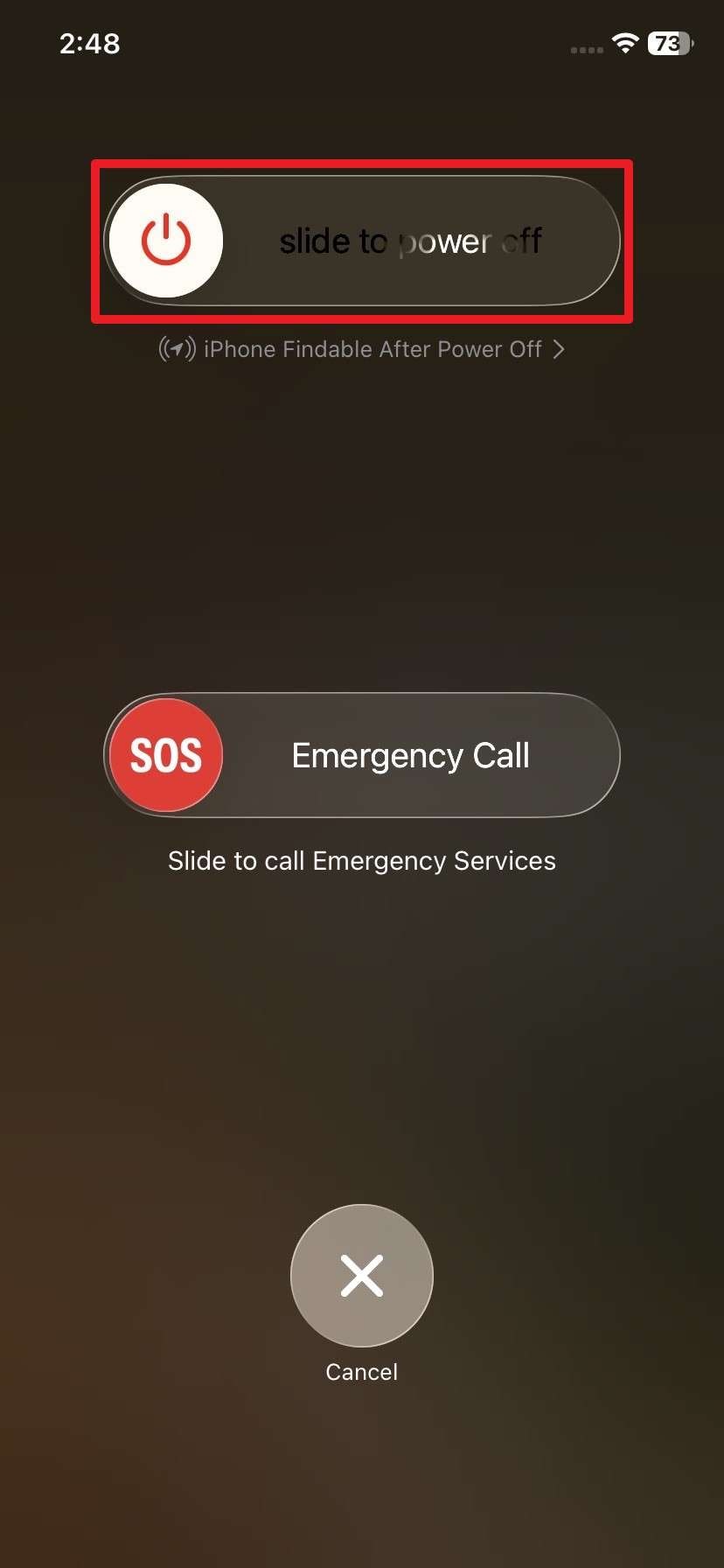
To Restart Device:
Instructions: Press and hold the “Power” and “Volume Up” buttons to slide the “Slide to Power Off Slider.” Wait a few seconds and hold the “Power” button until the Apple Logo appears.
Way 2. Check Siri Settings and Permissions
Sometimes an update can disable new Siri iOS 27 and rest voice activation settings or change permissions. So, ensure Siri is set to “Siri” or “Hey Siri,” and that Apple Intelligence features are enabled.

Way 3. Re-enable Apple Intelligence Features
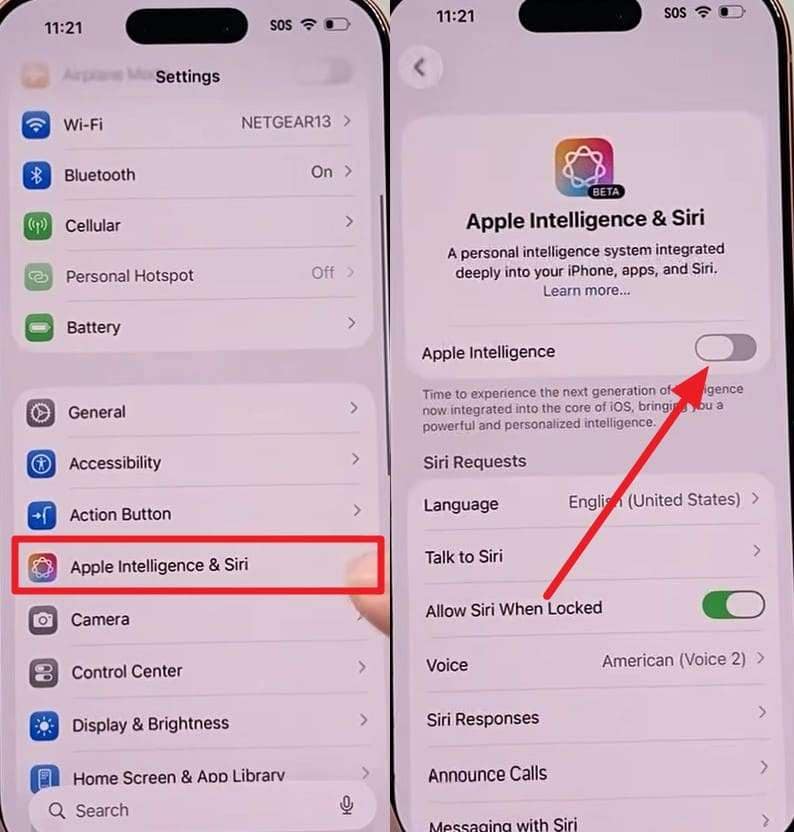
As many of Siri’s new features rely on these AI capabilities, Siri may lose advanced functions if this feature is turned off or incorrectly configured. So, check the Apple Intelligence settings and ensure any required downloads are complete, and re-enable it to refresh its configuration, as guided:
Instructions. If it's already set up, go to the “Apple Intelligence & Siri” settings and disable and enable the “Apple Intelligence” option.
Way 4. Reset Network Settings if Siri Fails Online
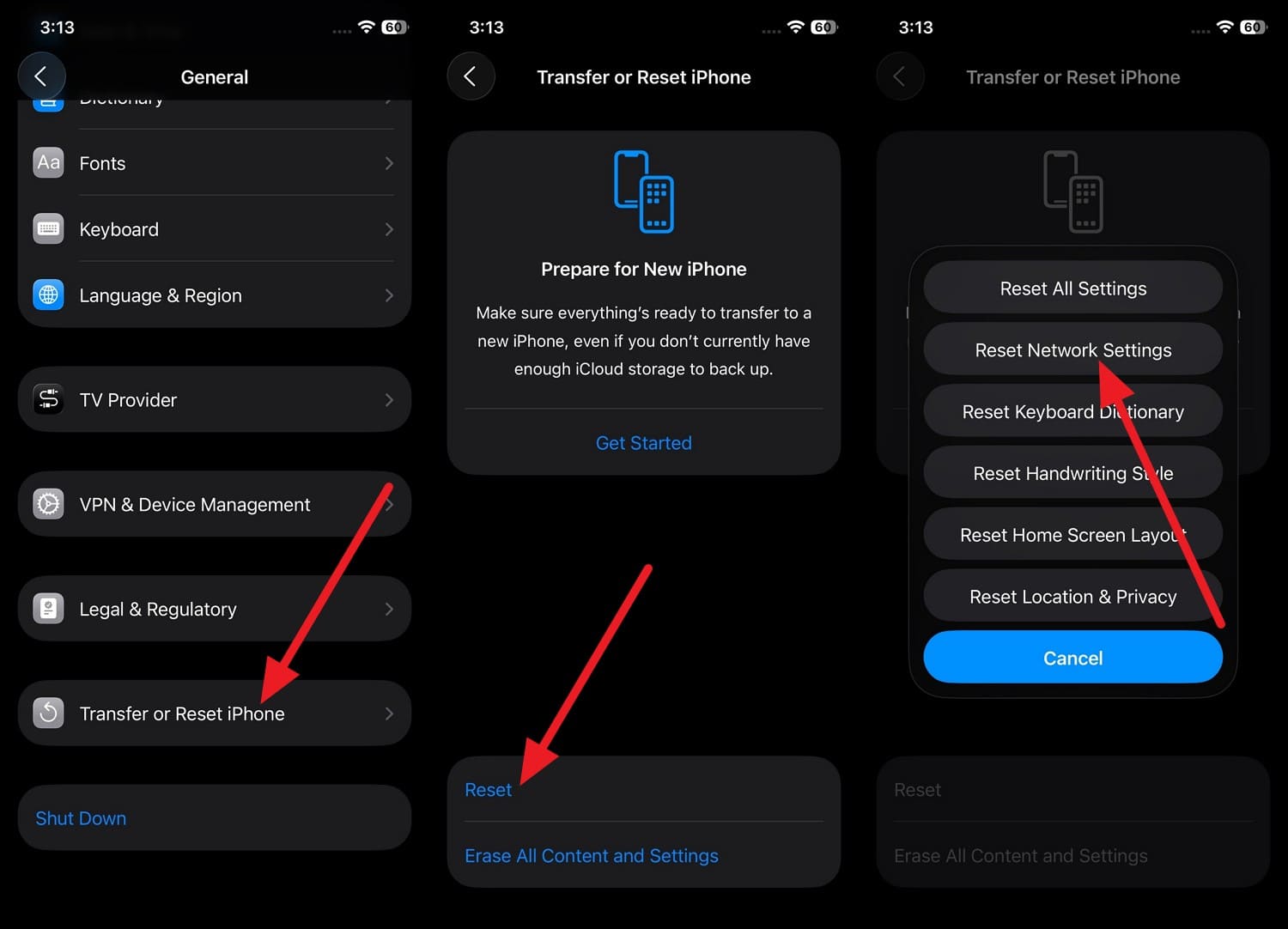
When the new Siri iOS 27 fails to work online, the reason could be hidden Wi-Fi, cellular, VPN, or DNS issues. Hence, a network reset can clear these settings and create a fresh connection without deleting your personal data. Since it can resolve issues caused by old network configurations, here is how it can be done:
-
Step 1 On the “Transfer or Reset iPhone” settings, choose the “Reset” and “Reset Network Settings” options.
-
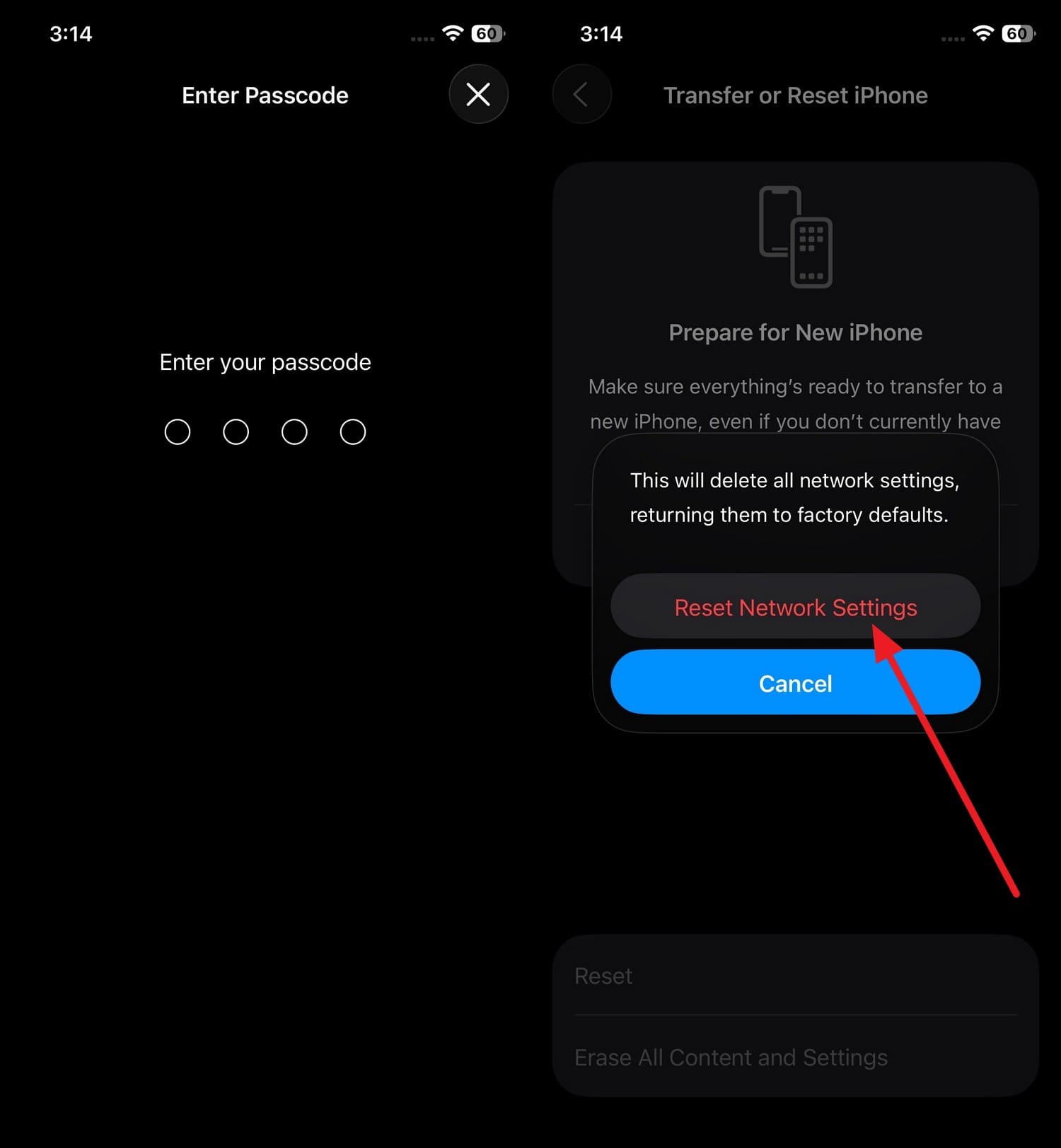
Step 2 Enter the device passcode twice when prompted, then choose the “Reset Network Settings” option again.
Way 5. Use Dr.Fone System Repair if iOS 27 causes Siri or System Issues
If the iOS 27 update has broken system functions like the Siri app, iOS 27, or UI responsiveness, use Dr.Fone - System Repair (iOS). This tool comes with 3 modes, and its “Standard” mode lets you fix system issues without deleting data. Since it can fix 150+ iOS-related issues, it only needs firmware installation and can be done in 3 simple steps.
In this regard, users can enter Recovery Mode and Exit DFU Mode for free, making it a budget-friendly choice. If Siri fails to function after installing the firmware, users can also downgrade to iOS 26 or earlier versions using Dr.Fone. Otherwise, you can use the Advanced mode to fix deeper issues after a complete reset of the iDevice.
 Fix iOS issues, no data loss.
- One-click repair for all iOS problems.
- Solve recovery mode, Apple logo, black screen, etc.
- Upgrade or downgrade iOS without iTunes

Guide to Fix iOS 27 System Issues for Siri to Work via Dr.Fone
To know how this tool can regain the functionality of Siri and Apple Intelligence iOS 27, let’s test this tool via the mentioned guide:
-
Step 1 Access Standard and Recovery Mode on Dr.Fone
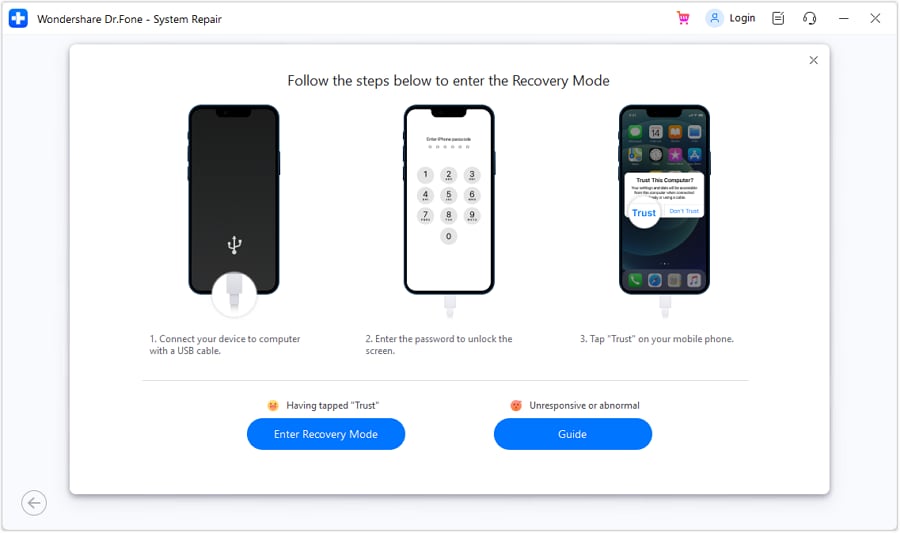
In the iOS System Repair tool, select the “Repair Now” button and choose “Standard Mode” to access Recovery Mode via the provided guide.
-
Step 2 Choose to Download iOS Firmware Options
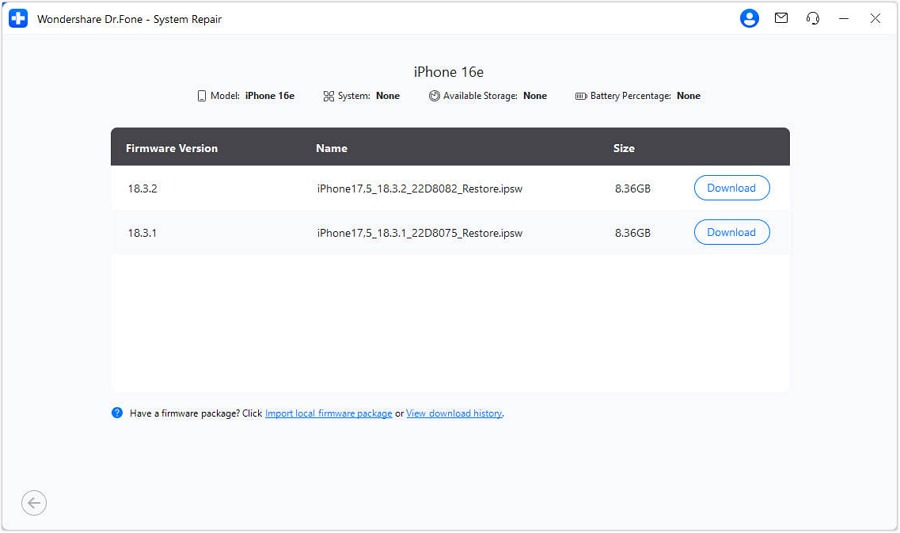
In that, it will detect and display the iOS firmware, and you can choose the “Download” button to install it.
-
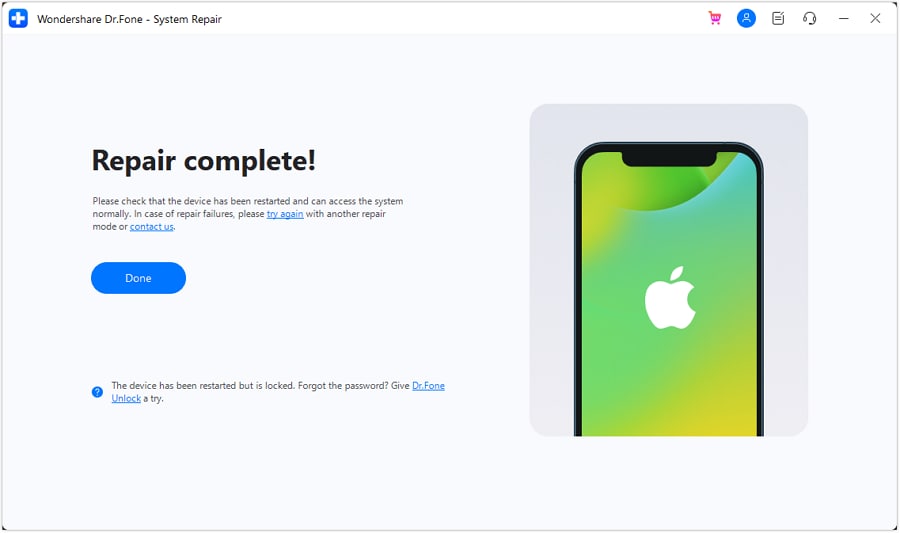
Step 3 Tap the Repair Now and Done to Repair Issues
After the installation, pick the “Repair Now” button, and when the progress bar ends, press “Done” to conclude.




Final Verdict: Is Siri in iOS 27 Worth It?
The new Siri iOS 27 looks like Apple’s biggest voice assistant upgrade yet, with a dedicated app and on-screen awareness. In addition to deeper Apple Intelligence integration, Siri can handle complex tasks more naturally and faster.
While some advanced features require newer iPhones and early versions may have occasional bugs, the overall experience appears much smarter and more useful. If the rumored features arrive as expected, you can use Dr.Fone - System Repair (iOS) to resolve any system issues that affect Siri.
Frequently Asked Questions
-
1. Does Siri in iOS 27 support multiple languages?
Yes, Siri is expected to support multiple languages, though some AI features may launch in the selected language first. -
2. Will Siri work without Apple Intelligence enabled?
Yes, basic functions will still work, but advanced AI features may require Apple Intelligence to be turned on. -
3. Does using the new Siri consume more battery?
Some advanced AI tasks may use more battery, especially when processing larger files or complex requests.
 Add Wondershare Dr.Fone as a preferred source on Google



