 Resolve common problems and system crashes on both iPhone and Android devices.

 100% Security Verified | No Subscription Required | No Malware

 :
: 
 ChatGPT
 Perplexity
 Gemini
 Claude
 Grok
Grok
As the iOS 27 Developer Beta is out now, many users face issues with the Control Center. Some report that it does not open, while others say it lags and freezes randomly. These issues can make everyday use difficult, especially for quick settings. Thus, this guide explains why users encounter iOS 27 Control Center bugs and how simple and advanced solutions, such as Dr.Fone - System Repair (iOS), can help.
In this article

Part 1. Common iOS 27 Control Center Bugs and Symptoms
Glance at the mentioned table to know about the most common iOS 27 Control Center bugs and their symptoms:
| iOS 27 Control Center Bug | Symptom (What Users Notice) |
|---|---|
| Control Center Not Opening | Swipe down does nothing or has a delayed response |
| Freezing Or Lag | Control Center becomes slow or unresponsive |
| Buttons Not Working | Wi-Fi, Bluetooth, and brightness toggles fail |
| Missing Controls | Some icons or options disappear after the update |
| Touch Not Responding | Taps on Control Center don't register |
| Random Crashes | Control Center closes automatically |
| Display Glitch | Blurry or distorted Control Center layout |
| Slow Animations | Opening/closing feels choppy or delayed |
Why These Issues Appear After Updating the iPhone
If you wonder why all the mentioned iOS 27 Control Center bugs appear, review the 5 reasons mentioned:
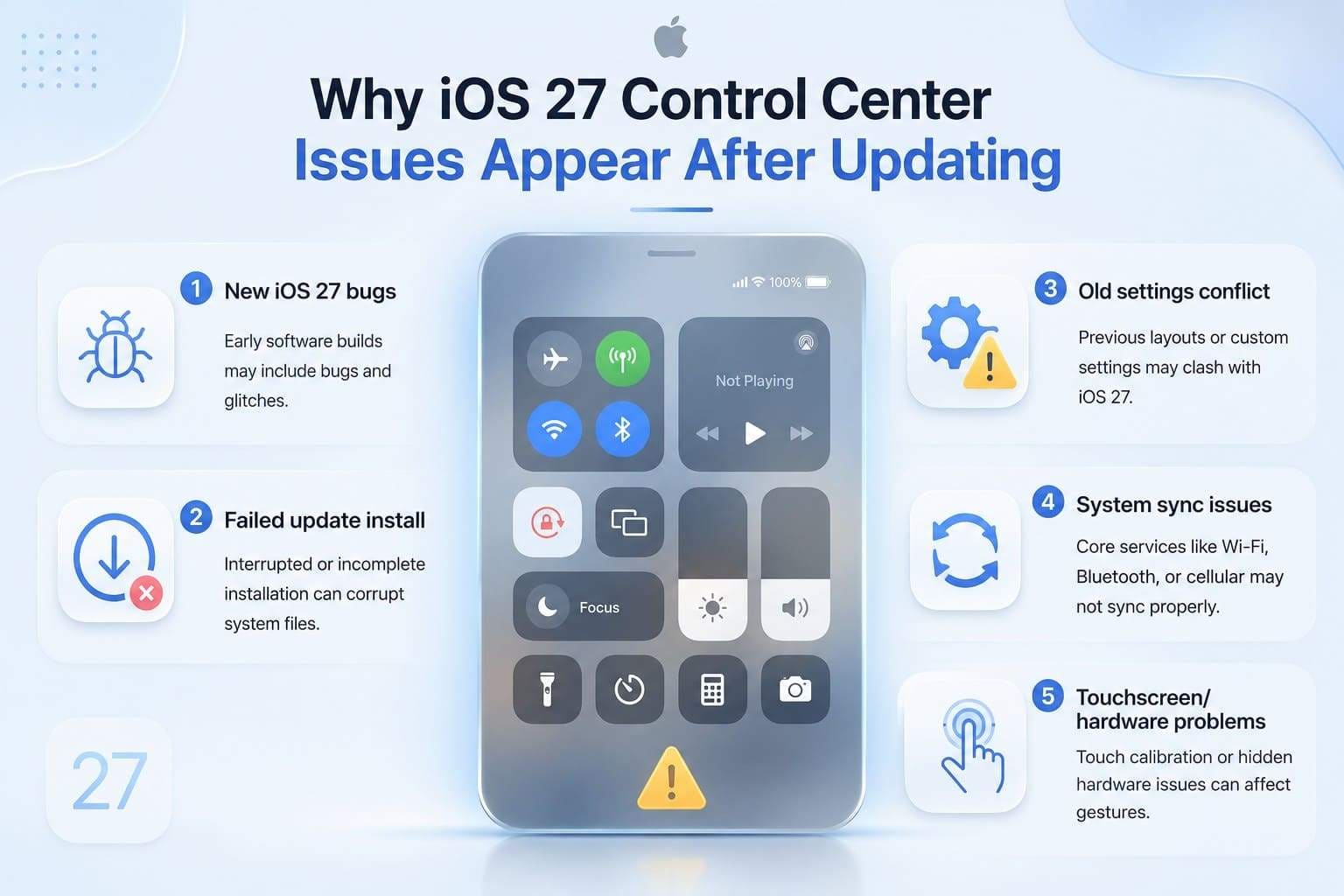
- New iOS 27 Bugs: Apple often changes Control Center design and internal system behavior in major updates, like iOS 27. Since the issue has been highlighted on MacRumors Forums, the early software build may include bugs that can cause glitches and layout resets.
- Failed Update Install: If you interrupt the update or install when storage is low, system files may not install properly. Thus, this can lead to Control Center freeze or complete failure issues after the update.
- Old Settings Conflict: Previous Control Center layouts and custom configurations can conflict with the new iOS 27 structure. Hence, users may see missing controls or settings that refuse to save or behave correctly.
- System App Sync Issue: Control Center depends on core services such as Wi-Fi and Bluetooth. So, if these system modules fail to sync properly after the update, toggles may not respond or disappear temporarily.
- Touch or Hardware Issue: Sometimes the update is not the real problem but exposes hidden hardware issues, like weak touchscreen response. Since the Control Center relies on gestures at the screen edge, any touch calibration can cause it to fail to open consistently.
Is It an iOS 27 Bug or an iPhone-Specific Issue?
As stated in one Instagram report, Apple has made significant changes in the Control Center. Nonetheless, you can know if the iOS 27 Control Center bugs issue is iPhone-centric by checking how many people are affected. If reports, like 9to5Mac, show multiple users on the same Control Center problem after the Developer Beta release, it is likely a system-wide iOS bug.
Nevertheless, if only your phone has the issue while other versions are fine, it's a device-specific issue. This can include touch hardware issues, corrupted settings, or display problems.
Part 2. iOS 27 Control Center Bugs: Basic Checks Before Fixing
For now, these iOS 27 Control Center bug issues seem like a system-wide problem. Thus, you can try the mentioned 3 basic checks before you try to resolve the bugs:
Check Available Storage
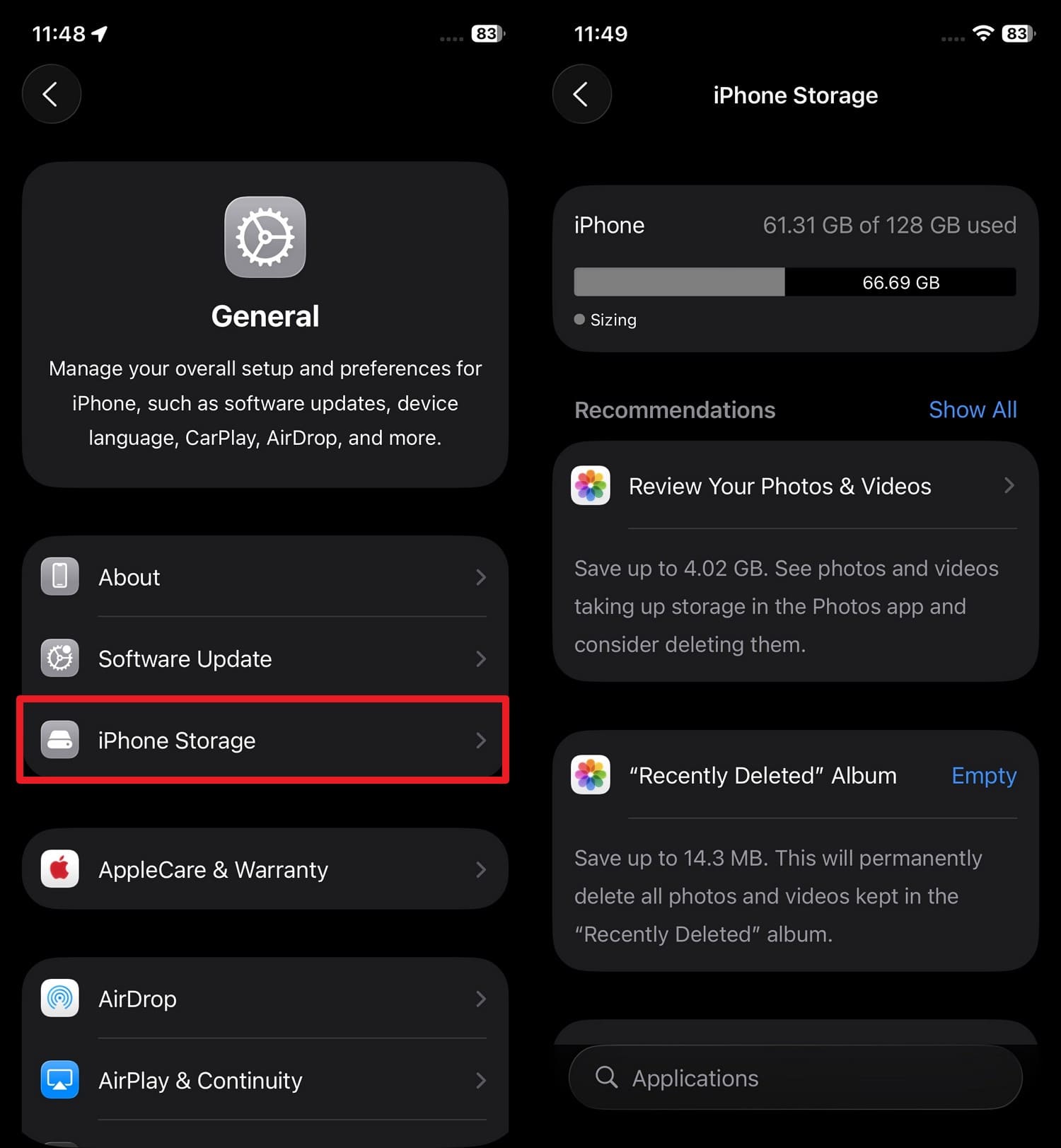
After the iOS 27 Beta update, System Data may temporarily grow because the system generates additional logs, caches, and diagnostic files. So, you need to check the storage in the settings to improve performance and reduce Control Center issues, as guided:
In the General settings, go to "iPhone Storage" and check the available iOS storage.
Test Control Center in Different Apps
When free space can't resolve iOS 27 Control Center bugs, test the Control Center to determine the problem. This way, you will know if this is system-wide, an app conflict, or just a settings problem. Simply tap anywhere on the upper half of the screen or swipe up to close it and return to the app.
Ensure iOS is Fully Updated
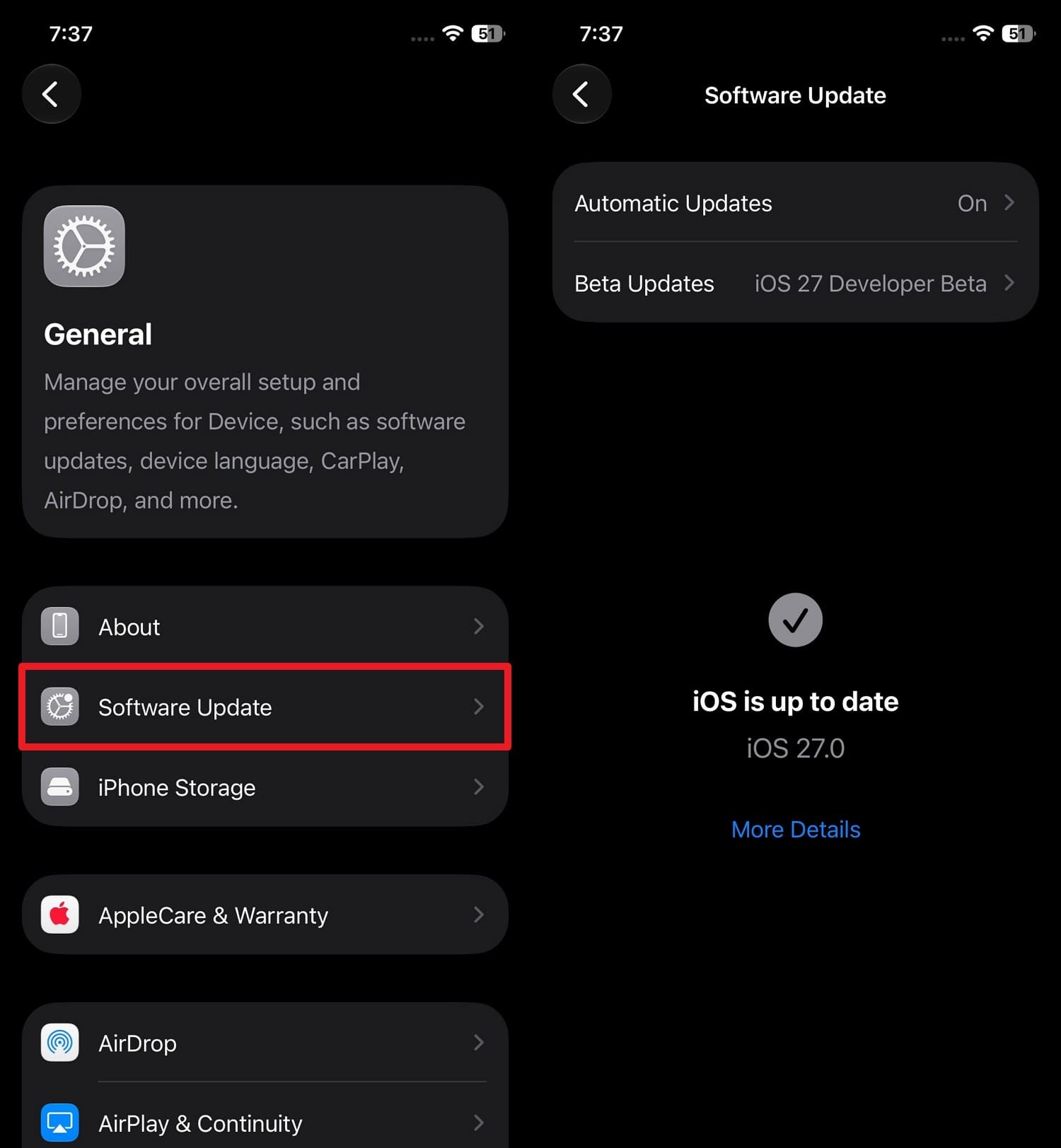
Many bugs are fixed in smaller patches, such as 27.0.1 or 27.1, while early beta versions contain issues. Hence, if the iOS is updated to new patches via the mentioned guide, it saves time to try advanced solutions. In addition, it ensures better stability and makes it easier to follow official Apple Support solutions.
Instructions: Go to General > Software Updates > to check whether you have the latest iOS 27 version.
Part 3. How to Fix iOS 27 Control Center Bugs?
When the issue persists after the basic checks, try the listed 9 solutions and determine if they can be helpful:
Fix 1. Use Dr.Fone - System Repair to Fix iOS 27 Control Center Bugs
When system glitches cause Control Center issues after the iOS 27 update, Dr.Fone - System Repair offers a guided way to repair iOS system files and resolve these bugs. As the tool is compatible with iOS 27, iPadOS 27, and iPhone 17 Series, it is designed to fix 150+ iOS issues. Hence, you can use its Standard Mode and fix the Apple issues without any data loss in just 3 steps.
When this mode fails, you can try its Advanced and Anti-Recovery mode for deeper Control Center issues. Regardless of the mode you opt for, you can access Recovery Mode and Exit DFU mode for free, which is suitable for novices. Besides this, users also get a detailed guide and get the option to fix 200+ iTunes errors like 4013 and 1110.
 Fix iOS issues, no data loss.
- One-click repair for all iOS problems.
- Solve recovery mode, Apple logo, black screen, etc.
- Upgrade or downgrade iOS without iTunes

Guide to Fix iOS 27 Control Center Bugs via Dr.Fone
To find out whether all the claims of Dr.Fone are true, review this simple guide to perform a real-world test:
Step 1 Choose System Repair to Fix iOS 27 Bugs
In the iPhone System Repair tool, press the "Repair Now" button under "iOS Repair" to fix iOS 27 Control Center bugs.

Step 2 Download the Firmware in Standard Mode
Select "Standard Mode" to keep the iDevice data intact, then access Recovery Mode and choose the "Download" option to install the firmware.
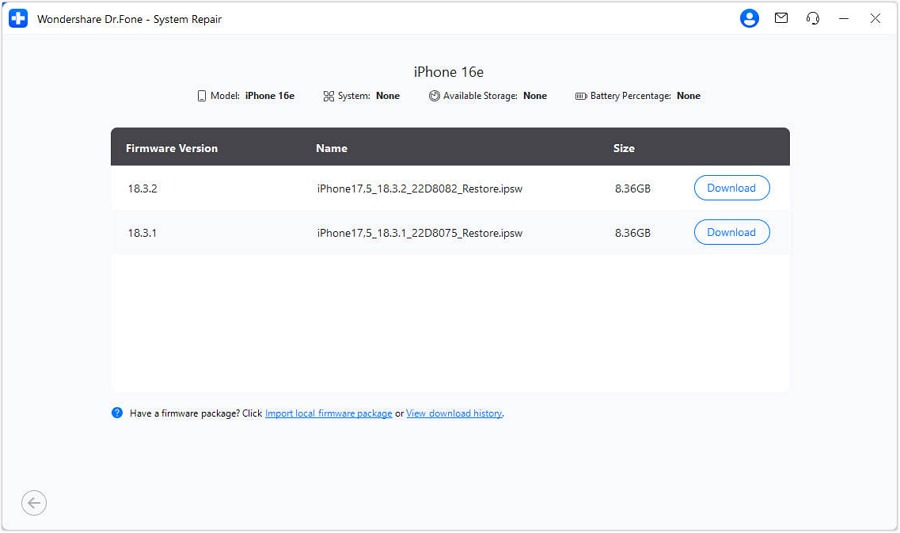
Step 3 Repair Now to Fix Control Center Bugs in iOS 27
When the package is ready, pick the "Repair Now" button and wait for the tool to repair the system files and resolve the Control Center bugs.





Fix 2. Restart or Force Restart iPhone
Dr.Fone can resolve iOS 27 Control Center bugs, but you can also restart or force restart to resolve persistent issues. This method clears the temporary glitches and refreshes the system, once restarted via the listed steps:
Step 1 Hold "Power + Volume Up" buttons > Slide To Power Off > wait for a few seconds.
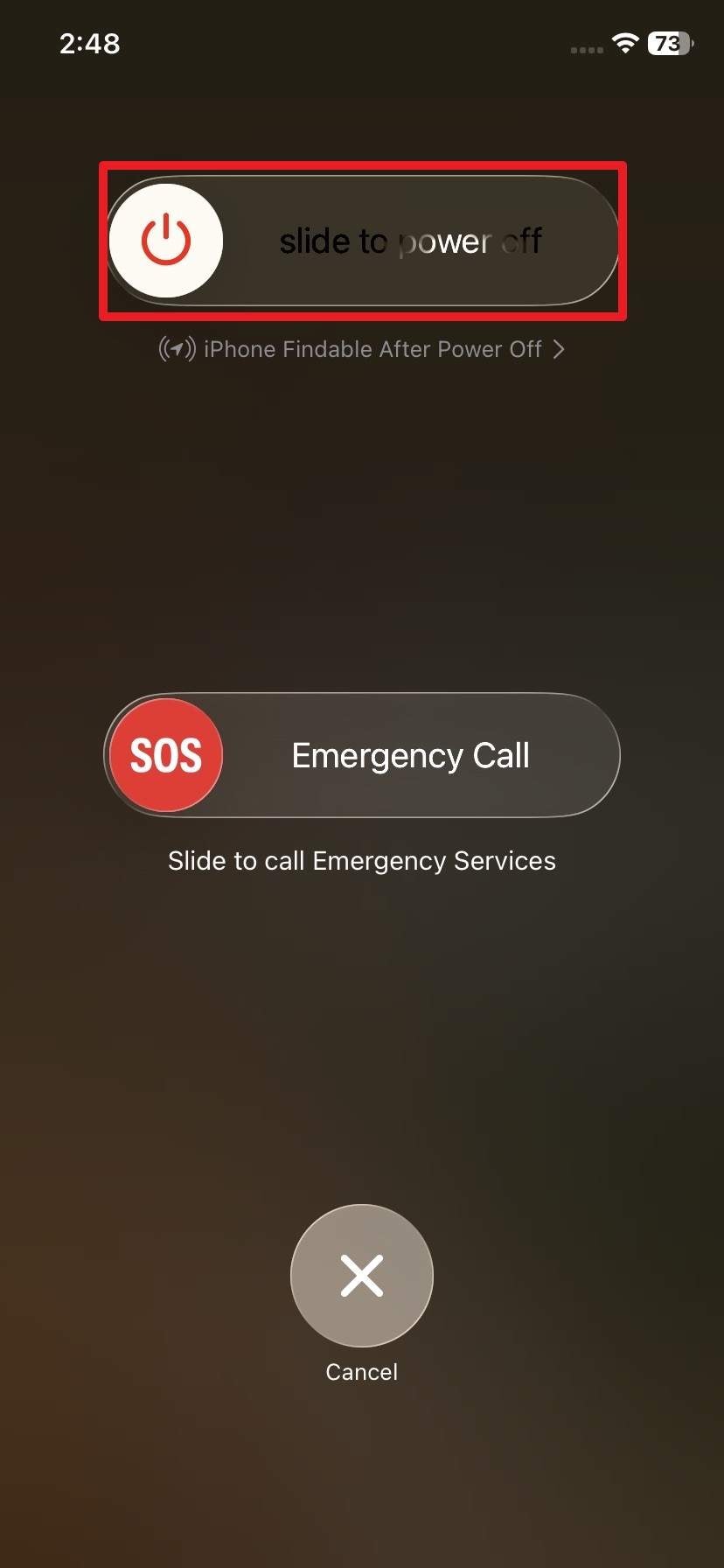
Step 2 Press the "Power" button to turn on the phone and test the Control Center in different apps.
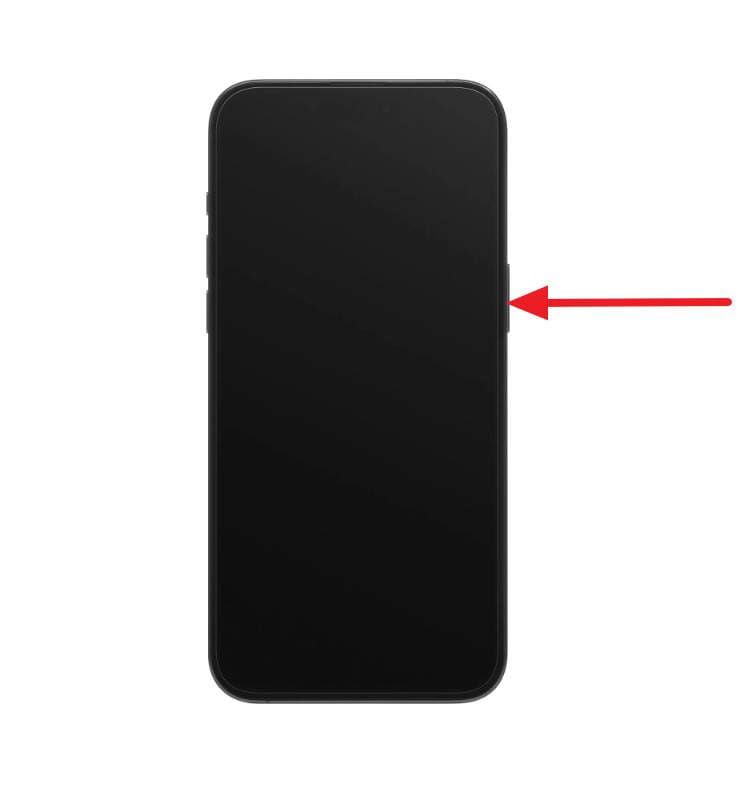
Fix 3. Re-Enable Control Center Access in Settings
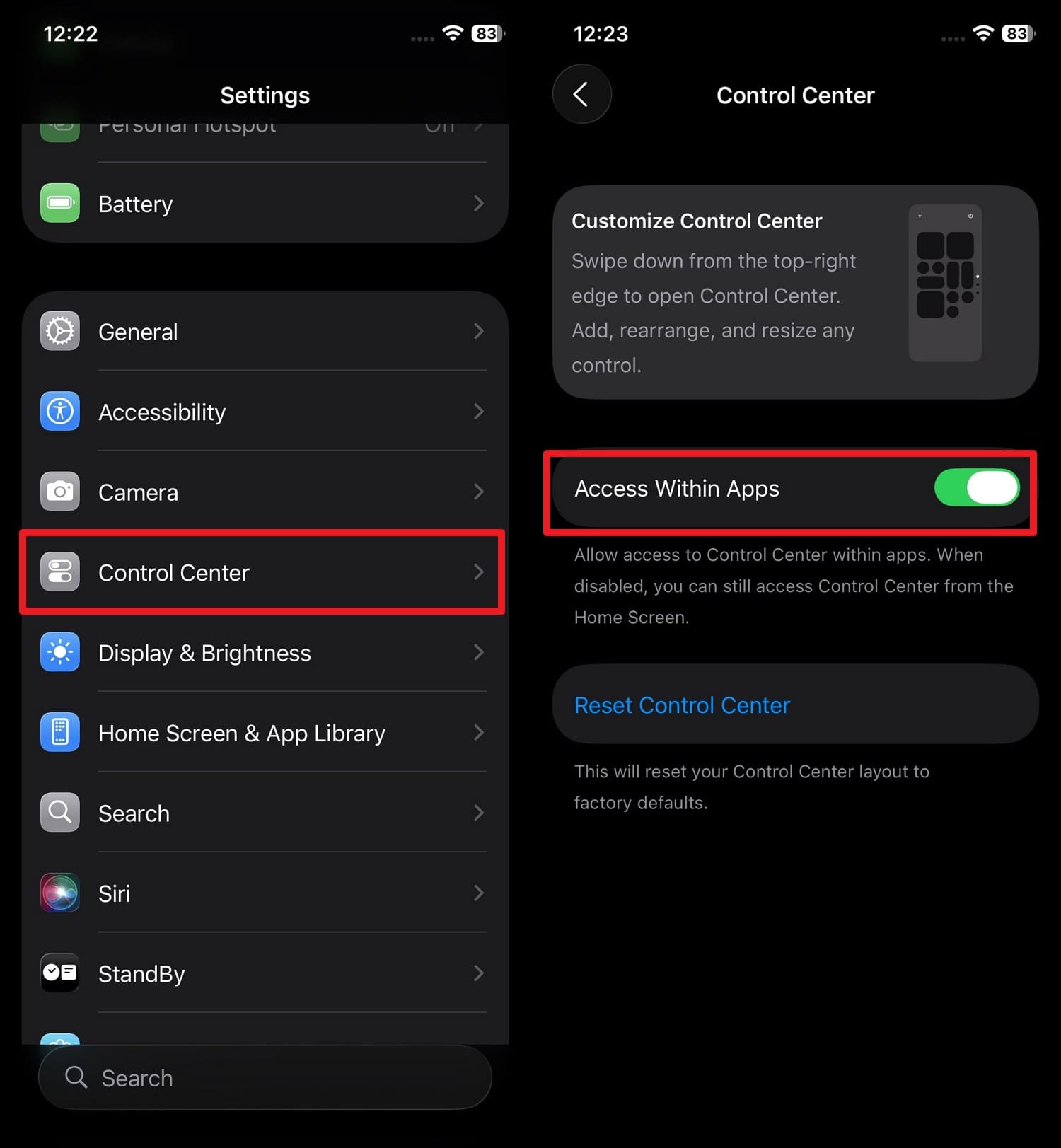
If this simple setting is turned off, it can make Control Center seem broken. Since this setting can change after the iOS 27 update, perform the given steps to rule out configuration problems:
Turn On Access Within Apps
Instructions: Choose "Control Center" settings and toggle on "Access Within Apps" to fix iOS 27 Control Center bugs.
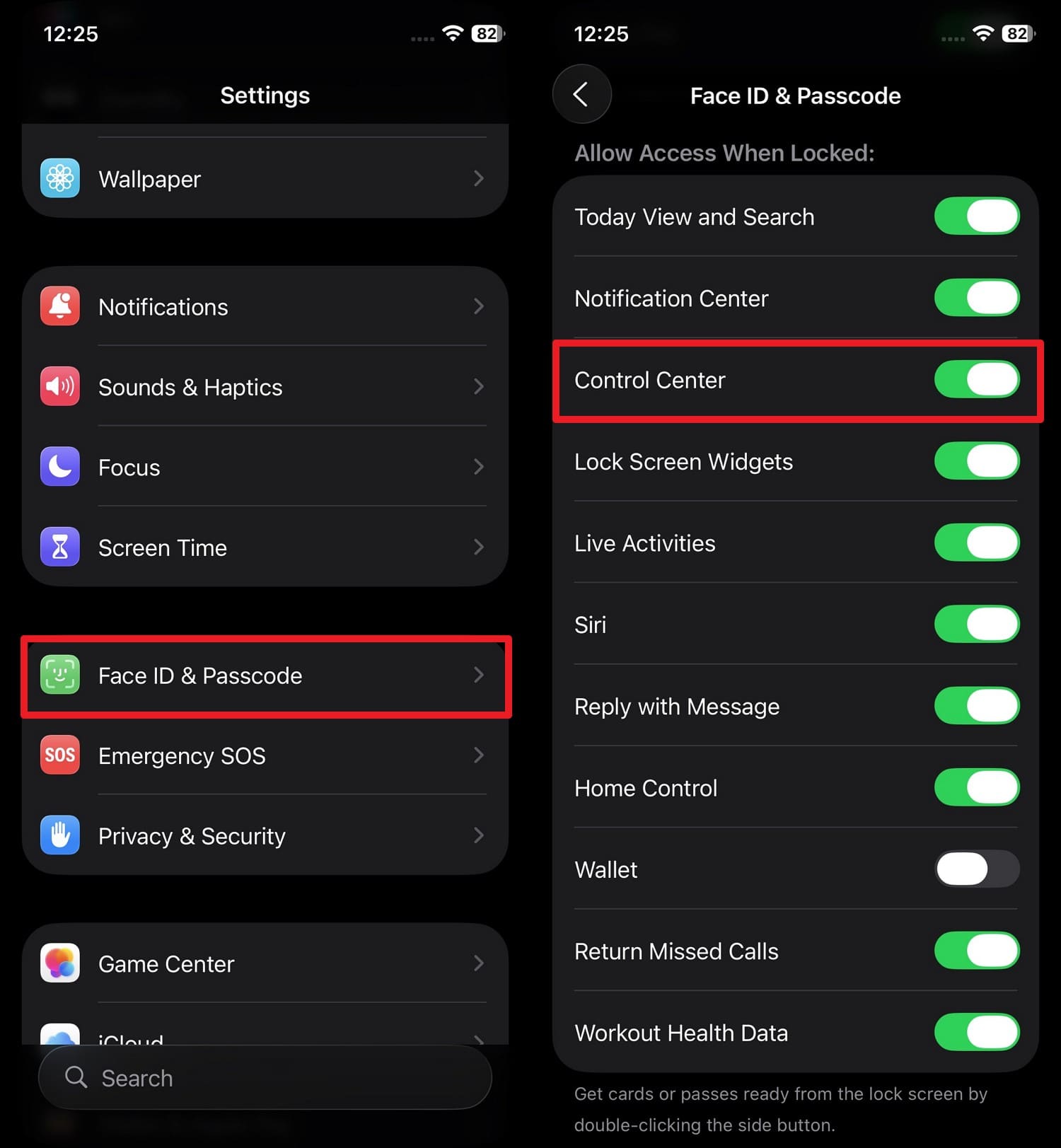
Allow Control Center on Lock Screen
Instructions. Go to "Face ID & Passcode settings > Add Passcode > Allow Access When Locked" and toggle "Control Center."
Fix 4. Turn Off Background App Refresh
This feature allows the app to update in the background and can slow iOS animations when too many apps are active. Since this can also make Control Center laggy, turn it off via the mentioned steps to free up system resources and fix iOS 27 Control Center bugs.
Instructions: In General settings, go to "Background App Refresh > Background App Refresh" and choose "Off."

Fix 5. Disable Reduce Transparency
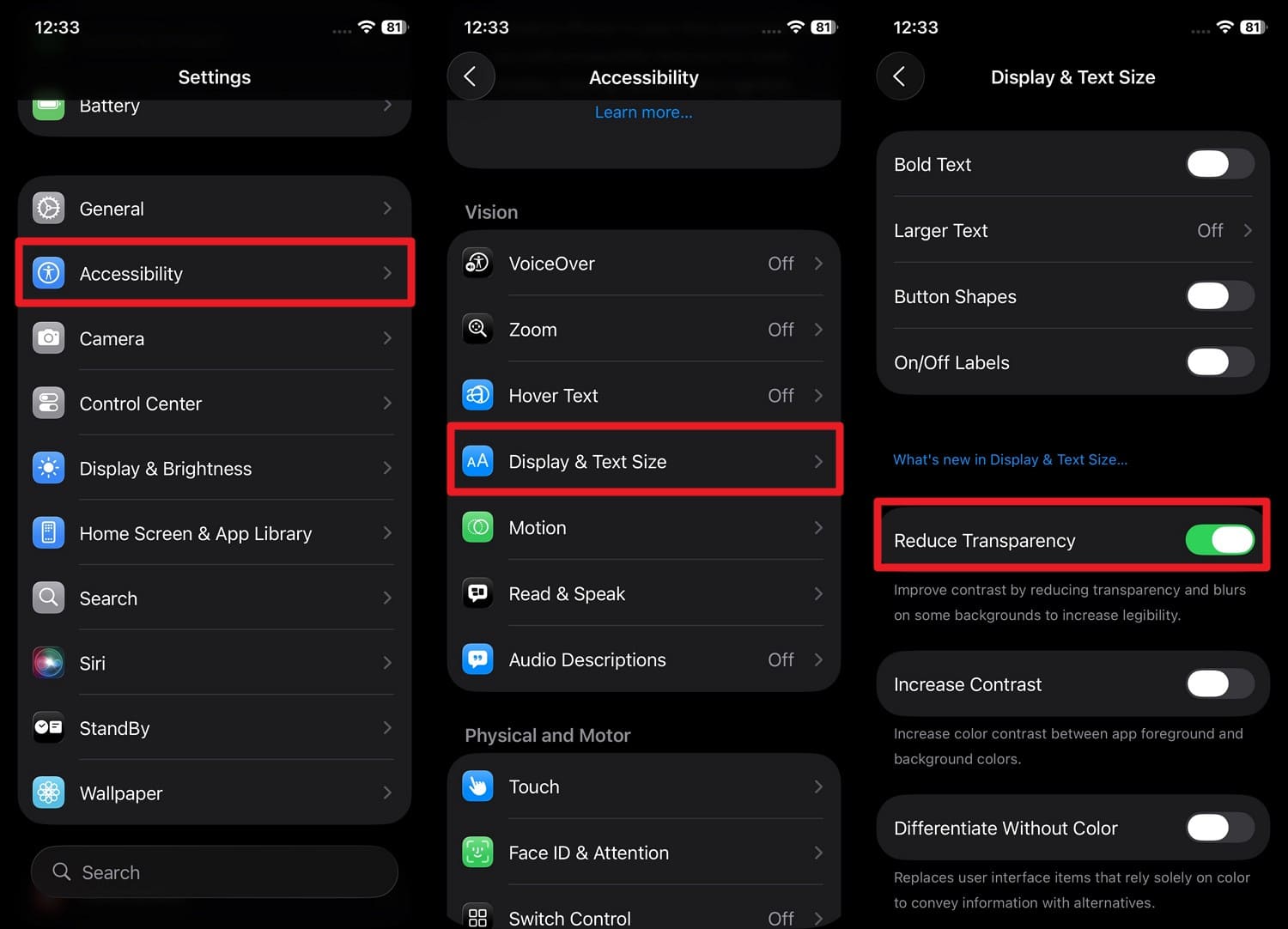
If this option is on, Control Center appears visually broken or inconsistent. Thus, turn it off to restore the normal Liquid Glass style appearance and improve clarity, as guided:
Instructions: In the Accessibility settings, pick the "Display & Text Size" option to toggle off "Reduce Transparency" to resolve iOS 27 Control Center bugs.
Fix 6. Free Up Storage Space
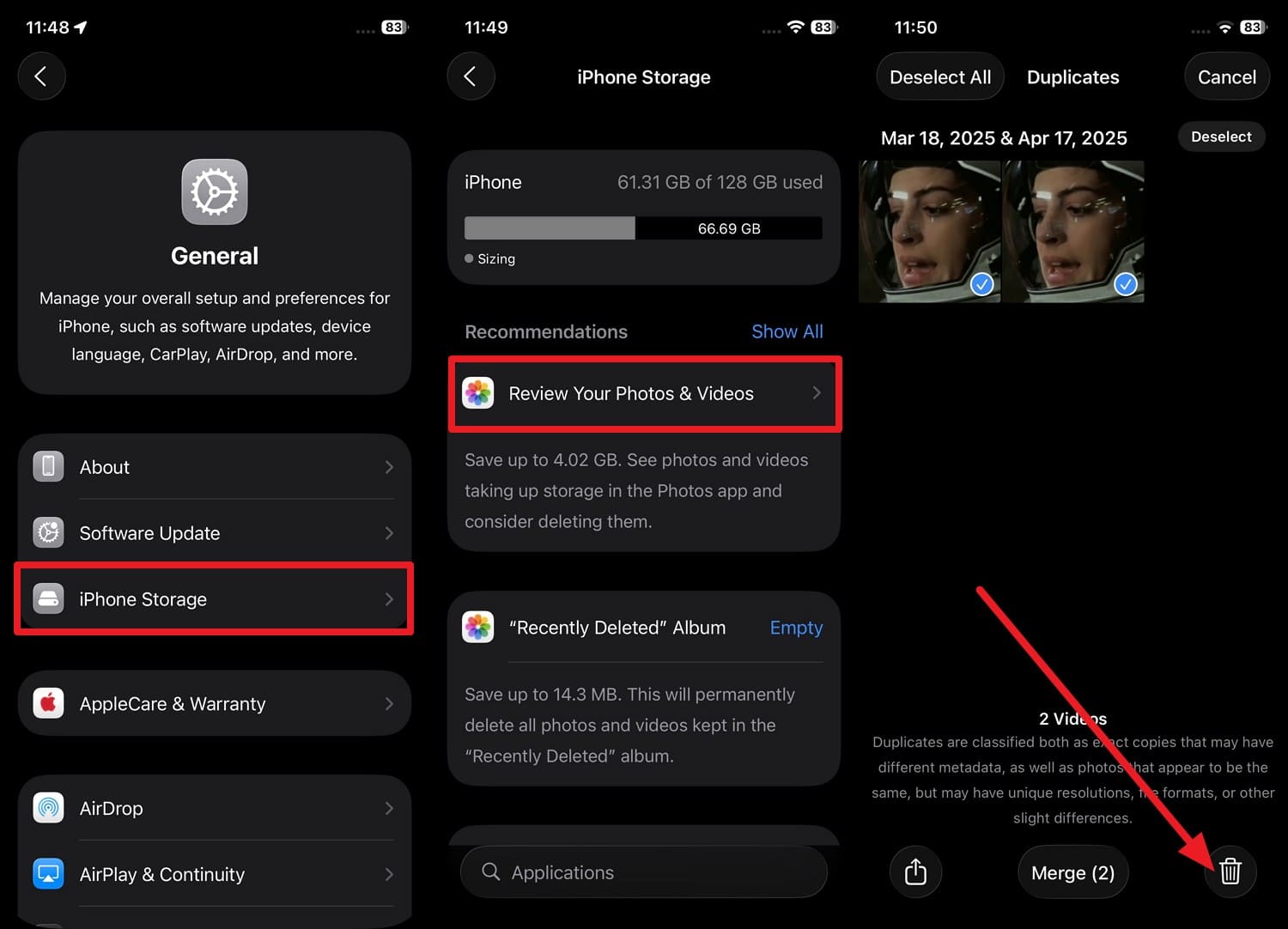
When you delete the extra data, you give iOS enough room to run smoothly again. So, once you check the storage via Check 1, delete the extra data through the given steps to avoid iOS 27 Control Center bugs:
Instructions: In "iPhone Storage" settings, choose "Review Your Photos & Videos" and pick duplicates or other extra data to "Delete."
Fix 7. Update to the Latest iOS Patch
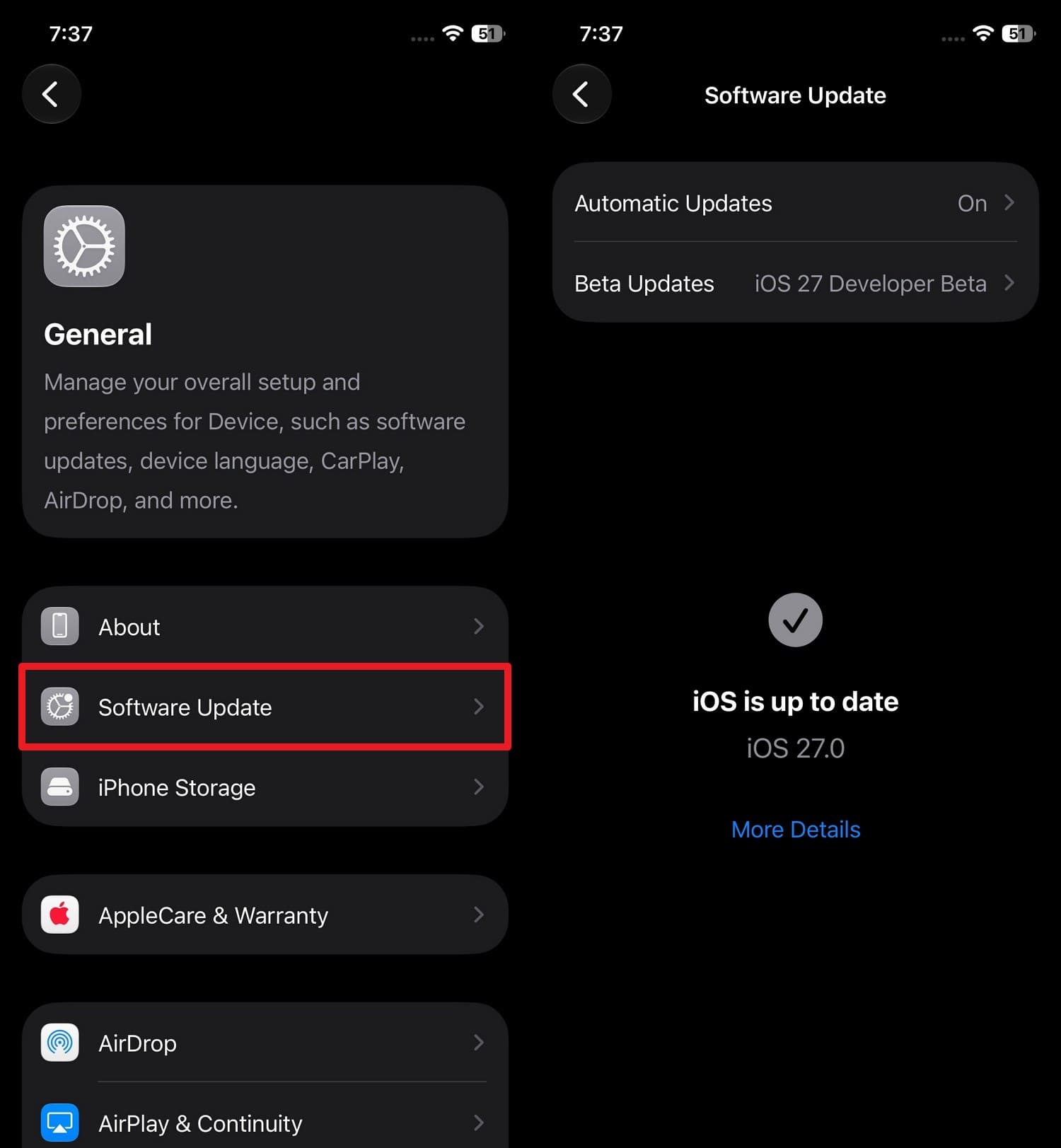
It's said that Apple releases small updates that target stability, performance, and UI issues. So, if the Check 3 shows you are not on the updated version, follow the mentioned steps to get the most stable iOS version:
Instructions: Access "General settings > Software Updates > Update Now" to install iOS 27.0.1 or 27.1 patches and fix iOS 27 Control Center bugs.
Fix 8. Reset Network Settings
If your Wi-Fi, Bluetooth, cellular, or hotspot toggles aren't working, try this fix. This setting removes and rebuilds all network-related data and resolves connectivity and toggles issues, as shown:
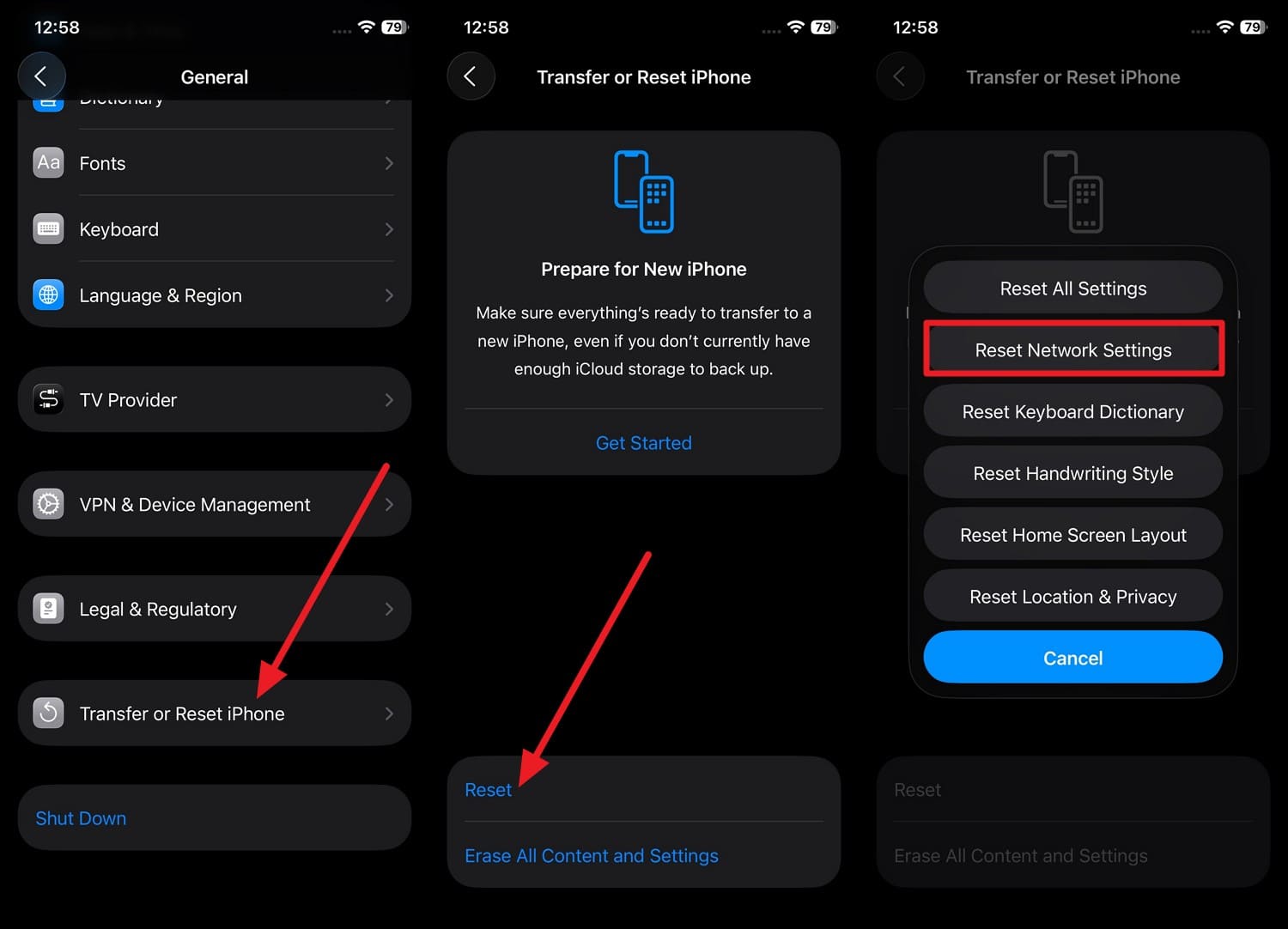
Step 1 Pick "Transfer or Reset iPhone > Reset > Reset Network Settings" option in iOS "General" settings.
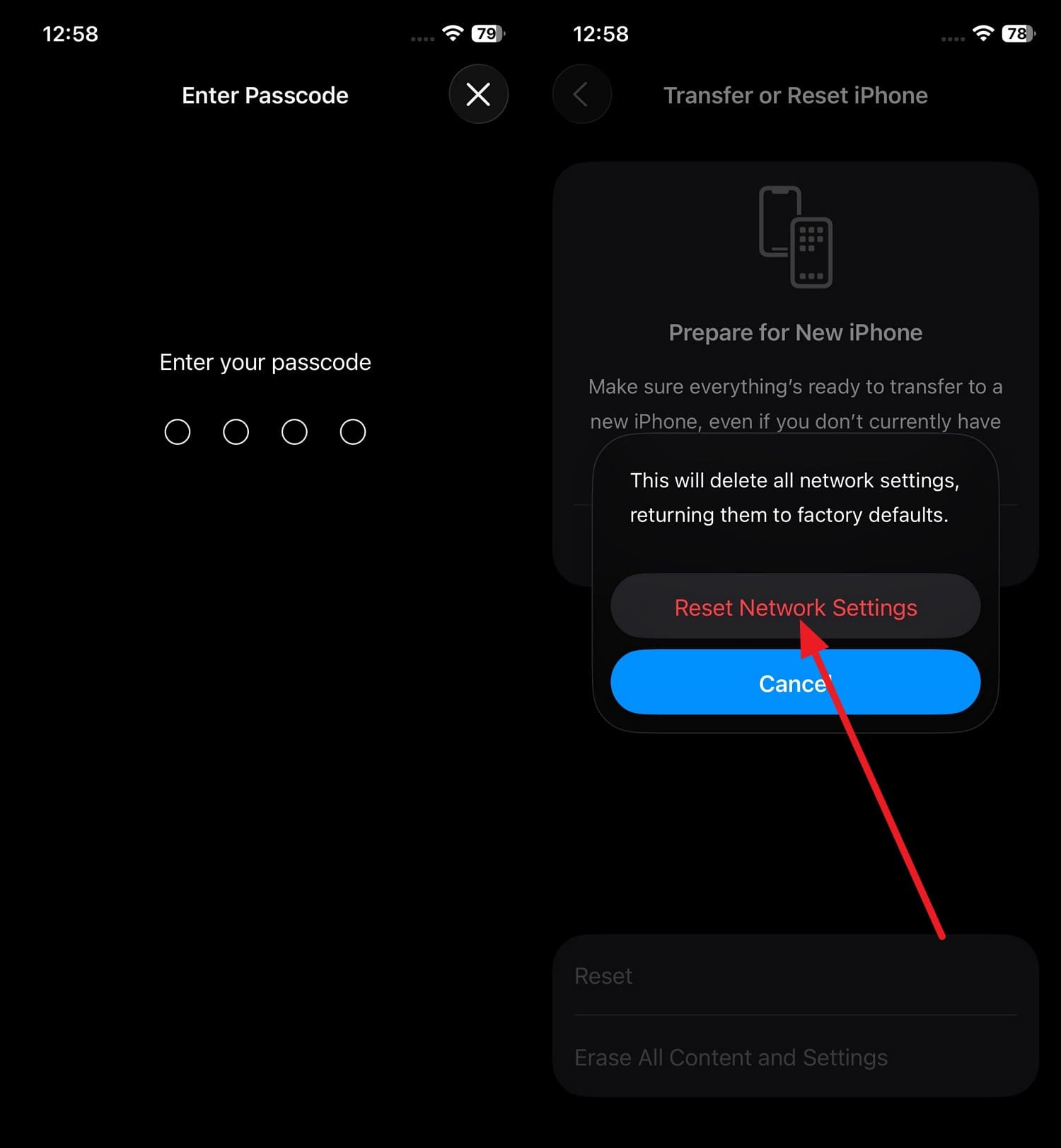
Step 2 Enter the phone passcode twice when prompted, then tap "Reset Network Settings" to fix iOS 27 Control Center bugs.
Fix 9. Reset All Settings (No Data Loss)
This solution can restore all system settings to their defaults without deleting your personal data. Since Control Center can conflict and cause issues like missing tiles, here is how you can try to fix bugs:
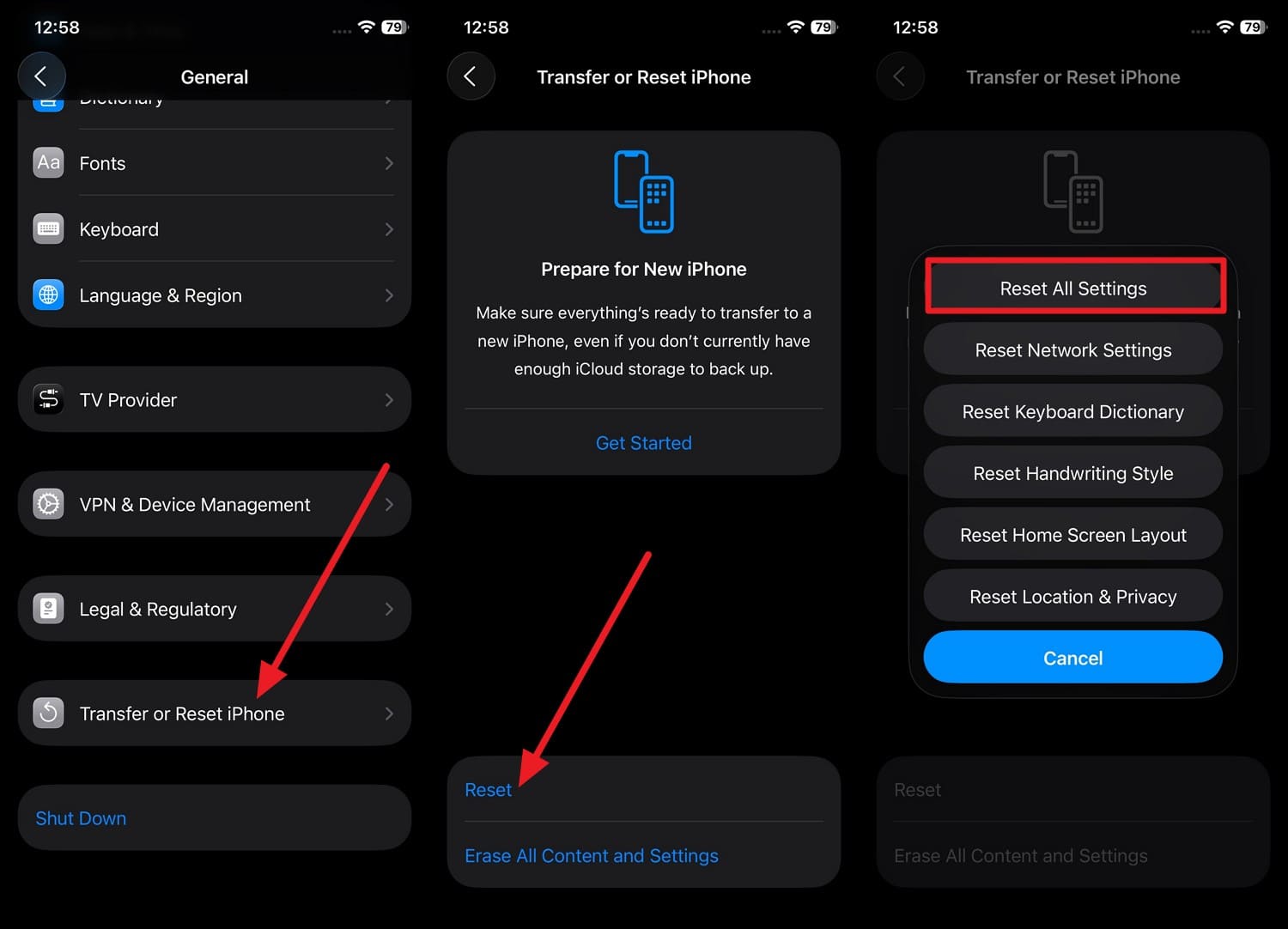
Step 1 In the General settings, access "Transfer or Reset iPhone > Reset" and tap the "Reset All Settings" option.
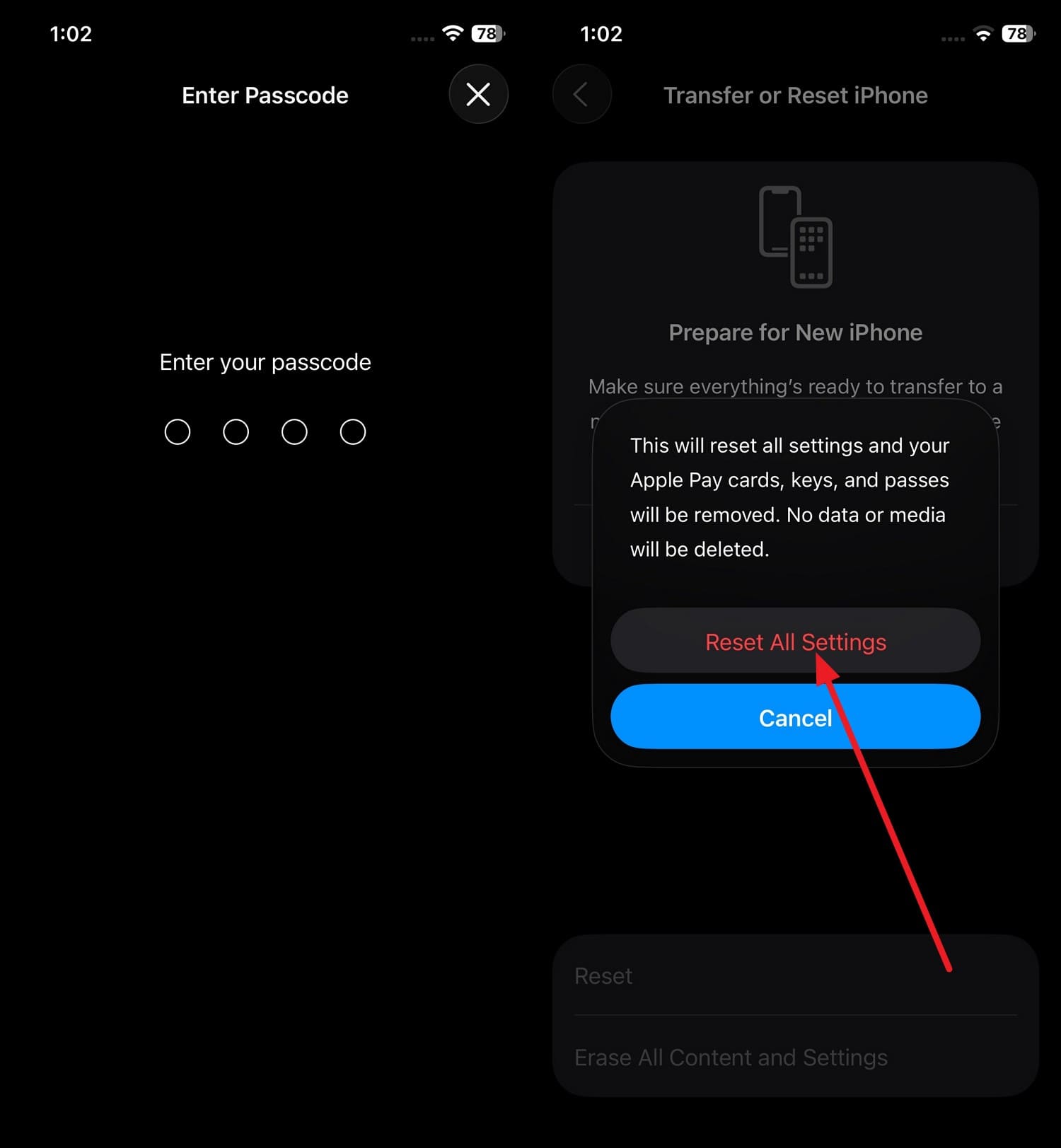
Step 2 Enter your iPhone password 2 times, then choose the "Reset All Settings" option to resolve iOS 27 Control Center bugs.
Part 4. Try 3 Advanced Fixes for Persistent Issues
When the issue is deep-rooted and simple fixes don't help, try the 3 advanced solutions given in this section:
Fix 1. Restore iPhone Using Finder/iTunes
This solution completely reinstalls iOS and removes deep software corruption that simple ways cannot. In addition, it wipes the system and installs a fresh copy of iOS directly from Apple's servers, and the steps are given ahead:
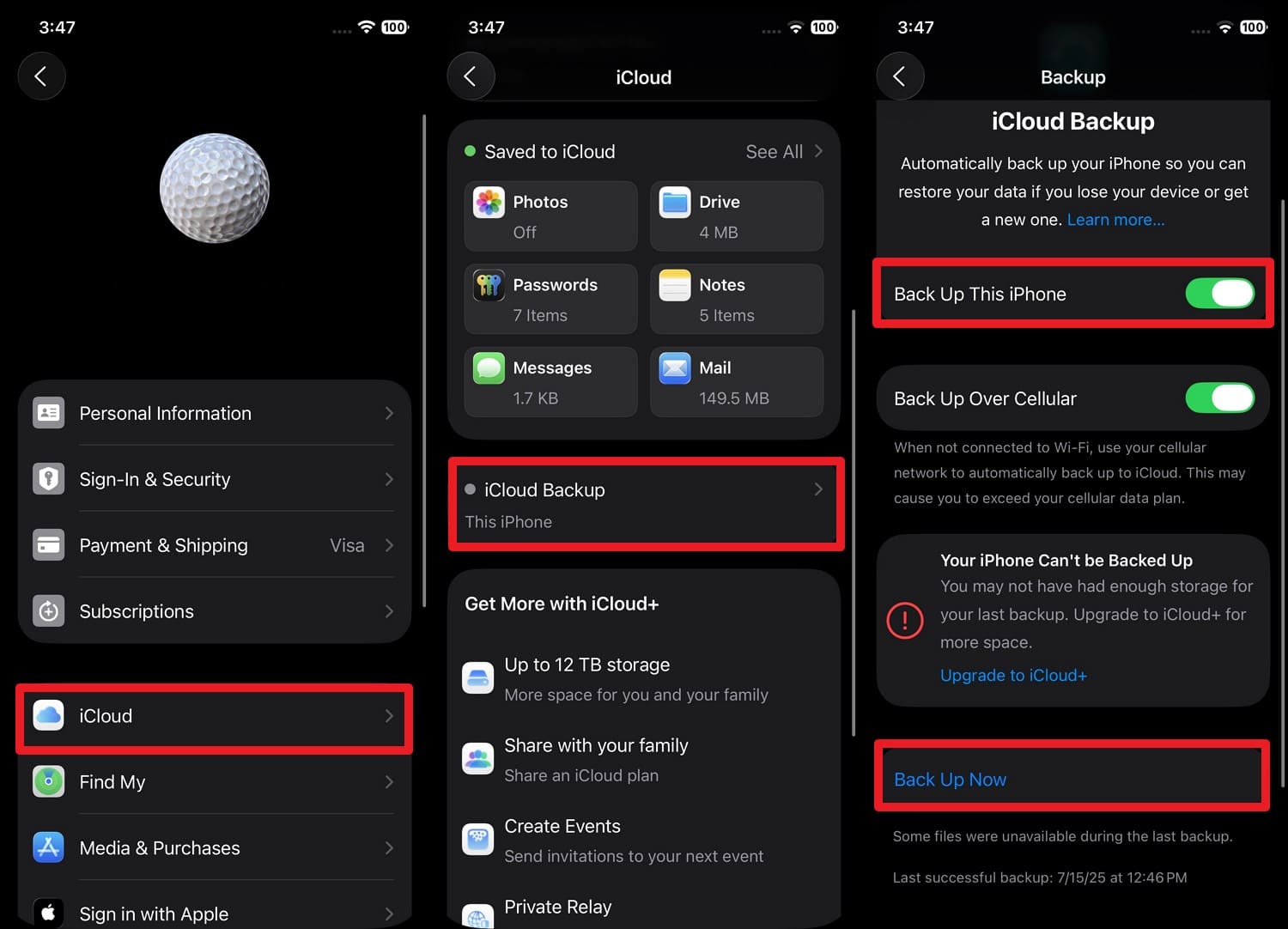
Step 1 Back up your iPhone data via "Settings > Apple ID > iCloud > iCloud Backup > Back Up This Phone > Back Up Now."
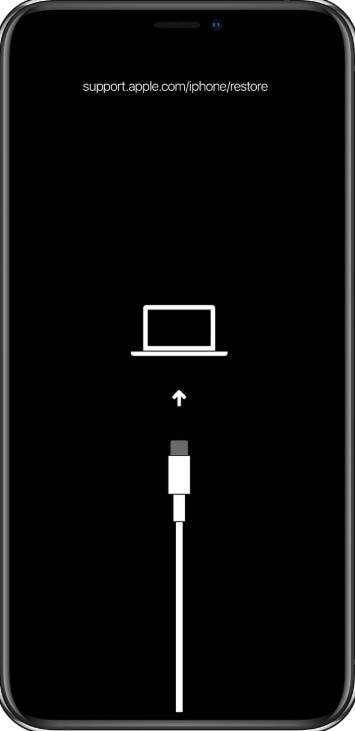
Step 2 Connect the phone and quickly press "Volume Up > Volume Down > Press and hold the Side button" until the "Connect to Computer" screen appears.
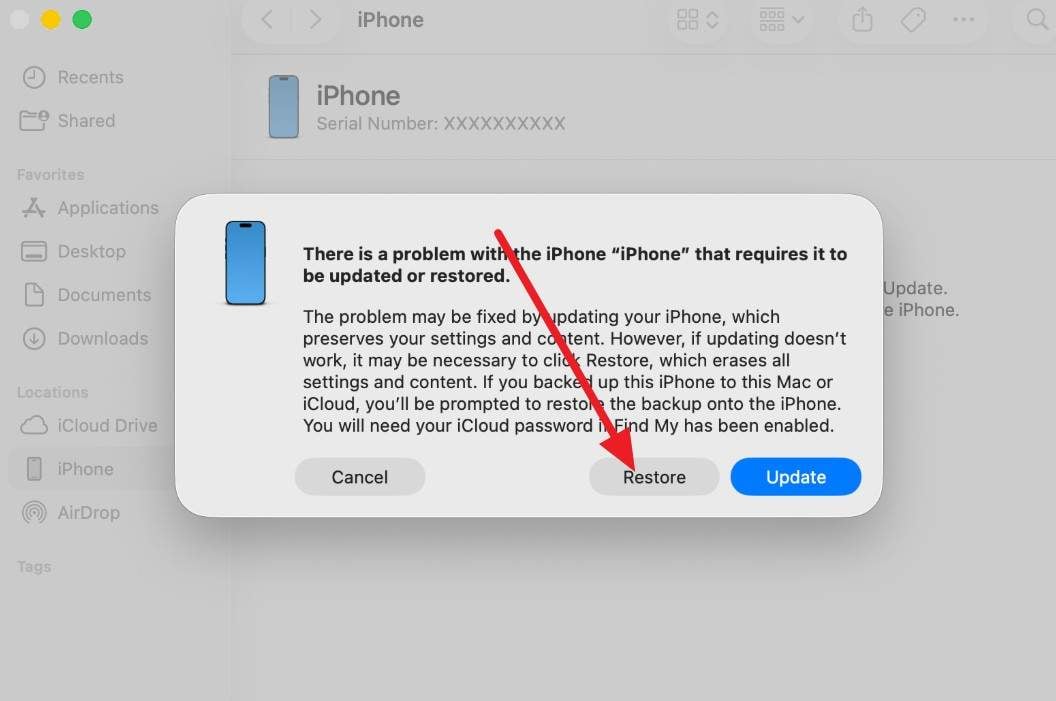
Step 3 When you get the "Update or Restore" option on iTunes/Finder, tap on "Restore" to download the latest iOS software and wipe the iOS 27 Control Center bugs.
Fix 2. Downgrade to Stable iOS Version
If you don't want to restore with iTunes, you can use Dr.Fone - System Repair to downgrade to a stable iOS version. This way, you can bypass iOS 27 Control Center bugs, but you can lose all the iPhone data. Nonetheless, Dr.Fone lets you create a local, selective backup that you can restore at any time. Since this can be done in 2-3 simple steps, the process is fully guided, and here is the guide link.

Fix 3. Report Bug to Apple Feedback System
If you want to keep the data intact and resolve the iOS 27 Control Center bugs, report the issue in the Apple Feedback System. Apple relies on user reports to identify, prioritize, and fix software problems. So, if many users report the Control Center problem, it is more likely to get attention and can be fixed in the next patches.
Conclusion
iOS 27 Control Center bugs can range from minor glitches to serious issues, such as random freezes. Hence, this guide has given simple and advanced solutions with detailed steps to resolve the problem.
Therefore, after performing the recommended checks, Dr.Fone - System Repair's Standard Mode is a suitable option for fixing system-level issues without causing data loss. It can also help when you want to downgrade to a stable iOS version with guided steps.
FAQs
-
Can third-party apps cause Control Center problems?
Yes, some apps with custom gestures or full-screen interactions can interfere with Control Center swipes and responsiveness. -
How much free storage should I keep on my iPhone?
It's best to keep at least 10GB of free space for smooth performance and updates. -
Should I wait for the new iOS 27 update before trying advanced fixes?
If the bug is widespread and appears after an update, you should wait for the next patch before you restore the device.
 Add Wondershare Dr.Fone as a preferred source on Google



