Resolve common problems and system crashes on both iPhone and Android devices.

 100% Security Verified | No Subscription Required | No Malware

 :
: 
 ChatGPT
 Perplexity
 Gemini
 Claude
 Grok
Grok
Has your iPhone ever frozen right after updating to iOS 27? You might have been about to reply to a message, check directions, or snap a photo, and suddenly your phone stops working. If you see the Apple logo stuck or the screen won't respond, you're not the only one. Since iOS 27 launched, many people have faced issues like frozen home screens or apps that refuse to open.
This guide offers simple, step-by-step solutions to fix your iOS 27 frozen problem, whether it's a minor glitch or something more serious. You'll find real user stories, expert tips, and the latest advice to help get your phone working again. If you want a quick fix, this article will also explain how Dr.Fone - System Repair can help. Let's get your iPhone working like normal again.
In this article

Part 1. What Type of iOS 27 Frozen Issue Are You Experiencing
iOS 27 frozen problems can look different. Sometimes your phone freezes while you're scrolling social media, making it impossible to check messages or calls. Other times, the Apple logo just stays on the screen. In some cases, your iPhone turns on, but none of your apps open, so you end up restarting it over and over.
It helps to know what type of freeze you're dealing with because:
- The fix for a frozen app is often much quicker than a device stuck on the Apple logo.
- Some freezes point to a specific app or storage issue, while others hint at a deeper system glitch.
- Recognizing the pattern can save you hours of trial and error.
If you're not sure how to describe your iOS 27 frozen screen, here are some of the most common scenarios people encounter. You might recognize your own situation on this list:
Before you start fixing, figure out exactly which iOS 27 frozen symptom you have:
- iPhone stuck on the Apple logo
- Completely unresponsive touch screen
- Frozen on a black/white screen
- Apps are not responding or frequently crashing.
Part 2. Why Is Your iPhone Frozen After Updating to iOS 27
If you're asking why your phone froze right after updating, you're not alone. Many people are sharing their iOS 27 frozen stories online. The good news is that most freezes have common causes, and knowing what's behind them makes fixing your phone easier.Here are the most common reasons your iPhone might freeze after updating to iOS 27.
Common Causes for iOS 27 Frozen issues:
- System glitches introduced by the iOS 27 update
- App conflicts (especially outdated or incompatible apps)
- Insufficient storage during or after the update
- Hardware issues (rare but possible)

According to Apple Support Community, up to 17% of users reported freezing issues after major iOS updates.
User forums on Reddit and MacRumors echo similar concerns.

A frozen iPhone after an update is often caused by incomplete installs or incompatible third-party apps. It's best to troubleshoot both software and hardware angles.
Alex Wu, Certified Mobile Technician
Part 3. Basic Fixes for an iOS 27 Frozen Screen
Ready to try the quickest fixes first? Before you move on to complicated repairs or worry about losing data, these basic steps can solve many iOS 27 frozen screen problems. Whether you're new to tech or have used iPhones for years, start here. Sometimes the simplest solution is all you need to get your phone working again.
Fix 1. Force Restart Your iPhone
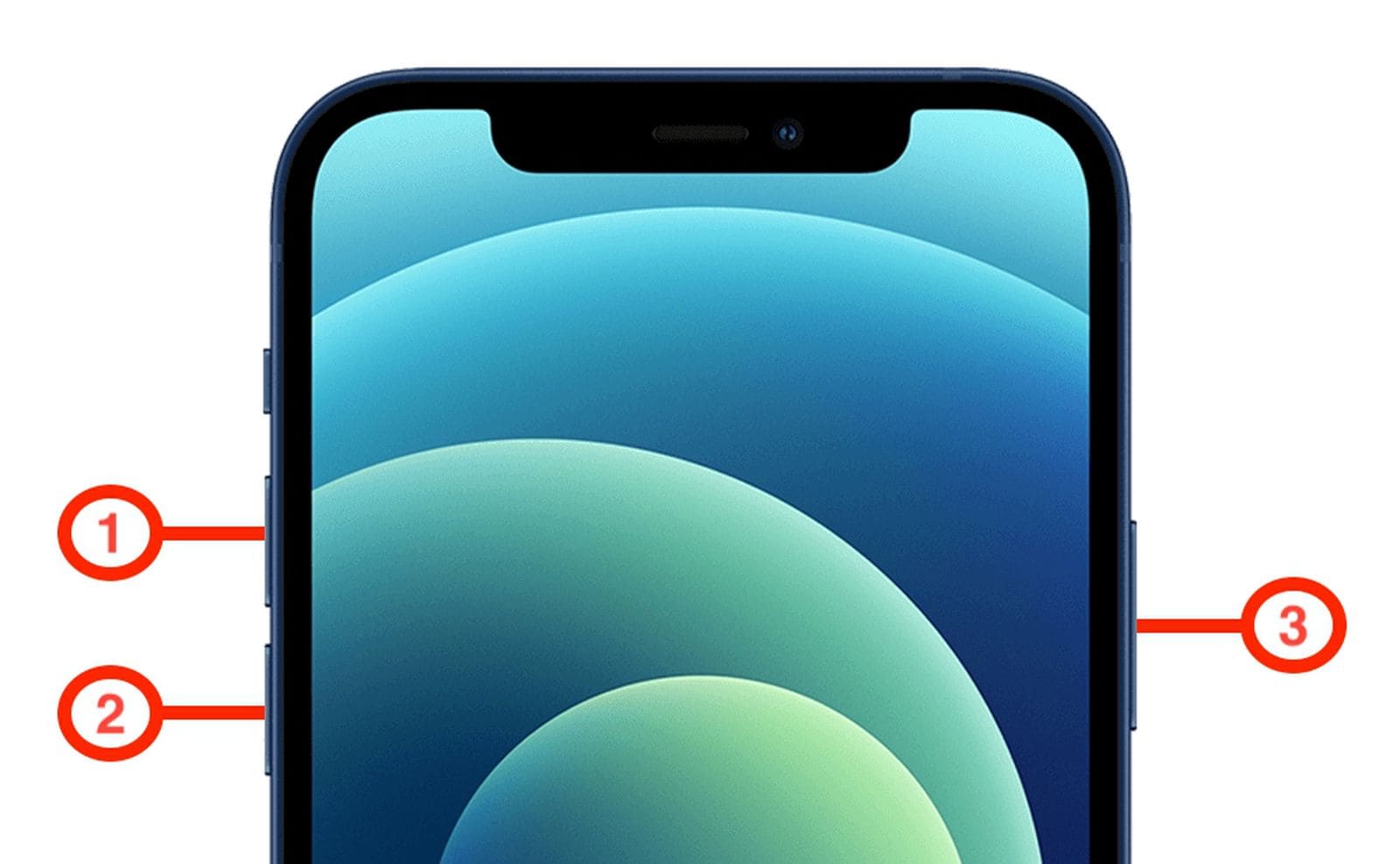
The classic quick fix is to reboot your device, which often clears up temporary software glitches that cause a frozen screen.
- Quickly press and release the Volume Up button.
- Quickly press and release the Volume Down button.
- Press and hold the Side button until the Apple logo appears.
Fix 2. Charge Your Device
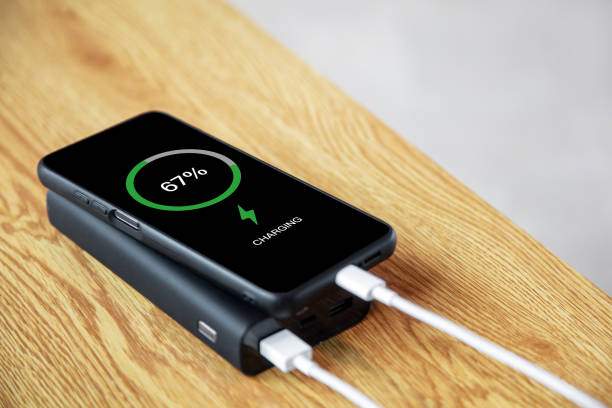
Sometimes your iPhone just needs to be charged. Plugging it in for at least 30 minutes can bring back a device that seems completely dead.
- Plug your iPhone into a charger and leave it for at least 30 minutes.
- If the battery is fully drained, it might take a few minutes to respond.
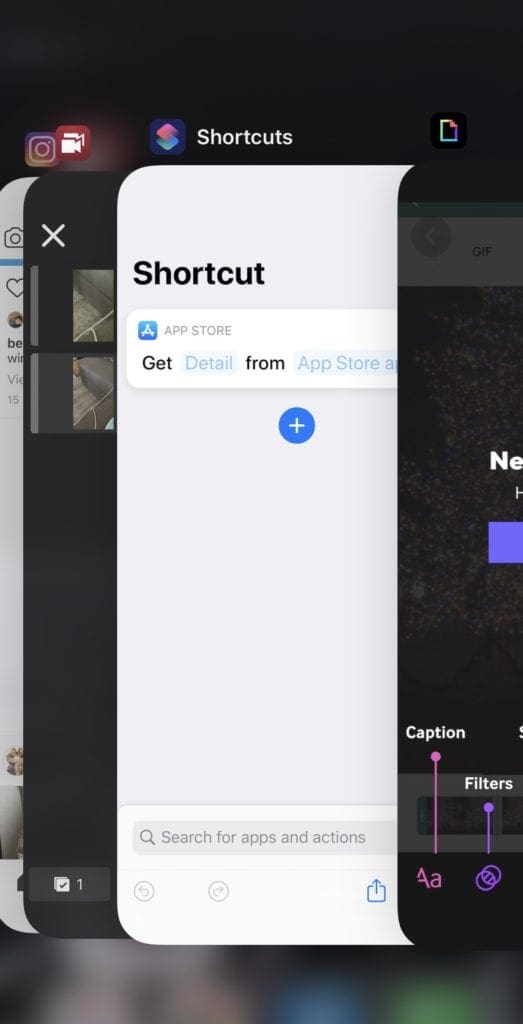
Fix 3. Close Problematic Apps
If one app is causing your phone to freeze, force-quitting that app can get your phone working again without needing to restart the whole device.
- Double-click the Home button (or swipe up from the bottom for Face ID models).
- Swipe up on any app preview to force quit.
Fix 4. Check iPhone Storage Space
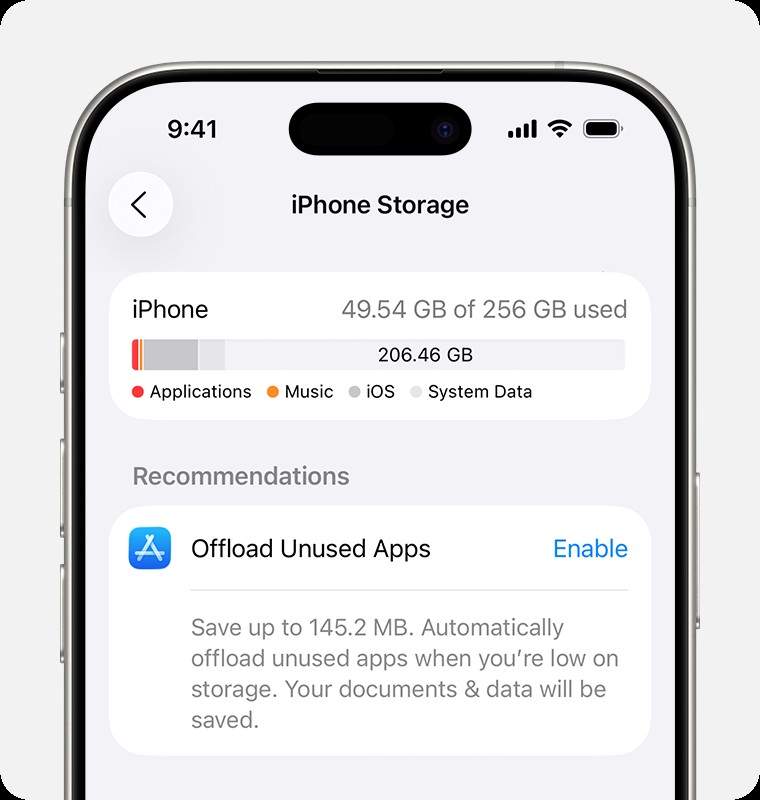
If your phone is low on storage, it can slow down or freeze. Clearing up space helps your iPhone work better after updates.
- Go to Settings > General > iPhone Storage.
- If storage is nearly full, delete unused apps, large photos, or videos.
Fix 5. Remove Recently Installed Apps
New or buggy apps can sometimes cause problems with iOS 27. Removing these apps may fix random freezing or crashing issues.
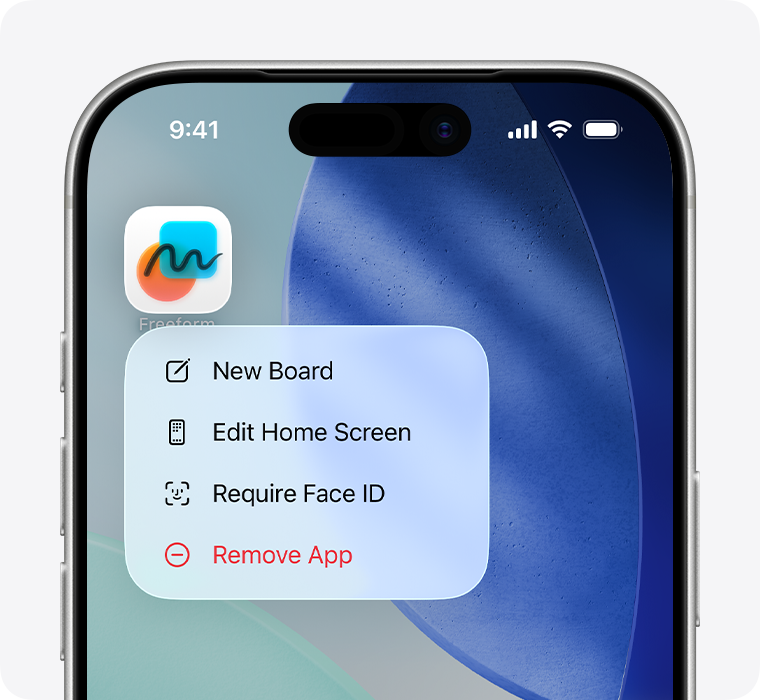
- Long-press the app icon on the Home screen.
- Tap Remove App and confirm.
- Restart your device.
Part 4. Advanced Solutions for iOS 27 Frozen Issues
If your iPhone still isn't cooperating after trying the basics, don't worry—you haven't run out of luck or options. Sometimes, a frozen device just needs a little extra help beyond the standard tricks. In this section, we'll walk you through proven, expert-backed solutions that go deeper than a force restart or charging cable. These steps are designed for stubborn iOS 27 frozen screens and will help you recover your phone with confidence, not confusion. Each method comes with real-world stories, expert advice, and visual guides to make things easy, even if you've never fixed a phone before.
Fix 6. Repair iOS 27 Frozen Screen with Dr.Fone - System Repair
Why choose Dr.Fone? It's a trusted, non-invasive tool designed for iPhone system issues, including iOS 27 frozen screens. Dr.Fone - System Repair offers a high success rate, supports all iPhone models, and can often fix problems without data loss.
 Fix iOS issues, no data loss.
- One-click repair for all iOS problems.
- Solve recovery mode, Apple logo, black screen, etc.
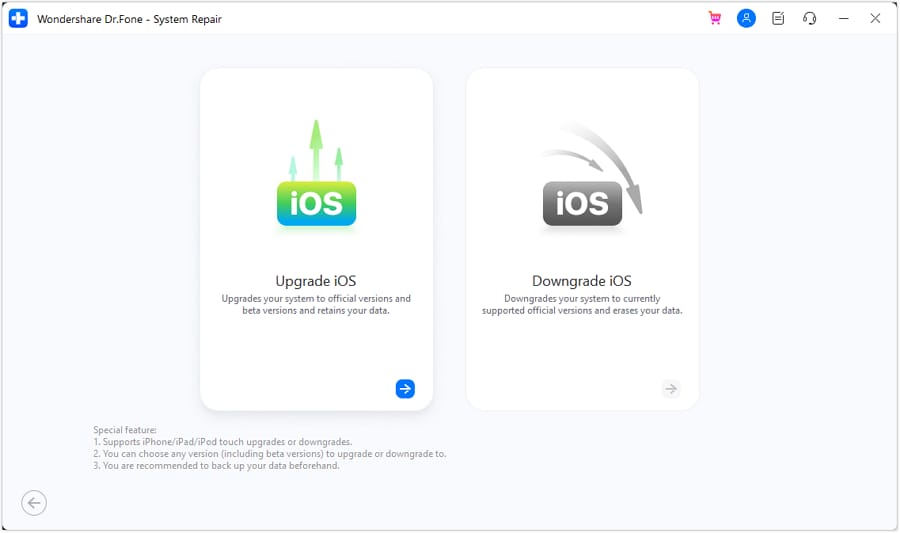
- Upgrade or downgrade iOS without iTunes

-
Step 1
Download and launch Dr.Fone - System Repair on your computer. Connect your iPhone using a USB cable, then select System Repair > iPhone.

-
Step 2
Click iOS Repair to continue.

-
Step 3
Choose Standard Mode to fix without data loss, and follow the on-screen instructions, and wait for Dr.Fone to repair your device by following the on-screen instructions..




Fix 7. Use Recovery Mode
Recovery Mode lets you update or restore iOS via your computer and is a useful solution if your iPhone won't boot normally.
- Connect your iPhone to a computer and open Finder or iTunes.
- Force restart the device (see Fix 1), but keep holding the Side button until you see the Recovery Mode screen.
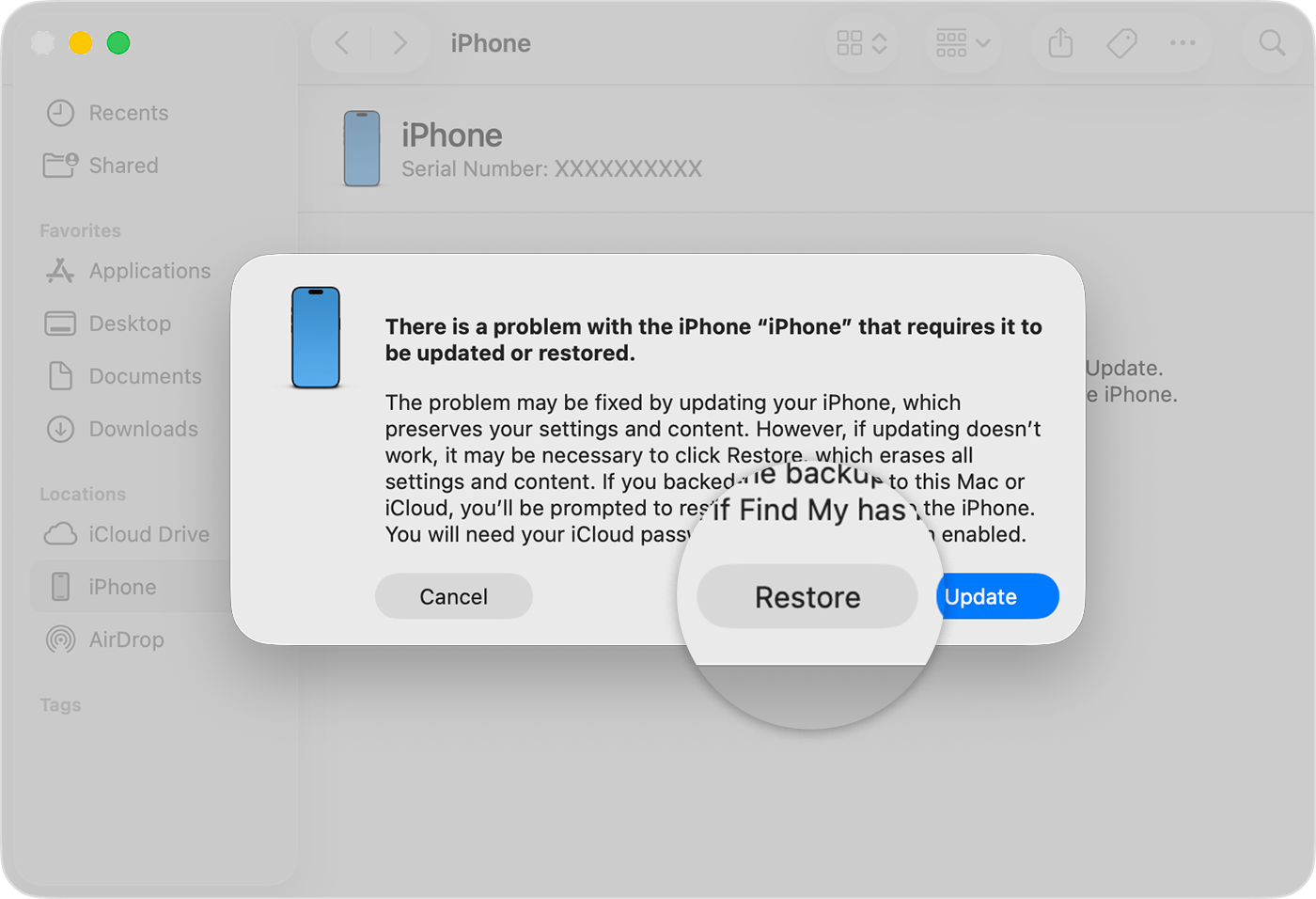
- Choose Update when prompted. This reinstalls iOS without erasing data.
Fix 8. Restore iPhone with Finder or iTunes
As a last resort, restoring wipes your device and reinstalls iOS—often fixing even severe software problems (but make sure to back up first!)
If updating via Recovery Mode doesn't work, select Restore (this will erase your device, so backup first if possible).
Fix 9. Contact Apple Support
If nothing else works, it might be a hardware problem or an advanced software glitch; Apple Support can provide professional help.
- If your iPhone remains frozen after all the fixes above, contact Apple Support.
- In rare cases, a hardware repair may be required.
Comparison Table: Methods to Fix iOS 27 Frozen Screen
| Method | Data Loss Risk | Success Rate | Difficulty | Best For |
|---|---|---|---|---|
| Force Restart | None | Medium | Easy | Quick fixes |
| Dr.Fone - System Repair | Very Low | High | Easy | All users |
| Recovery Mode | Low | High | Medium | Software issues |
| Restore with iTunes/Finder | High | Very High | Medium | Severe software errors |
| Apple Support | Varies | Varies | Advanced | Hardware/system failures |
Part 5. How to Prevent iOS 27 Freezing in the Future
After battling with a frozen screen, the last thing you want is to go through it all over again. Thankfully, a few healthy iPhone habits can make a big difference—and keeping iOS 27 running smoothly isn't as hard as it sounds. Here are some straightforward prevention tips, inspired by tech experts and real users, to help you steer clear of future freeze-ups. You'll save time and stress, and keep your device ready for anything.
- Regularly update all apps before installing a new iOS version.
- Ensure at least 5GB of free storage before updating.
- Restart your device weekly.
- Avoid installing unverified apps.
- Use tools like Dr.Fone to maintain system health.
Conclusion
No one expects their iPhone to freeze after an update, but it happens to the best of us. The good news? With the right steps and a bit of patience, you can bring your iPhone back to life—no Genius Bar appointment required. Whether your issue was solved by a restart, clearing storage, or using Dr.Fone, you've learned how to handle the most common iOS 27 frozen screen headaches.
If your iPhone ever gets stuck again, remember that Dr.Fone - System Repair remains one of the most reliable iOS 27 frozen screen solutions. Its easy-to-use features and data-safe approach are trusted by users worldwide. Give it a try and get back to enjoying your device without the stress of a frozen screen.
FAQs
-
Why does my iOS 27 keep freezing?
Common causes include incomplete updates, app incompatibility, or insufficient storage. -
How do I force restart a frozen iPhone?
Quickly press and release Volume Up, then Volume Down, then hold the Side button until the Apple logo appears. -
Will I lose data if my iPhone freezes?
Usually, data loss does not occur unless a factory reset is needed. Dr.Fone's Standard Mode is designed to preserve your data. -
How long does it take to fix the iOS 27 frozen screen?
Most issues resolve within 10–20 minutes using the steps above. -
Can Dr.Fone repair an iOS 27 frozen screen without data loss?
Yes, the Standard Mode typically resolves system issues without erasing your data. -
What should I do if my iPhone is stuck on the Apple logo?
Try a force restart first. If that fails, use Dr.Fone - System Repair or Recovery Mode for further troubleshooting.
 Add Wondershare Dr.Fone as a preferred source on Google