 Resolve common problems and system crashes on both iPhone and Android devices.

 100% Security Verified | No Subscription Required | No Malware

 :
: 
 ChatGPT
 Perplexity
 Gemini
 Claude
 Grok
Grok
Many people who upgrade to iOS 27 are experiencing iMessage not working on iOS 27 problem. Sometimes, messages cannot be sent; sometimes green SMS bubbles appear instead of blue ones; and there are also cases of messages showing "Not Delivered" status.
Here is the good thing: this is a typical problem that can be solved. Usually, these problems are triggered by settings, network, or software update errors. This tutorial shows you the main iMessage problems on iOS 27 and how to fix them in a simple step-by-step way. You'll also learn what to do if you need to downgrade iOS 27 to restore normal messaging.
In this article

Part 1. Common iMessage Problems After iOS 27 Update
Updating to iOS 27 might lead to iMessage problems popping up in many different forms. The table below can assist you in identifying the main issues and symptoms of iMessage.
| iMessage problem | Typical symptoms |
|---|---|
| iMessages are sent as SMS (green bubbles instead of blue) | Messages are sent as text messages instead of iMessage |
| Messages are not delivering or are stuck on "Sending…" | Messages freeze, fail to deliver, or take too long. |
| iMessage is disabled or grayed out in Settings | iMessage toggle cannot be turned on or is inactive |
| Unable to activate iMessage after iOS 27 | "Activation unsuccessful" or endless loading |
| Messages are not syncing across devices. | Chats don't appear on iPhone, iPad, or Mac. |
| Group chats are broken or not loading. | Group messages are missing, delayed, or not updating. |
| Read receipts are not working. | Sent messages don't show "Read" status. |
| Attachments failing to send or receive | Photos, videos, or files are not going through or are not downloading. |
Part 2. Why is iMessage Not Working on iOS 27?
Common Root Causes
The update to iOS 27 could lead to a reset, break, or corruption of iMessage activation settings, which could cause the service to fail silently.
- Any issues with Apple ID sign-in after the update can cause the iMessage not to be able to connect or verify your account.
- Wrong date and time settings can stop activation and proper message delivery.
- A change in network or Wi-Fi settings after the update might cause problems with iMessage servers.
- Low device storage can negatively affect the performance of the iMessage functions and their background syncing.
- Bugs in iOS 27 can cause problems in communication between your iPhone and Apple's messaging servers.
- Updating carrier settings that may become obsolete can lead to sending or activation problems.
- Temporary Apple server issues (rare) can also prevent iMessage from working normally.
Quick Diagnostic Check: Check Apple System Status
If the Apple System Status page shows all green, the issue is with your device, and you should proceed with the troubleshooting steps.
Part 3. How to Fix iMessage Not Working on iOS 27 — Step-by-Step
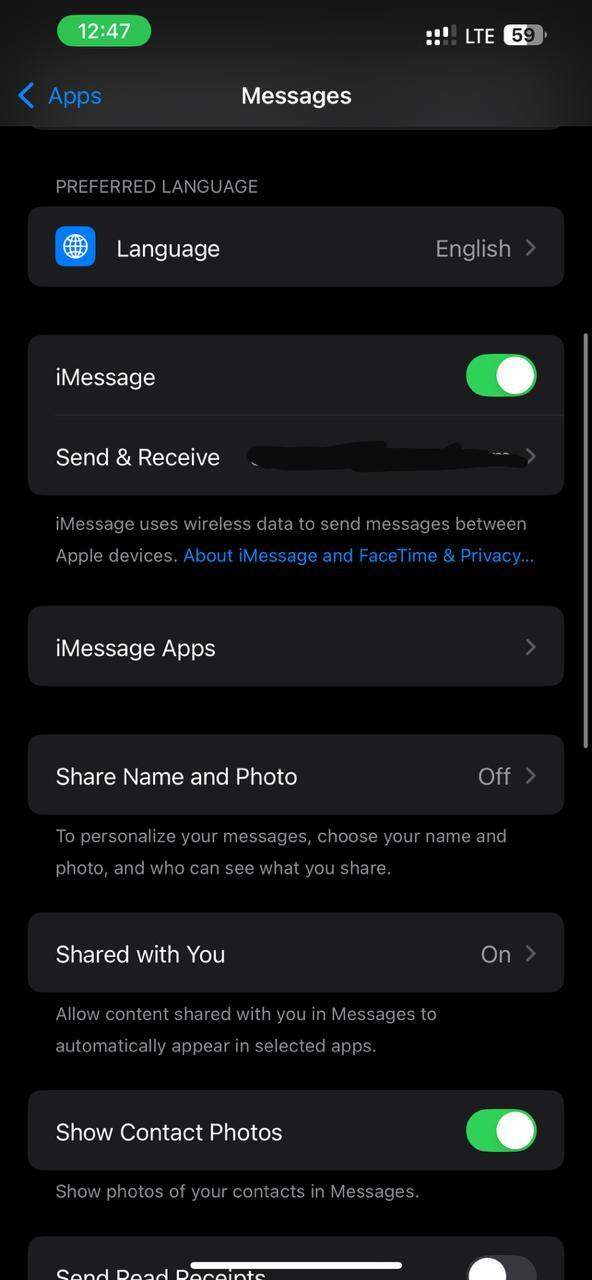
Fix 1: Toggle iMessage Off and On
This quick refresh method is effective in resolving minor glitches. Disabling and then re-enabling iMessage on an iPhone compels the device to reconnect to Apple's servers.
- Step 1. Launch Settings on your iPhone.
- Step 2. Navigate to the Messages folder.
- Step 3. Toggle off iMessage, wait 10 to 15 seconds, and then switch it back on.
Fix 2: Sign Out and Back into Apple ID
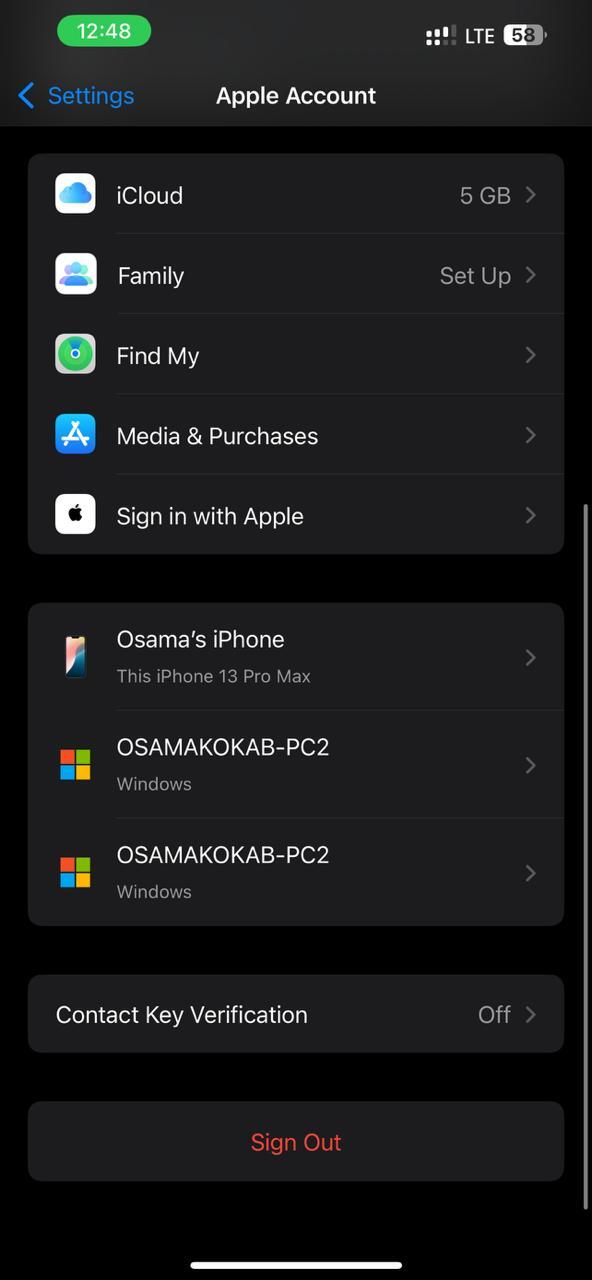
After updating to iOS 27, sometimes the Apple ID sessions get unstable, which results in messages not sending or syncing properly with other devices. By logging in again, your device is made to verify your account once more and, in most cases, it brings back the normal functioning of iMessage.
- Step 1. Launch the Settings app on your iPhone.
- Step 2. Tap on your Apple ID (displayed as your name), then select Sign Out.
- Step 3. After turning off your iPhone, turn it on again, sign in, and turn iMessage back on.
Fix 3: Check iMessage Send & Receive Settings
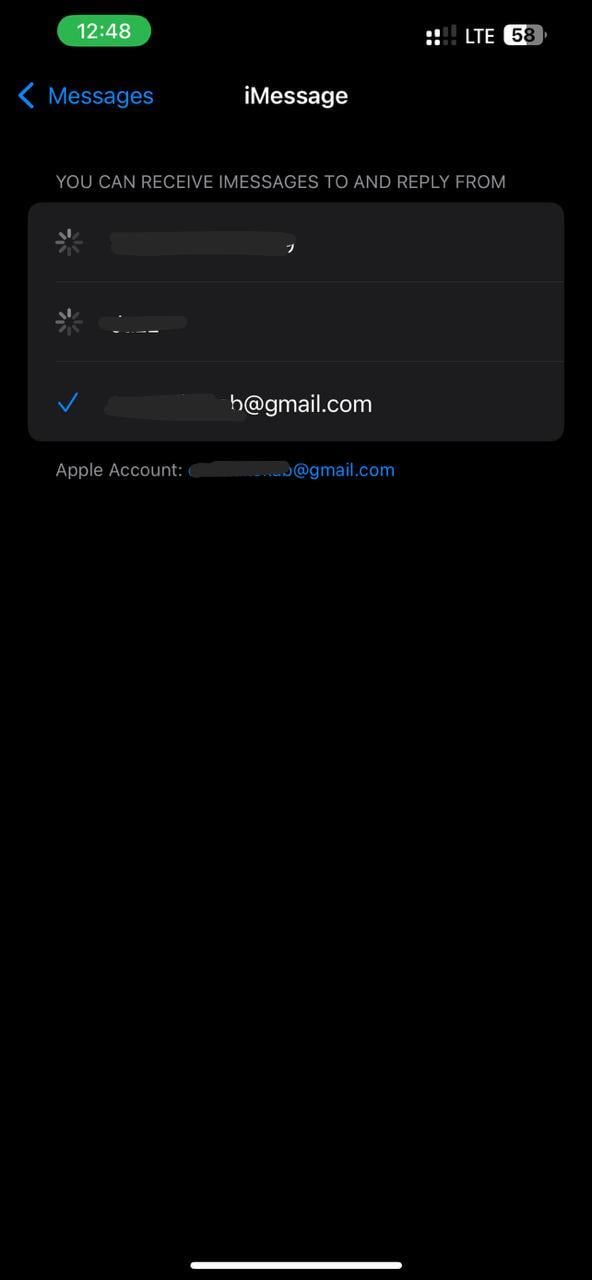
Using the incorrect email address or mobile number for sending and receiving texts on iMessage, it may cause the service to stop operating. With iOS 27, the functionality of these settings can be randomly reset or they may get misconfigured, resulting in iMessage delivery failures or sending iMessages under the wrong identity.
- Step 1. Go to Settings > Messages > Send & Receive.
- Step 2. Check your Apple ID, phone number, and email addresses.
- Step 3. Pick the right ones and make sure that your phone number is marked as active.
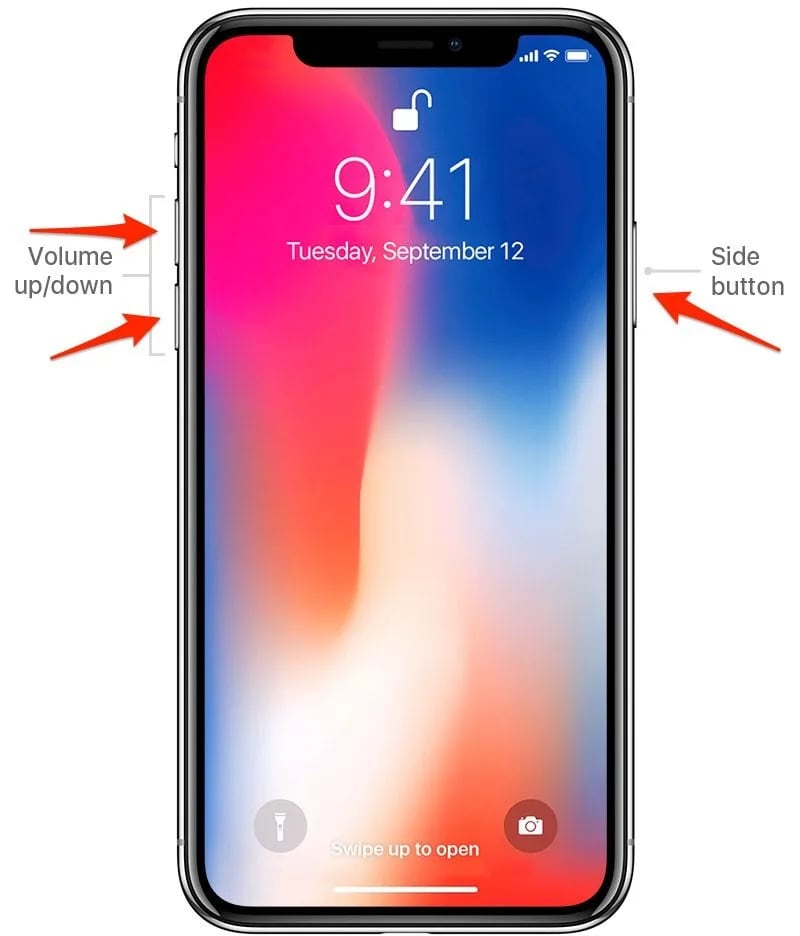
Fix 4: Force Restart Your iPhone
Forcing a restart can be a straightforward yet effective way to get rid of temporary system bugs brought about by iOS 27. Doing so will help in resolving minor background errors and refreshing system processes while your data remains untouched. This can specifically come in handy when iMessage freezes or stops responding.
- Step 1. Quickly press and release Volume Up.
- Step 2. Quickly press and release Volume Down.
- Step 3. Hold the Power button until the Apple logo appears.
Fix 5: Check and Reset Network Settings
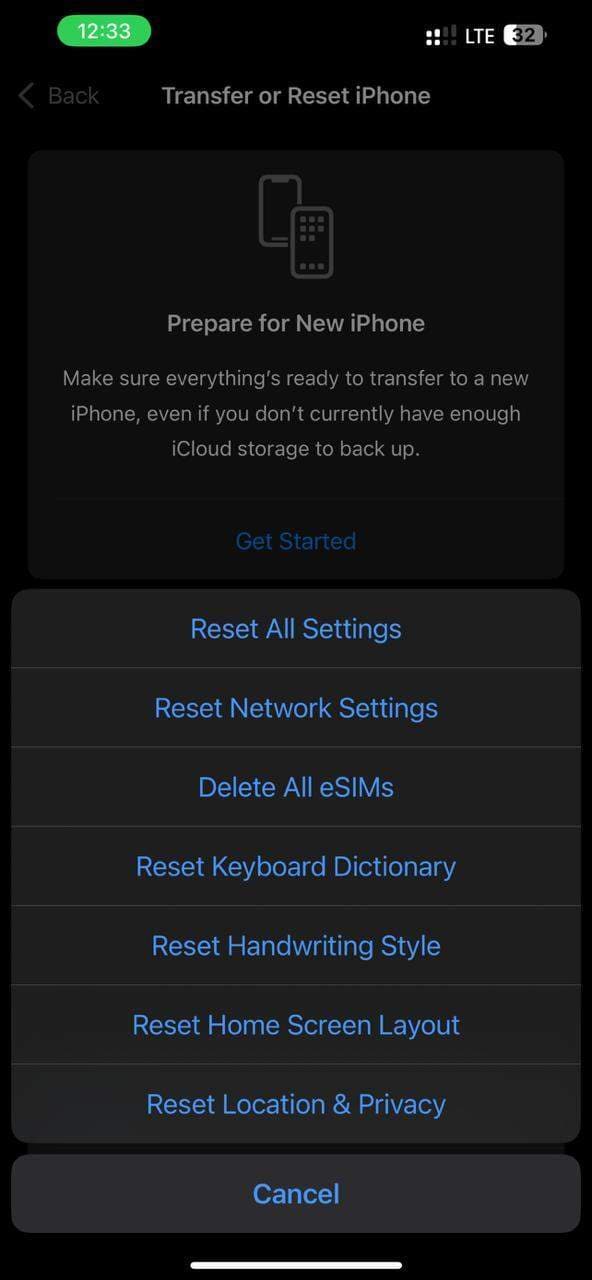
Since iMessage needs a reliable internet connection to work properly, and sometimes iOS 27 updates change the Wi-Fi or cellular settings without the knowledge of the user, when the network settings are messed up or misconfigured, resetting them may help to get back the normal connection to Apple's servers.
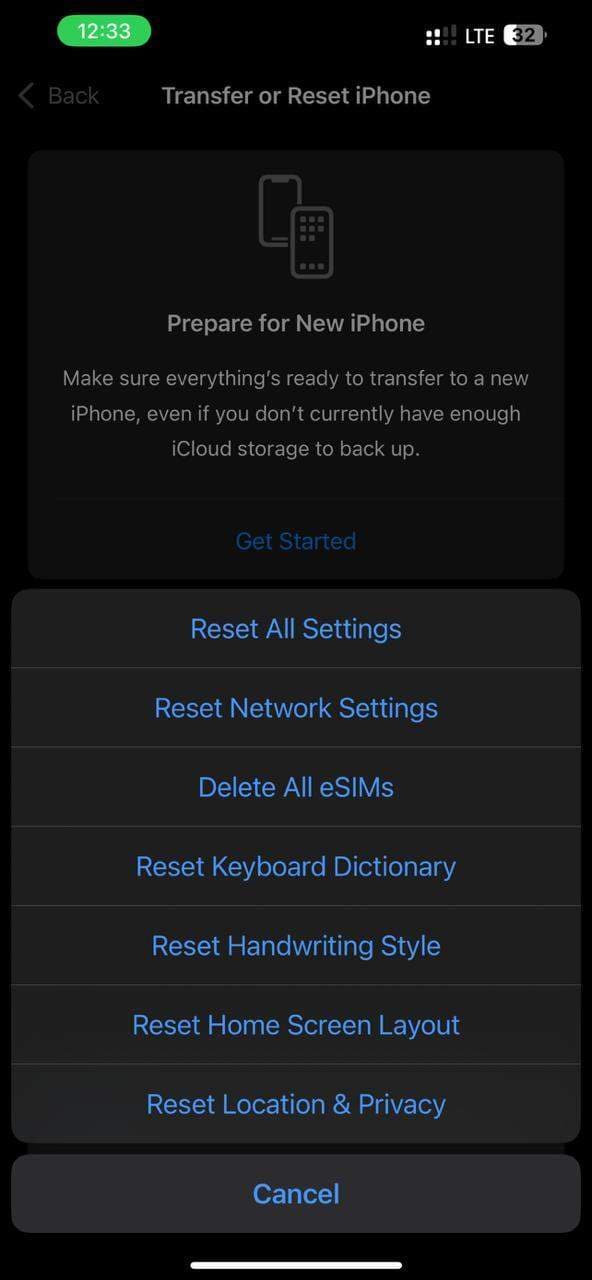
- Step 1. Open Settings > General > Transfer or Reset iPhone.
- Step 2. Hit Reset > Reset Network Settings.
- Step 3. Connect to Wi-Fi and check iMessage.
Fix 6: Set Date & Time to Automatic
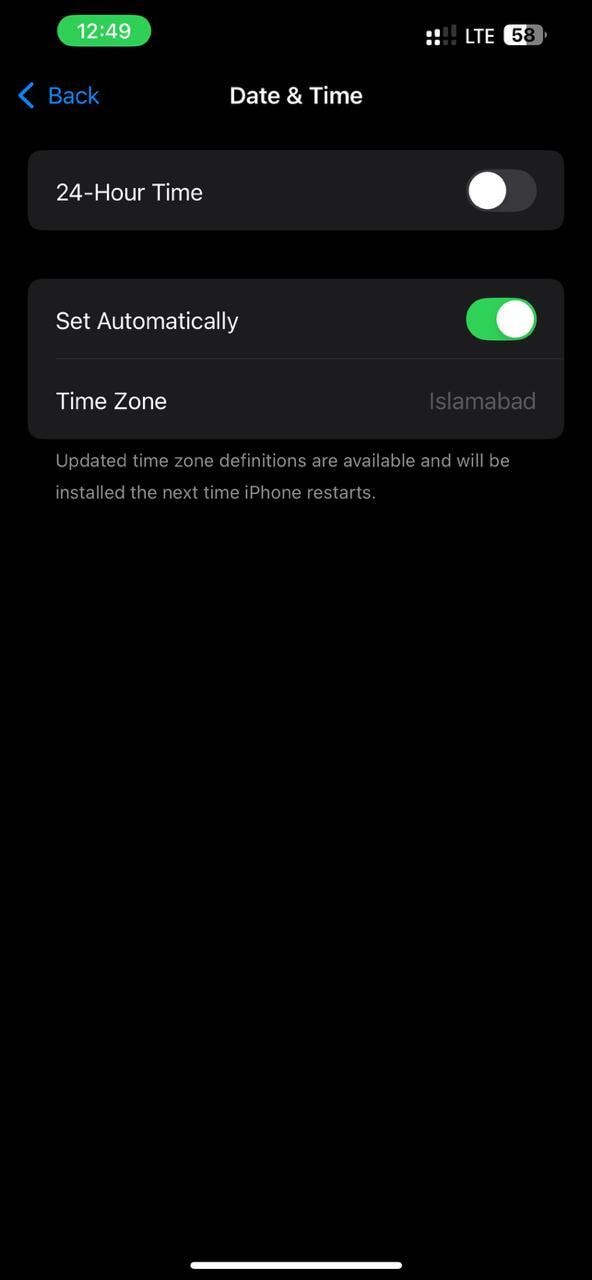
Wrong date and time settings, on the other hand, can totally mess up the Apple servers' authentication, leading to troubles with the activation or the sending of iMessage. With iOS 27 updates that could sometimes change these settings, turning on the automatic time sync becomes a really good idea for the system to remain stable.
- Step 1. Head to Settings > General > Date & Time.
- Step 2. Turn on Set Automatically.
- Step 3. To implement the changes, restart your iPhone.
Fix 7: Check Apple ID in iMessage Settings
Sometimes iMessage still uses an old or wrong Apple ID even after the update, thus breaking syncing or message delivery. Checking for the right one makes sure your messages are correctly linked to your iCloud identity.
- Step 1. Open Settings > Messages > Send & Receive.
- Step 2. Tap your Apple ID button at the top.
- Step 3. Make sure that the correct account has been signed in and is active.
Fix 8: Update to the Latest iOS 27 Patch
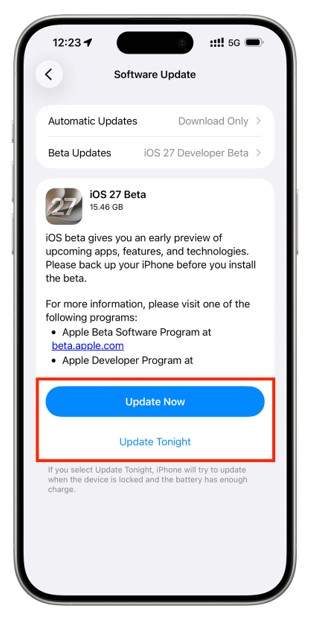
Usually, Apple releases minor updates that mainly address bugs, such as problems with iMessage, shortly after major iOS versions launch. If you install the most recent update, you may get rid of the internal system faults that are not repairable by manual efforts.
- Step 1. Go to Settings > General > Software Update.
- Step 2. Get and install the newest iOS 27 update.
- Step 3. After the installation is finished, turn your iPhone off and on again.
Fix 9: Reset All Settings
In case other solutions fail, you may want to reset all settings to remedy the deeply ingrained system bugs caused by iOS 27. The upside of this is that you won't lose your personal files.
- Step 1. Open Settings and then go to General > Transfer or Reset iPhone.
- Step 2. Press Reset > Reset All Settings button.
- Step 3. Type in your passcode and confirm the reset.
Part 4. Advanced System Repair and iOS Downgrade Options
When the basic iMessage troubleshooting fails on iOS 27, the problem might be so deep that the single iOS system. So, you should consider a dedicated repair and fixing tool like Dr.Fone - System Repair to deal with intricate system faults without advanced technical skills. The program aims to fix iOS issues such as failed updates, system crashes, or connectivity errors that can be a barrier to the proper functioning of iMessage. It works by restoring or fixing system components to support stable communication between your iPhone and Apple servers, and this ultimately leads to resolving the most recurring iMessage problems.
If the problem is an iMessage malfunction only after upgrading to iOS 27 and still after repairing it continues, then iOS downgrade is probably a good option. With Dr.Fone System Repair (iOS), you have the ability to go back to an earlier iOS version (only the versions signed by Apple). Then you can get rid of bugs caused by the update and have normal iMessage performance. Of course, this makes sense only if device settings are fine and the issue is a system-wide iOS 27 bug.
 Fix iOS issues, no data loss.
- One-click repair for all iOS problems.
- Solve recovery mode, Apple logo, black screen, etc.
- Upgrade or downgrade iOS without iTunes

Steps to downgrade iOS 27 with Dr.Fone
Step 1 Run the Dr.Fone
Download and install Dr.Fone on your computer first. Launch it after installation. Click on System Repair option and then choose Downgrade iOS/iPadOS from it. If you want to proceed, it is likely that the software will ask you for an iPhone backup.

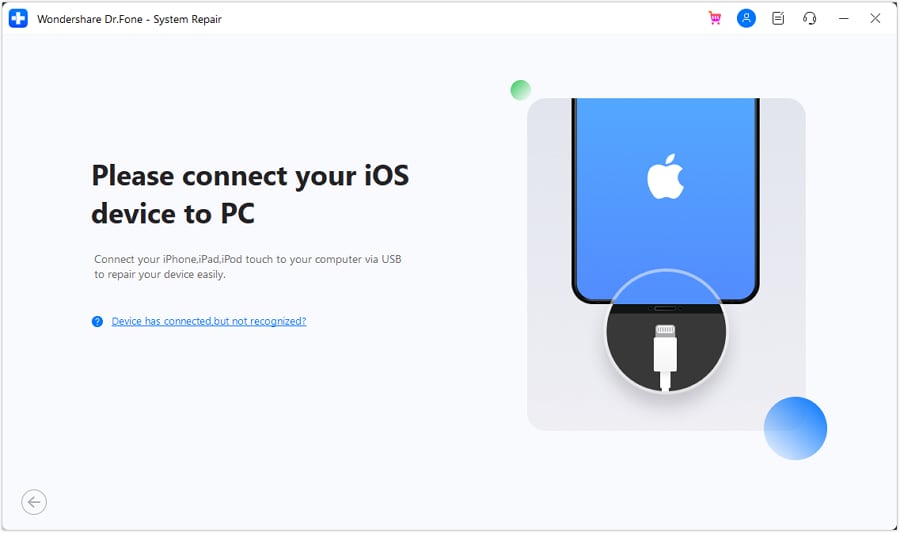
Step 2 Connect your iPhone/device
Use a USB cable to connect your iPhone to PC. When the program detects your device, among the firmware version list available, pick the one which is most recent, stable and safe for downgrading in your opinion.
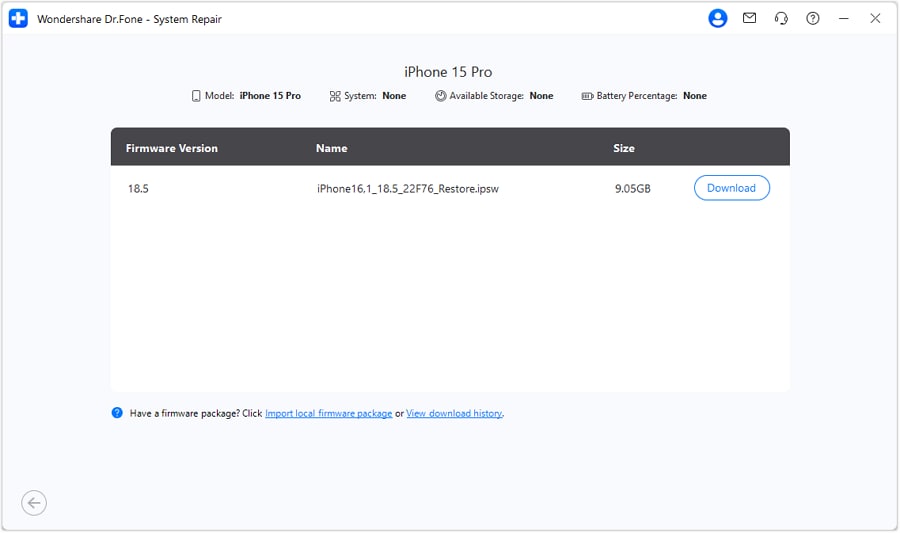
Step 3 Download the firmware and verify it
Click on the Download button to obtain the iOS firmware file you have selected. After the downloading is done, Dr.Fone will automatically install.
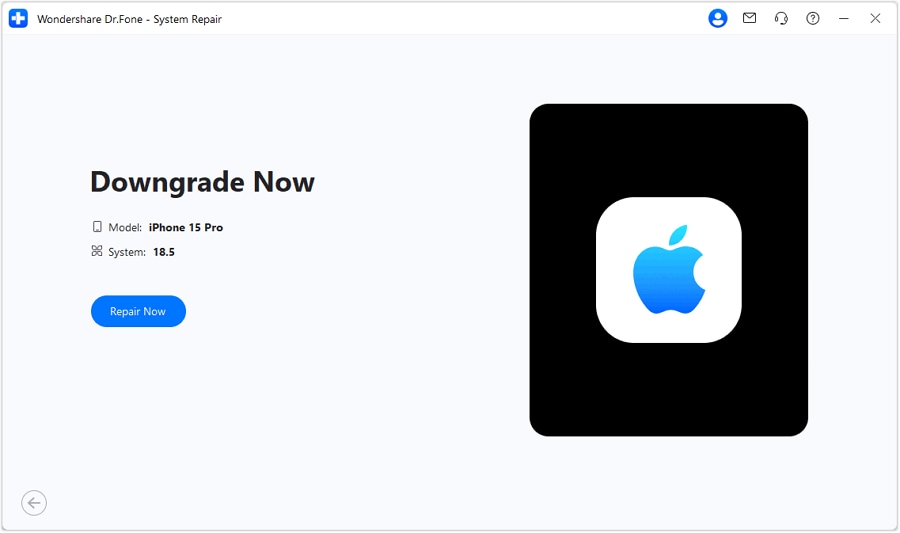
Step 4 Start the downgrade process
Click on Repair Now to do the downgrade. Once the installation is complete, your phone will reboot and the iOS version will be changed to the one you selected.




Fix iOS system with Dr.Fone
Step 1 Start the System Repair
First, navigate to the Toolbox section on the main screen, then press the System Repair button.

Step 2 Connect and make device known
Attach your iPhone to the computer. To enable the program to repair your iPhone, select the iPhone option.

Step 3 Choose iOS repair and standard mode
After clicking the iOS Repair button, you will be able to browse the repair options. Then select the Standard Repair mode.

Step 4 Put the device into recovery mode and get the firmware
Follow the instructions on the screen to put your iPhone into Recovery mode. Dr.Fone will identify your device and download the appropriate version of iOS firmware automatically. Press Repair Now after the download.

Part 5. How to Prevent iMessage Problems After Future iOS Updates
If you want to avoid iMessage issues, you can do the following:
- If you want to discover whether there are iMessage problems, the simplest way would be to check Apple's System Status page.
- Right after updating the system, be sure to examine the iMessage settings and verify that your phone number and Apple ID are still checked.
- Updating carrier settings after each iOS update will change settings accordingly.
- Consider delaying iOS update installation until the first patch update (e.g., iOS 27.0.1) becomes available.
Conclusion
After updating to iOS 27 if you are facing problems in sending iMessage then it could be quite irritating. To a great extent, checking your settings, reactivating iMessage, updating carrier settings, or installing the latest iOS update will help you return to your usual messaging.
If the problem is a serious system fault or a buggy update, then using software like Dr.Fone - System Repair would not just fix iOS problems but also allow you to downgrade to a stable version without going through complicated steps. If you implement the fixes given in this article, you should be able to operate iMessage again and have better messaging experience on your iPhone.
FAQs
-
Why did iMessage stop working after upgrading to iOS 27?
There is a chance that the iMessage will not work after updating iOS 27 due to issues with activation, Apple ID related problems, wrong settings, network issues, carrier settings being outdated, or even bugs that have come in with the update. Usually, giving iMessage a refresh or getting the latest iOS update does the trick. -
iMessage activation stuck "Waiting for Activation", what's the reason?
The message that reads "Waiting for Activation" indicates that your iPhone is failing to confirm your phone number with Apple's servers. The reasons can be a range of network problems, Apple ID issues, wrong date and time setting or even server issues on Apple's side that are temporary. -
Why do my texts send out as SMS and not as iMessage?
Texts are sent as SMS (green bubbles) when iMessage is turned off. Checking your internet connection, iMessage settings, and Apple ID status will resolve the issue.
 Add Wondershare Dr.Fone as a preferred source on Google



