Resolve common problems and system crashes on both iPhone and Android devices.

 100% Security Verified | No Subscription Required | No Malware

 :
: 
 ChatGPT
 Perplexity
 Gemini
 Claude
 Grok
Grok
Have you noticed a frequent battery drain or a hot battery after the iOS 27 update? This is common after major updates, and many users feel their phones no longer work properly as before. Thus, this guide explains why users face the iOS 27 overheating issue and how they can resolve it with a simple fix or through tools like Dr.Fone - System Repair (iOS).
In this article
- Part 1. Why iOS 27 Causes Battery Drain, Lag, and Overheating
- Part 2. iOS 27 Battery Drain Issues: What’s Normal vs Not
- Part 3. iOS 27 Battery Problems? Stop Drain and Overheating Now
- Part 4. How to Prevent iOS 27 Performance Issues in Future Updates
- Part 5. When Should You Consider Repair or Replacement?
Part 1. Why iOS 27 Causes Battery Drain, Lag, and Overheating
To deal with the iOS 27 problems, learn what types of new AI features can cause unexpected battery drain:
| Reason | What the Phone is Doing | Features Driving the Drain |
|---|---|---|
| Background Indexing | Reorganizing all your files and search paths from scratch. | Spotlight Search, contact syncing, and file scanning. |
| Local AI Models | Running heavy calculations on-device for Apple Intelligence. | Writing Tools, Siri context scanning, generative AI. |
| Media Library Scanning | Analyzing your entire photo gallery to map out pixels and depth. | Photos app background analysis, spatial photo alignment. |
| Unoptimized Apps | Older apps are getting stuck in invisible, buggy background loops. | Background App Refresh, older Home Screen widgets. |
| Cloud Resyncing | Constantly uploading and downloading data to match the new OS. | iCloud Photo resyncing, Automatic App Updates. |
Part 2. iOS 27 Battery Drain Issues: What’s Normal vs Not
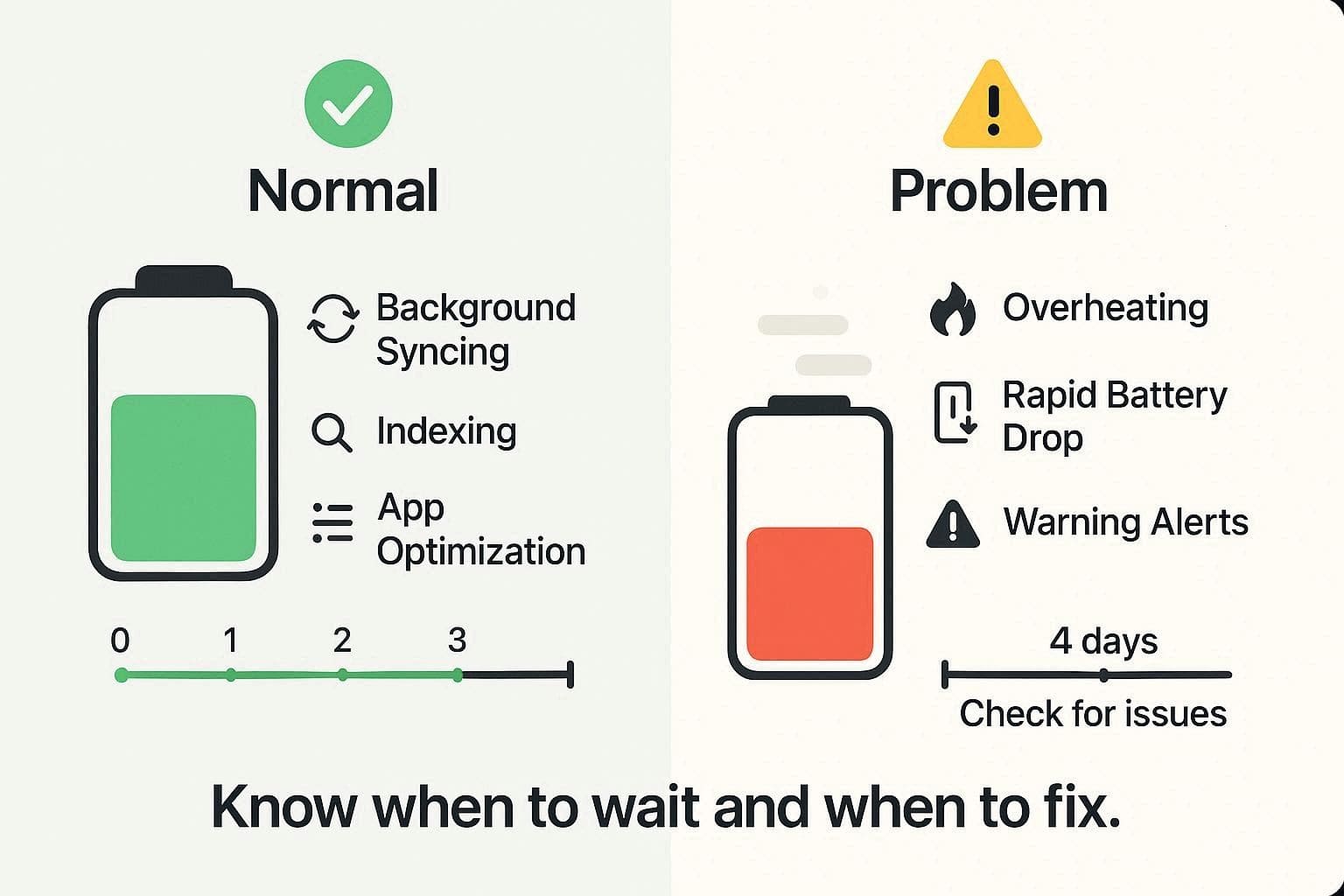
Normal Battery Drain After Update
According to Apple, battery drain is normal for 48 hours to a few days after the iOS 27 update. This happens because iOS 27 performs massive background tasks while you use the device normally. Thus, the phone's processor consumes more battery than usual, so it's best to wait a few days.
When Battery Drain Becomes a Problem
If the battery drains or overheats for more than 3 to 4 days after the update, it's a problem. So, if the battery drops while it's idle on the desk or it gets hot, it likely means the background process is glitched. Hence, this is where you need to try the simple and advanced fixes to resolve the issue.
Part 3. iOS 27 Battery Problems? Stop Drain and Overheating Now
For the iOS 27 overheating issue, this section covers all the basic and advanced fixes for your assistance:
Quick Fixes to Try First
Here are some quick solutions you should try before you jump to complex ones:
Way 1. Restart Your iPhone
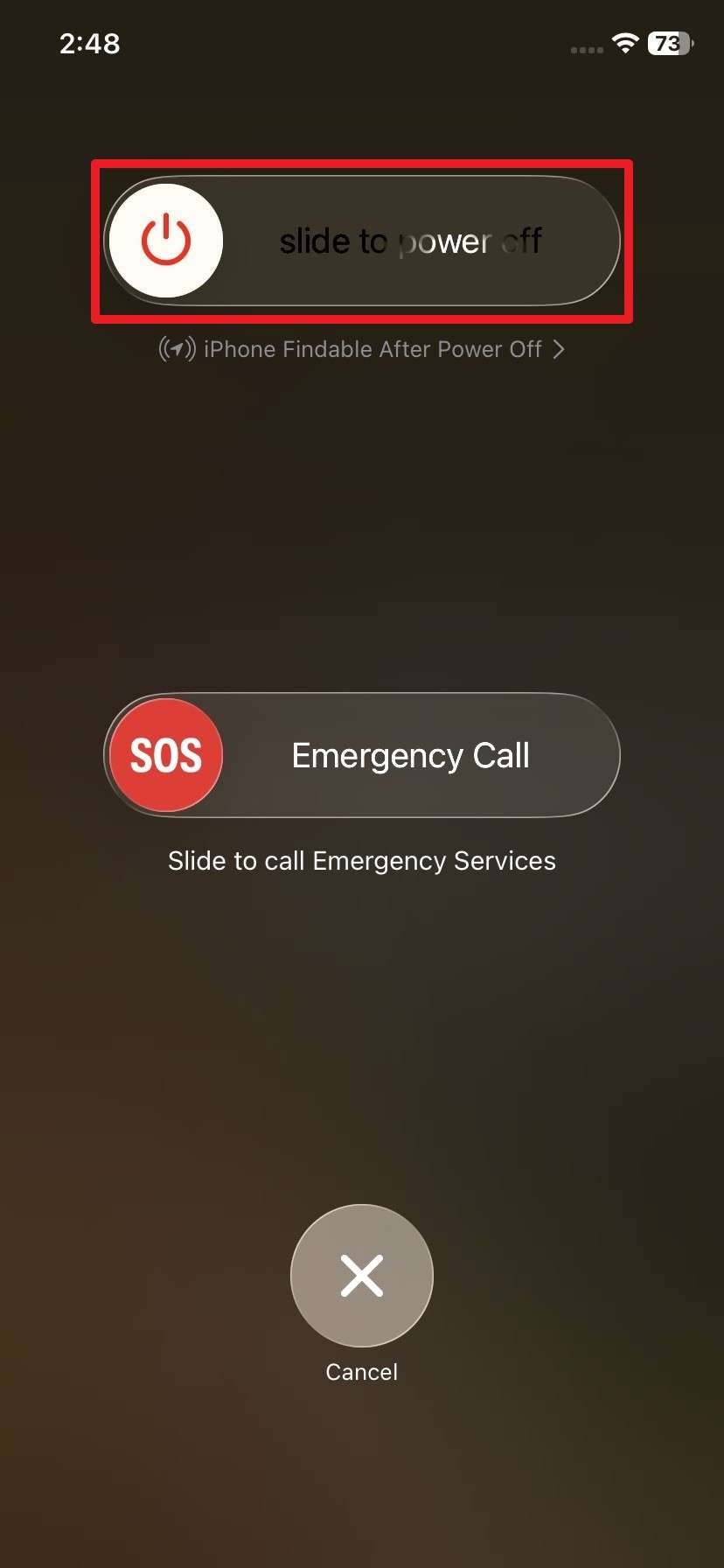
This fix stops hidden background tasks and clears small glitches to refresh the system after an update. With this, you can also cool down your device if it feels too hot from heavy use, and is guided below:
Instructions. Maintain pressure on the “Power + Volume Up/Down” button and “Slide to Power Off” to restart. After 10-20 seconds, press and hold the “Power” button, then wait for the Apple Logo to appear and the device to restart.
Way 2. Reduce Screen Brightness
For the iOS 27 problems with the battery, note that the display can consume a lot of power. Dim the screen to save battery, produce less heat, and keep the phone cooler during heavy use.
Way 3. Enable Low Power Mode
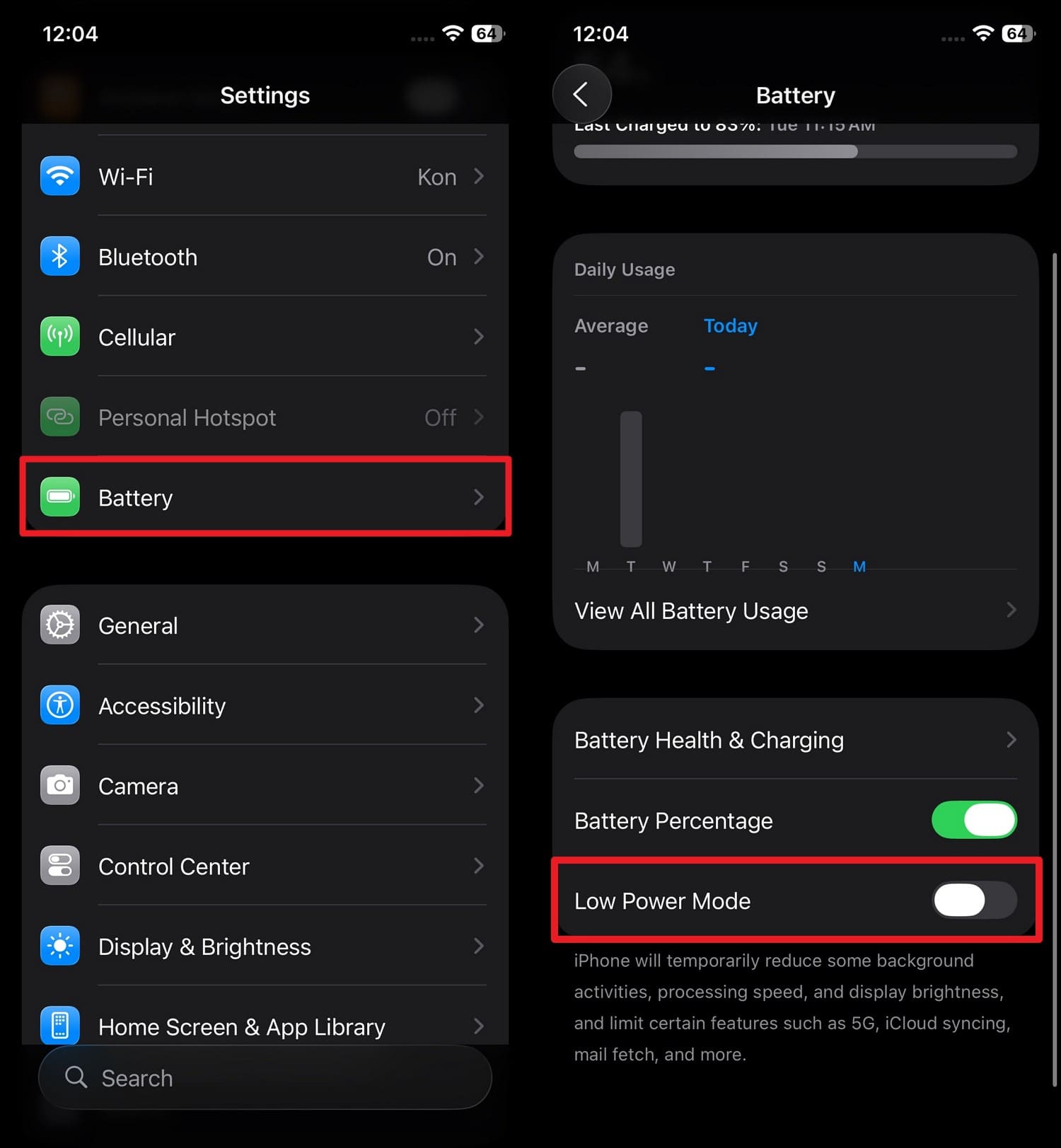
With this fix, you can slow down background activity and limit network usage, so your phone uses less power. In addition, it can stop the hidden tasks like sync and downloads, and can be performed via the listed steps:
Instructions. Go to “Battery” in iOS 27 settings and toggle “Low Power Mode” to fix the drain.
Adjust Settings That Drain Battery
If you think some settings cause the iOS 27 overheating issue, try the 4 ways mentioned to resolve it:
Way 1. Close Background Apps
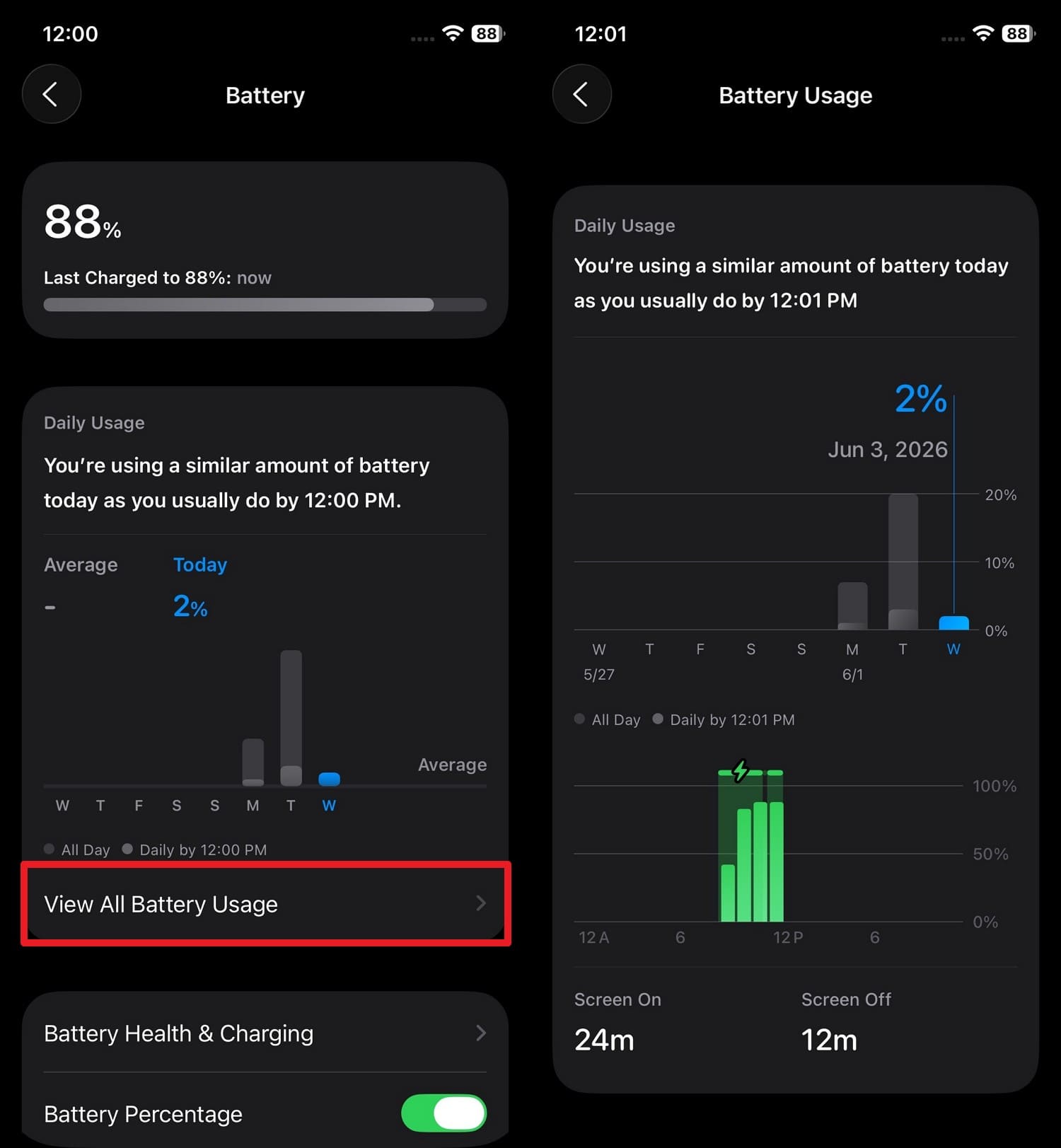
This can stop apps from using data and running hidden tasks, and reduce CPU usage to save battery. It keeps the phone cooler, lowers mobile data usage, and helps identify which apps drain the most power, as shown:

-
Step 1 In the “Battery” settings, choose to “View All Battery Usage” and locate the app that drains the most battery.
-
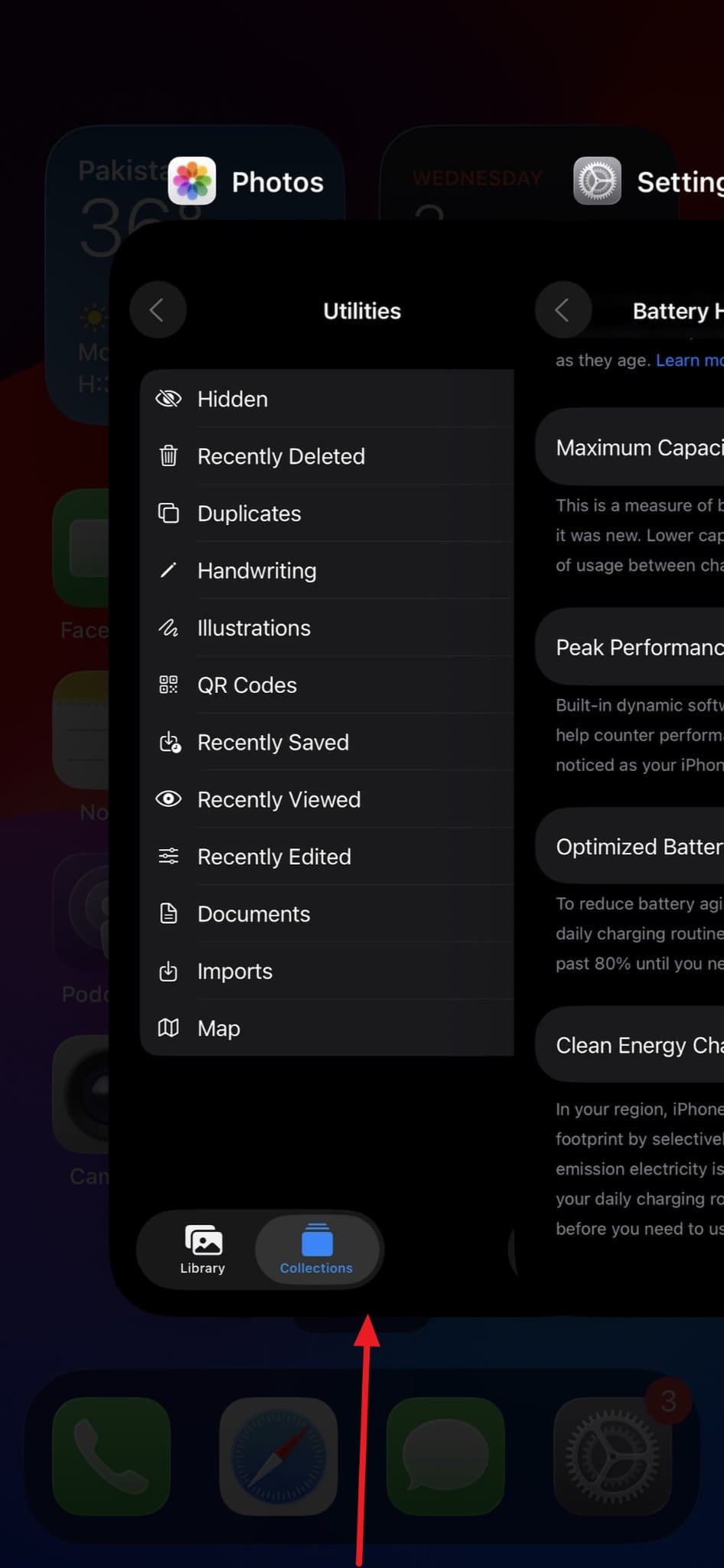
Step 2 Swipe up from the middle of the screen and locate that app in the “App Switcher” to close it as you “Swipe Up.”
Way 2. Turn Off Location Services for Unused Apps
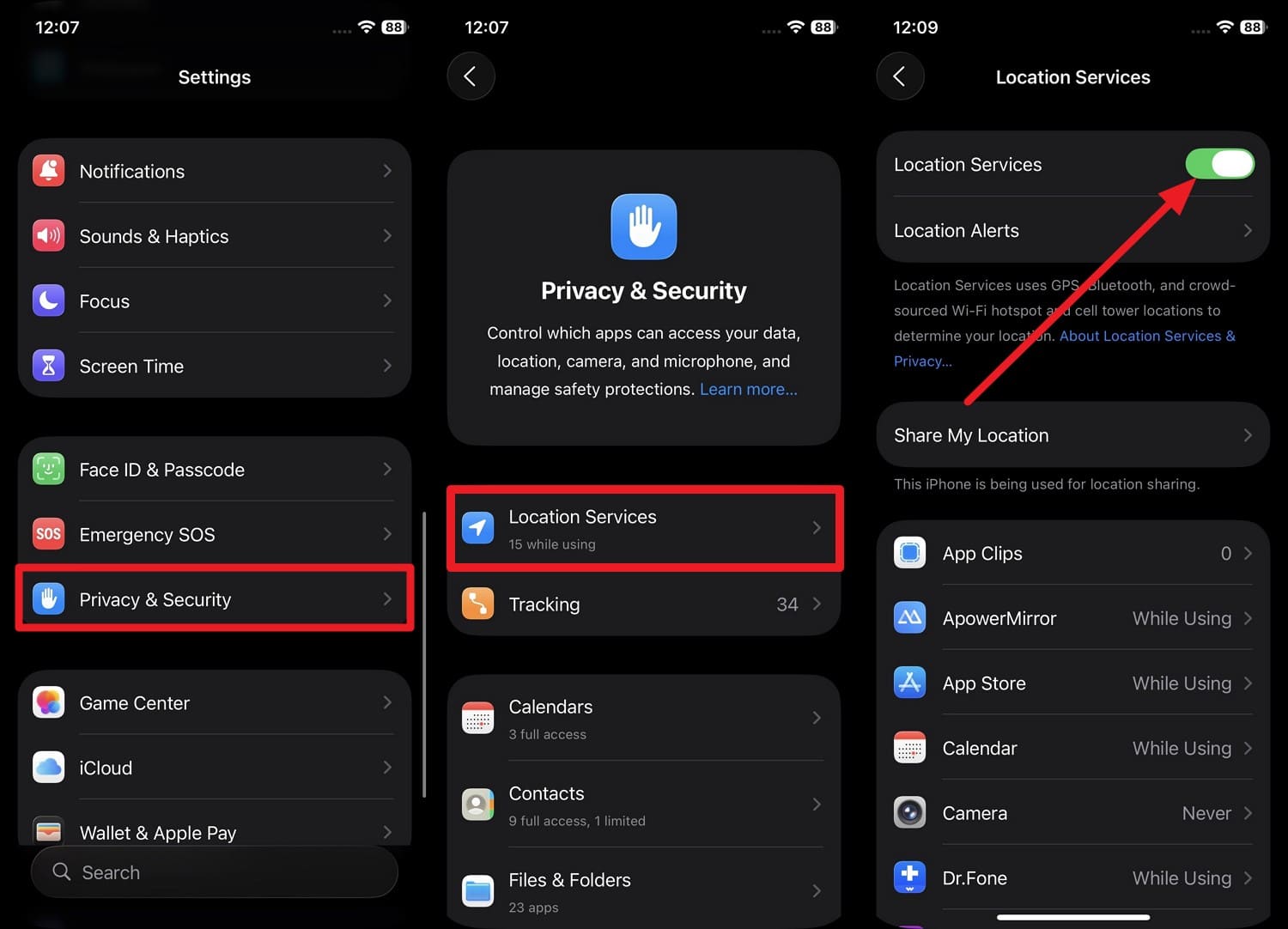
As another iOS 27 lag fix for battery issues, it's important to know that GPS and location tracking use a lot of power. So, set them off to improve standby time since fewer apps can wake the system in the background, and the steps are as follows:
-
Step 1 In the “Privacy & Security” settings, choose the “Location Services” option to ensure the “Location Services” switch is “ON.”
-
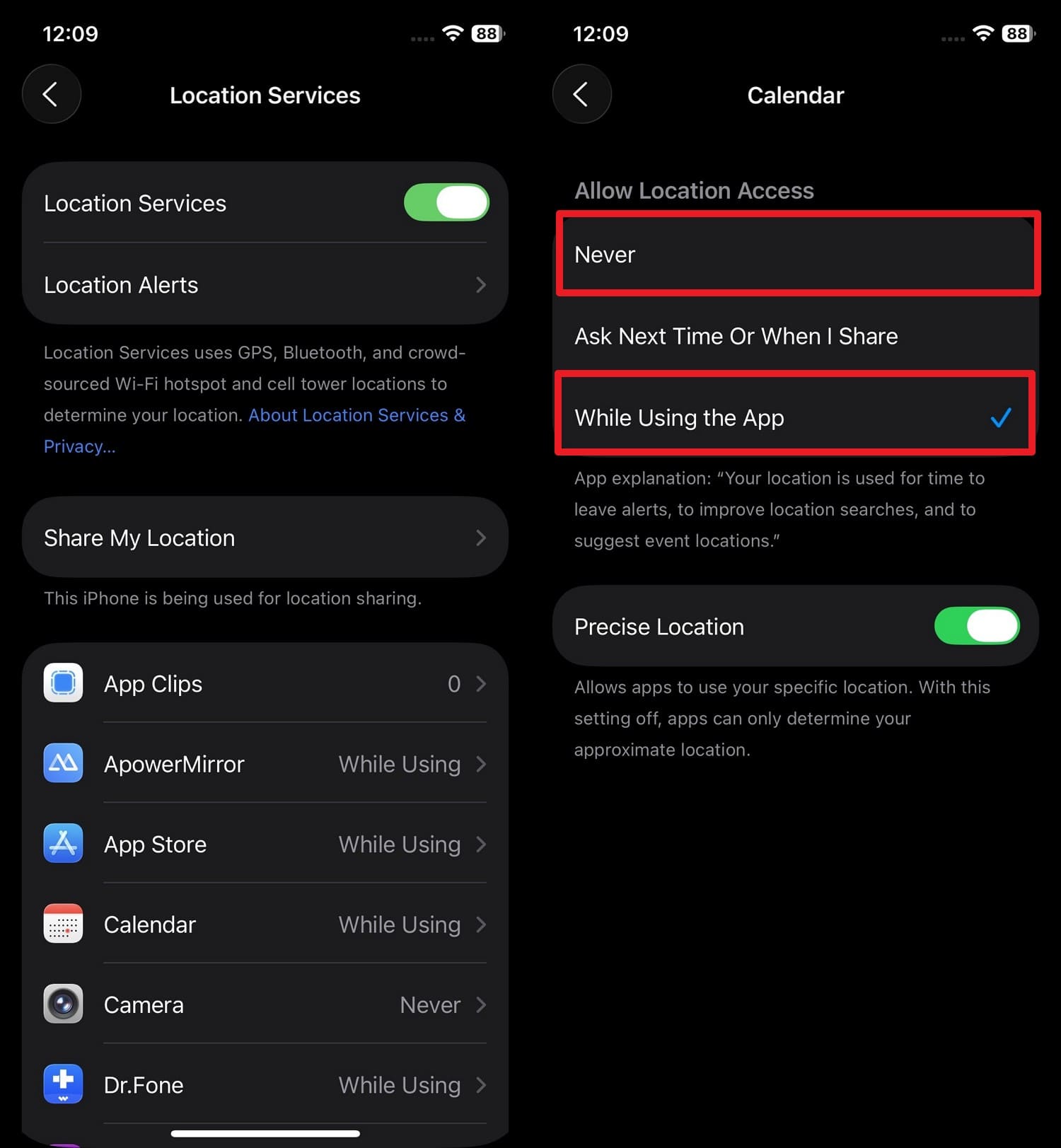
Step 2 On the same interface, scroll down to choose the less-used apps and set the settings to “Never” or “When Using the App.”
Way 3. Disable Background App Refresh
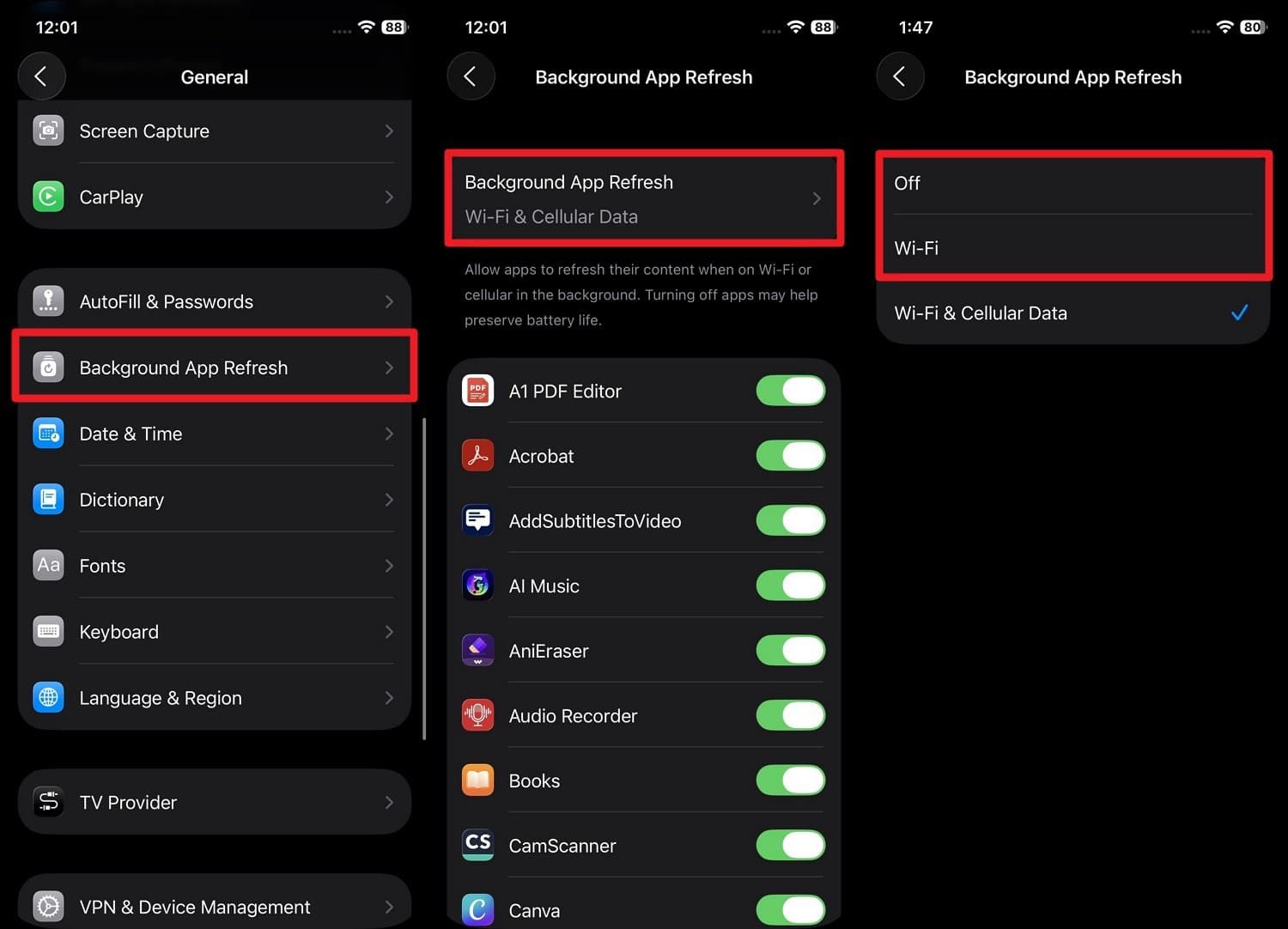
This limits the app to wake up in the background to update the data and reduces battery drain. Furthermore, it keeps the phone more stable, and you can choose to disable it for all or selected apps, as demonstrated:
Instructions. As the iOS 27 lag fix, tap on “Background App Refresh” in the General settings and set the “Background App Refresh” to “Wi-Fi” or “Off” and toggle off high-drain apps.
Way 4. Free Up Storage Space
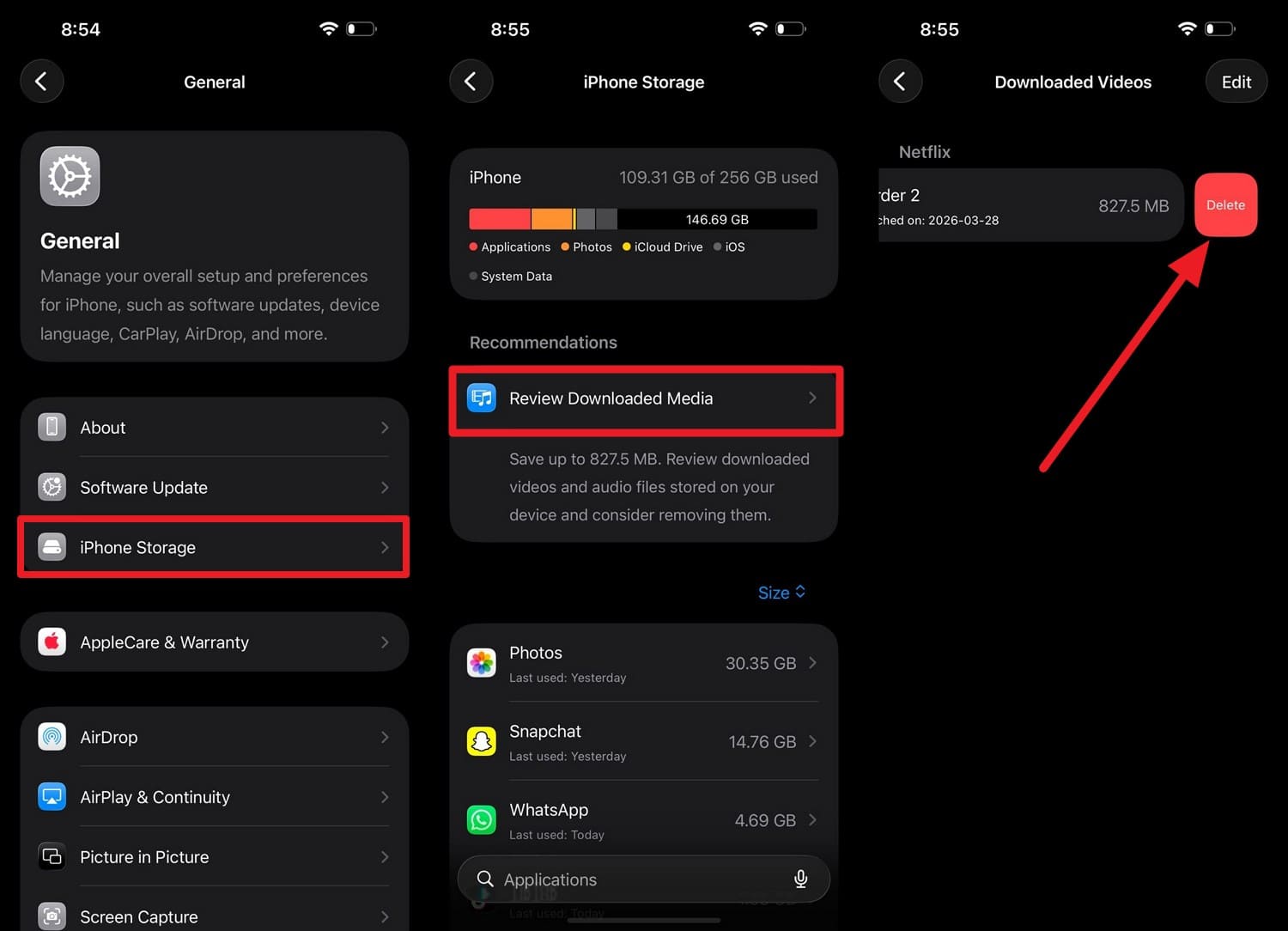
Note that a full iPhone makes the system work harder in the background, and the phone keeps crashing and increases the heat. So, as you free the space in the iPhone Storage mentioned settings, it will help with syncing, and updates will run normally without extra load:
Instructions. To free up 10-15% of storage, go to iPhone Storage in the General settings, choose “Review Download Media,” swipe left to “Delete” files, and make space.
Check iPhone Health and Software
If the iOS 27 problems for battery drain or heat are linked with the device, let’s see if the mentioned 2 ways can help:
Way 1. Check Battery Health
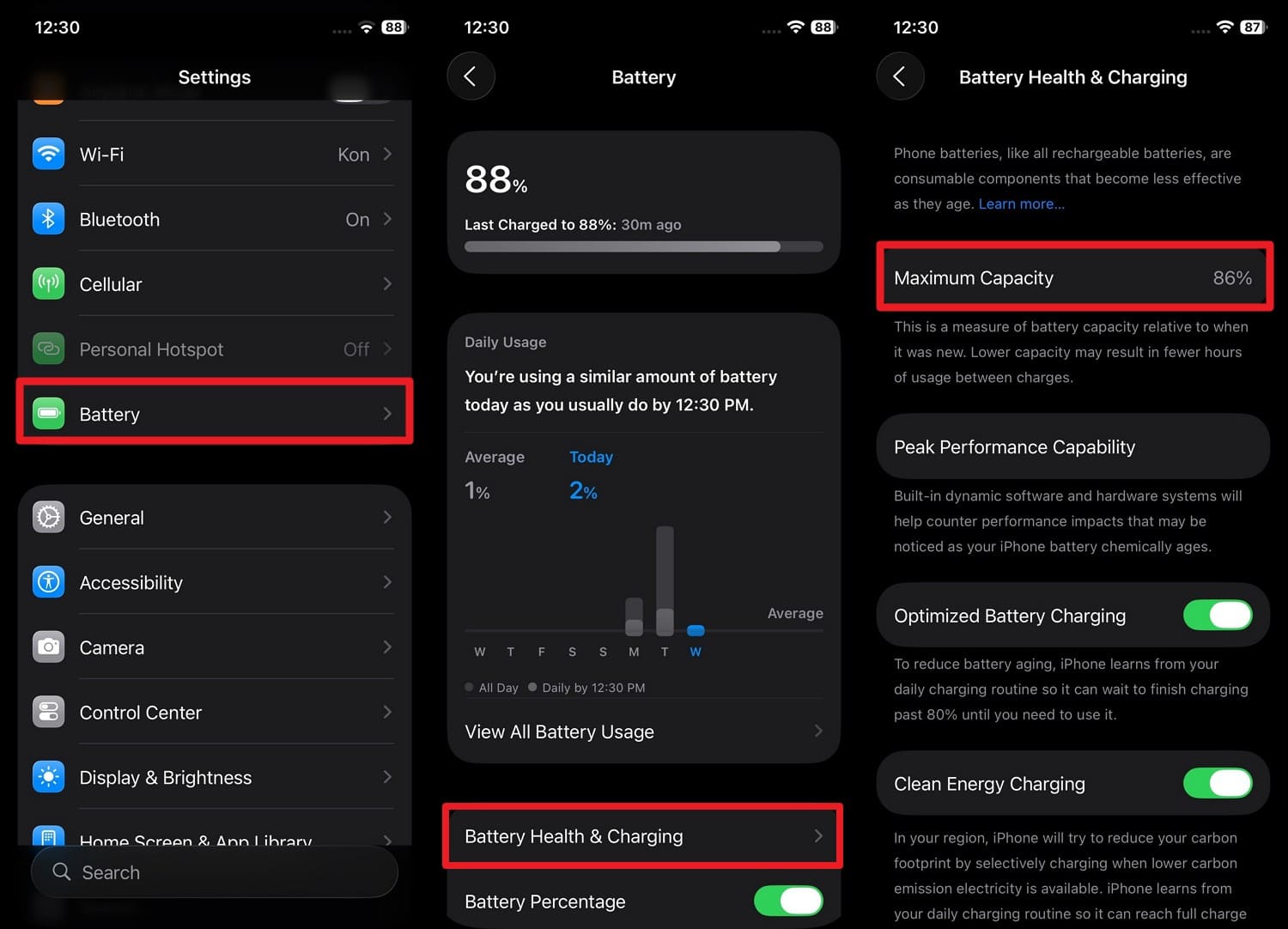
This fix can help you understand if iOS 27 battery drain is from software issues or an old battery. If the capacity is low, around 80% or less, your phone may need replacement instead of the software fix. So, to check that, review the mentioned steps and decide whether to check settings or replace:
Instructions. Tap on “Battery” in the Settings app and pick the “Battery Health & Charging” option to check “Maximum Capacity.”
Way 2. Check for iOS 27 Updates (Bug‑fix Releases)
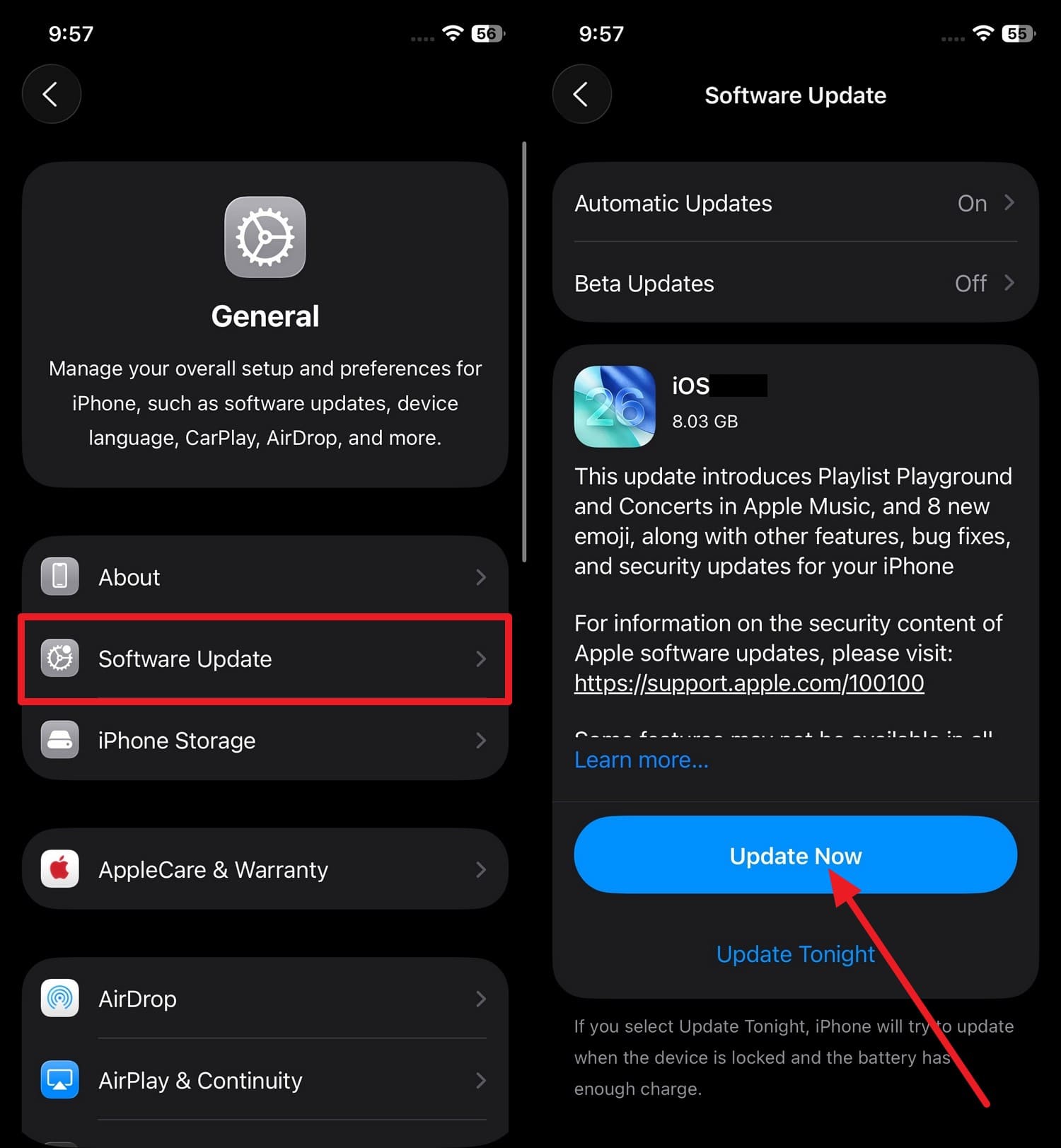
Check for the latest iOS 27 updates because Apple often fixes battery drain and performance bugs in small updates. Through this, you can improve system stability and make your iPhone run more smoothly without charging hardware, as guided:
Instructions. Tap on the “Software Update” button in the General settings, and if the new version of iOS 27 is available, choose “Update Now” to fix battery issues.
When Problems Persist
When the iOS 27 overheating issue persists after trying all the fixes, it's time to perform some advanced methods given in this section:
Way 1. Remove Problematic Apps
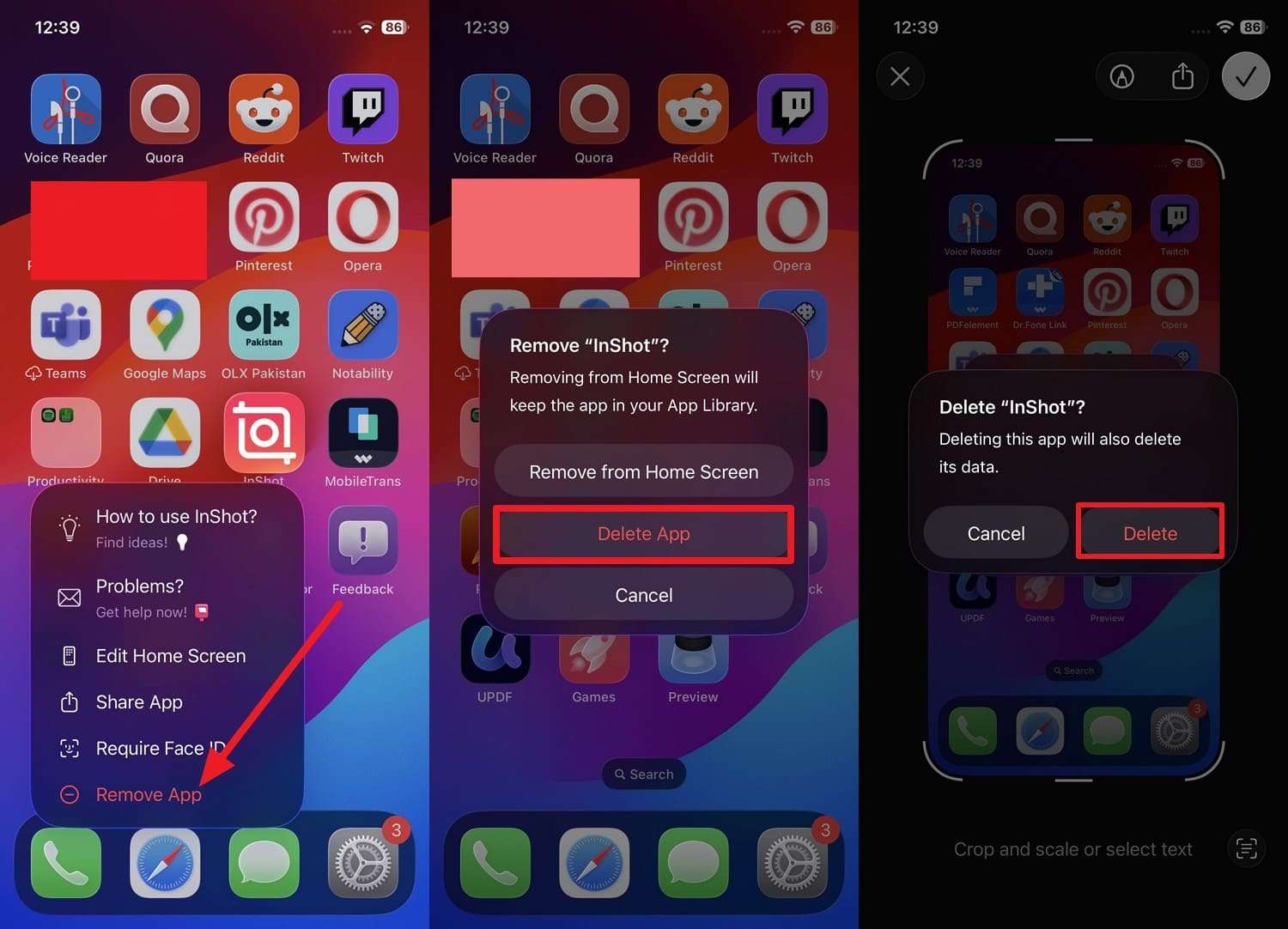
One bad app can keep using CPU, data, and sensors in the background, so it's best to delete it. This will stop the hidden activity, crashes, and overhead loops to run the phone smoothly. So, if the battery improved as you remove the app via the mentioned guide, the app was likely the issue, not battery or update:
Instructions. Maintain hold on the problematic app and choose the “Remove App > Delete App > Delete: options to fix battery issues.
Way 2. Reset Network Settings
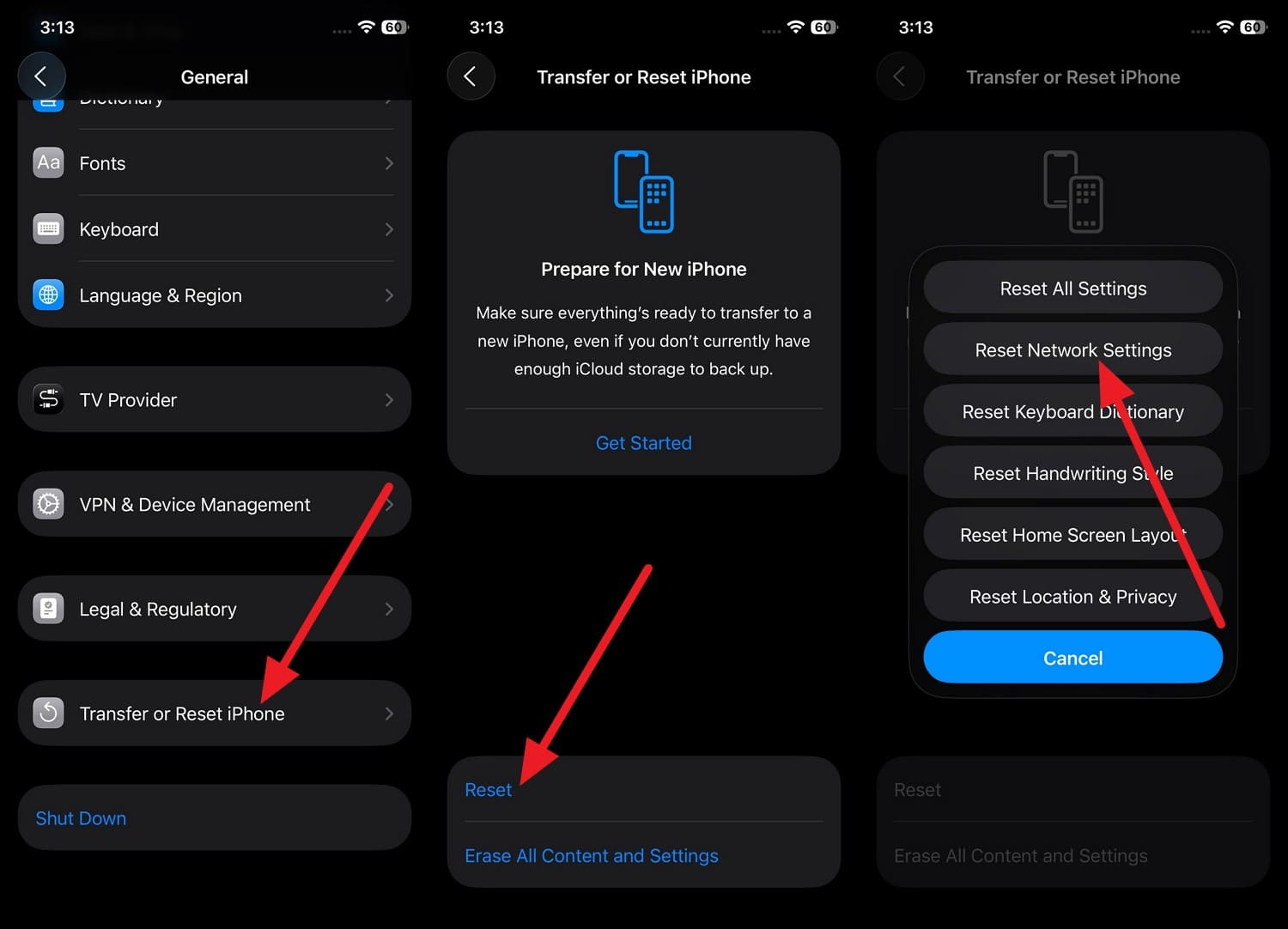
When the phone has a power signal, Wi-Fi issues, or connection glitches, iOS 27 AI features drain more battery and cause iOS 27 problems. Thus, a reset clears old or corrupted network data and creates a fresh connection via the mentioned Transfer or Reset iPhone Settings:
-
Step 1 Pick the “Reset” and “Reset Network Settings” option as you press the “Transfer or Reset iPhone” option.
-
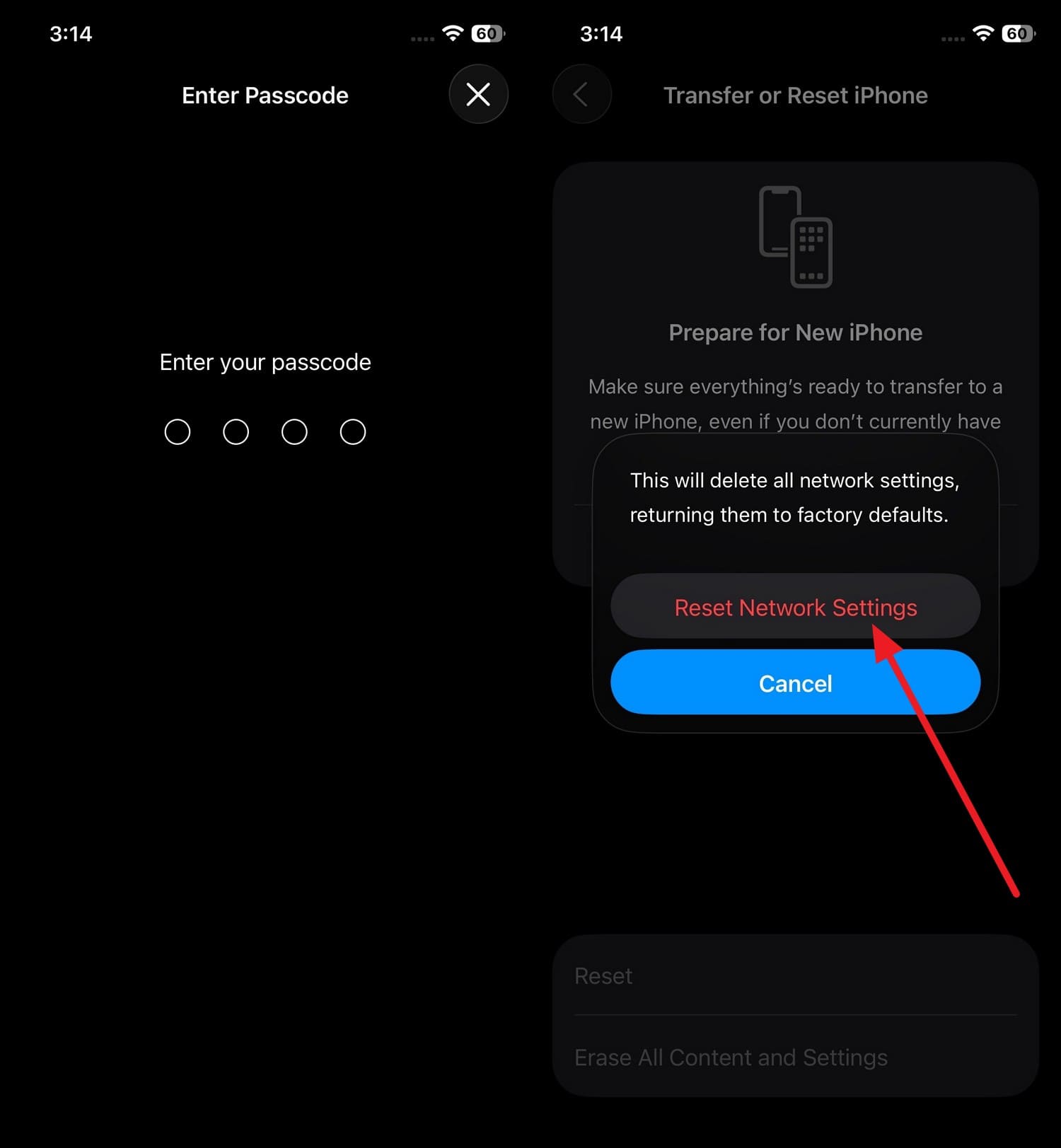
Step 2 When prompted, enter the device passcode 2 times, then tap “Reset Network Settings” so AI features can use a fresh connection and reduce battery drain.
Way 3. Reset All Settings
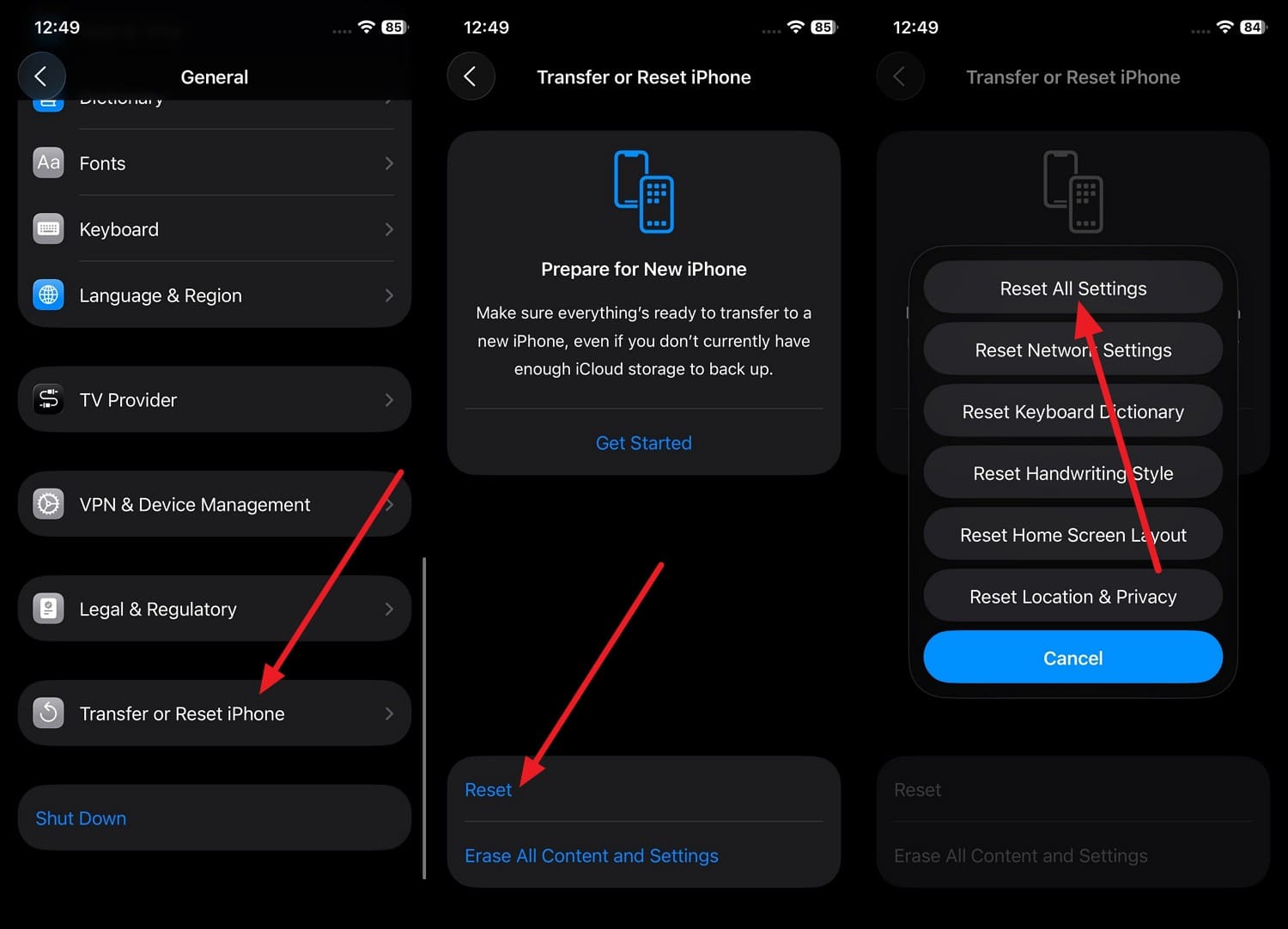
As a deeper fix for the iOS 27 overheating issue, this method can remove broken and conflicting system settings without deleting data. It resets things like Wi-Fi, privacy, and system preferences that may quietly cause battery drain after the update, as shown:
-
Step 1 In the General “Transfer or Reset iPhone” settings, choose the “Reset” and “Reset All Settings” option.
-
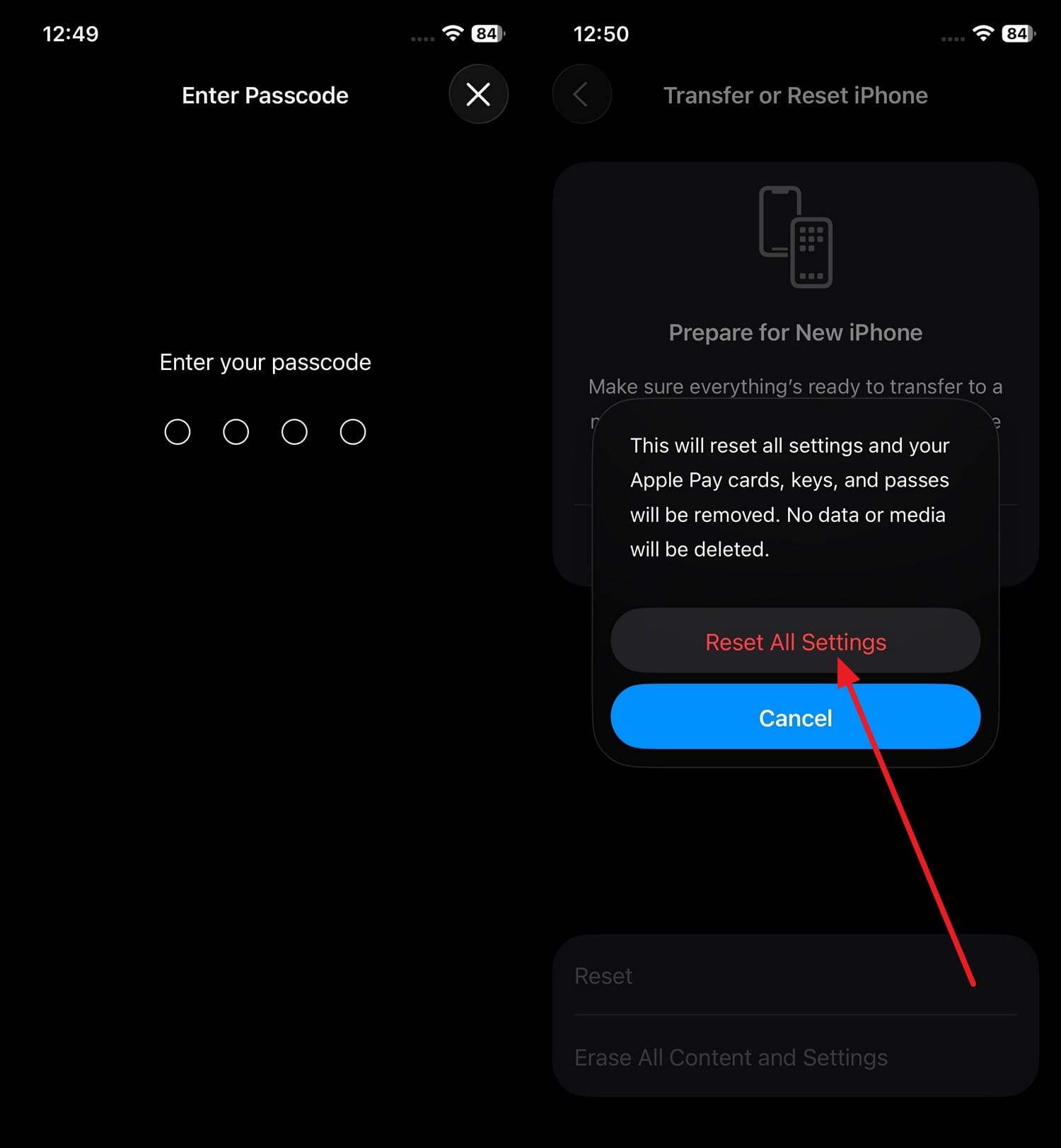
Step 2 Now, enter the device passcode twice, then select the “Reset All Settings” option to fix battery issues after the iOS 27 update.
Way 4. Use a System Repair Tool for iOS 27 Battery, Lag, & Heat Issues
When iOS 27 problems look like deep system bugs, you can use Dr.Fone - System Repair (iOS) to fix battery issues and 150+ other iOS issues. This tool can also help install the firmware when the core system files become corrupted and cause rapid battery drain. In this case, you can use its Standard Mode to keep the data intact or its Advanced Mode when the Standard one falls short.
Since it's known to be versatile, you can also use it to resolve 200+ iTunes errors, such as 4013 and 1110, with its detailed guide. For all these issues, users can access Recovery and exit DFU mode at no cost and with no technical skills required. Let's say the issue persists, you can leverage the downgrade facility of this tool to go back to iOS 26.
 Fix iOS issues, no data loss.
- One-click repair for all iOS problems.
- Solve recovery mode, Apple logo, black screen, etc.
- Upgrade or downgrade iOS without iTunes

Guide to Fix the iOS 27 System Issues to Fix Battery Drain or Heat
Step 1. Choose to Fix Battery Issue in Standard Mode
Pick the “Standard Mode” on the iOS Repair tool as you pick the “Repair Now” button.

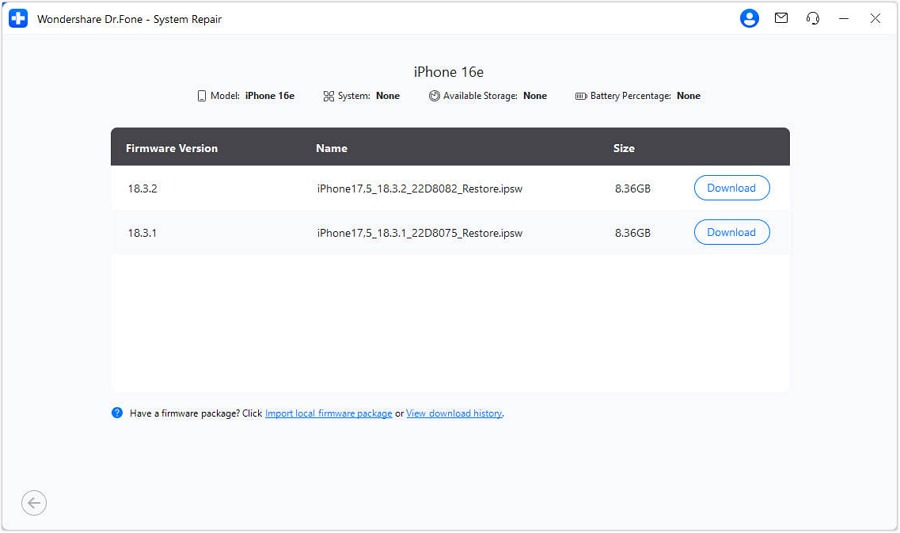
Step 2. Download and Install Dr.Fone Listed Firmware
When directed to the new interface, the tool will detect and display the respective iOS firmware; choose “Download” to install.
Step 3. Fix the Battery Issues After iOS 27 with Dr.Fone
Once the progress bar completes, tap the “Repair Now” button to let the tool fix system issues that cause battery drain after the iOS 27 update.





Part 4. How to Prevent iOS 27 Performance Issues in Future Updates?
So far, you know all the iOS 27 lag fix for battery issues; follow the mentioned tips to avoid this problem again:
| Tip | What to Do Briefly |
|---|---|
| Back Up Before Updating | Use iCloud or Dr.Fone Phone Backup (iOS) to create a selective, incremental backup, following the detailed guide. |
| Wait for the First Bug‑fix Release | Avoid day‑one installs; update after the first patch. |
| Clean Up Storage Regularly | Keep 10–15% storage free by deleting big unused data. |
| Review Heavy Apps After Updates | Check Battery stats and remove or limit problem apps. |
| Use Healthy Power Habits | Avoid constant 0–100% cycles; enable Low Power Mode. |
Part 5. When Should You Consider Repair or Replacement?
For the iOS 27 problems with battery, if the battery drain heat issues remain after trying all the fixes, it's time to replace or repair the battery. Additionally, if the battery health is below average or shows a "Service" warning, it means that the battery is worn out and needs to be replaced.
Conclusion
Battery drain and iOS 27 overheating are some of the common issues users face after a few days of the update. Thus, this guide has explained how you can resolve them with quick and advanced fixes.
For a situation where you have to try deeper fixes and seek to preserve data, it's recommended to use Dr.Fone - System Repair (iOS). The firmware installation through the Standard Mode can fix 150+ major iOS issues for all types of users.
FAQ
-
1. Will Low Power Mode damage my iPhone if used all the time?
No, Low Power Mode is a safe Apple feature and can be used when background tasks and syncing are still active. -
2. Can charging while using AI features cause more heat?
Yes, using AI tools while charging can increase heat because both tasks use extra power. -
3. Is overheating after an iOS update always a hardware problem?
No, overheating is often caused by background processes, app issues, or software bugs and does not always mean hardware damage.
 Add Wondershare Dr.Fone as a preferred source on Google