Bypass iCloud Activation Lock and Android FRP without password.

 100% Security Verified | No Subscription Required | No Malware

 :
: 
 ChatGPT
 Perplexity
 Gemini
 Claude
 Grok
Grok
When you switch phones or browsers, or switch from Apple to Android, saved passwords can cause issues. It's important to use the right method to export passwords from an iPhone, based on the stored location and the destination location you are targeting. You can export your iPhone's passwords using Apple Passwords, Safari, Chrome, or a password manager. You can also export iPhone passwords to CSV for transfer to Google Password Manager.
This guide explains the safest ways to export passwords from iPhone to Android, move them to a computer, and handle browser-based logins. It also covers what to do if a locked iPhone prevents access to your saved credentials.
In this article
Part 1. How to Transfer Passwords from iPhone to Android?
Moving saved login details between phones does not always require a computer. For a handful of passwords, transfer using a password manager or enter passwords manually. The following two methods allow you to easily export passwords from an iPhone to an Android device.
1. Through the 1Password App
1Password can store your login details in a single account and make them available across different devices. After adding your iPhone's password information, you can sign in to the same 1Password account on Android and access the saved details there.
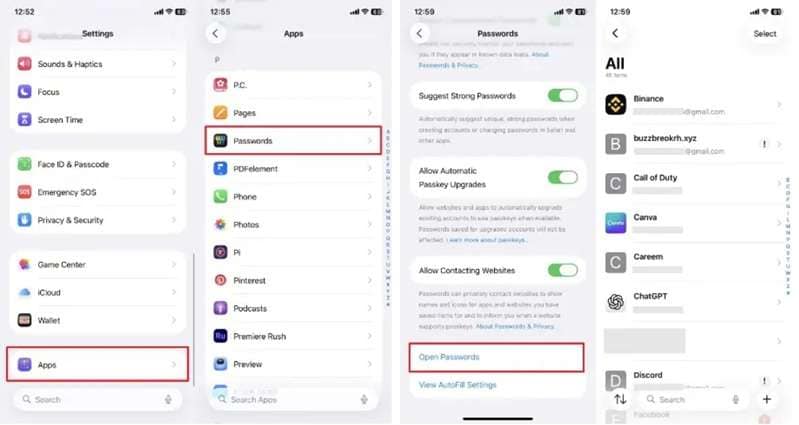
Step 1: Start by launching your iPhone's Settings. Visit Apps and choose Passwords.
Step 2: To check a specific account password on your phone, open the Passwords section.
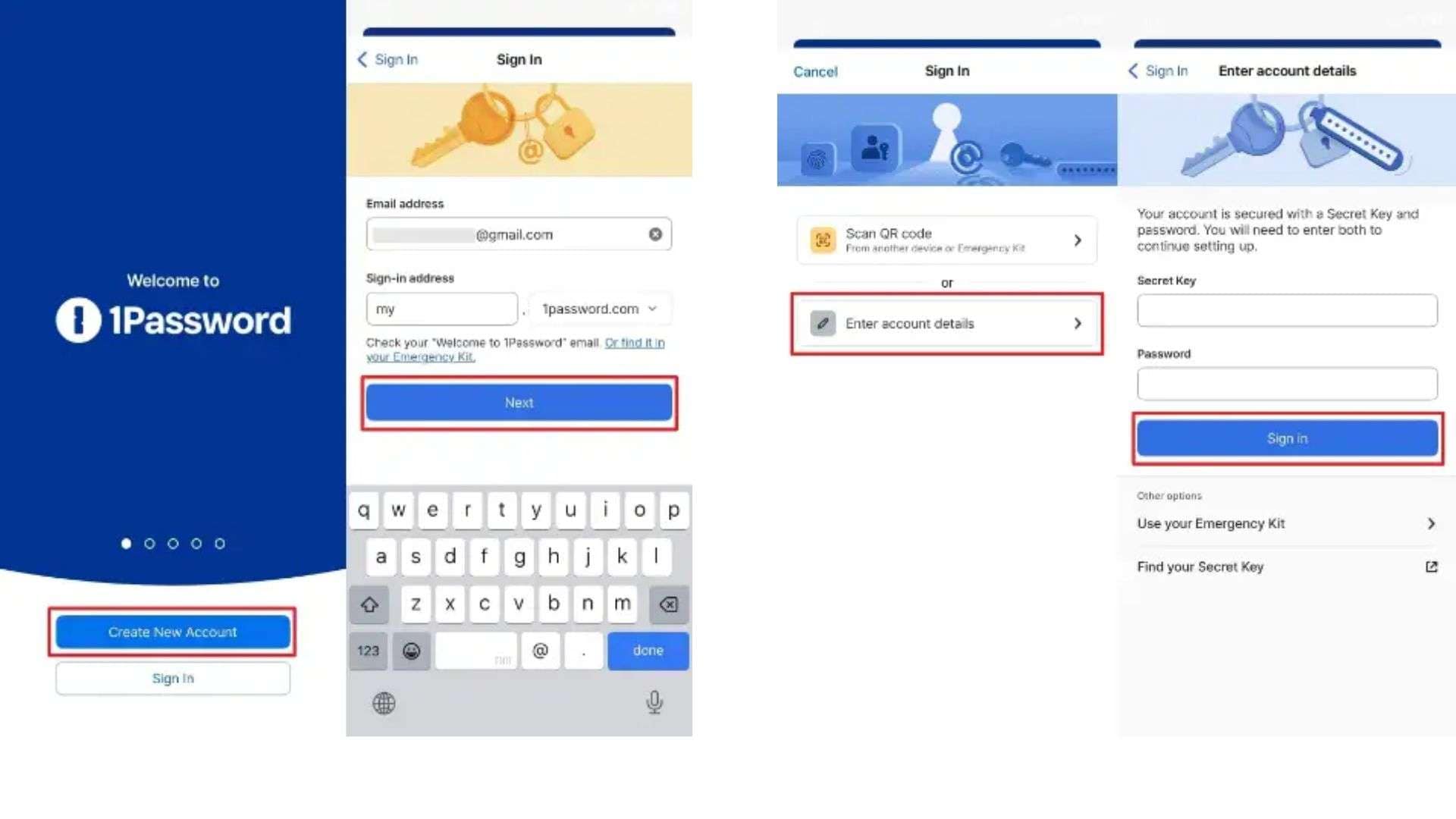
Step 3: Launch the 1Password application to begin. Please click on Create New Account, complete verification, and sign in to the account.
Step 4: Tap the Plus (+) symbol in step three. Select the appropriate category and enter the required account details.
Step 5: Open 1Password on your Android phone. Tap Enter Account Details and sign in to the same account.
Step 6: The password information saved in 1Password will then be available on your Android device.
2. Using Manual Input
Manual entry is another simple option when you only have a small number of passwords to move. You check the saved login on the iPhone and enter the same details on your Android device. This method takes more time, but it lets you transfer each password separately.
Step 1: Open Settings on your iPhone. Go to Apps and tap Passwords.
Step 2: Open the password section and select the app or account you want.
Step 3: View the saved password for that account.
Step 4: You can then open the same account or app on the Android phone and enter the password that you checked on the iPhone.
Manual entry works well for a few important accounts. If you have many saved passwords, however, moving them one by one can become slow. In that case, a Mac and a CSV file can provide a more practical route, which the next section covers.
Part 2. Transfer Passwords from iPhone to Android Using a Mac
iCloud Keychain is Apple's built-in password manager for iPhone, iPad, Mac, and other devices. It saves your passwords, account information, and secure data with the rest of your Apple devices. When iCloud Keychain is active, these saved details can sync across your Apple devices.
To move many passwords from iPhone to Android, you can first bring the saved credentials to a Mac. Then, you can export iPhone passwords to CSV and import that file into the Google account used on your Android phone.
Export iOS Passwords to a CSV File
Step 1: On your Mac, click the Apple menu and open System Preferences. From the options provided, scroll and select Passwords.
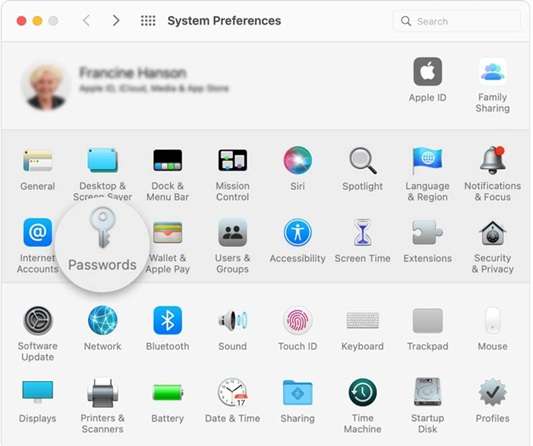
Step 2: Log in to your Apple account with your password, or use Touch ID to perform this step. View passwords saved from your iPhone.
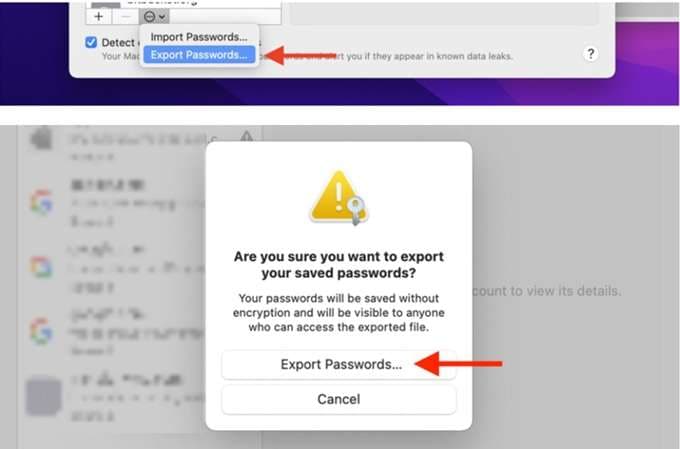
Step 3: Select Export Passwords from the three-dots icon at the bottom. Choose Export Passwords. Your Touch ID may be requested or your password may be required again.
Step 4: A message will appear asking you to confirm the export. Click Export Passwords again to continue.
Step 5: Pick the desired directory for saving the exported file. You can change the name too. Click Save to store the iOS export passwords data as a CSV file on your Mac.
Import the CSV to Google Password Manager
Step 1: Log in to the Google account used on the Android Phone.
Step 2: Open the Google Account website and select Security from the left side. Scroll to Signing in on other sites, then open Password Manager.
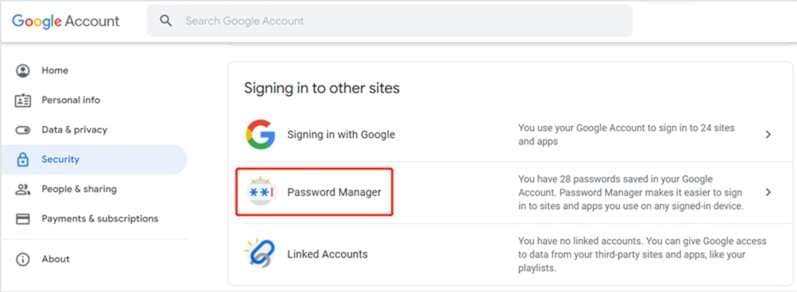
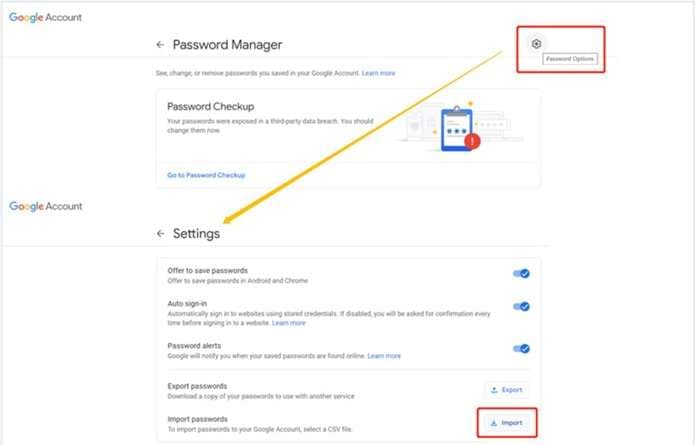
Step 3: Click Password Options in the upper-right area. Then select Import.
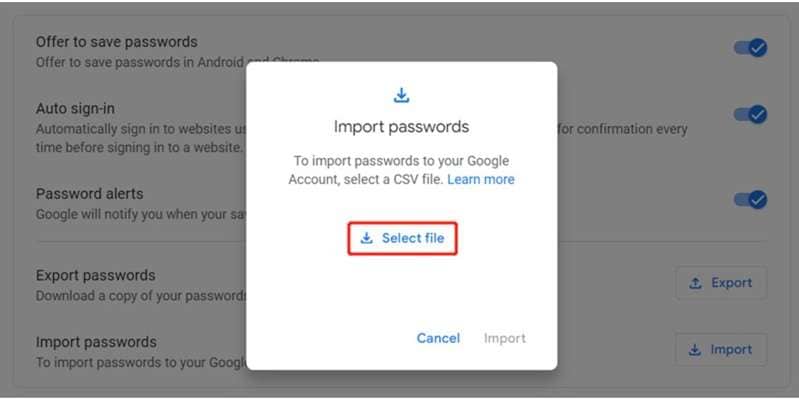
Step 4: Click Select file in the import window and choose the CSV file exported from the Mac. Tap the Import button to save those passwords to your Google account.
Once the import is done, log in to the same Google account on your Android phone. The transferred passwords can then be suggested by Google Autofill when you open supported apps.
This Mac-based method is useful when you need to export passwords from iPhone to Android in a larger batch. The next section covers a different case: exporting passwords that are stored in web browsers.
Part 3. How to Export iPhone Passwords from Browsers
Login details for sites can be saved by web browsers. When a webpage is revisited, the browser can enter your username and password for you. When it comes to iPhone, users use iPhone's default browser (Safari) or Chrome. The steps below show how to export passwords from iPhone through both browsers.
1. Export Passwords from Safari
Safari stores saved passwords in Keychain. Sync them with iCloud Keychain first, and then export from a Mac.
This method does not support Windows PC. Since the Mac-based process was already covered in the previous section, you can follow those steps to export iPhone passwords stored through Safari.
2. Export Chrome Passwords from iPhone
Chrome works differently from Safari. Passwords saved in Google Chrome can be exported directly from an iPhone. You can also export them through Chrome on Mac or Windows.
Follow these steps to export passwords iPhone users have saved in Chrome:
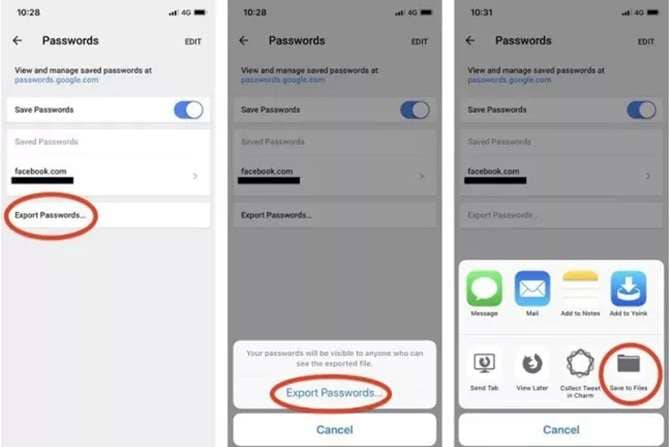
Step 1: Launch Chrome on your iPhone first. Access Settings > Passwords by tapping your Profile.
Step 2: You will see the passwords saved in Chrome. Scroll to the bottom and tap Export Passwords.
Step 3: Choose where you want to export the password data.
The best choice between Chrome and Safari for exporting bookmarks in particular depends on where your login details are stored. A side-by-side comparison of the password-transfer methods follows.
Part 4. Comparison of Methods to Transfer Passwords
The best method depends on how many logins you need to move and where they are stored. Some options work well for a few accounts, while others can export passwords from iPhone in larger batches. This quick comparison shows the main purpose and effort required for each method covered above.
| Solutions | Key Functionality | Difficulty |
|---|---|---|
| 1Password App | Keeps added login details in one account that can be accessed on iPhone and Android. | Easy–Moderate |
| Manual Input | Moves selected passwords one by one from iPhone to Android. | Easy |
| Mac + CSV to Google Password Manager | Exports Apple passwords to a CSV file, then imports them into Google Password Manager for use with the Google account. | Moderate |
| Safari Password Export | Exports supported saved passwords from Safari on iPhone. | Easy |
| Chrome Password Export | Exports saved Chrome passwords and passkeys from Google Password Manager on iPhone. | Easy |
Bonus Tip: Locked Out Before You Can Export iPhone Passwords?
Every method above assumes that you can open your iPhone and reach its saved login details. However, if you're forgetting the screen passcode, you can't begin exporting iPhone passwords.
Dr.Fone - Screen Unlock (iOS) is a tool you can use to remove the iPhone screen lock, making it usable again. The tool from Wondershare is said to support iPhone, iPad, and iPod touch. Further, it can deal with most locks, such as 4-digit or 6-digit passcodes, Touch ID, and Face ID.
One point is important before using it. Dr.Fone - Screen Unlock (iOS) clears the data on the device during the standard screen-unlock process. It should therefore be used to regain access to a locked device, not to recover or export iOS passwords that exist only on that iPhone.
 Unlock iPhone/iPad passcode in minutes.
- Remove Face ID, Touch ID, MDM lock, and screen lock.
- Bypass iCloud Activation Lock easily.
- Support all iOS versions and devices.
- Simple steps, no technical skills needed.
How to Unlock an iPhone with Dr.Fone - Screen Unlock (iOS)
-
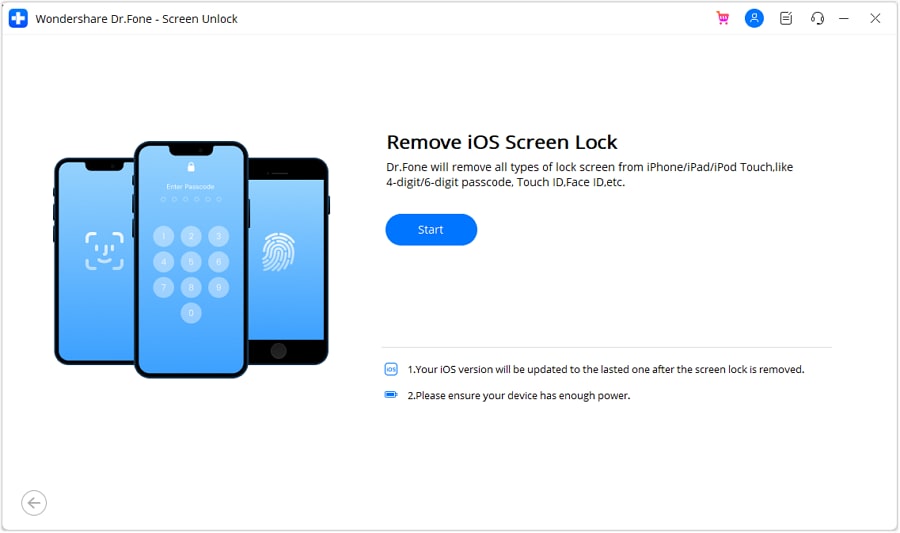
Step 1 Open the iOS Screen Unlock tool
Install and launch Dr.Fone on the computer. Open Toolbox, select Screen Unlock, and choose iOS. Click Unlock iOS Screen, connect the device, and select Start.
-
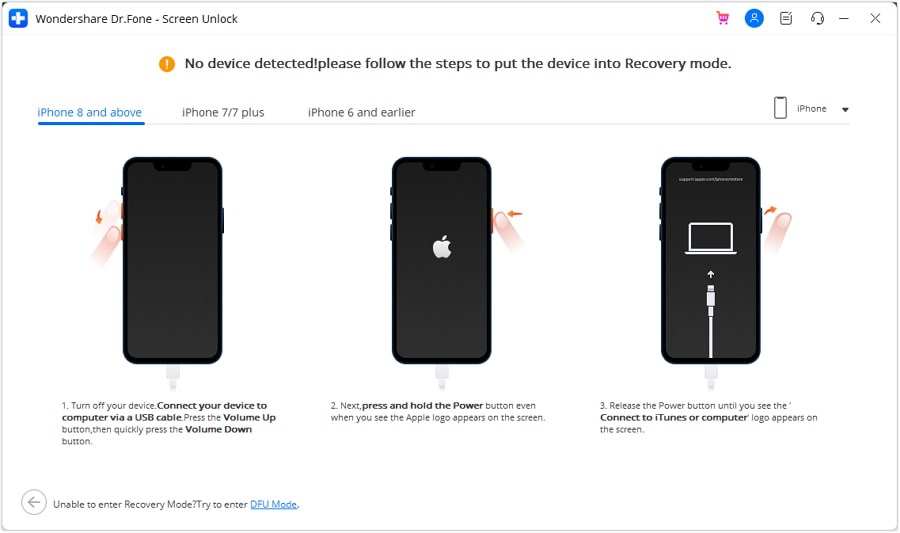
Step 2 Enter Recovery Mode
Follow the instructions that match your iPhone or iPad model to place it in Recovery Mode. Select Try DFU Mode if Recovery Mode does not work.
-
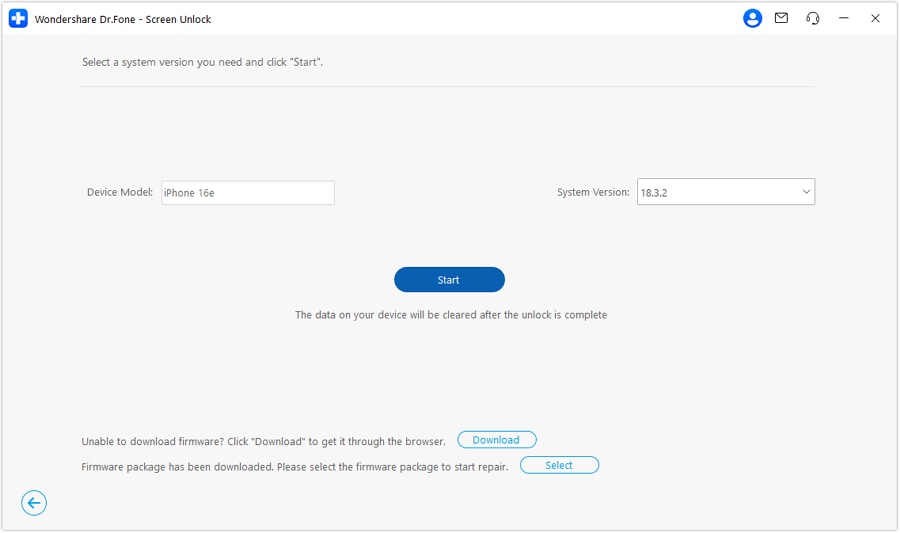
Step 3 Confirm and download the firmware
Dr.Fone detects the connected device model. Check the model and system version before continuing. Select Start to download the required iOS firmware package.
-
Step 4 Remove the screen lock
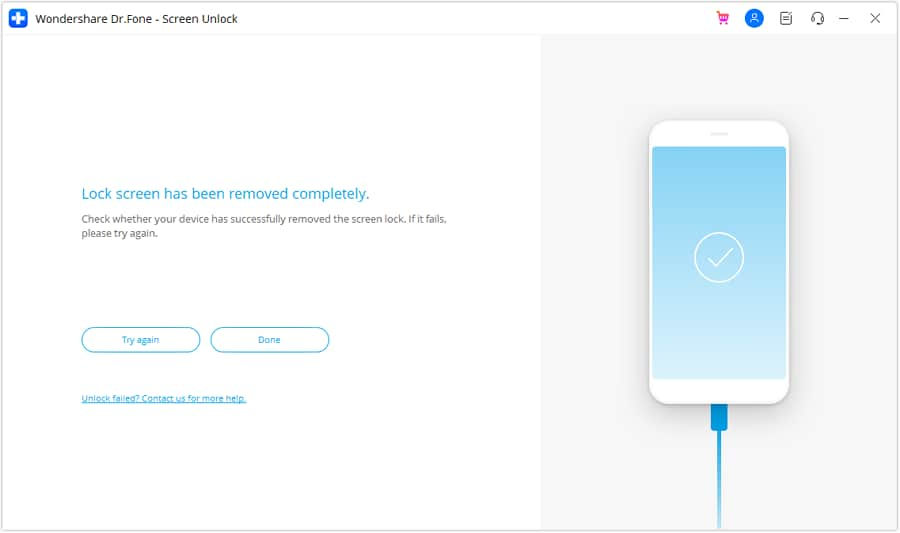
After verifying the firmware, press Unlock Now. Enter the confirmation code and select Unlock. Please keep the device connected as Dr.Fone installs the firmware and removes the lock. When the process finishes, select Done.




Conclusion
The process for exporting passwords from iPhone would depend on what app the logins are kept in and where they have to go. Both Safari and Apple Passwords allow you to export passwords, while Google Password Manager supports CSV imports for larger migrations. If you export iPhone passwords to CSV, remove the file after import because exported password files can expose your logins.
Exporting passwords from iPhone to Android can be made easier with Google Password Manager or 1Password. When you are unable to access your device because you've forgotten the passcode, Dr.Fone - Screen Unlock (iOS) will remove the lock. However, regular unlocking will erase your device data.
 Add Wondershare Dr.Fone as a preferred source on Google