Bypass iCloud Activation Lock and Android FRP without password.

 100% Security Verified | No Subscription Required | No Malware

 :
: 
 ChatGPT
 Perplexity
 Gemini
 Claude
 Grok
Grok
Your texts arrive on another iPhone, and their photos flood your library. A single call rings both phones at once. Two devices on one account act like a single phone in two locations, which becomes a headache very quickly.
If you know how to unlink 2 iPhones with the same Apple ID, you can separate your personal data. Different Apple services can stay linked in distinct ways, and several options persist even after you log out. This guide covers why this happens and explains the methods to unlink iPhones with a passcode or without one with Dr.Fone - Screen Unlock (iOS).
In this article
Part 1. Why Are Two iPhones Linked to the Same Apple ID?
Before you explore how to unlink 2 iPhones with the same Apple ID, review the following reasons to know why they are linked in the first place:
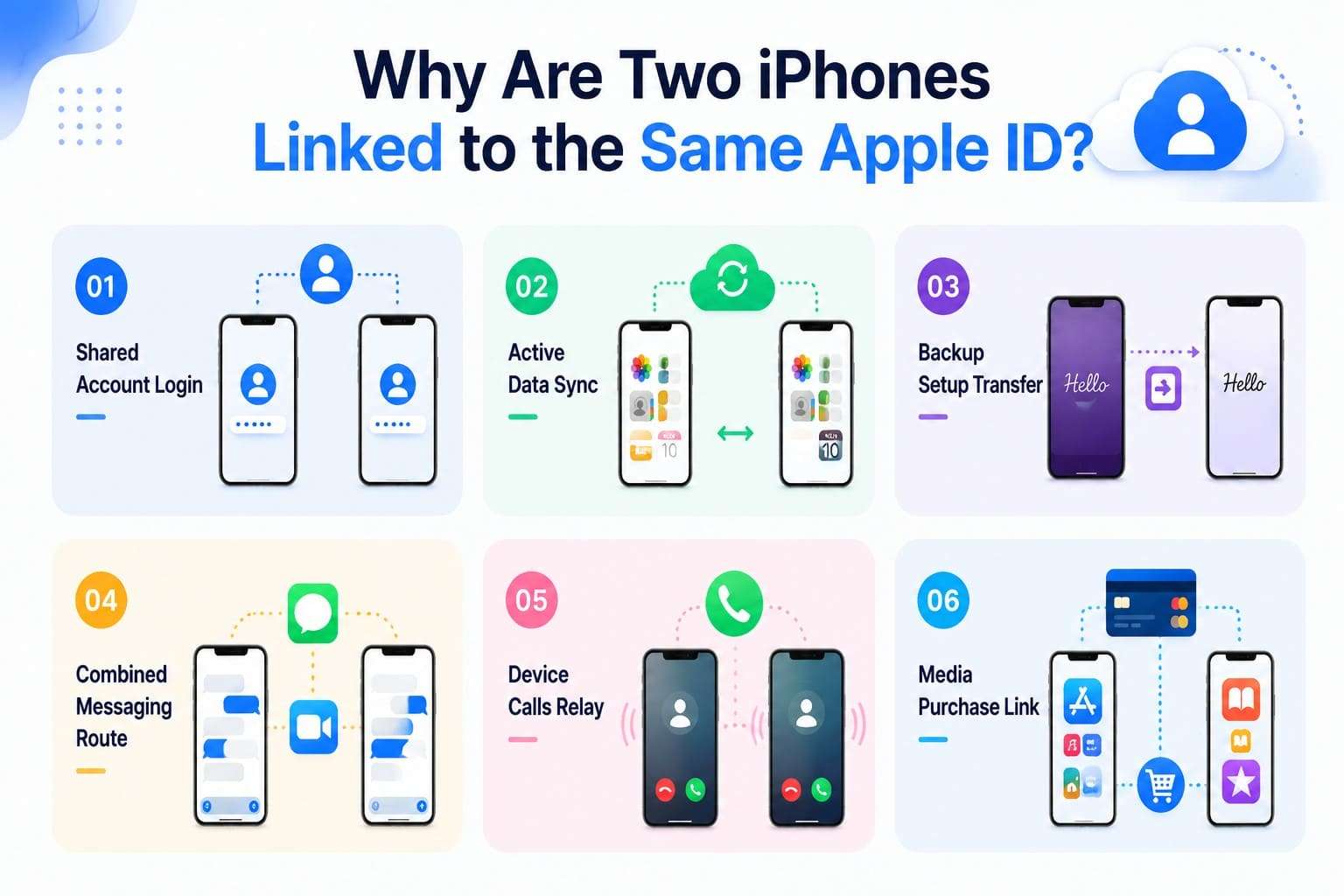
- Shared Account Login: Both iPhones sign into the same Apple ID without separate user profiles. Apple recognizes both devices under the same Apple account, and syncs supported services between them.
- Active Data Sync: Cloud services sync photos, contacts, notes, calendars, and other enabled data across both iPhones. Changes made on one device usually appear on the other after syncing.
- Backup Setup Transfer: Quick Start copies settings, preferences, and data from the old iPhone during setup. If the same Apple ID is used, iCloud services continue syncing after setup completes.
- Combined Messaging Route: Both iPhones can receive iMessages and FaceTime calls when they use the same Apple ID and the same phone number or email addresses for those services.
- Device Calls Relay: Cellular phone calls can ring on both iPhones only when Calls on Other Devices is enabled, and the required Continuity conditions are met. Otherwise, calls ring only on the primary iPhone.
- Media Purchase Link: Apps, music, movies, and other purchases belong to the shared Apple ID. Payment methods and subscriptions depend on the Apple ID account settings, not simply on iCloud sign-in, and remain associated with the Apple ID unless changed.
How to Check If Two iPhones Are Sharing Data
Before you try to unlink 2 iPhones with the same Apple ID, confirm if they are actually tied together. To do that, follow the mentioned directions and see the linked devices in Settings:
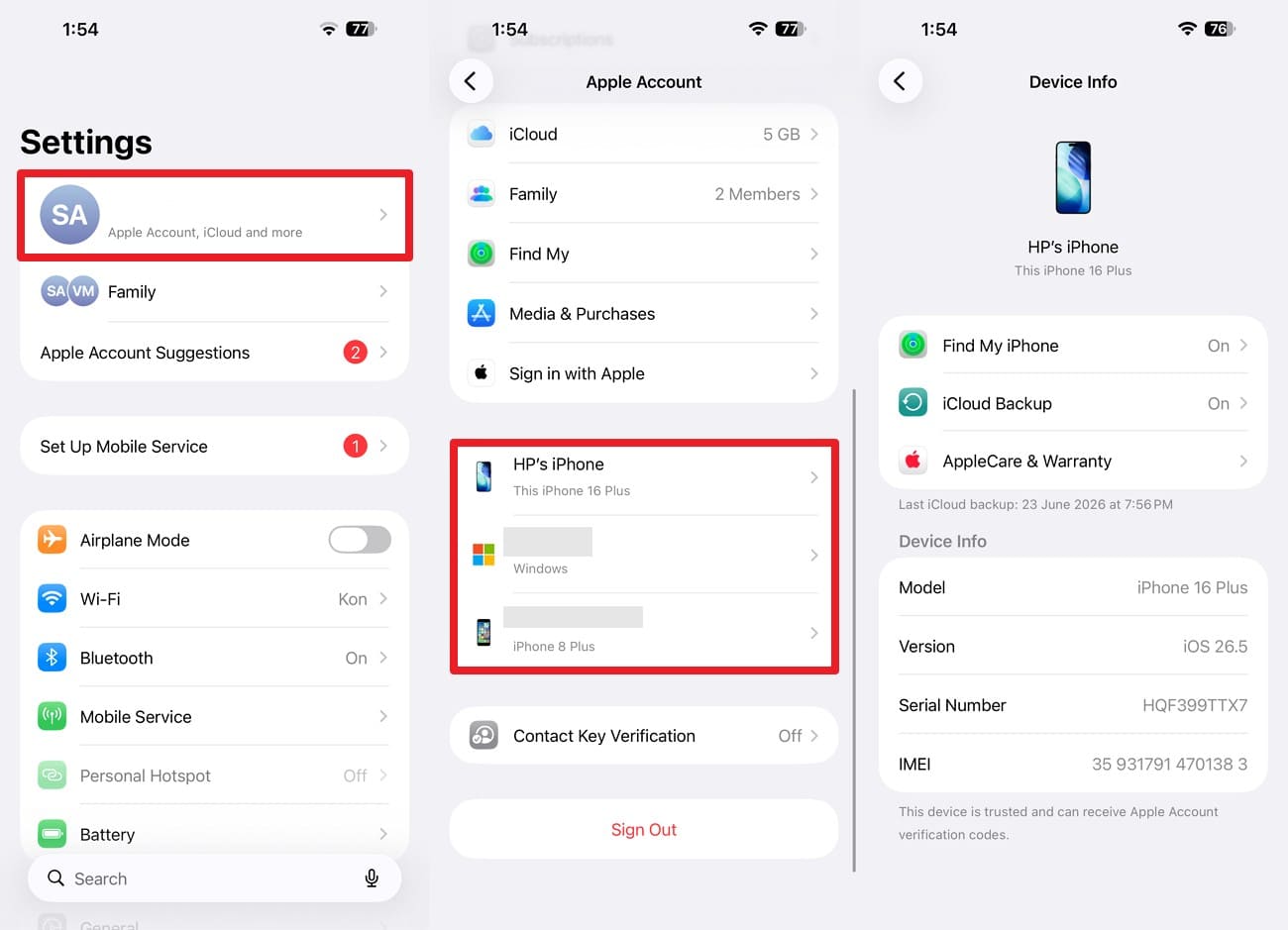
Check via Apple Account
Instructions. Open “Settings” and tap your name. Scroll down to the “Devices” list and select the linked iPhone. Review the device details to confirm it is connected to your Apple ID.
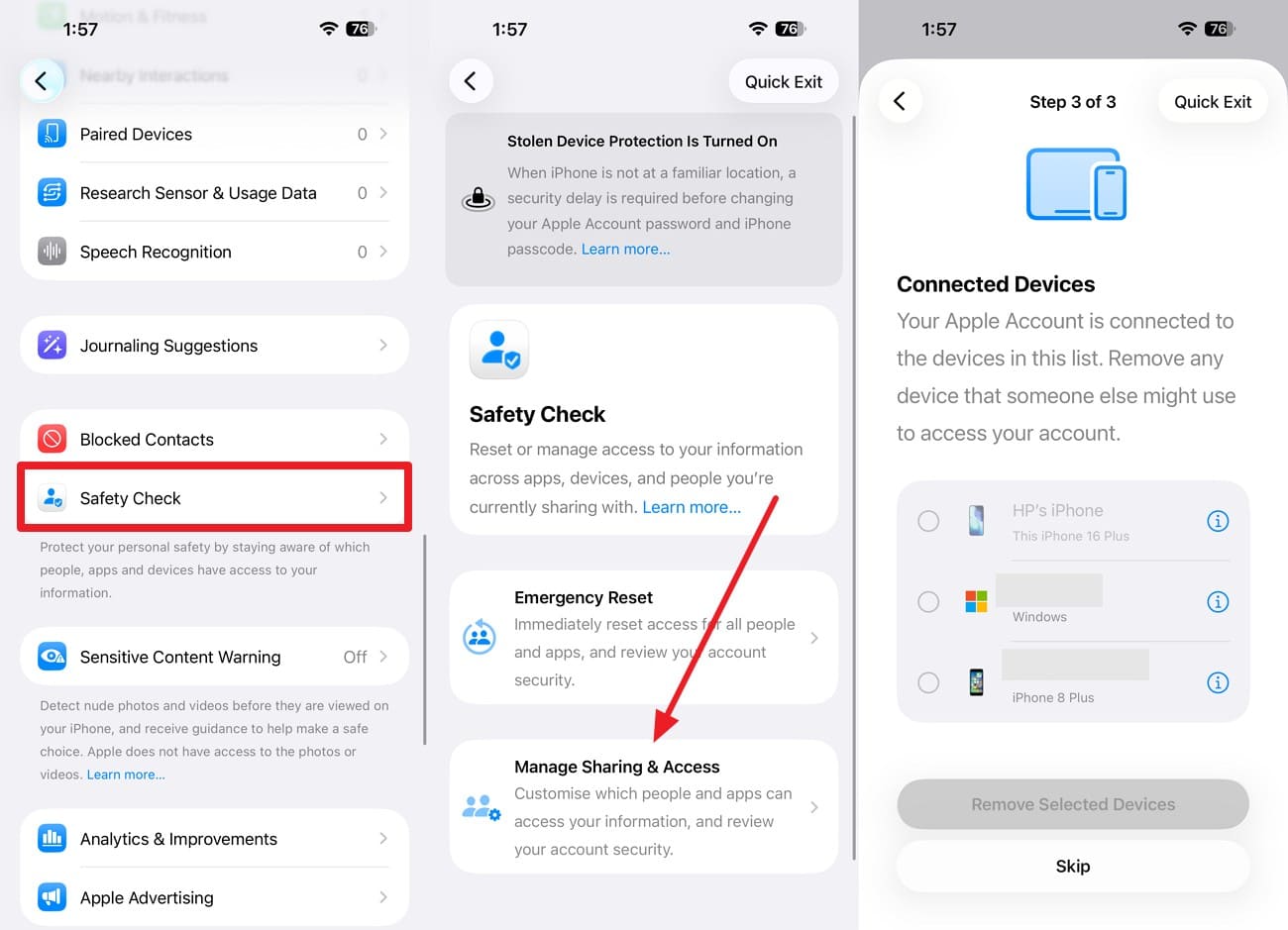
Check via Safety Check
Instructions. Go to “Privacy & Security” settings and choose the “Safety Check” feature > Add Face ID > Choose “Manage Sharing & Access.” Skip or continue until you reach “Step 3” and verify the linked devices on the “Connected Devices” interface.

Should Two People Use the Same Apple ID?
Apple built this account for one person, so split use causes constant problems, as mentioned:
- Suitable for One Person Using Multiple Devices: Sharing an account across your own iPhone, iPad, and Mac is exactly the intended use. Sync between them is a feature rather than a leak.
- Not Recommended for Two Different People: Shared accounts expose messages, photos, and location between people who never agreed to it. Password changes also lock out both users at once.
- Use Separate Apple Accounts with Family Sharing Instead: Family Sharing delivers the shared purchases people actually want. Each person keeps a private account, which Part 5 covers in full.
Part 2. Ways to Unlink Two iPhones with the Same Apple ID
Once verified, follow these 6 practical methods to learn how to unlink 2 iPhones with the same Apple ID:
Method 1. Turn Off iCloud Sync for Selected Apps
This stops selected content from syncing between the phones while both remain signed in. Choose it when you want to keep shared Apple ID purchases but separate personal data like photos. It's also reversible in seconds if you change your mind, but here is the guide to disable selected apps:
-
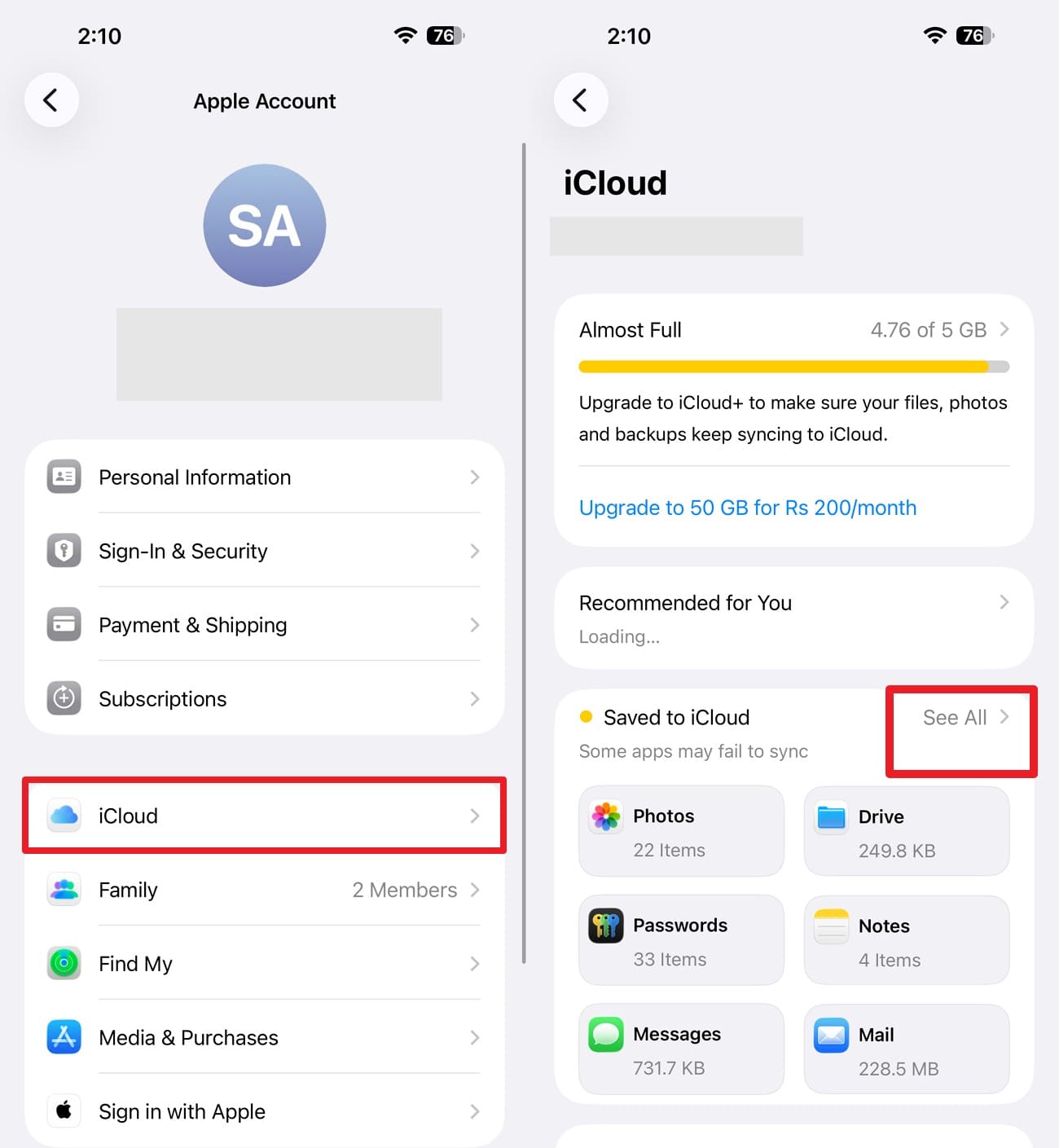
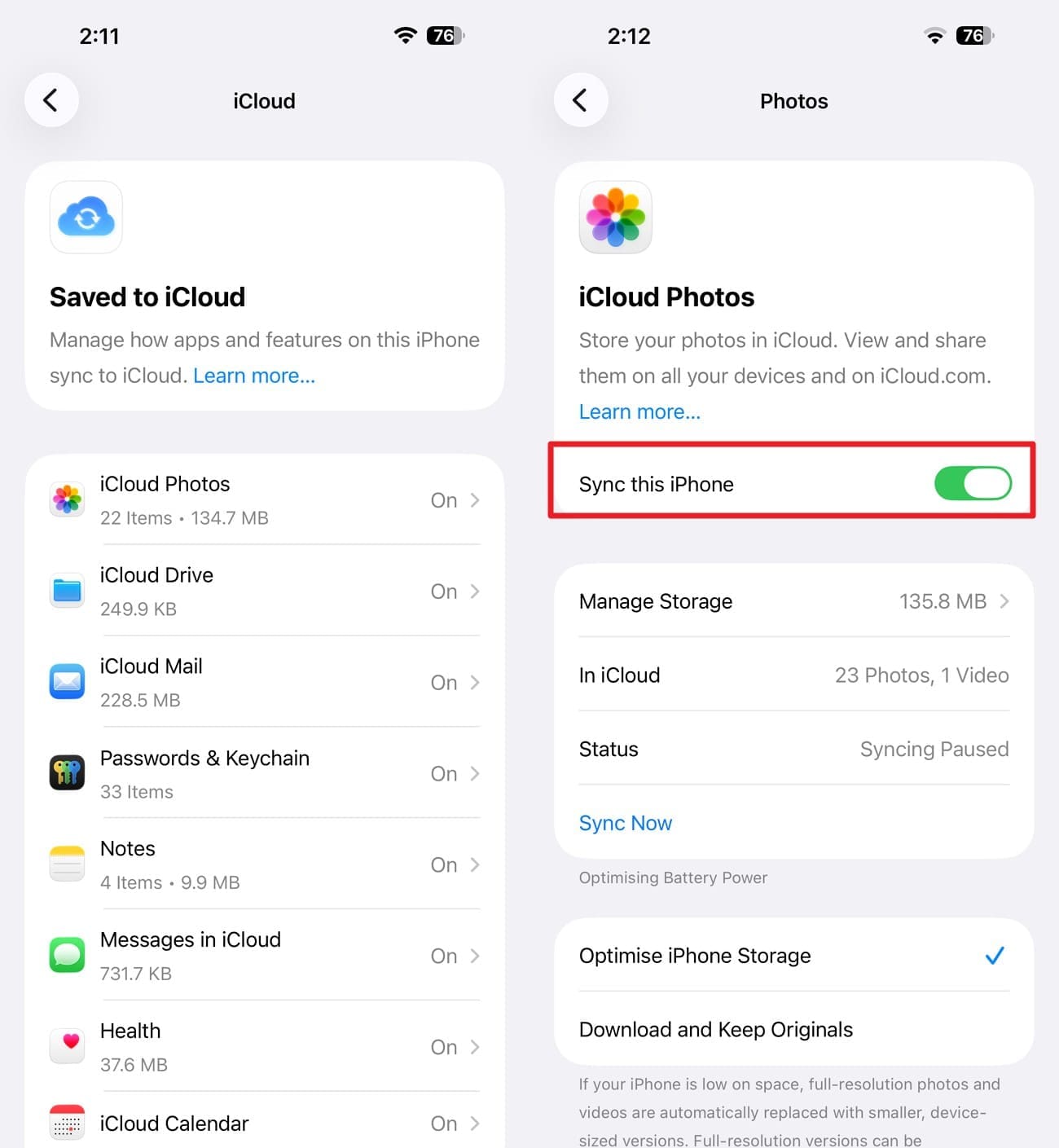
Step 1 Open Settings and choose “Your Name > iCloud > See All” options.
-
Step 2 From the list, turn off the “Sync This iPhone” option for the apps you want to unlink.
Method 2. Sign Out and Use a Different Apple Account
This is the cleanest way to unlink 2 iPhones with the same Apple ID, since it cuts every service at once. The second iPhone then needs its own account, so create one first if it doesn't exist yet. After that, follow the instructions given below to sign out:
-
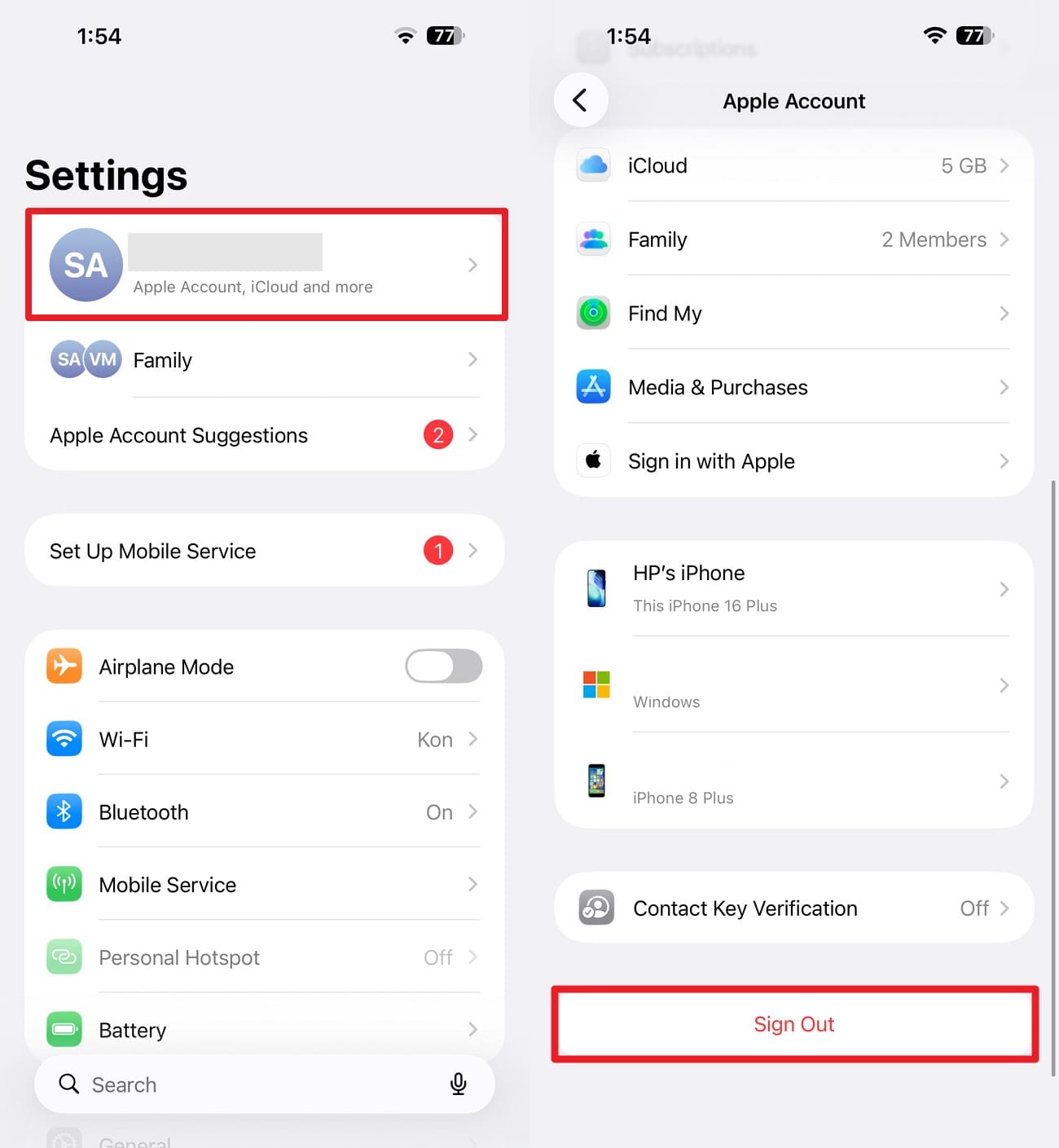
Step 1 In the iPhone settings, choose your name and scroll down to pick the “Sign Out” option. Enter your Apple ID password to turn off Find My. Choose if you want to keep a copy of your data on the device, then tap “Sign Out” to confirm.
Method 3. Remove the iPhone from the Account in Settings
Use this to sign a device out remotely when the iPhone is in someone else's hands. It works from any device already signed into the account. So, if you wonder how to unlink 2 iPhones with the same Apple ID via this method, here are the simple steps:
-
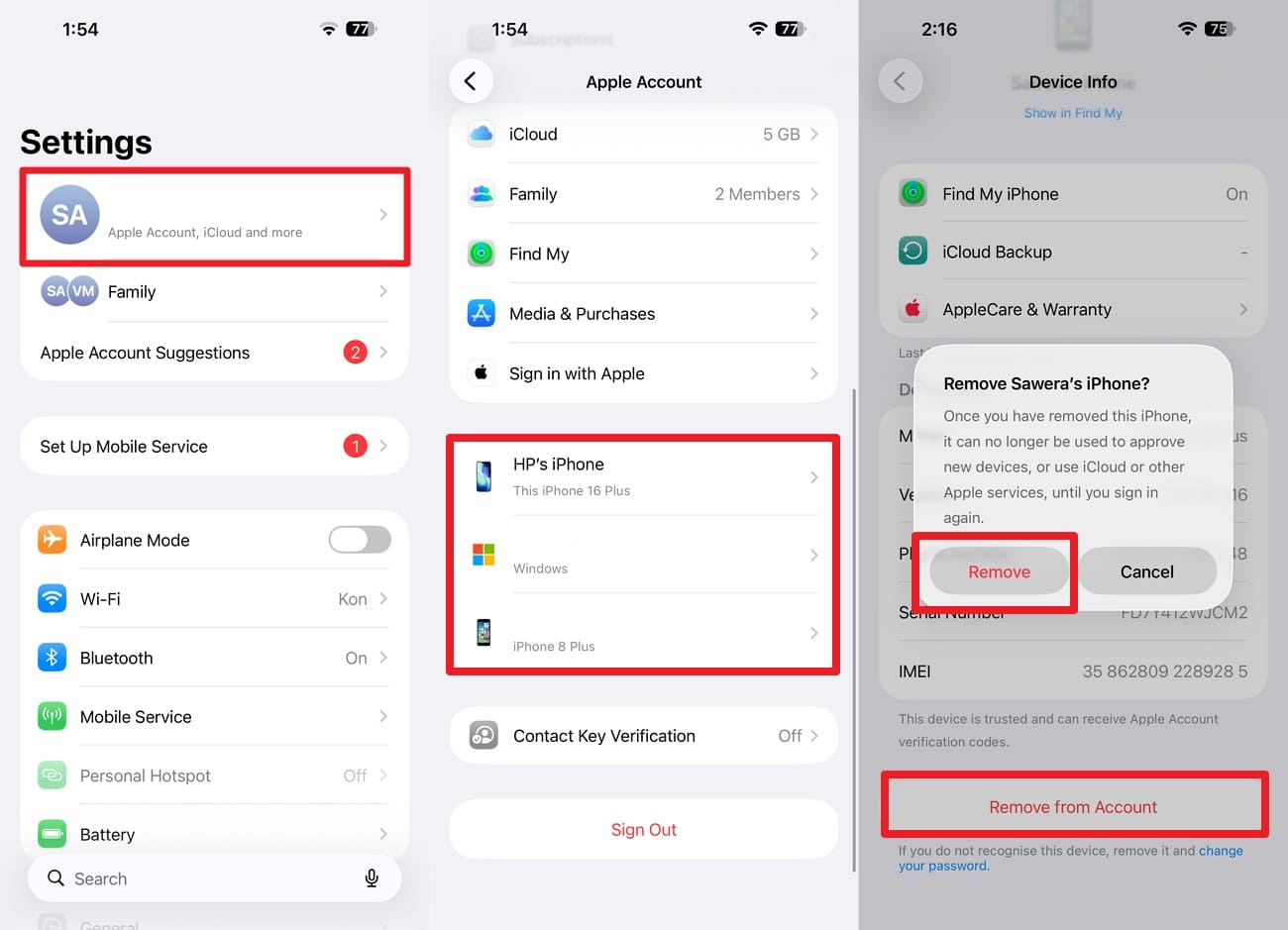
Step 1 Tap “Your Name” > Choose the linked iPhone > Tap “Remove from Account > Remove” and continue. Apple notes the device loses iCloud, Find My, and verification code access immediately.
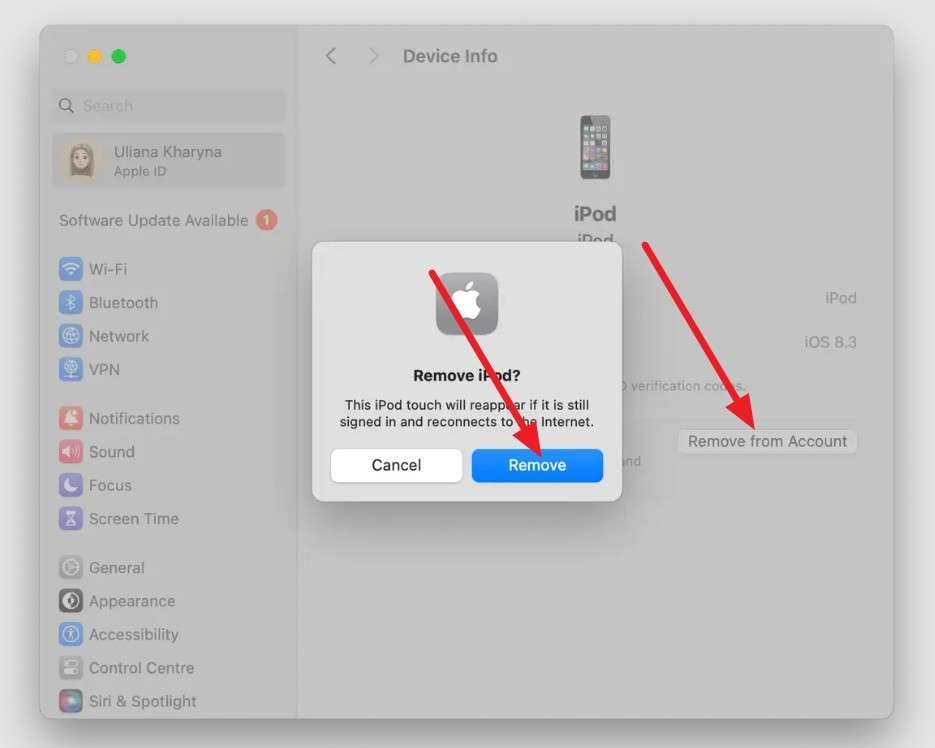
Method 4. Remove the iPhone Using Mac System Settings
The Mac route does the same job when your iPhone isn't nearby. Its device list is in the same place as on iOS, under the “Devices” tab. To unlink 2 iPhones with the same Apple ID on Mac, go through the simple steps given ahead:
-
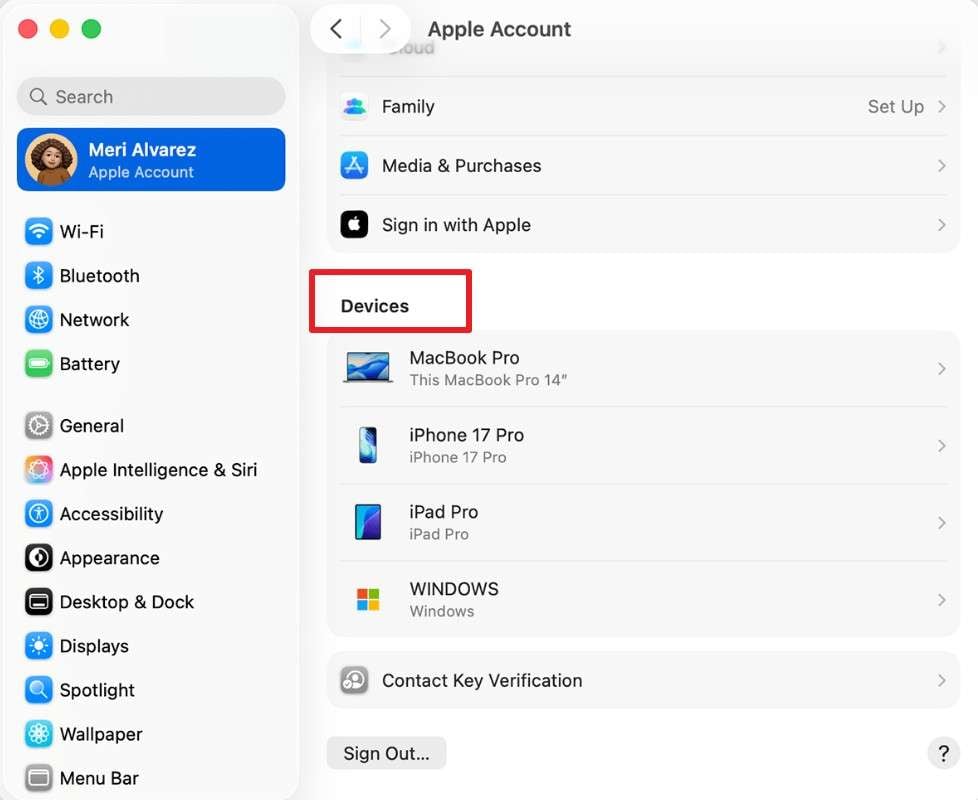
Step 1 Choose the “Apple” menu and pick the “System Settings” option to tap on your name. Scroll down to the “Devices” section and pick the device you want to unlink.
-
Step 2 Here, tap on “Remove From Account” and click on “Remove” to confirm.
Method 5. Remove the iPhone Through the Apple Account Website
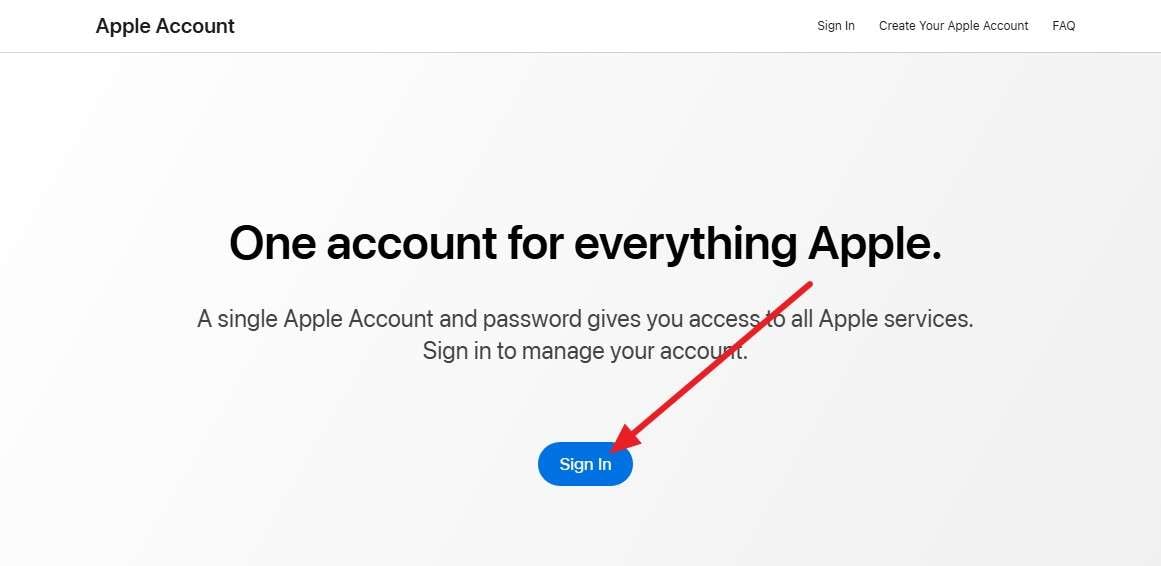
It's suitable when neither Apple device is nearby, since any browser will do. You'll need the account password and a way to receive the verification code. Once these conditions are met, learn how to unlink 2 iPhones with the same Apple ID via these steps:
-
Step 1 Go to account.apple.com and press “Sign In” to log in with the shared account credentials.
-
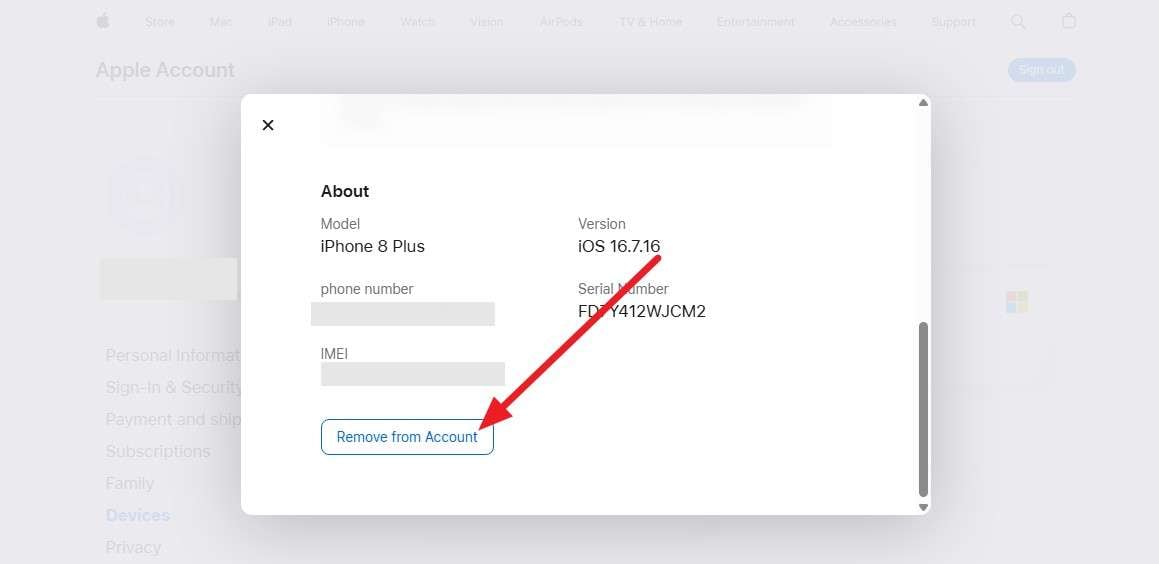
Step 2 Open the “Devices” section, select the iPhone, then choose the “Remove from Account” option.
Method 6. Remove the iPhone Through Find My
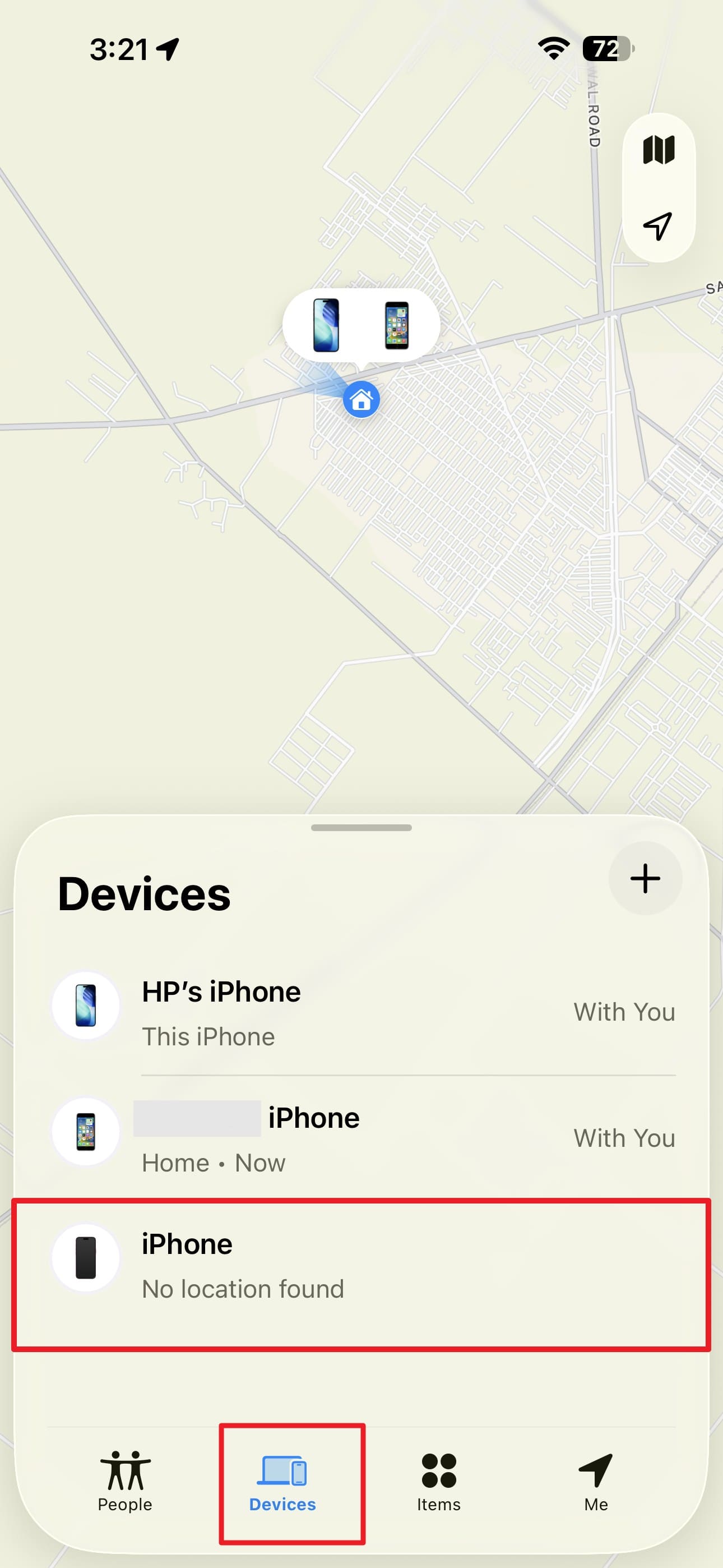
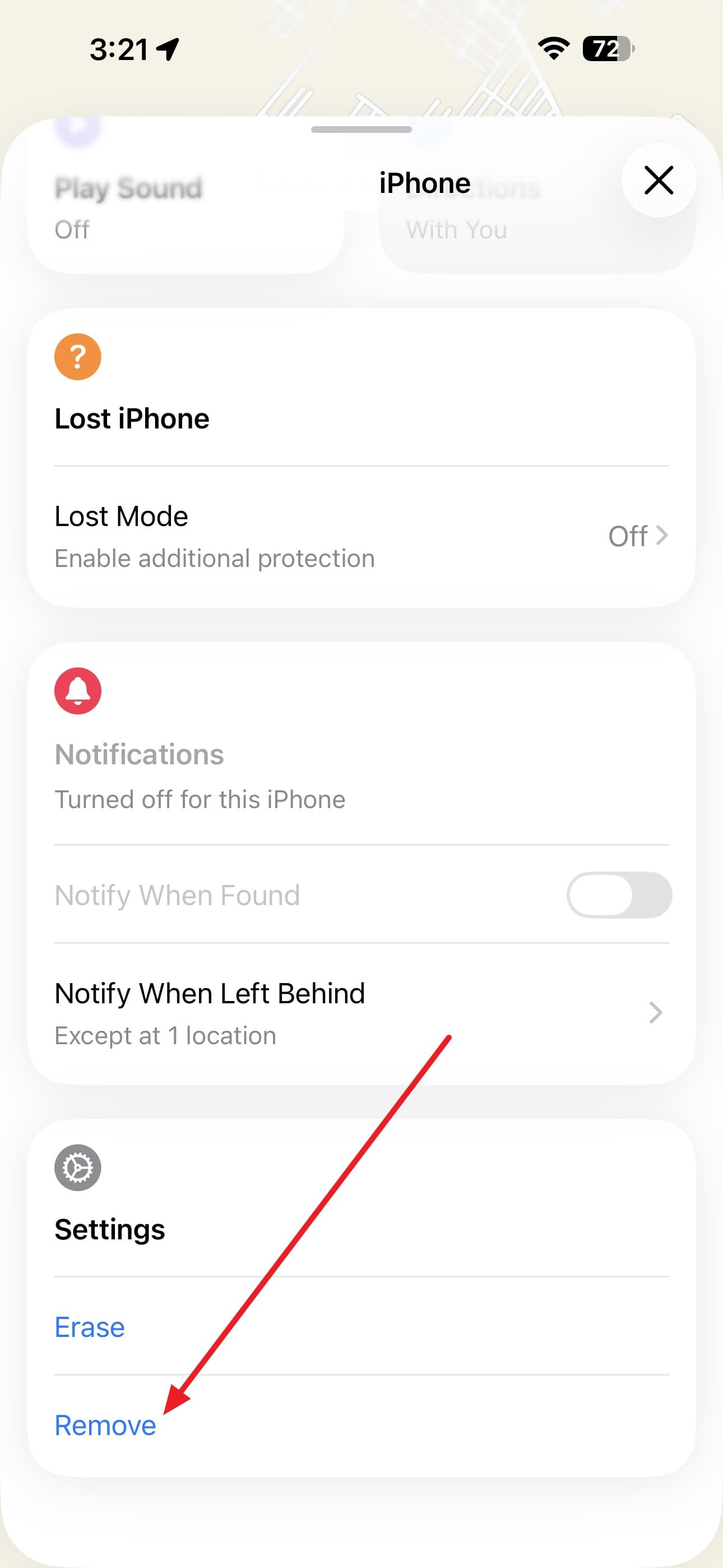
Find My removal also clears Activation Lock, which matters if you're selling the handset on. Apple requires the device to be offline before the option appears. If you want to know how to unlink 2 iPhones with the same Apple ID, follow the directions given below:
-
Step 1 Power off the iPhone you're removing > Open Find My App on the other Phone > Go to “Devices.”
-
Step 2 Tap the offline phone > Swipe up > Select “Remove” and confirm.
Removing a Purchase-Associated Device on Mac or Windows
Purchase association is a separate list from your signed-in devices. After you know how to unlink 2 iPhones with the same Apple ID, remove the purchased linked devices through these steps:
-
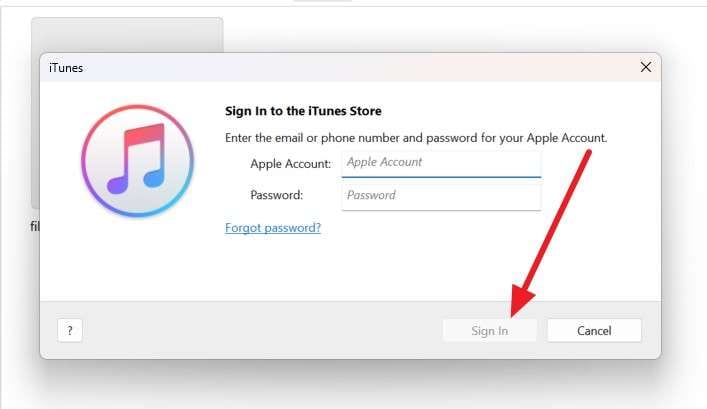
Step 1 Open iTunes on Windows > Click on “Accounts > View My Account > Sign In.”
-
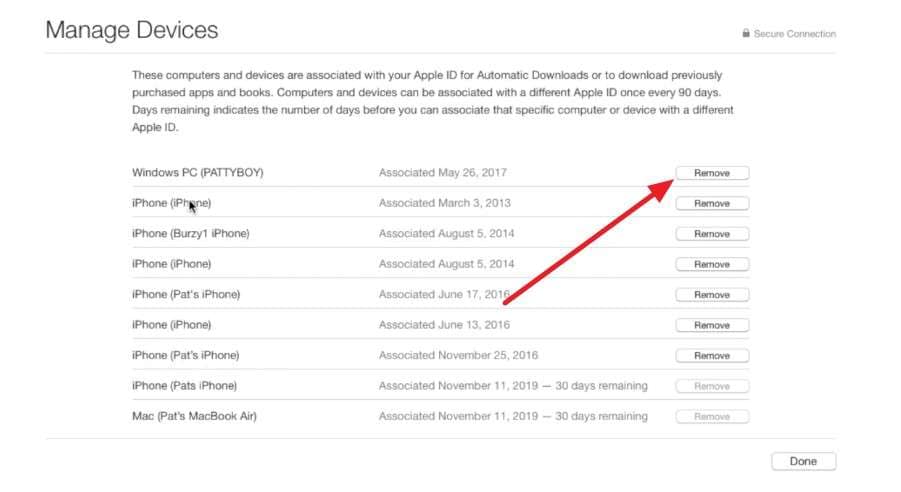
Step 2 Choose the “Manage Devices” option > Choose the Apple account > Tap “Remove.”
Part 3. How to Unlink an iPhone Without the Apple ID Password
Losing the password blocks every method in Part 2, since all of them ask for it. However, the following 3 routes can still work if you want to unlink 2 iPhones with the same Apple ID:
Solution 1. Reset the Apple Account Password
Always try this first because it restores full access to your Apple ID without installing any software. Follow these steps to reset the Apple ID password:
-
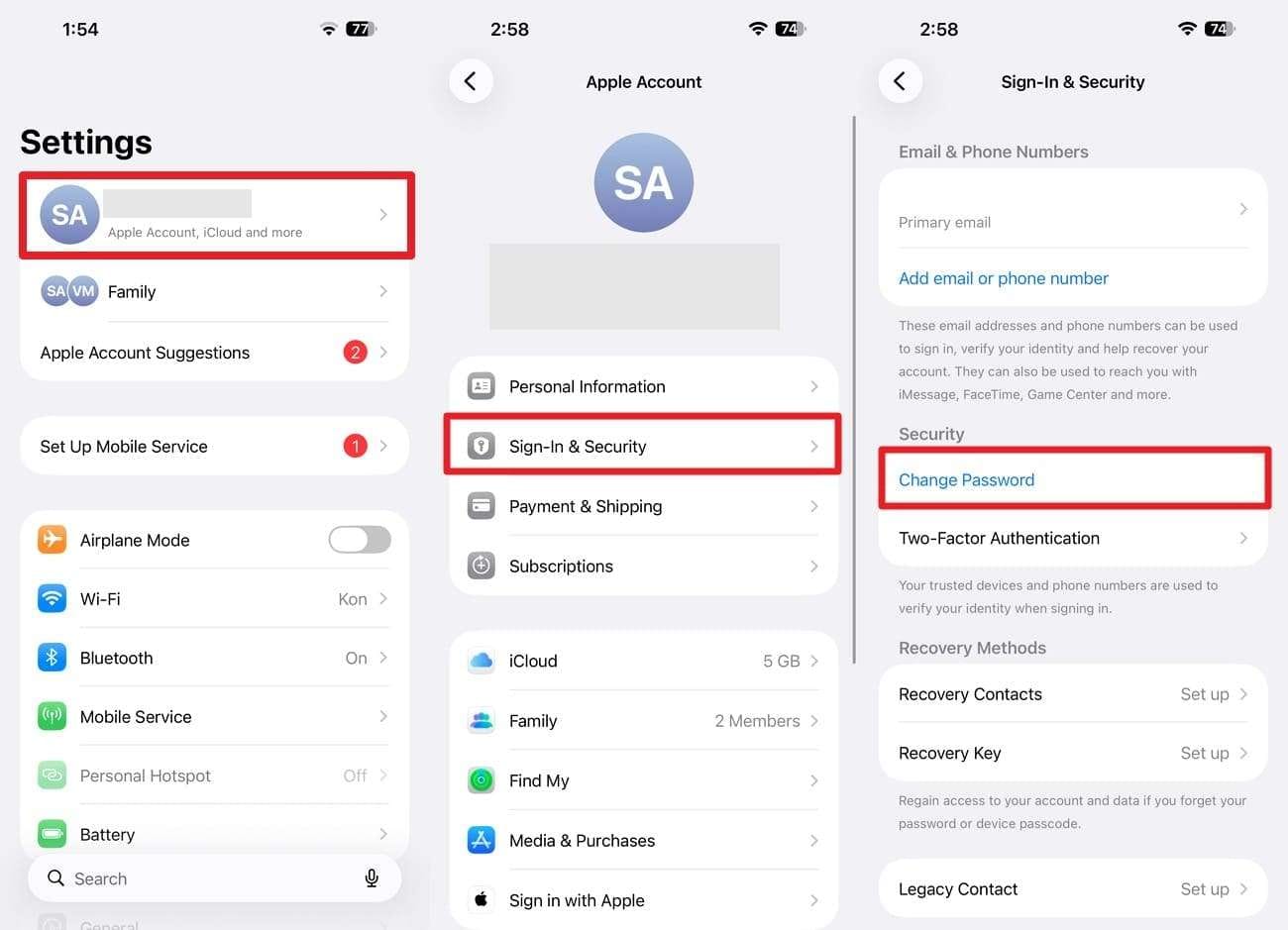
Step 1 On the iPhone, go to “Settings > Your Name > Sign-In & Security > Change Password.”
-
Step 2 Enter the device passcode, set a new password, then confirm it.
Solution 2. Remove the Apple ID with Dr.Fone – Screen Unlock (iOS)
If you still wonder how to unlink 2 iPhones with the same Apple ID, but without a passcode, use Dr.Fone - Screen Unlock (iOS). On iPhone, iPad, and iPod Touch, this tool can remove Apple ID in less than 10 minutes. Moreover, it can also work if the iPhone has enabled Find My. The iPhone needs an active screen lock and two-factor authentication already switched on.
That means it suits a phone you can access. If it's locked, Dr.Fone can unlock the screen first. Furthermore, the tool offers a detailed guide to access Recovery Mode or try DFU Mode if the first one fails. The rest of the removal method is handled automatically, and you just have to pick the System Version. Unlike other methods, it asks for codes and shows clear prompts to ensure the process is legitimate.
Guide to Detach an Apple Account Using Dr.Fone
Leave the iPhone plugged in from start to finish, and follow the mentioned guide to unlink 2 iPhones with the same Apple ID:
 Unlock iPhone/iPad passcode in minutes.
- Remove Face ID, Touch ID, MDM lock, and screen lock.
- Bypass iCloud Activation Lock easily.
- Support all iOS versions and devices.
- Simple steps, no technical skills needed.
-
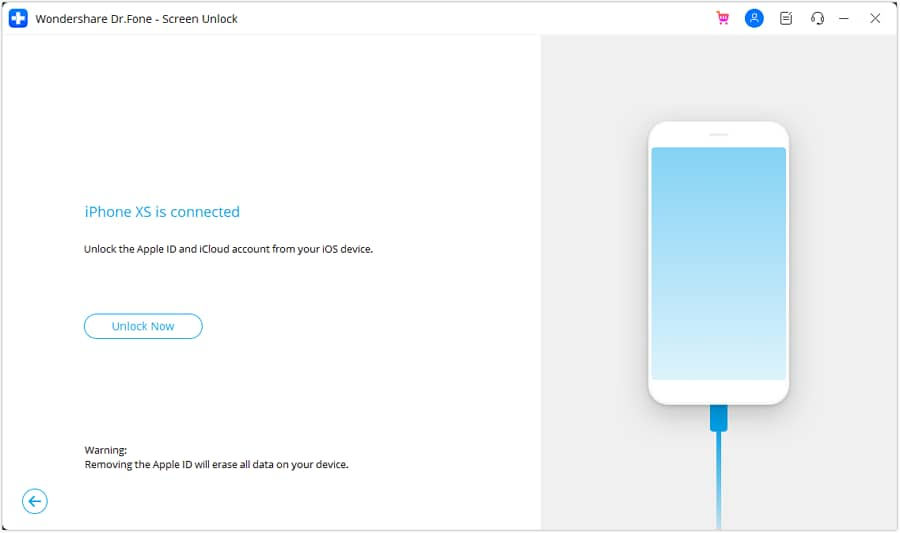
Step 1 Reach the Remove Apple ID Tool
On Dr.Fone’s Screen Unlock tool for “iPhone,” choose the “Remove Apple ID” feature and click the “Unlock Now” button.
-
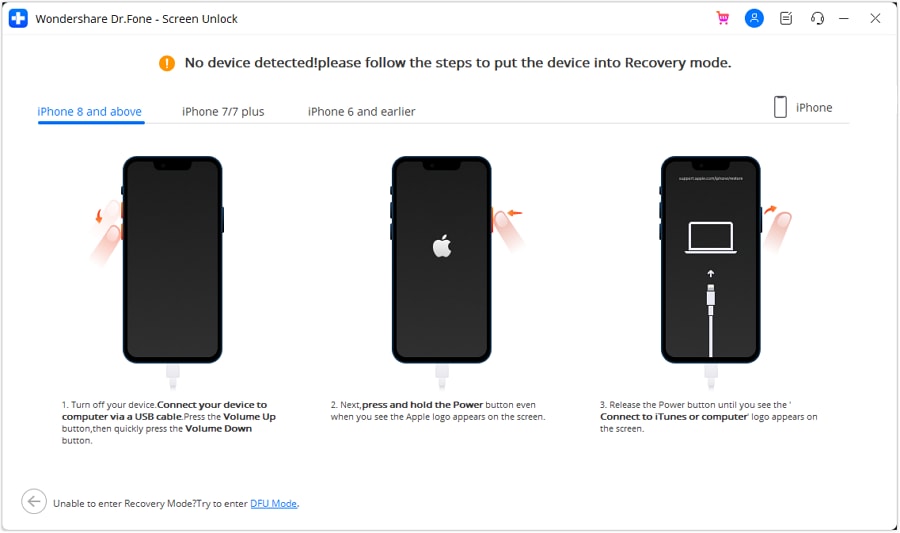
Step 2 Confirm Screen Lock and Two-Factor Are On
Answer the two prompts confirming a screen lock and two-factor authentication are active and click “Yes.” The guided instructions will then walk your iPhone into Recovery Mode.
-
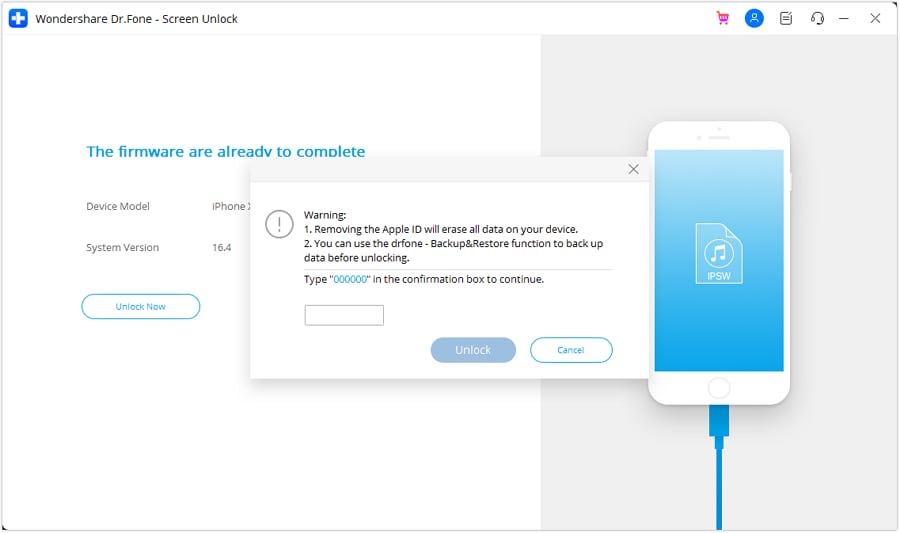
Step 3 Download the Firmware and Authorize Removal
Pick your system version to download the compatible firmware, then tap “Unlock Now.” Enter the confirmation code in the field shown, then choose the “Unlock” button.




Solution 3. Ask the Previous Owner to Remove the iPhone
For a secondhand iPhone still carrying someone else's account, the seller can clear it in under a minute. Here is how you can ask them to unlink 2 iPhones with the same Apple ID:
-
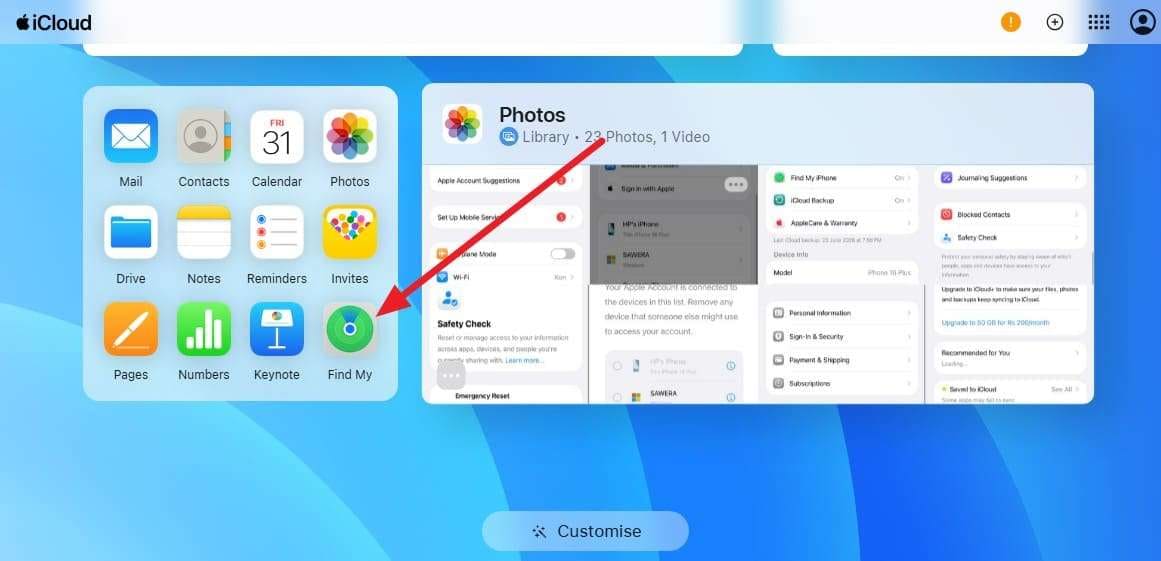
Step 1 Ask them to sign in at account.apple.com or icloud.com/find on any device.
-
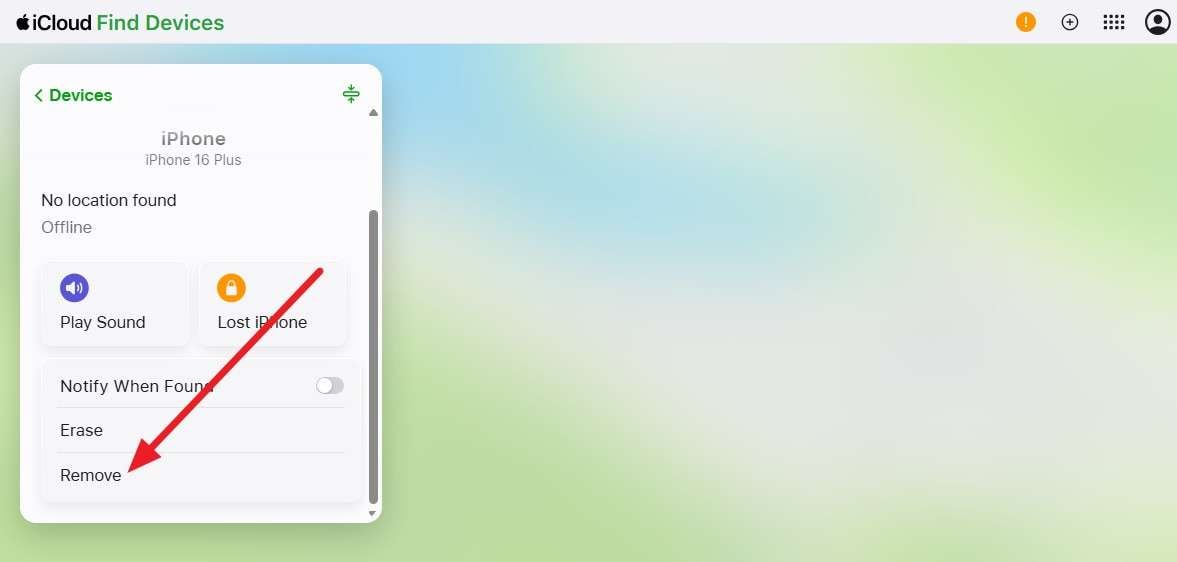
Step 2 Have them tap the iPhone, then select “Remove” to continue. This lifts Activation Lock and frees the device for your own account.
Part 4. What Happens After Unlinking Two iPhones?
Separation affects each service differently after you have learned how to unlink 2 iPhones with the same Apple ID. This table covers what actually changes on the iPhone you removed:
| Service | Correct Information |
|---|---|
| iCloud Photos | Stops syncing; you choose whether to keep a local copy. |
| Messages and FaceTime | New conversations stay private once the shared address is removed. |
| Contacts and Calendars | Stop updating across devices; existing entries can remain. |
| App Store Purchases | Previously installed apps stay on the device, while future downloads depend on the Apple ID currently signed in. |
| Subscriptions | Continue billing the original Apple ID account unless transferred or canceled. |
| Find My | The iPhone is removed from the shared device list only after it is properly removed from the Apple ID and Find My is disabled. |
| iCloud Backups | Existing backups remain associated with the original Apple ID account. |
Part 5. How to Share Purchases Without Using the Same Apple ID
Family Sharing is what most people actually need instead of sharing one Apple ID. So, after you unlink 2 iPhones with the same Apple ID, follow the given points to share purchases:
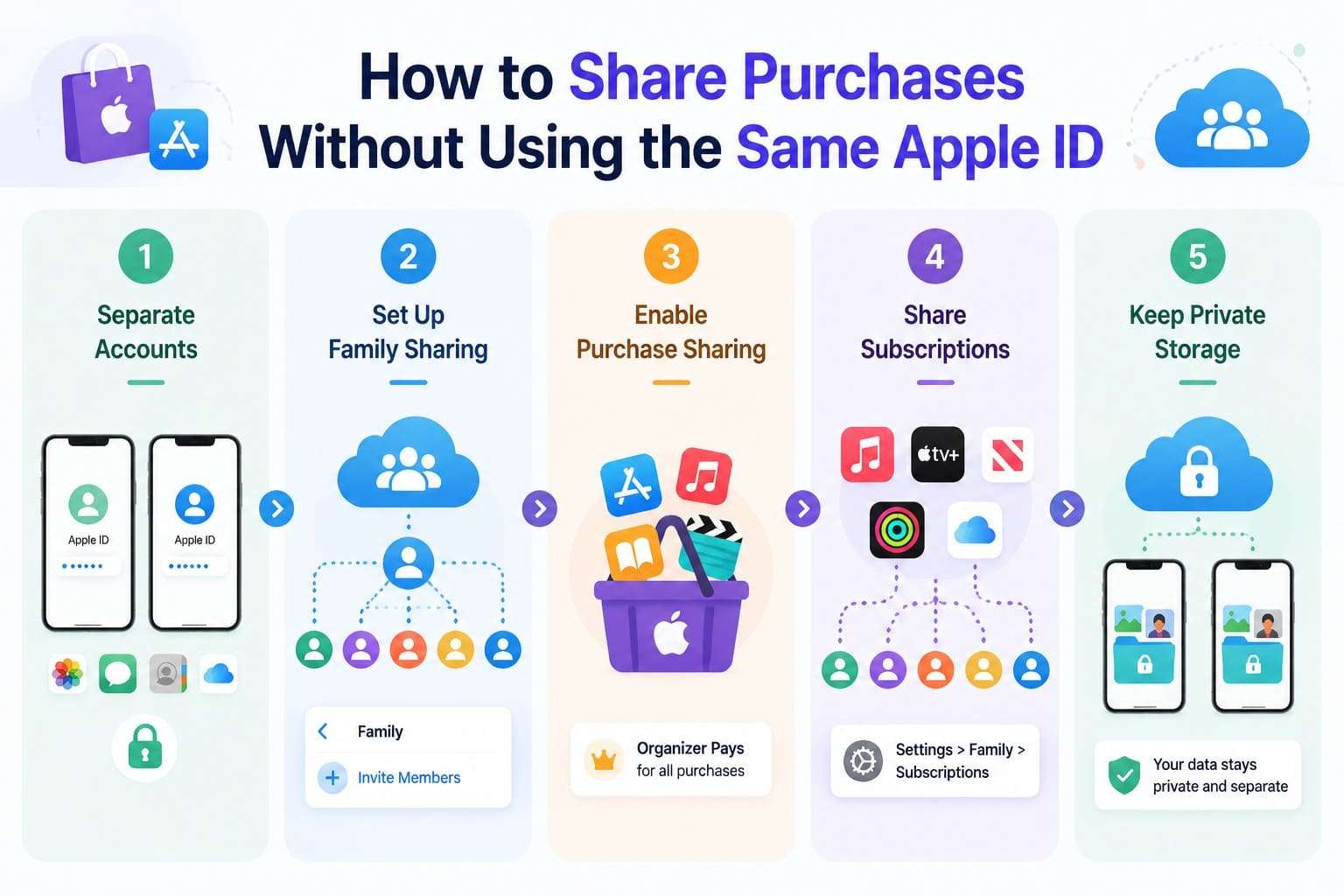
- Separate Accounts: Create a unique Apple account for every individual user on their own phone. Every person keeps all personal photos, messages, contacts, and backups completely private.
- Set Up Family Sharing: Apple supports up to six people in one group. One adult account holder acts as organizer and initiates the main family group. Open account settings, tap Family, and send direct invites to 5 additional members.
- Enable Purchase Sharing: Enable shared purchases so group members access paid apps, games, music, and movies. The designated family organizer pays for all new transactions made across the group.
- Share Subscriptions: Apple media subscriptions distribute to all group accounts automatically once you activate them. Extra iCloud storage space requires one additional setup step in Settings > Family> Subscriptions.
- Keep Private Storage: Shared cloud storage plans do not mix personal content or private user data. Every member retains full control over their individual library on their own device.
Conclusion
Two iPhones on one account aren't linked by a single switch, which is why you need to know how to unlink 2 iPhones with the same Apple ID. Work down the methods in Part 2 until the overlap stops, then move both people onto their own accounts with Family Sharing. If you want to do so without a password, Dr.Fone - Screen Unlock (iOS) remains the suitable choice.
FAQ
-
1. Can two iPhones use the same Apple ID at the same time?
Yes, Apple allows it deliberately for one person with several devices. It becomes a problem when two different people share the login, since messages, photos, and location all cross over. There's no device limit that stops you, only the practical mess it creates. -
2. How do I stop two iPhones from sharing photos?
Switch off iCloud Photos on the device you want private: Go to Settings, tap your name, then iCloud > Photos. Choose whether to keep a local copy when prompted, since removing the sync doesn't delete what's already there. -
3. How do I stop messages from appearing on both iPhones?
Open Settings, tap Apps, then Messages, and select “Send & Receive.” Untick the shared email address or phone number on the device that shouldn't receive them, then repeat the process in FaceTime. -
4. Will unlinking an iPhone delete its data?
Removing a device from your account doesn't erase it, though signing out prompts you to choose what stays locally. Third-party removal tools are the exception, since most wipe the iPhone completely. It is recommended to back up before any method that asks you to enter Recovery Mode.
 Add Wondershare Dr.Fone as a preferred source on Google